To get help in Windows 11, open Start, type Get Help, and open the app, then describe the problem or paste the exact error code. Get Help answers with Microsoft instructions, runs an automated troubleshooter when one matches, and offers Contact Support when the self-help steps are not enough.
For a setting or error you can name, Windows Search (Windows + S) is quicker still. When someone you trust needs to see the screen, use Quick Assist (Ctrl + Windows + Q). When Windows itself is damaged, use the recovery tools under Settings > System > Recovery.
Which help method should you use first?
Match the help option to the problem. The table lists every built-in route covered in this guide.
| Help option | Best used for | How to open it |
|---|---|---|
| Get Help app | Guided fixes, troubleshooters and Microsoft support | Start, then search Get Help |
| Windows Search | Finding a setting, app or error explanation | Windows + S |
| F1 key | Help for the app or window you are using | Press F1 in the active app |
| Windows troubleshooters | Audio, Bluetooth, camera, network, printer and update faults | Get Help, or Settings > System > Troubleshoot |
| Quick Assist | Remote help from a person you trust | Ctrl + Windows + Q |
| Microsoft Support website | Official articles, chat and account or billing help | support.microsoft.com in a browser |
| Feedback Hub and community forums | Reporting bugs and asking other users | Windows + F for Feedback Hub |
| Recovery tools | Startup failures and badly damaged system files | Settings > System > Recovery |
Method 1: Open the Get Help app (built-in support tool)
Get Help is Microsoft’s built-in support app for Windows 11. Microsoft describes it as a central hub for tutorials, FAQs, community answers and direct help from Microsoft support staff. It works with a Microsoft personal account or a work or school account.
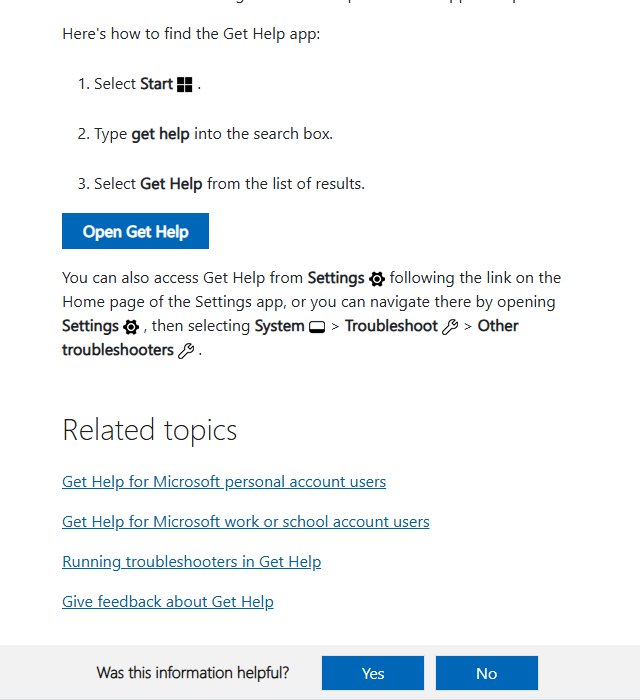
How to open the Get Help app
- Select Start.
- Type get help into the search box.
![How to Get Help in Windows 11 [Fast]](https://techdows.com/wp-content/uploads/2026/07/Windows-Search-Taskbar.png)
- Select Get Help from the results.
- Describe one problem in a short sentence, or paste the full error code.
- Follow the suggested steps, or select Start on a recommended troubleshooter.
Get Help can also be reached from Settings: open System > Troubleshoot > Other troubleshooters, or use the help link on the Settings Home page.
Be specific in the search box. Bluetooth headphones connect but have no sound returns far better results than Bluetooth.
What does the Get Help app do?
- Show Microsoft support articles that match the description.
- Run diagnostic troubleshooters that check the system configuration.
- Show community answers for the same problem.
- Let personal account users sign in and submit a support request.
Method 2: Contact Microsoft support via chat or call
If the suggested steps do not fix the problem, Get Help may show Contact Support.
- Sign in with your Microsoft account when asked.
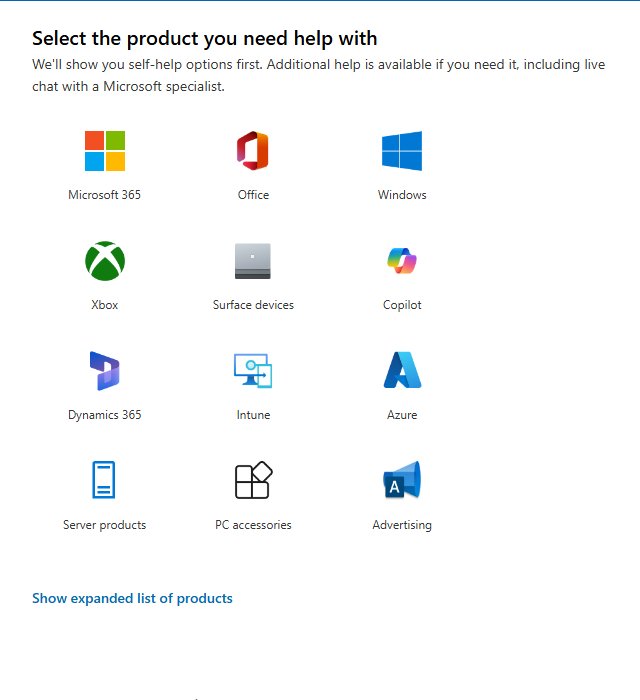
- Select the product or Windows category that matches the problem.
- Describe the issue and confirm the suggested category.
- Choose one of the support options offered to your account.
The options depend on the product, account, region, time of day and type of problem. They can include live chat, a callback, community support or more self-help steps. A live agent is not offered for every Windows question.
If Get Help will not open, use the Microsoft Support contact page in a browser. It asks you to sign in, then shows self-help first and live chat with a Microsoft specialist when that is available.
Security warning: Microsoft does not make unsolicited calls or show pop-ups asking you to phone support. Close any page that claims the PC is infected and gives a phone number.
Method 3: Use the Windows Search box (instant help discovery)
Windows Search is the fastest way to reach a setting, app or support result when you can name what is wrong.
- Press Windows + S, or select the Search box on the taskbar.
- Type the feature or problem.
- Select the matching setting, app or web result.
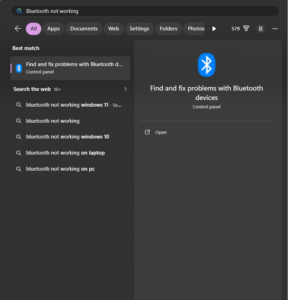
Searches that work well:
Bluetooth not workingNo soundPrinter offlineWindows Update troubleshooter
When Windows shows an error code, search for the complete code instead of a general description. The code usually points to the exact component that failed.
Method 4: Use the F1 key (traditional help shortcut)
F1 is the traditional help shortcut. Press it inside an app and that app opens its own help, if it has one. Many Microsoft apps, including Office apps, open their help pane or support page this way.
On the desktop or in some Windows windows, F1 opens a web search for help on that part of Windows instead of a local help file. If help pages keep opening on their own, a stuck F1 key or a keyboard macro is the usual cause; see the FAQ below.
Method 5: Use Windows 11 troubleshooters (automatic fix tools)
Troubleshooters are diagnostic tests that check the system configuration and fix common faults automatically. Windows 11 runs most of them through the Get Help app.
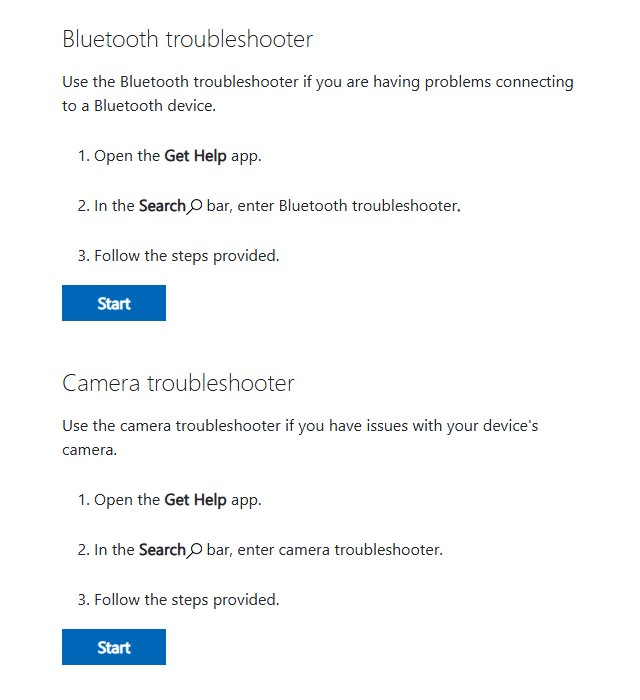
Run a troubleshooter in the Get Help app
- Open the Get Help app.
- In the search bar, enter the troubleshooter name, such as
audio troubleshooter. - If asked to consent to diagnostics, select Yes.
- Wait for the scan to finish.
- Follow the prompts until the issue is fixed, and restart if asked.
| Troubleshooter | Use it when | Type this in Get Help |
|---|---|---|
| Audio | Sound does not play or the microphone fails | audio troubleshooter |
| Bluetooth | A Bluetooth device will not connect | Bluetooth troubleshooter |
| Camera | The webcam is not detected or shows black | camera troubleshooter |
| Network and internet | Wi-Fi or Ethernet will not connect | connect to network and internet |
| Printer | A printer is offline or will not print | printer troubleshooter |
| Program compatibility | An older app will not run on Windows 11 | Run the Windows Program Compatibility troubleshooter |
| Windows Update | Updates fail to download or install | Windows Update troubleshooter |
Open troubleshooters in Windows 11 Settings
- Open Settings.
- Go to System > Troubleshoot > Other troubleshooters.
- Select Run next to the affected component.
Windows hands most of these over to Get Help to finish the diagnosis. The full list of Windows troubleshooters covers each one, and the Windows Update troubleshooter has its own steps.
Method 6: Quick Assist remote help in Windows 11
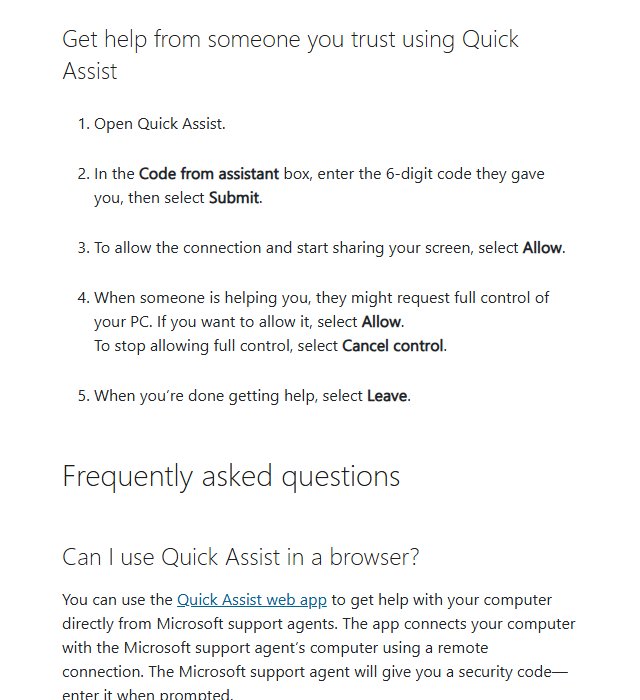
Quick Assist lets a trusted person see your screen and, if you allow it, control the PC. It suits a friend, family member or IT technician who needs to see the problem directly. If the app is missing, install Quick Assist from the Microsoft Store; the Quick Assist download page links to the official listing.
Receive help through Quick Assist
- Press Ctrl + Windows + Q, or search for Quick Assist from Start.
- Ask the helper to select Help someone and read you the 6-digit code.
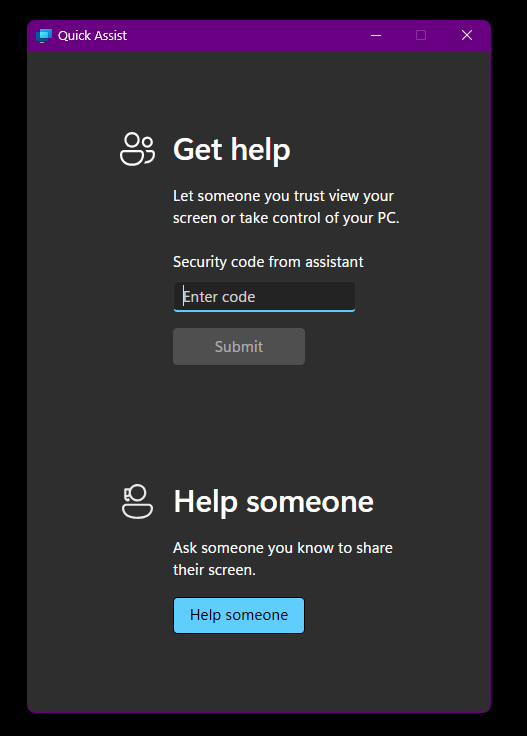
- Enter it in the Code from assistant box and select Submit.
- Select Allow to share your screen.
- If the helper requests full control, select Allow only if you trust them.
- Select Cancel control to take control back, and Leave to end the session.
Microsoft’s advice is to let a helper connect only when you started the contact yourself. Never open Quick Assist because of an unexpected call, email or pop-up.
Method 7: Microsoft online support (official knowledge base)
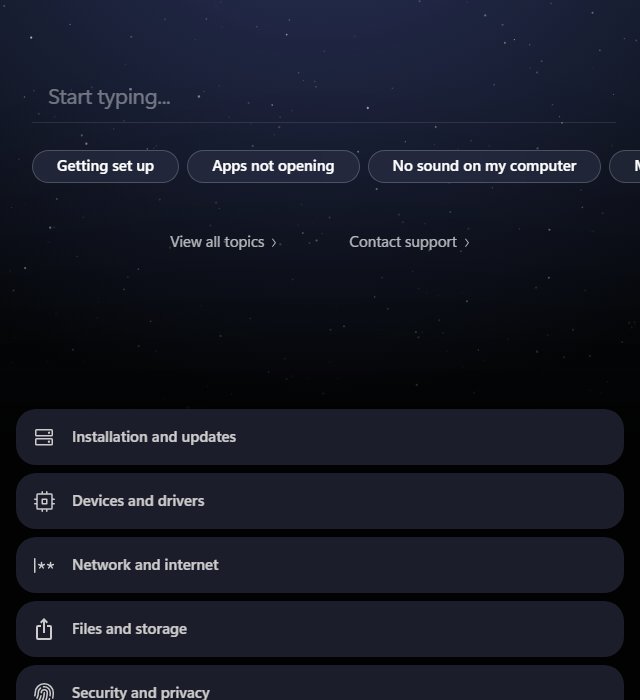
The Windows help and learning site holds Microsoft’s official articles on installation, updates, drivers, networking, security, recovery, storage and hardware. The Windows help and support page groups the most common questions, such as no sound, apps not opening and updating Windows.
Get help through Windows Copilot or AI assistants
Many Microsoft support articles also show a Get help with Copilot box with suggested questions about the article’s topic. You can type your own question in the Copilot app in Windows 11 as well. Check any AI answer against the official article before changing system settings.
Method 8: Community support (forums, Reddit, Feedback Hub)
Other users often know fixes for rare hardware and app problems.
- Microsoft Community and the device maker’s support forum suit questions about a specific model.
- Feedback Hub (press Windows + F) sends a bug report or suggestion to the Windows team. It does not give a personal reply, but it is the official route for reporting a Windows bug.
Before posting a screenshot or log, hide email addresses, licence keys, BitLocker recovery keys, serial numbers and IP addresses.
Method 9: In-app help for Windows tools and Microsoft apps
Most Windows tools carry their own help. Settings pages show related support links at the bottom of the page. Office apps have a Help tab, and many Store apps have a help or feedback item in their settings. Some Windows tools have their own guides, such as help with File Explorer.
Method 10: Accessibility help tools in Windows 11
If the problem is reading, hearing or using the PC, start with Settings > Accessibility. It holds Narrator, Magnifier, text size, contrast themes, captions and the mono audio switch.
- Press Ctrl + Windows + Enter to turn Narrator on or off.
- Press Windows + Plus (+) to start Magnifier.
- Press Windows + U to open the Accessibility settings.
Other ways to get help in Windows 11
Get Started app in Windows 11
The Get Started app explains Windows 11 features and helps finish device setup, including Microsoft accounts, OneDrive, phone integration and personalisation.
- Open Start.
- Search for Get Started.
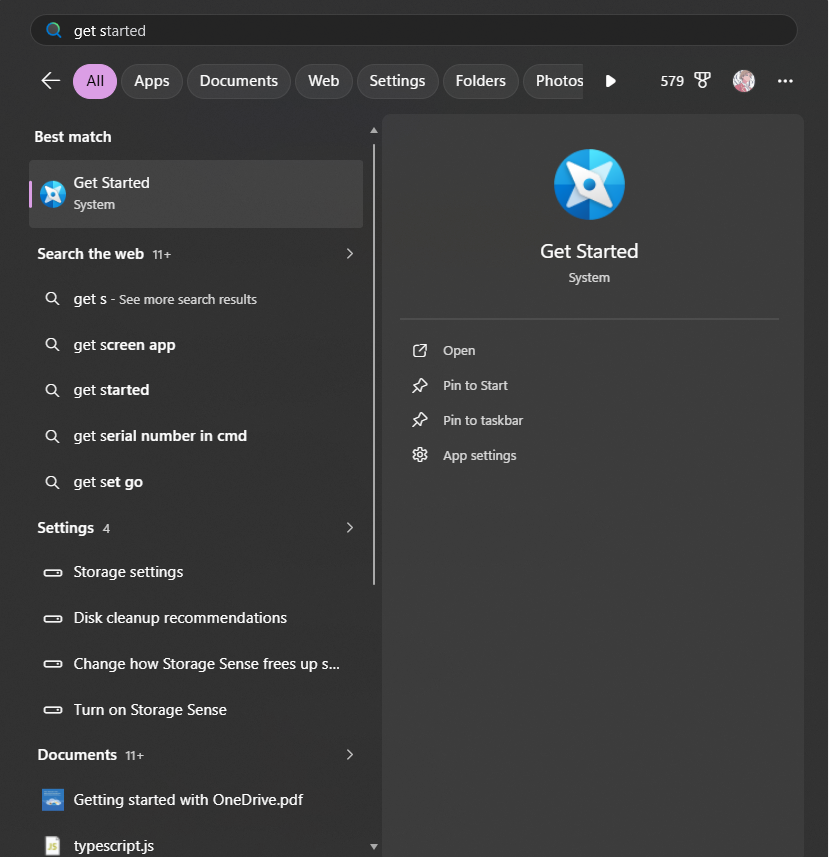
- Open the app and select the area you want to learn about.
Get Started is for learning features. For errors, failed hardware or broken components, use Get Help or a troubleshooter instead.
How to get help for common problems in Windows 11
| Problem | Fastest help route |
|---|---|
| No sound or a dead microphone | Audio troubleshooter in Get Help |
| Bluetooth device will not pair | Bluetooth troubleshooter in Get Help |
| No internet connection | Network and internet troubleshooter |
| Update fails with an error code | Windows Update troubleshooter, then search the full code |
| Activation or licence error | Get Help, then Contact Support |
| Microsoft account or billing problem | Microsoft Support contact page |
| PC will not start | Windows Recovery Environment, Startup Repair |
| A relative needs hands-on help | Quick Assist |
How to get better Windows help, faster
Whoever helps you, the same details shorten the fix. Include:
- The complete error message or error code.
- Your Windows 11 version and OS build.
- The make and model of the PC or device.
- What changed just before the problem began: an update, driver, app or new hardware.
- The exact steps that reproduce the problem.
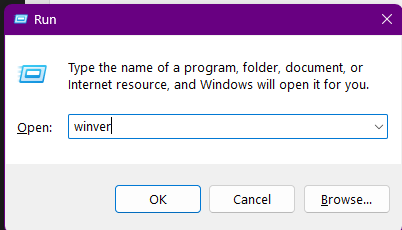
Press Windows + R, type winver, and press Enter to see the version and build.
Windows 11 still not working? Use the recovery tools
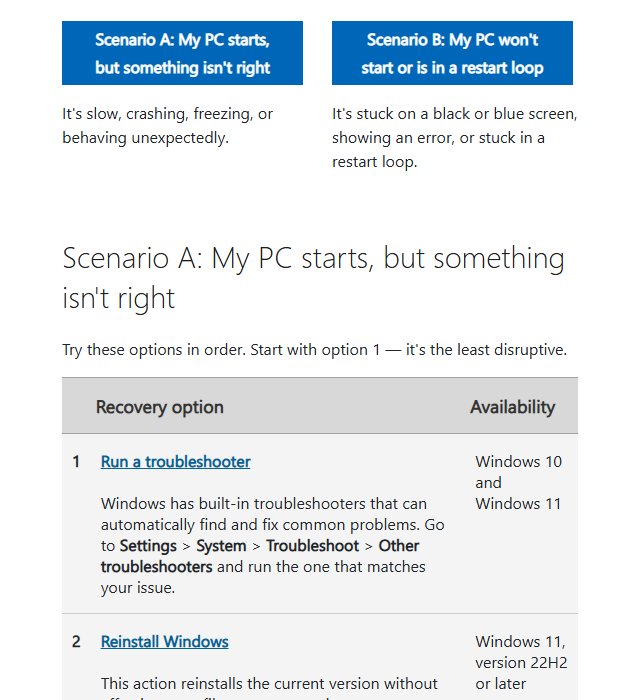
Use recovery tools only after the methods above fail. Back up important files first, and make sure you can reach the BitLocker recovery key.
Reinstall Windows through Windows Update
This reinstalls the current Windows 11 version and keeps apps, files and settings.
- Open Settings > System > Recovery.
- Find Fix problems using Windows Update.
- Select Reinstall now and follow the prompts.
The option may not appear on managed PCs.
Use System Restore in Windows 11
System Restore reverses recent driver, registry and app changes without deleting documents.
- Search for Create a restore point and open it.
- Select System Restore.
- Choose a restore point made before the problem began.
- Review the affected programs and finish the restore.
It works only if a suitable restore point exists.
Reset this PC
- Open Settings > System > Recovery.
- Select Reset PC.
- Choose Keep my files or Remove everything.
- Choose cloud download or local reinstall, and review the changes before you continue.
Keep my files keeps personal files but removes installed apps and resets many settings.
Windows 11 won’t start: use Windows Recovery Environment
Hold Shift and select Restart on the sign-in screen to open the Windows Recovery Environment. If Windows never reaches the sign-in screen, it normally starts automatic repair after repeated failed starts. Then select Troubleshoot > Advanced options for Startup Repair, System Restore, Uninstall Updates and safe mode. The F8 safe mode option can also be turned back on.
Get help in Windows 11 FAQ
What is the quickest way to get help in Windows 11?
Open Start, search for Get Help, and describe the issue. The app suggests steps, runs a troubleshooter or shows Microsoft support options.
Is the Windows 11 Get Help app free?
Yes. The app, its articles and its troubleshooters are free. Some contact options depend on the product, warranty, subscription, account or region.
Can I call Microsoft for Windows 11 help?
Microsoft does not publish one general phone line for Windows. Start in Get Help or on the contact page; when a call is right for your issue, it is offered there as a callback.
What is the difference between Get Help and Quick Assist?
Get Help gives instructions, troubleshooters and Microsoft support options. Quick Assist lets another person view or control your PC after you enter their code and approve the connection.
Why does a help page keep opening by itself?
A stuck or repeatedly pressed F1 key opens help again and again. Check the key for debris, try another keyboard, and check whether a macro or key-remapping tool is sending F1.
Why is Contact Support missing from Get Help?
Get Help shows self-service steps first. Direct support depends on the issue, account, product, region and availability. Use the Microsoft Support contact page if the app offers nothing suitable.
Should I reset Windows whenever troubleshooting fails?
No. Try Get Help, the matching troubleshooter, Windows Update, driver updates, System Restore and the Windows Update reinstall first. Reset this PC removes apps and is the last resort.





How to Get Help with File Explorer in Windows 11/10 - Techdows
[…] Settings pages also carry a Get help link that explains the setting you are looking at. For a wider tour of every Windows help channel, see how to get help in Windows 11. […]
Help with Paint in Windows 11/10 - Techdows
[…] reach beyond Paint, such as Start or Settings failing, are easier to solve once you know how to get help in Windows 11 through its own support […]