Start with PC Health Check, which Microsoft ships for Windows 11 and Windows 10, then use your PC maker's update tool and the Intel, NVIDIA or AMD driver app for your hardware.
This hub matches each job to the right free utility: drivers, hardware monitors, peripheral and printer software, runtimes, archives, backups, bootable USB drives and malware scanners.
How to use PC Health Check on Windows 11 and 10
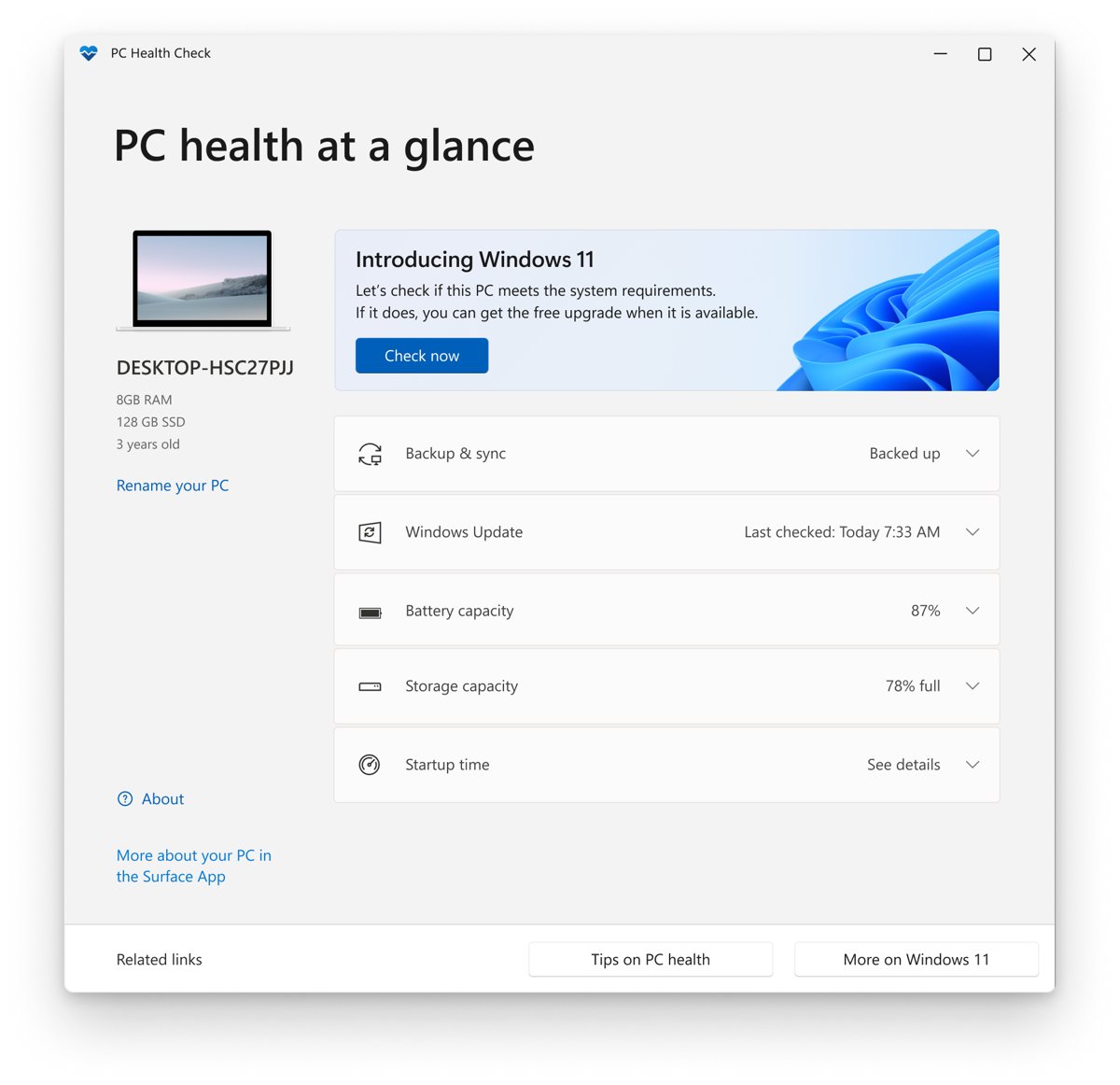
PC Health Check is Microsoft's free app that reports Windows Update status, battery capacity, storage use, startup time and Windows 11 eligibility in one window. If it is missing, you can get the PC Health Check app from Microsoft's aka.ms link.
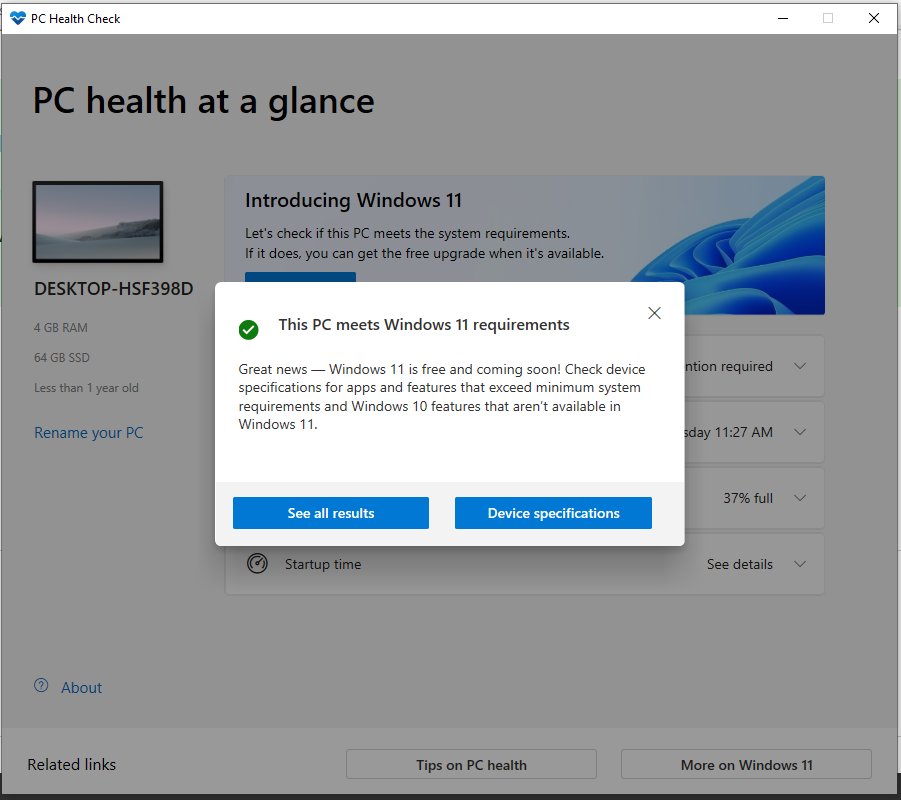
- Type PC Health Check in the search box on the taskbar and select the app.
- Install the update if the app offers one.
- Select Check now under the Windows 11 eligibility card on a Windows 10 PC.
- Select Open Windows Update if the app says the device needs updates.
- Expand the storage card and select Manage storage settings to turn on Storage Sense.
- Select Manage your startup programs to trim apps that slow the startup time.
Battery capacity appears only on devices older than three years. Microsoft ended free Windows 10 updates on October 14, 2025, so the eligibility check matters most on older PCs.
Which update tool for which PC brand
Windows Update installs most drivers, but the PC maker's app also delivers BIOS, firmware and model-specific utilities. Use the tool that matches the badge on your laptop or desktop.
| PC brand | Driver and BIOS update tool | Other maker utilities |
|---|---|---|
| Dell | Dell SupportAssist for Windows for home PCs, or Dell Command Update for business models | Dell Display Manager for monitors and SupportAssist OS Recovery for a PC that will not start |
| HP | HP Support Assistant, with a driver and firmware walkthrough for its Updates tab | HP Image Assistant for business PCs, which checks a whole image against HP's driver list |
| Lenovo | Lenovo Vantage on consumer models | Lenovo System Update for ThinkPad and other business lines |
| ASUS | MyASUS for laptops | Armoury Crate for ROG and TUF, ASUS AI Suite 3 motherboard tuning and ASUS Aura Sync lighting |
| MSI | MSI Center, which bundles the update and system features | Install only the MSI Center features your board or laptop supports |
| Alienware | Dell SupportAssist handles drivers | Alienware Command Center for lighting, fans and performance modes |
| Self-built PC or another brand | Windows Update, then the chip makers' tools below | Motherboard maker's support page for BIOS files |
Update drivers with Windows Update, Intel, NVIDIA and AMD tools
Optional drivers wait in Windows Update until you pick them. The Windows drivers hub covers Device Manager, rolling back a bad driver and fixes for graphics, audio and network drivers.
- Open Settings > Windows Update and select Check for updates.
- Select Advanced options > Optional updates and expand Driver updates.
- Tick the drivers you need and select Download & install.
- For newer chip drivers, run the vendor tool from the table below.
- Restart the PC when the installer asks.
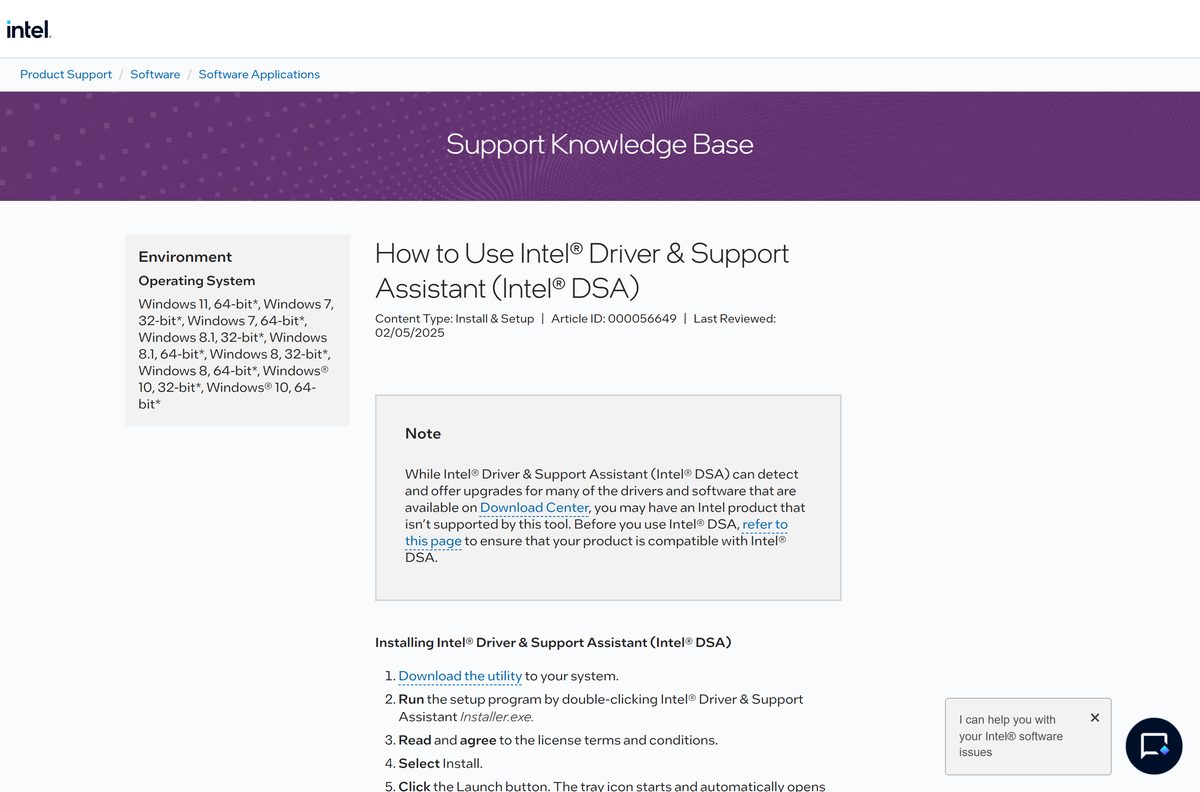
On Intel systems, Intel Driver & Support Assistant scans for Intel parts, and you can also grab the Intel graphics driver package or the Intel Wi-Fi Bluetooth driver directly. GeForce owners get NVIDIA graphics drivers and, on RTX cards, NVIDIA Broadcast for microphones and webcams. Radeon and Ryzen owners use AMD Software: Adrenalin Edition, and AMD Ryzen Master tuning adjusts CPU clocks.
What is a PC tune-up utility?
A tune-up utility bundles junk cleanup, startup trimming and driver checks behind one scan button. Windows already does each of those jobs, so a third-party cleaner or driver updater adds risk without adding a capability.
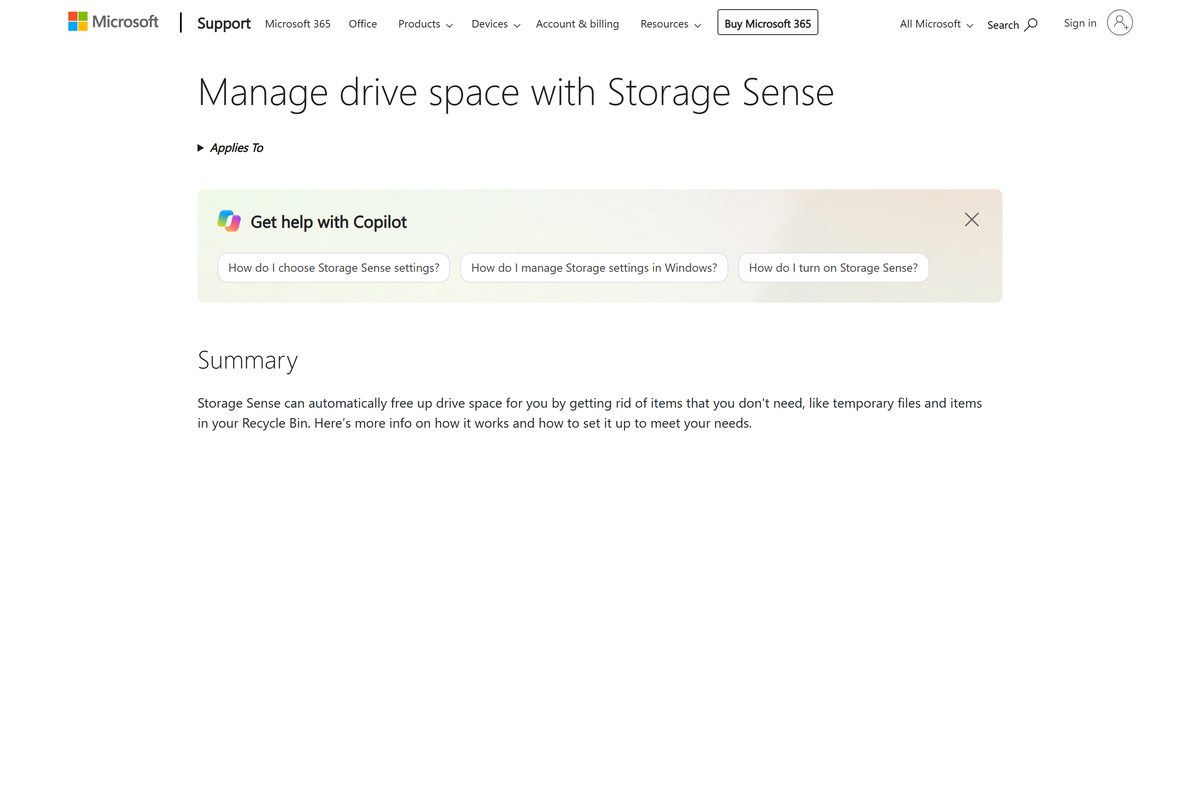
| Tune-up job | Built-in Windows tool | Where to find it |
|---|---|---|
| Delete temporary files and old Recycle Bin items | Storage Sense | Settings > System > Storage > Storage Sense |
| Free space on drives other than C: | Storage settings | Storage > Advanced storage settings > Storage used on other drives |
| Speed up startup | Startup apps list | PC Health Check > Manage your startup programs |
| Update drivers | Windows Update | Advanced options > Optional updates |
| Remove malware | Microsoft Defender Antivirus | Windows Security > Virus & threat protection |
Gaming boosters work differently. Razer Cortex game booster pauses background processes while a game runs, and Microsoft PC Manager is Microsoft's own cleanup app, though it is not available in every region.
Speccy alternatives: CPU-Z, HWMonitor, Cinebench and NZXT CAM
Speccy-style system info is split across a few free tools. Use the one that answers your question: what is inside, how hot it runs, or how fast it is.
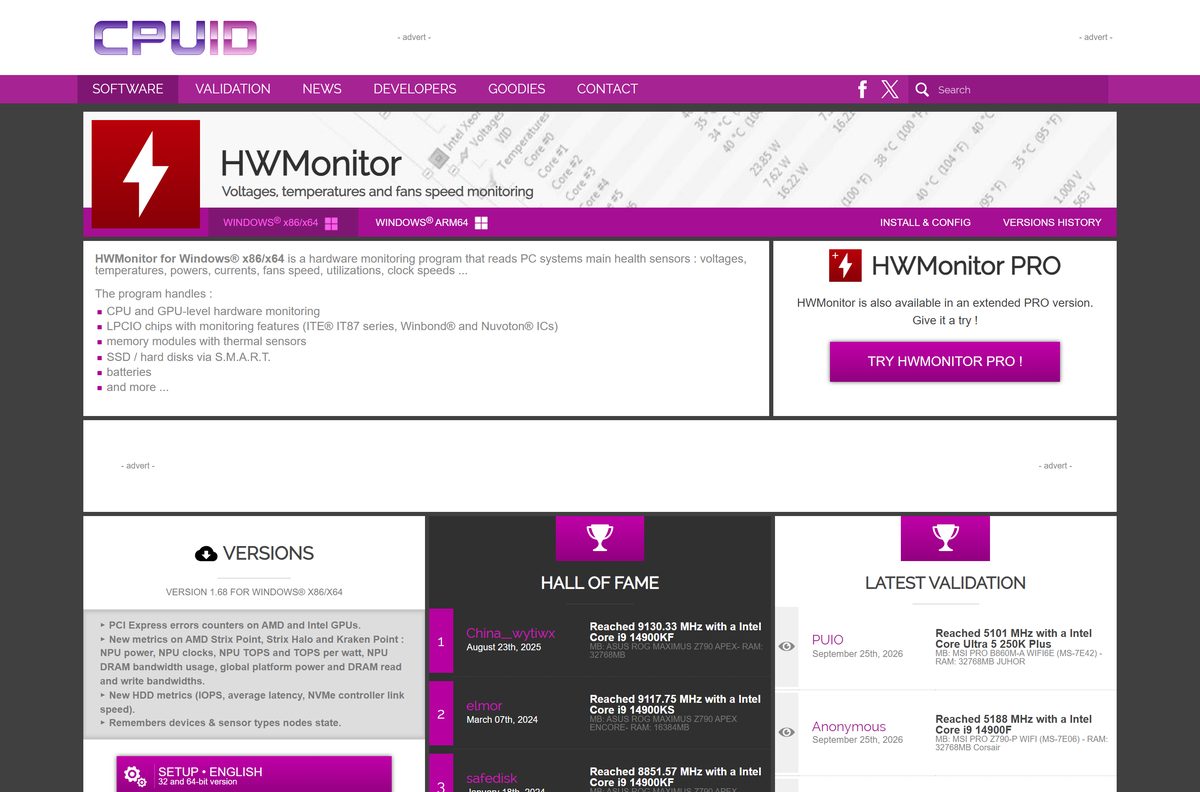
| Tool | What it shows | Use it when |
|---|---|---|
| CPU-Z system information tool | CPU, mainboard, memory and graphics details from CPUID | You need the exact CPU model, RAM speed or motherboard name |
| HWMonitor sensor readings | Voltages, temperatures, power, fan speeds and clock speeds | You suspect heat or a failing fan |
| Cinebench R23 CPU benchmark | A rendering score for single-core and multi-core runs | You compare a CPU against published scores or test cooling under load |
| NZXT CAM monitoring app | Temperatures and loads, plus control of NZXT coolers and lighting | Your case or cooler is made by NZXT |
| System Information (msinfo32) | Windows edition, BIOS version and installed hardware | You need facts without installing anything |
High readings under light load point to dust or a dried cooler, and the steps to fix a PC that overheats start with checking CPU temperatures.
Peripheral software for mice, keyboards, headsets and controllers
Gaming mice and headsets save buttons, DPI and lighting through the maker's app. Windows drivers work without it, but the extra features need it.
| Brand | App | What it controls |
|---|---|---|
| Logitech G | Logitech G HUB | Gaming mice, keyboards, headsets and wheels |
| Logitech (office) | Logitech Options+ app | MX and other productivity mice and keyboards |
| Razer | Razer Synapse | Macros, DPI and Chroma lighting |
| Corsair | Corsair iCUE | Peripherals, fans, coolers and RGB memory |
| HyperX | HyperX NGENUITY | Headsets, mice and keyboards |
| ROCCAT | ROCCAT Swarm software | Older ROCCAT mice and keyboards |
| Glorious | Glorious CORE | Glorious mice and keyboards |
| 8BitDo | 8BitDo Ultimate Software | Controller button maps and firmware |
| Turtle Beach | Turtle Beach Audio Hub | Headset firmware and audio presets |
| Wacom | Wacom tablet driver | Pen pressure, express keys and display mapping |
| Microsoft | Mouse and Keyboard Center | Microsoft-brand mice and keyboards |
Printer drivers for Brother, Canon, Epson, Kyocera, Lexmark, Ricoh and HP
Windows Update installs basic drivers for most printers, but scanning and maintenance tools come from the maker. The Windows printer guide covers adding a printer and clearing a stuck queue.
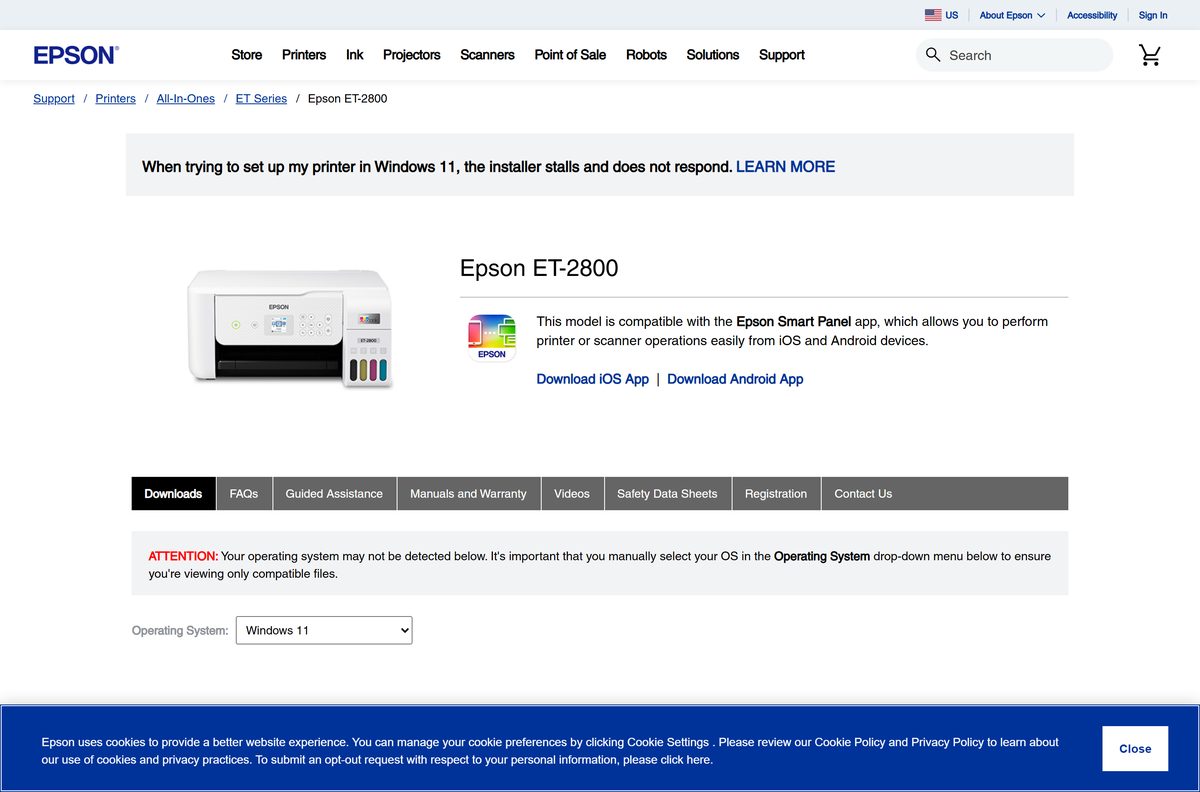
| Printer brand | Driver package | Typical reason to install it |
|---|---|---|
| Brother | Brother printer drivers | Full driver and scanner software |
| Canon | Canon printer drivers | PIXMA and imageCLASS print and scan features |
| Epson | Epson printer drivers | Print head cleaning and scanner support |
| Kyocera | KYOCERA printer drivers | Office multifunction devices |
| Lexmark | Lexmark Universal Print Driver | One driver for a fleet of Lexmark printers |
| Ricoh | Ricoh Universal Print Driver | One driver for many Ricoh models |
| HP | HP Smart app | Setup, scanning and ink status for HP printers |
Which runtime fixes which error
Many apps need a shared Microsoft runtime that is not part of a clean Windows install. Match the error to the runtime before reinstalling the app.
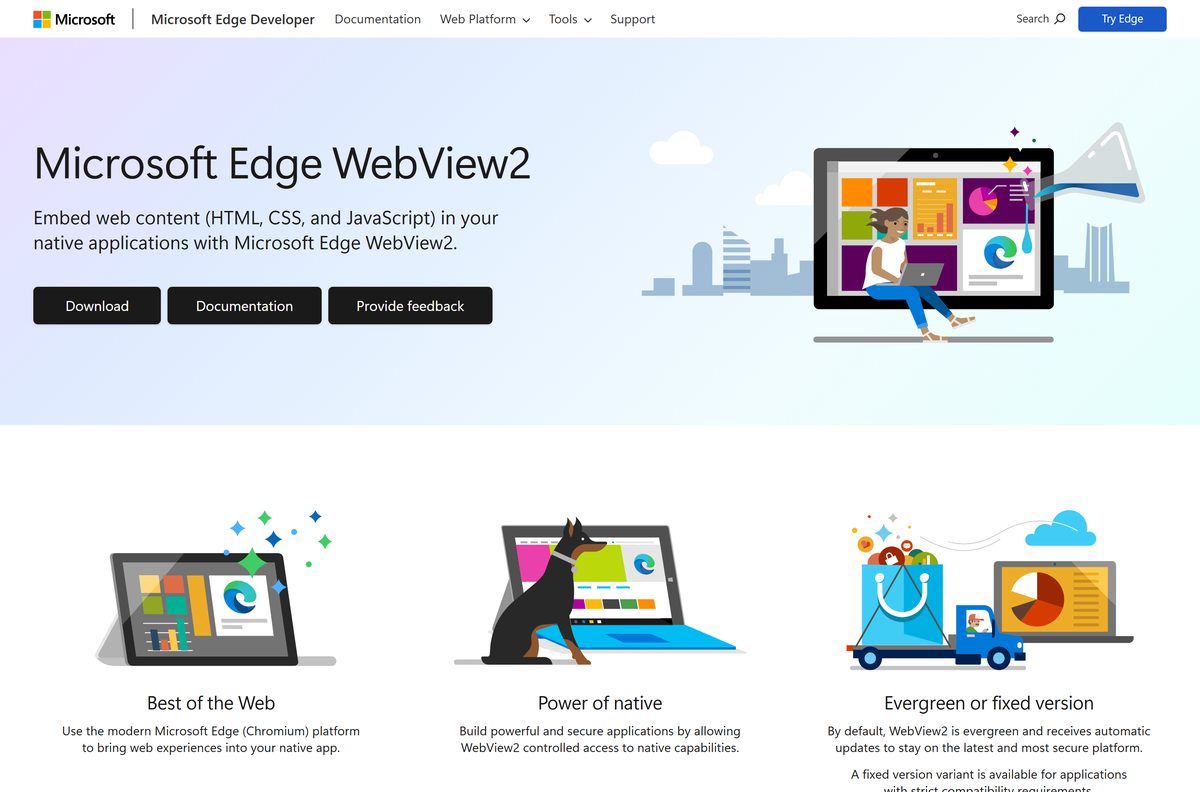
| Error or symptom | Runtime to install | Note |
|---|---|---|
| An app reports a missing Visual C++ runtime DLL | Visual C++ Redistributable | Match the app's architecture: x86, x64 or ARM64 |
| An older app asks for .NET Framework 3.5 or 2.0 | .NET Framework 3.5 on Windows 11 | Turned on as a Windows feature, not a separate app |
| An app needs a newer .NET Framework 4.x | .NET Framework for Windows | Use the offline .NET installer on a PC without internet, or pick from every .NET Framework version |
| An older game reports a missing DirectX file | DirectX End-User Runtime | DirectX 12 itself comes through Windows Update; you can update DirectX in Windows and check DirectX 12 support |
| An app window opens blank or will not start and needs WebView2 | Microsoft Edge WebView2 Runtime | Shared by many desktop apps |
| Photos or a player will not open H.265 video | HEVC Video Extensions | Available from the Microsoft Store |
Microsoft notes that the Visual C++ Redistributable package must match the app's target architecture, and the x64 package also carries ARM64 binaries.
Archive tools for ZIP, 7z and RAR files
Windows opens and creates ZIP files on its own, and you can open a ZIP file in Windows without extra software. Other formats and encryption need an archiver.
| Need | Tool | Why |
|---|---|---|
| Free 7z, RAR and split archives | 7-Zip file archiver | Open source; the 7-Zip extract and split walkthrough covers every task |
| Cloud links and a guided interface | WinZip trial | Paid after the trial |
| Encrypt a ZIP with a password | 7-Zip or WinZip | You can password protect a ZIP file with AES-256 in either tool |
Backup, disk imaging and bootable USB tools
An image backup restores the whole drive, apps included. A bootable USB drive installs or repairs Windows when the PC will not start.
| Job | Tool | Note |
|---|---|---|
| Full disk image and clone | Macrium Reflect | Trial, then paid |
| Image backup with cloud copy | Acronis True Image | Trial, then paid subscription |
| Windows installer USB from an ISO | Rufus USB tool | Steps to create a bootable Windows 11 USB with Rufus |
| Linux or Raspberry Pi images | balenaEtcher image writer | Runs on Windows, macOS and Linux |
Just like new: reset or restore Windows without a tune-up tool
Windows has its own recovery ladder. Try the gentler options first; Reset this PC is the most disruptive.
- Open Settings > System > Recovery.
- Try Fix problems using Windows Update to reinstall the current version without touching files, apps or settings (Windows 11, version 22H2 or later).
- If the problem began after an update, uninstall that update from Windows Update > Update history > Uninstall updates.
- On Windows 11, version 24H2 or later, check Point-in-time restore for a restore point from before the problem.
- As a last step, select Reset PC and choose Keep my files or Remove everything.
Microsoft utilities: Quick Assist, RSAT and Process Explorer
Microsoft publishes several free tools that cover jobs people often buy software for.
| Tool | What it does | How to start it |
|---|---|---|
| Quick Assist remote help | Lets a helper view or take control of your screen | Press Ctrl + Windows + Q |
| RSAT admin tools | Manages Windows Server roles and Active Directory from a PC | Optional features in Settings |
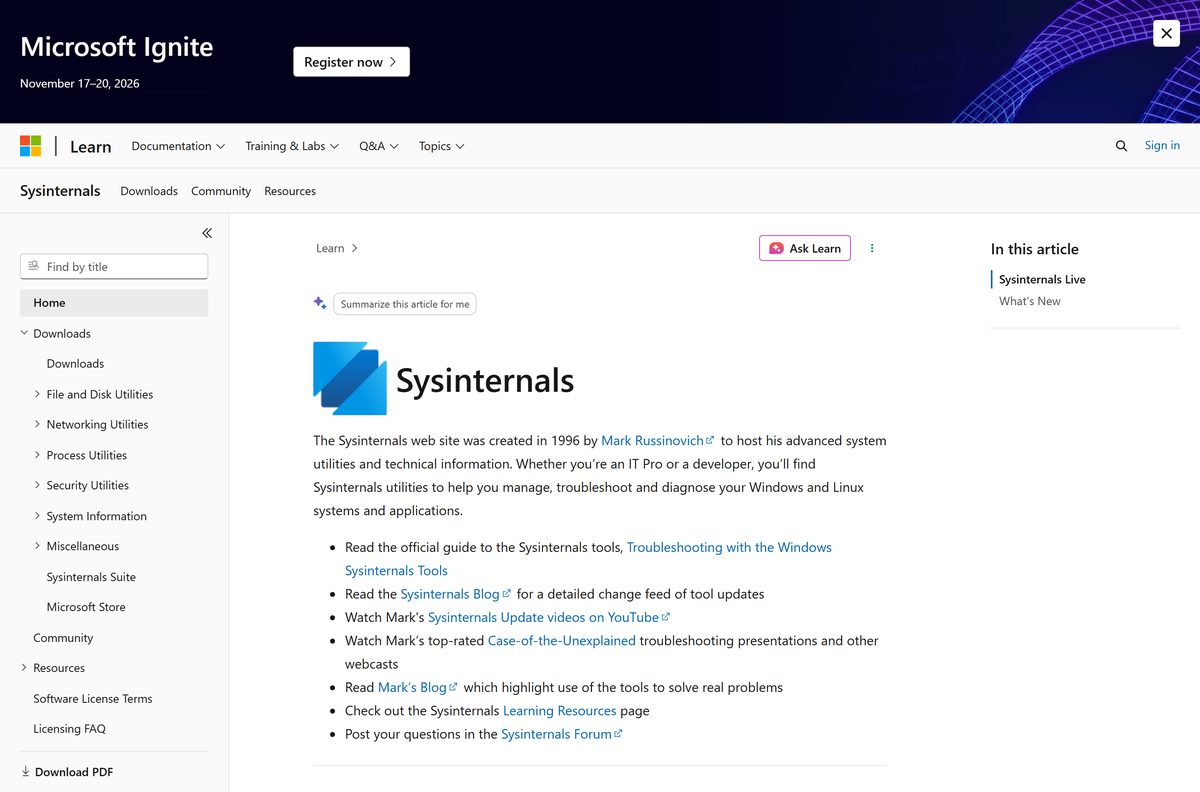
| Process Explorer from Sysinternals | Shows every process and which handles and DLLs it has open | Run the downloaded program |
IObit Unlocker and LockHunter alternative: find what locks a file
When Windows says a file is in use, Process Explorer shows which program holds it, so you can close that program instead of forcing an unlock.
- Run Process Explorer.
- Open its search for handles and DLLs.
- Type part of the file or folder name and select Search.
- Note the process in the results and close that app normally.
- Delete or move the file again.
Recuva alternative: recover deleted files with Windows File Recovery
Windows File Recovery is Microsoft's free command-line app in the Microsoft Store. It recovers files deleted from internal drives, external drives and USB devices that are no longer in the Recycle Bin. Use the PC as little as possible before you run it, because new files can overwrite the deleted data.
winfr C: E: /regular /n \Users\<username>\Documents\Recovers the Documents folder from drive C: to a recovery folder on drive E:. The source and destination drives must be different; use /extensive for files deleted long ago or from a formatted drive.
You should see: Windows File Recovery creates a Recovery_ folder on the destination drive with the files it found.
Sandboxie alternative: test apps in Windows Sandbox
Windows Sandbox is a disposable desktop built into Windows 11 and 10 Pro, Enterprise and Education. Closing it deletes everything installed inside, which makes it the safe place to try an unknown utility.
- Make sure virtualization is turned on in the BIOS or UEFI.
- Type Turn Windows features on or off in taskbar search and open it.
- Select Windows Sandbox and then OK.
- Restart the computer if prompted.
- Open Windows Sandbox from Start and copy the installer into its window.
DiskGenius and MiniTool Partition Wizard alternative: Disk Management
Disk Management handles the common partition jobs for free: initialize a new disk, extend or shrink a basic volume, and change a drive letter.
- Search for Disk Management from the taskbar and open it.
- Right-click the volume you want to change.
- Select Extend Volume, Shrink Volume or Change Drive Letter and Paths.
- Follow the wizard and confirm the size or letter.
- Leave the EFI System and Recovery partitions alone, even if they show as free.
WiFi Password Revealer alternative: export saved Wi-Fi keys with netsh
The netsh wlan commands in Windows list saved Wi-Fi networks and can export each profile with its key in plain text. Run them in an elevated Terminal and delete the files when you are done.
netsh wlan export profile folder="C:\WiFiProfiles" key=clearExports every saved Wi-Fi profile to XML files in C:\WiFiProfiles, with the security key shown in plain text. Run netsh wlan show profiles first to see the network names; create the folder before you run it.
You should see: One XML file per network appears in the folder; the keyMaterial line holds the password.
Everything, Seer and Keyfinder: what Windows already covers
Three classic freeware picks fill gaps that Windows narrows but does not close fully.
| Freeware | Job | Built-in option in Windows |
|---|---|---|
| Everything | Instant filename search across all drives | Windows Search in the taskbar and the File Explorer search box |
| Seer | Press a key to preview a file | The Preview pane in File Explorer |
| Keyfinder | Read the Windows product key | Check activation status in Settings before hunting for a key |
Miscellaneous utilities: speed tests, UPS, docks and audio
A few hardware-specific apps round out a working PC.
| Need | Utility | What it adds |
|---|---|---|
| Check internet speed | Speedtest by Ookla app | Download, upload and ping results with history |
| CyberPower UPS shutdown | PowerPanel Personal | Safe shutdown when the battery runs low |
| USB docks with extra monitors | DisplayLink graphics driver | Video output through DisplayLink docks |
| Spatial sound on headphones | Dolby Atmos for headphones | Dolby Access app with a trial |
| Realtek audio panel | Realtek HD Audio Manager | Jack detection and speaker settings |
| Remove stubborn programs | Revo Uninstaller | Scans for leftovers after the normal uninstaller |
Best free security software for Windows 11 and 10
Microsoft Defender Antivirus is built in and gives real-time protection. Add an on-demand scanner only for a second opinion, never as a reason to switch Defender off.
| Scanner | Type | Note |
|---|---|---|
| Microsoft Defender Antivirus | Real-time, built in | Windows Security > Virus & threat protection |
| Microsoft Safety Scanner | Portable, on demand | Expires 10 days after download; get a fresh copy for each scan |
| Malwarebytes free scanner | On-demand scanner | Runs alongside Defender |
| HitmanPro second-opinion scanner | Cloud-based, on demand | Free trial from the maker |
How to check PC health for Windows 11
- Open PC Health Check and confirm the Windows Update card shows no pending updates.
- Confirm storage on the main drive is not shown in red.
- Open Settings > Windows Update > Advanced options > Optional updates and confirm no driver updates wait.
- Run HWMonitor while the PC is idle and note CPU and GPU temperatures.
- Open Windows Security and confirm Virus & threat protection shows no actions needed.
Fix PC Health Check when it is missing or will not install
Why don't I have PC Health Check?
Windows 11 PCs and many Windows 10 PCs do not include it until you install it.
- Search for PC Health Check on the taskbar to rule out a hidden install.
- Go to aka.ms/GetPCHealthCheckApp and follow the prompts.
- Open the app from Start after setup finishes.
Why can't I install or download PC Health Check?
A work or school PC may block installs, or an old copy is already present.
- Check Settings > Apps > Installed apps for an existing PC Health Check entry and open it instead.
- Uninstall the old copy if it fails to open, then run the installer again.
- Ask your IT administrator if the PC is managed by an organisation.
The Windows 11 eligibility check says the PC does not meet requirements
A hardware requirement or a compatibility hold applies.
- Read the reason PC Health Check lists under the result.
- Note any compatibility safeguard hold; Microsoft delays the upgrade until a known issue is fixed.
- Update drivers and apps flagged by the app, then select Check now again.
Best free utilities to keep on a Windows PC
Install PC Health Check, your PC maker's update tool and one hardware monitor such as HWMonitor, and add a runtime only when an app asks for it. That set covers health, drivers and temperatures with official software, while Storage Sense, Defender and Windows recovery handle the cleanup and repair jobs tune-up suites promise to boost your computer's performance with.
PC system utilities and PC Health Check FAQ
What is PC Health Check?
PC Health Check is a free Microsoft app for Windows 11 and Windows 10. It shows Windows Update status, battery capacity, storage use and startup time, and on Windows 10 it checks whether the PC meets Windows 11 requirements.
What does Windows PC Health Check do?
It runs a Windows 11 eligibility check, links to Windows Update, reports battery capacity on devices older than three years, shows how full the main drive is, and links to startup app settings and Storage Sense.
Is PC Health Check free?
Yes. Microsoft offers PC Health Check at no cost through aka.ms/GetPCHealthCheckApp, and the app updates itself when Microsoft releases a new version.
Is PC Health Check safe?
Yes, when it comes from Microsoft's own aka.ms link or Windows Update. It is a Microsoft-signed app that reads device information and opens Windows settings; it does not delete files on its own.
Where is PC Health Check installed?
PC Health Check installs like any desktop app and appears in Start. Type PC Health Check in the taskbar search box to open it, and find its entry under Settings > Apps > Installed apps.
Can I delete PC Health Check?
Yes. Uninstall it from Settings > Apps > Installed apps like any other app. Windows keeps working without it, and you can reinstall it from Microsoft later.
Is PC Health Check good?
It is a useful first check because it reports updates, storage, battery and startup in one place. It does not monitor temperatures or update drivers, so pair it with your PC maker's tool and a hardware monitor.
What is the best computer utilities software?
For most Windows PCs, the best set is free and official: PC Health Check, the PC maker's update app, Windows Security, Storage Sense and a hardware monitor such as HWMonitor. Avoid paid registry cleaners and driver updaters.
How do I do a health check on my PC?
Open PC Health Check, install pending Windows updates, confirm free storage, check optional driver updates, scan with Windows Security and read temperatures in a hardware monitor. Each step uses free tools.