Open YouTube settings by selecting your profile picture and then Settings, either on youtube.com or in the YouTube app.
This guide shows where each setting lives on a computer, Android, iPhone and TV, then covers dark mode, Restricted Mode, watch history, YouTube apps for Windows and fixes for playback, TV and sign-in errors.
How to access YouTube account and privacy settings
- Sign in to YouTube on a computer.
- At the top right, click your profile picture.
- Click Settings.
- Pick a page from the left menu, for example Notifications, Privacy or Advanced settings.
- On Privacy, turn Keep all my subscriptions private on or off. Subscriptions are private by default.
Your YouTube email address is your Google Account email, so you manage it, and other Google Account settings, from your Google Account rather than from YouTube.
Where are the settings on YouTube
Display settings such as theme, language and location sit behind your profile picture, while captions and quality live in the video player. Accessing the YouTube display settings takes these routes on each device:
| Setting | Computer | Android, iPhone and iPad app | TV |
|---|---|---|---|
| Dark theme | Profile picture > Appearance | Profile picture > Settings > General > Appearance | Not listed in YouTube Help |
| Language | Profile picture > Display Language | Profile picture > Settings > Languages | Settings > Language |
| Location | Profile picture > Location | Profile picture > Settings > General > Location | Settings > Location |
| Captions on or off | Closed captions in the player | Tap the player > Closed captions | Pause > Captions |
| Video quality | Player Settings > Quality | Player Settings > Quality; default in Settings > Video quality preferences | Player Settings > Quality |
| Autoplay | Autoplay switch below the player | Profile picture > Settings > Autoplay | Settings > Autoplay |
| Restricted Mode | Profile photo > Restricted Mode | Profile photo > Settings > General | Android TV: Settings > Restricted Mode or Safety Mode |
| Watch history | My Activity > YouTube History | Profile photo > Settings > Manage all history | Settings > Pause watch history or Clear watch history |
On a computer, click Subscriptions in the Guide to open your full subscriptions list; in the app, tap Subs on the Home tab. Your public comments are listed on the Comment History page, youtube.com/feed/history/comment_history, where you can edit or delete each one, and the same page holds your comment history on Android and iPhone.
How to manage your YouTube account settings on mobile: quick steps
- Open the YouTube app and sign in.
- Tap your profile picture, then tap Settings.
- Tap General for Restricted Mode, location and, on newer phones, Appearance.
- Tap Autoplay, Languages or Video quality preferences to change those defaults.
- Tap Manage all history to view, search, delete or pause your watch history.
On m.youtube.com, the same menu leads to Settings > Account. On an iPhone, the YouTube app is one of the apps that receive Google sign-in prompts. If none arrives, check the phone is online, tap Resend it or choose Try another way; the same checks fix a missing Gmail login prompt in the YouTube app.
How to adjust your channel settings
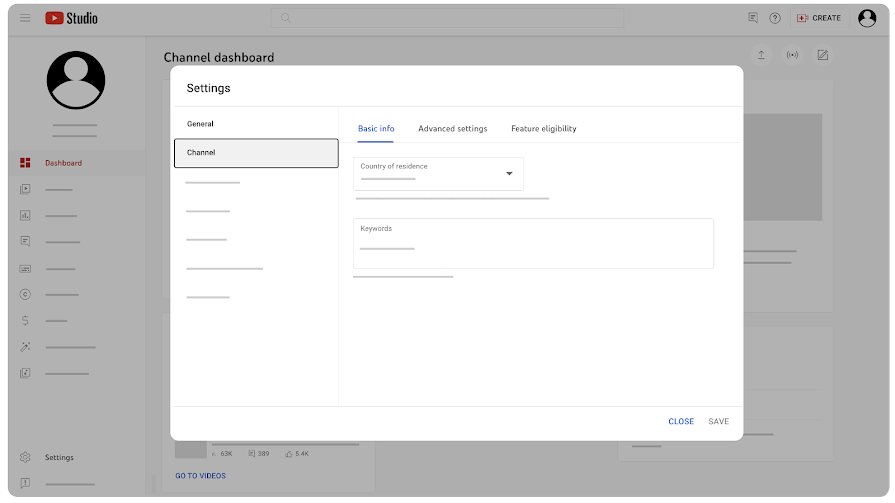
Channel settings live in YouTube Studio: sign in, select Settings > Channel from the left menu, change a tab, then click Save. To configure advanced settings, open the matching tab:
| Tab | What you can change |
|---|---|
| Basic info | Country of residence and keywords related to your channel |
| Advanced settings | Audience (made for kids), Google Ads account linking, automatic captions, advertisements, clips, channel redirect, channel visibility, third-party training and Remove YouTube Content |
| Channel insights sharing | An optional sharing setting that is off by default |
| Feature eligibility | Check whether the channel qualifies for standard, intermediate or advanced features |
The account side sits under profile picture > Settings > Advanced settings on youtube.com. That page shows your user and channel IDs, and its Move channel option moves a channel to your Google Account or another Brand Account. Channels can't currently be deleted on mobile devices.
Customizing the YouTube appearance with themes
- On a computer, click your profile picture.
- Click Appearance.
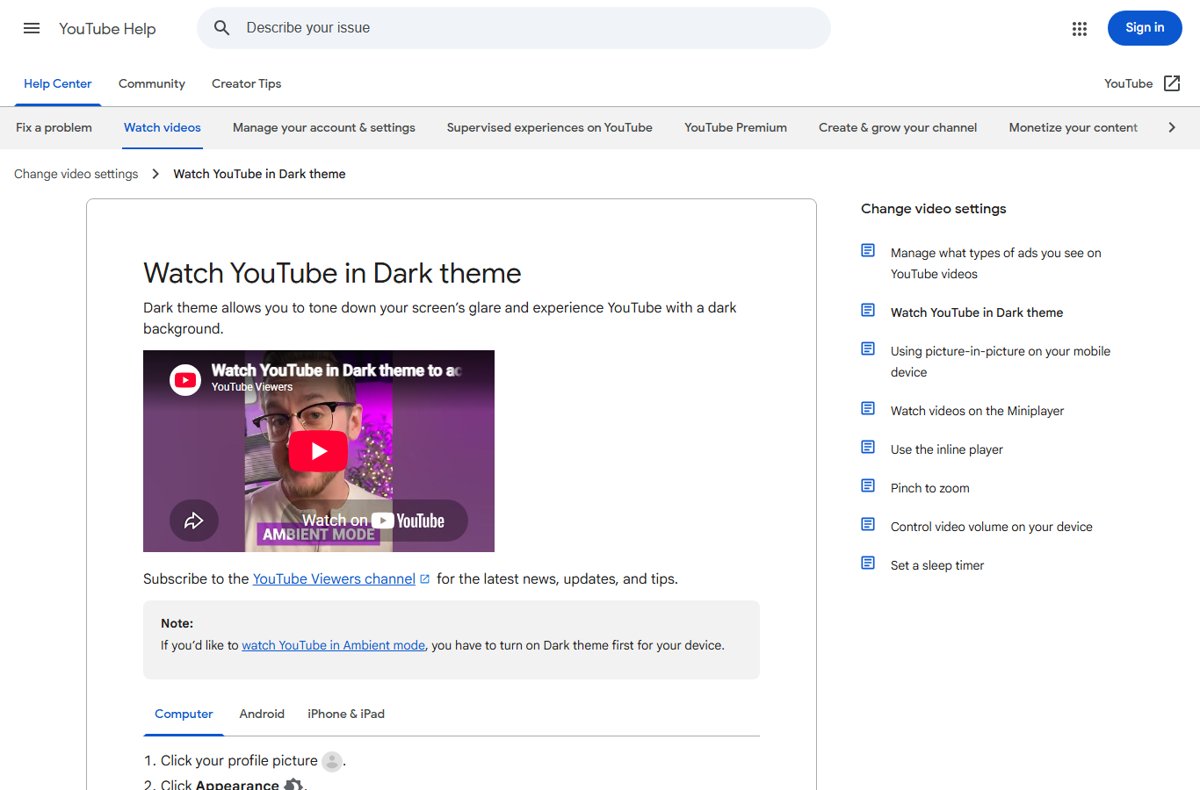
- Select Dark theme, Light theme or Use device theme.
- In the app, tap your profile picture > Settings > General > Appearance and choose Dark, Light or Use device theme.
Ambient mode works only after Dark theme is on for that device, and on an iPhone the Studio app follows the phone's Dark Mode. The steps to enable YouTube dark mode on every device include Ambient mode and quick fixes when the theme won't change.
Adjusting the language and location preferences
- On a computer, click your profile picture.
- Click Display Language or Location and pick the one you want.
- In the app, tap your profile picture > Settings > Languages to set the App Language and Preferred languages.
- For location in the app, tap Settings > General > Location.
- On a TV, open Settings in the YouTube app and select Language or Location.
Language changes titles, channel names and the Voice Search language, while location shapes recommendations, charts and news. On a computer the language is saved in the browser, so clearing cache and cookies resets it. If YouTube can't find your country or region, it uses the United States.
Enabling or disabling closed captions and subtitles
- Open the video and look for Closed captions (CC) at the bottom right of the player.
- Click Closed captions to turn captions on, and click it again to turn them off.
- To change the default look, click Settings in the player > Subtitles/CC > Options.
- Set the font, color, opacity, size, background and window style, or click Reset for the defaults.
- On Android, tap your profile picture > Settings > Captions and turn on Show captions to show them whenever a video has them.
On iPhone and iPad, the default caption style comes from the phone's Settings > Accessibility > Subtitles & Captioning. On a TV, pause the video and select Captions. If the button doesn't show, that video has no captions.
Choosing the preferred video playback quality
YouTube adjusts quality to your connection speed, player size, the original upload and your browser, so a manual choice is optional.
- In the video player, select Settings.
- Select Quality.
- Pick a resolution, or on a phone pick Auto, Higher picture quality, Data saver or Advanced.
- To set a default on a phone, tap your profile picture > Settings > Video quality preferences and choose one for mobile networks and one for Wi-Fi.
Modifying the YouTube player size has no menu: resize the browser window, or select Theater mode for a large player without full screen, or Miniplayer for a small one. Formats such as 1080p and 4K may be missing on devices that don't support VP9 compression.
Controlling autoplay and up next suggestions
With Autoplay on, a related up-next suggestion plays when the current video ends. Each device keeps its own setting, and Autoplay is off by default for users aged 13-17.
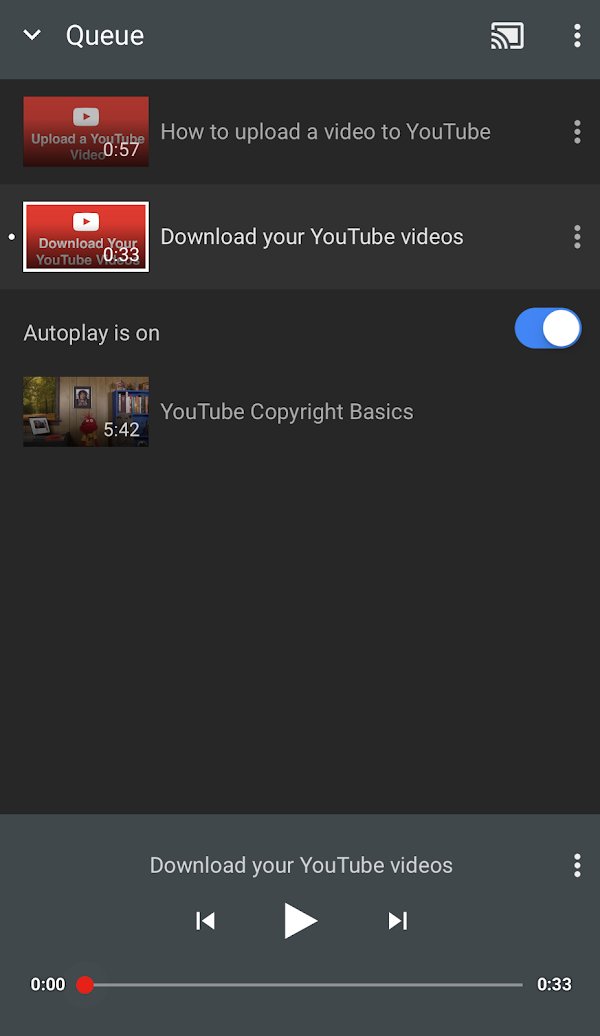
- On a computer, click the Autoplay switch at the bottom of the video player.
- In the app, tap the Autoplay switch at the top of the player.
- To change the app default, tap your profile picture > Settings > Autoplay.
- On a TV, open Settings in the YouTube app, scroll to Autoplay and select On or Off.
Autoplay stops by itself after 30 minutes of inactivity on a mobile network and after 4 hours on Wi-Fi. The Video paused. Continue watching? message appears after 30 minutes of uninterrupted Autoplay on mobile, 60 minutes on the web and 180 minutes on TV; select Yes to keep going.
Restricted Mode vs. age-restricted videos
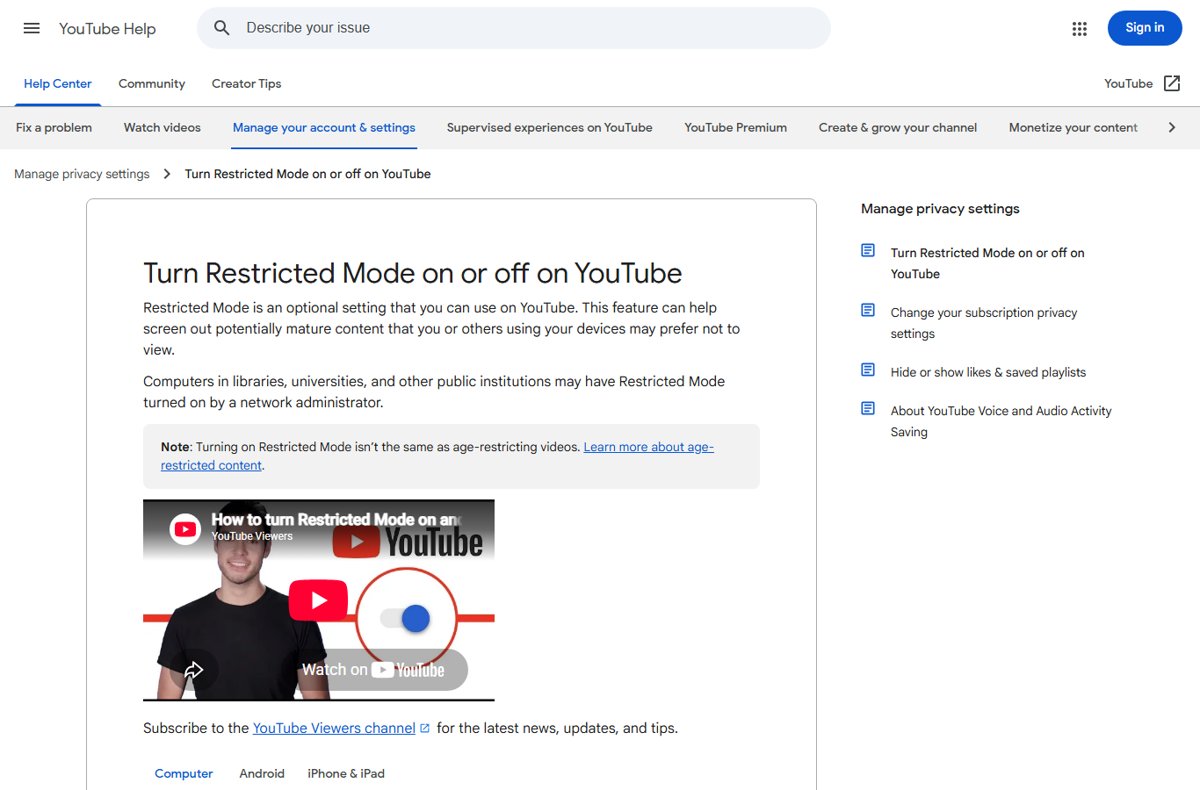
Restricted Mode is a filter you or an administrator switch on, while an age restriction is a label YouTube puts on single videos. Managing Restricted Mode and other safety settings in YouTube comes down to three different tools:
| Restricted Mode | Age-restricted videos | Supervised experiences | |
|---|---|---|---|
| What it is | An optional setting that screens out potentially mature content | Videos YouTube judges not appropriate for viewers under 18 | A parent-managed kid or teen account with a content setting |
| Who sets it | You, a network administrator, or a parent in Family Link | YouTube; creators can also age-restrict their own videos | A parent, through Family Link or Family Center |
| Where it applies | Each browser, device and profile where it's on | Everyone signed out or under 18, and most embeds on other sites | The child's or teen's account |
| Levels | On or off; it also hides comments and skips Explicit songs in YouTube Music | 18+ only; some regions ask for age verification | Older kids (9+), Teens (13+), Older teens (16+) |
What Restricted Mode actually does: it filters videos using the title, description, metadata, Community Guidelines reviews and age restrictions. YouTube Kids is a different, separate app. Learn more about Restricted Mode for your family in the fixes below.
How to turn off Restricted Mode on desktop (Chrome, Edge, Safari)
- Sign in to your account on youtube.com.
- At the top right, click your profile photo.
- At the bottom of the menu, click Restricted Mode.
- In the box that opens, click Activate Restricted Mode to switch it off.
- Repeat in every browser and browser profile you use.
How to turn Restricted Mode back on (and lock it): repeat the steps and switch Activate Restricted Mode on. Every browser keeps its own switch, so you can turn off YouTube Restricted Mode in Chrome and still find it on in Edge. To lock it, a parent turns it on in Family Link; the child then can't change it on any signed-in device.
How to turn off Restricted Mode in the YouTube mobile app (Android and iOS: iPhone and iPad)
- Sign in to the YouTube app.
- At the top right, tap your profile photo.
- Tap Settings > General.
- Turn Restricted Mode off or on.
In a mobile browser, go to m.youtube.com, tap your profile photo > Settings > Account, and switch Restricted Mode there.
How to turn off Restricted Mode on a smart TV, console, or streaming box
YouTube Help documents these steps for Android TV, where the switch controls Restricted Mode on that TV only.
- Sign in to your account on the TV.
- From the Home screen, scroll to the Apps row and select YouTube.
- Scroll and select Settings.
- Select Restricted Mode or Safety Mode.
- Select On or Off.
Assistant speakers and smart displays use the Google Home app instead: tap the device, then Settings > Notifications & digital wellbeing > YouTube Settings. A device manager can set Restricted Mode for all other users of that display.
Restricted Mode won't turn off? Fixes that work
Restricted Mode stays on after you sign in
An administrator, your account or a network filter set the restriction.
- Open
youtube.com/check_content_restrictions. - Look for a check mark next to DNS restrictions, HTTP header restrictions or Restricted Mode.
- If only Restricted Mode is ticked, turn it off from your profile photo menu.
When a network administrator enabled Restricted Mode
Libraries, universities and other public institutions can turn it on for their whole network.
- Check the content restrictions page while on that network; the network rows show Managed by: Organization administrator.
- Ask the network administrator to change the restriction.
Restricted Mode is on only over mobile data
Some mobile network providers apply content filters.
- On the content restrictions page, check whether DNS restrictions show moderate or strict.
- Contact your mobile network provider to manage or turn off the filter.
A child's account can't turn it off
A parent turned on Restricted Mode in Family Link.
- On the parent's device, open the Family Link app.
- Select Controls > YouTube.
- Turn Restricted Mode on or off. Family Link can't set it once a child over 13 manages their own account.
How to watch age-restricted videos on YouTube
- Sign in to YouTube; signed-out viewers can't play age-restricted videos.
- Use an account that belongs to someone 18 or older.
- Open the video on YouTube itself, because most third-party sites send these videos back to YouTube.
- Complete age verification if YouTube asks; this applies in Australia, the EU, the EEA, Switzerland and the UK.
- Turn off Restricted Mode if it is on, since it filters age-restricted videos too.
For creators: to remove or appeal an age restriction, open YouTube Studio > Content, hover over the video's notice, select Review and take action, enter a reason and click Submit. Each video can be appealed only once, and Viewable by 18+ under Notices shows which videos are restricted.
View, delete and pause your YT watch history
YouTube saves watch history so you can find recent videos and get related recommendations. Behind the scenes, deleted or paused videos stop shaping recommendations. Where to find it on each device:
| Device | View | Delete | Pause |
|---|---|---|---|
| Computer | myactivity.google.com > YouTube History > Manage history | The X next to a video, or DELETE for a time range | Controls tab > Turn off |
| Android, iPhone, iPad | Profile photo > Settings > Manage all history | The X next to a video, or DELETE | Controls tab > untick Include the YouTube videos you watch |
| TV or gaming console | Not listed for TV | Menu > Settings > Clear watch history | Menu > Settings > Pause watch history |
| Signed out, web | History | Clear all watch history | Pause watch history |
| Signed out, app | Not listed | Profile picture > Settings > History & privacy > clear watch history | Same page > pause watch history |
DELETE also removes your search history for the time frame you pick, and videos watched while history is paused never appear in it.
How to view and delete your YouTube watch history
- Go to myactivity.google.com and sign in to your Google Account.
- Click YouTube History, then Manage history.
- Click Search to find a video or search term.
- Click the X next to a video to delete it.
- Click DELETE and choose a time frame to remove many entries at once.
To see really old history, tap the calendar icon on the app's Manage all history page and pick a date range. History looks wrong or incomplete when you watched while paused, signed out or in another account. You can view and clear YouTube watch history on a phone the same way from Manage all history.
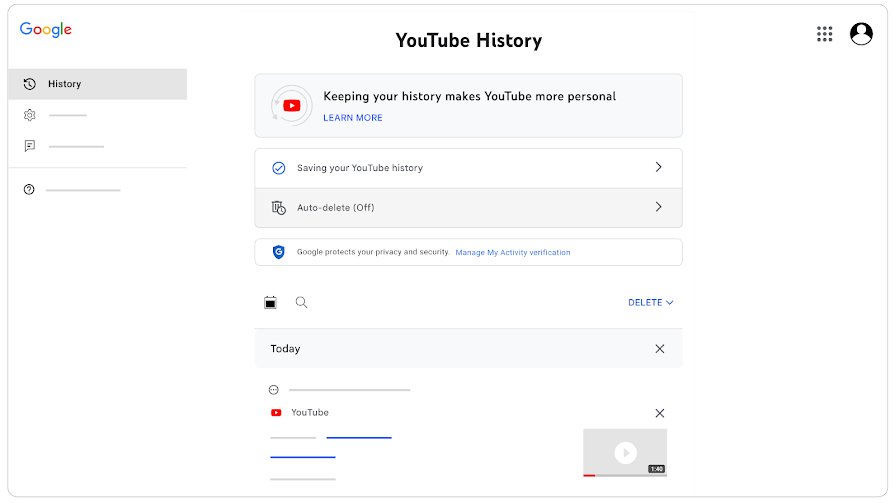
How to auto-delete or pause YouTube watch history
- Go to My Activity and sign in.
- Click YouTube History > Manage history.
- Click Auto-delete, choose a time range and click Next.
- Click Confirm.
- To pause history instead, open the Controls tab and select Turn off.
Managing what gets saved going forward happens on the same Controls page: tick or untick Include the YouTube videos you watch, Include your searches on YouTube and Include YouTube voice and audio activity.
YouTube app for PC: YouTube, YouTube Music, YouTube Kids and YouTube Studio
YouTube, YouTube Music, YouTube Kids and YouTube Studio each do a different job on a Windows PC:
| App | What it is for | Get it on Windows |
|---|---|---|
| YouTube | Videos, Shorts and live streams; Premium adds ad-free viewing, downloads and background play | YouTube app for PC |
| YouTube Music | Songs, albums and playlists; the YouTube Music app is included with Premium | YouTube Music for PC |
| YouTube Kids | A separate, simpler app for kids, with Preschool (4 and under), Younger (5-8) and Older (9-12) settings | YouTube Kids on a PC |
| YouTube Studio | Creator tools: dashboard, content, analytics, comments, subtitles, earnings and channel settings | YouTube Studio on Windows |
YouTube TV, the live-TV subscription, is a separate service and isn't part of YouTube Premium. WhatsApp, TikTok, iTunes and other phone and media apps on Windows install differently from these four.
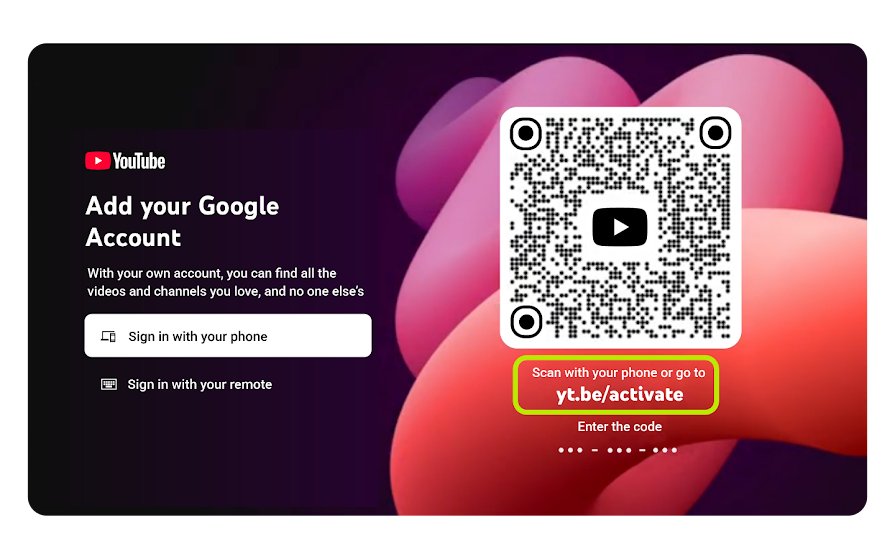
yt.be/activate: sign in to YouTube on your TV with a code
- Open the YouTube app on your smart TV or game console.
- Choose to sign in with your phone.
- Scan the QR code, or go to yt.be/activate on a phone, tablet or computer.
- Enter the code shown on the TV screen.
- If that route fails, sign in with your remote and the on-screen keyboard instead.
Each household member can add an account, guests can pick Watch as guest, and account lock guards your profile with a 4-digit code. To activate YouTube on a TV through your phone, keep both devices on the same Wi-Fi network and turn off mobile data on the phone.
How to download YouTube videos for offline viewing with Premium
- Sign in to youtube.com or the YouTube app with your Premium account.
- Open the watch page of the video.
- Select Download below the video.
- Find it later under Downloads in the left menu on a computer, or the Downloaded filter in your Library in the app.
Computer downloads work in Chrome, Edge, Firefox and Opera. Downloads play offline for up to 29 days before the device must reconnect, and only while signed in to the same account. Videos you uploaded yourself can be saved as MP4 files from YouTube Studio, and both routes are how you download YouTube videos on a Mac.
Block YouTube ads: YouTube Premium vs ad blockers
YouTube Premium is the ad-free route YouTube itself offers; ad blockers break its rules. YouTube's help page says blocking ads violates its Terms of Service, that people using ad blockers are asked to allow ads or sign up for Premium, and that playback may be blocked if they keep using one. Extensions that block ads can also break playback. If the ad blocker message appears when you have none, select Report issue at its bottom left corner.
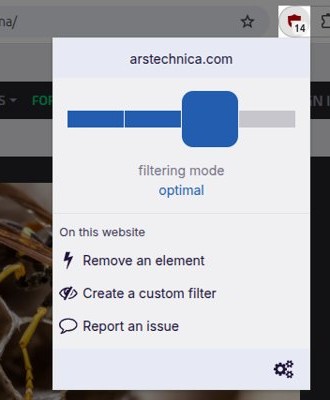
Before blocking ads on YouTube with a browser extension, weigh that warning against the Premium price in your country.
How to go back to the old YouTube layout
The fixes for the 2026 desktop layout changes use community-made uBlock Origin filters, not a YouTube setting, so they can stop working whenever the page changes.
| What changed | What the fix does | Walkthrough |
|---|---|---|
| The new watch-page layout | A community filter restores the previous watch page | revert the new watch-page layout |
| Comments moved to a panel on the right side | A community filter puts comments back under the video | move comments back under the video |
| The whole YouTube.com design | A community filter brings back the older design | restore the old YouTube.com design |
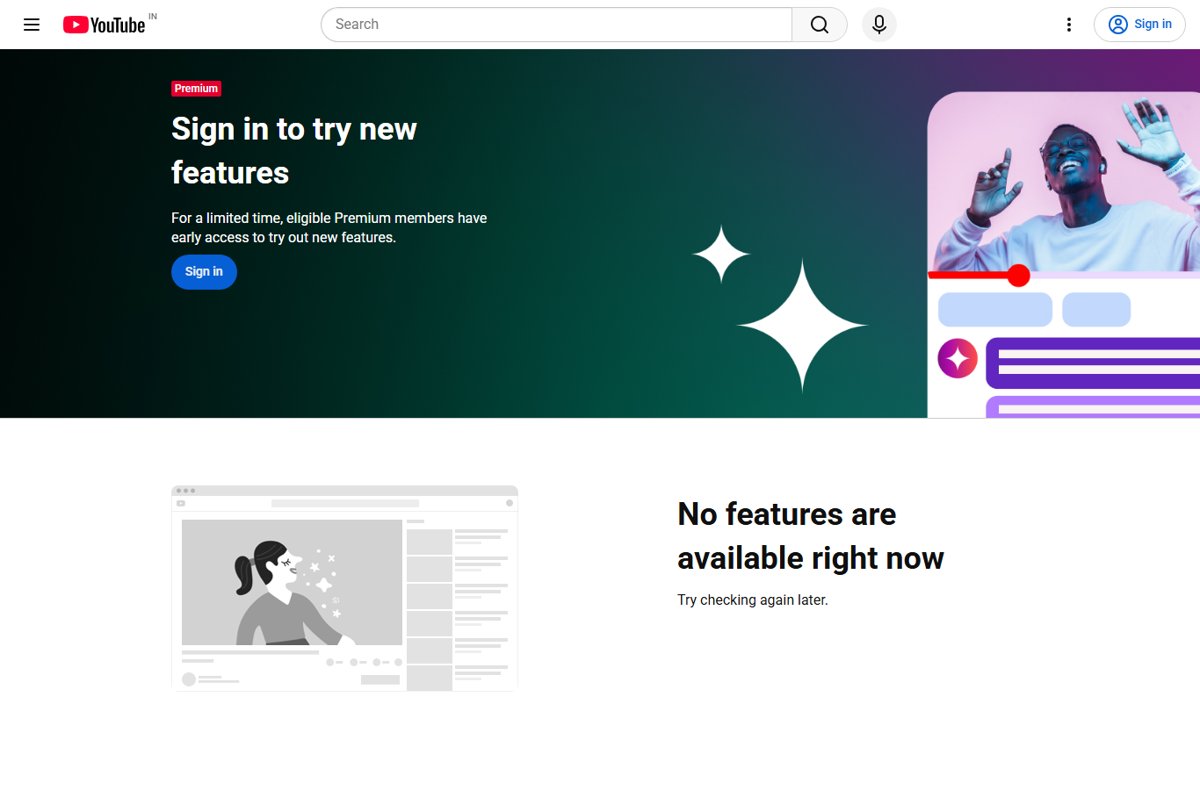
Premium members can also check youtube.com/new: experiments you joined there show Turn off, which leaves the experiment, and an experiment you don't leave disappears on its scheduled end date.
Why is YouTube not working? Symptom to cause
| Problem | Likely cause | Fix |
|---|---|---|
| Video paused. Continue watching? | Autoplay ran without input for 30 minutes on mobile, 60 on the web or 180 on TV | Select Yes, then rule out other reasons YouTube keeps pausing |
| An error has occurred or Playback error. Tap to retry. | Slow connection, outdated app or browser, or an extension | Restart and update, then fix YouTube on desktop and mobile |
| Error loading the page, please try again. | A service interruption; YouTube shows a minimal watch page | Select Reload, or try again later |
| Something went wrong. Refresh or try again later. | An ad blocker, old cache or DNS settings changed by other software | Refresh, allow ads, clear cache and cookies, restart the device |
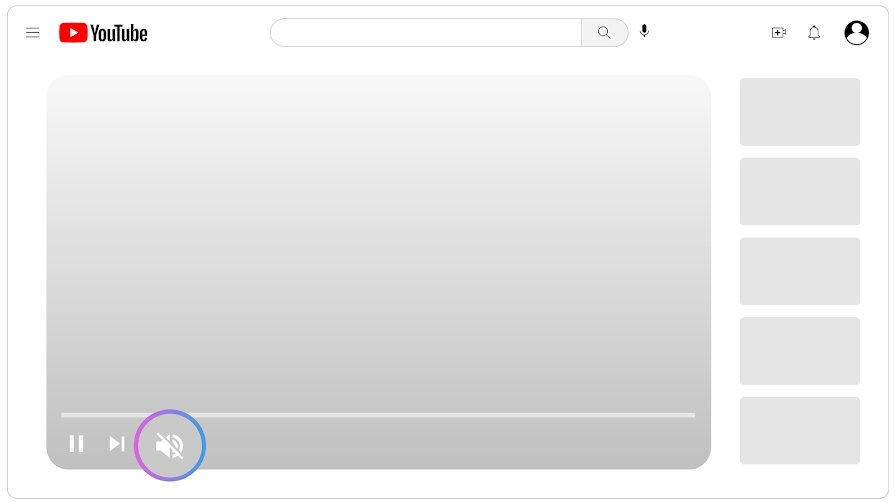
| No sound, volume icon crossed out | Sound is off in the browser or device | Turn sound on, check the device's sound settings, restart |
| Videos missing, comments hidden | Restricted Mode or an age restriction | Check youtube.com/check_content_restrictions |
Live diagnostic: is YouTube down right now? Open youtube.com in a private window with extensions off, then on a second device over mobile data. If both fail with the minimal Error loading the page screen, YouTube itself has an interruption, and waiting is the fix.
Troubleshoot video errors, audio issues and other errors
Videos buffer or drop to low quality
The connection is slower than the format needs.
- Restart your internet connection and run a speed test.
- Compare it with YouTube's recommended speeds: 20 Mbps for 4K, 5 Mbps for 1080p, 2.5 Mbps for 720p and 1.1 Mbps for 480p.
- Disconnect other devices from the network or lower the video quality.
- On a phone, check that data usage is turned on for YouTube.
Playback errors in the YouTube app
A stuck or outdated app.
- Restart the YouTube app or reboot your device.
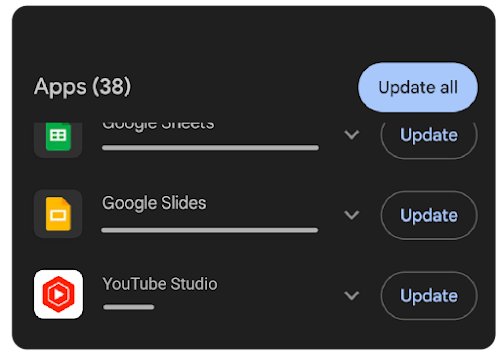
- Update the YouTube app: on Android, open Google Play > profile picture > Manage apps & device > Updates available.
- Uninstall and reinstall the app if errors continue, and update the phone's system software.
YouTube not working on PC, Chrome or Edge
An outdated browser, an extension or old cached data.
- Update your browser; if you use Chrome, update Chrome and clear its cache first.
- Open YouTube in an incognito window with every extension, including ad blockers, turned off.
- Clear cache and cookies, sign in to YouTube again and reload the video.
YouTube audio not working
Sound is muted in the browser, the device or the player.
- Turn sound on for the browser or device and unmute the player's volume button.
- Check your device's sound settings.
- Restart the browser or device.
Troubleshoot video errors on your TV
YouTube not working on a smart TV, Roku, Fire TV or Xbox
A stuck app or an outdated app version.
- Power cycle the device: unplug it, wait at least 30 seconds, and plug it back in.
- Check the device's app store for a YouTube update.
- Reset the YouTube app from its Settings; this signs you out.
- Check that your device model still runs the current YouTube app.
Can't sign in to YouTube on a TV
The phone and TV are on different networks, or the code was mistyped.
- Put the phone on the TV's Wi-Fi network and turn off its mobile data.
- Re-enter the code at yt.be/activate exactly as the TV shows it.
- Power cycle the TV for 30 seconds, then reboot the router and the phone.
Which “www.youtube.com refused to connect” do you have?
| Where you see it | Likely cause | Fix |
|---|---|---|
| Part of another website, in an embedded player | The owner turned off Allow embedding, the video is age-restricted, or the site sends no HTTP Referer (error 153) | Watch it on YouTube; site owners should use Share > Embed code and send a Referer |
| In Chrome, Edge or Safari on youtube.com | An extension, old cache or a network block | Try a private window with extensions off, clear cache and cookies, then check the content restrictions page |
| On school, office or guest Wi-Fi | The network filters or blocks YouTube | Check youtube.com/check_content_restrictions and ask the network administrator, who must allowlist youtube.com in the firewall |
YouTube settings FAQ
How do I reset YouTube settings?
On a TV, reset the YouTube app from its Settings; this also signs you out. In a browser, clearing cache and cookies resets settings stored there, such as the display language, and you need to sign in again.
How do I change YouTube display settings?
Select your profile picture. On a computer, Appearance sets the dark, light or device theme, and Display Language and Location set language and region. In the app, the same options sit under Settings > General and Settings > Languages.
What is keywords in YouTube channel settings?
Keywords is a field on the Basic info tab of YouTube Studio's Settings > Channel, where you add words related to your channel. The same tab holds your country of residence; click Save after changing either one.
Can I view my comments on YouTube?
Yes. The Comment History page at youtube.com/feed/history/comment_history lists the public comments you've posted. Select a comment's content to return to it, or use the trash-can icon to delete it. Comments on deleted videos or removed for policy violations don't appear.
What can I do with advanced YouTube settings?
On youtube.com, Settings > Advanced settings shows your user and channel IDs and lets the primary owner move the channel. In YouTube Studio, the channel's Advanced settings tab sets the audience, ads, clips, automatic captions, channel visibility and channel deletion.
How do I fix YouTube not working?
Check your connection speed, restart the YouTube app or reboot the device, update your browser or the app, and turn off extensions, including ad blockers. A minimal page with Error loading the page means a service interruption, so select Reload or try again later.
Why is YouTube not working on my TV?
The app is usually stuck or out of date. Unplug the TV or streaming device for at least 30 seconds, then check its app store for a YouTube update. Older TV models may no longer run the current app.
Why is YouTube not working on Roku, Xbox or Fire TV?
The same TV fixes apply: power cycle the device, update the YouTube app from its app store, and reset the app from its Settings. If sign-in fails, put your phone on the same Wi-Fi network and re-enter the code.