You cannot download Finder: it is built into macOS, is always running on a Mac, and has no separate installer for Mac or Windows.
This guide shows how to open Finder, how to relaunch or restore it when it stops responding, and which built-in Windows app does the same job on a PC.
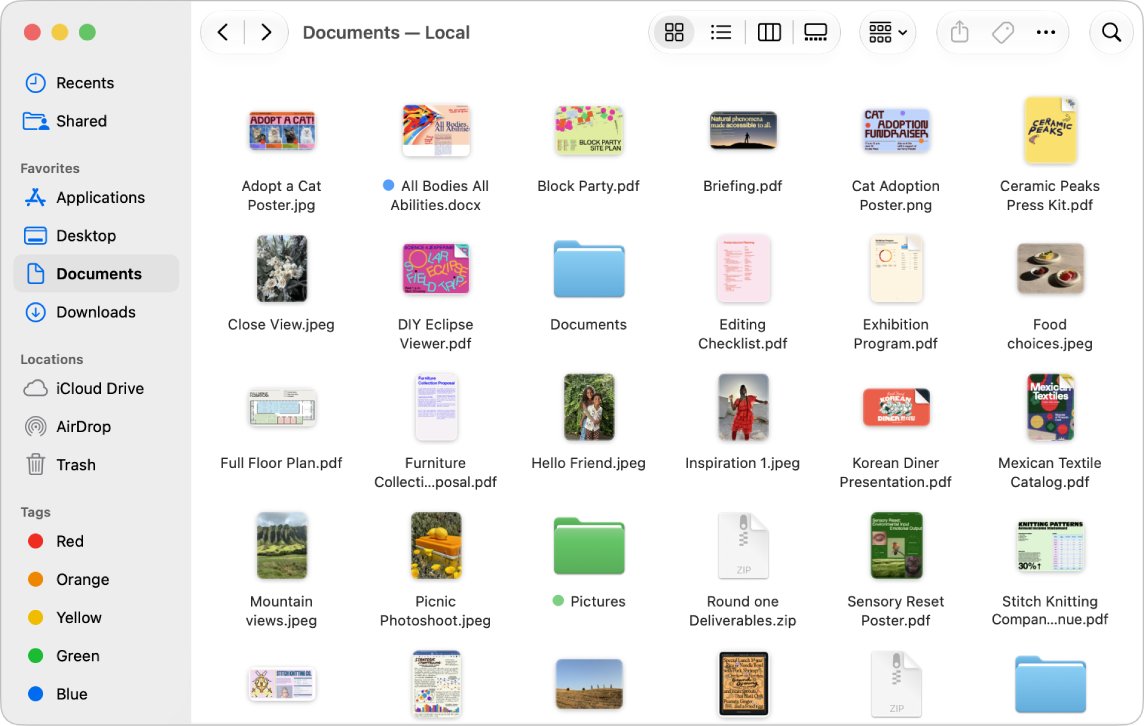
How to open Finder on a Mac instead of downloading it
Apple describes Finder as the Mac tool for viewing, accessing and organizing your files and apps. It ships with macOS, so every Mac already has it.
- Look at the Dock at the bottom or side of the screen.
- Click the Finder icon in the Dock.
- Use the Finder sidebar to open Applications, Documents, Downloads and other locations.
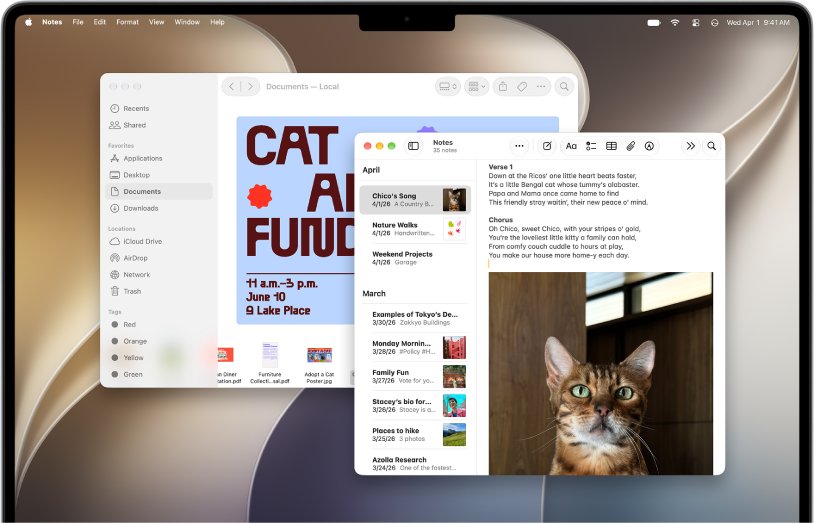
Finder app download for PC, Windows and Mac: what exists
Search results for a Finder download for Windows lead to unrelated programs that share the name, such as IP finder tools. None of them is Apple's Finder.
| Device | Can you download Finder? | What to use |
|---|---|---|
| Mac | No, it is already installed | Finder in the Dock |
| Windows 11 or Windows 10 PC | No, Apple does not make Finder for Windows | File Explorer, built into Windows |
| Mac with Finder frozen or missing | No, relaunch or reinstall macOS instead | Force Quit > Relaunch, or macOS Recovery |
Avoid any site offering a Finder installer for Windows. It is not from Apple, and downloads like that are a common way to pick up unwanted software.
How to download Finder on Windows 10: use File Explorer
The Windows equivalent of Finder is File Explorer. It is part of Windows 11 and Windows 10, so there is nothing to download.
- Press Windows logo key + E.
- Or select the File Explorer folder icon on the taskbar.
- On Windows 10, you can also select Start > Documents.
- Use the left pane to open Downloads, Documents, Pictures and your drives.
What is the Finder on PC? Finder and File Explorer compared
| Task | Finder on Mac | File Explorer on Windows |
|---|---|---|
| Open it | Click Finder in the Dock | Press Windows logo key + E |
| Find downloaded files | Click Downloads in the sidebar | Select Downloads in the left pane |
| Restart it when it hangs | Force Quit window > Relaunch | Restart the PC |
| Comes with | macOS | Windows 11 and Windows 10 |
How to relaunch Finder when it stops responding
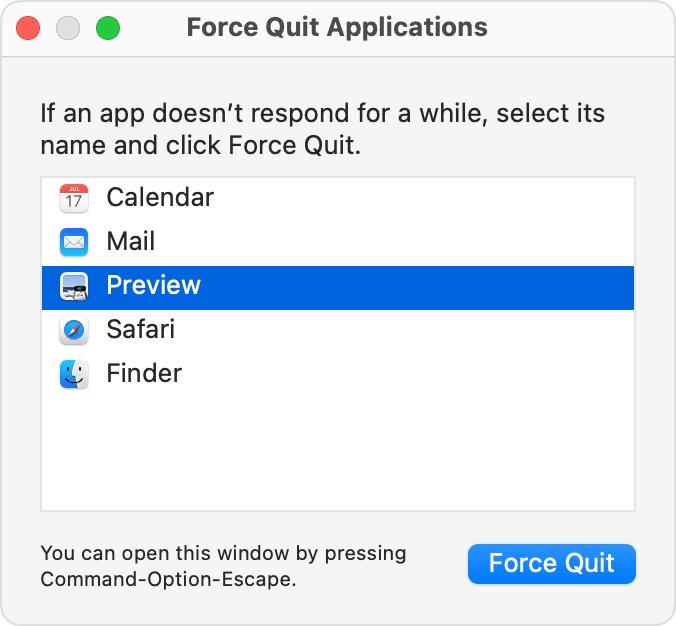
Apple notes that Finder is always open. If it freezes, people often go looking for a fresh download, but a relaunch is the fix.
- Press Option-Command-Esc to open the Force Quit window.
- Or choose Force Quit from the Apple menu.
- Select Finder in the list.
- Click Relaunch.
- Click the Finder icon in the Dock to check that windows open again.
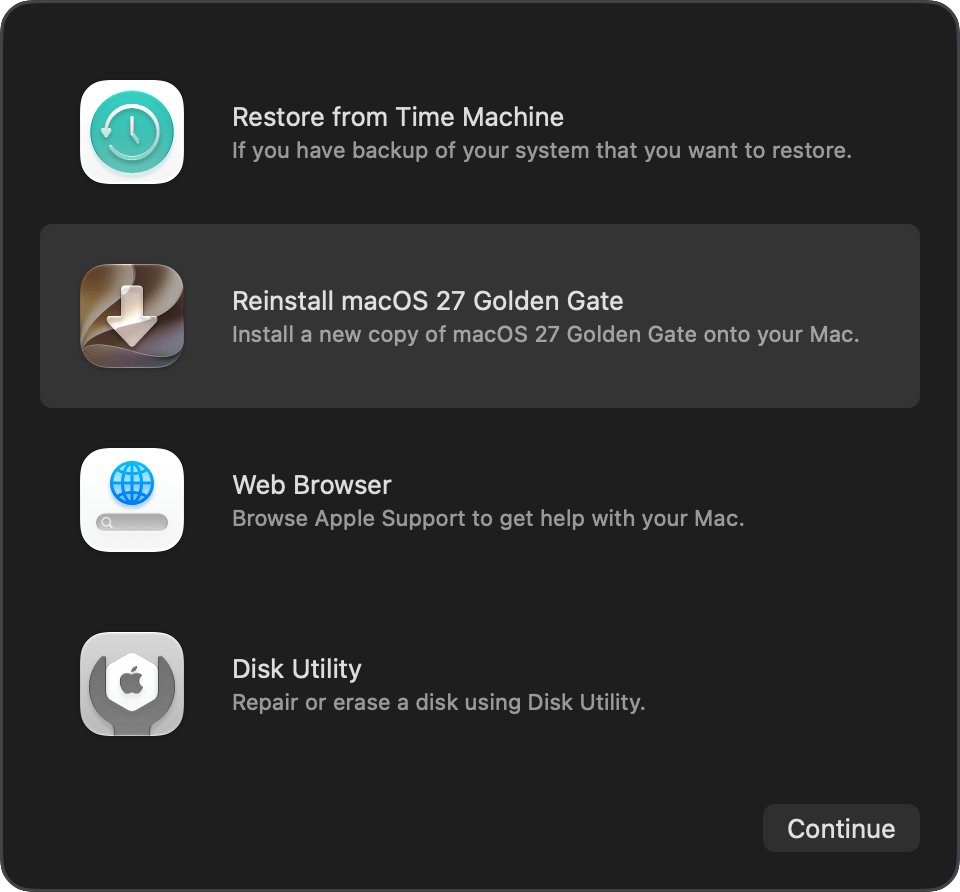
Reinstall macOS to restore a broken Finder
If Finder keeps failing after a relaunch and a restart, reinstalling macOS replaces it along with the rest of the system. Apple states that reinstalling macOS does not remove your apps or personal data.
- Back up your Mac if you can.
- Start up from macOS Recovery, using the method for your type of Mac.
- Select the option to reinstall macOS and follow the onscreen prompts.
- If asked to pick a disk, choose Macintosh HD, not Macintosh HD – Data.
- Keep the Mac awake and the lid open until installation finishes.
How to tell Finder is working on your Mac
- Click the Finder icon in the Dock. A Finder window should open.
- Click Downloads in the sidebar and confirm your recent files are listed.
Finder problems that make people look for a download
Downloads not showing in Finder
The file was saved to a different folder, or the Downloads item is not shown in the sidebar.
- Open a Finder window and check the sidebar for Downloads.
- Check your browser's download settings to see which folder it saves to.
- Open that folder in Finder and drag it to the sidebar to keep it close at hand.
Finder windows will not open or Finder is frozen
The Finder process stopped responding.
- Press Option-Command-Esc.
- Select Finder and click Relaunch.
- If it fails again, restart the Mac, then reinstall macOS from macOS Recovery.
Windows 11 or Windows 10 has no Finder
Finder is a macOS app only.
- Press Windows logo key + E to open File Explorer.
- Use it for the same jobs: browsing folders, moving files and opening downloads.
Finder download FAQ
Can I download Finder on Windows?
No. Finder is part of macOS and Apple does not release it for Windows. Windows has its own file manager, File Explorer, which opens with Windows logo key + E and does the same job of browsing, moving and opening files.
How to download Finder?
There is nothing to download. Finder comes with macOS and is always running on a Mac. Click the Finder icon in the Dock to open a window, or relaunch it from the Force Quit window if it stops responding.
What is the Finder on PC?
On a PC, the program that matches Finder is File Explorer. It is built into Windows 11 and Windows 10, shows your folders and drives, and opens from the taskbar folder icon or with Windows logo key + E.
How to download Finder on Windows 10?
You cannot, and you do not need to. Windows 10 includes File Explorer, its own version of Finder. Open it from the taskbar, with Windows logo key + E, or from Start > Documents.
Is there a Finder app for PC from Apple?
No. Any Finder app for PC on a download site is unrelated software that shares the name. Apple's Finder runs only on macOS, so use File Explorer on Windows instead.
How do I get Finder back if it disappears on my Mac?
Press Option-Command-Esc, select Finder and click Relaunch. Finder cannot be removed from macOS, so a relaunch or restart brings it back. If it keeps failing, reinstall macOS from macOS Recovery, which keeps your apps and data.