To remove the Microsoft Office Upload Center icon, open Upload Center, select Settings, clear Display icon in notification area and select OK.
This guide also covers turning off its notifications and startup entry, clearing the Office Document Cache, and where upload problems show up in Microsoft 365, which no longer includes Upload Center.
Remove Office Upload Center icon
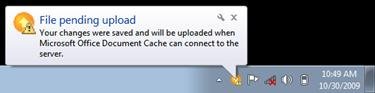
The icon sits in the notification area at the right end of the taskbar. Hiding it does not stop Office from uploading your files.
- Select the Upload Center icon in the notification area, or search the Start menu for Upload Center and open it.
- Select Open Upload Center if you started from the icon.
- Select Settings on the Upload Center toolbar.
- Clear the Display icon in notification area checkbox.
- Select OK to save the change.
The icon disappears from the taskbar. Upload Center still runs and still holds files that are waiting to upload.
What is Microsoft Office Upload Center?
Microsoft Office Upload Center is a small tool that shipped with Office 2010, Office 2013 and Office 2016. It shows the status of files you save from Word, Excel or PowerPoint to a server such as SharePoint or OneDrive.
It works on top of the Office Document Cache. Office saves your changes to the cache first, then uploads them when the server is reachable.
| Part of Upload Center | What it shows or does |
|---|---|
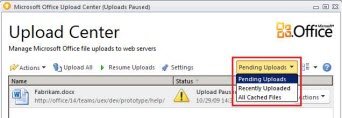
| Pending Uploads view | Files with changes that have not reached the server yet |
| Recently Uploaded view | Files that uploaded successfully in recent sessions |
| All Cached Files view | Every file currently held in the Office Document Cache |
| Upload All, Pause Uploads, Resume Uploads | Toolbar buttons that control every pending upload at once |
| Actions or Resolve menu | Per-file options such as Open, Open to Resolve, Open Web Site, Save As, Save a Copy, Sign In, Discard and Upload |
| Notification area icon | Shows whether uploads are clear, waiting for the server, paused, or failed |
| Settings | Notification checkboxes, the icon toggle and the cache settings |
In Microsoft 365 apps, Microsoft has removed Office Upload Center. The Office Document Cache still works in the background there, without a visible app.
How to open Microsoft Office Upload Center in Windows 11 and 10
You need Upload Center open to change any of its settings. Use whichever of these routes your Office version offers.
- Select Start and type Upload Center in the search box.
- Select Microsoft Office Upload Center in the results. The name may include 2010, 2013 or 2016, depending on your Office version.
- If search finds nothing, select the Upload Center icon in the notification area and choose Open Upload Center.
- On older Start menus, select All Programs, then Microsoft Office, then Microsoft Office Tools, and select Microsoft Office Upload Center.
If none of these routes finds it, you are most likely running Microsoft 365 apps, which no longer include Upload Center.
How to disable Microsoft Office Upload Center
Office does not offer a single off switch for Upload Center. Turning off its notifications and its icon, then stopping its startup entry if Windows lists one, keeps it out of your way.
- Open Upload Center and select Settings.
- Clear Show upload failure notifications, Show pending upload notifications and Show upload paused notifications.
- Clear Display icon in notification area and select OK.
- Go to Start > Settings > Apps > Startup.
- If Microsoft Office Upload Center or Office Document Cache appears in the list, set its toggle to Off.
- Restart the PC so Windows applies the startup change.
Turning off failure notifications means a failed upload no longer warns you. Open Upload Center now and then, or check the file on the server, so unsaved changes do not sit in the cache.
How to stop Microsoft Office Upload Center from Task Manager
Task Manager shows the same startup list as Settings and works on both Windows 11 and Windows 10.
- Right-click the Start button and select Task Manager.
- Select the Startup apps tab.
- Select the Upload Center or Office Document Cache entry if it is listed.
- Select Disable.
Office can still start the Office Document Cache when you open a file stored on a server. That is expected, because Office needs it to save your changes.
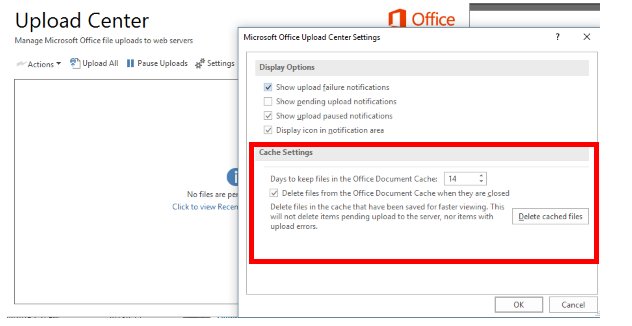
Microsoft Office Upload Center cache settings
The cache settings sit at the bottom of the Upload Center Settings dialog. They control how long Office keeps copies of server files on your PC.
| Setting | What it does | When to change it |
|---|---|---|
| Days to keep files in the Office Document Cache | Removes cached files older than the number you set, but only if they have no changes waiting to upload | Lower it to save disk space; raise it so server files open faster |
| Delete files from the Office Document Cache when they are closed | Removes each document from the cache as soon as you close it | You prefer working directly on the server, or other people use the PC |
| Delete cached files | Clears the document content in the cache straight away | The cache is corrupted or you want the space back now |
With delete-on-close turned on, Office cannot finish an upload after you close the file. If you close a file before its upload finishes, wait for it, save it somewhere else, or close without saving.
Delete Upload Center cache files
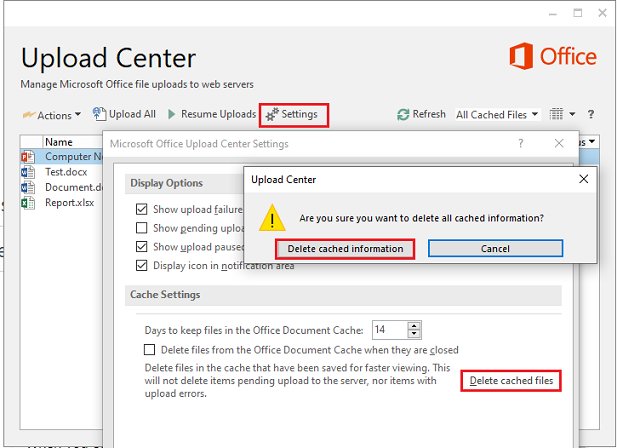
Clearing the cache fixes most Upload Center errors. Upload or save any pending files first, because files with unsent changes are removed too.
- Open Upload Center and check the Pending Uploads view.
- Select Upload All, or use each file's Actions menu to choose Save a Copy.
- Select Settings.
- Select Delete cached files.
- Select OK to close Settings.
Office deletes the cached document content but keeps a list of the files you opened on this PC. The next time you open a server file, Office downloads a fresh copy.
Microsoft Office Upload Center in Microsoft 365
Microsoft 365 apps have no Upload Center. Files that failed to upload or need your attention now appear inside each app.
- Open Word, Excel or PowerPoint.
- Select File, then Open.
- Select Files Needing Attention.
- Open each listed file and save it again, or follow the message shown next to it.
For files that sync through OneDrive or SharePoint, update the OneDrive sync app first if uploads keep failing.
Do I need Microsoft Office Upload Center?
Keep Upload Center running if you save Office 2010, 2013 or 2016 files to SharePoint or OneDrive, and hide only its icon and notifications. Upload Center and the Office Document Cache are how those versions get your changes to the server, including edits made offline. If you save only to local drives, it has nothing to upload and you can safely turn off its icon and startup entry.
Microsoft Office Upload Center not working
Microsoft Office Upload Center not installed
Microsoft 365 apps no longer include Upload Center; it came only with Office 2010, 2013 and 2016.
- Open Word, Excel or PowerPoint and select File > Open.
- Select Files Needing Attention to see files that did not upload.
- If you run Office 2016 or earlier, search the Start menu for Upload Center instead.
A file is stuck in Upload Center
The Office Document Cache is corrupted, often after a cloud app failed to sync before Office closed.
- Perform a clean boot of Windows, which needs administrator rights.
- Search the Start menu for Microsoft Upload Center and open it.
- Select Settings, then Delete cached files.
- Restart Windows normally and let Office resync. Office repairs the cache on its own.
- If the problem remains, ask your administrator before you reinstall Office, or uninstall Office 2016 completely and install it again.
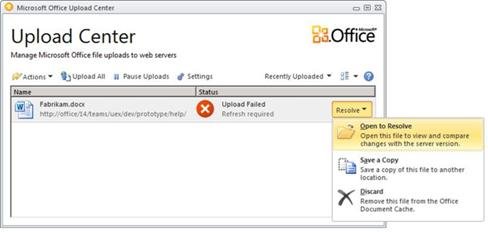
Upload Center icon shows paused or failed uploads
Uploads were paused, the server could not be reached, or a file needs you to sign in or resolve a conflict.
- Open Upload Center and select Resume Uploads if uploads are paused.
- For a failed file, open its Resolve menu.
- Choose Sign In, Open to Resolve or Save a Copy, depending on the option shown.
- Select Upload All once the file is resolved.
FAQ about Microsoft Office Upload Center
How do I open Office Upload Center?
Select Start, type Upload Center and select Microsoft Office Upload Center. You can also select its icon in the notification area and choose Open Upload Center. It exists only in Office 2010, 2013 and 2016, not in Microsoft 365 apps.
Where is Microsoft Office Upload Center?
Search the Start menu for Upload Center, or select its icon in the notification area and choose Open Upload Center. On older Start menus it sits under Microsoft Office > Microsoft Office Tools. Microsoft 365 apps no longer include it.
How do I remove Microsoft Office Upload Center from Taskbar?
Open Upload Center, select Settings, clear Display icon in notification area and select OK. The icon leaves the taskbar, but Upload Center keeps working in the background and still uploads your saved changes.
How do I stop Microsoft Office Upload Center from starting?
Go to Start > Settings > Apps > Startup, or Task Manager > Startup apps, and turn off the Upload Center or Office Document Cache entry if Windows lists it. Office can still start the cache when you open a server file.
How do I disable Microsoft Office Upload Center notifications?
Open Upload Center, select Settings and clear Show upload failure notifications, Show pending upload notifications and Show upload paused notifications. Select OK. You will then need to check Upload Center yourself for failed uploads.
Can I download Microsoft Office Upload Center?
No. Upload Center comes as part of Office 2010, 2013 and 2016 rather than as its own app, and Microsoft removed it from Microsoft 365 apps, which show upload problems under File > Open > Files Needing Attention.
Does Windows 11 have Microsoft Office Upload Center?
Windows 11 itself does not include Upload Center. It appears only if you install Office 2016 or an earlier version that ships with it. Search the Start menu for Microsoft Upload Center to check.
Is it safe to delete the Office Document Cache?
Yes, once pending files are uploaded or saved elsewhere. Delete cached files removes the cached document content, keeps a list of files you opened, and Office downloads fresh copies the next time you open them.