To uninstall Google Chrome from a Mac, quit Chrome, open the Applications folder in Finder, and move Google Chrome to the Trash. This removes the browser itself. If you also want to completely remove Chrome from your Mac, delete its profile data from the Library folder afterward.
Removing Chrome does not automatically erase every bookmark, password, history entry, extension setting, or profile stored on the Mac. Whether you should delete that data depends on whether you are troubleshooting Chrome, reinstalling it, or removing the browser permanently.
The same process works on MacBook Air, MacBook Pro, iMac, Mac mini, Mac Studio, Intel Macs, and Apple silicon Macs.
How to Uninstall Google Chrome on Mac
For a normal uninstall, removing the Google Chrome application is enough.
- Quit Google Chrome.
- Open Finder.
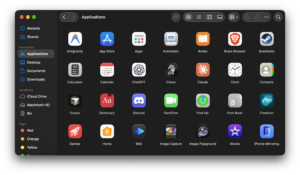
- Select Applications from the sidebar.
- Find Google Chrome.
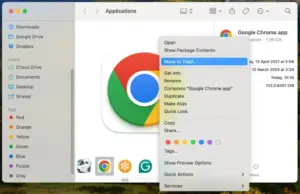
- Drag Google Chrome to the Trash, or right-click it and choose Move to Trash.
- Right-click the Trash and select Empty Trash if you want to remove the application immediately.
You may be asked for the administrator password or Touch ID if the Mac requires authorization to remove the application.
How to Completely Uninstall Chrome on Mac
Moving Chrome to the Trash removes the application but can leave your Chrome profile on the Mac. This data can include local bookmarks, browsing history, extensions, cookies, preferences, and other browser information.
If you want a clean removal, delete the Chrome profile folder after uninstalling the application.
- Make sure Google Chrome is closed.
- Open Finder.
- From the menu bar, select Go > Go to Folder.
- Enter:
~/Library/Application Support/Google/Chrome- Click Go.
- Move the contents of the Chrome folder to the Trash, or move the entire Chrome folder to the Trash.
- Empty the Trash when you are sure you no longer need the local data.
Before deleting this folder: locally stored bookmarks, history, passwords, profiles, and other Chrome data can be lost. Make sure anything important is saved or synced before removing it.
Uninstall Chrome but Keep Your Bookmarks and Passwords
If you plan to reinstall Chrome, you usually do not need to delete the Chrome profile folder. Remove only the Google Chrome application from the Applications folder.
When Chrome is installed again, it can reuse local profile information that remains on the Mac.
If you use Chrome sync or save Chrome data to your Google Account, some information may also be stored with your account rather than only on the Mac. Removing Chrome from one computer does not automatically delete that information from your Google Account.
If you are unsure whether your bookmarks are synced, export them before deleting the profile folder:
- Open Chrome before uninstalling it.
- Click the three-dot menu.
- Select Bookmarks and lists > Bookmark manager.
- Open the Bookmark Manager menu.
- Select Export bookmarks.
- Save the HTML file somewhere outside the Chrome folder.
How to Delete Chrome Profile Data from Mac
You do not have to uninstall Chrome just to remove one unwanted browser profile. Chrome lets you delete individual profiles separately.
- Open Google Chrome.
- Click your profile icon.
- Select Manage Chrome profiles.
- Find the profile you want to remove.
- Click the three-dot menu on that profile.
- Select Delete.
- Confirm the deletion.
Google warns that deleting a profile removes that profile’s locally stored bookmarks, history, passwords, and settings from the computer.
If you want to erase every Chrome profile at once, uninstall Chrome and then remove:
~/Library/Application Support/Google/ChromeHow to Remove Chrome Leftover Files on Mac
The main folder Google identifies for Chrome profile information is:
~/Library/Application Support/Google/ChromeDeleting this folder is the important step when you want to reset Chrome completely before reinstalling it.
You may find other Google-related files elsewhere in your Library folder, but do not delete every folder containing the word “Google” unless you know what it belongs to. Other Google applications installed on the Mac can use those files as well.
For most users, removing the Chrome application and its Chrome profile folder is sufficient. There is little value in manually hunting through dozens of Library folders simply to reclaim a small amount of storage.
Can’t Uninstall Chrome on Mac? Try These Fixes
Chrome says it is still open
macOS cannot move Chrome to the Trash while the application or one of its processes is still running.
First try:
- Right-click Chrome in the Dock.
- Select Quit.
- Try moving Chrome to the Trash again.
If Chrome refuses to close:
- Press Command + Option + Esc.
- Select Google Chrome.
- Click Force Quit.
- Return to Finder and try again.
Chrome still appears to be running in the background
Open Activity Monitor and search for Chrome.
- Press Command + Space.
- Search for Activity Monitor.
- Open it and search for Chrome.
- Select remaining Chrome processes.
- Click the Stop button and quit them.
- Try deleting Chrome again.
Google Chrome is not in the Applications folder
Use Spotlight to find it:
- Press Command + Space.
- Search for Google Chrome.
- Hold Command while opening the result to reveal its location in Finder.
- Move the application to the Trash.
Chrome is normally installed in Applications, but it can be stored elsewhere if it was installed without administrator access.
You do not have permission to delete Chrome
macOS may request an administrator username and password when deleting applications. If you are using a managed work or school Mac, your organization may prevent you from uninstalling Chrome.
In that situation, an administrator may need to remove the browser or change the management policy.
How to Uninstall Chrome from Mac Without Losing Data
If you are uninstalling Chrome to fix crashes, update problems, pop-ups, or unusual browser behavior, start by removing only the application.
- Quit Chrome.
- Move Google Chrome from Applications to the Trash.
- Do not delete the Chrome folder under Application Support.
- Download a new copy of Chrome.
- Reinstall it and test the browser.
Google specifically recommends uninstalling and reinstalling Chrome as one troubleshooting option for browser problems. Keeping the profile folder lets you test a fresh application installation without immediately deleting your local browser data.
If the problem returns after reinstalling Chrome, an extension, preference, damaged profile, or other profile data may be responsible. At that point, backing up anything important and removing the profile folder can provide a cleaner reset.
How to Reinstall Chrome on Mac After Uninstalling It
If you removed Chrome because it was crashing or failing to update, reinstall the latest version rather than restoring an old copy from a backup.
- Open Safari or another browser.
- Go to the official Google Chrome website.
- Download Chrome for Mac.
- Open googlechrome.dmg.
- Drag Google Chrome into the Applications folder.
- Open Chrome from Applications.
Google currently requires macOS 13 Ventura or later for supported versions of Chrome on Mac.
How to Remove Chrome from the Dock on Mac
Removing Chrome from the Dock does not uninstall it. It only removes the shortcut.
- Right-click the Google Chrome icon in the Dock.
- Select Options.
- Turn off Keep in Dock.
You can also drag the Chrome icon away from the Dock until the Remove indicator appears.
The actual Chrome application will remain in the Applications folder and can still be opened through Finder or Spotlight.
Does Uninstalling Chrome Delete Bookmarks, Passwords, and History?
It depends on what you delete.
| Action | What happens |
|---|---|
| Move Google Chrome.app to Trash | Removes the browser application but normally leaves local profile data behind |
| Delete the Chrome Application Support folder | Removes local Chrome profiles and associated browser data |
| Delete one Chrome profile | Removes local data associated with that profile |
| Uninstall Chrome while using Google Account sync | Synced information may remain stored in your Google Account |
Do not assume that uninstalling an application also deletes information stored in your Google Account. Account data and files stored locally on the Mac are handled separately.
Frequently Asked Questions
How do I uninstall Chrome from a Mac?
Quit Chrome, open Finder, go to Applications, and drag Google Chrome to the Trash. Empty the Trash if you want to remove the application immediately.
How do I completely remove Chrome from my Mac?
After deleting the Chrome application, open Go > Go to Folder in Finder and remove ~/Library/Application Support/Google/Chrome. This deletes Chrome’s local profile information as well.
Why can’t I uninstall Google Chrome on my Mac?
Chrome is usually still running or your user account does not have permission to delete it. Quit Chrome or force-quit it with Command + Option + Esc, then try again.
Does uninstalling Chrome delete my bookmarks?
Removing only the Chrome application normally leaves its local profile folder behind. Deleting the Chrome profile folder removes locally stored bookmarks and other profile information. Synced bookmarks may remain in your Google Account.
Does uninstalling Chrome delete saved passwords?
Removing the application alone does not necessarily delete the Chrome profile stored on the Mac. Deleting the profile data can remove locally saved passwords. Passwords saved to your Google Account are handled separately.
Can I uninstall Chrome and reinstall it?
Yes. Google recommends uninstalling and reinstalling Chrome as a troubleshooting step for some browser problems. You can keep your Chrome profile folder if you want to preserve local data while reinstalling the application.
Where is Chrome data stored on a Mac?
Google identifies the main Chrome profile location as:
~/Library/Application Support/Google/ChromeCan I uninstall Chrome from Launchpad?
Chrome is normally installed outside the Mac App Store, so it may not show the Launchpad delete button used by App Store applications. Use Finder and move Chrome from Applications to the Trash instead.
Does deleting Chrome from the Dock uninstall it?
No. Removing the Dock icon deletes only the shortcut. Google Chrome remains installed in the Applications folder.
Can I uninstall Chrome on an Apple silicon Mac?
Yes. The uninstall process is the same on Macs using Apple silicon and Intel processors.
Should I delete Chrome’s Application Support folder?
Delete it when you want to completely remove Chrome or reset all local Chrome profiles. Keep it if you are only reinstalling the browser and want to preserve local profile data.
Will uninstalling Chrome free up storage?
Yes. Deleting the application frees the space used by Chrome itself. Removing the Chrome profile folder can free additional space used by profiles, cached browser data, extensions, and other local information.