The Apps icon in the Dock on macOS Tahoe 26 opens the apps window of Spotlight, which replaced Launchpad, and you can switch it between Grid and List views but not back to the old Launchpad pages.
This guide covers how to change the Apps view, filter it by category, open it from the keyboard, and set up the Dock so your favorite apps stay one click away.
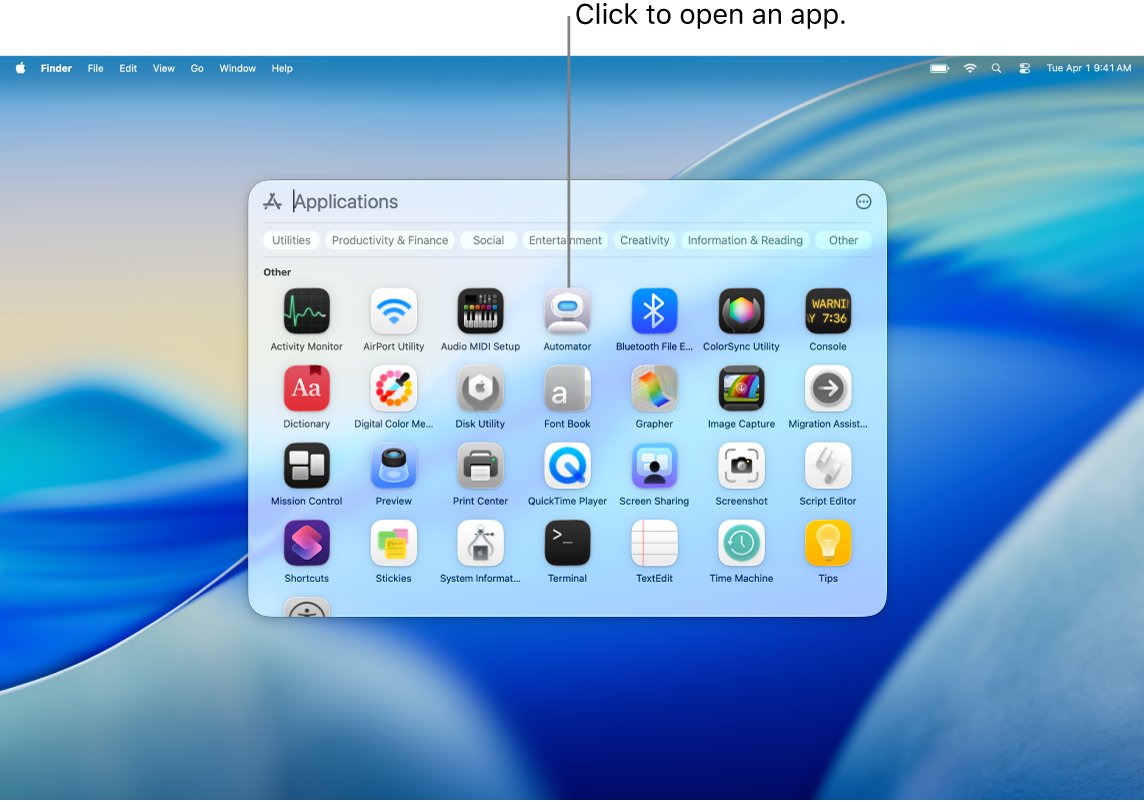
How to switch the macOS Tahoe Apps window to grid or list view
The Apps window has two layouts. Grid shows icons in rows, and List shows a scrolling list of app names with their icons.
- Click the Apps icon in the Dock.
- Click the view options button in the Apps window.
- Choose Grid or List.
- Choose the option to show iPhone apps if you also want apps from your iPhone listed.
- Click an app icon to open it, or press Esc to close the window.
The choice applies the next time you open Apps, so you only set it once.
Where did Launchpad go in macOS Tahoe 26?
In macOS Sequoia 15 and earlier, the Launchpad icon in the Dock opened a full-screen grid of pages, much like an iPhone or iPad Home Screen. In macOS Tahoe 26, the same spot in the Dock holds Apps, and the apps browser is now part of Spotlight.
| Feature | Launchpad (macOS Sequoia 15 and earlier) | Apps in Spotlight (macOS Tahoe 26) |
|---|---|---|
| Dock icon | Launchpad | Apps |
| Layout | Full-screen pages of icons | A Spotlight window in Grid or List view |
| Moving between screens | Swipe, Command-Left Arrow or Command-Right Arrow, or click the page dots | Arrow keys move between apps; categories replace pages |
| Grouping | Folders you create by dragging one app onto another | Categories along the top, such as Productivity & Finance |
| Games | A Games folder | The Arcade category, which works with a compatible game controller |
| iPhone apps | Not shown | Optional, through iPhone Mirroring |
| Adding non-App Store apps | Drag the app to the Applications folder | Drag the app to the Applications folder |
The Apps window's view options offer Grid, List and showing iPhone apps. There is no option there to restore the Launchpad pages or the folders you built in them.
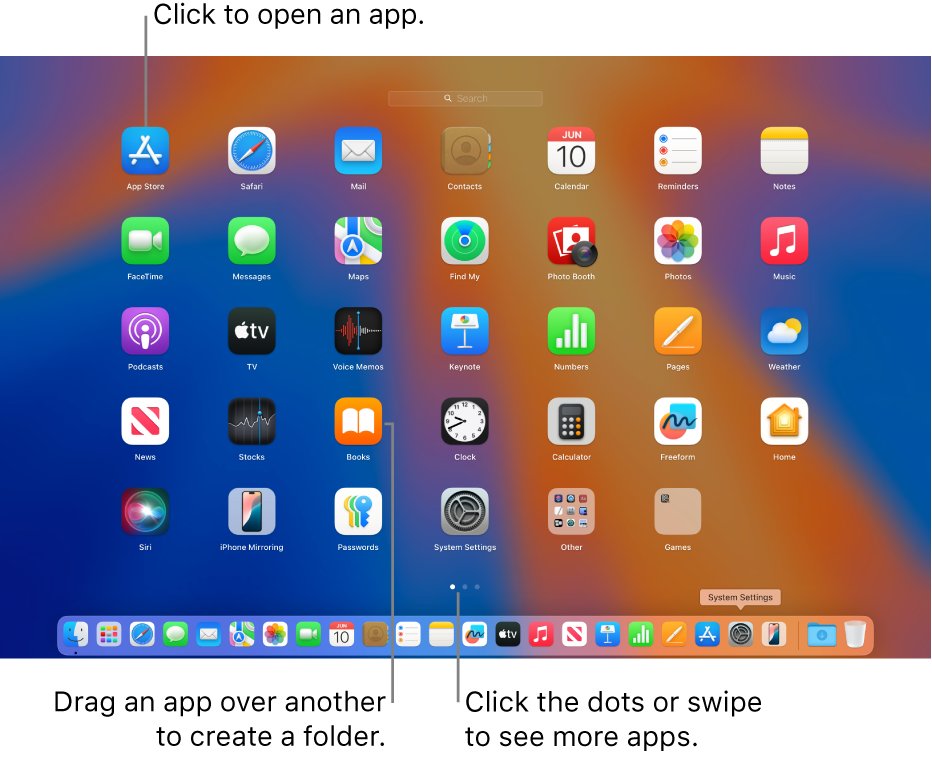
How to open Apps in macOS Tahoe from the Dock, menu bar or keyboard
- From the Dock: click the Apps icon.
- From the menu bar: click the Spotlight icon, then click the Applications icon in the Spotlight window.
- From the keyboard: press Command-Space bar to open Spotlight, then press Command-1 to jump to the apps window.
- Press an arrow key to move between apps, then press Return to open the selected one.
- To open a single app quickly, type its name in the search field and press Return.
If the Spotlight icon is missing from the menu bar, add it in Menu Bar settings in System Settings.
How to filter apps by category in the macOS Tahoe Apps window
Categories do the job Launchpad folders used to do, except macOS sorts the apps for you.
- Click the Apps icon in the Dock.
- Click a category along the top of the window, such as Productivity & Finance.
- Click Arcade to see games you downloaded from Apple Games.
- Click an app to open it, or drag it to the Dock to keep it there.
How to add apps to the Dock on a Mac
Apps you use every day belong in the Dock, so you skip the Apps window entirely.
- Click the Apps icon in the Dock.
- Drag the app from the apps window to the Dock and release it to the left of the separator line.
- To add an open app instead, Control-click its icon in the Dock and choose Options > Keep in Dock.
- To add an app from the Finder, open Applications in the Finder sidebar and drag the app to the Dock.
- Drag the new icon left or right to put it where you want it.
The Dock holds an alias, so the app stays in the Applications folder and in Spotlight.
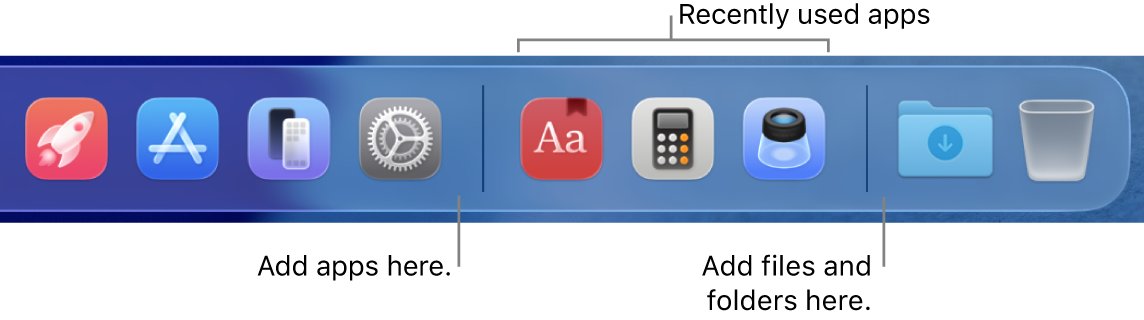
How to remove apps from the Dock on a Mac
- Point to the app icon in the Dock.
- Drag the icon up and out of the Dock until Remove appears.
- Release the icon.
- If the app is open, quit the app so the icon leaves the Dock.
Removing a Dock icon deletes only the alias, not the app. To delete the app itself, uninstall it from your Mac instead.
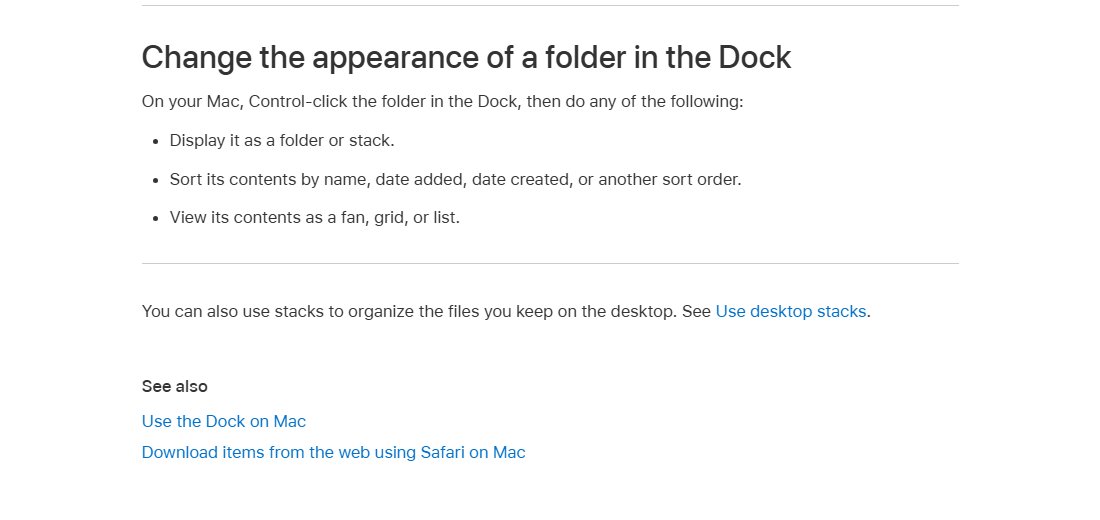
Add the Applications folder to the Dock as a grid in macOS Tahoe
A Dock folder shown as a grid gives you a pop-up of app icons, which is the closest built-in match to the old Launchpad look.
- Click the Finder icon in the Dock.
- Drag Applications from the Finder sidebar to the right side of the separator line in the Dock.
- Control-click the new Applications folder in the Dock.
- Choose to view its content as a grid.
- Choose to sort it by name so apps appear alphabetically.
- Click the folder to expand the grid, then click an app to open it.
Click Open in Finder in the expanded grid to open the full Applications folder. Click the folder again, or click the desktop, to collapse it.
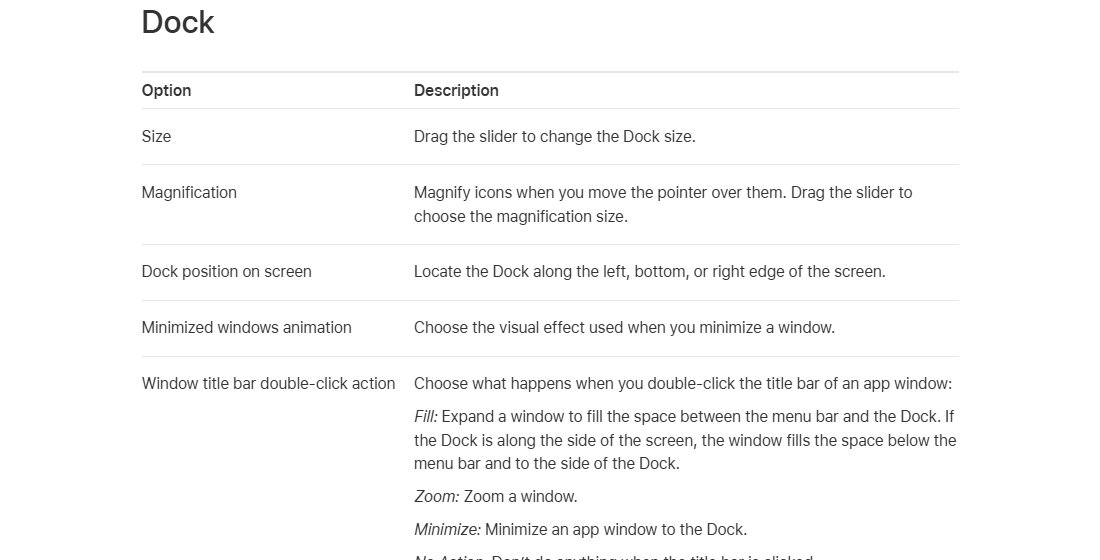
Change Dock size and position in macOS Tahoe Desktop & Dock settings
- Choose Apple menu > System Settings.
- Click Desktop & Dock in the sidebar. You may need to scroll down.
- Under Dock, adjust the size of the Dock icons.
- Move the Dock to the left or right edge of the screen if you prefer.
- Turn on automatic hiding if you want the Dock out of the way until you point to it.
For a quick resize, point to the separator line in the Dock until a double arrow appears, then drag up or down.
Check the Apps window and Dock changes worked
- Click the Apps icon in the Dock and confirm it opens in the view you chose.
- Click a category and confirm only apps of that type are shown.
- Confirm the apps you dragged to the Dock stay there after you quit them.
- Press Fn-Control-F3, use the arrow keys to move along the Dock, and press Return to open an app without the mouse.
Fix macOS Tahoe Apps window and Dock problems
Icons in the Apps window look too small
The Apps window is part of Spotlight and has no separate icon-size control, only Grid and List views.
- Switch to List view so app names appear next to each icon.
- Drag the Spotlight window larger, or move it, so you see more results at once.
- Put the apps you use most in the Dock and enlarge the Dock in Desktop & Dock settings.
You want the iPhone-style app grid back
Launchpad was replaced by Apps in macOS Tahoe 26, and its pages and folders are gone.
- Choose Grid in the Apps window's view options.
- Add the Applications folder to the Dock and view its content as a grid.
- Use categories in place of the folders you made in Launchpad.
An app is missing from the Apps window
Apps from outside the App Store appear only after they are in the Applications folder.
- Click the Finder icon in the Dock.
- Drag the app into Applications in the Finder sidebar.
- Open Apps again and search for the app by name.
An app icon is dimmed with an hourglass
Screen Time downtime or an app limit has been reached.
- Open System Settings and click Screen Time in the sidebar.
- Check the downtime schedule and any time limit set for that app.
- Change the schedule or limit, or wait until downtime ends.
An app you removed from the Dock is needed again
Dragging an icon out of the Dock removes only its alias.
- Open the app from the Apps window.
- Control-click its icon in the Dock.
- Choose Options > Keep in Dock.
macOS Tahoe Apps and Dock FAQ
How do I add an app to the Dock on a Mac?
Click the Apps icon in the Dock and drag the app to the left side of the Dock's separator line. If the app is already open, Control-click its Dock icon and choose Options > Keep in Dock instead.
How do I remove apps from the Dock?
Drag the app's icon out of the Dock until Remove appears, then release it. This deletes only the Dock alias. The app stays in the Applications folder and in the Apps window.
How do I pin an app to the Dock on a Mac?
Open the app, Control-click its icon in the Dock, and choose Options > Keep in Dock. The icon then stays in the Dock after you quit the app.
Where is Launchpad in macOS Tahoe 26?
Launchpad was replaced by Apps. The Apps icon in the Dock opens the apps window of Spotlight, where you browse apps in Grid or List view and filter them by category.
Can I change the Apps window back to the old Launchpad layout?
No. The Apps window offers Grid and List views and an option to show iPhone apps. For a pop-up grid of icons, add the Applications folder to the Dock and view its content as a grid.
How do I open Apps on a Mac with the keyboard?
Press Command-Space bar to open Spotlight, then press Command-1 to jump to the apps window. Use the arrow keys to select an app and press Return to open it.
How do I add apps to the Mac Dock from the Finder?
Click the Finder icon, select Applications in the sidebar, and drag the app to the Dock. Release it to the left of the separator line, where the Dock keeps apps.
How do I make the Dock icons bigger on a Mac?
Open System Settings, click Desktop & Dock, and adjust the size under Dock. You can also point to the Dock's separator line until a double arrow appears and drag up.