The most reliable way to run Windows software on a Mac is to install Windows 11 in a virtual machine such as Parallels Desktop, which Microsoft lists as an authorized option for Macs with M1, M2 and M3 chips.
The other four routes are Wine through Kegworks, CrossOver, Boot Camp on Intel Macs, and a remote connection to a real Windows PC or Cloud PC.
1. Run Windows in a virtual machine
A virtual machine runs a full copy of Windows in a window on your Mac desktop, so almost any Windows program installs as it would on a PC.
On a Mac with Apple silicon, the guest must be the Arm version of Windows 11. Microsoft names Parallels Desktop versions 18, 19 and 20 as authorized solutions for Windows 11 Pro and Windows 11 Enterprise on M1, M2 and M3 Macs.
- Check your chip: open the Apple menu and choose About This Mac. An Apple M-series chip needs Windows 11 on Arm; an Intel chip can run the regular x64 Windows.
- Install a virtualization app such as Parallels Desktop or VMware Fusion from the vendor's own website.
- Get Windows: on Apple silicon, download the Windows 11 multi-edition ISO for Arm64 from Microsoft's Windows 11 Arm64 download page. The page states it can be used to create a Windows 11 on Arm virtual machine.
- Create a new virtual machine in the app and point it at the ISO file.
- Give the virtual machine enough storage and memory for the programs you plan to run, then start it and complete Windows Setup.
- Activate Windows with a Windows 11 Pro product key. Microsoft notes that each Windows instance needs its own license, and the same Pro key works on x64 and Arm.
- Install your Windows program inside the virtual machine. On Windows 11 on Arm, x86 and x64 programs run through built-in emulation with no extra setup.
VMware Fusion Pro has been free for commercial, educational and personal use since November 11, 2024, according to VMware's own announcement. Inside the virtual machine you can run programs as administrator exactly as on a PC.
What you need to run Windows on an M-series Mac
What changed with Apple silicon: Macs with M-series chips cannot use Boot Camp, so older guides that start with Boot Camp Assistant do not apply to them. On these Macs, Windows means the Arm version of Windows 11 in a virtual machine, or a Cloud PC streamed over the network.
| Requirement | Details |
|---|---|
| Mac | A Mac with Apple silicon: M1, M2, M3, M4 or later. Microsoft's authorization names M1, M2 and M3, and Parallels lists support up to its newest M5 models |
| Virtualization app | Parallels Desktop 18, 19 or 20 (the versions Microsoft authorizes), VMware Fusion or UTM |
| Windows edition | Windows 11 Pro or Windows 11 Enterprise for Arm; Parallels supports only Arm versions of Windows on these chips |
| Installer | The Windows 11 multi-edition ISO for Arm64 from Microsoft's Windows 11 Arm64 download page |
| License | A separate Windows 11 Pro license for each Windows instance, bought from the Microsoft Store or a retailer |
| Alternative | A Windows 365 Cloud PC, sold to organizations per user, per month |
Windows 11 Pro product keys are not tied to a platform, so a key bought for an x64 PC also activates the Arm version in a virtual machine.
How to run Windows on a Mac with Parallels Desktop
Parallels Desktop is a virtualization app, not a Windows emulator: it runs a real copy of Windows in a virtual machine, and Windows 11 on Arm handles x86 and x64 apps through its own emulation. Windows sits in a window next to macOS, so you run Windows apps on your Mac without rebooting.
- Download the Windows 11 multi-edition ISO for Arm64 from Microsoft on an Apple silicon Mac. On an Intel Mac, use the regular x64 Windows 11 ISO.
- Install Parallels Desktop from the Mac App Store or from Parallels' own site. The App Store Edition is a free download with a 14-day trial.
- Open Parallels Desktop, start a new virtual machine and select the Windows ISO you downloaded as the installation source.
- Set how much CPU, memory and graphics the virtual machine can use; Parallels lets you change these later.
- Start the virtual machine and complete Windows Setup.
- Activate Windows with your Windows 11 Pro product key, then install your Windows programs inside it.
Choose the right edition before you pay. The App Store Edition runs inside a macOS sandbox, while the Standard and Pro editions sold by Parallels add more advanced features.
Which way to run Windows apps on a Mac should you pick?
Pick by what you actually need to run, not by the method name.
| Your situation | Use this | Why |
|---|---|---|
| Apple silicon Mac (M1 or later), need most Windows apps | Virtual machine with Windows 11 on Arm | Full Windows; x86 and x64 apps run through emulation |
| Intel Mac, need full hardware speed or games | Boot Camp | Windows runs natively on the Mac's hardware, one OS at a time |
| One or two simple Windows programs, no Windows license | Wine through Kegworks | Free; no copy of Windows is installed |
| A specific app or game, want vendor support | CrossOver | Commercial Wine-based product from CodeWeavers |
| You already own a Windows PC, or your work provides a Cloud PC | Windows App remote connection | The software runs on the PC; the Mac only shows the screen |
| A Mac version of the program exists | Native Mac app | No Windows, no license, no emulation layer |
2. Use Wine to run Windows apps with Kegworks (previously Wineskin)
Wine is a compatibility layer: it answers a Windows program's system calls itself, so the program runs on macOS without any copy of Windows. Kegworks is the current name of the Wineskin project, which packages a Windows program and Wine together into a Mac app bundle.
Results depend entirely on the program. Small utilities and older software often work; programs with copy protection, anti-cheat or kernel drivers usually do not.
- Confirm the program does not need a driver, a hardware dongle or anti-cheat, because a compatibility layer cannot load those.
- Install Kegworks from the project's own page, not from a download portal.
- Create a new, empty app bundle in Kegworks and give it the name of the Windows program.
- Run the Windows program's installer inside that bundle so its files stay inside it.
- Set the program's main executable as the bundle's launch target.
- Open the finished app like any Mac app and test every feature you rely on.
If the program fails to start or crashes at a specific task, switch to a virtual machine. A full copy of Windows removes the compatibility guesswork.
3. Use CrossOver Mac to run Windows apps
CrossOver is a paid product from CodeWeavers built on the same Wine technology. Apple's own Game Porting Toolkit page names CrossOver from CodeWeavers as one way to use its evaluation environment for Windows games on Apple silicon.
Like Wine, it needs no Windows license, and it shares Wine's limits on drivers and anti-cheat.
- Check CodeWeavers' own site for reports on your program and your macOS version before you pay.
- Install CrossOver from CodeWeavers' own site, not from a download portal.
- Run your program's Windows installer through CrossOver, keeping each program in its own separate Windows environment.
- Launch the program from CrossOver and test every feature you rely on, including printing and file saving.
- If a feature fails, fall back to a virtual machine, which runs the real Windows code path.
4. Use Boot Camp to install Windows on an Intel Mac
Boot Camp installs Windows on its own partition, so Windows runs directly on the Mac's hardware with no emulation. Apple supports it only on Intel-based Macs, and its support page lists Windows 10 Home or Windows 10 Pro, 64-bit.
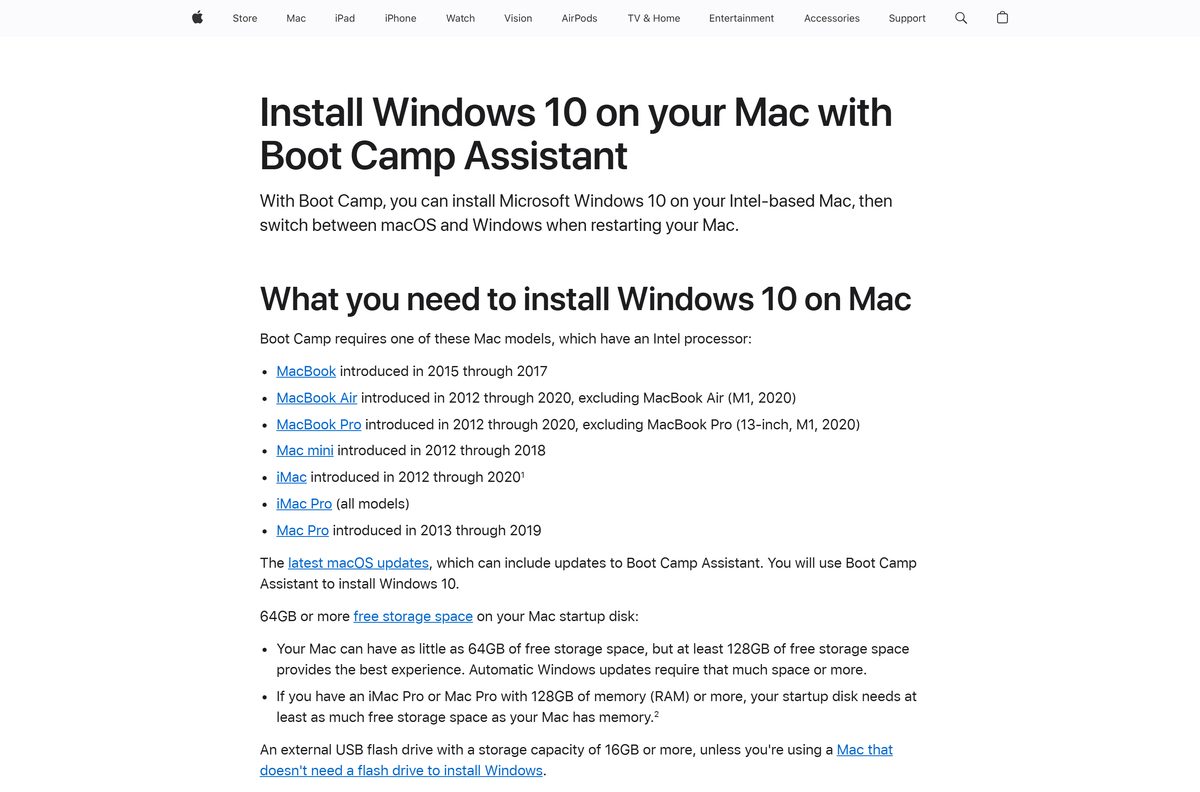
Macs with Apple silicon cannot use Boot Camp. Use a virtual machine or a remote PC there instead.
- Install all macOS updates, since they can include Boot Camp Assistant updates.
- Free at least 64GB on the startup disk; Apple recommends 128GB so Windows can update itself.
- Download a 64-bit Windows 10 disk image (ISO) from Microsoft, and connect a 16GB or larger USB flash drive if your Mac model asks for one.
- On a Mac with the Apple T2 Security Chip, make sure Secure Boot is set to Full Security.
- Open Boot Camp Assistant from the Utilities folder inside Applications and follow the onscreen steps.
- Set the Windows partition size. Apple warns that you cannot change it later.
- When the Windows installer starts, select the BOOTCAMP partition, click Format if asked, then click Next.
- After Windows starts, follow the Welcome to the Boot Camp installer window to install the Mac drivers, then restart.
To switch operating systems, restart and hold the Option (Alt) key during startup, then pick macOS or Windows.
5. Access Windows remotely with remote desktop tools
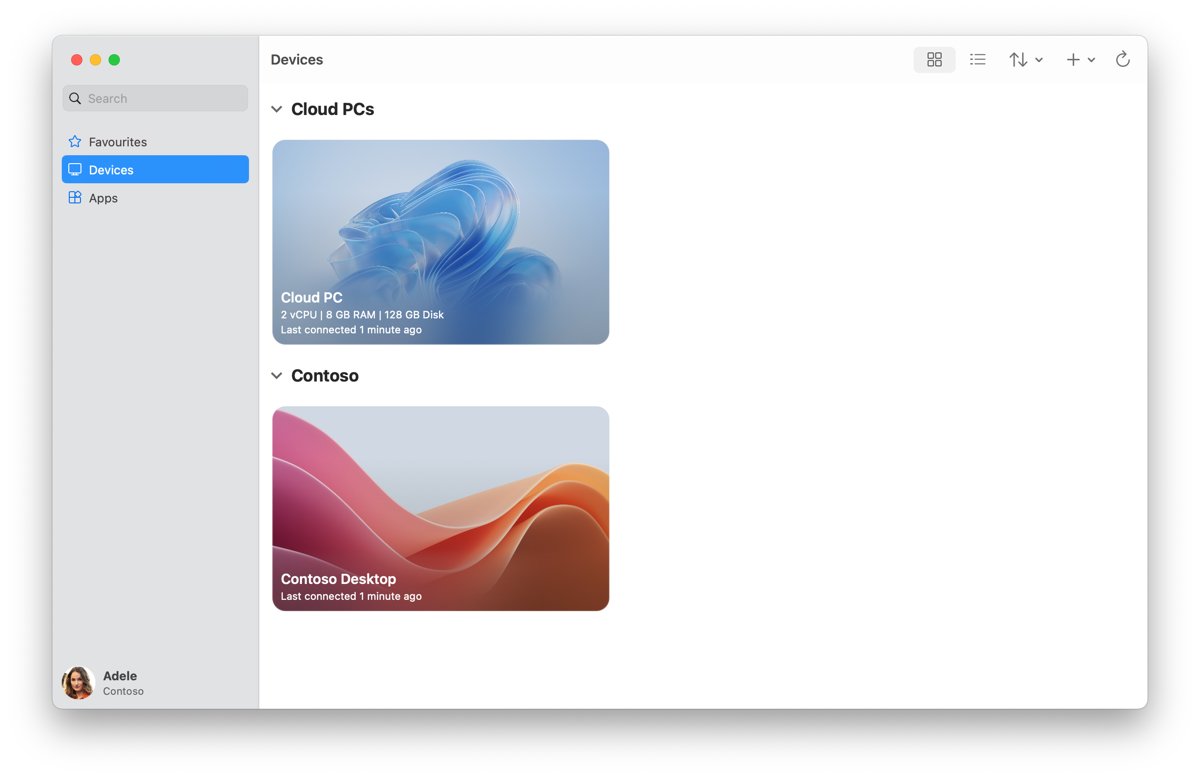
A remote connection runs the program on a real Windows PC or a Windows 365 Cloud PC and streams the screen to your Mac. Microsoft's Windows App for macOS handles both, and it is free from the Mac App Store.
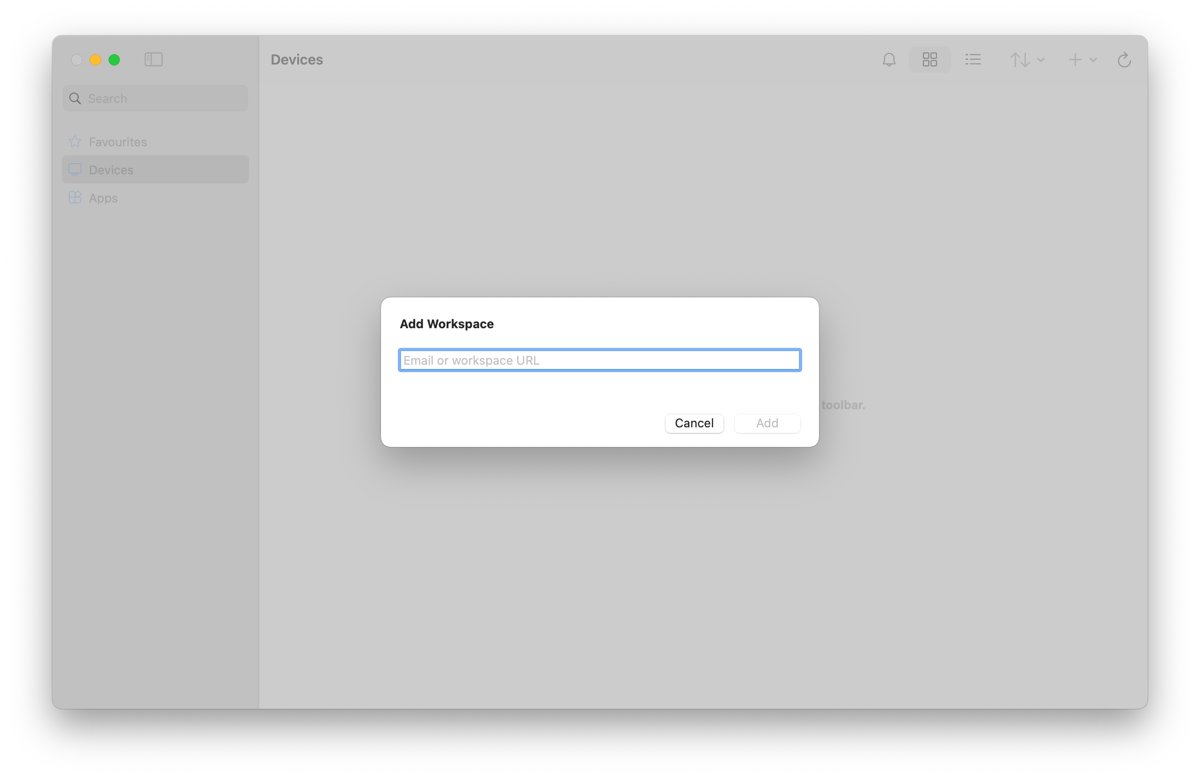
The PC you connect to must run Windows Pro, Enterprise or Education. Microsoft states that Windows Home editions cannot act as Remote Desktop hosts.
- On the Windows PC, select Start > Settings > System > Remote Desktop.
- Turn Enable Remote Desktop on and select Confirm.
- On the Mac, install Windows App from the Mac App Store (macOS 12.0 or later) and open it.
- On the Devices tab, select the + icon, then Add PC.
- Enter the PC's hostname or IP address in PC Name and select Add.
- Double-click the PC on the Devices tab and sign in with an account allowed to connect.
Windows 365 Cloud PCs are a per-user monthly subscription. Signing in to Windows App for a Cloud PC needs a work or school account; a personal Microsoft account does not work there.
A remote PC or Cloud PC is the right move when an app needs x64 drivers, DirectX 12 or nested virtualization that a virtual machine on the Mac cannot provide. It isn't when you need to work offline, because the software runs on the other machine.
Look for native Mac alternatives
Before setting up any of the five routes above, check whether the software or a close equivalent already runs on macOS. Many popular apps ship Mac versions, such as Slack for Mac and the Telegram desktop app.
| Where to check | What you find |
|---|---|
| The software vendor's download page | A macOS build, often under the same license |
| Mac App Store | Mac versions and alternatives that install and update through Apple |
| A web version of the app | Browser-based access with no install on either OS |
| Your license terms | Whether one purchase covers both Windows and Mac |
Who needs to run Windows on a Mac?
The real reasons people run Windows on a Mac decide which method fits. Mac users who choose Parallels or another virtual machine usually need several Windows programs at once.
| Who you are | What you need | Best route |
|---|---|---|
| Switched from a PC and still rely on Windows-only programs | Several Windows apps side by side with macOS | Virtual machine (method 1) |
| Gamer with Windows-only titles | Graphics performance and game compatibility | CrossOver, or Boot Camp on an Intel Mac |
| Developer or tester | A full Windows install; WSL or Windows Sandbox for some work | Virtual machine, or a Windows 365 Cloud PC when nested virtualization is needed |
| Employee whose company provides Windows apps | Access to a work desktop or Cloud PC | Windows App remote connection (method 5) |
| Owner of one small legacy utility | A single program with no Windows license | Wine through Kegworks (method 2) |
Comparison table: virtual machine vs Wine vs CrossOver vs Boot Camp vs remote desktop
| Method | Best for | Apple silicon Macs | Needs a Windows license | Cost |
|---|---|---|---|---|
| Virtual machine | Best method overall: almost any Windows program | Yes, with Windows 11 on Arm | Yes | VMware Fusion is free; Parallels is paid after its trial |
| Wine through Kegworks | Advanced users with one simple program | Depends on the program | No | Free |
| CrossOver | Specific Windows apps and Windows-only games it supports | Yes | No | Paid |
| Boot Camp | Intel Macs only, when native speed matters | No | Yes (Windows 10) | Included with macOS on Intel Macs |
| Remote desktop software | Remote access to a PC you own or a work Cloud PC | Yes | Only on the remote PC (Pro, Enterprise or Education) | Windows App is free; Windows 365 is a monthly subscription |
Best free way to run Windows on a Mac
Three virtualization apps cover most Macs: Parallels Desktop, VMware Fusion and UTM. UTM runs Windows 11 for Arm fully virtualized at near-native speed on Apple silicon and can attach USB devices, but it has no GPU acceleration for Windows, so most Windows games will not run in it. Its Mac App Store version is paid.
| Option | What is free | What still costs money |
|---|---|---|
| VMware Fusion | The app, for commercial, educational and personal use since November 11, 2024 | A Windows license |
| Wine through Kegworks | The app; no copy of Windows is needed | Nothing, but many programs will not work |
| Windows App | The Mac app, from the Mac App Store | A Windows Pro PC to connect to, or a Windows 365 subscription |
| Boot Camp | Built into macOS on Intel Macs | A Windows 10 license |
| Parallels Desktop | A 14-day trial of the App Store Edition | A subscription after the trial |
The best free way for most people is VMware Fusion with a Windows 11 license. If you have no license and need only one small program, try Wine first.
What can't run in Windows on an M-series Mac?
Every method on Apple silicon hits the same wall: Windows runs as the Arm version, inside another operating system. This table shows where each method falls short and what to use instead.
| Limit | What it affects | Workaround |
|---|---|---|
| DirectX 12 | Games and multimedia apps that rely on it may not run on the Arm version of Windows 11 | Boot Camp on an Intel Mac, or a remote Windows PC |
| Drivers | x86 emulation covers apps only, so hardware and kernel drivers built for x64 do not load | An Arm64 driver from the vendor, or a remote PC |
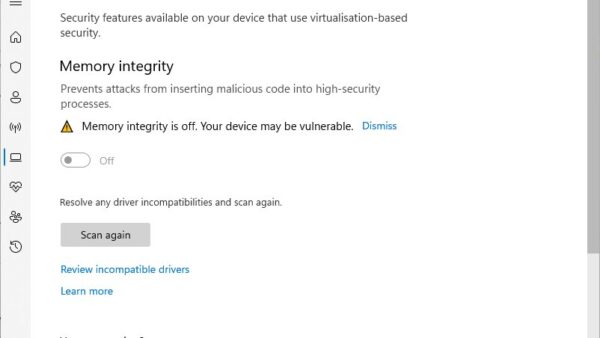
| Nested virtualization | Windows Subsystem for Linux, Windows Subsystem for Android, Windows Sandbox and virtualization-based security | A Windows 365 Cloud PC, which supports nested virtualization |
| 32-bit Arm Store apps | Not supported on M1, M2 and M3 Macs | The 64-bit Arm or x64 version of the app |
| Boot Camp | Not available on any Apple silicon Mac | A virtual machine or a remote connection |
How to check Windows apps are working on your Mac
- Virtual machine: inside Windows, open Settings > System > About and confirm the edition and that Windows is activated under Activation.
- Boot Camp: restart holding Option and confirm both macOS and Windows appear as startup disks.
- Remote PC: confirm the PC's desktop appears in a Windows App window and your mouse and keyboard control it.
- Wine or CrossOver: open the program, save a file, close it and reopen the file to confirm data stays put.
- For any route, test the one feature you need most, such as printing, a USB device or a game controller, before relying on it.
Fix running Windows on a Mac when it does not work
Boot Camp Assistant is missing or will not run on an M-series Mac
Boot Camp works only on Intel-based Macs; Apple silicon Macs cannot boot Windows directly.
- Check About This Mac for the chip name.
- On Apple silicon, install Windows 11 on Arm in a virtual machine instead (method 1).
- Or connect to an existing Windows PC with Windows App (method 5).
Why can't my Mac run Windows 11 through Boot Camp?
Apple's Boot Camp support page lists only 64-bit Windows 10 Home and Pro.
- Install Windows 10 through Boot Camp if you need native speed on an Intel Mac.
- For Windows 11, use a virtual machine instead.
A Windows app or game will not start in the Windows 11 on Arm virtual machine
Emulation covers user-mode code only, so apps that depend on their own drivers fail; Microsoft also lists limits for DirectX 12 titles and 32-bit Arm Store apps.
- Check whether the vendor offers an Arm64 or Mac version.
- Look for a Windows feature the app needs that Microsoft lists as unsupported on these Macs: Windows Subsystem for Linux, Windows Sandbox and virtualization-based security.
- Run the app on a real Windows PC through Windows App instead.
Windows App cannot connect to the PC
Remote Desktop is turned off, the PC runs a Home edition, or the account is not allowed to connect.
- Confirm the PC runs Windows Pro, Enterprise or Education.
- On the PC, check Settings > System > Remote Desktop shows Enable Remote Desktop turned on.
- Make sure the PC is powered on and on the same network, or reachable through a VPN.
- Sign in with an administrator account or one added under Remote Desktop users.
Running Windows on a Mac FAQ
These common questions cover licensing, safety, speed and games for Windows on any Mac.
Can you run Windows on a Mac?
Yes. Any Mac can run Windows software through a virtual machine, Wine, CrossOver or a remote connection. Intel Macs can also install Windows 10 natively with Boot Camp, which Apple supports on Intel-based models only.
How do I run Windows on a Mac for free?
Use VMware Fusion, which VMware made free for all users in November 2024, or Wine through Kegworks. A virtual machine still needs a Windows license to activate, while Wine needs no copy of Windows at all.
Can I run Windows on an M4 Mac?
Yes, in a virtual machine running Windows 11 on Arm, or through a remote connection to a Windows PC. Boot Camp is not available on any Mac with Apple silicon, including M4 models.
How do I run Windows on a Mac without Boot Camp?
Install Windows 11 on Arm in a virtualization app such as Parallels Desktop or VMware Fusion. On Apple silicon this is the main way to run full Windows, because Boot Camp only exists on Intel Macs.
Can I run Windows on a Mac mini?
Yes. An Apple silicon Mac mini runs Windows 11 on Arm in a virtual machine. Intel Mac mini models from 2012 to 2018 appear on Apple's Boot Camp list and can install Windows 10 natively.
Does Windows work on a MacBook Pro or MacBook Air?
Yes. Any MacBook Pro or MacBook Air can run Windows in a virtual machine. Intel models from 2012 to 2020 can also use Boot Camp, which installs Windows 10 on its own partition.
Why does Windows sometimes run better on a Mac?
With Boot Camp on an Intel Mac, Windows runs directly on the hardware with Apple's drivers, so there is no virtualization overhead. In a virtual machine, Windows shares the Mac's processor and memory with macOS.
Can I run macOS on Windows?
Apple does not offer a way to install macOS on non-Apple hardware. To use Mac software from a Windows PC, you need an actual Mac, either in front of you or reached remotely.
Do I need a Windows license to run Windows on a Mac?
Yes for a virtual machine or Boot Camp. Microsoft states each Windows instance needs its own license, and a Windows 11 Pro key works on both x64 and Arm. Wine and CrossOver need no license.
I just switched to Mac. Can I still use all my Windows apps?
Most of them, in a virtual machine running Windows 11. The exceptions are apps that need their own x64 drivers, DirectX 12 or nested virtualization features such as WSL. Check first whether the vendor offers a Mac version under the same license.
Is it legal to run Windows on Mac?
Yes, with a valid license. Microsoft authorizes Parallels Desktop 18, 19 and 20 for Windows 11 Pro and Enterprise on M1, M2 and M3 Macs, and Boot Camp is Apple's own tool. Each Windows instance needs its own license.
Is running Windows on Mac safe?
Yes. Windows in a virtual machine is a full Windows install, so keep it updated and protected like any PC. The App Store editions of Parallels Desktop and UTM run inside a macOS sandbox, which keeps them apart from your Mac files.
Does running Windows slow down my Mac?
A virtual machine shares the Mac's processor and memory with macOS while it runs, so heavy Windows work can slow Mac apps. Parallels lets you set how much CPU and memory the virtual machine gets. Shut Windows down when you are not using it.
Can I play games using Windows on Mac?
Some games, with limits. Parallels lists many popular Windows games with limitations, UTM has no GPU acceleration for Windows, and the Arm version of Windows 11 has limits with DirectX 12. Boot Camp on an Intel Mac gives games native performance.
Is Parallels Desktop a Windows emulator?
No. Parallels Desktop is virtualization software that runs a real copy of Windows in a virtual machine. On Apple silicon, Windows 11 on Arm then emulates x86 and x64 apps itself, with no extra setup.
Best way to run Windows software on a Mac
Use a virtual machine with Windows 11 on Arm on any Apple silicon Mac, and Boot Camp only on an Intel Mac that needs native speed. A virtual machine runs nearly every Windows program with full Windows behind it, while Wine and CrossOver are worth trying first only when one simple program is all you need and you have no Windows license.