Mac does not have an app called Task Manager. The macOS equivalent is Activity Monitor, which shows running apps and background processes along with their CPU, memory, energy, disk, and network usage. If you only need to close a frozen app, macOS also has a separate Force Quit Applications window.
The quickest way to open the Mac equivalent of Task Manager is to press Command + Space, type Activity Monitor, and press Return. From there, you can find apps using too much CPU or memory and quit processes that have stopped responding.
There are several other ways to open Activity Monitor, including Finder, Launchpad, and Siri. There is also a Task Manager-style keyboard shortcut for Force Quit, so the best method depends on whether you want to monitor processes or simply close a frozen app.
How to Open Task Manager on Mac
If you are coming from Windows, Activity Monitor is the app you are looking for. Apple uses it to display the processes currently running on macOS and the system resources they consume.
Activity Monitor works on MacBook Air, MacBook Pro, iMac, Mac mini, Mac Studio, and Mac Pro, including Macs with Apple silicon and Intel processors.
Method 1: Open Activity Monitor with Spotlight
Spotlight is usually the fastest way to open Task Manager on a Mac:
- Press Command + Space.
- Type Activity Monitor.
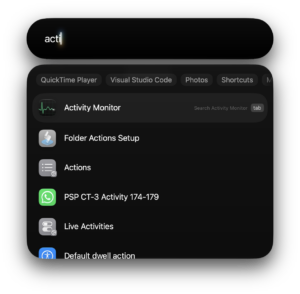
- Press Return.
Activity Monitor opens immediately and displays the processes currently running on your Mac.
Method 2: Open Activity Monitor from Finder
You can also find Activity Monitor inside the Utilities folder:
- Open Finder.
- Select Applications.
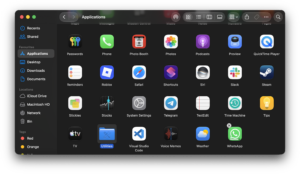
- Open the Utilities folder.
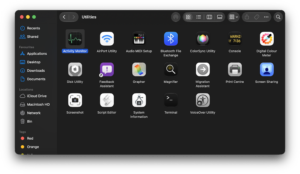
- Double-click Activity Monitor.
This is useful if Spotlight is disabled or you want to locate the actual Activity Monitor application.
Method 3: Open Activity Monitor from Launchpad
Open Launchpad and search for Activity Monitor. Click the Activity Monitor icon when it appears.
Depending on your macOS version and Launchpad layout, Activity Monitor can also appear inside an Other folder.
Method 4: Open Activity Monitor with Siri
Activate Siri and say “Open Activity Monitor.” Siri will launch the app without requiring you to navigate through Finder.
Task Manager Shortcut on Mac
There is no single macOS keyboard shortcut that opens Activity Monitor directly. The quickest keyboard-based method is:
Command + Space → type Activity Monitor → Return
If by Task Manager you mean the Windows screen used to close a frozen application, macOS has a more direct shortcut:
Option + Command + Esc
This opens the Force Quit Applications window. Apple documents this shortcut as the standard way to force an unresponsive Mac app to close.
How to Force Quit an App on Mac
You do not need Activity Monitor when your only goal is to close a frozen application. Press Option + Command + Esc to open Force Quit Applications.
- Press Option + Command + Esc together.
- Select the app that is not responding.
- Click Force Quit.
- Confirm Force Quit if prompted.
You can reach the same window by clicking the Apple menu > Force Quit.
Try Command + Q first if the app still responds. A normal quit gives the app a chance to save changes, while Force Quit closes it immediately and can cause unsaved work to be lost.
How to force quit Finder on Mac
Finder is always running, so macOS handles it differently from a normal application. If Finder freezes:
- Press Option + Command + Esc.
- Select Finder.
- Click Relaunch.
macOS closes and restarts Finder without requiring you to restart the entire Mac.
How to Use Activity Monitor on Mac
Activity Monitor provides considerably more information than the Force Quit window. Apple divides system activity into several tabs, each useful for diagnosing a different type of problem.
| Activity Monitor tab | What it shows |
|---|---|
| CPU | Processor usage by apps and processes |
| Memory | RAM usage and memory pressure |
| Energy | Apps consuming the most energy |
| Disk | Data being read from and written to storage |
| Network | Data sent and received by processes |
You can click a column heading to sort the list. For example, clicking % CPU sorts processes by processor usage, making it easy to identify an app consuming an unusually large amount of CPU time.
How to See CPU Usage on Mac
Open Activity Monitor and select the CPU tab. The % CPU column shows how much processor capacity each process is using.
Click % CPU to sort from highest to lowest usage. Apple also shows overall CPU information at the bottom of the window:
- System shows CPU capacity used by macOS processes.
- User shows CPU capacity used by your apps and their processes.
- Idle shows unused CPU capacity.
A high CPU percentage is not automatically a problem. Video editing, games, software development, file compression, browser tabs, and other demanding workloads can legitimately use large amounts of processing power.
If the Mac remains hot or slow after you stop doing demanding work, sort Activity Monitor by CPU and check which process remains near the top.
Show Mac CPU usage in the Dock
Activity Monitor can turn its Dock icon into a live CPU monitor. With Activity Monitor open, select View > Dock Icon and choose one of the CPU display options.
You can also select Window > CPU Usage for current processor activity or Window > CPU History to see recent activity.
How to Check RAM Usage on Mac
Open Activity Monitor and select Memory. This tab shows how much memory each process is consuming and gives you a better picture of whether RAM usage is contributing to poor performance.
Pay particular attention to the Memory Pressure graph at the bottom of the window. It provides a more useful indication of available memory than simply looking at how much RAM appears to be occupied, because macOS intentionally uses available memory for caching and performance.
If memory pressure remains high while the Mac feels slow, sort the Memory column from highest to lowest and check which applications are consuming the most RAM. Closing unused browser tabs and memory-heavy applications can free resources immediately.
How to End a Process on Mac
Activity Monitor can quit applications as well as individual background processes. Use this carefully because macOS relies on many processes that do not have recognizable names.
- Open Activity Monitor.
- Find the application or process you want to close.
- Select it.
- Click the Stop button at the top of Activity Monitor.
- Select Quit or Force Quit.
Apple describes Quit as the safer option because it allows the process to exit normally. Force Quit terminates it immediately and can result in lost data or problems with other processes that depend on it.
Activity Monitor marks an unresponsive process with (Not Responding), which helps identify a frozen application before you terminate it.
How to Find a Process in Activity Monitor
A Mac can have hundreds of processes running simultaneously, so scrolling through the entire list is rarely efficient. Use the search field in Activity Monitor and enter the app or process name.
You can also change which processes Activity Monitor displays from the View menu. Available views include your own processes, system processes, active processes, and all processes.
If you do not recognize a process, search for its name before terminating it. Many background processes belong to macOS, security software, cloud storage services, browser components, and hardware drivers.
How to Keep Activity Monitor in the Dock
If you use the Mac Task Manager regularly, keep Activity Monitor in the Dock so you do not have to search for it each time.
- Open Activity Monitor.
- Right-click or Control-click its icon in the Dock.
- Select Options.
- Click Keep in Dock.
You can now open Activity Monitor with one click.
Activity Monitor vs Force Quit on Mac
| Feature | Activity Monitor | Force Quit Applications |
|---|---|---|
| View running applications | Yes | Yes |
| View background processes | Yes | No |
| Force quit apps | Yes | Yes |
| End individual processes | Yes | No |
| View CPU usage | Yes | No |
| View RAM usage | Yes | No |
| View disk activity | Yes | No |
| View network activity | Yes | No |
| Keyboard shortcut | No direct shortcut | Option + Command + Esc |
Use Activity Monitor when you want the Mac equivalent of the full Windows Task Manager. Use Force Quit Applications when you only need to close a frozen program.
What to Do If Activity Monitor Will Not Open
If Activity Monitor itself will not open, try launching it from Applications > Utilities instead of Spotlight. If it still fails, restart the Mac from Apple menu > Restart.
If a frozen application prevents you from using Activity Monitor, press Option + Command + Esc and force quit the problem application instead.
When the entire Mac stops responding and neither Force Quit nor Restart works, Apple recommends holding the Mac’s power button for up to 10 seconds until it turns off. On a MacBook with Touch ID, the Touch ID button is also the power button. Use a forced shutdown only when the normal options fail because unsaved work can be lost.
Frequently Asked Questions
What is Task Manager called on a Mac?
The closest equivalent to Windows Task Manager is Activity Monitor. It displays running applications and processes along with CPU, memory, energy, disk, and network activity.
What is the Task Manager shortcut on Mac?
Mac does not have a direct keyboard shortcut for Activity Monitor. Press Command + Space, type Activity Monitor, and press Return. To open the Force Quit Applications window, press Option + Command + Esc.
What is Ctrl + Alt + Delete on a Mac?
There is no exact macOS equivalent to the full Windows Ctrl + Alt + Delete screen. For closing an unresponsive app, the closest shortcut is Option + Command + Esc, which opens Force Quit Applications.
How do I see what programs are running on my Mac?
Open Activity Monitor to see applications, background processes, and system processes currently running. Use the View menu to control which types of processes appear.
How do I force quit an app on a Mac?
Press Option + Command + Esc, select the frozen application, and click Force Quit. You can also select Apple menu > Force Quit.
How do I open Task Manager on a MacBook Pro?
Press Command + Space, search for Activity Monitor, and press Return. The process is the same on MacBook Pro, MacBook Air, iMac, Mac mini, Mac Studio, and Mac Pro.
How do I check CPU and RAM on Mac?
Open Activity Monitor and select CPU to inspect processor usage or Memory to inspect RAM usage. Sort the relevant column to find the processes consuming the most resources.
Can I end background processes on a Mac?
Yes. Select a process in Activity Monitor, click the Stop button, and choose Quit or Force Quit. Avoid terminating unfamiliar system processes because other parts of macOS can depend on them.
Why does closing a Mac window not quit the app?
On macOS, clicking the red close button usually closes the current window while leaving the application running. To quit the application completely, press Command + Q or choose App Name > Quit from the menu bar.
Does Activity Monitor work on Apple silicon Macs?
Yes. Activity Monitor is built into macOS and works on Macs using Apple silicon as well as older Intel-based Macs.