Open Apple menu > System Settings > Displays, select the Thunderbolt Display, and drag its Brightness slider to change its brightness from a 5K iMac.
This guide covers that route on older macOS versions, the shortcut keys, which 5K iMacs need an adapter for the Thunderbolt Display, and what to do when no slider appears.
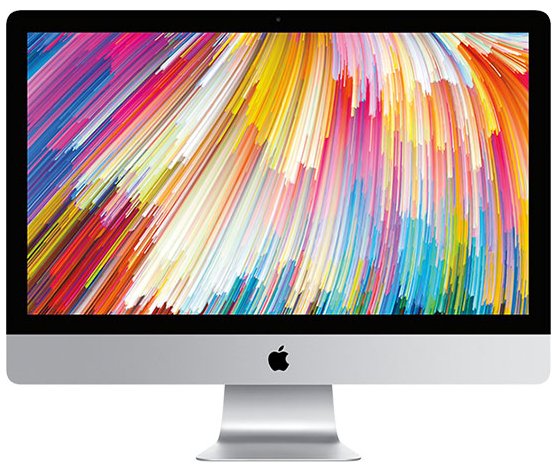
Change Thunderbolt Display brightness in System Settings on a 5K iMac
The Displays pane lists each connected screen separately, so the iMac and the Thunderbolt Display each get their own brightness control.
- Choose Apple menu > System Settings.
- Click Displays in the sidebar. You may need to scroll down.
- Select the Thunderbolt Display at the top of the pane.
- Drag the Brightness slider to the level you want.
On macOS Monterey and earlier, choose Apple menu > System Preferences > Displays instead.
Thunderbolt Display brightness controls on Mac compared
| Control | What it does | Use it when |
|---|---|---|
| Displays brightness slider | Sets the brightness of the display you select | You want to change the Thunderbolt Display specifically |
| Brightness keys on the Magic Keyboard | Step the brightness up or down | You want a quick change; test which screen it affects |
| Option + brightness key | Opens Display settings directly | You want the slider without clicking through menus |
| Control Center Display slider | Drag for precise brightness | Your keyboard has no brightness keys |
Use the Option brightness key shortcut to open Display settings
- Hold the Option key.
- Press the increase or decrease brightness key in the top row of the keyboard.
- Select the Thunderbolt Display in the Displays pane that opens.
- Drag its Brightness slider.
If your keyboard is set to use standard function keys, also hold Fn while pressing the brightness key.
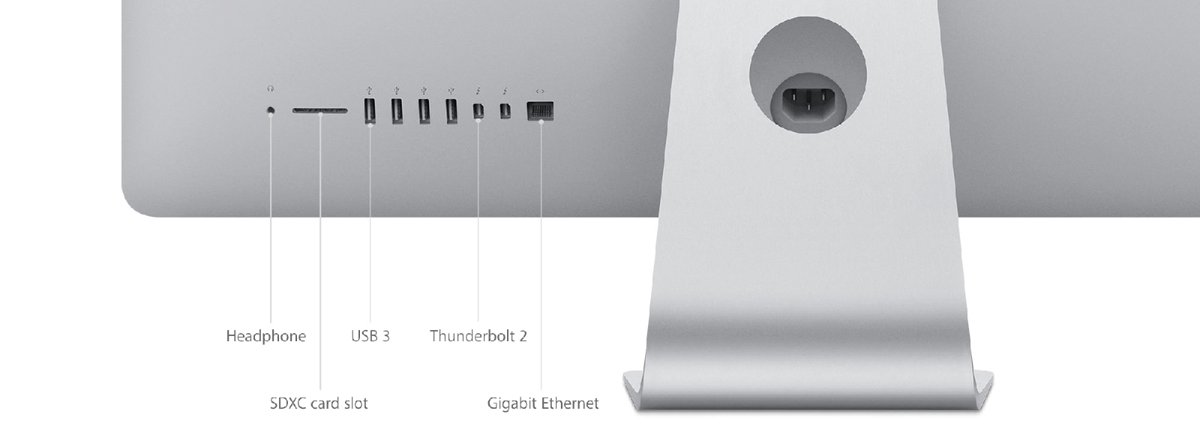
Connect Apple Thunderbolt Display to 5K iMac: cable and adapter by model
The Thunderbolt Display has a built-in Thunderbolt cable. Late 2014 and 2015 5K iMacs have matching Thunderbolt 2 ports; 2017 and later 5K iMacs have Thunderbolt 3 (USB-C) ports and need Apple's adapter.
| iMac model | Ports | What you need |
|---|---|---|
| iMac (Retina 5K, 27-inch, Late 2015) and earlier 5K | Two Thunderbolt 2 | Plug the display cable straight in |
| iMac (Retina 5K, 27-inch, 2017) and later | Two Thunderbolt 3 (USB-C) | Thunderbolt 3 (USB-C) to Thunderbolt 2 Adapter |
| Any model | Mini DisplayPort adapters or USB-C hubs | Will not work; Thunderbolt is not the same as Mini DisplayPort |
The adapter does not pass power, so the display's MagSafe connector cannot charge anything through it.
Check the Thunderbolt Display brightness changed
- Drag the slider for the Thunderbolt Display to the minimum, then to the maximum.
- Watch the Thunderbolt Display, not the iMac, dim and brighten.
- Set the slider back to a comfortable level and close System Settings.
Thunderbolt Display brightness slider missing or not working
No brightness slider appears for the Thunderbolt Display
The display is connected through the wrong adapter or is not fully detected.
- On a 2017 or later iMac, confirm you are using the Thunderbolt 3 (USB-C) to Thunderbolt 2 Adapter, not a USB-C hub or Mini DisplayPort adapter.
- Unplug the display's Thunderbolt cable, then plug it back in securely.
- Put the iMac to sleep and wake it.
The Thunderbolt Display does not show up in Displays
macOS has not detected the screen.
- Open System Settings > Displays.
- Hold Option so Detect Displays replaces the Night Shift button, then click Detect Displays.
- Make sure the display is turned on and plugged into power.
- Check the iMac's display support in System Settings > Help > *[your Mac]* Specifications.
The brightness keys change only the iMac screen
The keys act on one display; the Displays slider targets each screen.
- Hold Option and press a brightness key to open Display settings.
- Select the Thunderbolt Display and adjust its own slider.
The display is slow to reach full brightness
LCD warm-up or brightness turned down to zero.
- Give the display a few minutes to warm up.
- Press the increase brightness key to make sure brightness is not off.
- Check the slider level in Displays.
Thunderbolt Display and 5K iMac brightness FAQ
Can a 5K iMac control the brightness of an Apple Thunderbolt Display?
Yes. With the display connected, open System Settings > Displays, select the Thunderbolt Display and drag its Brightness slider. The iMac's own screen keeps a separate slider.
Does an Apple Thunderbolt Display work with a 2017 or later 5K iMac?
Yes, through the Apple Thunderbolt 3 (USB-C) to Thunderbolt 2 Adapter. Apple names the Thunderbolt Display as a display that adapter supports. USB-C hubs and Mini DisplayPort adapters will not work.
Why is there no brightness slider for my external display on Mac?
The Mac has not fully detected the display, or it is connected through the wrong adapter. Check the cable and adapter, reconnect it, and use Detect Displays in System Settings.
Can I use a Mini DisplayPort cable instead of Thunderbolt?
No. The Thunderbolt Display uses its built-in Thunderbolt cable. Thunderbolt and Thunderbolt 2 share a shape with Mini DisplayPort, but they are not the same connection.
How bright can the Apple Thunderbolt Display get?
Apple rates the 27-inch Thunderbolt Display at 375 cd/m2 brightness, with a 2560 by 1440 resolution and a 1000:1 contrast ratio.
How do I open Display settings from the keyboard on a Mac?
Hold the Option key and press either brightness key in the top row. If the keyboard uses standard function keys, hold Fn as well.