Press Windows + E to open File Explorer in Windows 11 and Windows 10, or select its folder icon on the taskbar.
This hub covers every way to open it, where system folders live, view and privacy options, Home and Quick access, search, sharing, deleting files, and fixes for an Explorer that freezes or will not start.
The fastest way: press Windows+E
The Windows logo key + E shortcut works on Windows 11 and Windows 10, from the desktop or from inside any app.
- Hold the Windows logo key.
- Press E once.
- File Explorer opens on Home in Windows 11, or on Quick access in Windows 10.
Press Windows + E again for a second window, or press Ctrl + T inside Windows 11 File Explorer to open a new tab instead.
How to open File Explorer (many methods)
Every route below starts the same app, explorer.exe. Pick the one that matches what your hands are already doing.
| Method | What to do | Best when |
|---|---|---|
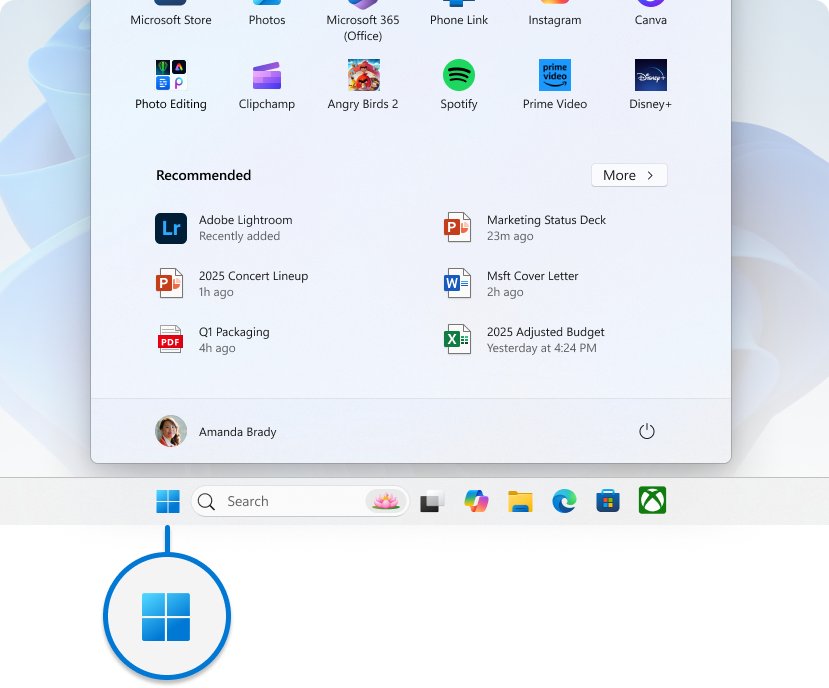
| Click the taskbar icon | Select the yellow folder icon on the taskbar | You are using the mouse |
| Use the keyboard shortcut | Press Windows + E | Fastest from anywhere |
| Via Windows search | Press Windows + S, type file explorer, press Enter | The taskbar icon was unpinned |
| From the Start menu | Select Start, then File Explorer | You are already in Start |
| Use the Run application | Press Windows + R, type a folder path such as %TEMP%, press Enter |
You want File Explorer to open straight at that folder |
| From Task Manager | Press Ctrl + Shift + Esc, select File > Run new task, type explorer.exe, press Enter |
The taskbar and desktop have vanished |
| From within File Explorer | Press Ctrl + N for a new window or Ctrl + T for a new tab | You need two locations side by side |
When the desktop is gone, you can still open File Explorer on Windows 11 from Task Manager by running explorer.exe as a new task.
Introduction to File Explorer in Windows 11
File Explorer is the built-in Windows file manager. It shows your drives, folders, OneDrive files and network locations in one window, and it is part of Windows, so there is nothing to download.
| Part | What it shows | Windows 10 equivalent |
|---|---|---|
| Home | Pinned folders and recent files; renamed from Quick access in Windows 11 version 22H2 | Quick access |
| This PC | Drives, devices and mapped network drives | This PC, which also lists the user folders |
| OneDrive | Your cloud files, built into the navigation pane | Same |
| Network | Shared computers and devices on your network | Same |
| Address bar | The path of the current folder; press Alt + D or F4 to select it and change the path | Same |
| Tabs | Several folders in one window (Ctrl + T) | Not covered in Windows 10 steps here |
Older guides call This PC by its former name, and the steps to find My Computer in Windows 11 include restoring its desktop icon.
The File Explorer interface explained
Windows 11 replaced the Windows 10 ribbon with a single command bar. The labels differ, so many older instructions point to tabs that no longer exist.
| Area | Windows 11 | Windows 10 (File Explorer ribbons explained) |
|---|---|---|
| Top commands | Cut, Copy, Paste, Rename, Share, Delete, View, See more | Share and View tabs on the ribbon |
| Options | See more (…) > Options | View tab > Options |
| Navigation pane | Left column; restore it with View > Show > Navigation pane | View tab > Navigation pane |
| Preview pane | Alt + P shows or hides it | Same shortcut |
| Details pane | Alt + Shift + P shows or hides it | Same shortcut |
| Context menu | Short menu; Show more options opens the full one | Full menu by default |
A beginner tour of tabs, Home and everyday tasks sits in the guide to using File Explorer in Windows 11.
Where is the Documents, Downloads, AppData and System32 folder in File Explorer?
Press Windows + R and type the shortcut, or browse to the default path. OneDrive folder backup can move Desktop, Documents and Pictures into your OneDrive folder.
| Folder | Default path | Run shortcut (Windows + R) | Full article |
|---|---|---|---|
| Documents (old My Documents) | C:\Users\<name>\Documents | %USERPROFILE%\Documents |
Documents folder location |
| Downloads | C:\Users\<name>\Downloads | %USERPROFILE%\Downloads |
open the Downloads folder |
| Screenshots | C:\Users\<name>\Pictures\Screenshots | %USERPROFILE%\Pictures\Screenshots |
where screenshots are saved |
| Camera Roll and Saved Pictures | C:\Users\<name>\Pictures\Camera Roll and \Saved Pictures | %USERPROFILE%\Pictures |
Camera Roll and Saved Pictures folders |
| Temp | C:\Users\<name>\AppData\Local\Temp | %TEMP% |
Windows 11 Temp folder |
| AppData | C:\Users\<name>\AppData (hidden) | %USERPROFILE%\AppData |
find the AppData folder |
| Roaming, Local and LocalLow | AppData\Roaming, AppData\Local, AppData\LocalLow | %APPDATA%, %LOCALAPPDATA% |
Local, LocalLow and Roaming explained |
| System32 | C:\Windows\System32 | %windir%\System32 |
open the System32 folder |
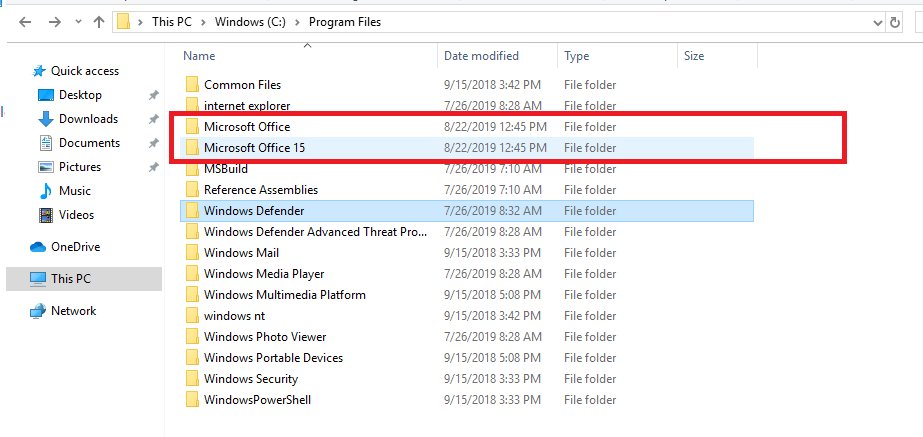
| Program Files | C:\Program Files and C:\Program Files (x86) on 64-bit PCs | %ProgramFiles% |
get to Program Files |
| Recent items | C:\Users\<name>\AppData\Roaming\Microsoft\Windows\Recent | %APPDATA%\Microsoft\Windows\Recent |
recent files in Windows 11 |
| Recycle Bin | Virtual folder, no single path | Desktop icon | find the Recycle Bin |
| All installed apps | Virtual folder, no single path | No path | Applications folder with every app |
To reach the folder behind one program, right-click it in Start search and open the app file location instead of browsing Program Files.
Network name overrides live in the Windows 11 hosts file, inside System32, and editing it needs an administrator copy of Notepad.
Navigating files and folders
The address bar, the navigation pane and a few keys move you around faster than double-clicking down a tree.
- Select a location such as Home, This PC or a drive in the left navigation pane.
- Press Alt + D or Ctrl + L, type a full path such as
C:\Windows, and press Enter. - Press Alt + Up arrow to move up one level in the folder path.
- Press Alt + Left arrow or Backspace to go back, and Alt + Right arrow to go forward.
- Press Ctrl + Shift + E to expand every folder in the navigation pane tree.
Managing files and folders
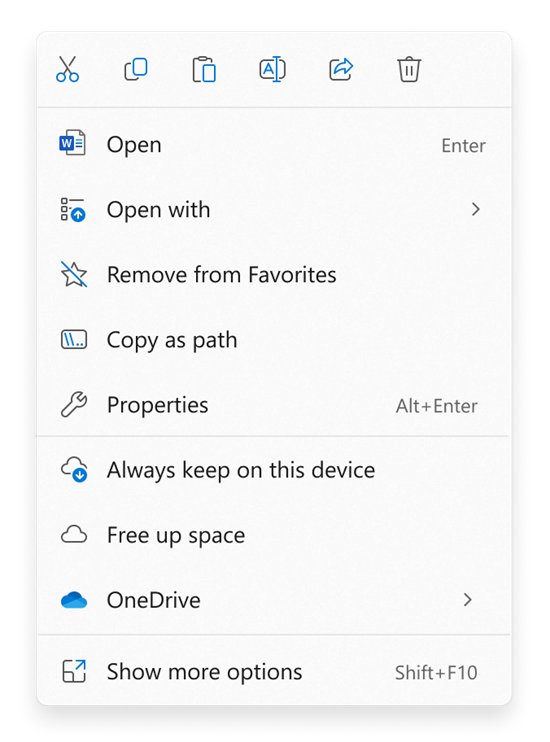
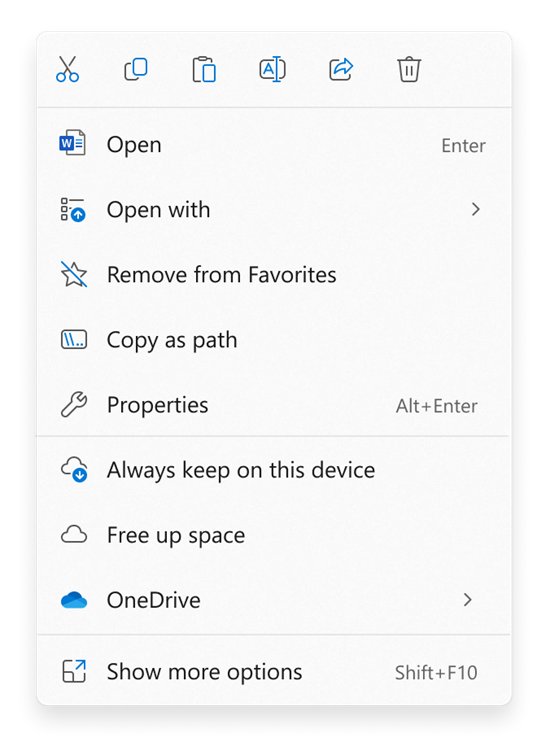
Common File Explorer tasks sit at the top of the Windows 11 context menu: Cut, Copy, Paste, Rename, Share and Delete.
- Press Ctrl + Shift + N to create a new folder, type its name and press Enter.
- Select a file and press F2 to rename it.
- Select files, choose Cut, open the destination and choose Paste to move them.
- Hold Ctrl while you drag a file to copy it, or hold Shift to move it.
- Hold Alt while you drag a file to create a shortcut to it instead.
- Right-click a file and choose Show more options for extensions that only appear in the full menu.
Working on many items at once is easier when you select multiple files with Ctrl+click, Shift+click or check boxes.
File Explorer views and sorting
Views change how much detail each item shows. Details view lists items in columns, which helps when sorting large folders.
- Select View on the command bar and pick a layout such as Large icons, List or Details.
- Select View > Compact view to reduce the space between items.
- Press Ctrl + Shift + 6 for Details or Ctrl + Shift + 2 for Large icons.
- Hold Ctrl and turn the mouse wheel to resize icons gradually.
- Press Alt + P to show the preview pane, or Alt + Shift + P for the details pane.
If the preview pane makes folders slow, turning it and the details pane off is one of the quickest tests in the fixes below.
How to show hidden files on Windows 11 the easy way
Windows hides some folders, AppData among them. One toggle shows them in every folder.
- Open File Explorer with Windows + E.
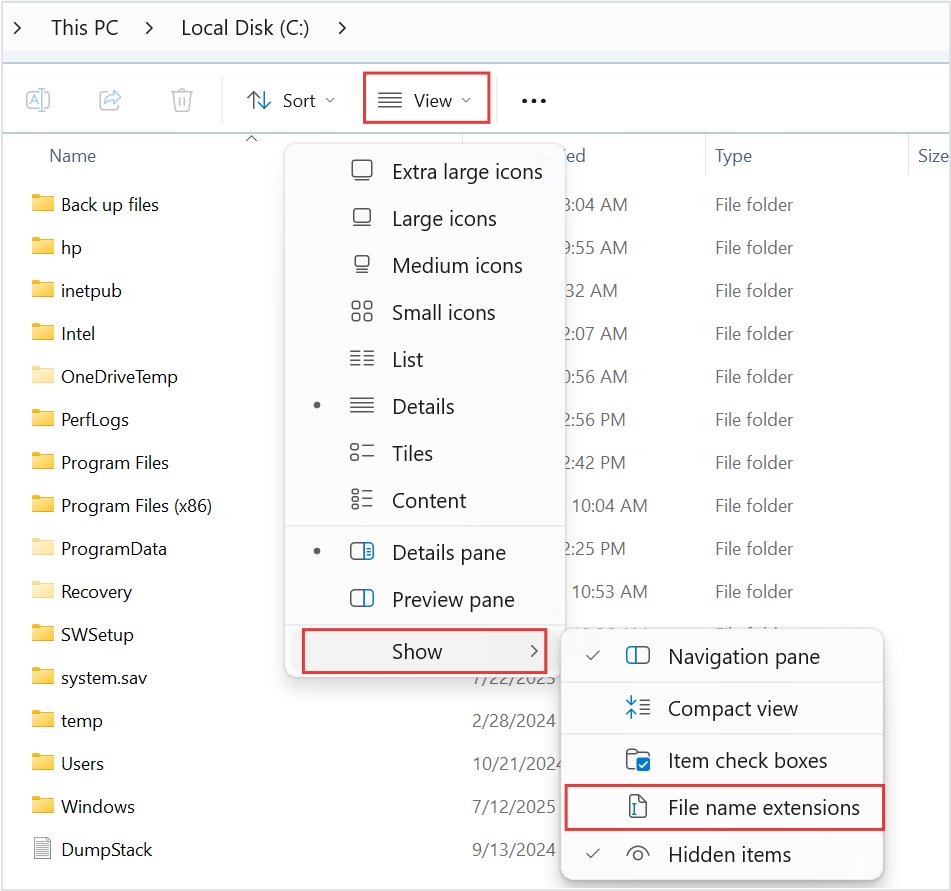
- Select View on the command bar.
- Select Show > Hidden items.
- On Windows 10, select View > Options > Change folder and search options.
- On the View tab, choose Show hidden files, folders, and drives and select OK.
The Windows 10 route goes through Folder Options, the same dialog that holds the other show and hide settings, including protected operating system files.
Routes from Settings and the command line are in the guide to view hidden files and folders.
Common File Explorer options
These four settings answer most "where is the option" questions. Each opens from Folder Options in Windows 10 or from the View menu in Windows 11.
| Setting | Windows 11 | Windows 10 |
|---|---|---|
| Open File Explorer to This PC | See more > Options > Open File Explorer to > This PC > Apply | View tab > Options > Open File Explorer to > This PC > Apply |
| Show file name extensions | View > Show > File name extensions | Folder Options View tab > clear Hide extensions for known file types |
| Show hidden items | View > Show > Hidden items | Folder Options View tab > Show hidden files, folders, and drives |
| Item check boxes | View > Show > Item check boxes | Folder Options View tab > Use check boxes to select items |
| Show libraries | Not in the steps above | View tab > Navigation pane > Show libraries |
Every other route to that dialog is listed in the steps to open Folder Options, including restoring File Explorer options to their defaults.
Using Quick Access and favorites
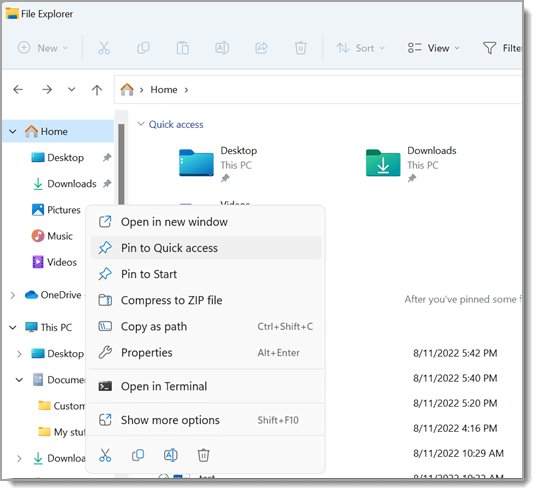
In Windows 11, Quick access is the pinned group on Home. Desktop, Documents, Downloads, Pictures, Music and Videos are pinned there by default and no longer appear under This PC.
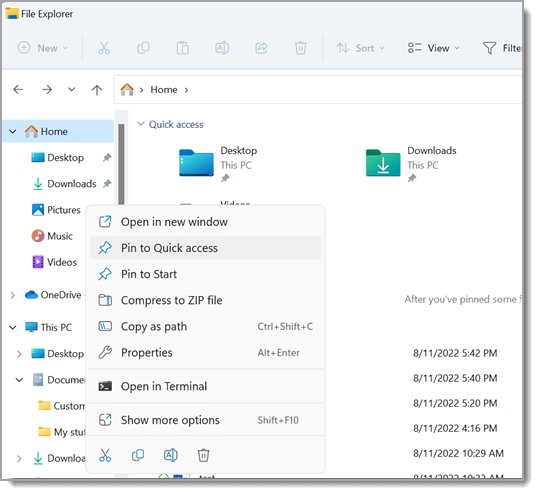
- Right-click any folder or drive.
- Select Pin to Quick access to add it to Home and the navigation pane.
- Right-click a pinned item and select Unpin from Quick access to remove it.
- To get unpinned user folders back, select Home, select the Up arrow beside the address bar, and pin each folder again.
- On Windows 10, right-click an item and select Remove from Quick access.
Drives can be pinned the same way, and the guide to add a drive to the navigation pane covers C, D, E and F.
If you would rather start on drives, you can turn off Quick access by opening File Explorer to This PC.
Clear File Explorer history
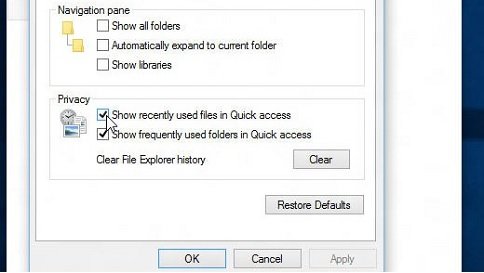
Home lists recently used files. Turning that list off keeps it to the folders you pinned.
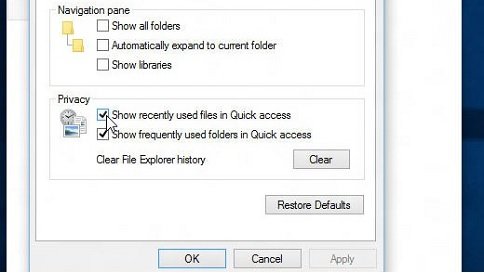
- Open Folder Options (See more > Options in Windows 11, View > Options in Windows 10).
- Find the Privacy section.
- Clear its check boxes so Home or Quick access shows only pinned folders.
- Select Apply.
Removing single entries and the Windows 10 differences are in the steps to clear recent files history.
Searching in File Explorer
Where you start the search sets what it covers. Searching from Home includes your PC and signed-in cloud accounts; searching from a folder covers only that folder.
- Open the folder or drive you want to search, or select This PC for an in-depth search of every drive.
- Press Ctrl + E or Ctrl + F to jump to the search box.
- Type part of the file name or a word inside the file.
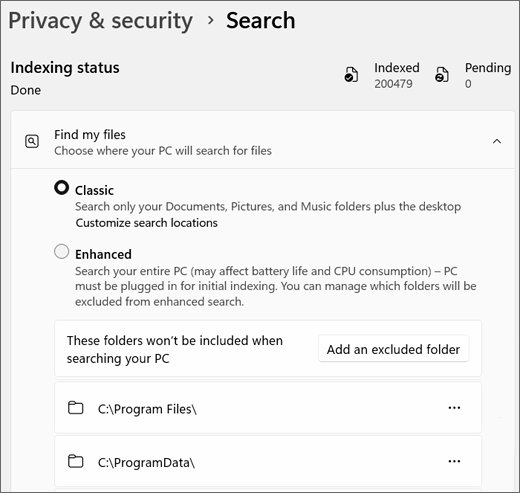
- To widen indexed results, open Settings > Privacy & security > Searching Windows.
- Under Find my files, choose Classic for your user folders and desktop, or Enhanced to index the whole PC.
When results come back empty or the box will not accept text, the File Explorer search fixes cover restarting Windows Search and rebuilding the index.
Share files and folders over a network from File Explorer
Sharing a folder shares every file inside it. Your network must be set to Private with discovery turned on.
- Open Settings, search for manage advanced sharing settings and open it.
- Under Private networks, turn on Network discovery and File and printer sharing.
- In File Explorer, right-click the folder and select Show more options.
- Select Give access to > Specific people.
- Choose a network user, or Everyone to give all network users access.
Before you share files over a network with other PCs, decide on permission levels and password protected sharing.
Web-based storage can also appear as a drive letter if you map a WebDAV share with Map network drive.
Setup and sync OneDrive in File Explorer
OneDrive is part of File Explorer, so synced files open like any local folder. With folder backup on, Desktop, Documents and Pictures live inside your OneDrive folder rather than C:\Users\<name>.
| Task | Where |
|---|---|
| Browse OneDrive files | OneDrive in the navigation pane |
| Include cloud files in Home search | Sign in under Settings > Accounts |
| Show Microsoft 365 recent files on Home | Folder Options > General > Privacy > Include account-based insights, recent, favorite, and recommended files |
| Share a file from OneDrive or the PC | Select it and choose Share on the command bar |
Delete files and find the Recycle Bin
Delete sends items to the Recycle Bin, where they can be restored. Shift + Delete removes them permanently without that safety net.
- Select the file and press Delete or Ctrl + D.
- Press Shift + Delete only when you want the item gone without passing through the Recycle Bin.
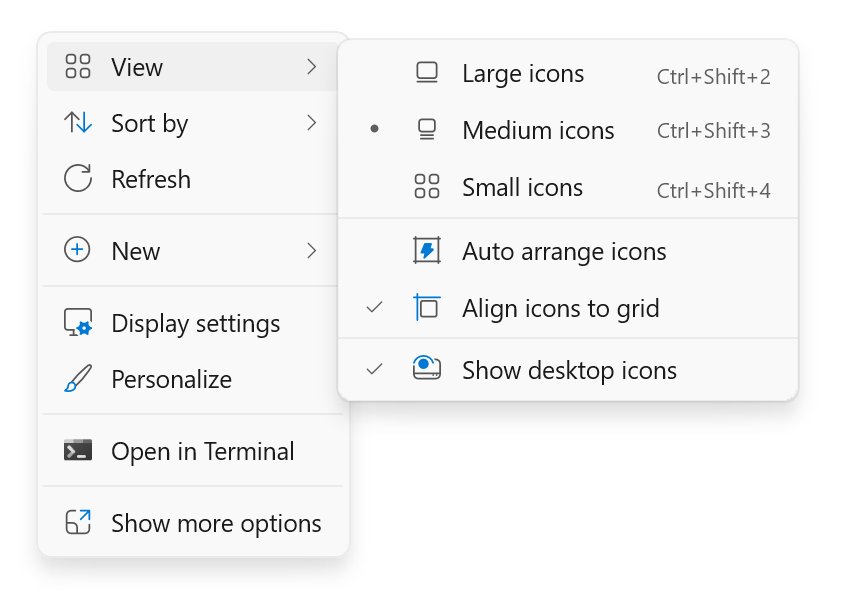
- If the desktop shows no icons at all, right-click the desktop, select View and check Show desktop icons.
- If the desktop icon is missing, open Settings > Personalization > Themes > Desktop icon settings, check Recycle Bin and select OK.
- For a file already emptied from the bin, right-click its old folder and select Restore previous versions if File History was on.
Keyboard, PowerShell and stuck-file methods are in the guide to delete files and folders.
After the bin has been emptied, your options to recover emptied Recycle Bin files depend on File History, OneDrive and backups.
File Explorer keyboard shortcuts
Microsoft lists these for File Explorer in Windows 11. Most work the same in Windows 10, except tab shortcuts.
| Shortcut | What it does |
|---|---|
| Windows + E | Open File Explorer |
| Ctrl + N | Open a new window |
| Ctrl + T / Ctrl + W | Open a new tab / close the active tab |
| Ctrl + Tab / Ctrl + Shift + Tab | Next / previous tab |
| Alt + D, Ctrl + L or F4 | Go to the address bar |
| Ctrl + E, Ctrl + F or F3 | Go to the search box |
| Alt + Up arrow | Up one folder level |
| Alt + Left arrow or Backspace | Previous folder |
| Ctrl + Shift + N | New folder |
| F2 | Rename the selected item |
| Alt + Enter | Properties of the selected item |
| Alt + P / Alt + Shift + P | Preview pane / details pane |
| Ctrl + Shift + 1-9 | Change the view (2 = Large icons, 6 = Details) |
| Delete or Ctrl + D | Move to the Recycle Bin |
| Shift + Delete | Delete permanently |
| Shift + F10 | Context menu for the selected item |
| F5 | Refresh the window |
How to open folder with keyboard shortcut in Windows 11
There is no single key for each folder, but two shortcuts reach any of them: Windows + R with a path, or the File Explorer address bar.
| Folder | Keys |
|---|---|
| Downloads | Windows + R, type %USERPROFILE%\Downloads, Enter |
| Temp | Windows + R, type %TEMP%, Enter |
| Roaming AppData | Windows + R, type %APPDATA%, Enter |
| A folder you open daily | Pin it to Quick access, then press Windows + E |
Tips for efficient file management
A file system you can navigate without searching is the real test of a good setup.
- Pin your three most used folders to Quick access.
- Turn on File name extensions so you always see the real file type.
- Use tabs (Ctrl + T) instead of several windows.
- Switch large folders to Details (Ctrl + Shift + 6) for a column view of each item.
- Clear out Downloads regularly instead of keeping files there.
A fuller folder structure and naming plan is laid out in these tips to organize files.
How to FIX: File Explorer not responding on Windows 11/10
Fix 1 – Restart File Explorer (not responding, frozen or slow)
The explorer.exe process is stuck; restarting it reloads the taskbar and every window.
- Press Ctrl + Shift + Esc to open Task Manager.
- Find Windows Explorer, right-click it and select Restart.
- If it is not listed, select File > Run new task, type
explorer.exeand press Enter.
File Explorer won't open or keeps closing
A pending update, damaged system files or a third-party shell extension.
- Select Start > Settings > Windows Update > Check for updates, install updates and restart your device.
- Open Command Prompt as administrator and run
DISM.exe /Online /Cleanup-image /Restorehealth. - Then run
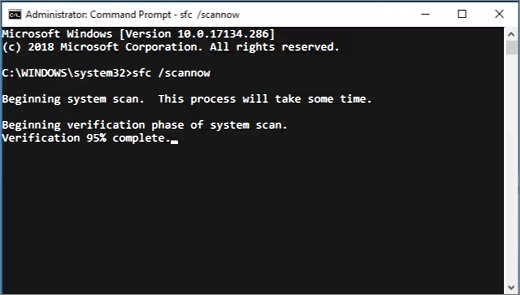
sfc /scannowand wait for 100%. - Do a clean boot: open System Configuration (
msconfig), on Services check Hide all Microsoft services, select Disable all, then disable startup apps in Task Manager and restart. - Press Windows + R, type
eventvwr.mscand press Enter to open Event Viewer and filter the logs by date to find the crash entry.
File Explorer slow or stuck on "Working on it"
Previews, a busy Home view or a slow cloud or network location.
- Press Alt + P and Alt + Shift + P to turn off the preview and details panes.
- Clear the Privacy check boxes in Folder Options so Home stops listing recent files.
- Set Open File Explorer to to This PC so it skips Home.
- Restart Windows Explorer from Task Manager.
File Explorer crashes after a display change, or something else is wrong
A display driver problem, a non-recommended display scale, or malware.
- Modify the display layout: open Settings > System > Display, and under Scale & layout choose the Scale option marked (Recommended).
- Reinstall the display driver: in Device Manager, expand the category that holds your display adapter, right-click the adapter and select Uninstall device > Uninstall, then restart.
- If Windows does not reinstall it, right-click the adapter, select Update driver > Search automatically for updated driver software.
- Scan for viruses and malware: open Windows Security > Virus & threat protection > Scan options > Full scan > Start a full scan.
File Explorer only showing Quick access
The navigation pane is hidden, or the user folders were unpinned.
- Select View > Show > Navigation pane.
- Select Home, select the Up arrow and pin the missing folders again.
Still failing on Windows 10
Low virtual memory or disk space, or a damaged Windows install.
- In Advanced system settings > Performance > Settings > Advanced, set Adjust for best performance of to Programs.
- Under Virtual memory, select Change and tick Automatically manage paging file size for all drives.
- Run Disk Cleanup and the System Maintenance troubleshooter from Control Panel.
- Run Automatic Repair: Settings > Update & Security > Recovery > Restart now > Troubleshoot > Advanced options > Startup Repair.
- As a last step, reset your PC from Recovery options.
Troubleshooting File Explorer issues
Match the symptom to its usual cause before you reach for a reset.
| Symptom | Likely cause | Fix |
|---|---|---|
| Not responding or keeps crashing | Stuck explorer.exe, shell extension, damaged system files | Restart Windows Explorer in Task Manager, run DISM and SFC, clean boot |
| Won't open at all | Pending update or damaged install | Check for updates, restart, then Startup Repair |
| Search not working | Index stopped or location not indexed | Restart Windows Search and rebuild the index |
| "Access denied" on a folder | Your account lacks permission or ownership | Run the app as administrator or restore file access |
| Camera Roll folder gone | Folder deleted or save location changed | Recreate it under Pictures; steps for a missing Camera Roll folder |
| Recycle Bin icon missing | Desktop icon turned off | Desktop icon settings > Recycle Bin |
| Crashes keep coming back | A change logged as an error event | Open Event Viewer (eventvwr.msc) and filter by level and date |
How to get help with File Explorer in Windows 10 & 11
Microsoft's own help channels are built into Windows. Use them when a fix above does not apply.
| Help route | What it gives you |
|---|---|
| Feedback Hub | Report a File Explorer bug to Microsoft after updates and repairs fail |
| Settings > Windows Update | Fixes that Microsoft ships for Explorer problems |
| Startup Repair and Reset this PC | Advanced tips when Windows itself is damaged |
Microsoft Support and the built-in tools are the routes to get help with File Explorer when the fixes above do not apply.
File Explorer alternatives
Stay with File Explorer unless you specifically want an older layout. It is built into Windows, updated through Windows Update, and shows OneDrive and network locations in the same window.
Readers who miss the Windows 3.x look often try the classic Windows File Manager instead.
File Explorer in Windows FAQ
What is File Explorer in Windows 11?
File Explorer is the built-in Windows app for browsing and managing files, folders, drives, OneDrive and network locations. It opens with Windows + E or from its taskbar and Start menu icon.
Where is File Explorer on my computer?
File Explorer is on the taskbar as a folder icon and in the Start menu. If the icon is missing, press Windows + E, or press Windows + S and search for file explorer.
Where is the File Explorer address bar?
The address bar sits at the top of the File Explorer window and shows the current folder path. Press Alt + D, Ctrl + L or F4 to select it, then type a new path and press Enter.
Why is File Explorer not responding?
A stuck explorer.exe process or damaged system files are the usual causes. Restart Windows Explorer from Task Manager first, then run DISM and sfc /scannow if it keeps freezing.
Why is File Explorer not opening?
File Explorer usually fails to open after a pending update or when system files are damaged. Check for updates and restart, run DISM and System File Checker, and use a clean boot to rule out third-party shell extensions.
Why does File Explorer keep crashing?
Repeated crashes usually come from a third-party app or service, damaged system files or a pending update. A clean boot rules out other software, DISM and sfc /scannow repair system files, and Event Viewer logs each crash.
Why is File Explorer only showing Quick access?
The navigation pane is hidden or the user folders were unpinned. Select View > Show > Navigation pane, then from Home use the Up arrow to reach the user folders and pin them again.
Why is File Explorer search not working?
Search depends on the Windows Search index. Check indexing under Settings > Privacy & security > Searching Windows, choose Enhanced to index the whole PC, then restart Windows Explorer.
Is File Explorer the same as OneDrive?
No. File Explorer is the file manager, and OneDrive is Microsoft's cloud storage that appears inside it. OneDrive files show in the navigation pane, and folder backup can move Desktop, Documents and Pictures into OneDrive.
Is File Explorer free?
Yes. File Explorer is part of Windows 11 and Windows 10, so there is nothing to buy or download. It updates through Windows Update with the rest of the system.