You can download the PC Health Check app free from Microsoft’s official link, aka.ms/GetPCHealthCheckApp, which gives you a 14 MB setup file called WindowsPCHealthCheckSetup.msi. Open the app, click Check now, and within seconds it tells you whether your Windows 10 PC meets the Windows 11 system requirements and which part is holding it back if it doesn’t.
The same app also shows your backup status, Windows Update status, battery capacity, storage use and startup time, each with a button that opens the matching Windows setting. This guide covers the download, the Windows 11 check, what every failed result means and how to fix it, and what to do if the app won’t open or you want to remove it.
What is the PC Health Check app?
PC Health Check is Microsoft’s own app for checking whether a PC can run Windows 11. It compares your hardware against the Windows 11 minimum requirements and gives you a plain pass or fail, then lists every requirement with a tick or a cross so you can see exactly what failed.
Around that check, it gives a short health summary of the PC. It doesn’t clean, repair or speed anything up by itself; every section only reports a status and links you to the Windows setting that handles it.
| Developer | Microsoft |
| Price | Free |
| Official download | aka.ms/GetPCHealthCheckApp (served from download.microsoft.com) |
| Installer | WindowsPCHealthCheckSetup.msi, about 14 MB (14,348,288 bytes); a full offline MSI, not a web bootstrapper |
| Installed name | Windows PC Health Check |
| Winget ID | Microsoft.WindowsPCHealthCheck |
| Works on | Windows 10 and Windows 11 (the Windows 11 eligibility check appears only on Windows 10) |
| Other platforms | None: no macOS, Linux, Android or iPhone version, and no Microsoft Store listing |
| Preinstalled | On Windows 10, version 20H2 and later, through update KB5005463 |
| Updates | Automatic when you open the app; you can’t turn them off |
How to download and install PC Health Check
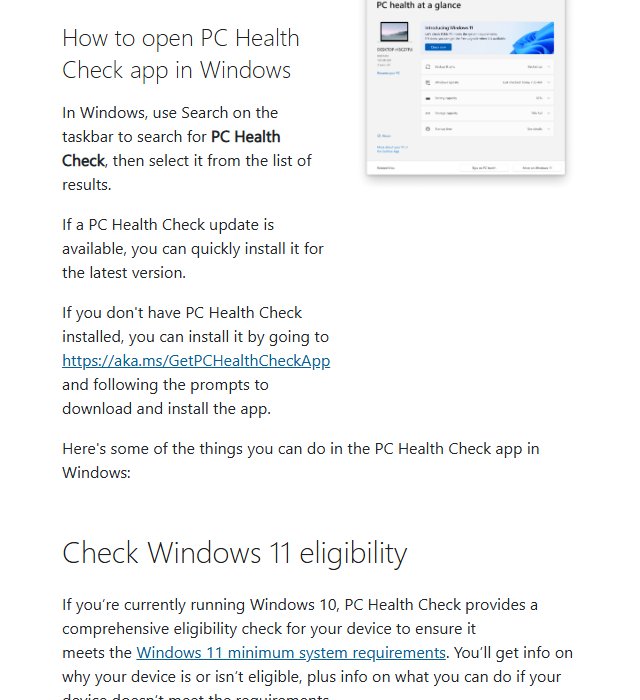
How to open PC Health Check app in Windows
Many Windows 10 PCs already have the app. Microsoft pushed it out through Windows Update as KB5005463, which installs PC Health Check on Windows 10, version 20H2 and later. Microsoft doesn’t install it on Windows 11 devices this way, so Windows 11 users usually need to download it.
To check, type PC Health Check into the search box on the taskbar. If it appears under Best match, open it and skip to the Windows 11 check below. If an app update is waiting, PC Health Check installs it when it opens.
Download PC Health Check from Microsoft (MSI installer)
Since it’s an official app, Microsoft hosts the installer itself. Here’s how to get it:
- Open a web browser and download PC Health Check from the official Microsoft link. The file is called WindowsPCHealthCheckSetup.msi.
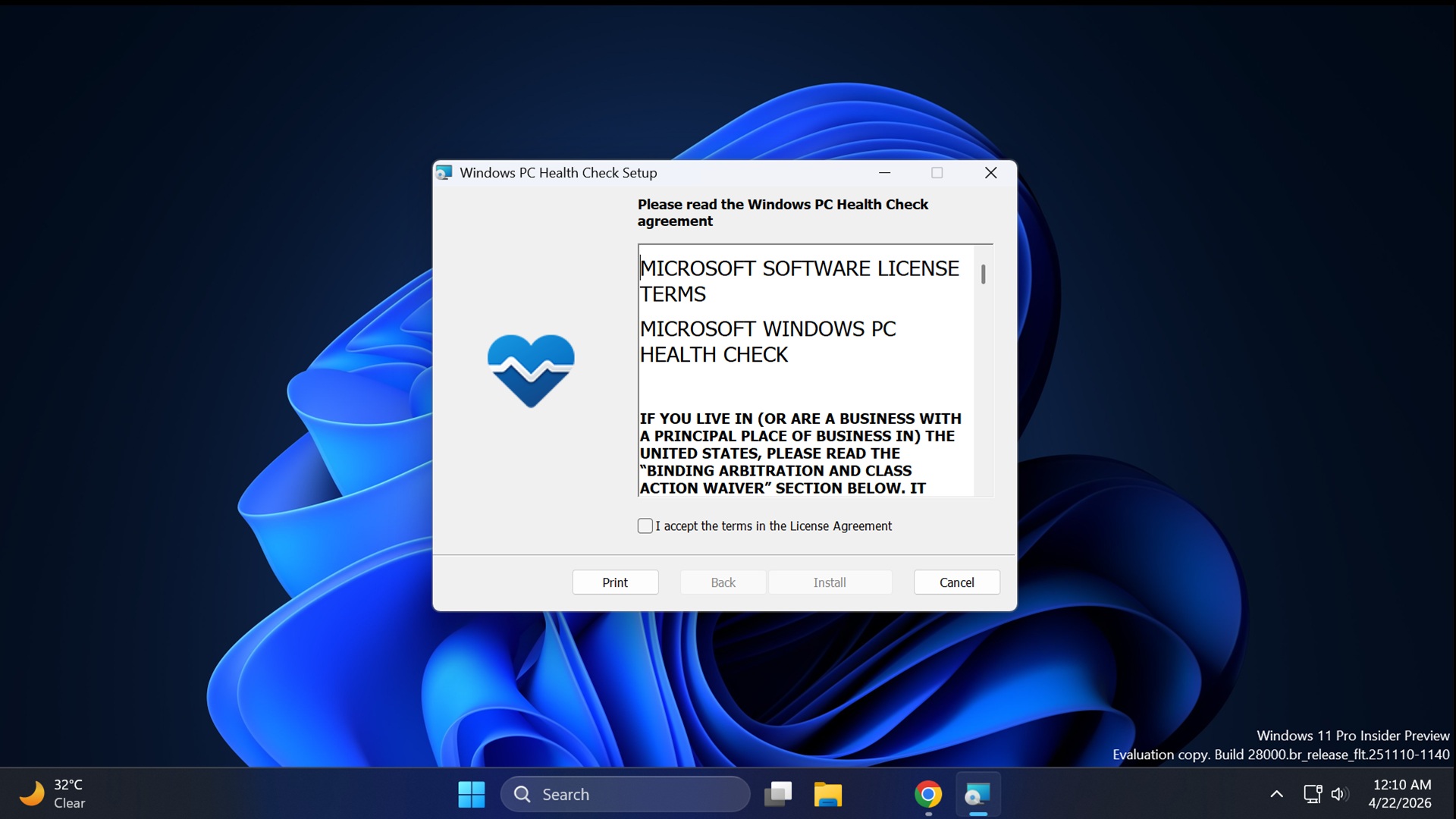
- Double-click the downloaded file in your browser’s downloads list to open the setup. Click Yes if Windows asks for permission to make changes.
- Tick “I accept the terms in the License Agreement” and then select Install.
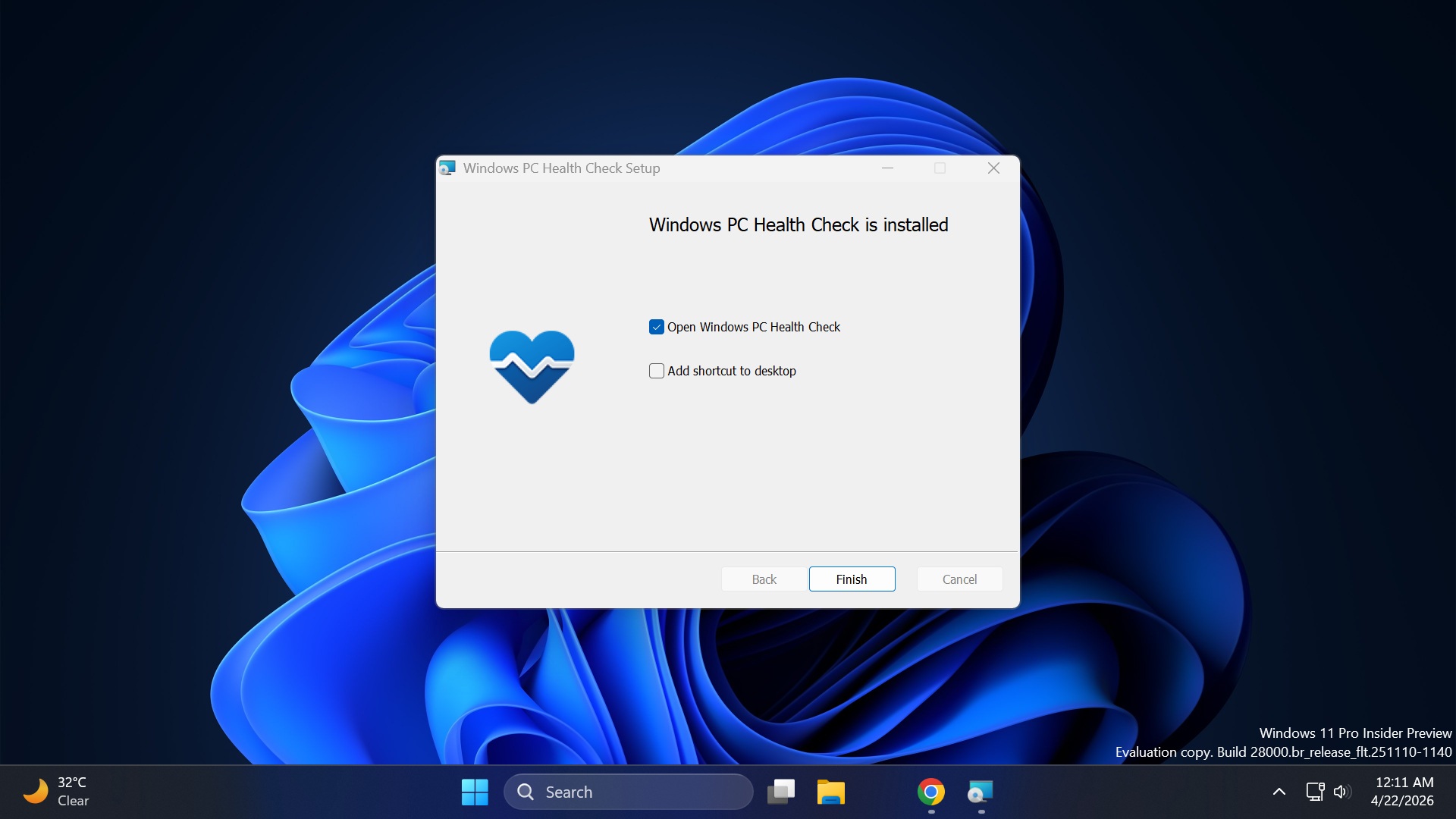
- Leave Open Windows PC Health Check ticked and click Finish. The app opens straight away.
Only download PC Health Check from Microsoft. The aka.ms link redirects straight to download.microsoft.com, and the real app is free, so there’s no reason to take a copy from a third-party download site. Any site that charges for it, bundles it with a “driver updater” or offers a “pro” edition is repackaging a free Microsoft file.
The MSI is a complete installer, so you can copy it to a USB stick and install PC Health Check on a PC that has no internet connection.
Install PC Health Check with winget
PC Health Check isn’t in the Microsoft Store, but it is in the winget package repository, which is handy on a fresh PC or for a scripted rollout. Winget fetches the same installer from Microsoft.
- Right-click Start and select Terminal.
- Run
winget install --id Microsoft.WindowsPCHealthCheck -eand accept the source agreement if prompted. Add--silentfor an unattended install. - Wait for the Successfully installed line, then open Windows PC Health Check from the Start menu.
How to verify the PC Health Check installer
Before you run the MSI, check that it really came from Microsoft:
- Right-click WindowsPCHealthCheckSetup.msi and select Properties.
- Open the Digital Signatures tab.
- Confirm the signer is Microsoft Corporation. If the tab is missing or names anyone else, delete the file and download it again from the official link.
How to update PC Health Check to the latest version
The app has no Check for updates button. It updates itself whenever you open it, as long as it can reach Microsoft’s servers. To see which version you have:
- Open Settings > Apps > Installed apps (Apps & features on Windows 10).
- Type health in the search box and read the version under Windows PC Health Check. In Terminal,
winget list Microsoft.WindowsPCHealthCheckshows the same thing. - If the app seems stuck on an old version, run a fresh copy of the MSI from the official link. It upgrades the existing install, so you don’t need to uninstall first.
Can you run PC Health Check on a Mac?
No. There’s no macOS version, because the app reads the TPM, Secure Boot and processor details from Windows itself. What you can do depends on the Mac:
| Your Mac | What to do |
|---|---|
| Intel Mac with Windows 10 installed through Boot Camp | Install the normal Windows MSI inside that Windows installation |
| Mac with Apple silicon (M-series chip) | Microsoft’s supported routes to Windows 11 are Parallels Desktop and a Windows 365 Cloud PC; Boot Camp isn’t one of them. See Microsoft’s options for using Windows 11 on a Mac |
| macOS only, no Windows on the machine | There’s nothing for the app to test; compare the Mac against the Windows 11 specifications instead |
How to check if your PC can run Windows 11
On a Windows 10 PC the check takes a few seconds:
- Open PC Health Check from the Start menu.
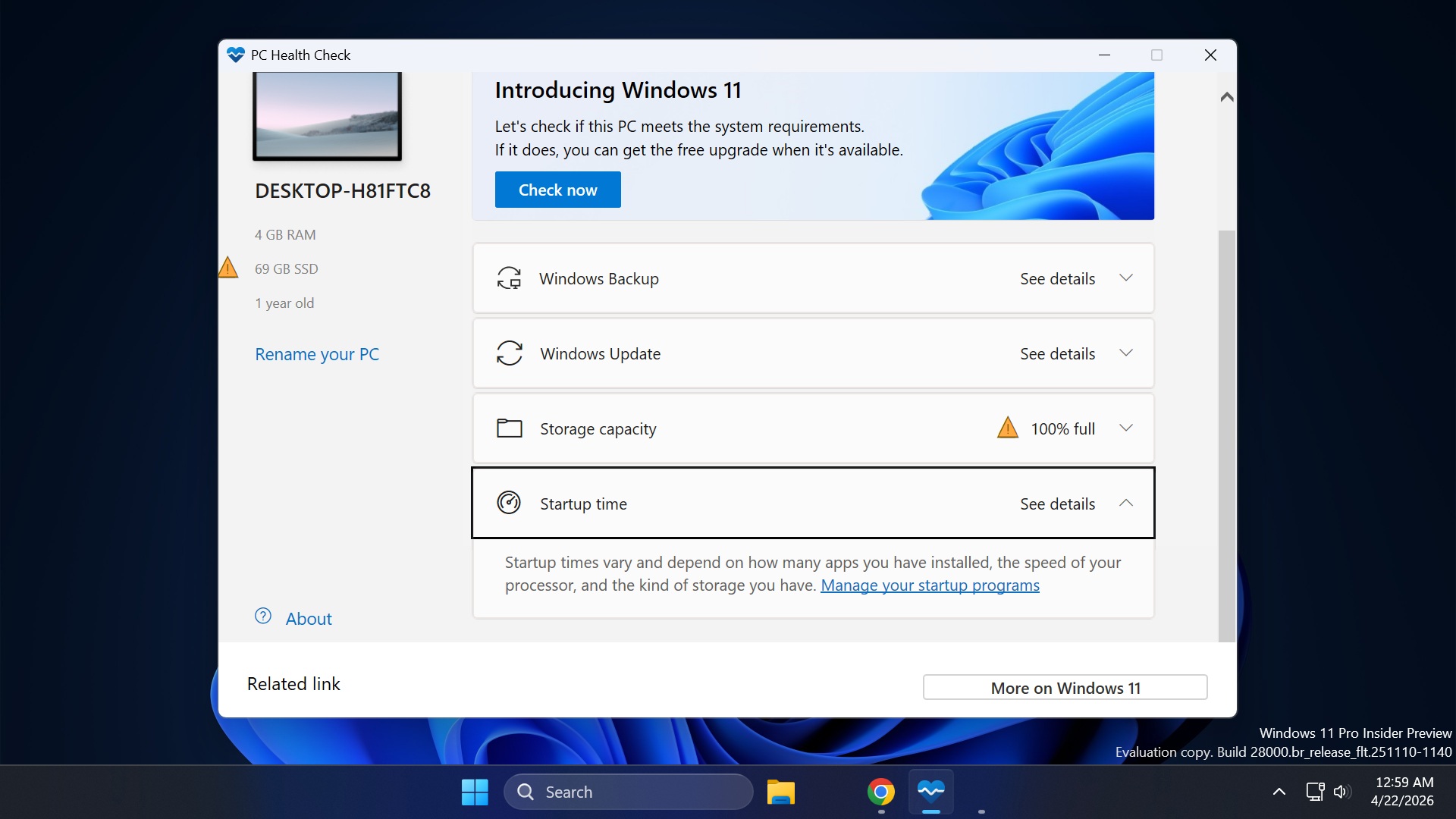
- Click Check now in the Introducing Windows 11 banner at the top.
- Read the result. “This PC meets Windows 11 requirements” means you can upgrade for free.
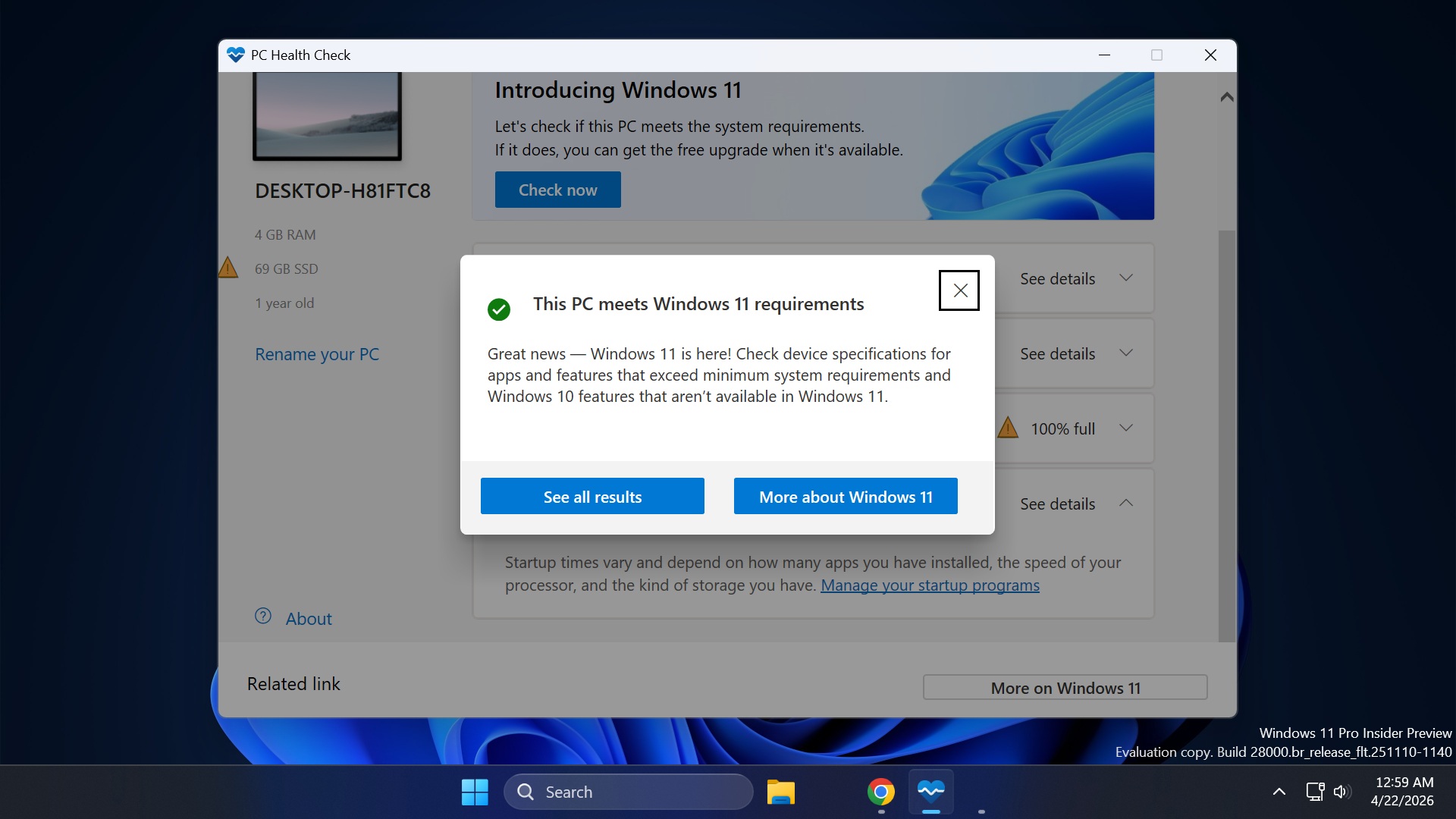
- If the PC fails, the result says it doesn’t meet the Windows 11 requirements and names the part that failed.
- Click See all results to see every requirement with a tick or a cross beside it.
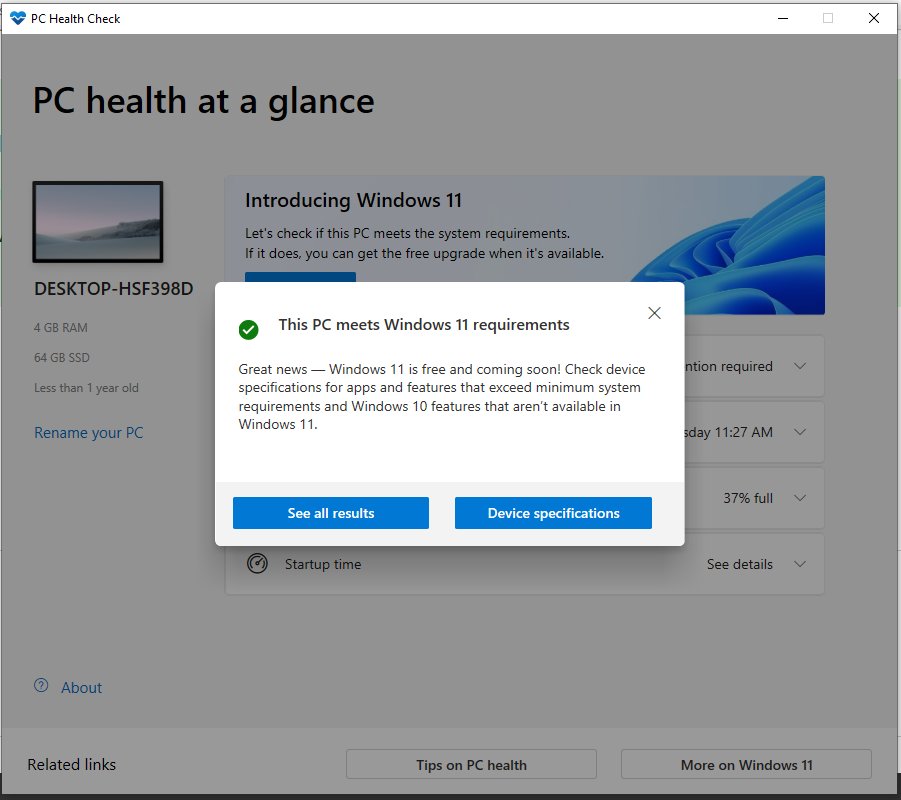
Two things the check doesn’t cover: Microsoft says the app doesn’t test the graphics card or the display, because almost every compatible PC meets those. And a pass doesn’t always mean Windows Update offers Windows 11 at once. If Microsoft knows about a problem on similar hardware, such as a driver that isn’t ready yet, it holds the upgrade back with a compatibility safeguard until the problem is fixed.
Why your PC failed, and how to fix it
A fail is often a firmware setting rather than old hardware. Click See all results to find which requirement failed. These are the four that come up, from the easiest to fix to the hardest.
TPM 2.0 must be supported and enabled
Windows 11 needs a Trusted Platform Module, version 2.0. Microsoft says most PCs shipped in the last five years can run TPM 2.0, but many ship with it switched off, and retail motherboards for self-built PCs almost always do. Press Win + R, type tpm.msc and press Enter. “Compatible TPM cannot be found” usually means the TPM is disabled. If it’s ready, check that Specification Version says 2.0.
You can also check from an elevated terminal:
- Press the Win key, type PowerShell, and click Run as administrator.
- Click Yes on the User Account Control prompt.
- Type tpmtool getdeviceinformation and press Enter. If the result doesn’t show “TPM Present: True” and “TPM Version: 2.0,” the TPM is off or too old.
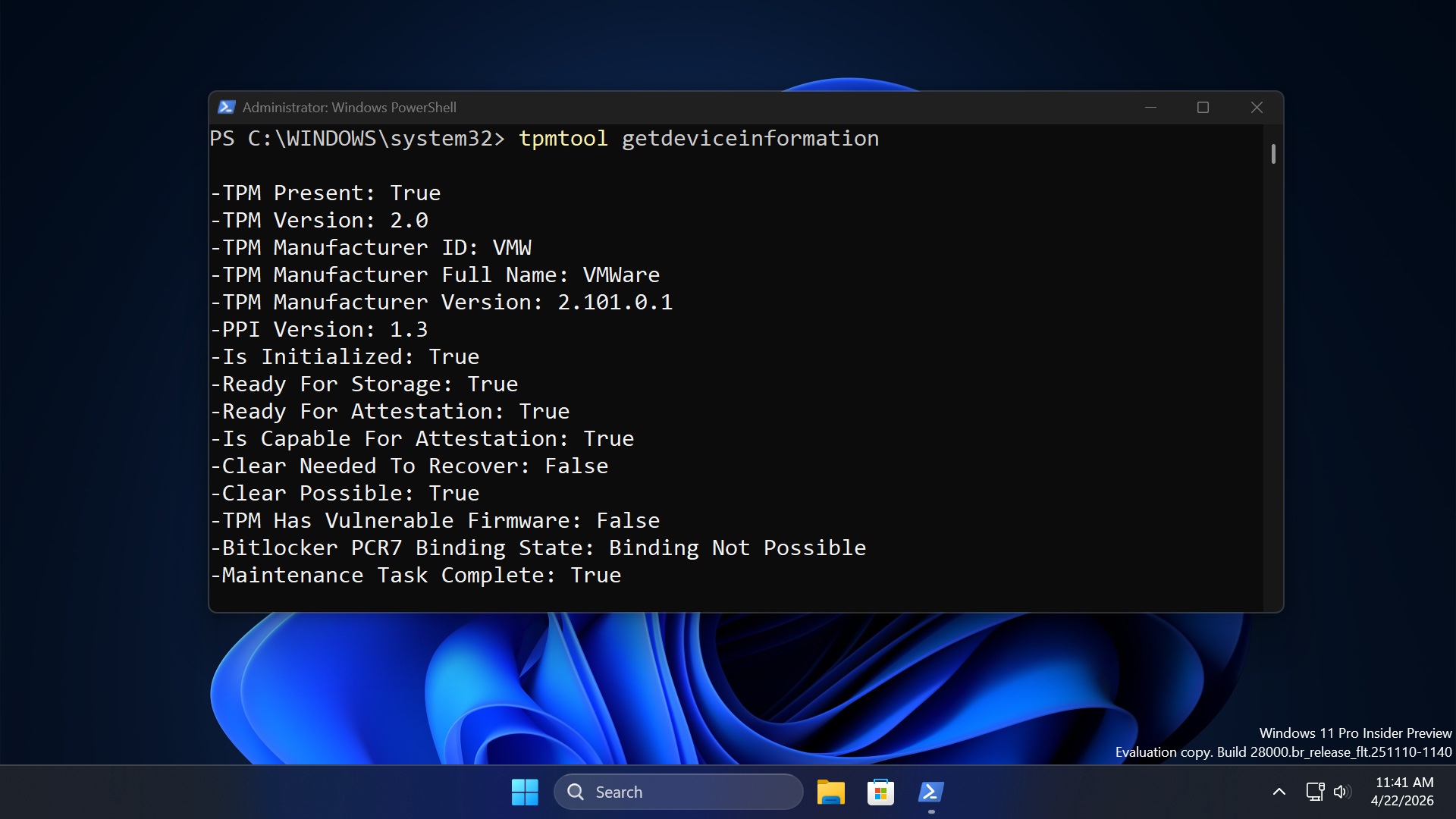
To turn it on, enable TPM 2.0 in the BIOS. The setting may be called Security Device, TPM State, Intel PTT, Intel Platform Trust Technology, AMD fTPM or AMD PSP fTPM, and it often sits under an Advanced, Security or Trusted Computing menu.
The PC must support Secure Boot
Windows 11 needs UEFI firmware that is Secure Boot capable. Secure Boot itself doesn’t have to be switched on to upgrade, but the PC must start in UEFI mode, not the older Legacy BIOS (CSM) mode. To check:
- Open PowerShell as administrator.
- Type Confirm-SecureBootUEFI and press Enter. True means Secure Boot is on, False means the PC is in UEFI mode with Secure Boot off, and an error saying the cmdlet isn’t supported on this platform usually means the PC is running in Legacy mode.
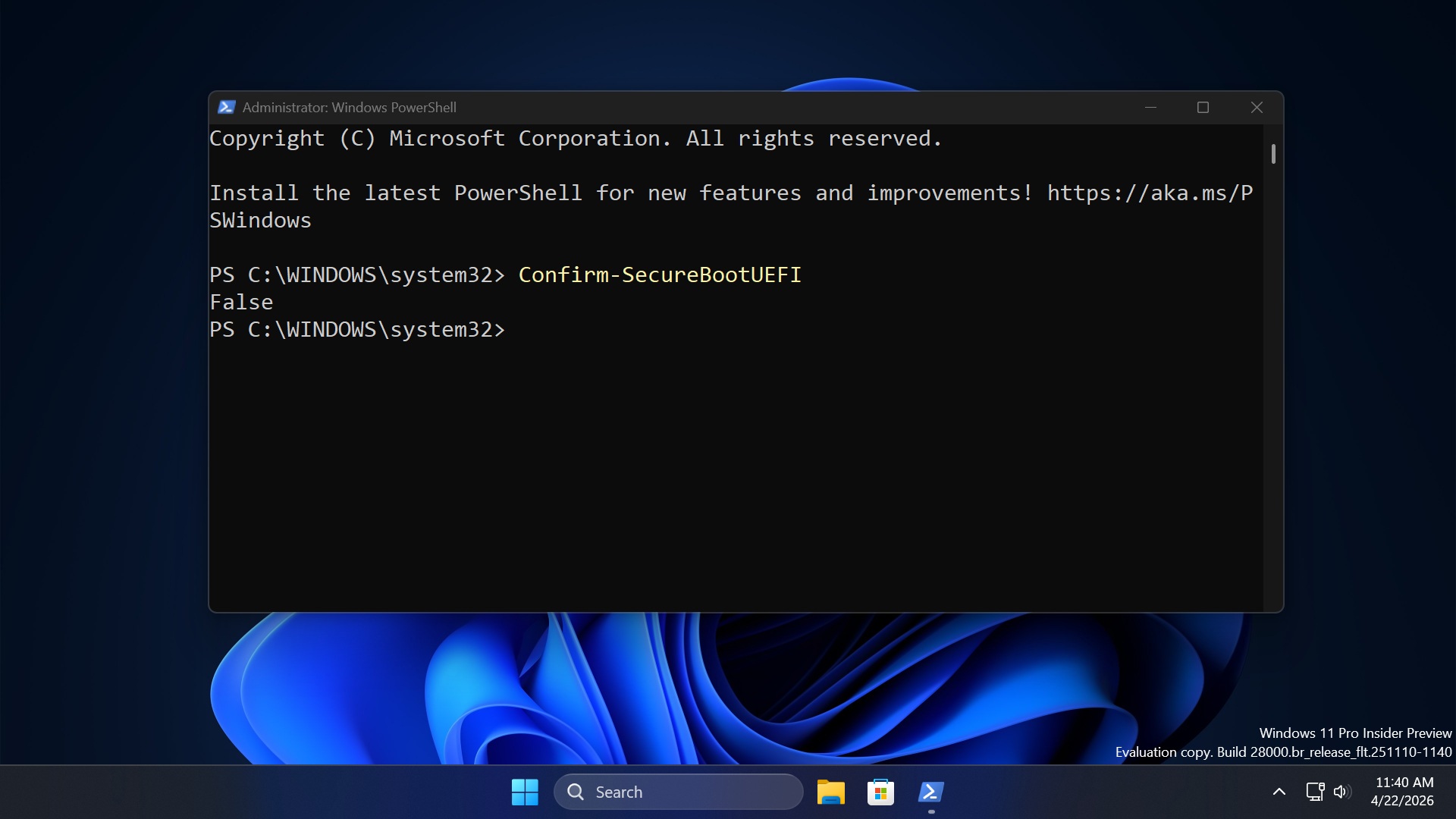
- For the boot mode, press Win + R, type msinfo32 and look at BIOS Mode. It should say UEFI.
You can turn on Secure Boot from the UEFI firmware settings: go to Settings > System > Recovery (Update & Security > Recovery on Windows 10), click Restart now next to Advanced startup, then choose Troubleshoot > Advanced options > UEFI Firmware Settings. Don’t switch a Legacy install to UEFI on its own, because the PC may stop booting. The drive has to be converted from MBR to GPT first, so back up your files or ask your PC maker’s support for help.
Not enough RAM or storage
Windows 11 needs at least 4 GB of RAM and a 64 GB or larger drive. On most desktops and many laptops you can add a memory module or fit a bigger SSD. On thin laptops the memory is often soldered to the board, so check your model’s manual before you buy anything.
The processor is not supported
Windows 11 needs a 64-bit processor, 1 GHz or faster with two or more cores, that appears on Microsoft’s Windows 11 supported processor lists. Clock speed and core count alone aren’t enough, so an older CPU with plenty of power can still fail. No setting fixes this one; the only supported route is new hardware.
You can still install Windows 11 on an unsupported PC, for example with Rufus creating a bootable USB that skips the TPM and Secure Boot checks. Microsoft doesn’t recommend it: such PCs get no support from Microsoft, may malfunction, and aren’t guaranteed to receive updates, including security updates.
Windows 11 minimum requirements
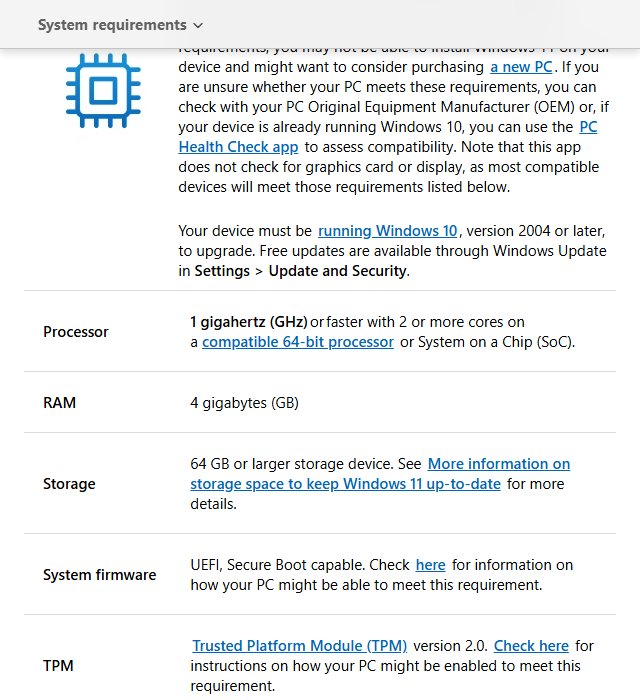
These are Microsoft’s published minimums. Your PC must also be running Windows 10, version 2004 or later, to upgrade in place.
| Component | Minimum for Windows 11 |
|---|---|
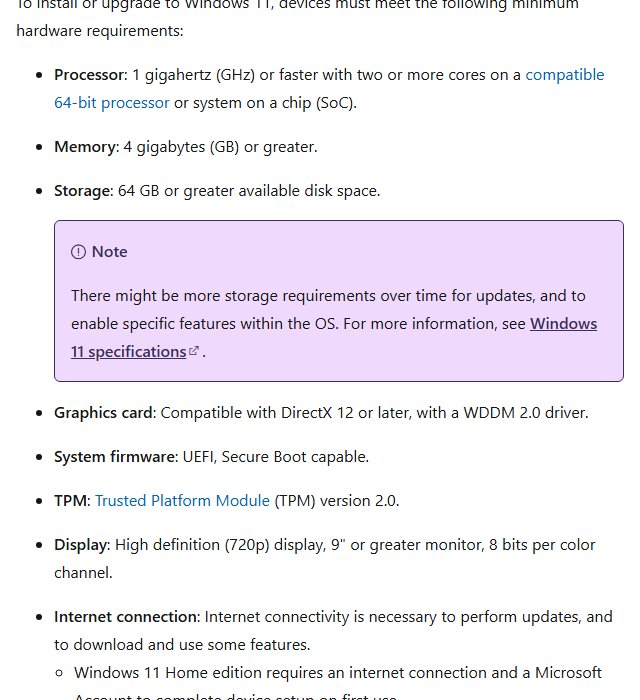
| Processor | 1 GHz or faster with 2 or more cores on a compatible 64-bit processor or System on a Chip (SoC) |
| RAM | 4 GB |
| Storage | 64 GB or larger storage device |
| System firmware | UEFI, Secure Boot capable |
| TPM | Trusted Platform Module version 2.0 |
| Graphics card | DirectX 12 or later with a WDDM 2.0 driver (not tested by PC Health Check) |
| Display | 720p, larger than 9 inches diagonally, 8 bits per color channel (not tested by PC Health Check) |
| Internet and Microsoft account | Required during first setup on Windows 11 Home and Windows 11 Pro for personal use |
What else PC Health Check shows
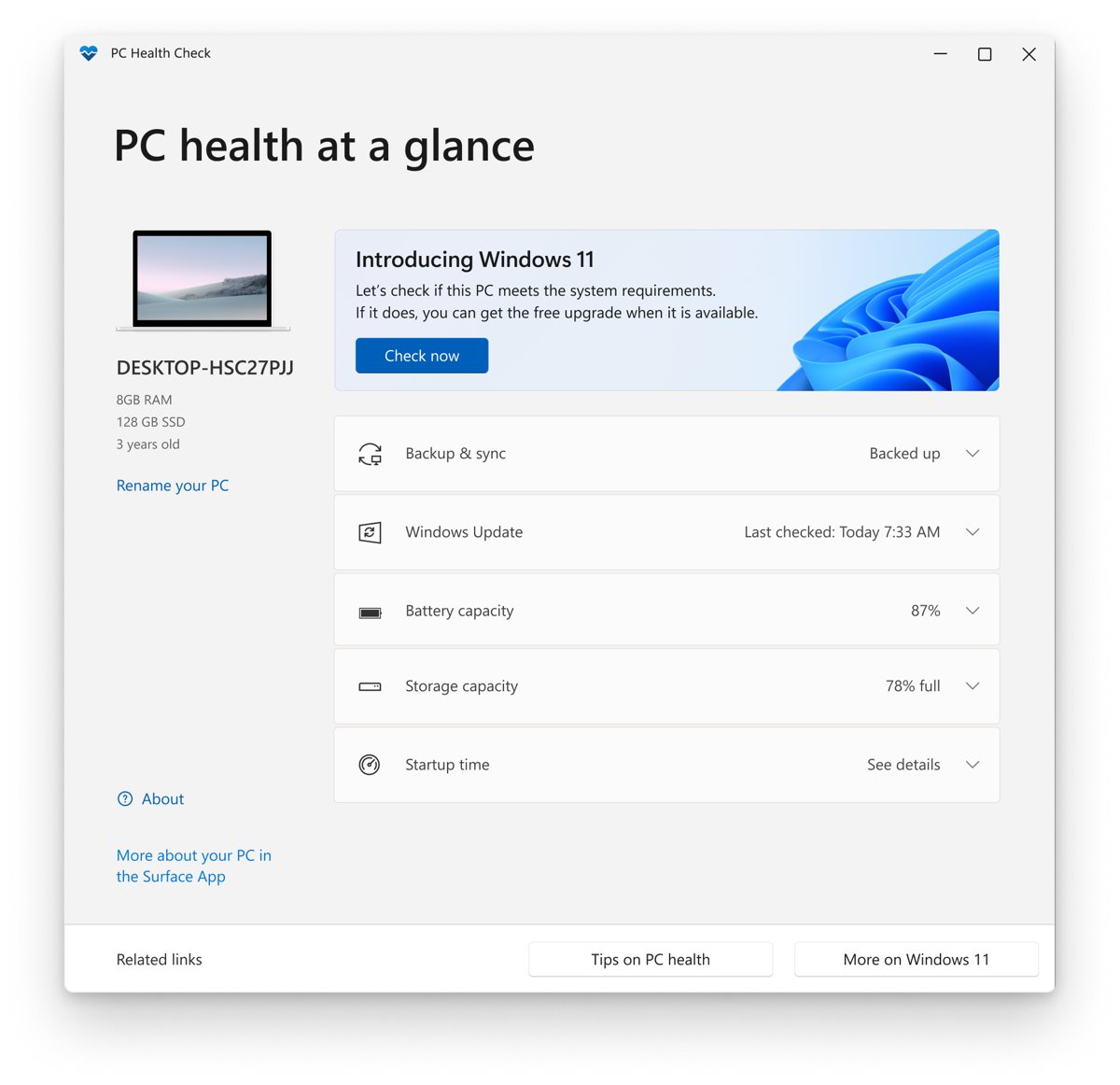
Below the Windows 11 banner, the PC health at a glance screen has five sections you can expand, plus a device panel on the left.
Backup and sync your Windows settings using PC Health Check
Shows whether you’re signed in with a Microsoft account that syncs your preferences, such as passwords, Edge favorites and reading lists, and themes, and whether your photos and files back up to OneDrive. You can ignore this section if you use a local account.
Check Windows Update status in PC Health Check app
Shows when Windows last checked for updates and flags “Attention required” if the PC is behind. Open Windows Update takes you straight to Windows Update in Settings.
View battery capacity report in PC Health Check app
On laptops and tablets with one or two batteries, this compares how much charge the battery holds now with its original capacity. Microsoft only shows it on devices older than three years. See battery saving tips opens advice on stretching battery life.
Check storage capacity using PC Health Check app
Shows how full your main drive is as a percentage. Expand it to see how much free space is left, and use Manage storage settings to turn on Storage Sense or get cleanup recommendations.
Review system startup time in PC Health Check app
Shows how long the PC takes to start and what affects it. Manage your startup programs opens the Startup apps page so you can turn off apps that launch with Windows.
See your device specifications
The left panel lists the PC’s name, RAM, storage and approximate age. Rename your PC is a shortcut to change the computer name without digging through Settings.
What to do after the check
PC Health Check says this PC meets Windows 11 requirements
The upgrade is free. Go to Settings > Update & Security > Windows Update and select Check for updates, or start it yourself and upgrade with the Windows 11 Installation Assistant, which keeps your files and apps. For a clean install or a USB stick, use the Media Creation Tool instead.
PC Health Check says this PC doesn’t meet Windows 11 requirements
- Try the TPM and Secure Boot fixes first. They turn many fails into passes. Run PC Health Check again afterwards, because the result isn’t saved.
- Enroll in Extended Security Updates. Windows 10 support ended on October 14, 2025. The consumer ESU program keeps security updates coming to Windows 10, version 22H2 until October 12, 2027. Enrollment is free if you sync your PC settings, or costs 1,000 Microsoft Rewards points or a one-time $30, and you enroll from Settings > Update & Security > Windows Update.
- Replace the PC if the processor is the problem and you need Windows 11 features.
Why does PC Health Check say my PC meets the Windows 11 requirements, but Windows Update still insists it doesn’t?
This mismatch usually happens after you change hardware or firmware settings, such as turning on TPM. Microsoft says Windows Update can take up to 24 hours to refresh its eligibility information. You can force the refresh instead of waiting:
- Search for cmd, and select Run as administrator under Command Prompt.
- Run:
schtasks.exe /Run /TN "\Microsoft\Windows\Application Experience\Microsoft Compatibility Appraiser" - Wait a few minutes for the task to finish, then check Windows Update again.
You can run the same task from Task Scheduler under Task Scheduler Library > Microsoft > Windows > Application Experience. If Windows Update still holds back, the PC is probably under a compatibility safeguard or still waiting for the staged rollout, which Microsoft spreads out based on hardware, reliability data and device age.
PC Health Check vs Microsoft PC Manager
Both are free Microsoft apps and both talk about PC health, so they get mixed up. Microsoft’s own PC Health Check help page points to PC Manager as a useful companion.
| PC Health Check | Microsoft PC Manager | |
|---|---|---|
| Main job | Windows 11 readiness check and a health summary | Cleanup, storage management, pop-up control and a one-click health checkup |
| Changes your PC? | No, it only reports and links to Settings | Yes, it frees space and can clear threats |
| Where to get it | aka.ms/GetPCHealthCheckApp | pcmanager.microsoft.com |
| Keep it installed? | Optional once you have your answer | Yes, if you use it regularly |
PC Manager isn’t available in every country.
Other ways to check Windows 11 eligibility without PC Health Check
Stick to Microsoft’s own tools. Third-party readiness checkers read the same information and add nothing but risk.
| Tool | What it tells you |
|---|---|
| Windows Update | Whether Microsoft is offering this exact PC the Windows 11 upgrade right now |
| Windows 11 Installation Assistant | Runs its own requirement check before upgrading the PC in place |
| tpm.msc | The TPM specification version, the most common blocker |
| Windows 11 specifications | The requirement list to compare your hardware against by hand |
| Windows 11 requirements on Microsoft Learn | The same rules plus detail for virtual machines and specific features |
What can I do if PC Health Check app is not opening?
I haven’t run into problems with PC Health Check on multiple Windows PCs. But if the app doesn’t launch from the Start menu or the desktop shortcut, repair it:
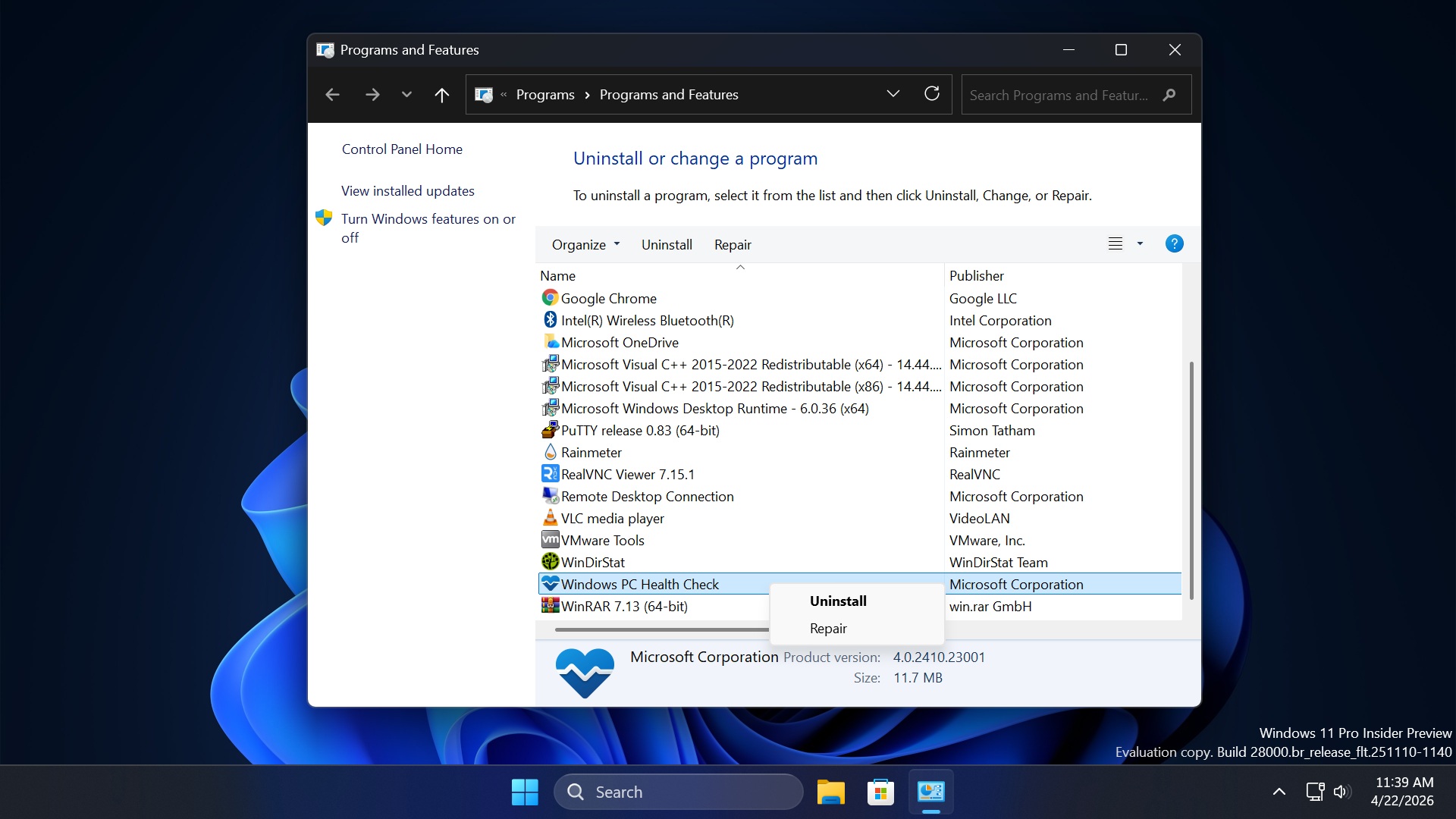
- Press the Win key, type appwiz.cpl, and press Enter.
- Find Windows PC Health Check in the list of installed programs and right-click it.
- Select Repair. It replaces corrupted files, reinstalls missing components and repairs registry entries.
- Launch PC Health Check from the Start menu again.
If Repair doesn’t help, uninstall the app, restart the PC, and install a fresh copy from Microsoft’s official link. Also install any pending updates from Windows Update first, since PC Health Check needs to reach Microsoft’s servers to update itself.
If the MSI itself won’t install or setup rolls back, open Terminal as administrator in the download folder and run msiexec /i WindowsPCHealthCheckSetup.msi /l*v health.log. The end of health.log shows the step that failed. If it points at a leftover install, run Microsoft’s Program Install and Uninstall troubleshooter, or install with winget instead.
How do I remove PC Health Check?
PC Health Check uninstalls like any other app. Using Settings:
- Press the Windows key, type Installed apps (Apps & features on Windows 10), and press Enter.
- Find Windows PC Health Check in the list and click the three-dots button.
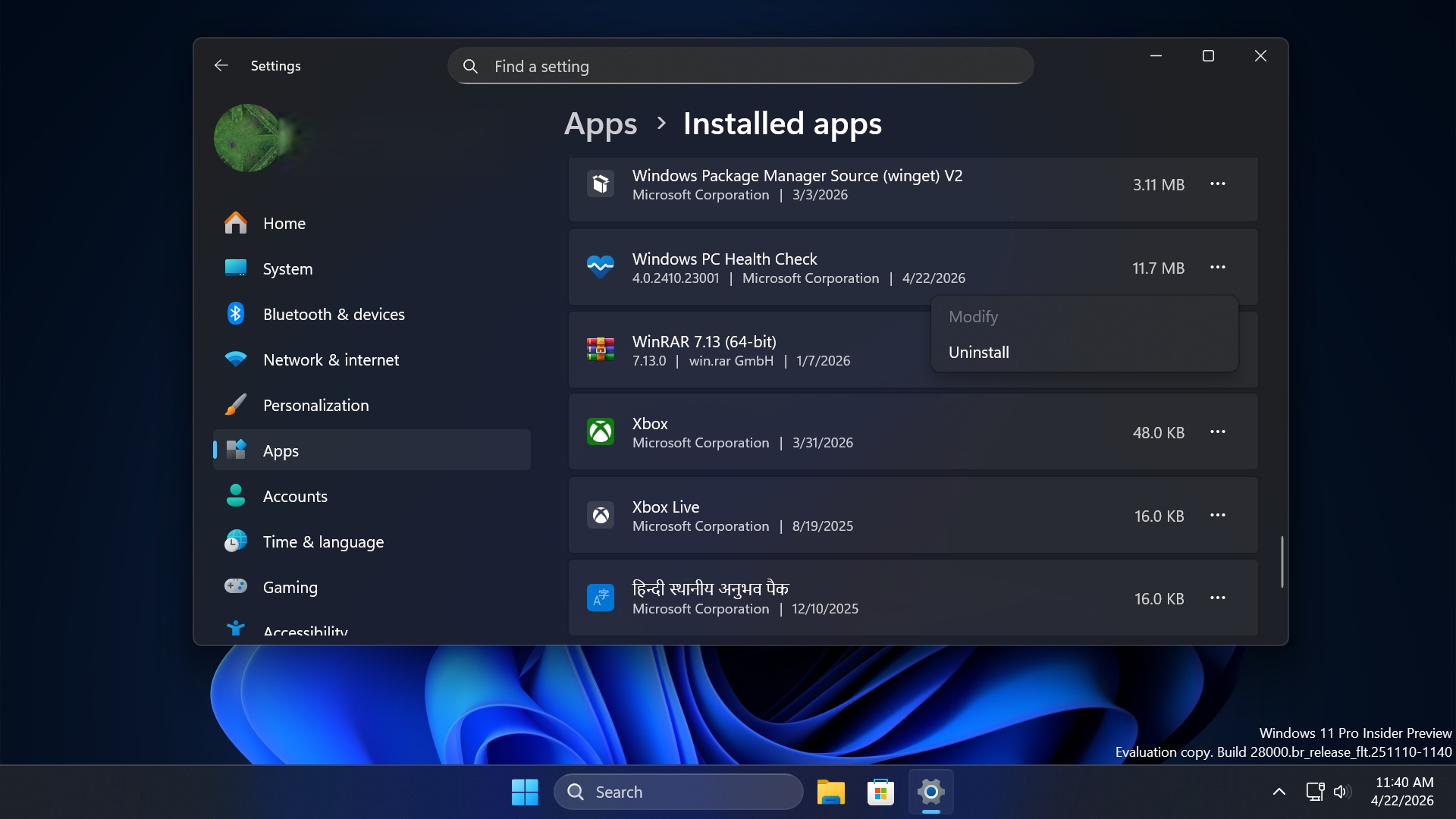
- Select Uninstall.
To remove it via Control Panel instead:
- Press the Win key, type appwiz.cpl, and press Enter.
- Find Windows PC Health Check in the list of installed programs and right-click it.
- Select Uninstall and follow the on-screen steps.
If you installed it with winget, winget uninstall Microsoft.WindowsPCHealthCheck removes it from Terminal. Uninstalling doesn’t change any setting or affect the Windows 11 offer in Windows Update.
On Windows 10, PC Health Check arrives as Windows Update KB5005463, so Windows Update may install it again later.
Tips for getting accurate PC Health Check results
- Run the check again after every change. Turning on TPM or adding RAM only shows up once you click Check now again.
- Screenshot See all results. If you ask your PC maker or a repair shop for help, that list shows exactly what failed.
- Look up your model’s firmware menus. The names for TPM and Secure Boot differ between Dell, HP, Lenovo, ASUS and others, and each maker’s support site shows where they are.
- Check the battery before buying a used laptop. On a laptop over three years old, Battery capacity shows how much of the original charge is left.
PC Health Check FAQ
What is Windows PC Health Check on my computer?
It’s a Microsoft app that checks whether your PC meets the Windows 11 minimum requirements and gives a quick health summary: backup and sync, Windows Update, battery capacity, storage and startup time. If you didn’t install it yourself, it most likely arrived on Windows 10 through Windows Update as KB5005463.
Is Windows PC Health Check a virus?
No. PC Health Check is an official tool made and maintained by Microsoft. It only reads information about your PC and doesn’t change settings on its own. Download it only from Microsoft’s official link, not from third-party download sites that could bundle malware or ransomware. The genuine MSI is signed by Microsoft Corporation, which you can confirm on the Digital Signatures tab of the file’s Properties.
Why doesn’t PC Health Check show the Windows 11 check?
The Windows 11 eligibility banner only appears on PCs running Windows 10. If your PC already runs Windows 11, the app shows the health sections only.
Why does PC Health Check reject a CPU that looks fast enough?
Windows 11 support is decided by Microsoft’s supported processor lists, not by speed or core count. A processor that runs Windows 10 well can still be missing from the Windows 11 list. Check your exact model name in Settings > System > About against Microsoft’s list for Intel, AMD or Qualcomm.
Why is the computer age in PC Health Check wrong?
Microsoft doesn’t document how the app works out the age shown in the device panel, so treat it as an estimate rather than the real manufacture date. It often doesn’t match the purchase date. It does matter in one place: Battery capacity only appears on devices the app considers older than three years.
Does PC Health Check still work now that Windows 10 support has ended?
Yes. Microsoft still offers the app and still points Windows 10 users to it as the way to see if they can move to Windows 11. Windows 10 stopped getting free security updates on October 14, 2025, so the check is the first step before deciding between upgrading, enrolling in ESU or buying a new PC.
Do I need a Microsoft account to use PC Health Check?
No. The Windows 11 check and the health sections work without signing in. Only the Backup and sync section asks for a Microsoft account.
Is there an offline installer for PC Health Check?
Yes. WindowsPCHealthCheckSetup.msi is a full installer, not a small web downloader, so you can copy it to a USB stick and install it on a PC with no internet connection.
Is there a 32-bit or Arm64 version of PC Health Check?
The official link gives you the 64-bit (x64) installer, which is what almost every PC needs. A 32-bit PC can’t run Windows 11 anyway, because Windows 11 needs a 64-bit processor. On an Arm-based PC, use Windows Update to see whether the device is eligible for Windows 11.
How do I get the latest version of PC Health Check?
You don’t need to do anything. The app updates itself when you open it, and Microsoft doesn’t let you turn that off. The official link also always serves the current installer, so a fresh download is the latest version.
Is PC Health Check the same as the Windows 11 Installation Assistant?
No. PC Health Check only tells you whether the PC can run Windows 11. The Installation Assistant is the separate Microsoft tool that actually upgrades a Windows 10 PC to Windows 11.

How to Check RAM on Windows 11 [Step by Step Guide] - Techdows
[…] 11 needs 4 GB or more; the PC Health Check app tests this for […]
Download Microsoft PC Manager for PC, Windows 11/10 (Free) - Techdows
[…] PC Health Check download guide […]