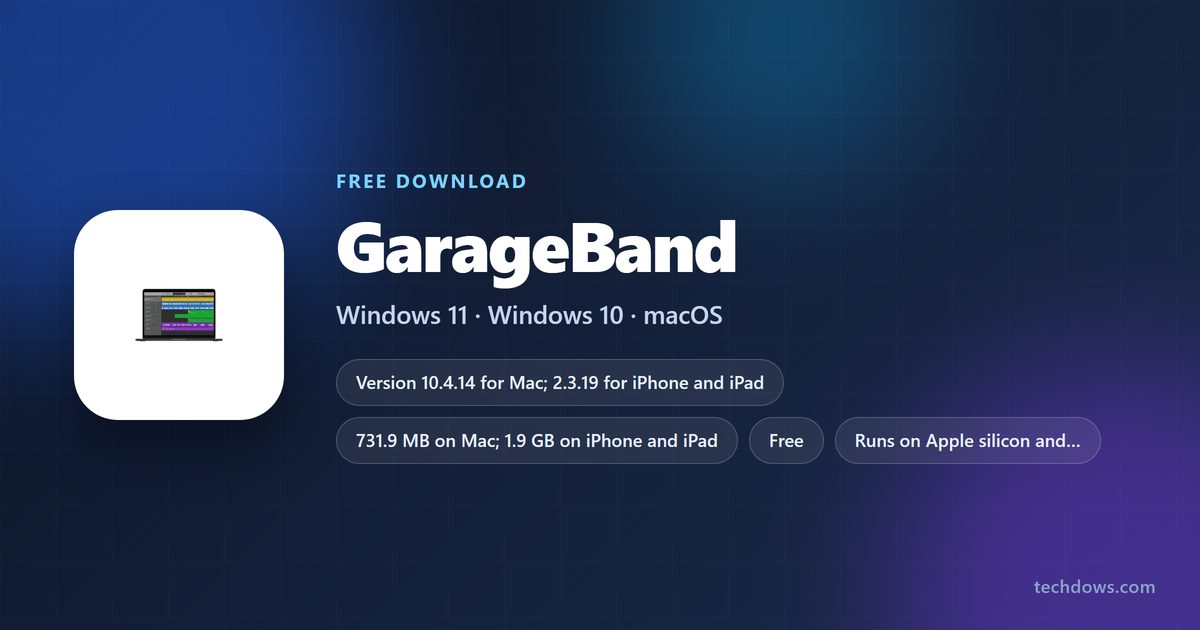
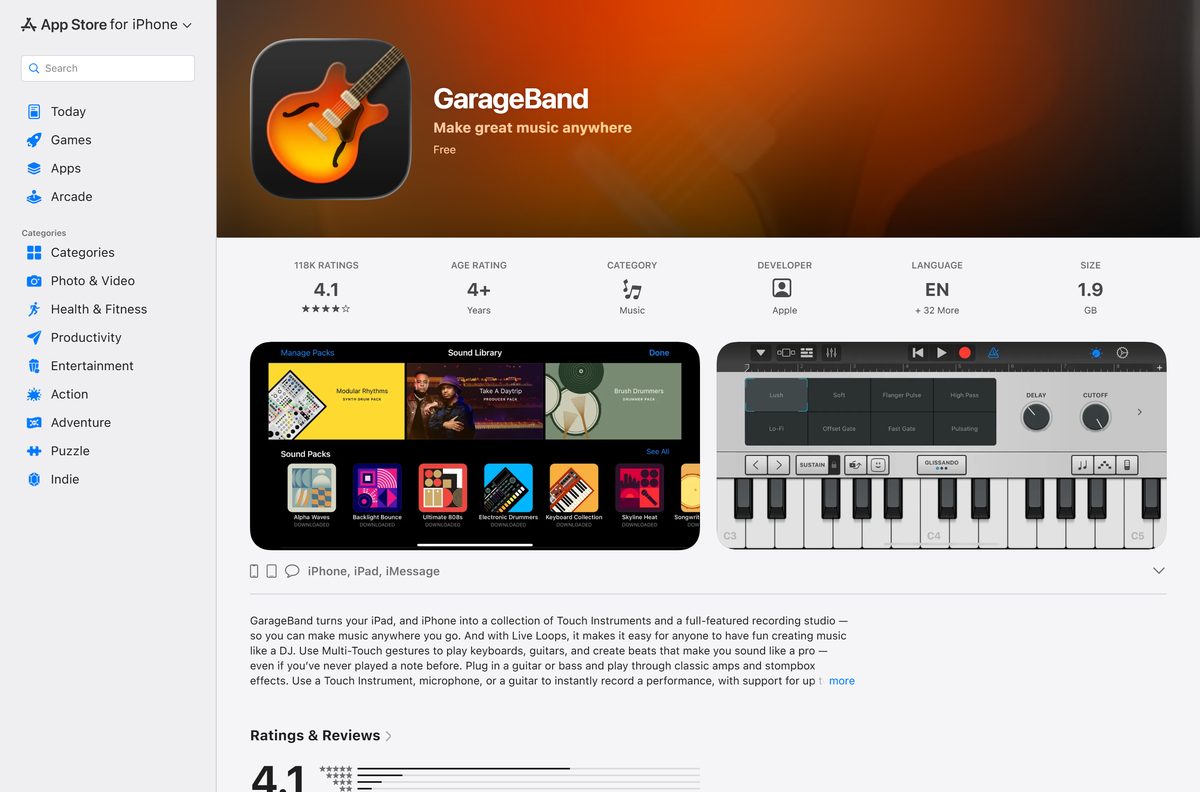
GarageBand is a free download from Apple’s App Store, and it installs on a Mac, an iPhone or an iPad in a few minutes. Apple Inc. is the seller on both listings, and the price on each reads $0.00.
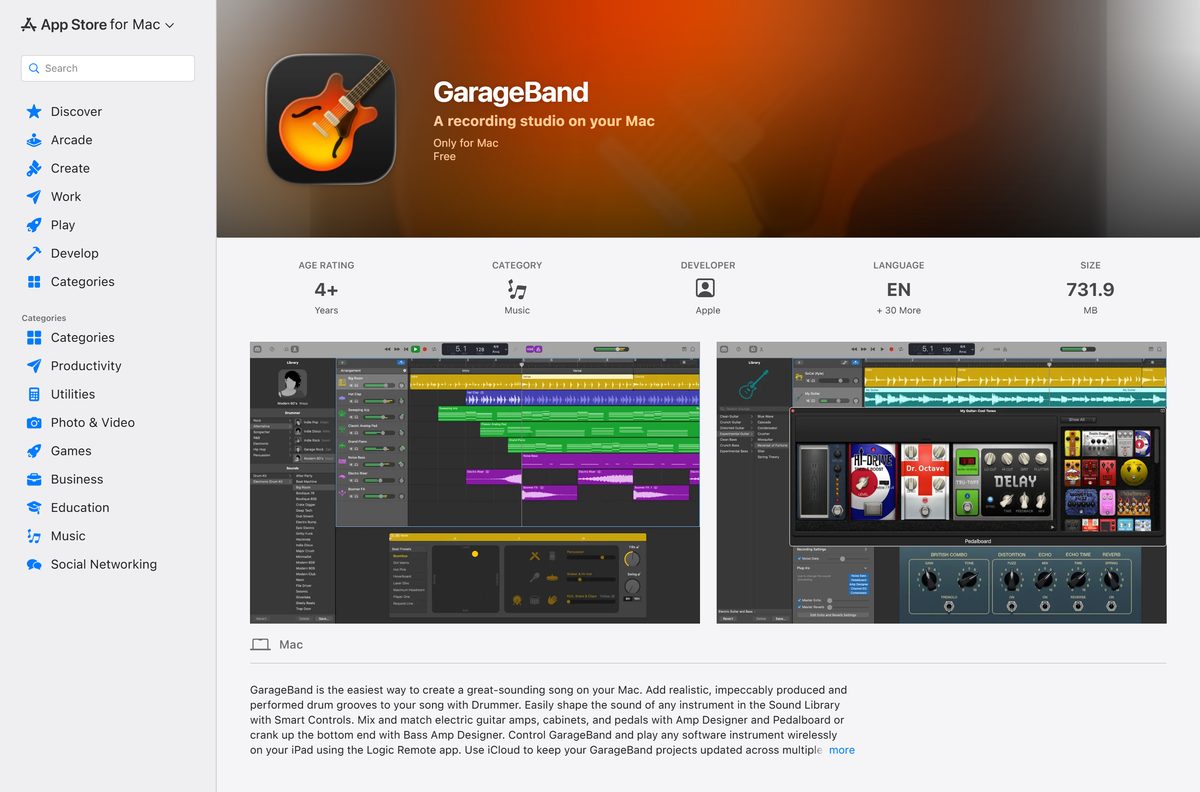
The Mac release is version 10.4.14 at 731.9 MB. The iPhone and iPad release is version 2.3.19 at 1.9 GB.
This guide covers the official App Store links, install steps for each device, the free Sound Library packs, fixes for recording faults, and what a Windows PC can run instead.
Which GarageBand download do you need?
Match the device in front of you to the first column. Both Apple listings are free, and neither asks for a licence key.
| Your device | What to install | Size | Minimum system |
|---|---|---|---|
| Mac | GarageBand 10.4.14 on the Mac App Store | 731.9 MB | macOS 15.6 or later |
| iPhone | GarageBand 2.3.19 on the App Store | 1.9 GB | iOS 26.0 or later |
| iPad | GarageBand 2.3.19 on the App Store | 1.9 GB | iOS 26.0 or later |
| Windows 11 or Windows 10 PC | Pro Tools Intro, Avid’s free studio | Not stated | Apple ships no Windows build |
One App Store listing serves the iPhone and the iPad, so the same link covers both.
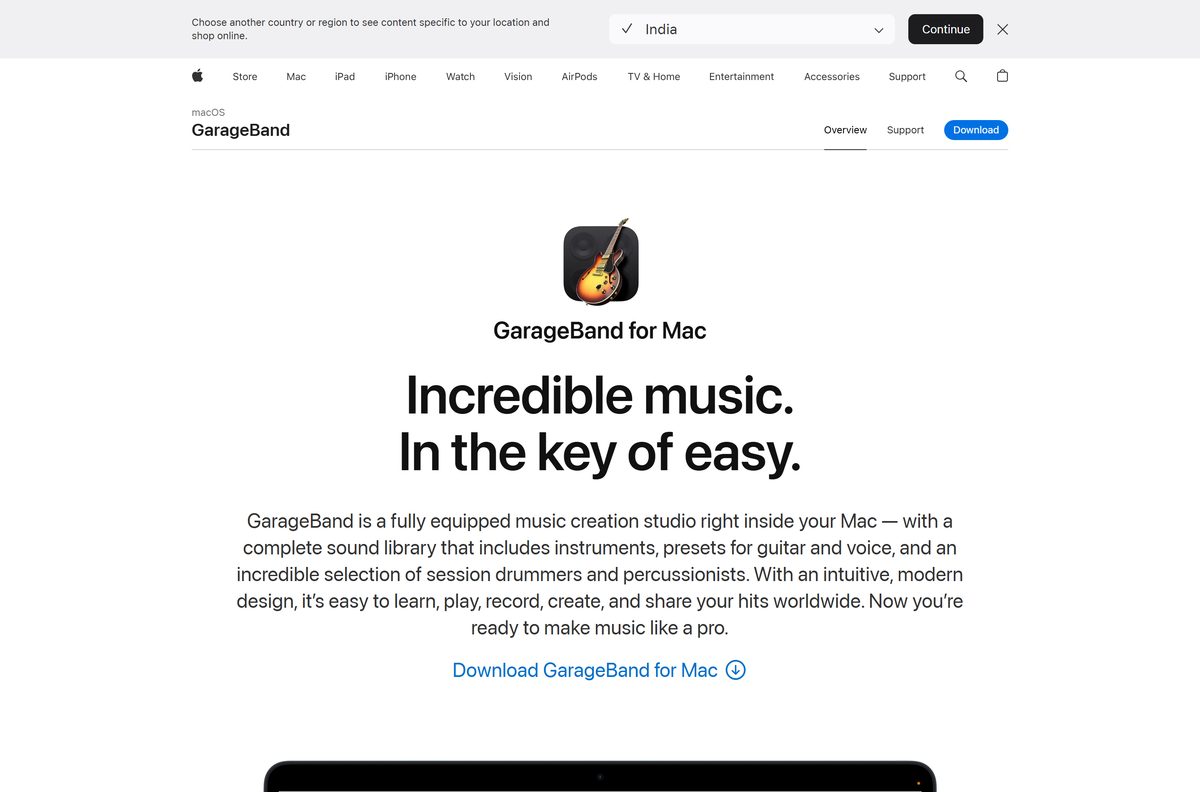
Download GarageBand for Mac, iPhone and iPad
Open the listing that matches your device, then select Get. Check that the seller line reads Apple Inc. before you start.
- GarageBand for Mac on the Mac App Store — 731.9 MB · Version 10.4.14, updated 22 April
- GarageBand for iPhone and iPad on the App Store — 1.9 GB · Version 2.3.19, updated 13 August
- Apple’s GarageBand product page — Feature tour and the App Store button
- Extra Sound Library packs — Free loops, drummers and patches, downloaded from inside the app
An Apple Account is required before the transfer starts, as Apple’s own footnote on the product page states.
Check the GarageBand specifications and system requirements
Read your own macOS release from Apple menu > About This Mac before you open the App Store.
| Field | Value |
|---|---|
| Software | GarageBand |
| Developer | Apple Inc. |
| Latest version | 10.4.14 on Mac; 2.3.19 on iPhone and iPad |
| Licence and price | Free |
| Download size | 731.9 MB on Mac; 1.9 GB on iPhone and iPad |
| Supported OS | macOS 15.6 or later; iOS 26.0 or later |
| Windows version | None. Apple publishes no Windows build |
| Architecture | Apple silicon and Intel Macs that support macOS 15.6, plus iPhone and iPad |
| Category and age rating | Music, rated 4+ |
| Languages | English and 30 more on Mac; English and 32 more on iPhone and iPad |
| Official download source | Mac App Store and App Store (apps.apple.com) |
| Offline installer | No |
| Last verified | 2026-09-22 |
Apple’s product page quotes a broader floor of macOS Monterey, which covers the app family rather than this release.
Which GarageBand download do you need for your Mac?
The App Store listing names a macOS release, not a processor. That is the difference from Logic Pro, which Apple restricts to Apple silicon.
| What About This Mac shows | What to do | Where to go |
|---|---|---|
| macOS 15.6 or later | Install version 10.4.14, the current release | Mac App Store listing |
| macOS 14 Sonoma or older | Upgrade macOS first, then install | Apple’s macOS page |
| A Mac too old for macOS 15.6 | Record on an iPhone or iPad instead | App Store listing |
| You want more than 255 tracks | Step up to Logic Pro, which needs Apple silicon | Apple’s Logic Pro page |
Projects sync through iCloud, so a song started on an iPhone opens on the Mac without an export step.
How to install GarageBand on your Mac
The whole install happens inside the App Store. No disk image, no setup assistant, no serial number.
- Open the App Store from the Dock, or choose App Store from the Apple menu.
- Type GarageBand into the search field and press Return.
- Open the result whose seller line reads Apple Inc.
- Select Get, then select Install.
- Sign in with your Apple Account if the App Store asks for it.
- Wait for the 731.9 MB transfer to finish. The button then reads Open.
- Open GarageBand and choose GarageBand > Sound Library > Download All Available Sounds, then select Get.
- Select Empty Project, then Choose, and start a track.
The extra sound packs are free and land after the app itself, so the first launch is quicker than the full footprint suggests.
How to tell a genuine GarageBand download from a fake
Search results for a Windows version lead to setup files that carry the name and none of the software. Three checks settle it.
- Confirm the address bar reads apps.apple.com or apple.com before you select anything.
- Read the Seller line on the listing. A genuine listing reads Apple Inc.
- Read the price. Apple charges nothing, so any checkout page is not Apple’s.
- Treat a .exe , .msi or .apk named after the app as hostile, because Apple builds none of those.
- Scan anything you already downloaded with Windows Security, then delete it.
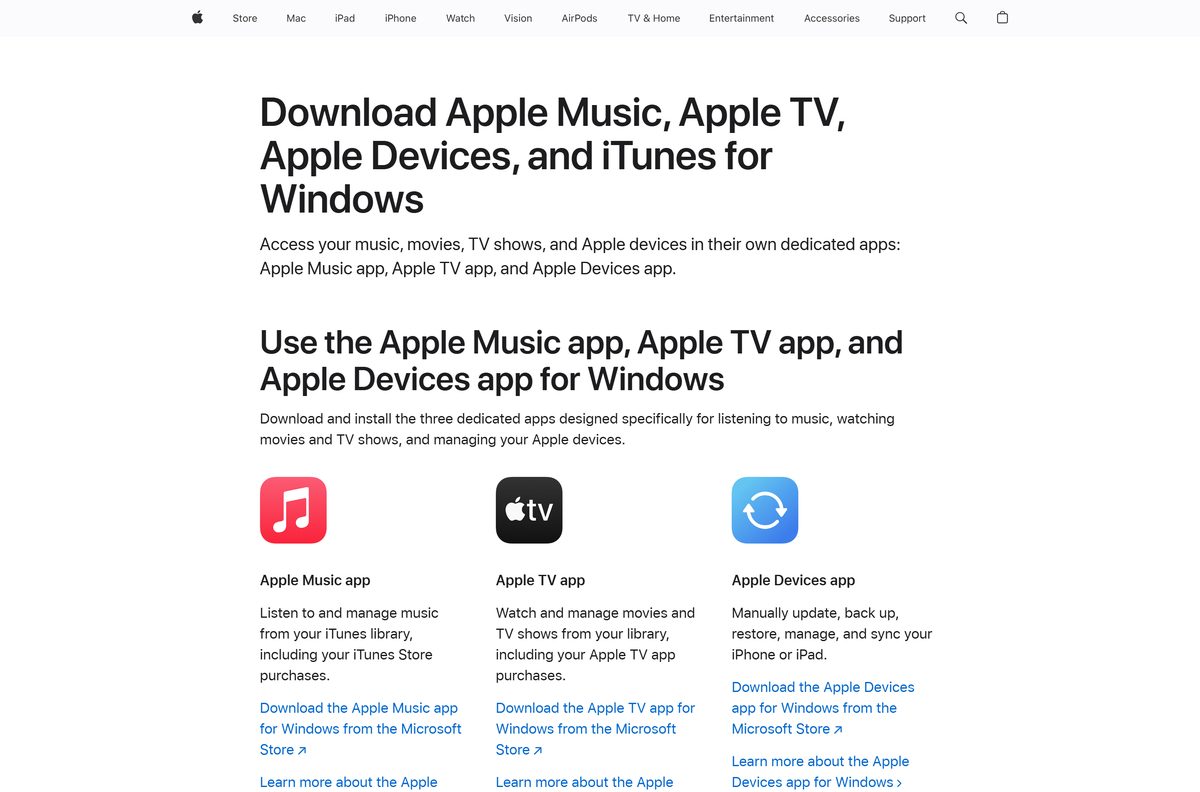
Apple’s list of its own software for Windows names Apple Music, Apple TV, Apple Devices and iTunes, and nothing for making music.
Is GarageBand free?
Yes, on every device Apple ships it for. Both App Store listings show a price of Free, and the Sound Library packs inside the app cost nothing either. There is no trial period, no subscription and no upgrade prompt. Apple’s paid step up is Logic Pro, at $199.99 for Mac or $12.99 a month through Apple Creator Studio, which also covers the iPad version and opens with a 30-day trial for new subscribers. Any page selling a licence key, an activation code or a Windows setup file is selling something Apple does not make.
Should you install GarageBand or Logic Pro?
Start with GarageBand, and move to Logic Pro only when a project outgrows it. GarageBand handles up to 255 tracks, 33 Drummer players, Amp Designer and the full Apple Loops library at no cost. Logic Pro costs $199.99 on Mac, needs Apple silicon and macOS 15.6 or later, and adds professional mixing, scoring and sampling. Projects move upward cleanly, so nothing recorded now is wasted.
How to check your GarageBand version and update it
Updates arrive through the App Store, not through an in-app updater.
- Open GarageBand, then choose About GarageBand from the GarageBand menu.
- Compare the number shown against the current release, 10.4.14.
- Close the panel and open the App Store.
- Select Updates in the sidebar.
- Select Update beside GarageBand, or Update All to clear the queue.
- On an iPhone or iPad, open the App Store, tap your profile picture and pull down to refresh the pending list.
- Tap Update beside the entry to move to version 2.3.19.
Apple’s own steps for updating apps by hand follow the same route on both platforms.
What files GarageBand can open and export
Drag an audio file from the Finder onto a track to import it. Exports run from Share > Export Song to Disk.
| Format | Import | Export |
|---|---|---|
| AIFF | Yes | Yes |
| WAV / WAVE | Yes | Yes |
| MP3 | Yes | Yes |
| AAC | Yes, except protected AAC | Yes |
| Apple Lossless | Yes | No |
| CAF | Yes | No |
| MIDI | Yes | No |
Fix GarageBand not installing or not recording
The App Store will not install it on your Mac
Version 10.4.14 needs macOS 15.6, and an older Mac is refused before the download starts.
- Choose Apple menu > About This Mac and read the macOS release.
- Open System Settings > General > Software Update and install what is pending.
- Restart the Mac, then open the App Store and select Get again.
- Free up at least 1 GB of disk space if the transfer stops part way.
Nothing records from a microphone or interface
macOS withholds audio input from an app until you grant it, which Apple documents in its audio input article.
- Quit GarageBand.
- Choose Apple menu > System Settings, then select Privacy & Security.
- Select Microphone and turn the setting on for GarageBand.
- Reopen the app and arm the track again.
The app will not open, or a project will not play
A third-party Audio Units plug-in or a stale preference file is usually behind it.
- Restart the Mac from the Apple menu.
- Hold Control while opening the app, then select Don’t Launch at the audio prompt.
- Open GarageBand > Preferences > Audio/MIDI and clear the Audio Units checkbox.
- Switch the output to Built-in Output and the input to Built-in Microphone.
- Create an Empty Project to see whether one project or every project is affected.
- Run defaults delete com.apple.garageband10 in Terminal, then restart the Mac.
A setup file for Windows will not run
Apple builds no Windows executable, so the file came from somewhere else.
- Delete the file and empty the Recycle Bin.
- Run a full scan in Windows Security.
- Install Pro Tools Intro or Audacity instead.
- Sign in to iCloud on the PC only through Apple’s own Microsoft Store apps.
The download stalls on an iPhone or iPad
The 1.9 GB transfer is larger than most App Store downloads and drops off cellular.
- Connect to Wi-Fi and lock the screen for a few minutes.
- Touch and hold the icon on the Home Screen, then tap Prioritise Download.
- Check that at least 4 GB of free storage remains under Settings > General > iPhone Storage.
- Restart the device and tap the cloud icon again.
How to uninstall GarageBand and reclaim the disk space
The app itself is the smaller half. The Sound Library sits outside the app bundle and survives a plain drag to the Bin.
- Quit GarageBand.
- Open Finder and select Applications in the sidebar.
- Drag GarageBand to the Bin, then choose Empty Bin.
- Choose Go > Go to Folder in Finder and enter /Library/Application Support/GarageBand .
- Move that folder to the Bin to clear the downloaded instruments.
- Enter /Library/Audio/Apple Loops in the same dialog and remove the loop packs you no longer want.
- On an iPhone or iPad, touch and hold the icon, tap Remove App, then tap Delete App.
- Reinstall at any time from the App Store, because purchases stay tied to your Apple Account.
Apple’s uninstall instructions for Mac cover the same route for anything installed from the App Store.
Which GarageBand alternative should you install on Windows?
Pick the row that matches what you wanted to record. Each link goes to the maker’s own download page.
| What you want to do | Use this on Windows | Cost | Watch out for |
|---|---|---|---|
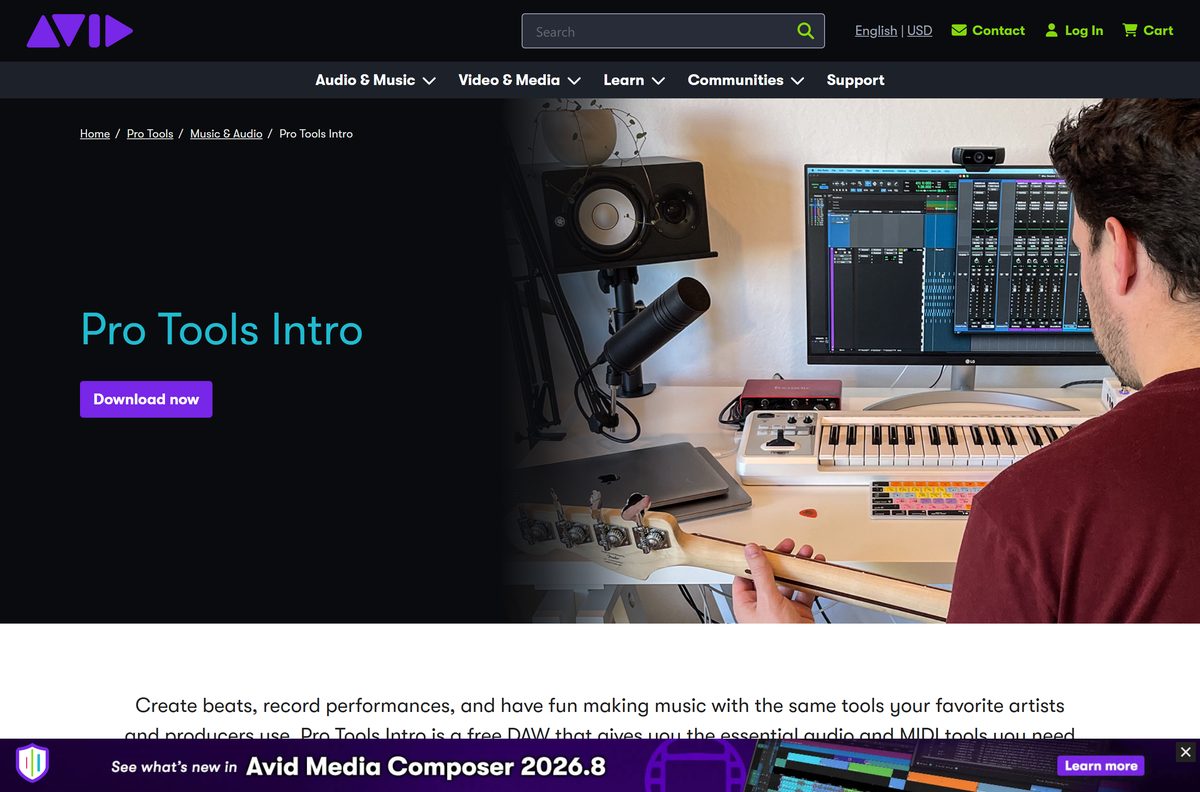
| Record and mix a full song | Pro Tools Intro | Free | Track and plug-in limits compared with paid Pro Tools |
| Edit, trim and clean up audio | Audacity 4.0.0 | Free, open source | The ARM64 build carries no plug-in support |
| Build loop-based tracks like a DJ | Ableton Live | 30-day free trial, then paid | Needs Windows 10 version 22H2 or Windows 11 22H2 |
| Keep the exact GarageBand workflow | GarageBand on iPhone or iPad | Free | Needs an Apple device; a PC cannot run the app |
| Move up to a professional studio | Logic Pro | $199.99 on Mac | Apple silicon and macOS 15.6 only |
Apple’s own software for Windows stops at Apple Music, Apple TV, Apple Devices and iTunes. None of the four records or mixes audio.
Frequently asked questions
Is GarageBand free?
Yes. Both App Store listings show a price of Free, and the extra Sound Library packs cost nothing. Apple sells no paid edition of the app; the paid step up is Logic Pro at $199.99 for Mac.
Is GarageBand free for PC?
Apple builds the app for Mac, iPhone and iPad only, so there is nothing to price on a PC. Avid gives away Pro Tools Intro for Windows, and Audacity 4.0.0 is free and open source.
Is there a GarageBand download for Windows 11?
No. Apple has never released a Windows version, and its list of Apple software for Windows covers Apple Music, Apple TV, Apple Devices and iTunes only. A Windows setup file using the name is not from Apple.
What is the official GarageBand download page?
The Mac App Store listing at apps.apple.com covers the Mac release, and a second App Store listing covers iPhone and iPad. Apple’s product page at apple.com links straight to the first of those.
How big is the GarageBand download?
The Mac release is 731.9 MB and the iPhone and iPad release is 1.9 GB, as shown on Apple’s Size line. Extra loops and instruments download separately from inside the app.
Is there an offline installer?
No. Delivery runs through the App Store on every supported device, and Apple publishes no standalone package to copy between machines. Reinstalling needs an internet connection and your Apple Account.
Which macOS version does GarageBand need?
Version 10.4.14 requires macOS 15.6 or later, as stated on the Mac App Store listing. Apple’s product page quotes macOS Monterey or later as the broader family baseline.
Is GarageBand safe to download?
Yes, from Apple’s own listings. The seller line must read Apple Inc. and the price must read Free. Installers offered elsewhere as an exe, msi or apk are not Apple’s work.
What is the latest GarageBand version?
10.4.14 on Mac, updated on 22 April, and 2.3.19 on iPhone and iPad, updated on 13 August. Both releases list stability improvements and bug fixes as the change.
What audio formats can GarageBand import?
AIFF, CAF, WAV, Apple Lossless, MP3 and AAC, apart from protected AAC files. MIDI files import as well, and finished songs export as AAC, MP3, AIFF or WAVE.
Why will GarageBand not install on my Mac?
The usual cause is macOS. The current release needs macOS 15.6 or later, so update through System Settings, restart, and select Get again. A stalled transfer often means low disk space.