Open Firefox settings from the menu button (three lines at the top right) > Settings, or type about:preferences in the address bar.
This guide maps Firefox's settings and about: pages, then covers about:config, updating Firefox, clearing cache and cookies, privacy settings, fixes, and the other browsers worth knowing on Windows.
How to open Firefox settings
- Open Firefox.
- Select the menu button (three horizontal lines) at the top right.
- Select Settings.
- Pick a category on the left, or type what you want into the search box at the top of the Settings page.
Mozilla redesigned Firefox settings in June 2026 and retired the long-standing General page. Its options moved into more specific pages such as Appearance, Accessibility, Languages and Tabs and browsing, and existing preferences were kept.
What are the options panel in Firefox settings?
| Settings page | What you change there | Related walkthrough |
|---|---|---|
| Appearance | Theme, colours and layout | Settings search finds older options that moved |
| Tabs and browsing | Tab behaviour, startup and browsing options | restore tabs after a crash |
| Home | Homepage, new tab page and what the home screen shows | make Google your homepage |
| Search | Default search engine and search suggestions | turn off Firefox Suggest |
| Privacy & Security | Tracking protection, cookies, history, passwords, permissions, HTTPS and data collection | Sections below |
| AI controls | Firefox's AI features, including Smart Window | Smart Window in Firefox |
Firefox about: pages and what they open
| Type in the address bar | What it opens |
|---|---|
about:preferences |
Firefox settings |
about:config |
The advanced preferences editor |
about:addons |
Add-ons and themes manager |
about:support |
Troubleshooting information and the Refresh Firefox button |
about:policies |
Policies set by an organization or installed software |
about:profiles |
Firefox profiles on this computer |
Where is about:config in Firefox?
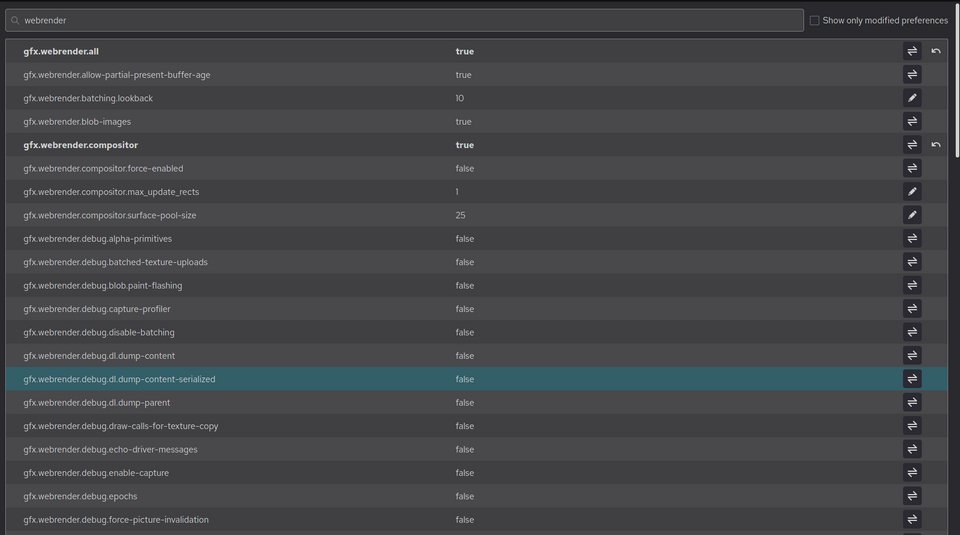
about:config holds hundreds of preferences that the Settings page does not show. Warnings matter here: a wrong value can break Firefox, so change one preference at a time.
- Type
about:configin the address bar and press Enter. - Accept the warning page to continue.
- Type the preference name in the search box.
- Double-click a true/false preference to toggle it, or select the edit button to type a new value.
- Select the reset arrow next to a changed preference to return it to its default.
The full walkthrough to use Firefox's about:config covers adding new preferences and backing them up.
Update Firefox on Windows or Mac
- On Windows, select the menu button > Help > About Firefox. On a Mac, select Firefox > About Firefox in the menu bar.
- Firefox checks for updates and downloads any it finds.
- Select Restart to Update Firefox when it appears.
- Open About Firefox again; it should say Firefox is up to date.
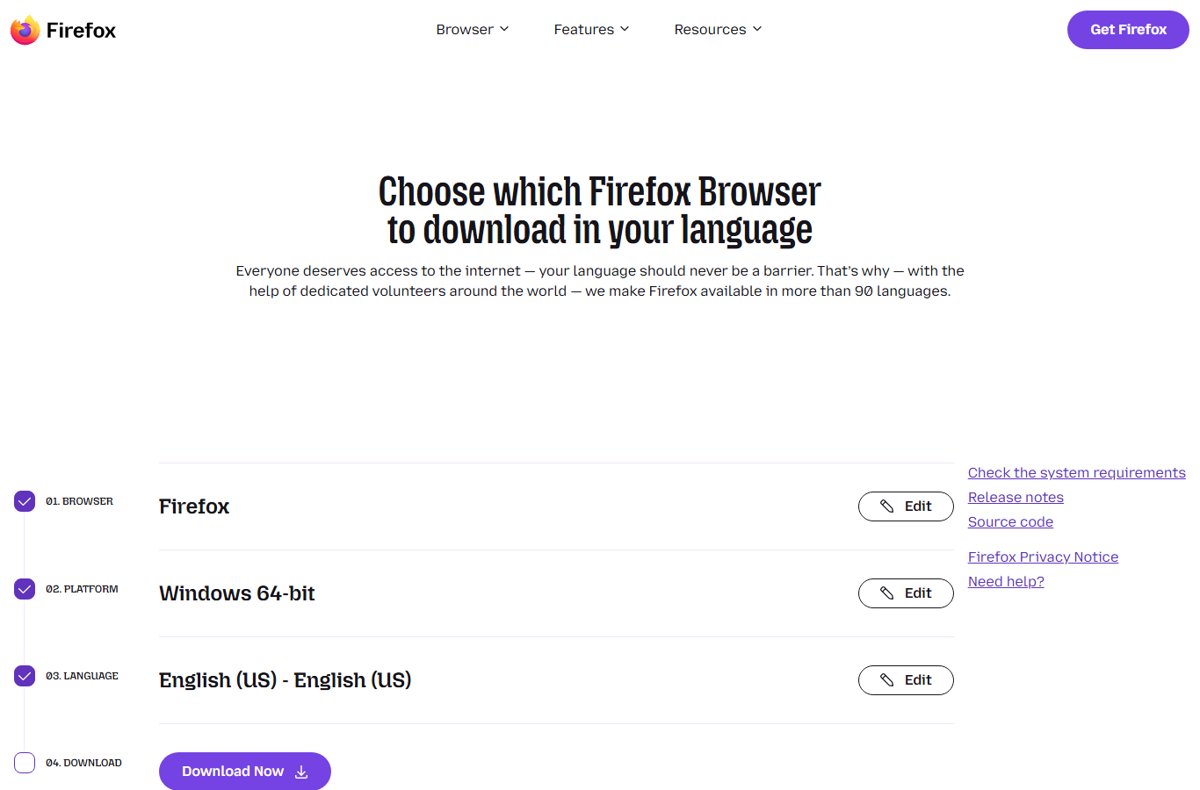
Manually update on Windows and manually update on a Mac follow the same About window. A clean copy comes from the Mozilla Firefox download page, and Firefox offline installers suit PCs with slow or no internet.
Turn on automatic Firefox updates
- Open Settings.
- Type *updates* into the settings search box.
- Select the option to automatically install updates.
- If the option is greyed out, an organization policy controls updates; check
about:policies.
Update Firefox on Android or iPhone
| Platform | How to update Firefox | If the update fails |
|---|---|---|
| Android | Google Play Store > Firefox > Update | Fix app store update failures: free storage, then retry in the Play Store |
| iPhone and iPad | App Store > account > Firefox > Update | Restart the device and retry |
| Linux | Your distribution's package manager, or Firefox's own updater for a Mozilla tarball install | Reinstall from the same source |
Restart and retry a failed desktop update
Firefox update fails or never finishes
A pending restart, an interrupted download or a blocked connection.
- Close every Firefox window and reopen Firefox.
- Open About Firefox again to retry.
- Restart the computer if the update still sits pending.
Update controls are blocked or settings say they are managed
Policies set by an organization or by installed software.
- Open
about:policiesto see which policies apply. - On a work PC, ask the administrator.
- On a home PC, remove the software that set the policy, as in the fix for Firefox managed by your organization.
Reinstall Firefox when updates still fail
A damaged installation.
- Download the current installer from Mozilla.
- Run it over the existing install; your profile and bookmarks stay in place.
- Open About Firefox to confirm the version.
Fix problems that begin after an update
An add-on, theme or setting that conflicts with the new version.
- Restart Firefox in Troubleshoot Mode from Help > Troubleshoot Mode.
- If the problem is gone, turn add-ons off one by one in
about:addons. - If it persists, use Refresh Firefox as described below.
How to clear Firefox cache on desktop
- Select the menu button > Settings.
- Open Privacy & Security.
- Under Cookies and Site Data, select Clear Data.
- Tick Cached Web Content and untick cookies if you want to stay signed in.
- Select Clear.
Firefox cache keyboard shortcuts: Ctrl + Shift + Delete on Windows opens the clear recent history dialog, where customizing your clearance options means picking a time range and ticking only the data types you want gone. If a label differs after the June 2026 settings redesign, type cache or cookies into the settings search box.
How to automatically clear Firefox cache
- Open Settings > Privacy & Security.
- Under Cookies and Site Data, tick Delete cookies and site data when Firefox is closed.
- Close and reopen Firefox to check that sites start signed out.
Automating your browser cleanup this way also signs you out of sites, so add exceptions for sites that should keep their cookies.
How to clean Firefox cache on Android and iPhone
| Device | Where to clear | Automatic option |
|---|---|---|
| Android | Menu > Settings, then the browsing-data option; tick the cache | A delete-on-quit option in Settings |
| iPhone and iPad | Menu > Settings > Data Management, then clear the cache | Clear it by hand |
How to clear the cookies on Firefox
- Open Settings > Privacy & Security.
- Under Cookies and Site Data, select Clear Data.
- Tick Cookies and Site Data and select Clear.
- To remove one site only, select Manage Data, pick the site, and select Remove Selected.
Clearing cookies signs you out of sites. Firefox also isolates each site's cookies with Total Cookie Protection, and cookies in Safari, Chrome and Edge clear the same way, as the steps to clear cookies in every browser show.
Stop Firefox's data collection and other privacy settings
These are the Firefox settings worth changing once. All of them live under Privacy & Security or Search in Settings.
| Setting | What to change | Why |
|---|---|---|
| Data collection | Untick the Firefox data collection and use options | Stop Firefox's data collection |
| Enable tracking protection | Set Enhanced Tracking Protection to Standard or Strict | Strict blocks more trackers but can break some sites |
| Switch to more secure HTTPS websites | Turn on HTTPS-Only Mode | Firefox asks before loading an insecure page |
| Change the default search engine | Search > default search engine | Pick the engine you trust |
| Review search suggestions in Firefox | Search > suggestions options | Suggestions can include sponsored results |
| Remove unnecessary information from the home screen | Home > Firefox Home content | A cleaner new tab page |
| Stop websites from annoying you | Permissions > notifications, pop-ups and autoplay | Fewer prompts and pop-ups |
| Clear your browsing history and cookies | History > clear on close or use Clear Data | Less stored activity |
| Switch to a better password manager | Passwords: keep Firefox's own manager with a primary password, or move to a dedicated one | Stronger protection for saved logins |
A private window keeps no history or cookies after you close it, and the guide to going incognito in each browser lists the shortcuts.
Get privacy-friendly add-ons
- Open
about:addons, or select the menu button > Add-ons and themes. - Search for the add-on, such as an ad or tracker blocker.
- Open its page on addons.mozilla.org and select Add to Firefox.
- Review the permissions and select Add.
When a site refuses to load with a blocker running, you can disable your ad blocker for that site only.
Firefox performance and background fixes
| Symptom | Likely cause | Fix |
|---|---|---|
| Video stutters or the window flickers | Graphics driver and hardware acceleration | turn off hardware acceleration |
| Firefox slows down in the background on Windows 11 | Windows Efficiency mode | disable Efficiency mode for Firefox |
| A Firefox task runs in Task Scheduler | The default browser agent | Firefox default browser agent |
| Search or homepage changed by itself | Unwanted software | remove a browser hijacker |
How to reset Firefox browser settings
Refresh Firefox restores default settings and removes add-ons while keeping bookmarks, history, passwords and cookies.
- Type
about:supportin the address bar and press Enter. - Select Refresh Firefox.
- Confirm with Refresh Firefox in the dialog.
Browser tasks that work the same in Firefox, Chrome and Edge
| Task | Full walkthrough |
|---|---|
| Close every tab at once | close all browser tabs |
| Allow redirects for one site | enable redirects in each browser |
| Make MSN the homepage | MSN as your homepage |
| Change the Windows default browser | change the default web browser |
| Fix a javascript:void(0) link | javascript:void(0) fixes |
| Find downloaded files | open the Downloads folder |
| Leave full screen on a Mac | exit full screen on a Mac |
Other browsers for Windows: Brave, Opera, Vivaldi and more
Firefox is the main browser not built on Chromium, the open-source project behind Chrome. Most alternatives below use Chromium, so Chrome extensions usually work in them.
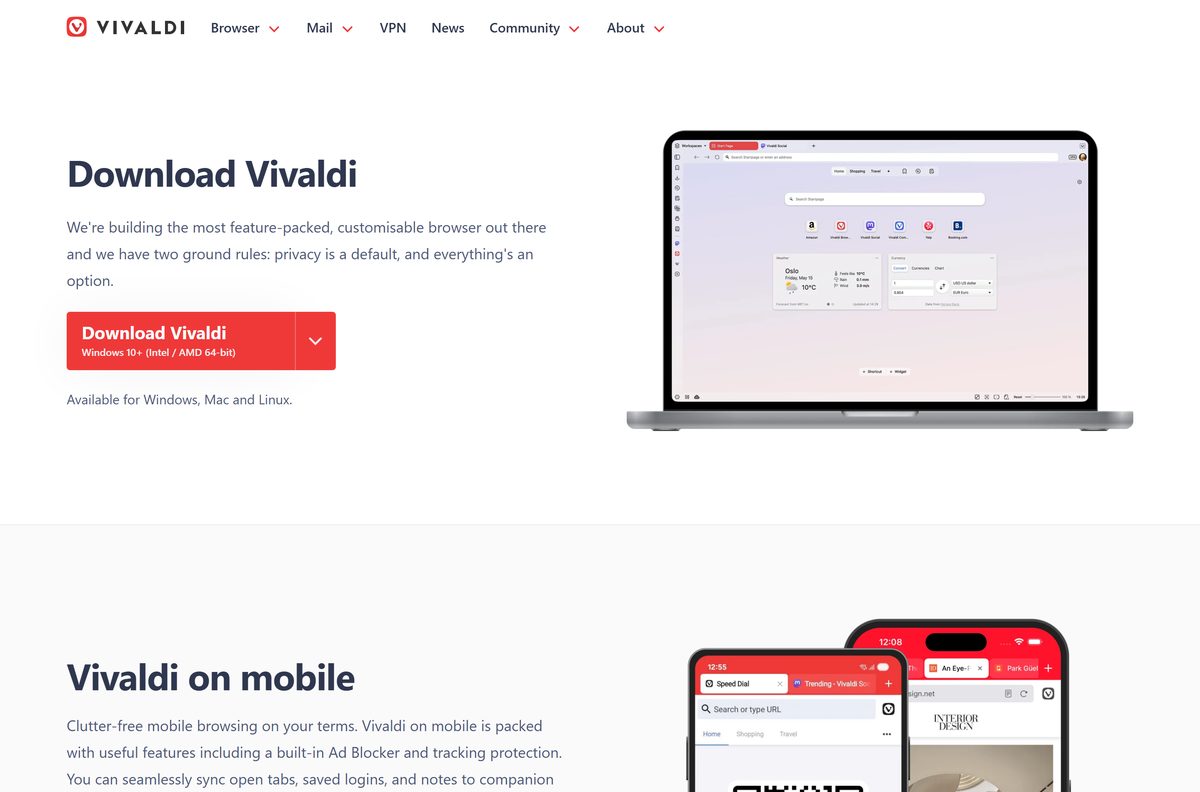
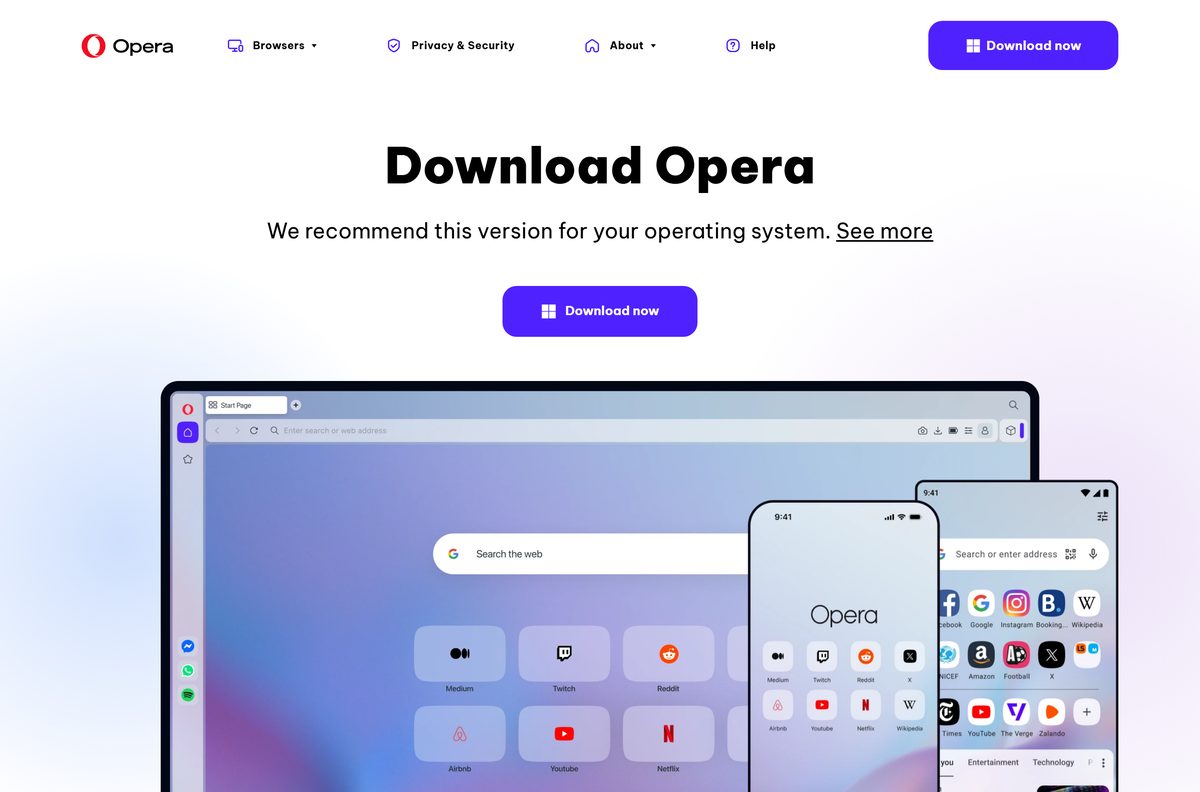
| Browser | Made by | Get it |
|---|---|---|
| Brave | Brave Software | Brave browser download |
| Opera | Opera | Opera browser download |
| Opera GX | Opera, aimed at gamers | Opera GX download |
| Opera Mini | Opera, for Android | Opera Mini download |
| Vivaldi | Vivaldi Technologies | Vivaldi download |
| DuckDuckGo | DuckDuckGo | DuckDuckGo browser download |
| Chromium | The Chromium open-source project | Chromium download |
| AVG Secure Browser | AVG | AVG Secure Browser explained |
| Safari | Apple, built into Mac, iPhone and iPad | Safari download |
Safari has no current Windows version. On a Mac, the fixes for a Safari cannot connect to server error and for Safari losing internet after macOS Sonoma cover the common faults, and iPhone owners can turn off Private Browsing in Safari.
Firefox settings FAQ
Where is Firefox settings?
Select the menu button, the three lines at the top right of Firefox, then Settings. You can also type about:preferences in the address bar.
How do I reset Firefox browser settings?
Type about:support, select Refresh Firefox and confirm. Settings return to their defaults and add-ons are removed, while bookmarks, history, passwords and cookies are kept.
Where is about:config in Firefox?
There is no menu entry. Type about:config in the address bar, press Enter and accept the warning to open the advanced preferences editor.
What Firefox settings should I change?
Check tracking protection, HTTPS-Only Mode, the default search engine, search suggestions and data collection under Privacy & Security and Search. Those cover most privacy gains.
Why am I having problems with Firefox?
Add-ons, a damaged profile or an outdated version cause most problems. Update Firefox, restart in Troubleshoot Mode to test add-ons, and use Refresh Firefox if the problem stays.
What does Firefox run on?
Firefox runs on Windows, macOS, Linux, Android and iOS. On Windows, macOS and Linux it uses Mozilla's own Gecko engine rather than Chromium.
Why do people use Firefox?
Firefox offers built-in tracking protection, deep customisation through about:config and add-ons, and is the main desktop browser not built on Chromium.