Open Microsoft Edge settings from Settings and more (the three dots at the top right) > Settings, or type edge://settings in the address bar.
This guide maps where each Edge setting lives, then covers updates, extensions and ad blockers, clearing cache and cookies, privacy and pop-ups, the default browser, and fixes for crashes, downloads and high memory use on Windows 11 and Windows 10.

Find the settings menu
Launch Microsoft Edge from the Start menu or the taskbar first. Every Edge tool and option starts from the same menu.
- Open Microsoft Edge.
- Select Settings and more (the … button) in the top right corner of the browser.
- Select Settings if the option you need is not in the menu itself.
- Pick a category in the left pane, such as Privacy, search, and services or System and performance.
- Type a word such as *cookies* or *download* into the Search settings box to jump straight to a setting.
The same menu holds the home page, search engine, history and sync options. The step-by-step access route works the same on Windows 11 and Windows 10.
Key settings categories in Microsoft Edge
Each settings page has its own internal address. Paste one into the address bar to skip the menus entirely.
| What you want to change | Address to type | Settings menu route |
|---|---|---|
| Main settings menu overview | edge://settings |
Settings and more > Settings |
| Update Edge, see the version | edge://settings/help |
Help and feedback > About Microsoft Edge |
| Clear browsing data | edge://settings/clearbrowserdata |
Privacy, search, and services > Clear browsing data |
| Graphics acceleration, background apps | edge://settings/system |
System and performance |
| Sleeping tabs | edge://settings/system/managePerformance |
System and performance > performance options |
| Download location | edge://settings/downloads |
Downloads |
| Reset all settings | edge://settings/reset |
Reset settings |
| Installed extensions | edge://extensions |
Extensions > Manage extensions |
| Graphics feature status | edge://gpu |
No menu entry |
| Full version and crash list | edge://version and edge://crashes |
No menu entry |
Website notifications sit under site permissions, and the steps to open Edge notification settings cover blocking or allowing them. Internet Options is a Windows Control Panel item rather than an Edge page, so opening Internet Options needs inetcpl.cpl.
Update once
By default, Microsoft Edge updates itself when you restart the browser. A manual check helps on metered connections, where Edge waits for you to approve the download.
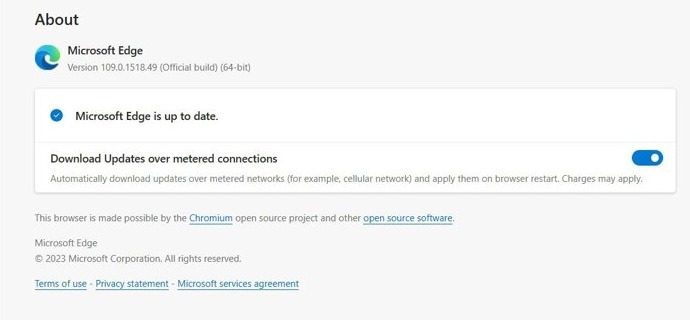
- Select Settings and more > Help and feedback > About Microsoft Edge, or type
edge://settings/help. - If the page says Microsoft Edge is up to date, you are finished.
- If an update is available, select Download and install.
- Select Restart to apply the update.
Windows Update and winget can also update the Edge browser when the About page shows an error. If Edge is missing or broken, a fresh copy comes from the Microsoft Edge download page.
Always stay up to date
- Open
edge://settings/help. - Turn on Download and install updates automatically if your device shows it.
- Turn on Download updates over metered connections if you want updates on a capped Wi-Fi or cellular link.
- If the toggles are dimmed or missing, your organization manages Edge, and your IT administrator controls updates.
Testers who want new features early can run Edge Canary beside the stable browser without touching their main profile.
Find and add an extension to Microsoft Edge
Extensions, also called add-ons, add tools to the browser. Ad blockers are the most common ones people install.

- Select Extensions to the right of the address bar. If it is hidden, select Settings and more > Extensions.
- Select Get Extensions for Microsoft Edge.
- Find the extension and select Get.
- Review the permissions it asks for, then select Add extension.
The Edge Add-ons store sorts its catalogue into categories, and the full list of Edge extensions walks through them. For an ad blocker for Edge, both uBlock Origin for Edge and AdGuard in Microsoft Edge install from that store.
Add an extension to Microsoft Edge from the Chrome Web Store
Extensions designed for Google Chrome also run in Microsoft Edge.
- In Edge, go to the Chrome Web Store.
- Search for the extension and open its details page.
- Select Get extension or Get.
- If Edge asks, select Allow extensions from other stores > Allow.
- Review the permissions and select Add extension.
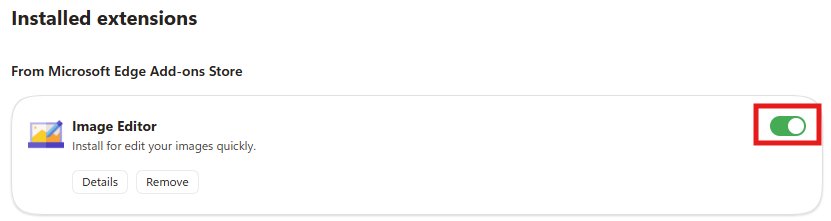
Turn off an extension in Microsoft Edge
- Select Extensions to the right of the address bar.
- Select Manage extensions, or type
edge://extensions. - Switch off the toggle next to the extension.
A switched-off extension stays installed with its settings. You can also enable or disable Edge extensions per site or for InPrivate windows.
Remove an extension from Microsoft Edge
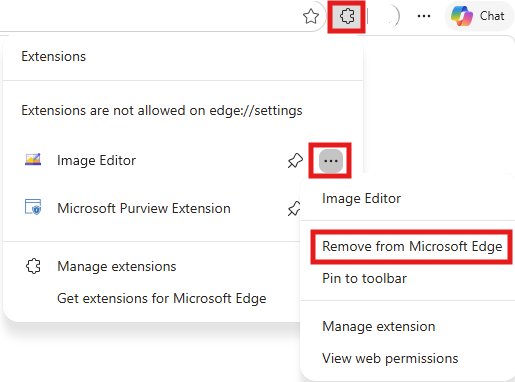
- Right-click the extension's icon to the right of the address bar.
- Select Remove from Microsoft Edge.
- Select Remove to confirm.
- Alternatively, select Extensions, then More actions next to the extension, and choose Remove from Microsoft Edge.
To report a harmful extension or leave a review, sign in to the Edge Add-ons website, open the extension and use Report abuse or Add a review.
Clear cache and cookies from Edge settings
Do you need to clear your cache? Clearing it is the first fix when pages show old content, load wrongly or refuse to sign in.
- Select Settings and more > Settings > Privacy, search, and services.
- Select Clear browsing data, then select Choose what to clear next to Clear browsing data now.
- Under Time range, pick a range such as All time.
- Select what you want to clear, for example Cookies and other site data and Cached images and files.
- Select the Clear now button.
If sync is on, Edge clears synced items such as history and passwords on every signed-in device. Turn off sync under Settings > Profiles > Sync first if you only want to clear this PC.
To clear the Edge cache without deleting cookies, tick only Cached images and files so you stay signed in to sites. The same steps work on Windows and on Mac.
Understanding your options: what should you delete?
| Data type | What Edge deletes | Clear it when |
|---|---|---|
| Browsing history | URLs you visited, with dates and times | You want past visits gone |
| Download history | The list of downloads only, not the files | The list is cluttered |
| Cookies and other site data | Sign-ins, preferences, location and media licenses that sites store | A site misbehaves or you want to sign out everywhere |
| Cached images and files | Copies of pages, images and media used to load sites faster | Pages look outdated or broken |
| Passwords | Saved site passwords | Rarely; you lose saved sign-ins |
| Autofill form data | Saved addresses, emails and cards | You share the PC |
| Site permissions | Per-site location, cookie, pop-up and autoplay choices | A site's permissions are wrong |
Saved passwords stay unless you tick them, and you can find saved passwords on your computer before a full wipe.
Open the clear browsing data page directly
- Use the keyboard shortcut Ctrl + Shift + Delete in any Edge window.
- Or type
edge://settings/clearbrowserdatain the address bar and press Enter. - Choose the time range and data types, then select Clear now.
To refresh one page without clearing all cache, use a hard refresh, and the keys to hard refresh Microsoft Edge also cover the DevTools reload options. For precision cleaning of one website only, delete that site's cookies instead of everything, as the steps to clear cookies in every major browser show; Edge's own cookie list is filtered per site.
Set Edge to clear data when it closes
- Open Settings > Privacy, search, and services.
- Select Clear browsing data.
- Select Choose what to clear every time you close the browser.
- Turn on the toggles for the data you want cleared automatically, such as Cached images and files.
If history or sign-ins vanish every time you reopen Edge, one of those toggles is on, and the steps to stop Edge clearing data on close switch them back off.
What's the difference between cache and browser history?
| Item | What it is | How it goes away |
|---|---|---|
| Cookies | Small files websites create to hold your preferences, sign-ins and location | They expire, or you clear them |
| Cache | Copies of the web pages themselves, such as HTML and images, so repeat visits load faster | You clear it manually |
| Browser history | The list of pages you visited, which you can browse and search | You clear it, or it syncs and clears across devices |
Browse InPrivate to keep new data temporary: an InPrivate window discards its history, cookies and cache when you close it, and the steps to start a private browsing session in Edge include the keyboard route. Private mode works the same way in other browsers, as the guide to going incognito in Chrome, Firefox and Safari shows.
Manage tabs, favorites and history in Microsoft Edge
| Task | Where to start | Full walkthrough |
|---|---|---|
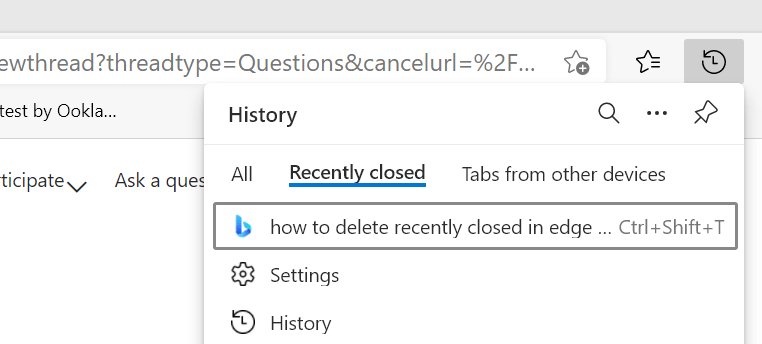
| Reopen a tab you closed | Settings and more > History | recently closed tabs in Edge |
| Restore a whole session | Start, home, and new tabs > Continue where you left off | restore tabs after a crash |
| Close every tab at once | Right-click a tab | close all tabs in Edge |
| Close tabs in any browser | Tab context menu | close every open browser tab |
| Organise favorites and the favorites bar | Settings and more > Favorites | Edge favorites and favorites bar |
| Bring back Collections | Version dependent | restore Collections in Edge |
| Pick the page new tabs open | Start, home, and new tabs | a new tab page of your choice |
| Put MSN back as the home page | Start, home, and new tabs | MSN as your homepage |
Under When Edge starts, Edge offers three choices: Open the new tab page, Continue where you left off, or Open these pages, which accepts a list of URLs or Use all open tabs.
Security and privacy
Tracking prevention is the main privacy control in Microsoft Edge. Balanced is the recommended level.
- Select Settings and more > Settings > Privacy, search, and services.
- Select Tracking prevention and make sure it is turned On.
- Choose Basic, Balanced (Recommended) or Strict.
- If a trusted site breaks under Strict, add it as an exception instead of lowering the level for every site.
Strict blocks most cross-site trackers but can stop videos or sign-ins on some sites. SmartScreen, secure DNS and the rest of the Edge privacy and security settings sit on the same page. Edge also has a built-in VPN in Microsoft Edge called Secure Network, and Edge autofill settings control saved addresses and cards.
How to block pop-ups in Microsoft Edge
The pop-up blocker is on by default. It stops sites opening new windows, tabs or overlays on their own.
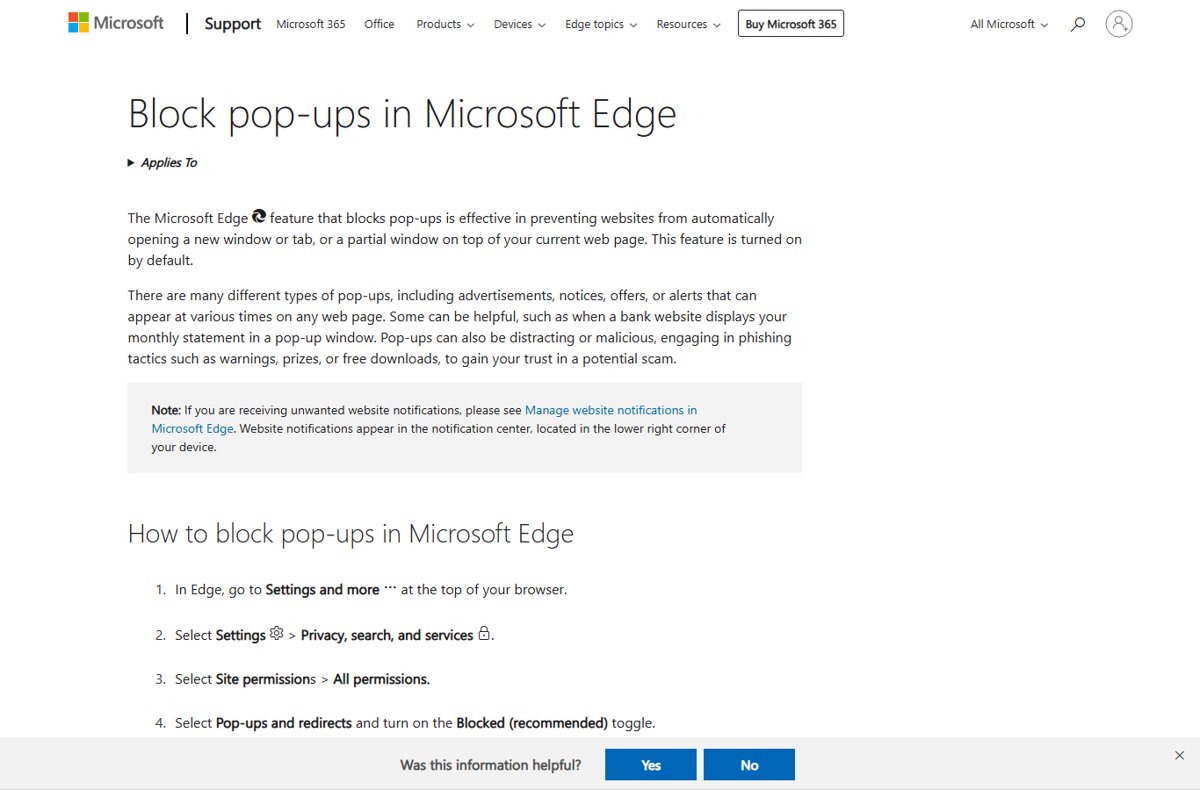
- Select Settings and more > Settings > Privacy, search, and services.
- Select Site permissions > All permissions.
- Select Pop-ups and redirects.
- Turn on Blocked (recommended).
- To allow one site, select Add site under Allowed to send pop-ups and use redirects and enter its full https:// address.
The Edge pop-up blocker handles windows, while intrusive ads need extra settings, covered in the steps to disable pop-ups and intrusive ads. Sites that rely on redirects for sign-in may need them allowed, which is how you enable redirects in each browser.
Set Microsoft Edge as the default browser
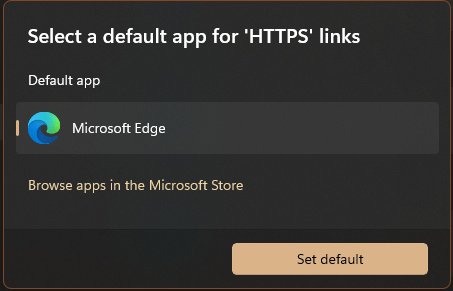
- Open Settings in Windows.
- Select Apps > Default apps.
- Under Set defaults for applications, select Microsoft Edge.
- Next to Make Microsoft Edge your default browser, select Set default.
The same page can set or remove Edge as default browser for single link types. PDFs open in Edge's built-in PDF reader by default, and you can make PDFs open in Acrobat Reader instead. Old intranet sites that need Internet Explorer run in IE mode in Edge.
Experiences and services
These features change how Edge looks and what it adds to pages. Most live under Appearance or Profiles in Settings.
| Feature | Where it lives | Full walkthrough |
|---|---|---|
| Dark theme for the browser | Settings > Appearance | dark mode in Microsoft Edge |
| Dark pages on every website | Extension or Windows contrast theme | force dark mode on websites |
| Background image, color and theme | New tab page settings | Edge background and theme |
| Copilot button on the toolbar | Appearance > Copilot and sidebar | show or hide the Copilot button |
| Separate work and personal browsing | Settings > Profiles | multiple Edge profiles |
| Read pages without clutter | Reading mode icon in the address bar | Immersive Reader in Edge |
| Compare with Chrome | Not a setting | Edge vs Chrome compared |
Stability and performance
When Edge slows the PC, find the busy process first, then change one setting at a time.
| Check | How | What it fixes |
|---|---|---|
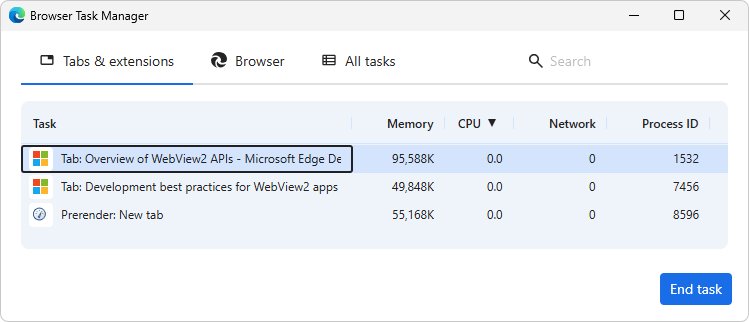
| Browser Task Manager | Press Shift + Esc, sort by CPU or Memory, select End process | One tab or extension hogging resources |
| Extensions | edge://extensions, turn all off, then on one by one |
An extension causing high CPU |
| Sleeping tabs | edge://settings/system/managePerformance > Save resources with sleeping tabs |
Memory used by idle tabs |
| Background apps | edge://settings/system > turn off Continue running background extensions and apps when Microsoft Edge is closed |
CPU use after all windows are closed |
| Graphics acceleration | edge://gpu, then Use graphics acceleration when available in edge://settings/system |
Software rendering that loads the CPU |
Many msedge.exe entries in Windows Task Manager are normal, since each tab and extension runs in its own process; the explainer on msedge.exe and high CPU usage shows how to confirm it is genuine. Apps built on Edge use msedgewebview2.exe, and a WebView2 process eating memory usually traces back to one app. That runtime itself comes from the WebView2 Runtime download when an app reports it missing.
If Microsoft Edge keeps crashing
Symptoms include msedge.exe in Task Manager with no window, a blank window that closes, or a browser that freezes right after the new tab page loads. The solution is to work through these fixes in order and restart Edge after each one.
Edge keeps crashing or will not load specific pages
The PC is low on memory, or a tab, extension or download is stuck.
- Close every tab except the one showing the error, and close other apps.
- Pause any downloads and uninstall extensions you do not need.
- Reload the page.
- Check for updates at
edge://settings/help.
Microsoft Edge opens but stops working or won't respond
Corrupt cached data, malware, or an outdated security app.
- Clear browsing history and Cached images and files for All time.
- Run a scan in Windows Security.
- Update any third-party security software.
- Restart the computer and try again.
Microsoft Edge doesn't open at all
Leftover background processes or a graphics driver problem.
- Press Ctrl + Shift + Esc, end every msedge.exe task, then restart Edge.
- If Edge opens briefly, go to
edge://settings/systemand turn off Use graphics acceleration when available. - If that helps, update the GPU driver and turn acceleration back on.
- Restart the computer.
Settings are dimmed, keep changing or will not save
Your organization manages Edge with policies, or a profile is damaged.
- Type
edge://policyto see applied policies, if any. - Ask the administrator about managed settings and outdated legacy paths they still push.
- Test with a new profile, as in the command below.
- Reset or repair Edge if nothing is managed.
A longer list of Microsoft Edge not working fixes adds checks for network and site problems.
Troubleshoot download issues with Microsoft Edge
A file download fails or stops
A dropped connection, a VPN or a corrupt cache.
- Check the internet connection or restart the router.
- Disconnect a VPN briefly and retry.
- Clear the cache and cookies, then download again.
- Check the folder set at
edge://settings/downloads.
Couldn't download – Virus scan failed
Windows or your antivirus could not scan the file.
- Update your antivirus definitions.
- Retry the download from the publisher's official site.
- If it repeats, work through the virus scan failed fixes.
A .crdownload file is left behind
The download never finished.
- Open the Downloads list and select Retry if it is offered.
- Otherwise delete the partial file and download again.
- The steps to open a .crdownload file explain when a partial file is usable.
Troubleshoot installation issues with Microsoft Edge
Low disk space, missing permissions or a damaged older install.
- Run the Program Compatibility Troubleshooter: Start > Settings > System > Troubleshoot > Other troubleshooters, then Run next to Program Compatibility Troubleshooter.
- Free up disk space.
- Right-click Microsoft Edge in Start search and select Run as administrator.
- Check that the PC runs Windows 11 or Windows 10.
Troubleshoot issues with updating Microsoft Edge
A blocked update endpoint, pending Windows updates, or a stale install.
- Run the Program Compatibility Troubleshooter as above.
- Install pending updates in Settings > Windows Update.
- Close all Edge windows and reopen Edge.
- If your network filters sites, allow
msedge.api.cdp.microsoft.comand*.dl.delivery.mp.microsoft.com. - Reinstall Edge from microsoft.com/edge if updates still fail.
As general troubleshooting, restart the PC after each failed attempt. The update page shows an error code when an install or update fails, and the code points to the potential cause, usually the network or a blocked endpoint.
Start Microsoft Edge with a temporary profile
A corrupted profile or extension can crash Edge before a window appears. Starting with a throwaway profile tells you which it is.
"C:\Program Files (x86)\Microsoft\Edge\Application\msedge.exe" --user-data-dir="%TEMP%\edge-test-profile"Run it in Command Prompt. Edge opens with an empty test profile stored in your Temp folder, so your own profile and extensions are not loaded.
You should see: If Edge starts cleanly, your original profile is the problem: close Edge, rename %LOCALAPPDATA%\Microsoft\Edge\User Data\Default to Default.old, start Edge, and copy files such as Bookmarks back from the old folder.
The command uses the default install folder, and the guide to the Microsoft Edge install location helps if yours differs.
How to reset Microsoft Edge settings
- Type
edge://settings/resetin the address bar. - Select Restore settings to their default values.
- Confirm the reset.
Bookmarks, history and saved passwords are kept. Pinned tabs, the startup page, the search engine and extensions are reset.
Repair Microsoft Edge
Repair reinstalls the browser files without touching your browsing data or settings. Close Edge for every user first, and use an admin account.
- Go to Start > Settings > Apps > Installed apps.
- Select Microsoft Edge, then Modify.
- Select Yes when Windows asks to allow changes.
- Stay connected to the internet and select Repair.
If Modify is missing, your organization installed and manages Edge.
Data collection for Microsoft Edge support
| Information | Where to find it |
|---|---|
| Microsoft Edge version | edge://version or edge://settings/help |
| Crash ID | edge://crashes, most recent entry |
| Application Error events | Event Viewer > Windows Logs > Application, filtered to source Application Error and msedge.exe |
| Busy processes | Browser Task Manager (Shift + Esc), sorted by CPU and then by memory |
| Discarded tabs report | edge://discards |
Collect these before you contact Microsoft Support, and send in-browser reports from Settings and more > Help and feedback > Send feedback.
Manage and deploy Microsoft Edge
| Job | Tool | Full walkthrough |
|---|---|---|
| Set Edge policies on one or many PCs | Group Policy templates | configure Edge with policy settings |
| Debug web platform and development errors | DevTools (F12) Console | JavaScript errors in Edge DevTools |
| See which policies apply | edge://policy |
Lists every policy your organization set |
Can you uninstall Microsoft Edge?
Keep Edge installed and change the default browser instead, unless your region's Windows build offers a real uninstall. Windows apps and the WebView2 runtime rely on Edge components, and in most regions Windows offers no supported uninstall. The options by region are in the guide to remove Microsoft Edge.
Microsoft Edge settings FAQ
Where is the Microsoft Edge settings menu located?
Select Settings and more, the three dots at the top right of Edge, then Settings. You can also type edge://settings in the address bar. The left pane lists every category, and the Search settings box finds a single option.
How do I reset Edge to default settings?
Type edge://settings/reset and select Restore settings to their default values. Bookmarks, history and saved passwords stay. The startup page, search engine, pinned tabs and extensions return to their defaults.
Why isn't Edge saving my settings?
Usually your organization manages Edge through policies, which lock or override settings. A damaged profile can also lose changes. Check edge://policy, and test a fresh profile if no policies apply.
Why does Edge keep changing or resetting my settings?
Policies pushed by an employer, a reset run after an update, or software that hijacks the home page and search engine can all change settings. Check edge://policy, then scan the PC in Windows Security and remove unknown extensions.
Why is Edge erasing my site settings and sign-ins?
Edge is set to clear data on close. Open Privacy, search, and services > Clear browsing data > Choose what to clear every time you close the browser and turn off Cookies and other site data.
What Edge setting keeps me logged in?
Keeping cookies keeps you signed in. Make sure Cookies and other site data is not set to clear on close, and avoid InPrivate windows, which drop their cookies when closed.
Does clearing the cache in Edge delete my passwords?
No. Passwords are deleted only if you tick Passwords in the clear browsing data dialog. Clearing Cached images and files removes stored page copies and nothing else.
What is the shortcut to clear cache in Edge?
Press Ctrl + Shift + Delete to open the clear browsing data dialog. Pick a time range, tick Cached images and files, and select Clear now.
Will repairing Microsoft Edge delete my data?
No. Repair from Settings > Apps > Installed apps reinstalls the browser files, and Microsoft states that your browsing data and settings should not be affected.