To schedule an email in Outlook, select the arrow next to Send and choose Schedule send in new Outlook, Outlook on the web and Outlook for Mac; in classic Outlook for Windows, turn on Do not deliver before under Delivery options.
This guide covers each version's exact path, where the scheduled message waits, how to edit or cancel it, the account types that block scheduling, and why classic Outlook sometimes sends late.
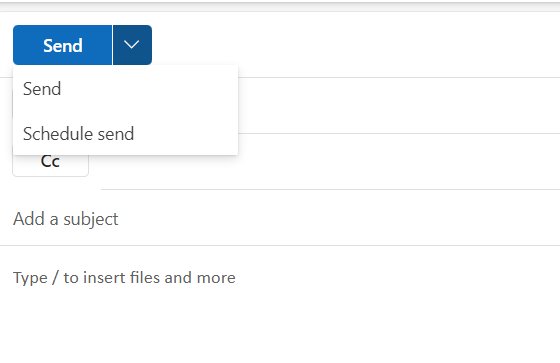
The fastest way to schedule an email in Outlook
These steps work in new Outlook for Windows, Outlook on the web and Outlook.com with a Microsoft account, Microsoft 365 or Exchange mailbox.
- Write the message and add every recipient in To, Cc or Bcc.
- Select the dropdown arrow next to the Send button.
- Select Schedule send.
- Pick one of the suggested times, or choose a custom date and time.
- Select Send. The message moves to Drafts and goes out at the time you set.
Using classic Outlook for Windows or a Mac? The paths differ, and the table below maps each version to its setting.
Find where scheduled send lives in your version of Outlook
Match your Outlook to a row. The last two columns decide whether the message can go out with your computer switched off.
| Your Outlook | Where the setting lives | Where the message waits | Account limits | Does Outlook need to stay open? |
|---|---|---|---|---|
| New Outlook for Windows | Send dropdown > Schedule send | Drafts | Not available for IMAP or POP accounts | Not stated by Microsoft; the message is held in Drafts |
| Outlook on the web and Outlook.com | Send dropdown > Schedule send | Drafts | Works with the mailbox you sign in to | Not stated by Microsoft; the message is held in Drafts |
| Classic Outlook for Windows (Outlook for Microsoft 365, 2021, 2019) | Message Options arrow in the Tags group > Do not deliver before | Outbox | Any account type | Yes, unless an Exchange account is in online mode |
| Outlook for Mac | Send dropdown > Schedule send (called Send Later in older builds) | Drafts | Exchange accounts only; not Gmail, Yahoo, iCloud or other IMAP and POP | No, Microsoft says it sends even if Outlook is closed |
| Outlook for iPhone, iPad and Android | Microsoft's support articles do not document a path | Not documented | Not documented | Use Outlook on the web in the phone's browser |
| Same send every week or month | Power Automate Scheduled cloud flow | Runs in the cloud | Needs a Power Automate sign-in and an Office 365 Outlook connection | No |
| Every message you send, held a few minutes | Classic Outlook rule: defer delivery by a number of minutes | Outbox | Classic Outlook only | Yes; maximum delay is 120 minutes |
Understand why classic Outlook can send a scheduled email late
Schedule send and Do not deliver before look alike but store the message in different places. That difference decides whether your PC must be on.
In classic Outlook, a deferred message sits in the local Outbox. Microsoft documents that in Cached Exchange Mode it is not delivered unless Outlook is running at the scheduled time. The same page says the problem does not occur in online mode.
| Setup | Where the held message lives | What happens if Outlook is closed at send time |
|---|---|---|
| Classic Outlook, POP or IMAP account | Local Outbox on your PC | It waits. Outlook must be open and connected for the message to go out |
| Classic Outlook, Microsoft 365 or Exchange in Cached Exchange Mode | Local Outbox in the offline .ost file | It waits until Outlook next runs, per Microsoft's troubleshooting article |
| Classic Outlook, Exchange in online mode | Deferred on the server | It sends on time |
| Outlook for Mac | Drafts folder of the Exchange mailbox | It sends on time; Microsoft states Outlook does not need to be open |
| New Outlook and Outlook on the web | Drafts folder of the mailbox | Microsoft's articles do not address it |
A Microsoft 365 account does not remove the limit on its own. Only online mode moves the deferred message off your PC in classic Outlook.
Schedule an email in new Outlook for Windows and Outlook on the web
New Outlook and Outlook on the web share the same compose window, so the steps match. IMAP and POP accounts added to new Outlook do not get the option.
- Select New mail and compose the message.
- Select the dropdown arrow beside Send.
- Select Schedule send.
- Choose a suggested time, or select a custom time and set the date and time.
- Select Send.
- Open Drafts to confirm the message is waiting there.
Schedule an email in classic Outlook for Windows with Do not deliver before
Classic Outlook has no Schedule send item on the Send button. The setting sits under Delivery options in the message's options window.
- Select New Email and write the message.
- Select the Message Options arrow in the Tags group on the ribbon. On the simplified ribbon, select the Options tab, then More commands.
- Under Delivery options, select the Do not deliver before check box.
- Choose the delivery date and time.
- Select Close.
- Select Send. The message waits in the Outbox until the delivery time.
- Leave Outlook open and connected until that time if you use a POP, IMAP or Cached Exchange Mode account.
Schedule an email in Outlook for Mac
Schedule send on the Mac needs Microsoft 365, Outlook 2019 for Mac or Outlook 2021 for Mac, plus an Exchange account such as Outlook.com or Exchange 2016 CU5 and later.
- Compose the message and add at least one recipient in To:.
- Select the dropdown arrow next to Send.
- Select Schedule send. Older versions label it Send Later.
- Enter the delivery time and date.
- Select OK. The message is held in Drafts and sends even if Outlook is not open.
Schedule an email from an iPhone, iPad or Android phone
Microsoft's support pages for Outlook for iOS and Android do not document a schedule send option, and the App Store listing does not mention one. The web version's documented Schedule send works in a phone browser.
- Open the phone's web browser and go to Outlook on the web.
- Sign in with the same account you use in the Outlook app.
- Start a new message and write it.
- Tap the arrow next to Send, then tap Schedule send.
- Pick a time and tap Send. The message waits in Drafts and appears there in the Outlook app too.
Schedule recurring emails in Outlook with Power Automate
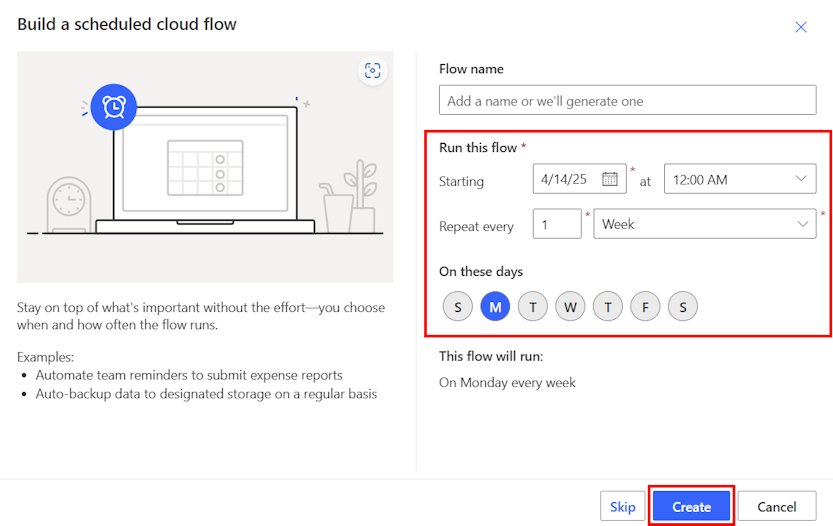
No version of Outlook repeats a scheduled email. For a weekly report or monthly reminder, Microsoft's Power Automate runs a flow on a timer and sends through your Outlook mailbox.
- Sign in to Power Automate at
make.powerautomate.com. - Select My flows > New flow > Scheduled cloud flow.
- Set the date and time next to Starting, and the interval next to Repeat every, then select Create.
- Select the Recurrence trigger and set the Time zone field so the start time matches your local time.
- Add the Send an email (V2) action from Office 365 Outlook.
- Fill in To, Subject and Body, then save the flow. Sent copies land in your Sent Items folder.
Find, edit or cancel an email you already scheduled
A scheduled message is still editable until its delivery time. The folder and button depend on the version.
| Your Outlook | Find it in | To edit, reschedule or send now |
|---|---|---|
| New Outlook for Windows | Drafts | Open the message, select Cancel send, make changes, then select Send or schedule it again |
| Outlook on the web | Drafts | Open the message and select Cancel send, or the Edit pencil icon then Send Now |
| Classic Outlook for Windows | Outbox | Open the message, select the Message Options arrow, clear Do not deliver before or change the time, select Close, then Send |
| Outlook for Mac | Drafts | Open the message, select Cancel Send, then Yes; the message stays open to send now or reschedule |
| Power Automate recurring email | My flows in Power Automate | Edit the Recurrence trigger, or turn the flow off to stop future sends |
To cancel outright, open the message using the row above and delete it instead of sending. Deleting a draft or Outbox item before its time means nothing is delivered.
How to check your email is scheduled and later sent
- Open Drafts in new Outlook, the web or Mac, or Outbox in classic Outlook, and confirm the message is listed there.
- Open it in classic Outlook, select the Message Options arrow and confirm the Do not deliver before date and time.
- After the delivery time, open Sent Items and confirm the message has moved there.
- If you accepted a Viva Insights schedule send suggestion in Outlook for Windows, look in Sent Items before the time instead; Microsoft says those wait there.
- In classic Outlook, if the message is still in Outbox past its time, see the fixes below.
Check the time zone, timing and content before you schedule
A scheduled email cannot be fixed once it leaves. Use these tips while writing any email you plan to schedule, at the moment you set the time.
| Check | Why it matters | Where to set it |
|---|---|---|
| Outlook's time zone matches your location | You type a clock time; a wrong zone sends it hours early or late | New Outlook and web: Settings > Calendar > View > Time zones. Classic: File > Options > Calendar > Time zones |
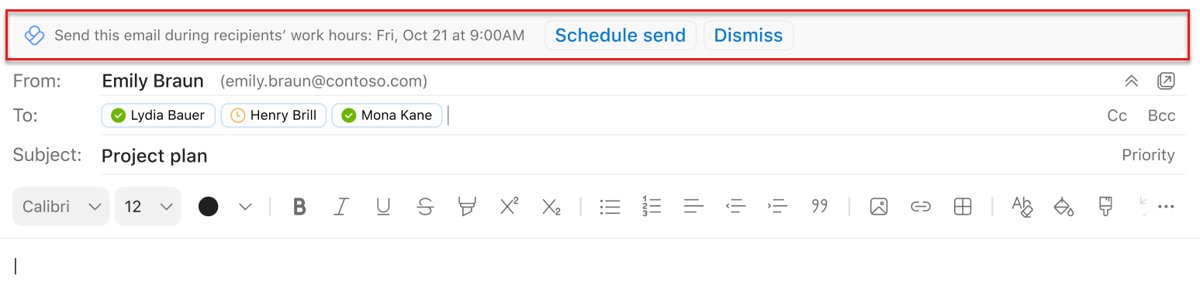
| Recipient's working hours | Microsoft's Viva Insights suggests schedule send when all To recipients are outside their working hours or you are outside yours | Accept the Schedule send suggestion in the compose window when it appears |
| Attachments are added now | The message is sent as it sits in Drafts or Outbox at delivery time | Attach files before you select Send |
| Dates written in the body | Words such as today or tomorrow read wrong on the delivery day | Write the actual date |
| Distribution lists and groups | Viva Insights schedule send suggestions cannot schedule delivery to distribution lists or Microsoft 365 groups | Use the Send dropdown or classic Outlook's Do not deliver before instead |
Schedule send versus a rule: schedule send sets one message's exact time. A classic Outlook rule with defer delivery by a number of minutes holds every message you send for up to 120 minutes, which gives you a window to catch mistakes.
Delay every email you send with a classic Outlook rule
- Select the File tab in Mail, then Manage Rules & Alerts.
- Select New Rule.
- Under Start from a Blank Rule, select Apply rule on messages I send, then Next.
- Select any conditions you want, then Next. Confirm the prompt if you pick none.
- Select the defer delivery by a number of minutes check box.
- Select the underlined a number of, enter up to 120 minutes, and finish the wizard with a rule name and Finish.
Fix scheduled email in Outlook when it does not work
These are the common problems with scheduled mail. Find the symptom that matches, then run only the fix beneath it.
Why can't I schedule an email in Outlook: Schedule send is missing
You are in classic Outlook, which uses a different setting, or the account is IMAP or POP.
- Check which Outlook you have open: classic Outlook for Windows, new Outlook, the web or Mac.
- In classic Outlook, use the Message Options arrow and Do not deliver before instead.
- In new Outlook or on a Mac, switch the From account to a Microsoft 365, Outlook.com or Exchange account if you have one.
- For Gmail, Yahoo or iCloud added to Outlook, use classic Outlook's Do not deliver before and keep Outlook open.
The email did not send at the scheduled time in classic Outlook
The message waits in the local Outbox, and Outlook was closed, offline or in Cached Exchange Mode at delivery time.
- Open Outlook and let it connect. The overdue message sends from Outbox.
- Next time, leave Outlook open and the PC awake until the delivery time.
- For Exchange accounts, schedule while Outlook runs in online mode, the workaround Microsoft documents.
- If you can sign in to Outlook on the web, schedule there instead; the message is held in Drafts, not the local Outbox.
The scheduled email is stuck in the Outbox
The Do not deliver before time is still in the future, or Outlook is working offline.
- Open the message from Outbox and select the Message Options arrow.
- Check the Do not deliver before date, including the year.
- Clear the box or correct the time, select Close, then Send.
- Confirm Outlook is online and connected, then check Sent Items.
The email went out at the wrong time
Outlook's time zone differs from the one you meant, or AM and PM were swapped.
- Open the time zone setting listed in the checks table above for your version.
- Set the time zone you work in and select Save.
- Schedule the next message again and read the confirmed time before selecting Send.
Frequently asked questions
How do I schedule an email in Outlook?
Compose the message, select the arrow next to Send, choose Schedule send, pick a time and select Send. That works in new Outlook for Windows, Outlook on the web and Outlook for Mac. Classic Outlook uses Do not deliver before under Delivery options instead.
How do I schedule an email in Outlook classic?
In the new message, select the Message Options arrow in the Tags group, or Options > More commands on the simplified ribbon. Tick Do not deliver before, set the date and time, select Close, then Send. The message waits in the Outbox until then.
How do I schedule an email in Outlook 365?
It depends on the app. In Outlook on the web and new Outlook, use Send > Schedule send. In the classic Outlook for Microsoft 365 desktop app, use Do not deliver before in the message's delivery options, and keep Outlook running unless it is in online mode.
How do I schedule an email in the Outlook app on my phone?
Microsoft's support articles for Outlook for iOS and Android do not document a schedule send path. Open Outlook on the web in your phone's browser instead, compose the message, tap the arrow next to Send, then Schedule send. The message then shows in Drafts in the app.
How do I schedule an email in Outlook desktop?
On Windows desktop, classic Outlook uses Do not deliver before under Delivery options, and new Outlook uses Send > Schedule send. On a Mac, Outlook also uses Send > Schedule send, provided the account is Exchange, Microsoft 365 or Outlook.com.
Why can't I schedule an email in Outlook?
The two usual causes are the version and the account. Classic Outlook has no Schedule send item because it uses Do not deliver before. New Outlook and Outlook for Mac do not offer scheduling for IMAP or POP accounts such as Gmail, Yahoo or iCloud.
Can I schedule an email in Outlook if my computer is off?
Yes in Outlook for Mac, which Microsoft says sends even when Outlook is closed. New Outlook and the web hold the message in the mailbox's Drafts folder. In classic Outlook for Windows, the message waits in the local Outbox, so Outlook must be running at delivery time unless an Exchange account is in online mode.
How do I cancel a scheduled email in Outlook?
Open the message from Drafts in new Outlook, on the web or on a Mac and select Cancel send. In classic Outlook, open it from Outbox and clear Do not deliver before. To stop it entirely, delete the message before its delivery time.
Can I schedule a recurring email in Outlook?
Not inside Outlook. Scheduled send handles one message at a time. For repeating emails, create a Power Automate Scheduled cloud flow with the Send an email (V2) action, set how often it repeats, and it sends from your Outlook mailbox on that schedule.
Can recipients tell an email was scheduled in Outlook?
None of Microsoft's schedule send or delayed delivery articles mention a label or notice shown to recipients. The email is delivered at the time you chose, to everyone in the To, Cc and Bcc fields.





How to Create an Outlook Email Account: A Step-by-Step Guide - Techdows
[…] the basics work, you can schedule an email in Outlook so it sends later, or recall a message you sent by […]
How to turn Outlook email read receipt on or off - Techdows
[…] time-sensitive mail, combine a receipt with scheduling the email in Outlook so it lands when the reader is at their […]