When web.whatsapp.com videos will not play in Safari, reload the page, update macOS to get the latest Safari, then remove the site's stored data and turn off content blockers for WhatsApp Web.
This guide covers the Safari version WhatsApp Web needs, the Safari settings that block video, network causes, the WhatsApp Desktop alternative for Mac, and fixes for videos that will not download or send.
Fix WhatsApp Web videos not playing in Safari
Work through these steps in order and test a video after each one. Most stuck videos come down to a weak connection, an old Safari build or stale site data, and a Safari private browsing window is the quickest way to test the last one.
- Look at the top of the chat list in WhatsApp Web. A yellow banner that says Computer not connected means the Mac has no working internet connection, so fix that first.
- Press Command-R to reload web.whatsapp.com, then click the video again.
- Quit Safari with Safari > Quit Safari, open it again and go back to web.whatsapp.com.
- Choose File > New Private Window, sign in to WhatsApp Web there and play the video. If it plays, stored site data is the cause.
- Remove WhatsApp's data: choose Safari > Settings, click Privacy, click Manage Website Data, select whatsapp.com, click Remove, then Done.
- Install pending macOS updates, which also update Safari, then restart the Mac.
- Open web.whatsapp.com, scan the QR code with your phone again and play the video.
Removing website data signs you out of WhatsApp Web, so keep your phone nearby to scan the QR code again.
WhatsApp Web supported Safari version
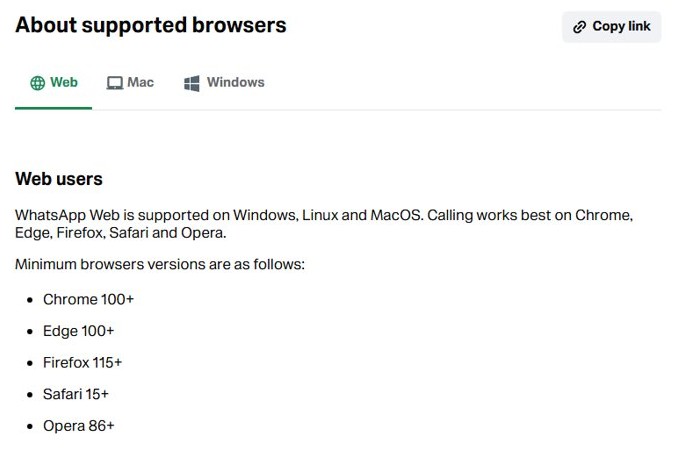
WhatsApp Web runs on Windows, Linux and macOS, and Safari is one of the supported browsers. Videos and calls fail on versions below the minimum, and WhatsApp asks for the latest version of each browser.
| Browser | Minimum version for WhatsApp Web | How it updates on a Mac |
|---|---|---|
| Safari | 15 or later | Through macOS Software Update |
| Chrome | 100 or later | Inside Chrome |
| Microsoft Edge | 100 or later | Inside Edge |
| Firefox | 115 or later | Inside Firefox |
| Opera | 86 or later | Inside Opera |
| Internet Explorer | Not supported | Not applicable |
To see your Safari version, open Safari and choose Safari > About Safari. Safari for Windows stopped at 5.1.7, so it cannot run WhatsApp Web at all.
Update Safari on Mac to play WhatsApp Web videos
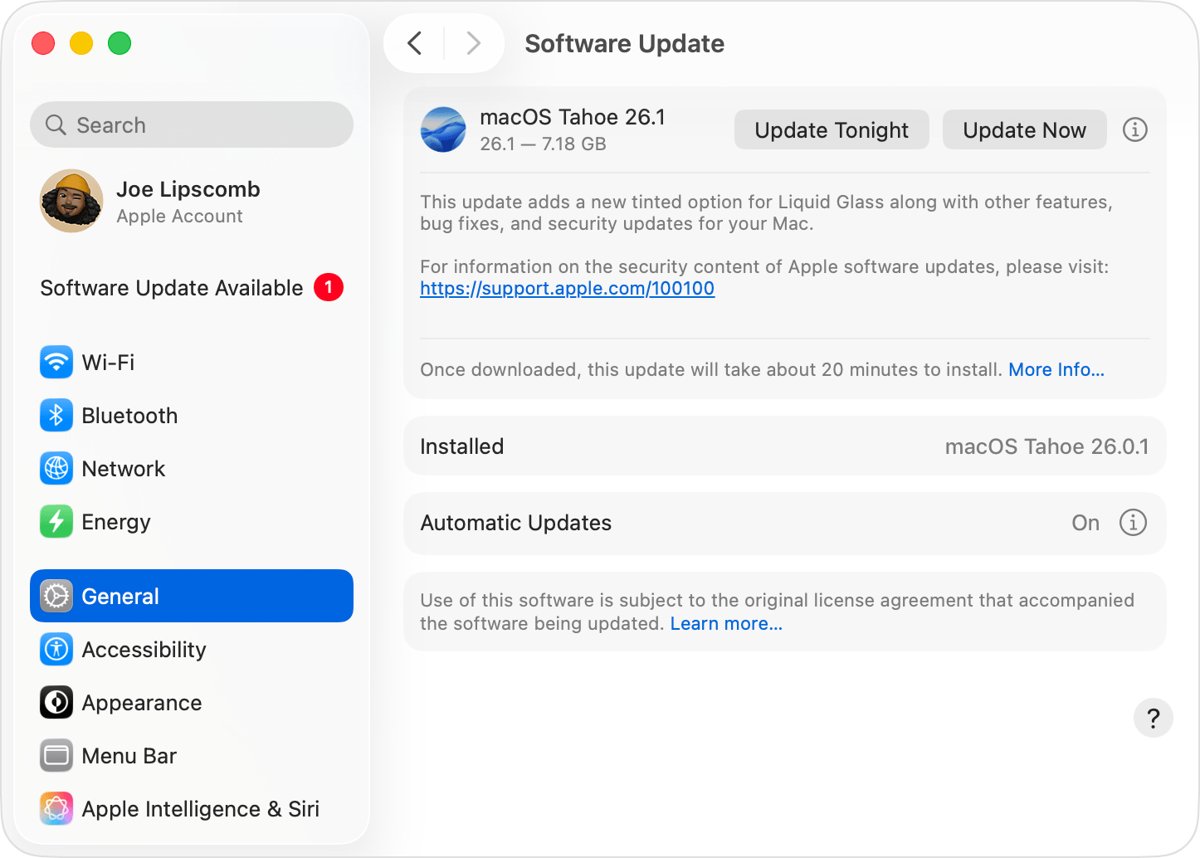
Safari has no separate download. It updates with macOS, so an old macOS release also means an old Safari, and installing the latest macOS brings Safari up to date too.
- Click the Apple menu and choose System Settings.
- Click General in the sidebar, then click Software Update.
- Click the button to update or restart now if an update is listed.
- Enter your administrator password when asked.
- Keep the lid open and the Mac awake until the installation finishes.
- Open Safari and reload web.whatsapp.com.
If Software Update says your Mac is up to date but Safari is below version 15, your Mac cannot run a newer macOS. Use Chrome, Edge or Firefox on that Mac instead, since those browsers update on their own.
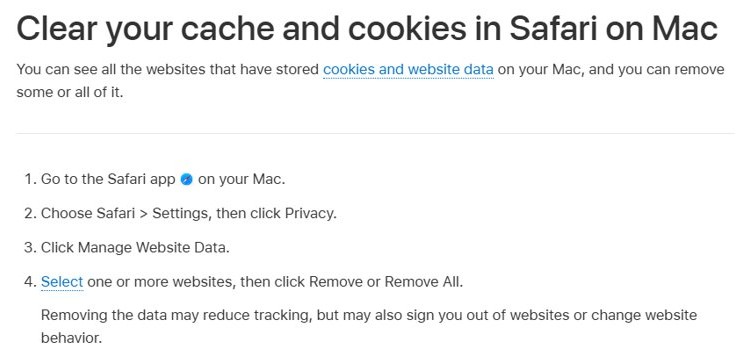
Clear WhatsApp Web cache and cookies in Safari
Damaged cached files for web.whatsapp.com can stop media from loading while text messages still work. Removing only WhatsApp's data leaves every other site signed in. For a full browser wipe, clear cookies in Safari on Mac for all sites instead.
- Close any web.whatsapp.com tabs.
- Choose Safari > Settings and click Privacy.
- Click Manage Website Data.
- Select each whatsapp.com or whatsapp.net entry in the list.
- Click Remove, then click Done.
- Open web.whatsapp.com in a normal window and link it again with your phone.
Turn off content blockers for web.whatsapp.com
Ad blockers and privacy extensions can block the requests that load WhatsApp media. Turn them off for WhatsApp first, then test.
- Open web.whatsapp.com in Safari.
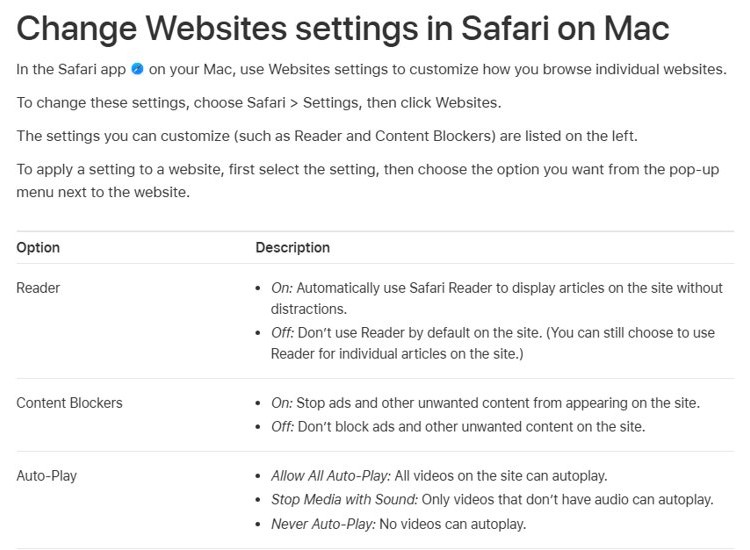
- Choose Safari > Settings and click Websites.
- Select Content Blockers in the left column.
- Find web.whatsapp.com under Currently Open Websites and set it to Off.
- Click Extensions at the top of the Settings window and deselect each extension's checkbox.
- Reload WhatsApp Web with Command-R and play the video.
- Turn extensions back on one at a time to find the one that blocks WhatsApp media, then keep it off for this site or update it.
Safari settings that block WhatsApp Web video
A few Safari settings can stop a site's video or downloads even when the connection is fine. All of them sit under Safari > Settings.
| Setting | Where to find it | What to set for WhatsApp Web |
|---|---|---|
| Content Blockers | Websites > Content Blockers | Off for web.whatsapp.com |
| Downloads | Websites > Downloads | Allow for web.whatsapp.com so videos can be saved |
| Auto-Play | Websites > Auto-Play | Allow All Auto-Play if videos with sound will not start |
| Camera and Microphone | Websites > Camera, Websites > Microphone | Allow for video calls |
| Advanced tracking and fingerprinting protection | Advanced | Deselect it as a test, then turn it back on if nothing changes |
| Extensions | Extensions | Deselect each one to test |
| iCloud Private Relay | View > Reload and Show IP Address | Reload without Private Relay to test |
Reload and Show IP Address appears in the View menu only when iCloud Private Relay is on for your current network.
Fix WhatsApp Web video on office or school Wi-Fi
WhatsApp names a poor connection as the most common reason photos and videos fail to upload or download. Office, library and campus networks often block WhatsApp's media servers.
- Connect the Mac to a different Wi-Fi network or to your phone's hotspot.
- Reload web.whatsapp.com and play the video.
- If it plays on the other network, ask the network admin to let traffic to web.whatsapp.com and .whatsapp.net bypass the filter.
- Turn off any VPN or network-monitoring app and test again.
- Turn the Mac off, wait 30 seconds and turn it back on if the video still stalls on every network.
Open the same video in another browser on the same network. If it fails there too, the network or WhatsApp's service is the problem, not Safari.
Use WhatsApp Desktop for Mac instead of Safari
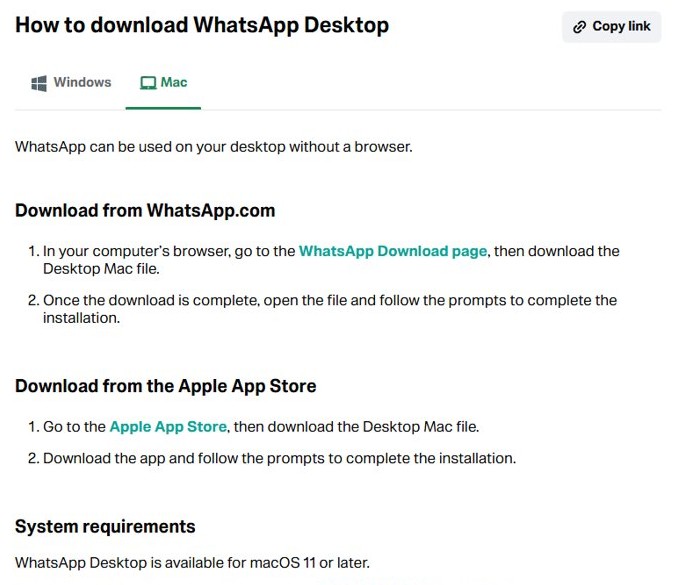
WhatsApp Desktop does the same job as WhatsApp Web in a browser but plays chat media without Safari, so browser settings and extensions no longer matter. It needs macOS 11 or later.
- Open the App Store on your Mac and search for WhatsApp.
- Click Get, then install the app. You can also download the Mac version from the download page on WhatsApp.com.
- Open WhatsApp on the Mac.
- On your phone, open WhatsApp and go to Linked devices > Link a device.
- Scan the QR code on the Mac screen.
- Open the chat and play the video.
A phone can link up to four devices. Log in to WhatsApp on the phone at least every 14 days or linked devices disconnect.
Check WhatsApp Web video plays in Safari
- Confirm the yellow Computer not connected banner is gone from WhatsApp Web.
- Open a chat with a recent video and click it. It should open in the media viewer and start playing.
- Drag the progress bar to the middle of the video and confirm it keeps playing.
- Send yourself a short video from the phone and play it in Safari to confirm new media loads too.
- Download the video from the media viewer and confirm the file appears in Safari's downloads list.
WhatsApp Web video not working on laptop: fixes by symptom
Video keeps loading and never plays
A slow or blocked connection between the Mac and WhatsApp's media servers.
- Check for the Computer not connected banner and reconnect the Mac.
- Switch to another Wi-Fi network or a phone hotspot.
- Log out of WhatsApp Web from the menu, then link it again with the QR code.
Cannot download video from WhatsApp Web
Downloads are denied for the site in Safari, or the connection drops during the download.
- Choose Safari > Settings > Websites > Downloads.
- Set web.whatsapp.com to Allow.
- Reload the page, open the video and download it again.
WhatsApp Web video plays in Chrome but not in Safari
A Safari extension, content blocker or privacy setting interferes with the site.
- Open WhatsApp Web in a Safari private window with Shift-Command-N.
- If it plays there, remove WhatsApp's website data in Privacy > Manage Website Data.
- If it still fails, turn off content blockers and extensions as shown above.
- Deselect Use advanced tracking and fingerprinting protection in Advanced as a test.
Video is not sending from WhatsApp Web
Uploads fail on the same weak or filtered connections that stop playback.
- Refresh the WhatsApp Web page.
- Try the upload on a different network.
- Restart the Mac and send the video again.
Safari stops responding on web.whatsapp.com
Safari or the page has frozen.
- Press Option-Command-Esc, select Safari and click Force Quit.
- Hold Shift while you open Safari so it does not reopen the old tabs.
- Open web.whatsapp.com again.
If the problem stays with WhatsApp Web only in Safari 26 or later, reload the page and use Report a Website Issue from the page menu in the Smart Search field to report it to Apple.
WhatsApp Web video in Safari FAQ
Why can't I download a video from WhatsApp Web?
A poor internet connection is the most common reason WhatsApp media fails to download. In Safari, also check that Websites > Downloads allows web.whatsapp.com, then refresh the page, or log out of WhatsApp Web and link it again.
Why is my video not sending on WhatsApp Web?
Sending fails for the same reason downloads do: a weak or filtered connection. Refresh WhatsApp Web, try a different Wi-Fi network or a hotspot, and ask your network admin to allow web.whatsapp.com and .whatsapp.net if you are on a work or school network.
Why can't I watch videos on WhatsApp Web in Safari?
The usual causes are a Safari version below 15, stale WhatsApp site data, a content blocker or extension, or a network that blocks WhatsApp media. Update macOS, remove WhatsApp's website data, then turn off content blockers for the site.
Why is my WhatsApp video not working on my laptop?
Check the connection first: a yellow Computer not connected banner means WhatsApp Web is offline. Then reload the page, restart the laptop, and test the video in another supported browser to see whether the problem is the browser or the network.
Does WhatsApp Web work in Safari?
Yes. WhatsApp Web supports Safari 15 or later on macOS, along with Chrome 100, Edge 100, Firefox 115 and Opera 86 or later. Internet Explorer is not supported, and Safari for Windows is too old to run it.
Does WhatsApp Web allow video calls?
Yes. WhatsApp Web lets you call contacts for free over the internet, and calling works best on Chrome, Edge, Firefox, Safari and Opera. Allow the camera and microphone for web.whatsapp.com in Safari's Websites settings.
Will clearing website data delete my WhatsApp chats?
No. Removing WhatsApp's website data in Safari only signs the browser out. Your chats stay on your phone and reappear on WhatsApp Web after you scan the QR code again.