Microsoft OneDrive is Microsoft's cloud storage service: it keeps a copy of your files online, syncs them across your devices, and comes built into Windows 11, but Windows runs fine without it, so you need it only if you want that syncing and off-PC copy.
This guide covers what OneDrive does, how much free and paid storage Microsoft lists, how folder backup and Files On-Demand work, how to set it up or switch it off, and a decision table to settle whether it is worth keeping.
What Is Microsoft OneDrive?
OneDrive is the file storage that comes with every Microsoft account. Anything you put in your OneDrive folder is uploaded to Microsoft's cloud and appears on OneDrive.com, the OneDrive phone app and your other signed-in computers.
Yes, OneDrive is part of Microsoft. It is the same service whether you open it in File Explorer, in a browser, or inside Word and Excel.
Keep OneDrive if you want your files on more than one device, or want Desktop, Documents and Pictures copied off the PC. Remove it from startup or unlink it if you save everything locally and already back up another way. OneDrive is optional. Windows 11 works normally with it unlinked, and unlinking or uninstalling it does not delete files you already stored in it; they stay on OneDrive.com.
What Does OneDrive Do?
OneDrive does three core jobs on a PC, plus several safety features that sit on top of them.
| Feature | What it does for you | Where you see it |
|---|---|---|
| Cloud storage | Keeps your files on Microsoft's servers so you can open them from any browser or device. | OneDrive.com and the OneDrive app |
| File syncing | Adding, changing or deleting a file in the OneDrive folder does the same on the website, and the other way round. | The OneDrive folder in File Explorer (Finder on a Mac) |
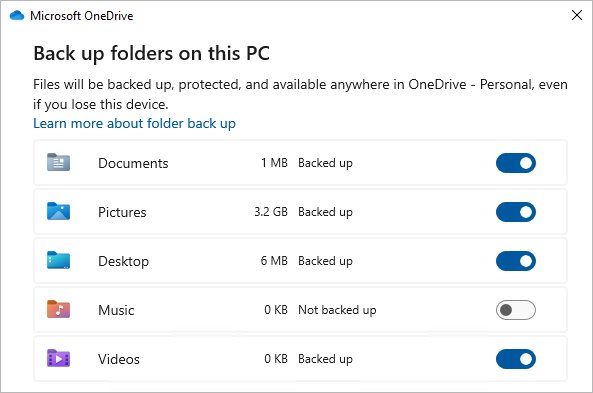
| PC folder backup | Moves Desktop, Documents, Pictures, Music and Videos into OneDrive so they are protected and available on your other devices. | OneDrive Settings > Sync and backup > Manage backup |
| Files On-Demand | Shows every file in File Explorer but downloads only the ones you open, so your cloud files do not fill the drive. | Status icons beside each file |
| Recycle bin and version history | Lets you bring back deleted files and earlier versions of a file for 30 days on a personal account. | OneDrive.com and right-click menus |
| Sharing | Sends a link to a file or folder instead of an attachment; Microsoft 365 subscribers can add a password or expiry date. | OneDrive.com, File Explorer and Office apps |
| Camera backup | Uploads photos and videos from your phone automatically. | OneDrive app: Me > Settings > Camera backup |
On your computer, OneDrive is the cloud icon in the notification area plus the OneDrive folder in File Explorer. Everything else runs in the background.
Do I Need Microsoft OneDrive?
No, not to use Windows. The real question is what you give up if you switch it off, and what you gain if you leave it on.
| Area | With OneDrive on | With OneDrive off |
|---|---|---|
| Windows itself | Works normally | Works normally |
| Word, Excel, PowerPoint | AutoSave works on files stored in OneDrive (Microsoft 365 subscribers) | Files save to your PC; AutoSave is unavailable for local files |
| Desktop, Documents, Pictures | Copied to the cloud and to your other PCs | Stay only on this PC |
| A lost, stolen or dead PC | Files are still on OneDrive.com | Files are gone unless you have another backup |
| Phone photos | Can upload automatically with Camera backup | Stay on the phone or go to another service |
| Disk space | Online-only files use no local space | Every file takes local space |
| Internet data | Syncing uses bandwidth, especially at first setup | No OneDrive traffic |
If three or more rows in the middle column matter to you, keep it. If none do, disabling or turning off OneDrive walks through every way to switch it off.
How Much Storage Does OneDrive Include?
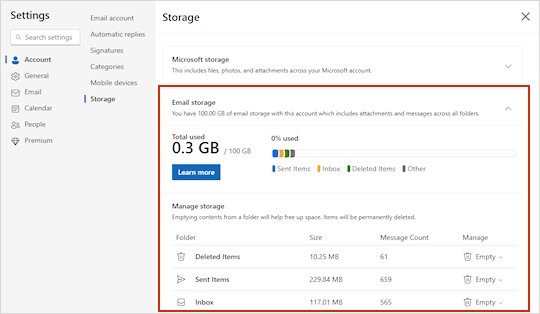
A free Microsoft account includes 5 GB. That 5 GB is shared Microsoft storage: OneDrive files and photos, backed-up PC folders, items in the OneDrive recycle bin, and Outlook.com attachments all count toward it.
| Plan (US pricing) | Cloud storage | People | Price | Adds |
|---|---|---|---|---|
| Free | 5 GB | 1 | $0 | Web and mobile Office apps, Outlook.com |
| Microsoft 365 Basic | 100 GB | 1 | $19.99/year or $1.99/month | Ransomware detection, ad-free Outlook, unlimited Personal Vault |
| Microsoft 365 Personal | 1 TB | 1 (up to 5 devices at once) | $99.99/year or $9.99/month | Desktop Word, Excel, PowerPoint, Outlook, OneNote |
| Microsoft 365 Family | Up to 6 TB (1 TB per person) | 1 to 6 | $129.99/year or $12.99/month | Same apps for every member |
| Microsoft 365 Premium | Up to 6 TB (1 TB per person) | 1 to 6 | $199.99/year or $19.99/month | Higher Copilot usage limits |
Prices are from Microsoft's US plans page and change over time, so confirm them at checkout. The desktop apps in the Personal and Family plans come from the Microsoft 365 installer for Windows and Mac.
When you run out, you cannot upload, edit or sync new files, and existing files become read-only. After six months over the limit, Microsoft says your OneDrive files can be deleted, and deleted files cannot be recovered.
How OneDrive Works On Windows 11 And Windows 10
OneDrive comes preinstalled on Windows 11 and adds a OneDrive folder to File Explorer. With Files On-Demand, each file carries a status icon that tells you whether it is stored on the PC or only in the cloud.
| Icon | What it means | What to do |
|---|---|---|
| Blue cloud beside a file | Online-only: uses no disk space and cannot open without internet | Open it while online, or right-click it and choose Always keep on this device |
| Green check mark beside a file | Locally available: downloaded when you opened it | Right-click and choose Free up space to make it online-only again |
| Solid green circle with white check | Always available: kept on the PC even offline | Nothing; choose Free up space to reverse it |
| Red circle with white cross | A file or folder cannot sync | Select the OneDrive cloud icon to read the problem |
| Gray cloud with a line through it | You are not signed in, or setup is unfinished | Press Windows, type OneDrive, open it and sign in |
| Cloud with a pause symbol | Syncing is paused | Select the icon and choose Resume syncing |
| Cloud with a yellow triangle | Your account needs attention | Select the icon to read the warning |
| Cloud with a red no-entry circle | Your account is blocked | Check your storage and account status on OneDrive.com |
Files On-Demand can no longer be switched off entirely. Instead, OneDrive offers Free up disk space, the default, or Download all files, which keeps a full copy of everything on the PC.
How To Set Up OneDrive
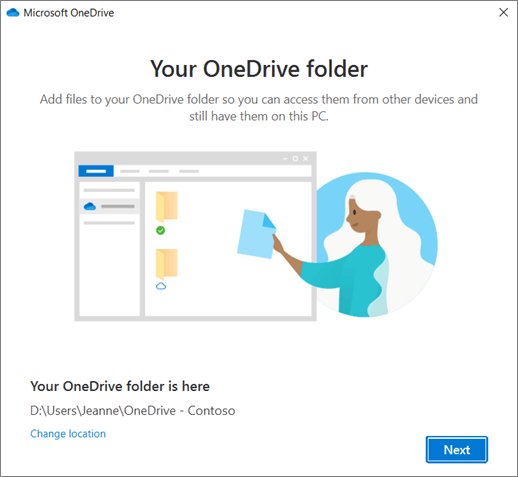
On Windows 11, OneDrive is already installed. On a PC without it, download it from Microsoft's OneDrive download page first.
- Press the Windows key, type
OneDrive, and open the OneDrive app. - Enter your Microsoft account, or a work or school account, and select Sign in.
- On the This is your OneDrive folder screen, select Next to keep the default location, or Change location to pick another drive. This is the best moment to move it.
- On the All your files, ready and on-demand screen, read how the file icons work and select Next.
- When OneDrive offers folder backup, choose which of Desktop, Documents and Pictures to back up, or skip it for now.
- Finish setup. The OneDrive cloud icon appears in the notification area and the OneDrive folder appears in File Explorer.
On a Mac: install OneDrive from Microsoft's download page, sign in, choose the folder location on the This is your OneDrive folder screen, pick the folders to sync, and select Next. The cloud icon then appears in the menu bar.
On iPhone or Android: install the OneDrive app from the App Store or Google Play, sign in with your Microsoft account, then tap Me > Settings > Camera backup to upload photos automatically.
How To Use OneDrive For Everyday Files
Most daily OneDrive tasks happen in File Explorer or on OneDrive.com. Find your task in the left column.
| You want to | Do this | Good to know |
|---|---|---|
| Save a file to OneDrive | Save or drag it into the OneDrive folder in File Explorer | It uploads automatically while you are online |
| Keep a file available offline | Right-click it and choose Always keep on this device | It now uses local disk space |
| Free space on a full drive | Right-click files or folders and choose Free up space | They stay in OneDrive as online-only files |
| Recover a deleted file | Sign in at OneDrive.com, select Recycle bin, tick the file, select Restore | Personal accounts keep deleted items for 30 days; work or school for 93 |
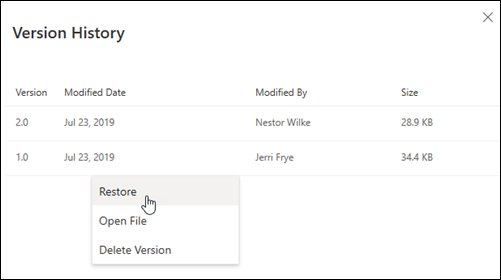
| Restore an earlier version | Right-click the file in File Explorer or on OneDrive.com, select Version history, select … beside a version, then Restore | Versions are kept for 30 days, for every file type |
| Find a missing file | Use Search everything at the top of OneDrive.com | Personal Vault files never show in search |
| Roll back everything after ransomware or mass deletion | Use Restore your OneDrive on OneDrive.com | Microsoft 365 subscribers only, up to 30 days back |
OneDrive Personal Vault: What It Is
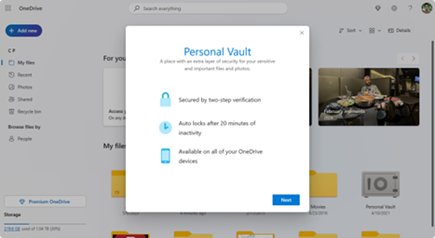
Personal Vault is a locked folder inside OneDrive that needs a second verification step, such as a fingerprint, face, PIN, or a code by text, email or the Microsoft Authenticator app, every time you open it.
| Question | Answer |
|---|---|
| How many files can I store? | Three on a free account; as many as your storage allows with Microsoft 365 Basic, Personal or Family |
| When does it lock? | After 20 minutes of inactivity on the web and 3 minutes on mobile; the PC lock time is set under Settings > Account |
| Can I share files from it? | No. Move a file out of the vault before sharing it |
| Does it show in search? | No. Vault items are hidden from search results |
| Where does it work? | Windows 11, Windows 10 version 1903 or newer, Android 6 or newer, iOS 11.3 or newer, and current Edge, Chrome or Firefox |
| What extra protection does a PC get? | On Windows 10, vault files sync to a BitLocker-encrypted area of the drive |
Use it for scans of passports, tax records and insurance documents. The OneDrive phone app can scan documents straight into the vault, so they never land in your camera roll.
Is OneDrive A Backup?
OneDrive is sync with a safety net, not a separate backup. When you delete or overwrite a file in the OneDrive folder, that change is copied to the cloud too.
The safety net is time-limited: the recycle bin and version history cover 30 days on a personal account, and a subscriber's Restore your OneDrive also reaches back 30 days.
Treat OneDrive as your off-PC copy of everyday files, and keep a second, separate copy of anything you cannot replace, such as family photos or business records. A mistake noticed after 30 days cannot be undone, a free account over its storage limit for six months can lose files, and Microsoft says personal accounts inactive for two years may be deleted.
OneDrive vs Google Drive, Dropbox, And iCloud
The best service is usually the one tied to the devices and apps you already use. The OneDrive column below comes from Microsoft; check each rival's current plans on its own site before you pay.
| Question | OneDrive | Google Drive, Dropbox or iCloud |
|---|---|---|
| Built into Windows? | Yes, preinstalled on Windows 11 and shown in File Explorer | No; each needs its own app on Windows |
| Tied to which account? | Microsoft account (the same one used for Outlook.com) | Google account, Dropbox account, or Apple Account |
| Office integration | AutoSave and real-time co-editing in Word, Excel and PowerPoint | Varies by service |
| Works on iPhone, Android and Mac? | Yes, with official apps | Each has its own app support |
| Free storage | 5 GB | Check the provider's plan page |
| Paid plan bundle | Storage comes with Microsoft 365 apps from 1 TB up | Check the provider's plan page |
Pick OneDrive if you work mainly on Windows and in Microsoft Office. Pick iCloud Drive if you live on iPhone and Mac, and Google Drive if your mail and documents already sit in Google. Running two services side by side is fine, as long as you know which folder holds what.
How to check OneDrive is working
- Look for the OneDrive cloud icon in the notification area. A plain cloud with no overlay means it is signed in and up to date.
- Select the icon. The panel lists recent syncs, and no error or warning banner should appear.
- Open File Explorer and select OneDrive in the left pane. Your files should show a blue cloud or a green check.
- Sign in at OneDrive.com in a browser. A file you saved on the PC a minute ago should be listed there.
- If you turned on folder backup, open OneDrive Settings > Sync and backup > Manage backup and confirm each folder is marked as backed up.
Common OneDrive Problems And How To Fix Them
OneDrive is full
Files, backed-up PC folders, the recycle bin and Outlook.com attachments all count toward the same quota.
- Sign in at OneDrive.com and check how much storage is used.
- Delete files you do not need, then empty the OneDrive Recycle bin, which also counts.
- Remove large Outlook.com attachments if you use Outlook.com.
- If you still need room, buy more storage; Microsoft says the new quota can take up to 24 hours to apply.
OneDrive is syncing slowly
OneDrive pauses itself in battery saver mode or on a metered network, and a first sync of many files takes time.
- Select the cloud icon and check whether it shows Paused.
- Select Resume syncing from the gear menu if it is paused.
- Plug the laptop in or switch to an unmetered network, then let the sync finish.
- Make files you do not use online-only with Free up space so there is less to download.
Files disappeared from Desktop or Documents
Folder backup moves those folders into OneDrive, and online-only files or a different signed-in account can make them look missing.
- Open File Explorer, select OneDrive, and look inside its Desktop and Documents folders.
- Sign in at OneDrive.com and use Search everything at the top of the page.
- Check the OneDrive Recycle bin and select Restore on anything you find.
- Check the Personal Vault, because its files never appear in search.
- Confirm you are signed in with the right Microsoft account; files saved under another account live in that account's OneDrive.
A red X appears on files
That file or folder cannot sync, often because of a long path, a file over 250 GB, or a full account.
- Select the OneDrive cloud icon and read the error listed for the file.
- Shorten the file path if it is longer than 260 characters.
- Move files larger than 250 GB out of the OneDrive folder.
- Free space if the account is full, then wait for the file to retry.
Microsoft OneDrive keeps popping up
OneDrive shows messages about features and recommended actions, such as backup prompts, through its icon and notifications.
- Select the OneDrive cloud icon, select the gear icon (Help & Settings), then Settings.
- Open the Notifications tab and turn off the notification types you do not want.
- If you never want OneDrive to start, follow the disable section below instead.
Microsoft OneDrive won't update or will not start
A damaged install or stuck sync connection can stop OneDrive from updating or launching.
- Press Windows + R to open the Run box.
- Type
%localappdata%\Microsoft\OneDrive\onedrive.exe /resetand press Enter. This resets sync connections without deleting data. - Open OneDrive again from the Start menu if it does not restart by itself after a few minutes.
- If it still fails, uninstall OneDrive and reinstall it from Microsoft's OneDrive download page, then choose again which folders to sync.
How To Stop OneDrive From Backing Up Desktop, Documents, Or Pictures
You can stop folder backup without removing OneDrive. Decide first where the files should end up, because OneDrive asks.
- Select the OneDrive cloud icon in the notification area.
- Select the gear icon (Help & Settings), then Settings.
- Open the Sync and backup tab and select Manage backup.
- Turn off the toggle for Desktop, Documents or Pictures.
- Choose Keep the files only on my PC to remove them from OneDrive, or Keep the files only in OneDrive to remove them from the PC.
- Confirm, then check the folder in File Explorer to make sure your files are where you expect.
If OneDrive reports that some files couldn't be moved, right-click those files and choose Always keep on this device so they download first, then try again. Error 0x80070005 means a work policy blocks changing these folders; ask your IT admin.
How To Disable Or Uninstall OneDrive
Unlinking stops syncing but leaves the app installed; uninstalling removes the app. Neither one deletes files already stored on OneDrive.com.
- Select the OneDrive cloud icon, select the gear icon (Help & Settings), then Settings.
- Open the Account tab, select Unlink this PC, then select Unlink account.
- To remove the app as well, open Start > Settings > Apps > Installed apps.
- Find Microsoft OneDrive, select More (the three dots), and select Uninstall.
- Confirm. Your files remain available at OneDrive.com.
Some versions of Windows include OneDrive in a way that cannot be uninstalled; in that case unlink it and stop it from starting. For pausing, startup control, hiding it from File Explorer and the Group Policy block, disabling OneDrive fully is covered in the full guide.
Is OneDrive Safe And Private?
OneDrive encrypts your files in transit and at rest, and you remain the owner of what you store. The weak point is usually the account password, not the service.
| Protection | What Microsoft states |
|---|---|
| In transit | Data moving to and between datacenters is protected with TLS; plain HTTP connections are redirected to HTTPS |
| At rest | Each file is encrypted with its own AES256 key, and those keys are protected by master keys in Azure Key Vault |
| Staff access | A zero-standing-access policy means engineers get access only for a specific incident; support agents cannot open your files |
| Redundancy | Data is mirrored to at least two Azure regions several hundred miles apart |
| Malware | The Windows Defender engine scans documents for known threats when they are downloaded |
| Suspicious sign-ins | Blocked, with an email alert for sign-ins from a new device or location |
| Ransomware | Microsoft 365 subscribers get an alert and can restore files to a point up to 30 days back |
| Mass deletion | OneDrive alerts you and gives steps to recover the files |
Turn on two-step verification for your Microsoft account and put your most sensitive scans in Personal Vault. Those two steps close the most likely ways in.
OneDrive For Work Or School
A work or school OneDrive is part of your organization's Microsoft 365 and is run by its IT admin, not by you.
| Personal OneDrive | OneDrive for work or school | |
|---|---|---|
| Sign-in | Microsoft account | Account issued by your employer or school |
| Accounts per PC | One | Several can sit beside one personal account |
| Folder name in File Explorer | OneDrive – Personal | OneDrive – [CompanyName] |
| Storage limit | Set by your plan | Set by your admin |
| Deleted-file recovery | 30 days | 93 days unless the admin changed it |
| Version history | 30 days | Can be turned off by the admin |
| Who controls sharing and sync | You | Your admin, in the SharePoint admin center |
Keep personal files out of a work OneDrive. When you leave, the organization controls that account, and its retention setting decides how long the files survive.
Should You Use OneDrive? A Simple Decision Guide
| Your situation | What to do | Why |
|---|---|---|
| You use Word, Excel or PowerPoint and more than one device | Keep OneDrive and turn on folder backup | Files and AutoSave follow you everywhere |
| You pay for Microsoft 365 Personal or Family | Keep OneDrive | You already have 1 TB per person |
| You have one PC and use only the free 5 GB | Back up Documents only, or skip folder backup | Desktop and Pictures fill 5 GB quickly |
| Your photos and files already live in iCloud or Google Drive | Unlink OneDrive and stop it at startup | Two sync services on one folder set cause confusion |
| Your internet is slow or metered | Keep it paused, or back up only Documents | A first sync can move a lot of data |
| You store sensitive scans | Keep OneDrive and use Personal Vault | The vault adds a second verification step |
| Your employer manages the PC | Leave the work OneDrive alone and ask IT | Policies may block changes |
Frequently Asked Questions
What is Microsoft OneDrive used for?
OneDrive is used to store files in Microsoft's cloud, sync them across your PC, Mac and phone, back up the Desktop, Documents and Pictures folders, share files by link, and upload phone photos automatically. It is also where Word, Excel and PowerPoint save when you use AutoSave.
What does OneDrive do on my computer?
On your computer, OneDrive runs as a cloud icon in the notification area and adds a OneDrive folder to File Explorer. It uploads changes in that folder, downloads files when you open them, and backs up Desktop, Documents and Pictures if you turned folder backup on.
Is OneDrive part of Microsoft?
Yes. OneDrive is Microsoft's own cloud storage service. It comes with every Microsoft account, is preinstalled on Windows 11, and is included in Microsoft 365 plans, where the storage rises from 5 GB free to 100 GB or 1 TB per person.
Why does Microsoft Office save to OneDrive?
Office saves to OneDrive because AutoSave is on by default for files stored there, and because folder backup moves your Documents folder into OneDrive. To stop it, open File > Options > Save in Word or Excel and clear AutoSave OneDrive and SharePoint Online files by default, then restart the app.
Why does Microsoft OneDrive keep popping up?
OneDrive pops up to show messages about features and recommended actions, such as offers to back up your folders. Open OneDrive Settings and turn off unwanted alerts on the Notifications tab, or unlink OneDrive and stop it from starting if you do not use it.
Why won't Microsoft OneDrive update?
OneDrive usually fails to update when its install or sync connection is damaged. Reset it by running %localappdata%\Microsoft\OneDrive\onedrive.exe /reset from the Run box, which keeps your files. If that fails, uninstall it and reinstall it from Microsoft's OneDrive download page.
How important is Microsoft OneDrive?
OneDrive matters only if you want your files off the PC or on several devices. Windows, Office and your other apps all work without it. Without OneDrive or another backup, though, a lost or failed PC takes your files with it.
Is OneDrive free?
Yes. Every Microsoft account includes 5 GB of OneDrive storage at no cost, shared with Outlook.com attachments. More space comes with Microsoft 365 Basic at 100 GB, or Personal and Family at 1 TB per person.
Does uninstalling OneDrive delete my files?
No. Uninstalling or unlinking OneDrive does not delete files already stored in it; they stay on OneDrive.com. Online-only files are not on your PC, though, so mark anything you need offline as Always keep on this device before removing the app.
How does Microsoft OneDrive work?
OneDrive keeps a synced folder on your PC and a matching copy in Microsoft's cloud. Any change on one side is copied to the other while you are online, and Files On-Demand downloads a file only when you open it, so cloud files do not fill your drive.
Final Verdict: Do You Need Microsoft OneDrive?
You do not need OneDrive to run Windows, but keep it if you use Microsoft Office, own more than one device, or have no other off-PC copy of your files. Unlink it if another cloud service already holds your files. Its value is an automatic off-PC copy with 30 days of undo. With only 5 GB free, a heavy user either pays for Microsoft 365 or backs up just the Documents folder.


How to Setup and Use OneDrive Synchronization Between Your Windows Devices - Techdows
[…] OneDrive keeps one copy of your files in the cloud and mirrors it into a OneDrive folder on each PC. For the wider question of whether you need the service at all, see what Microsoft OneDrive is and whether you need it. […]
How to Backup OneDrive - Techdows
[…] or overwrite on one device reaches every device and the cloud copy. If you are new to the service, what Microsoft OneDrive is and whether you need it covers the […]
How to download and Install OneDrive for Windows 11/10 - Techdows
[…] For a fuller look at whether you need it at all, read What is Microsoft OneDrive and do I need it. […]