To uninstall an app on a Mac, quit the app, open Finder, go to the Applications folder, and move the app to the Trash. If the app includes its own uninstaller, use that instead because it can also remove related extensions, login items, and support files. You can then empty the Trash to recover the storage space.
The exact method depends on how the app was installed. Apps from the Mac App Store can often be removed from the Apps screen, while larger programs such as Adobe software, antivirus tools, VPN clients, and utilities often include a dedicated uninstaller.
This guide covers how to uninstall apps on current versions of macOS, remove apps that will not delete, find leftover files, uninstall App Store apps, and reinstall an app later if you need it.
How to Uninstall Apps on Mac Using Finder
Finder is the standard way to uninstall most Mac applications, including apps downloaded from a developer website, a DMG file, or another source.
- Quit the app you want to remove.
- Click Finder in the Dock.
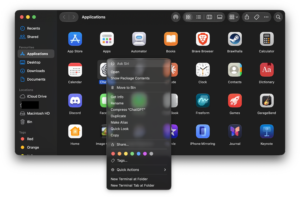
- Select Applications from the sidebar.
- Find the app you want to uninstall.
- Control-click the app and select Move to Trash.
- Enter an administrator password if macOS asks for one.
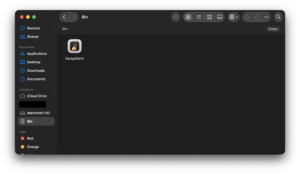
- Choose Finder > Empty Trash when you are ready to permanently remove it.
You can also drag the application directly from the Applications folder to the Trash, or select it and press Command + Delete.
Apple recommends checking whether a third-party app includes its own uninstaller before moving it to the Trash. A dedicated uninstaller is better for software that installs additional components elsewhere on the Mac.
How to Delete Apps on Mac from the Apps Screen
Apps downloaded through the Mac App Store can also be removed from the Apps screen in macOS.
- Open Apps from the Dock.
- Locate the app you want to remove.
- Click and hold its icon until the icons begin to jiggle.
- Click the delete button on the app.
- Confirm that you want to uninstall it.
The delete button appears only for apps that macOS allows you to remove this way. If there is no delete button, use Finder or the app’s own uninstaller instead. Apple documents both the Apps-screen and Finder methods for App Store purchases.
How to Completely Uninstall an App on Mac
Dragging an app to the Trash removes the application itself, but some programs store additional data in other folders. This can include settings, caches, login items, browser extensions, plug-ins, background services, and application support files.
If the developer supplies an uninstaller, use it first. Apple specifically recommends the supplied uninstall feature because it can remove additional components stored outside the main application.
Check the app folder for an uninstaller
- Open Finder > Applications.
- Open the folder belonging to the app, if it has one.
- Look for a file named Uninstall [App], [App] Uninstaller, or similar.
- Open it and follow the instructions.
Some applications place the uninstall option inside their own settings menu instead of creating a separate uninstaller.
Remove leftover app files manually
If an app has no uninstaller and you specifically want to remove its remaining settings or cache files, check the Library folders after deleting the application.
In Finder, select Go > Go to Folder and check locations such as:
~/Library/Application Support/
~/Library/Caches/
~/Library/Preferences/
~/Library/Containers/
~/Library/Group Containers/
~/Library/LaunchAgents/
Search for folders or files that clearly use the application name or developer name. Delete only files you can confidently identify as belonging to the removed app. Removing an unrelated preference, container, or support folder can affect other software.
You do not need to remove every cache or preference file just to reclaim the app’s main storage. In most cases, deleting the application itself frees the majority of the space it occupied.
How to Uninstall Apps on Mac from System Settings
macOS provides a useful storage view for finding large applications, although Finder remains the normal removal method.
- Open the Apple menu.
- Select System Settings.
- Go to General > Storage.
- Review the storage categories and application usage.
- Identify apps consuming significant space.
- Open the relevant application location and remove it using Finder or its supplied uninstaller.
The Storage section is especially useful when you want to uninstall apps to free disk space because it shows how much storage different categories use. Apple notes that some system data and macOS components cannot be managed directly from this screen.
How to Uninstall Apps That Won’t Delete on Mac
If macOS refuses to delete an app, the app is usually still running, a background component is active, your account lacks permission, or the app is protected as part of macOS.
Quit the app first
Control-click the app in the Dock and select Quit. If it does not close, press Option + Command + Esc, select the app, and choose Force Quit.
Try moving the application to the Trash again after it has completely closed.
Restart the Mac
A background process can remain active after the visible app window closes. Restart the Mac and try uninstalling the application before reopening it.
Apple recommends restarting or using Safe Mode when macOS reports that an application is still in use and cannot be removed.
Check Activity Monitor
If the app still appears to be running:
- Open Activity Monitor.
- Search for the app or developer name.
- Select the related process.
- Click the stop button.
- Quit the process.
- Try uninstalling the app again.
A dedicated uninstaller remains the better option for software that continuously runs background services.
Use an administrator account
macOS can request administrator credentials when you delete an application installed for every user on the Mac. Enter the username and password of an administrator account when prompted.
If you use a work or school Mac, device-management policies can prevent you from removing certain software.
How to Uninstall Apps on Mac That Don’t Have an X or Delete Button
If an app has no delete button on the Apps screen, it usually means the app was not installed through the App Store or macOS does not support removing it from that interface.
Open Finder > Applications instead. Check the app’s folder for an uninstaller, and if there is none, move the application to the Trash.
This is normal behaviour and does not indicate a problem with the app or your Mac.
How to Uninstall Apps Downloaded from the Internet
Applications installed from a developer website often arrive as a DMG disk image or PKG installer. How you remove them depends on what the original installer added to macOS.
For a simple app that you originally dragged into Applications, you can generally remove it by dragging it back to the Trash.
For software installed with a PKG package, check the Applications folder or developer documentation for an uninstall utility. VPN clients, security software, virtualization programs, audio tools, printer software, and hardware utilities commonly install system extensions or services that a dedicated uninstaller needs to remove.
Apple recommends using an application’s supplied uninstaller whenever one exists.
How to Uninstall App Store Apps on Mac
Mac App Store applications are generally straightforward to remove because macOS manages their installation.
You can remove them from the Apps screen or through Finder:
- Open Finder > Applications.
- Control-click the App Store app.
- Select Move to Trash.
- Empty the Trash when you want to permanently remove it.
If you paid for the app, deleting it does not remove the purchase from your Apple Account. You can usually download it again later from your App Store purchase history.
Can You Uninstall Built-In Mac Apps?
Many applications installed as part of macOS cannot be removed through Finder. Apple protects system apps that macOS relies on, including applications such as Mail, Music, Books, Notes, Podcasts, Maps, News, and Stocks.
If macOS refuses to move one of these apps to the Trash, there is no normal uninstall procedure you need to bypass.
You can remove an unwanted built-in app from the Dock without uninstalling it. Control-click the icon and choose Options > Remove from Dock.
Does Uninstalling an App Delete Its Files?
Deleting an application does not automatically delete documents you created with it. For example, uninstalling a video editor does not normally delete video projects stored in your Documents folder or on an external drive.
Apple also warns that you may need the original application or compatible software to open those files later.
App preferences, caches, databases, and locally stored application data are different. Some remain in your Library folder after the application is removed, while a developer-provided uninstaller can remove them automatically.
Does Uninstalling an App Cancel the Subscription?
No. Deleting an application from your Mac does not cancel a subscription attached to it. Apple specifically treats uninstalling an app and cancelling its subscription as separate actions.
If you subscribed through Apple, open your Apple Account subscription settings and cancel the subscription there. If you subscribed directly through the developer, manage the subscription through that company’s website or account system.
How to Reinstall a Deleted App on Mac
You can reinstall an App Store purchase from your Apple Account without buying it again, provided the application remains available and compatible with your Mac.
- Open the App Store.
- Click your name in the lower-left corner.
- Sign in if needed.
- Locate the app in your purchases.
- Click the download button.
For apps originally downloaded from the internet, return to the developer’s official website and download a current installer. Apple recommends obtaining a fresh copy from the developer when reinstalling non-App Store software.
How to Free Up Space After Uninstalling Mac Apps
Moving an application to the Trash does not immediately return all of its storage if the Trash still contains the app. Choose Finder > Empty Trash after confirming that you no longer need it.
To see whether you recovered the expected amount of space, open System Settings > General > Storage. macOS shows the used and available storage on the Mac and breaks usage into categories.
If a large application’s storage still appears unusually high, restart the Mac and allow macOS to recalculate storage. You can then check Application Support folders or use the application’s official uninstaller if additional components remain.
Frequently Asked Questions
What is the easiest way to uninstall an app on Mac?
Open Finder, select Applications, and move the app to the Trash. If the app provides its own uninstaller, use that instead.
What is the Mac shortcut for uninstalling an app?
Select an application in Finder and press Command + Delete to move it to the Trash. You still need to empty the Trash to permanently remove it.
Why can’t I uninstall an app on my Mac?
The app may still be running, a background process may be active, your account may lack administrator permission, or the application may be a protected part of macOS.
How do I uninstall an app on a MacBook Air?
The process is the same as on other Macs. Open Finder, go to Applications, move the app to the Trash, and empty the Trash when ready.
How do I uninstall apps on a MacBook Pro?
Use Finder for most applications. If the software includes an Uninstall or Uninstaller utility, run that instead so related components are removed as well.
How do I completely remove an app and all its files from Mac?
Use the developer’s official uninstaller when available. For a simple application without one, remove the app through Finder and then check its clearly identified support files under your user Library if you need to remove saved preferences and caches too.
Can I delete an app directly from the Dock?
No. Removing an icon from the Dock only removes the shortcut. The application remains installed in the Applications folder.
Why does a deleted app still appear in the Dock?
The Dock can retain a shortcut after an application has been removed. Control-click the icon and choose Options > Remove from Dock.
Does deleting an app from Applications uninstall it?
For many Mac apps, yes. Moving the application from the Applications folder to the Trash is the normal uninstall method. Software that installs additional services or extensions should be removed with its own uninstaller.
Should I use a Mac app uninstaller program?
You do not need a third-party uninstaller for most applications. Finder and developer-provided uninstallers cover normal removal. If you use a cleanup utility, review exactly which files it intends to delete before approving the operation.
Can I reinstall an app after uninstalling it?
Yes. App Store purchases can normally be downloaded again from your account, while other apps can be reinstalled from the developer’s official website.
Will uninstalling an app cancel my subscription?
No. You need to cancel the subscription separately through your Apple Account or the service provider.







Download Opera GX for PC, Windows 11/10 & Mac (Free) - Techdows
[…] Leaving Delete my Opera user data unticked keeps the profile, so a later reinstall picks up your bookmarks and logins. Type opera:about first to note the profile path and back it up. Techdows covers the Mac side in how to uninstall apps on Mac. […]
Download Revo Uninstaller for PC, Windows 11/10 (Free) - Techdows
[…] A Mac app keeps most of itself inside one bundle, so macOS needs no leftover scanner. Techdows covers the awkward cases in how to uninstall apps on Mac. […]
Download Brave Browser for PC, Windows 11/10 & Mac (Free) - Techdows
[…] Techdows covers the Mac side in more detail in how to uninstall apps on Mac. […]
Download DuckDuckGo Browser for PC, Windows 11/10 & Mac (Free) - Techdows
[…] Techdows covers the Mac side in more detail in how to uninstall apps on Mac. […]
How to Completely Delete and Uninstall Apps on Android - Techdows
[…] Go to Settings > Apps > See all apps, tap the app, then tap Uninstall. The Play Store also works: Profile > Manage apps & devices > Manage, then the app and Uninstall. On a Mac the process is different; see how to uninstall apps on Mac completely. […]