To right click on a Mac, click or tap the trackpad with two fingers. Apple calls this a secondary click. You can also hold the Control key while clicking, use the right side of a Magic Mouse, or connect a regular two-button mouse.
The two-finger trackpad method works on modern MacBook Air, MacBook Pro, and Magic Trackpad models once Secondary Click is enabled. If right click is not working, you can turn it on from macOS System Settings and choose the gesture you prefer.
This guide covers every practical way to right click on a Mac, including MacBook trackpads, Magic Mouse, standard USB and Bluetooth mice, keyboard shortcuts, and fixes for a secondary click that has stopped working.
How to Right Click on a MacBook Trackpad
The quickest method on a MacBook is to place two fingers on the trackpad and click or tap. Apple lists the two-finger gesture as the standard secondary-click action on Multi-Touch trackpads.
- Move the pointer over the item you want to open.
- Place two fingers on the MacBook trackpad.
- Click the trackpad or tap with two fingers if Tap to Click is enabled.
- The shortcut or context menu will appear.
You can use this on files, folders, browser links, images, text, the desktop, Dock icons, Finder items, and most other parts of macOS.
How to Enable Right Click on Mac
If two-finger clicking does nothing, check the Secondary Click setting.
- Click the Apple menu.
- Open System Settings.
- Select Trackpad.
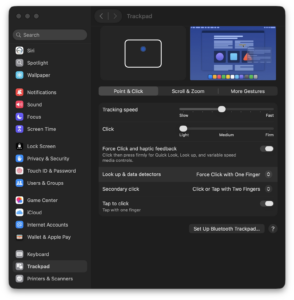
- Open Point & Click if the options are grouped into sections.
- Find Secondary click.
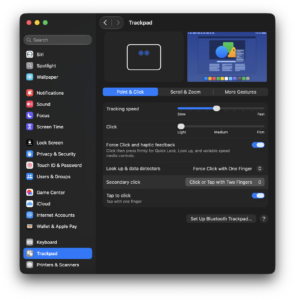
- Turn it on and choose your preferred gesture.
Depending on your Mac and macOS version, Apple can offer several secondary-click options, including clicking with two fingers or clicking one of the lower corners of the trackpad.
Use two fingers to right click
Choose Click or Tap with Two Fingers if you want the standard Mac gesture. This is usually the easiest option because it works anywhere on the trackpad and does not require aiming for a particular corner.
Right click using the bottom-right corner
If you are moving from Windows and prefer a conventional touchpad layout, set Secondary Click to the bottom-right corner. You can then press that corner of the trackpad to open the context menu.
Use the bottom-left corner instead
macOS can also assign secondary click to the bottom-left corner on supported trackpads. This option is useful for left-handed users or anyone who prefers the secondary-click area on that side.
How to Right Click on Mac with the Keyboard
You can right click without changing any trackpad settings by holding the Control key while clicking. Apple calls this Control-click, and it performs the same basic action as a right click.
- Move the pointer over the file, link, icon, or other item.
- Hold the Control key on the keyboard.
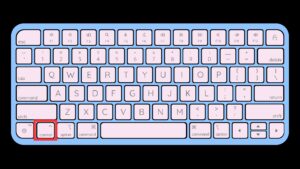
- Click once with the trackpad or mouse.
- Release Control after the shortcut menu appears.
The key you need is Control, usually labelled control or ⌃. Do not use Command instead. Command-click performs different actions in many Mac apps.
Can you right click using only the keyboard?
Some newer Apple keyboards include a dedicated Contextual Menu key that can open shortcut menus in supported situations. Apple places it below F13 on certain Magic Keyboard with Touch ID and Numeric Keypad models.
For most Mac users, Control-click remains the simplest keyboard-assisted method because it works with both a mouse and trackpad.
How to Right Click on Mac with a Magic Mouse
The Apple Magic Mouse has a single touch-sensitive top surface, but macOS can treat its right side as a normal right mouse button.
To enable it:
- Open Apple menu > System Settings.
- Select Mouse.
- Find Secondary click.
- Enable the setting.
- Choose the option that uses the right side of the mouse.
After enabling it, press the right side of the Magic Mouse to open a shortcut menu. You can assign the secondary click to the left side instead if that feels more comfortable.
Magic Mouse right click not working
Try lifting your other finger slightly when pressing the right side. The Magic Mouse detects where your fingers touch its surface, and resting multiple fingers across it can sometimes interfere with the intended click.
Also open System Settings > Mouse and confirm that Secondary Click remains enabled.
How to Right Click with a Regular Mouse on Mac
A standard two-button USB or Bluetooth mouse normally works on macOS without extra software. The physical right mouse button performs a secondary click automatically.
This applies to most basic mice from Logitech, Microsoft, Dell, HP, Razer, SteelSeries, and other manufacturers. Connect the mouse through USB, Bluetooth, or its wireless receiver, then right click as you would on Windows.
Swap the left and right mouse buttons
If you want the left side of the mouse to perform the secondary click, open System Settings > Mouse and change the Secondary Click option when macOS provides one for the connected mouse.
Advanced gaming and productivity mice can require the manufacturer’s software if you want to customize additional side buttons, macros, sensitivity, or app-specific actions.
How to Right Click on MacBook Air
MacBook Air uses the same macOS secondary-click controls as other modern MacBooks. The standard method is a two-finger click on the built-in trackpad.
- Open System Settings > Trackpad.
- Enable Secondary click.
- Choose Click or Tap with Two Fingers.
- Place two fingers on the trackpad and click.
This works across current Apple silicon MacBook Air models as well as older supported MacBook Air computers with Multi-Touch trackpads.
How to Right Click on MacBook Pro
On a MacBook Pro, place two fingers on the trackpad and press down once. If Tap to Click is enabled, a two-finger tap can also trigger the secondary click.
You can change the gesture under System Settings > Trackpad > Secondary click if you prefer clicking the lower-right or lower-left corner.
Modern MacBook Pro models use Force Touch trackpads, but a Force Click is a different action. Pressing harder until you feel a deeper click can trigger previews, definitions, Quick Look, or other context-sensitive features. You do not need to Force Click to right click.
Right Click vs Force Click on Mac
| Action | How to perform it | Typical result |
|---|---|---|
| Right click / Secondary click | Two-finger click or Control-click | Opens a shortcut or context menu |
| Normal click | One-finger click | Selects or opens an item |
| Force Click | Press firmly until you feel a deeper click | Shows previews or other context-sensitive actions |
Force Click is available only on compatible Force Touch trackpads. If you press firmly and see a preview instead of a shortcut menu, use the normal two-finger secondary-click gesture.
How to Right Click a File or Folder on Mac
Right clicking in Finder exposes commands that depend on the selected item.
- Open Finder.
- Move the pointer over a file or folder.
- Right click using two fingers, Control-click, or your mouse’s right button.
- Select the command you need from the menu.
The available menu can include Rename, Move to Trash, Get Info, Compress, Duplicate, Quick Look, Share, Tags, and Open With. macOS changes the menu based on what you select.
How to Right Click on a Mac Without a Mouse
A mouse is not required. MacBook users have two built-in options: two-finger clicking on the trackpad and Control-clicking.
If the trackpad’s secondary-click gesture is disabled, hold Control and click normally. This works immediately and is useful when you are troubleshooting the trackpad settings.
How to Right Click on Mac Without a Trackpad
If you use a Mac mini, Mac Studio, Mac Pro, or iMac without a trackpad, connect a Magic Mouse or standard two-button mouse. You can then use its secondary button normally.
With a single-button mouse, hold Control while clicking. macOS interprets Control-click as a secondary click.
How to Right Click on Mac in Safari, Chrome, and Firefox
Right click works the same way inside Mac browsers. Two-finger click a link, image, selected text, tab, or empty section of a webpage to open the browser’s context menu.
Common browser right-click actions include opening a link in a new tab, copying a link, saving an image, copying selected text, inspecting a page, and managing tabs.
If right click works in Finder but not on one particular website, the website itself can be intercepting or limiting the context menu through JavaScript. Test another webpage before changing your Mac settings.
How to Right Click When Using Windows on a Mac
Intel Macs running Windows through Boot Camp can use trackpad secondary-click controls inside Windows. Apple provides options for both a two-finger secondary click and a click in a selected corner of the trackpad.
With supported precision touchpad settings in Windows, pressing the lower-right corner can perform a right click. Boot Camp Control Panel also lets you enable a two-finger Secondary Click option.
This applies to Intel Macs using Boot Camp. Apple silicon Macs do not support Boot Camp for installing Windows natively.
Fix Right Click Not Working on Mac
Check Secondary Click settings
Open System Settings > Trackpad or System Settings > Mouse and confirm that Secondary Click is enabled. Toggle it off and back on if the gesture suddenly stopped responding.
Test Control-click
Hold Control and click an item. If the shortcut menu appears, macOS secondary clicking works and the problem is likely limited to the trackpad or mouse gesture.
Restart the Mac
Restart macOS if both trackpad and mouse gestures stop responding normally. A restart reloads the input services and can clear temporary problems without changing your settings.
Reconnect a Bluetooth mouse or trackpad
If you use a Magic Mouse or Magic Trackpad, confirm that it has power and remains connected under System Settings > Bluetooth. Turn the accessory off and on again if it stops registering secondary clicks.
Check whether the problem affects only one app
Try right clicking a file on the desktop or in Finder. If that works, the problem belongs to the app or webpage you were using rather than the Mac’s secondary-click setting.
Check Accessibility settings
Input-related Accessibility options can change how clicks behave. Open System Settings > Accessibility > Pointer Control if clicks, double-clicks, or pointer controls behave differently across the whole Mac.
Update macOS
Open System Settings > General > Software Update and install an available macOS update. This is particularly useful when a trackpad or Magic Mouse issue appeared after another system or accessory change.
Frequently Asked Questions
What is right click called on a Mac?
Apple calls it a secondary click or Control-click. It opens the same type of contextual menu that right clicking opens on Windows.
How do you right click on a MacBook?
Place two fingers on the trackpad and click or tap. If it does not work, enable Secondary Click under System Settings > Trackpad.
How do you right click on a MacBook Air?
Use a two-finger click on the built-in trackpad. You can also hold Control while clicking or configure the lower-right corner as the secondary-click area.
How do you right click on a MacBook Pro?
Click the trackpad with two fingers. The gesture works on current MacBook Pro Force Touch trackpads once Secondary Click is enabled.
What is the keyboard shortcut for right click on Mac?
Hold the Control key and click the item. Control-click opens the contextual menu without requiring a dedicated right mouse button.
Is Control-click the same as right click on Mac?
Yes. Apple treats Control-click as a secondary click, so it opens the same shortcut menu in Finder and most Mac apps.
Can I right click with a Magic Mouse?
Yes. Enable Secondary click under System Settings > Mouse, then click the right side of the Magic Mouse.
Can I use a normal Windows mouse on a Mac?
Yes. Standard USB and Bluetooth two-button mice generally work with macOS, including their physical right-click button.
Why is two-finger right click not working on my Mac?
Secondary Click may be disabled or configured for a corner-click gesture instead. Open System Settings > Trackpad and check the Secondary Click option.
Can I make the bottom-right corner of my Mac trackpad right click?
Yes. Open Trackpad settings, select Secondary Click, and choose the lower-right corner option when it is available on your Mac.
Can I right click without using two fingers?
Yes. Hold Control while clicking, use a configured trackpad corner, or connect a mouse with a dedicated right button.
Is Force Click the same as right click?
No. Right click opens a contextual menu, while Force Click uses additional pressure to trigger features such as previews and Quick Look on supported Force Touch trackpads.
Why does right click work in Finder but not on a website?
The website can override the browser’s normal context menu. Test another webpage. If right click works there and in Finder, your Mac settings are working correctly.