To make Chrome your default browser on Windows 11, open Settings > Apps > Default apps, search for Chrome, select Google Chrome and select Set default; on Windows 10, set Web browser to Google Chrome on the same page. On a Mac, Linux PC, Android phone or iPhone, start the change from Chrome's own Settings > Default browser.
This guide gives the exact steps for every device, the six ways to set Chrome per file type or link type on Windows 11, how to make Chrome open PDFs, and the fixes for links that still open in Edge or Safari.
Make Chrome the default browser on Windows, Mac, Android and iPhone
Find your device in the first column and go straight to the setting in the second. The last column tells you what the switch actually covers.
| Your device | Where to set Chrome as default | What it changes |
|---|---|---|
| Windows 11 | Settings > Apps > Default apps > search Chrome > Google Chrome > Set default | Web links (http and https) and saved .htm and .html pages open in Chrome |
| Windows 10 | Settings > Apps > Default apps > Web browser > Google Chrome | The browser Windows uses for web links |
| Mac | Chrome More > Settings > Default browser > Make default, or System Settings > Desktop & Dock > Default web browser | Links you click in an email or text message open in Chrome instead of Safari |
| Linux | Chrome More > Settings > Default browser > Make default | Links opened from other apps go to Chrome |
| Android | Chrome More > Make Chrome default, or More > Settings > Default browser | Links open automatically in Chrome |
| iPhone or iPad (iOS 14 and later) | Chrome More > Settings > Default Browser > Go to Settings > Default Browser App > Chrome | Links to webpages open in Chrome instead of Safari |
| Chromebook | Nothing to set; Chrome comes preinstalled on every new Chromebook | Google's default-browser help has no ChromeOS steps |
On Windows, Chrome does not flip the switch itself. Google documents the in-Chrome Make default button for Mac and Linux only, and sends Windows users to the Windows Default apps page.
Install and update Chrome before you set it as default
Chrome must be installed before any device will offer it as a default. An up-to-date copy also matters on iPhone, where Google says a missing default option usually means an old version of Chrome.
- If Chrome is not installed, get it only from
https://www.google.com/chromeon a computer, or from the Google Play Store or Apple App Store on a phone; the steps to download Google Chrome cover each platform. - On Windows, open the installer and follow the on-screen instructions, selecting Yes if Windows asks to allow changes.
- On a Mac, open googlechrome.dmg and drag Chrome to the Applications folder.
- Open Chrome and select More (three dots, top right) > Help > About Google Chrome.
- Wait while Chrome checks for updates, then select Relaunch if it appears; no Relaunch button means you already have the latest version.
- On a PC running Windows 11 or Windows 10 in S mode, stop here and read the S mode fix in the troubleshooting section, because S mode keeps Edge as the default.
Why use Google Chrome in the first place?
Chrome syncs bookmarks, passwords and history across Windows, Mac, Linux, Android and iPhone through one Google Account, has the largest extension library in the Chrome Web Store, and updates itself in the background. Making it the default means every link from email, chat and other apps opens where those bookmarks and passwords already are, instead of in Microsoft Edge or Safari.
How can I make Chrome the default browser on Windows 11?
Windows 11 offers several routes to the same Default apps setting. Option 1 is the one Google documents and the one most people need; the others change Chrome for specific file or link types.
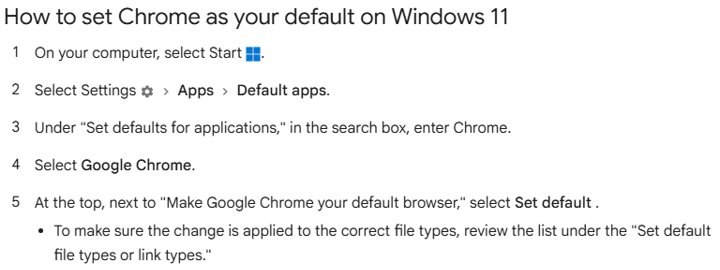
Option 1: Choose default web browser in Settings
- Select Start > Settings > Apps > Default apps. You can also press Win + R, type
ms-settings:defaultappsand press Enter. - Under Set defaults for applications, type
Chromein the search box. - Select Google Chrome.
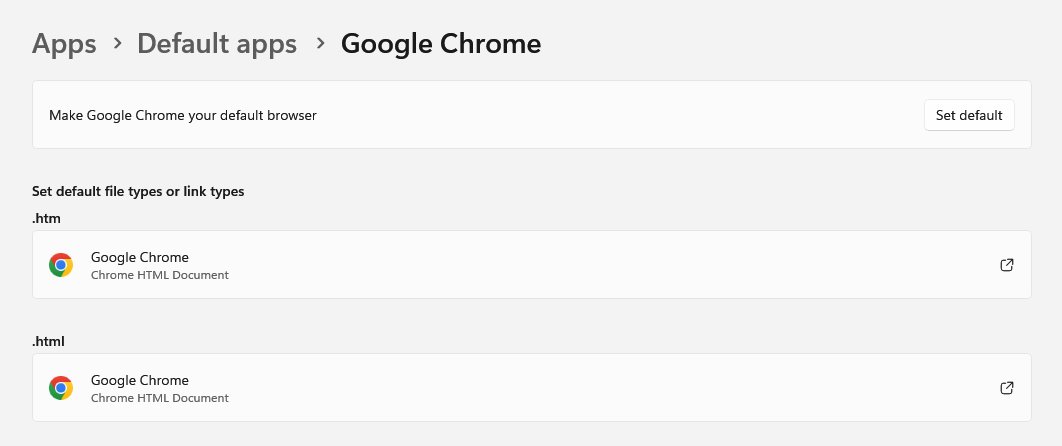
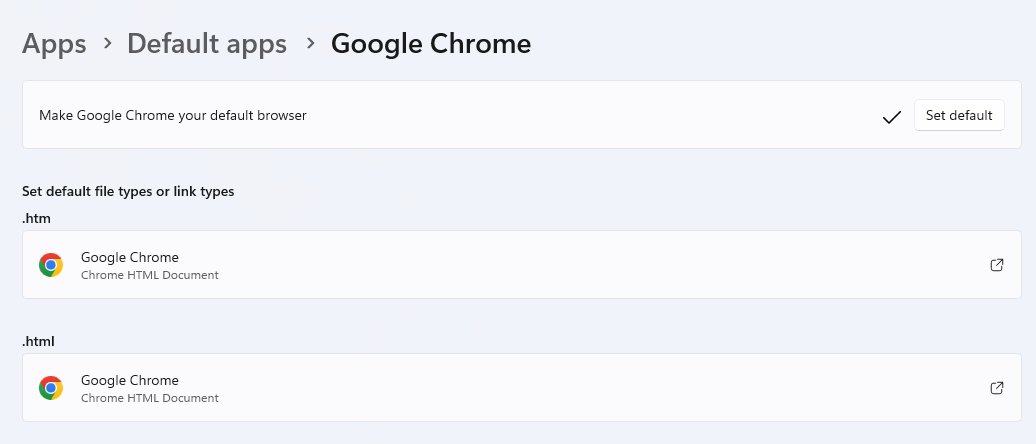
- At the top, next to Make Google Chrome your default browser, select Set default.
- Review the list of file types and link types below it; HTTP, HTTPS, .htm and .html should now show Google Chrome.
This is the same change whether you want to change the default browser in Windows 11 to Chrome, Firefox, Opera or any other browser: pick that browser in step 3 instead. The browser-neutral version is in the guide to set or remove Microsoft Edge as the default browser.
Option 2: Choose defaults by app in Settings
On the same Google Chrome page in Default apps, every file type and link type Chrome can open is listed with its current app. Select any entry that still shows another browser, such as .pdf, .svg or .webp, and choose Google Chrome.
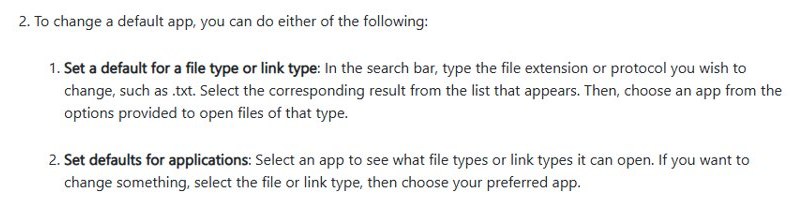
Option 3: Choose defaults by file type in Settings
- Open Settings > Apps > Default apps.
- In the Set a default for a file type or link type box at the top, type an extension such as
.html. - Select the app shown under the result and choose Google Chrome.
Option 4: Choose defaults by link type in Settings
Use the same search box with a protocol instead of an extension: type http or https, select the current app under the result, and choose Google Chrome. Setting both makes web links from other apps open in Chrome.
Option 5: Choose default app using the context menu
- Right-click a saved .html file in File Explorer.
- Select Open with > Choose another app.
- Select Google Chrome, then Always.
This changes that one file type only, not web links.
Option 6: Choose default app using file properties
- Right-click a saved .html file and select Properties.
- On the General tab, next to Opens with, select Change.
- Select Google Chrome and select OK.
How to set Chrome as the default PDF viewer (or the default app for any supported file types or link types)
Making Chrome the default browser does not change PDFs, which usually stay with Microsoft Edge on Windows 11.
- Open Settings > Apps > Default apps > Google Chrome.
- Scroll to .pdf and select the app shown under it.
- Choose Google Chrome and select Set default if Windows asks.
- Repeat for any other type in the list, such as .svg, .webp or .xhtml.
If you would rather open PDFs in a dedicated reader, the same page works the other way: you can make PDFs open in Adobe Acrobat Reader instead of Edge or Chrome.
Make Chrome the default browser on Windows 10
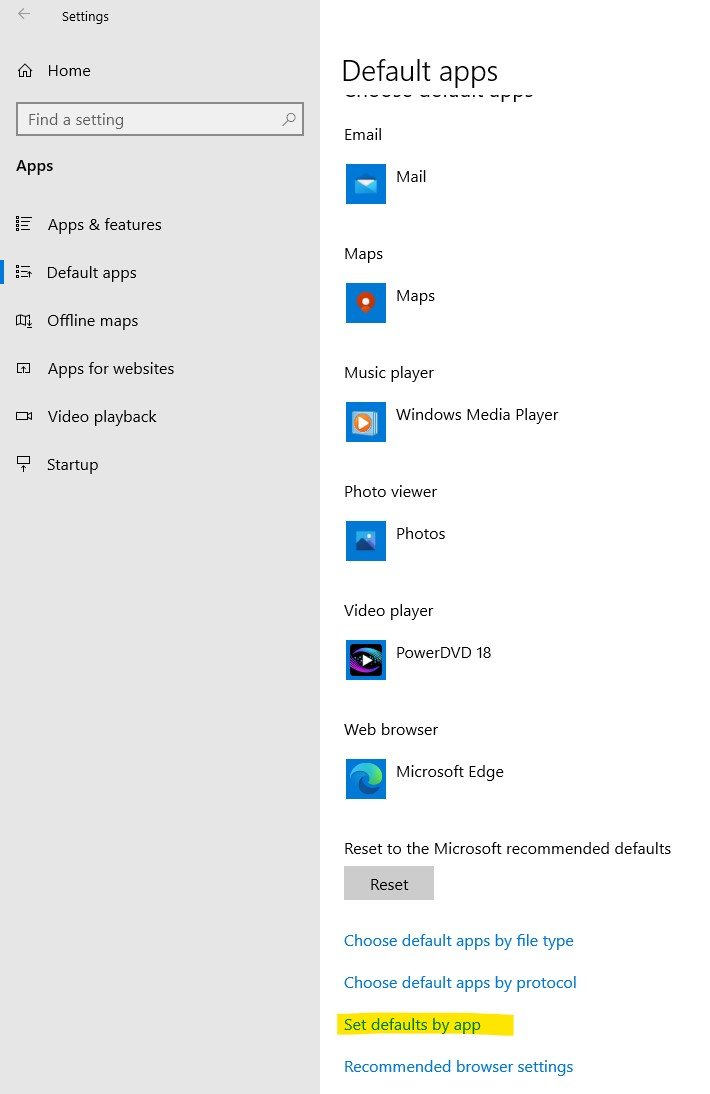
Windows 10 has one Web browser entry instead of a Set default button. Its location depends on whether your PC has the Creators Update or the original Windows 10 release.
- Select Start > Settings.
- Select Apps > Default apps. On the original Windows 10 release, select System > Default apps instead.
- Scroll to Web browser near the bottom and select the browser listed there, often Microsoft Edge.
- In the Choose an app window, select Google Chrome.
- Close Settings; the Web browser entry should now read Google Chrome.
Make Chrome the default browser on macOS
A Mac gives you two routes to the same setting. Chrome's own button is quickest; System Settings is the fallback when the button is missing.
- Open Chrome and select More (three dots, top right) > Settings.
- In the Default browser section, select Make default.
- Confirm the change if macOS asks whether to switch from your current browser.
- If there is no Make default button, Chrome is already your default browser.
- To use macOS instead, choose Apple menu > System Settings, then select Desktop & Dock in the sidebar.
- Open the Default web browser list and select Google Chrome.
Make Chrome the default browser on Linux
On Linux, Google documents the same in-browser button as on a Mac. Use it rather than hunting through each desktop environment's settings.
- Open Chrome.
- Select More (three dots, top right) > Settings.
- In the Default browser section, select Make default.
- Return to the Default browser section; if the button has gone, Chrome is now the default.
Make Chrome the default browser on Android
Chrome's own menu makes the change on Android. In some countries you may be asked to choose a default browser, and you can change that choice at any time.
- Open Chrome.
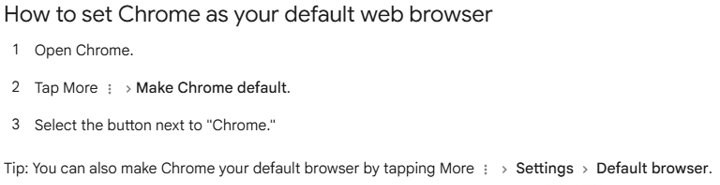
- Tap More (three dots) > Make Chrome default.
- In the list that opens, select the button next to Chrome.
- If Make Chrome default is not in the menu, tap More > Settings > Default browser instead.
- Open a link from a messaging or email app; it should open automatically in Chrome.
Make Chrome the default browser on iPhone or iPad
Apple added default browser choice in iOS 14, so older iPhones cannot use this. Chrome opens the right iOS page for you, and you make the final choice there.
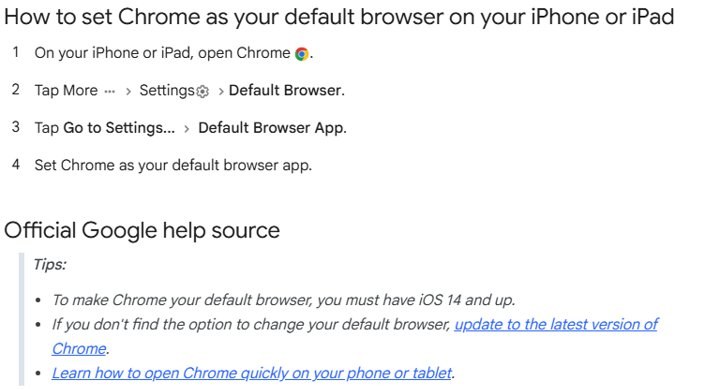
- Open Chrome on your iPhone or iPad.
- Tap More > Settings > Default Browser.
- Tap Go to Settings.
- Tap Default Browser App.
- Select Chrome.
- To do it without opening Chrome, go to Settings > Apps > Default Apps > Browser App and select Chrome.
Chrome default browser on a Chromebook, and Chrome settings to change after the switch
A Chromebook needs no default-browser step, because Chrome comes preinstalled on every new Chromebook. Chrome there updates only when you update ChromeOS itself.
On any device, a few Chrome settings are worth checking once Chrome handles all your links. Signing in is optional, but you can sign in to your Google Account in Chrome to carry bookmarks and passwords between the devices you just switched.
| What you want | Where to do it | What you get |
|---|---|---|
| Update Chrome on a Chromebook | Select the time (bottom right) > Settings > About ChromeOS > Check for updates, then Restart when the update notification appears | The latest ChromeOS and the Chrome version that ships with it |
| Sign in to Chrome | Select Profile (top right) > Sign in to Chrome, enter your Google Account details, select Next | Bookmarks, passwords and more on all your devices, recoverable if you replace one |
| Choose the search engine for the address bar | More > Settings > Search engine > Change under Search engine | Searches typed into the address bar go to the engine you pick |
| Check privacy and security | More > Settings > Privacy and security > Go to Safety Check | Checks for compromised saved passwords, Safe Browsing status, pending Chrome updates, harmful extensions and site permissions you no longer use |
How to check what your default browser is
The settings page tells you what the device thinks. Opening a real link from another app proves it.
- On a Mac or Linux PC, open Chrome Settings and look at Default browser; if there is no Make default button, Chrome is the default.
- On Windows 11, open Settings > Apps > Default apps > Google Chrome and confirm HTTP, HTTPS, .htm and .html each list Google Chrome.
- On Windows 10, confirm Settings > Apps > Default apps > Web browser shows Google Chrome.
- On an iPhone or iPad, confirm Settings > Apps > Default Apps > Browser App shows Chrome.
- Double-click a saved .html file on a computer and confirm it opens in Chrome.
- Open a web link from an email or text message and confirm it opens in Chrome; if a Windows PC opens Outlook or Teams links in Edge, use the fix below.
Chrome will not become or stay the default browser
Each fix below starts with the most common cause. An older Windows 10 case has its own fix: can't set Chrome or any other browser as default in Windows 10.
Chrome is not showing as an option in Windows Default apps
Chrome is not installed for Windows to see, or the PC runs Windows in S mode, where Microsoft Edge is always the default web browser.
- Open Settings > System > Activation and check whether the PC runs Windows in S mode.
- If it does, Chrome cannot be the default until you leave S mode; switching out means selecting Go to the Store under Switch to Windows 11 Pro (or the Windows 10 equivalent) and then Get, and that switch is one-way.
- If the PC is not in S mode, open Settings > Apps > Installed apps and search for Chrome.
- If Chrome is missing, reinstall it from
https://www.google.com/chromeand open it once. - Return to Default apps and type
Chromein the search box rather than scrolling the list.
Why can't I make Chrome my default browser even though it is listed
Set default did not take for every web type, or a work or school policy assigns file associations to another browser.
- In Settings > Apps > Default apps, type
httpsin the Set a default for a file type or link type search box and select the result. - Choose Google Chrome and confirm.
- Repeat for
http,.htmland.htm. - On a work or school PC, ask IT: the Set a default associations configuration file policy reapplies the organization's browser choice each time you sign in, and only an administrator can change it.
The default browser changes back, or Chrome keeps asking to be the default
Another browser was allowed to take back one or more web link types, so Chrome is no longer the default for every link. Windows updates and browser extensions are the other usual reasons a default browser keeps changing without your say.
- Set Chrome again with the Windows 11 or Windows 10 steps above.
- Check HTTP, HTTPS, .htm and .html individually, because one reverted type is enough to send links elsewhere.
- When another browser offers to become the default, decline its prompt.
- Sign out and back in, then check the Default apps page again; a revert at every sign-in on a managed PC points to the policy described above.
Links from Outlook emails or Teams chats still open in Microsoft Edge
On Windows 11 and Windows 10, Outlook and the Teams desktop app can open links in Edge regardless of your Windows default until you change their own setting.
- In new Outlook for Windows, select Settings > General > Files and links.
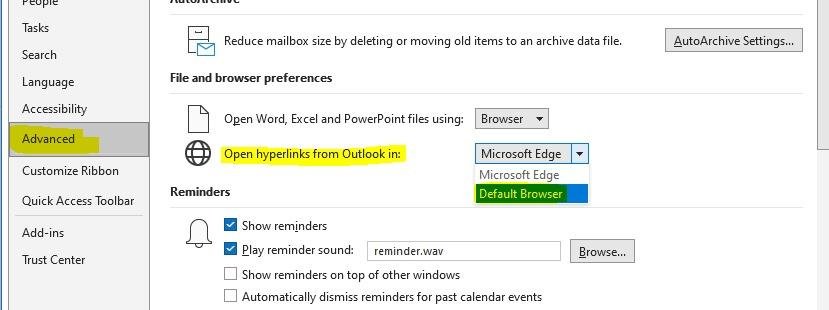
- Under Open hyperlinks from Outlook in, choose Google Chrome from the list.
- In classic Outlook, select File > Options > Advanced and change the same list under File and browser preferences.
- In Teams, select Settings > Files and links > Link open preferences and pick your browser.
- Expect the Outlook and Teams settings to mirror each other; changing one changes the other.
Windows Search results or Widgets still open in Edge
Microsoft changed Windows Search web results and Widgets to use your default browser in the European Economic Area only.
- Confirm Chrome is set for HTTP and HTTPS in Default apps.
- Outside the European Economic Area, open the result in Edge and copy its address into Chrome; Windows Settings has no separate switch for these two features.
There is no default browser option for Chrome on iPhone or iPad
Chrome or iOS is out of date; default browser choice needs iOS 14 or later.
- Update Chrome to the latest version from the App Store.
- Update iOS or iPadOS to the latest version, which Apple requires for the Default Apps settings.
- Open Chrome and tap More > Settings > Default Browser again.
Make Chrome default browser FAQ
How do I make Chrome my default browser on Windows 11?
Select Start > Settings > Apps > Default apps, type Chrome under Set defaults for applications, select Google Chrome, and select Set default next to Make Google Chrome your default browser. HTTP, HTTPS, .htm and .html then open in Chrome.
How do I make Chrome my default browser on Windows 10?
Select Start > Settings > Apps > Default apps, then select the browser shown under Web browser and choose Google Chrome in the Choose an app window. On the original Windows 10 release, Default apps is under System instead of Apps.
Can I make Chrome the default browser from inside Microsoft Edge?
No. The switch is made in Windows, not in Edge. Open Settings > Apps > Default apps, select Google Chrome and select Set default. On Windows 10, pick Google Chrome under Web browser. Edge keeps working as a normal browser afterwards.
How do I make Chrome my default browser on a Mac?
Open Chrome, select More > Settings, and select Make default in the Default browser section. If the button is missing, Chrome is already the default. You can also choose Apple menu > System Settings > Desktop & Dock and pick Chrome under Default web browser.
How do I make Chrome my default browser on Android?
Open Chrome, tap More > Make Chrome default, and select the button next to Chrome. If that menu item is missing, tap More > Settings > Default browser. Links then open automatically in Chrome.
How do I make Chrome the default browser for Outlook links?
Outlook can open links in Edge regardless of the Windows default. In new Outlook, go to Settings > General > Files and links and change Open hyperlinks from Outlook in. In classic Outlook, use File > Options > Advanced > File and browser preferences.
How do I make Chrome the default browser for Teams?
In the Teams desktop app for Windows, open Settings > Files and links > Link open preferences and choose your browser. The choice is shared with Outlook, so changing it in either app changes it in both.
How do I make Chrome the default browser on an HP or Dell laptop?
Use the normal Windows steps; HP and Dell laptops run standard Windows 11 or Windows 10. Open Settings > Apps > Default apps, select Google Chrome and select Set default. If Chrome is not listed, check whether the laptop shipped in S mode.
Why can't I make Chrome my default browser?
The usual causes are Windows in S mode, which always keeps Edge as the default, a missing Chrome install, one link type still assigned to another browser, or a work policy. Check Activation for S mode, reinstall Chrome, and set HTTP, HTTPS, .htm and .html individually.
Can I make Chrome my default browser on an iPhone?
Yes, on iOS 14 or later. Open Chrome, tap More > Settings > Default Browser > Go to Settings, then tap Default Browser App and select Chrome. If the option is missing, update Chrome and iOS first.
Do I need to sign in to Chrome after making it my default browser?
No. Signing in is optional and does not affect the default browser setting. Sign in through Profile > Sign in to Chrome if you want bookmarks, passwords and more available on all your devices.






