A computer is usually slow because one process, too many startup apps, a full drive or a pending update is eating CPU, memory or disk, and Task Manager (Ctrl + Shift + Esc) shows you which one.
This hub covers opening and reading Task Manager, the fixes for each heavy process, Microsoft's twelve performance tips, power modes and battery, freezing and slow shutdown, and virtual memory on Windows 11 and Windows 10.
Quick Task Manager shortcuts
The keyboard shortcut works on Windows 11 and Windows 10 and opens Task Manager straight to the last tab you used. Every other route, including running it as administrator, is in the list of 12 Task Manager shortcuts.
- Press Ctrl + Shift + Esc together.
- If the window opens in compact view, select More details.
- Select Processes to see which apps use CPU, memory and disk right now.
11 ways to open Task Manager
Pick the route that matches what still responds on your PC. A frozen desktop often still accepts Ctrl + Alt + Delete, because Windows handles that combination before any app does.
| Method | What to do | Best when |
|---|---|---|
| Using a keyboard shortcut | Press Ctrl + Shift + Esc | The keyboard works; fastest route |
| Using a key combination and an option | Press Ctrl + Alt + Delete, then select Task Manager | An app has taken over the screen |
| Using the Power User Menu | Right-click Start (or press Win + X) and select Task Manager | You prefer the mouse |
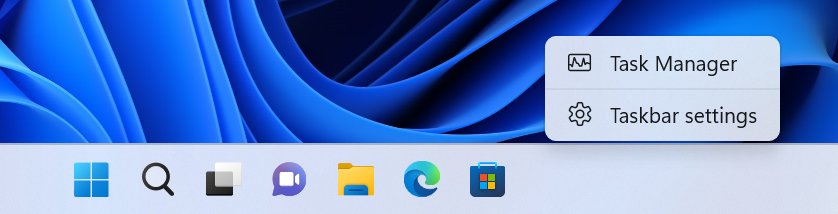
| From Windows taskbar | Right-click an empty area of the taskbar and select Task Manager | The taskbar still responds |
| Using Start menu / search bar | Open Start, type Task Manager, press Enter | You want the search bar route |
| With the Run box | Press Win + R, type taskmgr, press Enter |
Run command users |
| From Command Prompt | Type taskmgr and press Enter |
You are already in a terminal |
| From Windows PowerShell | Type taskmgr and press Enter |
Scripted or admin sessions |
| Using File Explorer | Open C:\Windows\System32 and double-click Taskmgr.exe |
Shortcuts are blocked |
| With a desktop shortcut | Double-click a shortcut that points to taskmgr |
You open it many times a day |
| Remote Desktop session | Press Ctrl + Alt + End | Ctrl + Alt + Delete would go to your local PC |
How to create a desktop shortcut for Windows Task Manager
- Right-click an empty area of the desktop.
- Select New > Shortcut.
- Type
taskmgrin Type the location of the item and select Next. - Name the shortcut Task Manager and select Finish.
- Double-click the new icon to confirm it opens Task Manager.
Using the Task Manager tool is a good starting point
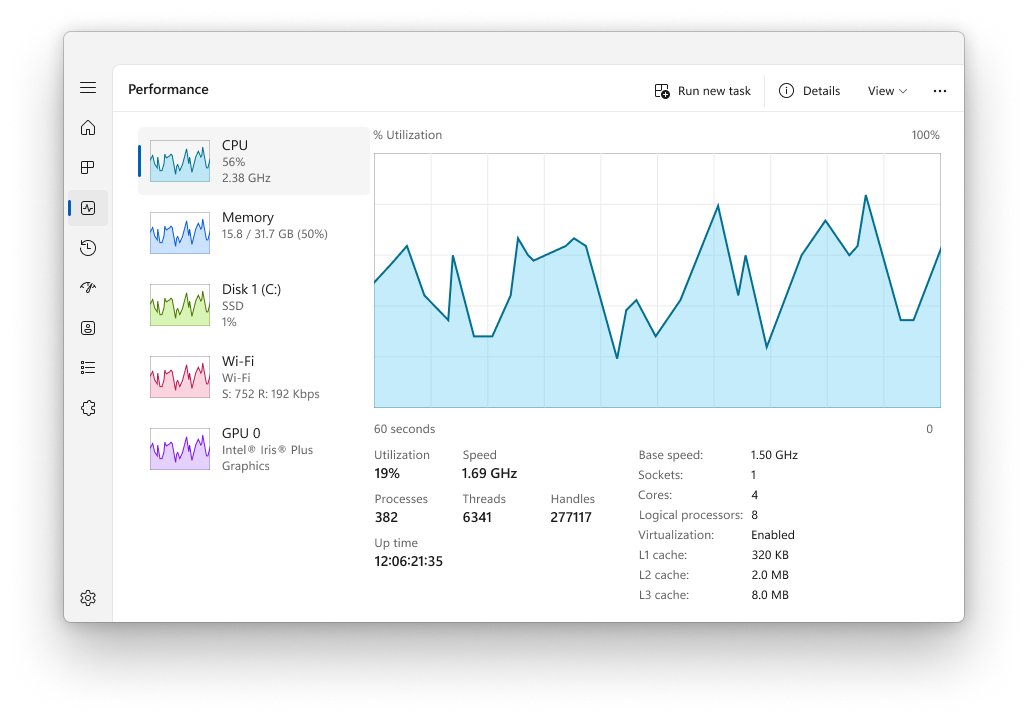
Microsoft describes Task Manager as a system monitor and startup manager that can also end unresponsive programs. Each tab answers a different slow-PC question.
| Task Manager page | What it tells you | Use it to |
|---|---|---|
| Processes | Live CPU, Memory, Disk and Network use per app and background process | Find the heavy process and select End task |
| Performance | Graphs for CPU, memory, disk, network and GPU, including committed memory | Keep an eye on the CPU and spot a full commit limit |
| App history | Resource use by Store apps over time | Find apps that run heavily in the background |
| Startup apps | Every app that launches at sign-in, with a startup impact rating | Disable apps that slow startup |
| Users | Resource use per signed-in account | Spot another account's heavy apps |
| Details | Every running .exe with its process ID | Match a process name to its file |
| Services | Running and stopped Windows services | Check services such as SysMain |
Browsers have their own process view: Chrome's built-in Task Manager opens with Shift + Esc and names the tab or extension behind each chrome.exe entry. For a deeper tree of parent and child processes, open Process Explorer, the free Sysinternals tool, after you get the Process Explorer ZIP from Microsoft.
Solution 10. Monitor resource usage and troubleshoot heavy processes
This step also covers finding and fixing misbehaving processes, and closing unused apps before a restart. Sorting a column puts the culprit at the top.
- Press Ctrl + Shift + Esc and select Processes.
- Select the CPU column header to sort by processor use, then repeat for Memory and Disk.
- Right-click an app you are not using and select End task.
- Open Performance to see whether CPU, memory or disk stays near 100% after the app closes.
- Close unused apps and browser tabs, then select Start > Power > Restart and reopen only what you need.
If the CPU graph stays high with nothing open, the steps to check and reduce CPU usage walk through each cause.
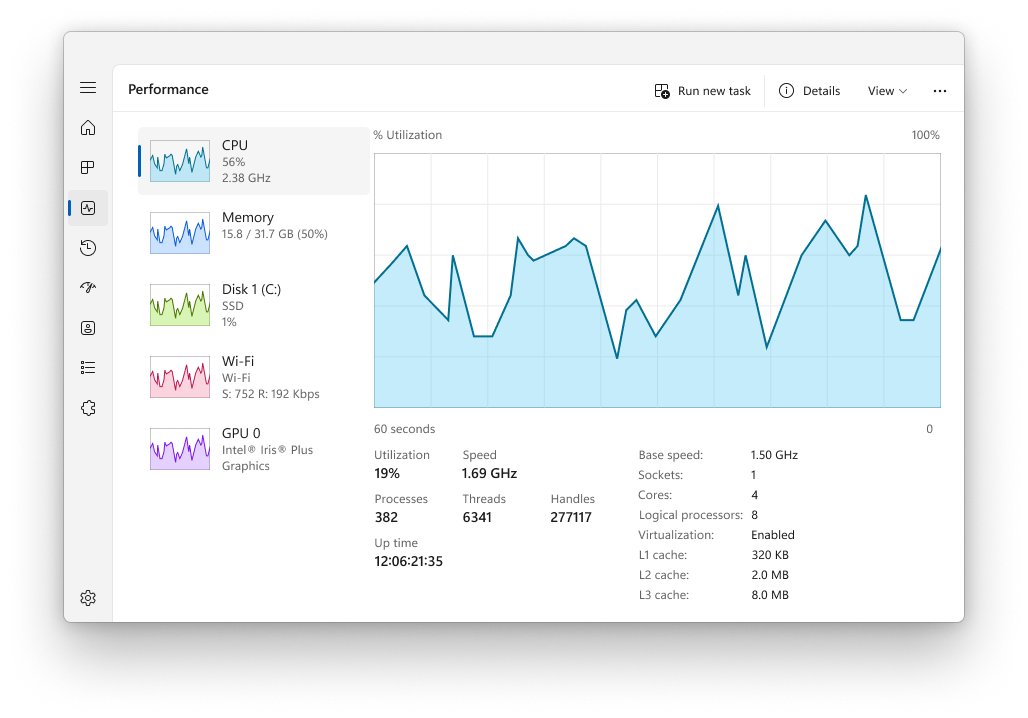
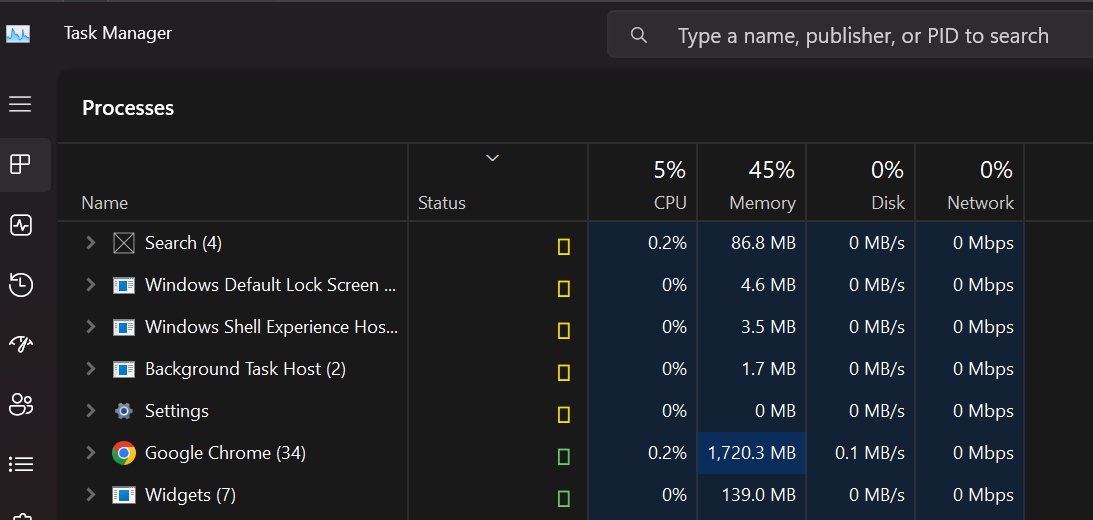
Task Manager high CPU, memory and disk usage by process
These are the process names that most often sit at the top of the Processes tab. Ending a system process is rarely the fix; the cause column tells you what to change instead.
| Process | What it is | Common cause | Fix |
|---|---|---|---|
| Antimalware Service Executable (MsMpEng.exe) | Microsoft Defender Antivirus | Scheduled scans, scans after a definition update, very large files | Move the scan schedule and fix Defender's high CPU use without turning protection off |
| Vmmem | The virtual machine behind WSL 2, Docker Desktop or Hyper-V | WSL 2 can take up to half of your RAM by default | Run wsl --shutdown, then cap Vmmem memory in .wslconfig |
| WSAPPX | The Microsoft Store app deployment service | Store app installs and updates | Let updates finish, then calm WSAPPX CPU spikes |
| msedge.exe | Microsoft Edge and its tabs and extensions | A heavy tab or extension | Find the tab and fix msedge.exe disk or CPU use |
| Microsoft Compatibility Telemetry (CompatTelRunner.exe) | Windows diagnostic data collection | Its scheduled compatibility scan | Limit diagnostic data and stop Compatibility Telemetry hogging the CPU |
| Microsoft Software Protection Platform (sppsvc) | The Windows licensing service | Licence download, installation or enforcement work | Restart the service and repair sppsvc high CPU |
| OpenJDK Platform binary | A Java app such as a game server or IDE | The Java app's own workload | Find the app and limit OpenJDK memory |
| Service Host: SysMain | Windows' memory prefetch service | Preloading apps on a slow hard drive | Test first, then disable or tune SysMain |
When the Memory column is high but no single app stands out, the causes behind high RAM usage with nothing running are usually cached memory, startup apps or a memory leak.
Solution 5. Disable startup apps to reduce the background activity
Limiting startup processes is the single change that most shortens sign-in. Task Manager rates each entry: High impact means over 1 second of CPU time or over 3 MB of disk use at startup.
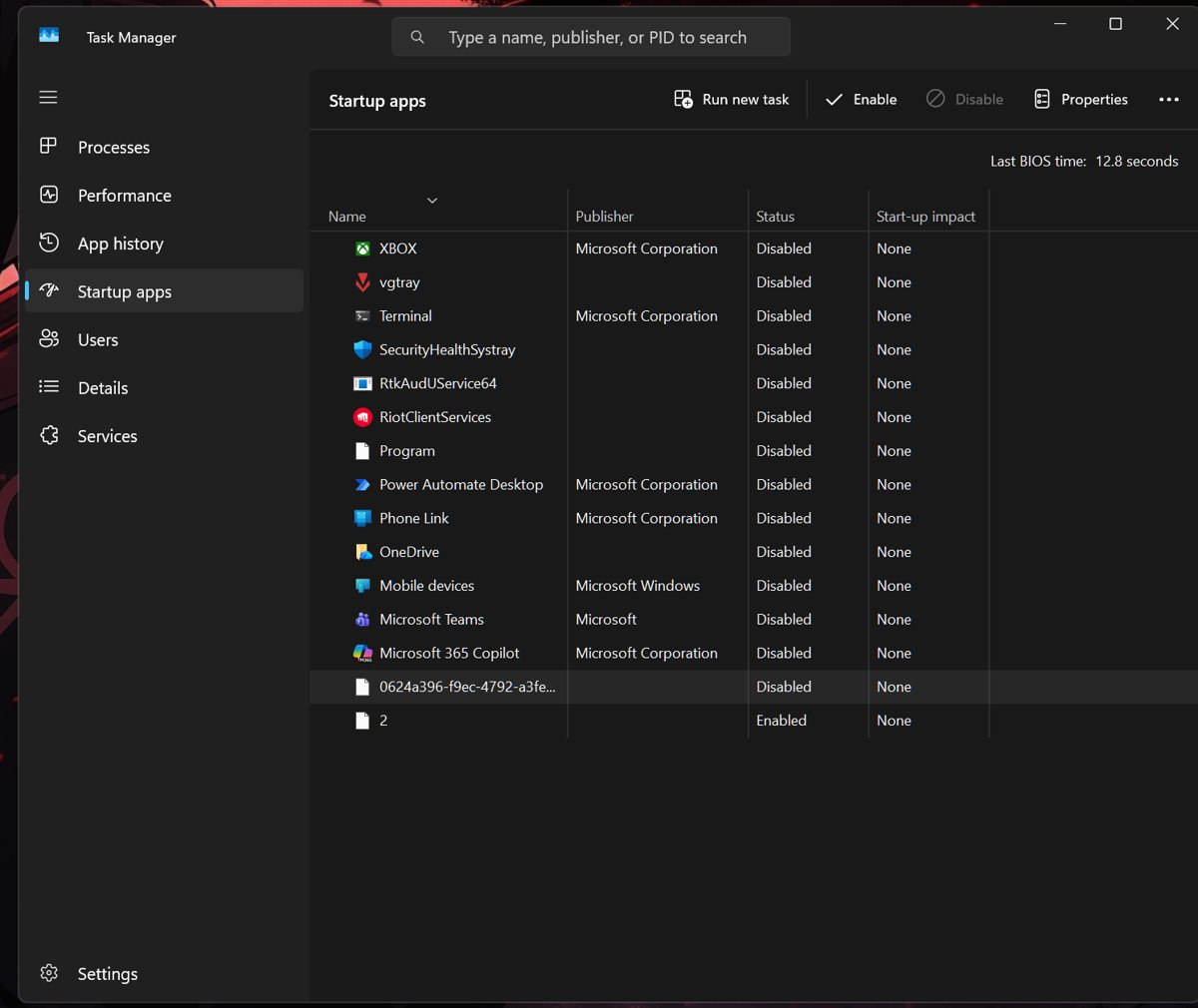
- Press Ctrl + Shift + Esc and select Startup apps.
- Sort by Startup impact to put the heaviest entries first.
- Right-click an app you do not need at sign-in and select Disable.
- On Windows 11, you can also open Settings > Apps > Startup and turn the switch Off.
- Restart and time how long the desktop takes to become usable.
The Startup apps tab misses some entries, so list every startup program from shell:startup, the Run keys and Services too. The Startup folder and Task Scheduler routes are part of the full steps to disable startup programs. An entry simply named Program is usually a leftover; here is how to identify the unnamed Program entry.
Why bloat happens
A PC slows down over time as apps add startup entries, background services and files. A sudden slowdown usually has one fresh cause you can find in Task Manager.
| What you notice | Likely cause | Where to look |
|---|---|---|
| Slow all of a sudden or slow today | An update installing, a scan running or a new app | Processes tab sorted by CPU and Disk |
| Slow to startup | Too many startup apps | Startup apps tab |
| Slow all the time | Low free disk space, old hardware, bloat from years of installs | Settings > System > Storage |
| Slow to respond or laggy | RAM full, so Windows pages to disk | Performance > Memory |
| Slow after a feature update | Pending updates, new background tasks, outdated drivers | Windows Update and Device Manager |
| Slow on the internet or downloading | Network use by an app, a weak connection | Processes tab Network column |
Start with the 16 built-in fixes for a computer that is so slow, and an update-specific slowdown is covered by Windows 11 26H2 running slow fixes.
Speed up a Windows 11 laptop or desktop computer
This checklist follows Microsoft's own tips to improve PC performance, in the order to try them, and is the quickest way to fix existing bloat. Microsoft recommends trying all of them, because several factors usually combine.
| Check | Windows 11 path | Windows 10 path |
|---|---|---|
| Keep Windows up to date, plus optional driver updates | Settings > Windows Update > Advanced options > Optional updates | Settings > Update & Security > Windows Update > View optional updates |
| Check for viruses and spyware | Settings > Privacy & security > Windows Security > Virus & threat protection > Quick scan | Settings > Update & Security > Windows Security > Quick scan |
| Clean up your disk | Settings > System > Storage > Temporary files | Settings > System > Storage > Configure Storage Sense |
| Uninstall crapware and unused apps | Settings > Apps > Installed apps | Settings > Apps > Apps & features |
| Limit startup apps | Task Manager > Startup apps | Task Manager > Startup |
| Stop background apps | Installed apps > Advanced options > Background app permissions | Settings > Privacy > Background apps |
| Adjust for best performance | Search Adjust the appearance and performance of Windows | Same |
| Power mode | Settings > System > Power & battery > Power mode | Power & sleep > Additional power settings |
| Optimize drives | Search Defragment and Optimize Drives | Same |
| Turn off notifications | Settings > System > Notifications | Settings > System > Notifications & actions |
Microsoft also offers Microsoft PC Manager, an optional app that bundles cleanup and startup controls; every check above works without it. Step-by-step versions for both Windows releases are in the walkthrough to speed up a computer or laptop.
Solution 1. Install Windows updates and optional driver updates
- Select Start > Settings > Windows Update > Check for updates.
- Install what it finds and restart if asked.
- Return to Windows Update and select Advanced options > Optional updates.
- Select any driver updates listed and choose Download & install.
On Windows 10, the path is Settings > Update & Security > Windows Update, then View optional updates. Windows 10 support ended on October 14, 2025, so Microsoft recommends moving to Windows 11.
Solution 2. Run a malware scan to detect and remove threats that slow PC performance
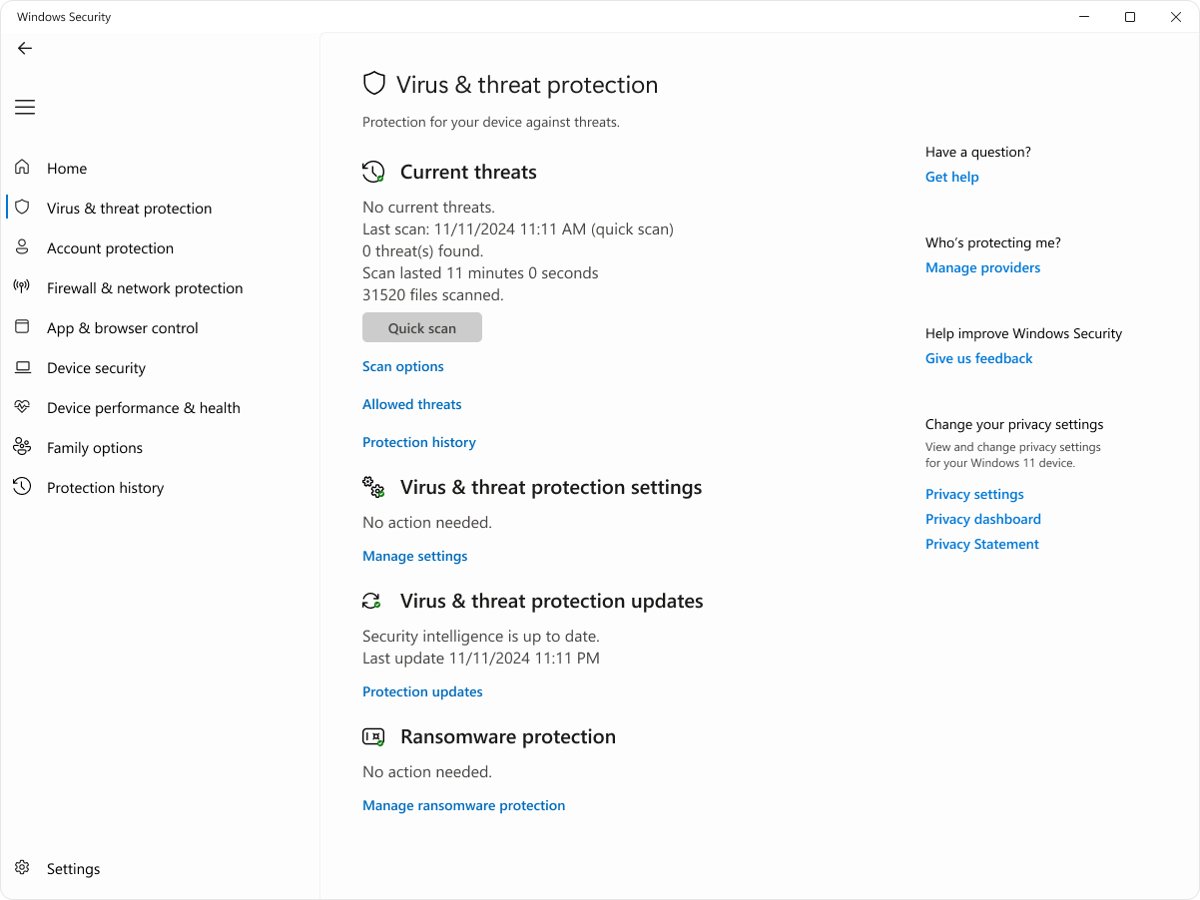
- Select Start > Settings > Privacy & security > Windows Security.
- Select Virus & threat protection.
- Select Quick scan and wait for the result.
- Remove anything it finds, then restart.
Solution 3. Free up disk space to boost PC performance
- Select Start > Settings > System > Storage.
- Open Storage Sense and select Run Storage Sense now.
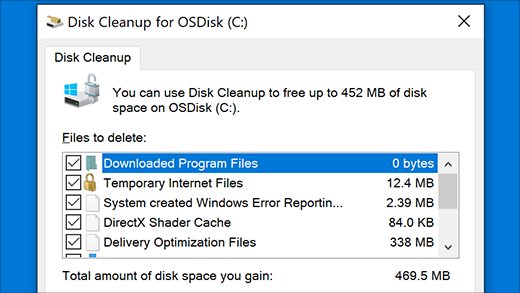
- Go back and select Temporary files, tick what to delete and select Remove files.
- For older system files, open Start, type Disk Cleanup, open it and select the drive.
Solution 4. Uninstall unused apps to free space and boost performance
- Select Start > Settings > Apps > Installed apps.
- Select More options (…) next to an app you no longer use.
- Select Uninstall and confirm.
- Repeat for preinstalled trial apps and toolbars you never opened.
Solution 6. Turn off background apps and background permissions
- Select Start > Settings > Apps > Installed apps.
- Select More options (…) next to the app and choose Advanced options.
- Under Background app permissions, set Let this app run in the background to Never.
- On Windows 10, open Settings > Privacy > Background apps and turn the app's switch off.
Solution 7. Choose the best performance option in Control Panel
This is the same as changing the system appearance in Performance Options: animations and shadows go, and the PC feels quicker on weak graphics hardware.
- Open Start and search Adjust the appearance and performance of Windows.
- Open the result to reach Performance Options.
- On the Visual Effects tab, select Adjust for best performance.
- Select Apply, then OK.
To keep smooth fonts while dropping the rest, trim visual effects in Performance Options one by one.
Solution 8. Set Power mode to Best performance
Changing the power mode to best performance lifts Windows' power limits, but Microsoft warns it uses more power, drains a laptop battery faster and can make the device warmer.
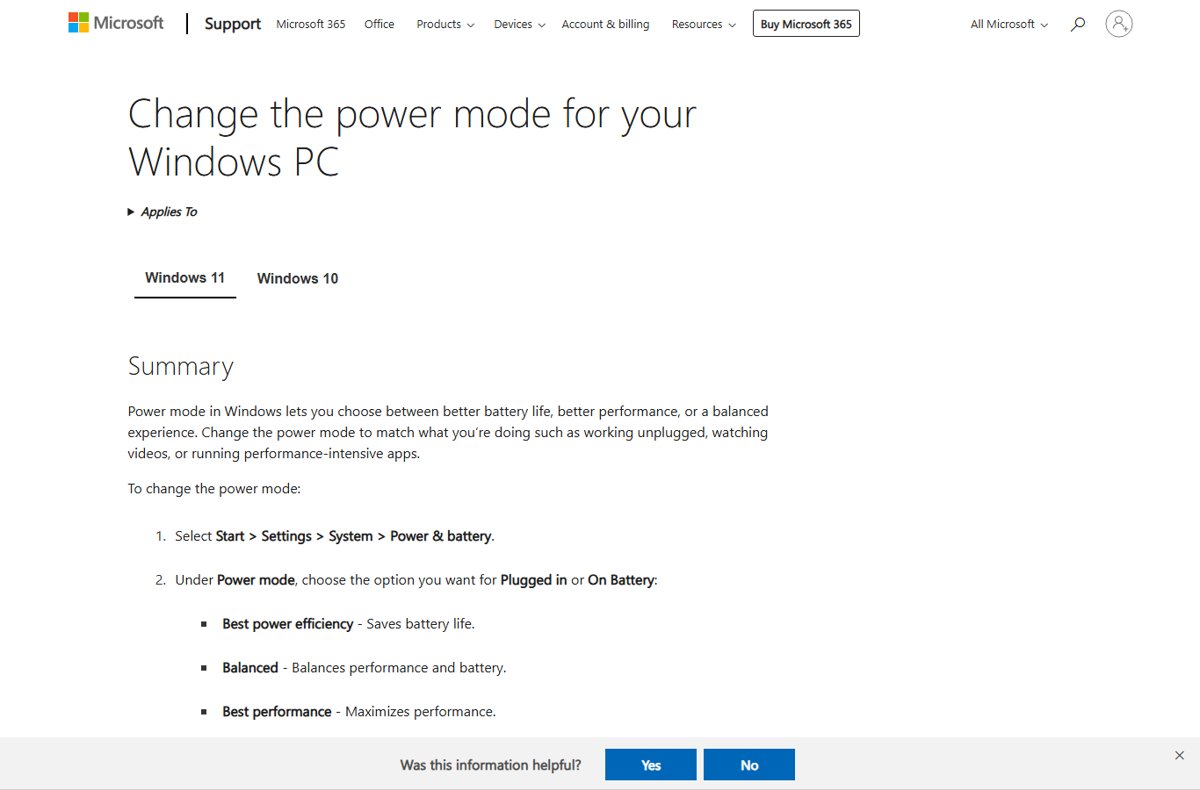
- Select Start > Settings > System > Power & battery.
- Open the Power mode list.
- Select Best performance while plugged in, or Best power efficiency to limit background activity on battery.
- On Windows 10, open Power & sleep > Additional power settings, select Show additional plans and choose High performance.
Windows 11 hides the old plans; one command will add the High performance power plan back, and another unhides Processor performance boost mode in Power Options.
On a laptop, balance speed against runtime: shorter timers and energy saver are part of the Windows 11 power and sleep settings, and you can customize Windows 11 battery settings such as low battery alerts. You can also show the battery percentage next to the icon, and if runtime is collapsing, work through the laptop battery draining fixes.
Solution 9. Optimize drives to boost PC performance
- Open Start, type Defragment and Optimize Drives and open it.
- Select the drive Windows is installed on.
- Select Optimize and wait for the status to read OK.
- Leave Scheduled optimization on so it repeats automatically.
Solution 11. Turn off unnecessary app notifications
Turning off tips and notifications stops apps from waking up just to show a banner.
- Select Start > Settings > System > Notifications.
- Turn off the switch for each app you do not need alerts from.
- On Windows 10, the page is Settings > System > Notifications & actions.
How to increase virtual memory in Windows 11
Virtual memory is RAM plus the page file, and Windows calls the total the commit limit. When committed memory reaches it, apps can freeze or crash, so a larger page file helps a PC that runs out of memory.
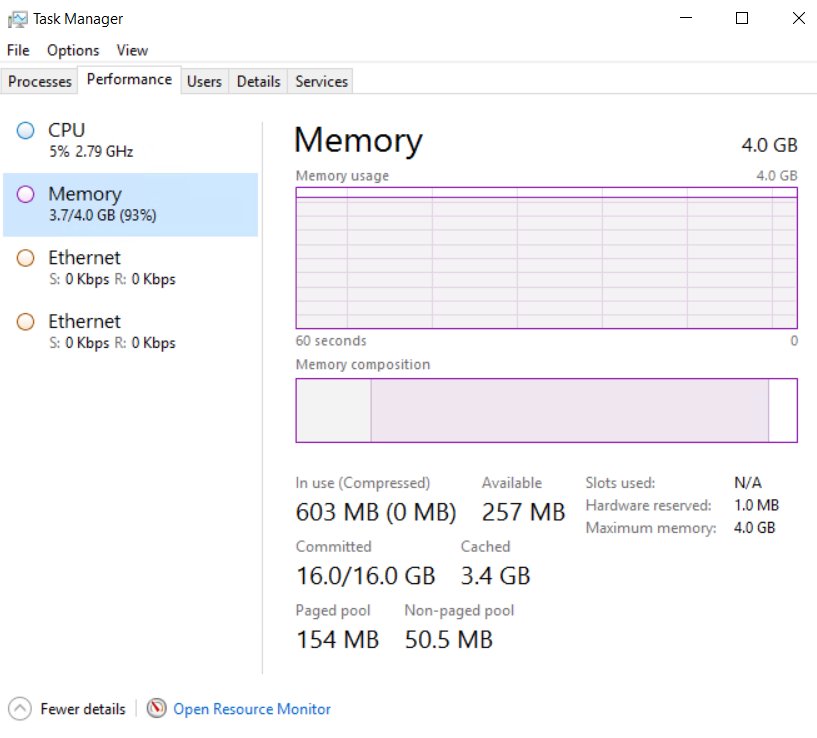
System-managed page files already grow on their own, up to three times your RAM or 4 GB, whichever is larger, capped at one-eighth of the drive. Check Committed on Task Manager's Performance > Memory page before changing anything.
Leave the page file on System managed unless Task Manager shows Committed close to its limit; then set a custom size rather than turning it off. The page file also backs crash dumps, and some software requires one, so removing it trades a little disk space for crashes when memory runs out.
The System Properties steps are in the walkthrough to increase virtual memory, and the reason you should never delete pagefile.sys by hand is explained separately.
10. Add more RAM (if you can)
Microsoft notes that older PCs with outdated hardware may not improve much from settings alone. These upgrades and habits fix what software cannot.
| Upgrade or habit | When it helps | Sign in Task Manager |
|---|---|---|
| Add more RAM | Memory sits near full with normal apps open | Performance > Memory in use and Committed stay high |
| Install an SSD startup drive | Windows runs from a hard disk | Disk active time pinned at 100% |
| Keep your PC cool | Speed drops after minutes of load | CPU speed falls while utilization stays high |
| Turn off search indexing (only as a test) | Disk use spikes while files are indexed | Search indexer near the top of the Disk column |
| Run troubleshooters | A specific device or feature misbehaves | Get Help troubleshooters in Settings |
For games, Game Mode, graphics settings and driver updates matter more than any of the above; the full list of ways to boost gaming performance covers a bonus set of game settings.
Why is my computer so slow and laggy?
Disk at 100% and long waiting times during copying
A process such as the indexer, SysMain or Defender is saturating the drive, or the drive itself is slow.
- Open Task Manager and sort Processes by Disk.
- Note the top process and let any update or scan finish.
- If it stays at 100%, work through the 100% disk usage fixes.
Computer keeps freezing
Memory or disk overload, heat, drivers, failing hardware, or RAM with defects and errors.
- Check Performance > Memory for a full commit limit.
- Watch CPU, GPU temperature and functionality of your graphics card under load in the Performance tab.
- Test your RAM and drive, following the laptop freezing causes in order.
Screen frozen and nothing responds
An app or driver has stopped responding.
- Press Ctrl + Alt + Delete and select Task Manager.
- End the app marked Not responding.
- If even that fails, force restart a frozen PC.
Windows takes forever to shut down
Updates installing, or an app, service or driver that will not close.
- Let any Updating message finish.
- Close open apps before you shut down.
- Find the cause behind Windows taking forever to shut down, then apply the slow shutdown fixes for Windows 10.
Chrome freezes on Windows 11
Task Manager's Efficiency mode throttles Chrome's processes.
- Open Task Manager and expand Google Chrome in Processes.
- Check whether Efficiency mode is turned on for its processes.
- Turn off Efficiency mode for Chrome permanently.
How to check why my computer is so slow
- Restart, wait two minutes, then press Ctrl + Shift + Esc.
- On Performance, note CPU, Memory and Disk use while idle.
- Open the apps you normally use and compare the graphs.
- A resource that stays near 100% points to the cause; sort Processes by it to name the process.
- Repeat after each fix to confirm the number dropped.
Why is my computer so slow FAQ
Why is my computer so slow all of a sudden?
A sudden slowdown usually means an update, a virus scan or a newly installed app is using CPU or disk. Open Task Manager with Ctrl + Shift + Esc, sort Processes by CPU and Disk, and let updates or scans finish before changing settings.
Why is my computer so slow to startup?
Too many apps launch at sign-in. Open Task Manager, select Startup apps, sort by Startup impact and disable the High impact apps you do not need right away. Restart to measure the difference.
Why is my computer so slow on Windows 11?
The common causes on Windows 11 are startup apps, background apps, low disk space and pending updates. Work through Microsoft's checklist: updates, a Quick scan, Storage Sense, unused apps, startup apps and the Best performance power mode.
Why is my computer so slow on Windows 10?
Windows 10 slows for the same reasons as Windows 11, but it no longer gets security updates after October 14, 2025. Clean up startup apps and disk space, and plan a move to Windows 11 if the hardware supports it.
How can I find out why my computer is so slow?
Use Task Manager. The Performance tab shows whether CPU, memory or disk is the bottleneck, and sorting the Processes tab by that column names the process responsible.
Why is my computer so slow when playing games?
Games need the GPU and CPU at full speed, so background apps, a power-saving mode, heat or outdated graphics drivers hold them back. Set Power mode to Best performance, close background apps and update the graphics driver.
Why is my computer so slow on the internet?
Check the Network column in Task Manager first: an update, a cloud sync or a browser tab may be using the connection. If no process stands out, the slowdown is in the Wi-Fi or the internet connection rather than the PC.
Why is my computer so slow to respond?
Slow response usually means memory is full and Windows is paging to disk. Check Memory on the Performance tab; if it stays near full, close apps, disable startup apps or add more RAM.
Preventing future bloat
Check Task Manager's Startup apps tab and Settings > System > Storage once a month, and decline startup and background options when you install new apps. Most slowdowns build up from startup entries, background apps and a filling drive, and those two pages show all three before they become a problem.