To open a zip file on Windows, right-click it, select Extract All… and follow the prompts, or double-click it to browse the contents without extracting anything.
This guide covers the built-in File Explorer route on Windows 11 and Windows 10, 7-Zip, WinRAR, WinZip, a PowerShell command, and fixes for zip files that refuse to open.
The fastest way to open a zip file on Windows
File Explorer handles ZIP files natively, so no extra software is needed. These steps work the same on Windows 11 and Windows 10.
- Open File Explorer and go to the folder that holds the zip file, usually Downloads.
- Right-click the zip file (or press and hold it on a touchscreen).
- Select Extract All….
- Keep the suggested destination, which is a new folder next to the zip, or pick a different one.
- Confirm to start the extraction, then open the new folder to use the files.
A reader who only needs one file can skip extraction: double-click the zip, then drag that file out to the desktop or another folder.
Methods to Open Zip Files on Windows
Every method below ends with the same files on disk. They differ in what they cost, which archive formats they read and whether they handle passwords.
| Your situation | Use this | Why |
|---|---|---|
| Ordinary zip from a download or email | File Explorer Extract All… | Built in, nothing to install |
| You need one or two files from a large zip | Double-click the zip and drag the file out | No need to unpack everything |
| The zip asks for a password | 7-Zip, WinRAR or WinZip | Microsoft states Windows does not handle encrypted archives |
| RAR or 7z archive on Windows 10 | 7-Zip | Microsoft lists RAR and 7z support for Windows 11 version 24H2; 7-Zip is free and reads both |
| You already own WinZip or WinRAR | That app's own unzip command | Same result, plus extra options such as encryption |
| Many zips, a script or a remote session | PowerShell Expand-Archive | Repeatable, no mouse needed |
Open a zip file in File Explorer without extracting it
Windows treats a zip like a folder. You can browse it, open a document for a quick look, or copy out single items.
- Double-click the zip file in File Explorer. It opens like an ordinary folder.
- Browse the folders inside to find the file you want.
- Drag that file or folder out of the zip to the desktop or any other folder to extract just that item.
- To add more files to a zip you created earlier, drag them onto the zipped folder.
Programs and installers usually need the other files packed beside them, so extract the whole archive before running anything from it.
Using 7-Zip to Open Zip Files
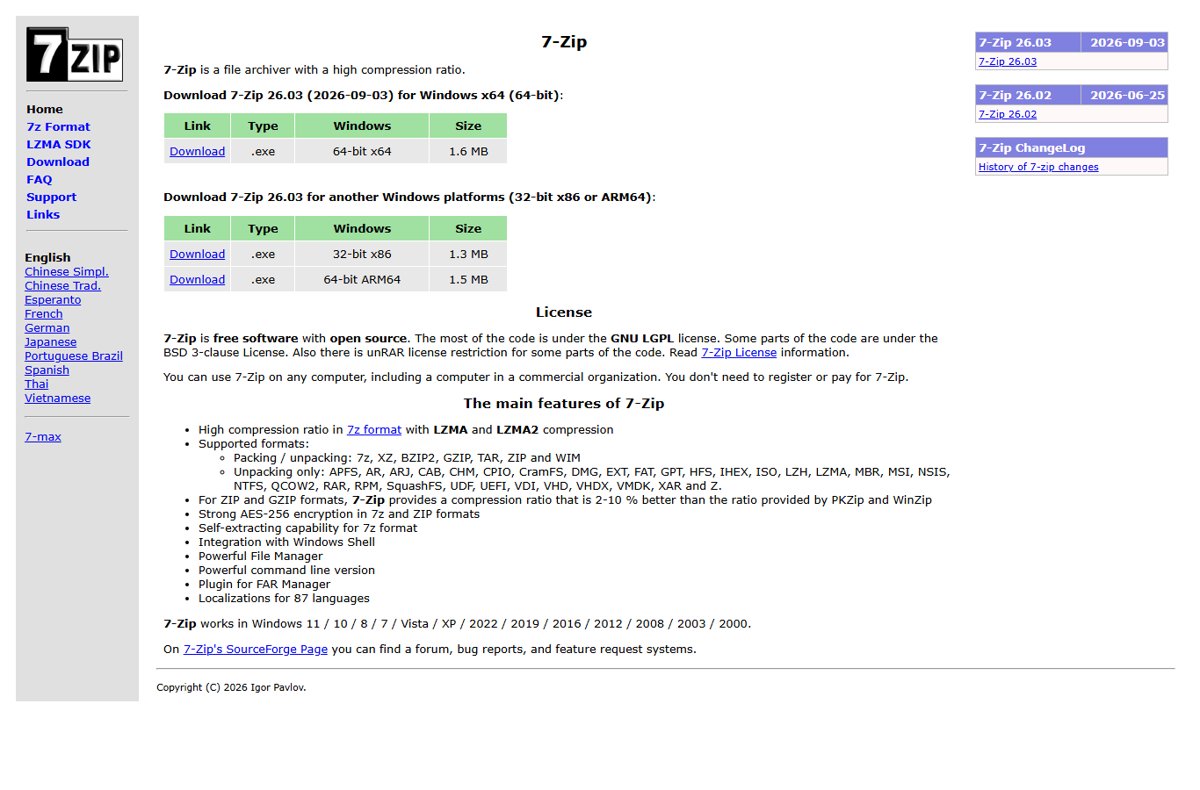
7-Zip is free, open source and allowed on work computers without registration or payment. It opens ZIP, 7z, TAR, GZIP and XZ, and extracts RAR, ISO, CAB and many other formats. The current release is 7-Zip 26.03, with builds for 64-bit x64, 32-bit x86 and ARM64 Windows.
- Download 7-Zip from the official site, 7-zip.org, picking the build that matches your Windows (x64 for most PCs, ARM64 for Arm laptops).
- Run the installer and finish setup.
- Open 7-Zip File Manager from the Start menu.
- Browse to the folder that holds your zip and double-click the zip to list its contents.
- Select the files you want, or none to take everything, and click Extract.
- Choose the destination folder and confirm. Enter the password if the archive asks for one.
7-Zip also adds itself to the right-click menu in File Explorer. To make it the default app for archive types, run 7-Zip File Manager as administrator and change the file associations in its options.
Using WinRAR to Open Zip Files
WinRAR reads ZIP as well as RAR, and Microsoft names it as an option for encrypted archives that Windows cannot open. Use it if it is already installed; for a new install, 7-Zip does the same job for free.
- Right-click the zip file in File Explorer.
- Select Open with, then choose WinRAR. On Windows 11, select Show more options first if Open with is not listed.
- Review the file list that WinRAR shows.
- Select the files you want, or leave everything unselected to take the whole archive.
- Use WinRAR's extract command, pick a destination folder and confirm.
- Type the password when prompted if the archive is encrypted.
Using WinZip to Open Zip Files
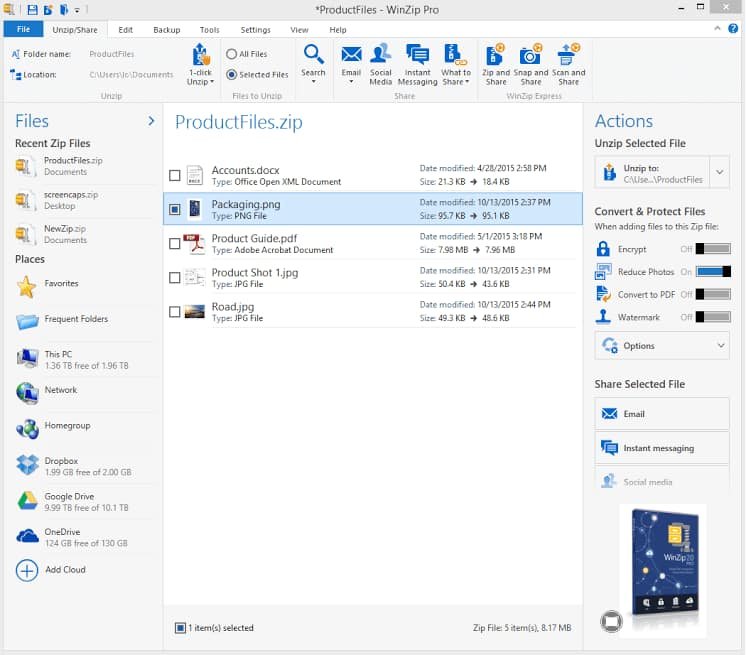
WinZip is a paid archiver from Corel with a trial. It supports ZIP, ZIPX, RAR, 7Z, TAR, ISO and more, plus 128-bit and 256-bit AES encryption.
- Double-click the .zip file. WinZip opens and shows the contents.
- In the panel on the right, click Unzip to: and choose where the files should go, such as the desktop or an external drive.
- Click Unzip to start. The files appear in the chosen location within a few moments.
- Alternatively, right-click the zip, point to WinZip, click Unzip to…, choose a location and click Unzip.
Advanced Techniques and Features
PowerShell's Expand-Archive cmdlet unpacks zip files without opening File Explorer, which suits batch jobs and remote sessions. It only handles .zip archives, and the underlying .NET API limits it to files up to 2 GB.
Expand-Archive -LiteralPath 'C:\Users\you\Downloads\report.zip' -DestinationPath 'C:\Users\you\Documents\report'-LiteralPath takes the zip path exactly as typed, which avoids problems with brackets in file names. -DestinationPath sets the target folder and creates it if needed; leave it out and PowerShell creates a folder named after the zip in the current location. Add -Force to overwrite existing files, which Expand-Archive refuses to do by default, and -PassThru to list every extracted file.
You should see: The prompt returns with no output (or the file list with -PassThru), and the destination folder holds the unpacked files.
File names stored in a non-UTF-8 encoding by another zip tool can come out with different characters. If that happens, extract the archive with 7-Zip instead.
How to check the files extracted correctly
- Open the destination folder and confirm it holds real files, not another .zip.
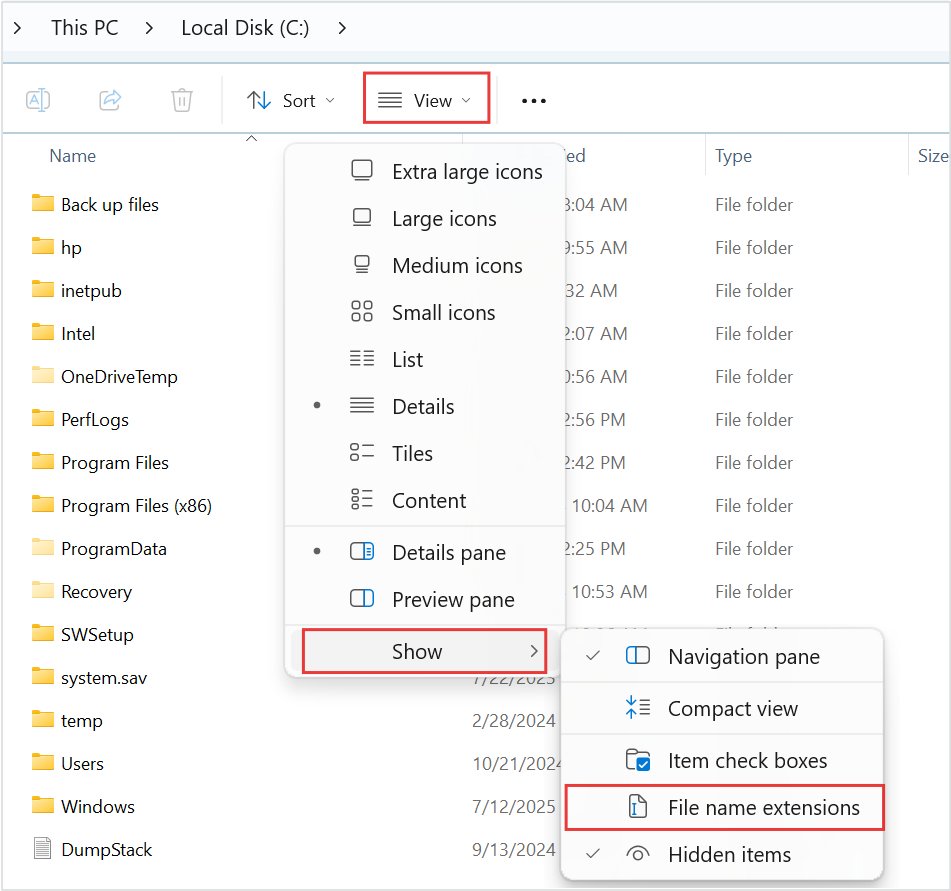
- In File Explorer, turn on View > Show > File name extensions so you can see each file's true type.
- Compare the item count with what you saw when you double-clicked the zip.
- Open one or two of the files to confirm they are not empty or damaged.
- Delete the original zip only once the extracted copies open correctly.
Understanding What a Zip File Is
| Question | Answer |
|---|---|
| What it is | A single .zip file that holds one or more compressed files and folders; Windows lists the zip extension as a compressed file |
| Why people zip files | Zipped files take up less storage space, transfer faster and bundle many files into one attachment or download |
| How much smaller | It depends on the content; files that are already compressed, such as JPEG photos, barely shrink |
| Formats Windows 11 opens | ZIP, RAR, 7z and TAR on Windows 11 version 24H2 |
| Password-protected archives | Not supported by Windows itself; use 7-Zip, WinRAR or WinZip |
| Encrypted (EFS) files inside a zip | They are unencrypted when unzipped, so avoid zipping files you encrypted for privacy |
Managing, Extracting, and Opening Files in Practice
Most problems with zip files come from using the contents while they are still packed. Match your task to the right handling.
| Task | What to do |
|---|---|
| Read a document or view a photo once | Double-click the zip and open the file from inside it |
| Edit a file and keep your changes | Extract it first, then edit the extracted copy |
| Install software or run a game | Extract the whole archive, then run the setup or game file from the extracted folder |
| Pull one file out of a large archive | Open the zip and drag just that file out |
| Add files to an existing zip | Drag them onto the zipped folder in File Explorer |
| Make a new zip to send | Right-click the files, select Show more options > Send to > Compressed (zipped) folder on Windows 11, or Send to > Compressed (zipped) folder on Windows 10 |
Tips for Efficient Handling of Zip Files on Windows
| Tip | Why it helps |
|---|---|
| Extract to a short folder such as C:\Unzip | Windows paths are limited to 260 characters in many apps, and deep folders inside a zip can exceed it |
| Show file name extensions | A file named photo.jpg.zip or invoice.pdf.exe is easy to spot |
| Check free disk space first | The unpacked files can be much larger than the zip |
| Rename the zip before extracting | The extracted folder takes the zip's name, so a clear name saves sorting later |
| Keep one tool | 7-Zip covers ZIP, RAR, 7z and TAR, so there is no need for several archivers |
How to choose which app opens zip files
If double-clicking a zip launches the wrong program, reset the default app for the .zip type.
- Open Settings.
- Select Apps > Default apps.
- Type .zip in the search bar at the top.
- Select the .zip result that appears.
- Choose the app that should open zip files, such as File Explorer or 7-Zip.
Troubleshooting Common Issues When Opening Zip Files on Windows
Windows won't open the zip file at all, or says it is invalid
The download stopped early or the archive was damaged, or the program that created it wrote faulty headers.
- Check the file size against the size listed on the download page or email.
- Delete the file and download it again. If you see a .crdownload file instead, the download never finished; see how to open a .CRDOWNLOAD file.
- Try opening it with 7-Zip, which reads some archives File Explorer rejects.
- If it still fails, ask the sender to zip the files again and resend them.
Double-clicking the zip opens the wrong app or nothing happens
Another program has taken over the .zip file type.
- Right-click the zip and select Open with, then choose the app you want for this one file.
- To fix it permanently, go to Settings > Apps > Default apps, search .zip and pick the right app.
The zip file asks for a password or won't extract because it is encrypted
Windows does not support encrypted archives.
- Install 7-Zip or open the file in WinRAR or WinZip.
- Get the password from the person who sent the file; no tool recovers it for you.
- Extract the archive and type the password when asked.
Extraction stops part-way on my PC with a path or space error
The folders inside the zip push the full path past 260 characters, or the drive is full.
- Create a short folder at the root of the drive, such as C:\Unzip.
- Move the zip into it and run Extract All… again.
- Free up disk space if the drive is close to full, then retry.
Files from a downloaded zip are blocked or won't run after extracting
Windows marks files downloaded from the internet, and extracted files keep that mark.
- Confirm the zip came from a source you trust. If it did not, delete it.
- Right-click the zip file (not the extracted folder) and select Properties.
- Select Unblock, then OK.
- Delete the earlier extracted folder and extract the zip again.
Windows won't open a RAR or 7z file
Built-in RAR and 7z support is listed for Windows 11 version 24H2; older versions only open ZIP.
- Update Windows 11 through Settings > Windows Update, or
- Install 7-Zip, which extracts RAR and 7z on Windows 10 and 11. For RAR5 archives specifically, see how to open a RAR 5 archive.
Best Practices for Managing Zip Files
| Practice | Reason |
|---|---|
| Open zips only from senders you expect | An archive can carry malware as easily as documents |
| Look at file extensions after extracting | A program disguised as a document shows its true .exe extension |
| Do not zip EFS-encrypted files to share them | They come out unencrypted when unzipped |
| Use a password-protected archive for sensitive files | 7-Zip and WinZip both offer AES-256 encryption; send the password by a different channel |
| Delete the zip once the extracted files are confirmed | It avoids working on two copies of the same files |
Frequently Asked Questions
How do I open a zip file on my PC?
Right-click the zip file in File Explorer, select Extract All… and follow the prompts. Windows unpacks it into a new folder beside the zip. To see the contents without extracting, double-click the zip instead; it opens like a normal folder.
How do I open a zip file in Windows 11?
In Windows 11, right-click the zip and choose Extract All…, or double-click it to browse the contents. Windows 11 version 24H2 also opens RAR, 7z and TAR archives the same way, without extra software.
How do I open a zip file in Windows 10?
Right-click the zip in File Explorer and select Extract All…, then follow the prompts. Windows 10 opens ZIP natively. For RAR or 7z archives, install the free 7-Zip, because Microsoft lists built-in support for those formats only on Windows 11 version 24H2.
How do I open a zip file from an email?
Save the attachment to your PC first, usually to the Downloads folder, then right-click it and select Extract All…. Saving it first puts the zip and the extracted folder in a place you can find again.
How do I open a zip file with a password?
Use 7-Zip, WinRAR or WinZip, because Windows does not support encrypted archives. Open the zip in one of those apps, start the extraction and type the password when asked. Only the sender can give you the password.
Can I open zip files without WinZip?
Yes. Windows opens ZIP files on its own through File Explorer, and 7-Zip is a free alternative that also handles passwords and many other formats. WinZip is a paid product and is not required.
How do I open a zip file game?
Extract the whole archive with Extract All… first, then open the extracted folder and run the game's setup or program file from there. Running it from inside the zip usually fails because the game cannot see its other files.
How do I open files in zip files?
Double-click the zip to open it like a folder, then double-click the file inside to view it. To edit or keep the file, drag it out of the zip to another folder first, then open that copy.
How do I open a zip file on iPhone?
Open the Files app, find the zip file and tap it. iOS creates a folder with the contents next to the zip. Tap that folder to open the files.
How do I open a zip file on Mac?
Double-click the .zip file in Finder. macOS unzips it into the same folder. If it will not open, check that the Mac has enough free space, or ask the sender to zip the files again.
Why do we zip files?
Zipping files makes them take up less storage space, transfer faster and travel as a single attachment or download. It is the standard way to send a group of files by email or share a folder online.
Final Words
Use File Explorer's Extract All… for everyday zip files, and install 7-Zip only when you meet a password-protected archive or a RAR or 7z file your Windows version cannot open. The built-in tool needs no install and covers ordinary ZIP files on Windows 10 and 11, while 7-Zip is free and fills the two gaps Microsoft itself names: encrypted archives and extra formats on older versions.






What is an EML file and how do I open it? (2026 guide) - Techdows
[…] the file came inside a compressed folder, extract the ZIP file first and open the .eml from the extracted […]