The Intel graphics driver download for Windows 11 and Windows 10 is free on the Intel Download Center, where the latest package is driver 32.0.101.9150 WHQL Certified (gfx_win_101.9150.exe, 862.6 MB, dated 2 October 2026) for Intel Arc A-series and B-series cards and the Arc graphics in Core Ultra processors. Laptops and desktops with 11th to 14th Gen Core processors, including Iris Xe, use a separate package, version 32.0.101.7092.
Pick the package that matches your processor, run it, and Setup installs the driver for your GPU.
Below you will find both official downloads, how to pick between them, installation steps, hash checks, error fixes and a clean removal.
Which Intel graphics driver download do you need?
Intel splits its Windows graphics drivers by processor generation. Find your processor name under Settings > System > About, then match it below. The number after i3, i5, i7 or i9 is the generation, so an i7-1165G7 is 11th Gen.
| Your PC has | Download | Size |
|---|---|---|
| Intel Arc A-series or B-series card, Core Ultra (Series 1, 2 or 3) or Arc graphics built into the processor | Intel Arc Graphics – Windows | 862.6 MB |
| 11th, 12th, 13th or 14th Gen Core processor with Iris Xe or UHD graphics, or an Iris Xe dedicated card (DG1) | Intel 11th – 14th Gen Processor Graphics – Windows | 744.7 MB |
| 7th, 8th, 9th or 10th Gen Core processor graphics | Intel 7th-10th Gen Processor Graphics – Windows | Final package |
| Intel Arc Pro workstation card | Intel Arc Pro Graphics – Windows | Separate workstation package |
Not sure what you have? Run Intel Driver & Support Assistant. It detects the graphics in your PC and offers the matching package.
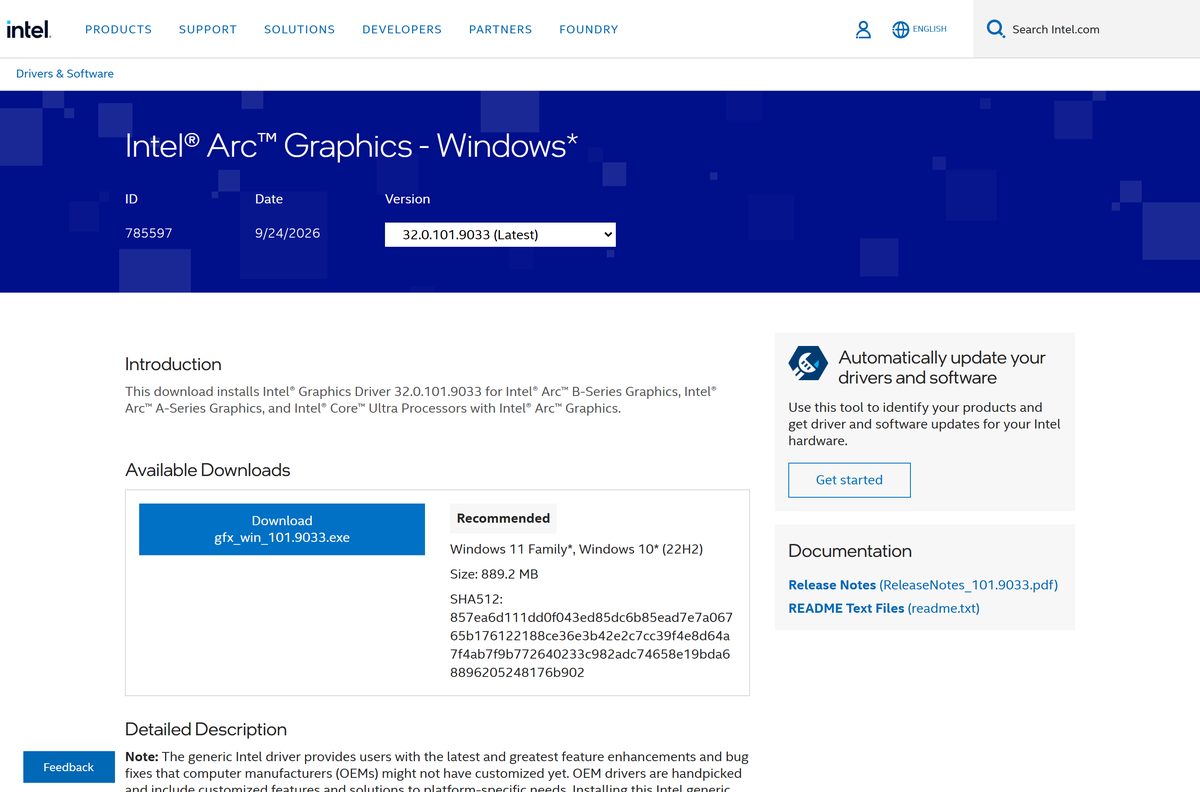
Download the Intel Arc and Iris Xe graphics drivers from intel.com
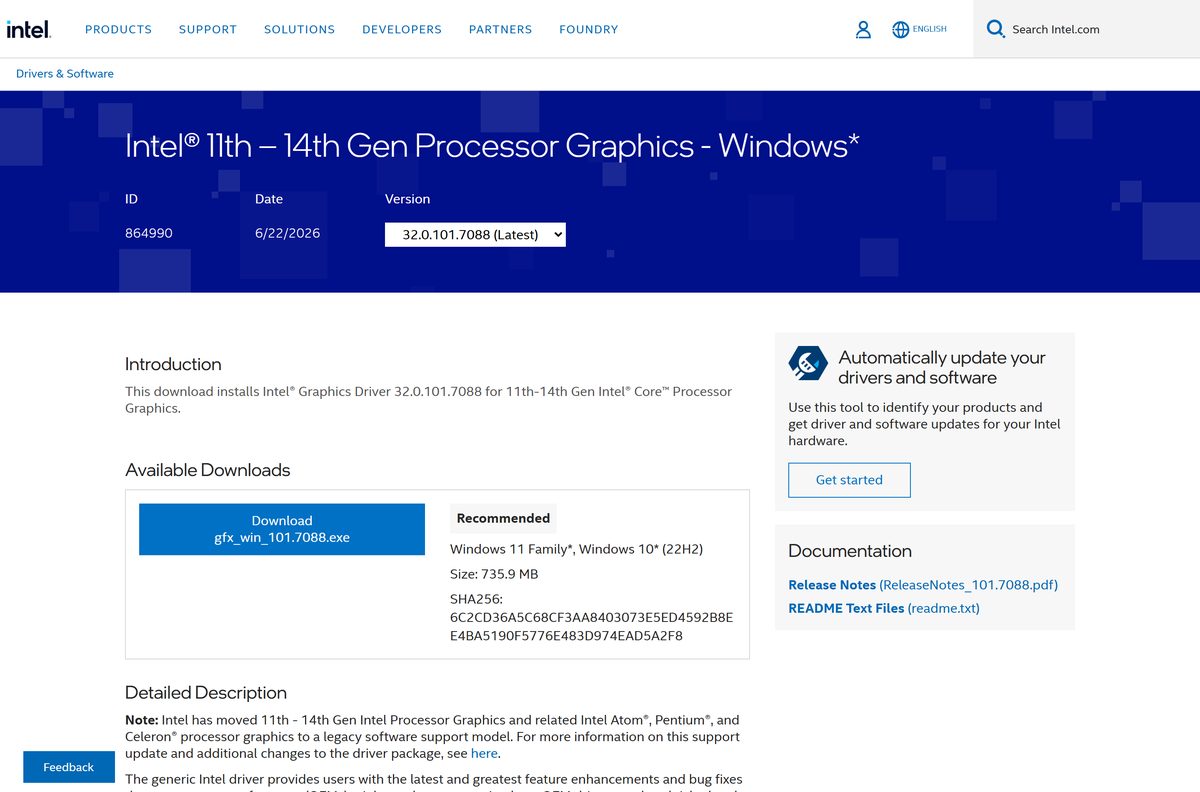
Intel lists Arc driver 32.0.101.9150 as the latest, dated 2 October 2026. The Iris Xe package for 11th to 14th Gen processors is at 32.0.101.7092, dated 25 September 2026.
- Intel Arc Graphics – Windows (gfx_win_101.9150.exe) — 862.6 MB · Arc cards and Core Ultra graphics
- Intel 11th – 14th Gen Processor Graphics – Windows (gfx_win_101.7092.exe) — 744.7 MB · Iris Xe and UHD graphics on 11th to 14th Gen
- Historical Intel Arc graphics drivers — older Arc releases for rollback
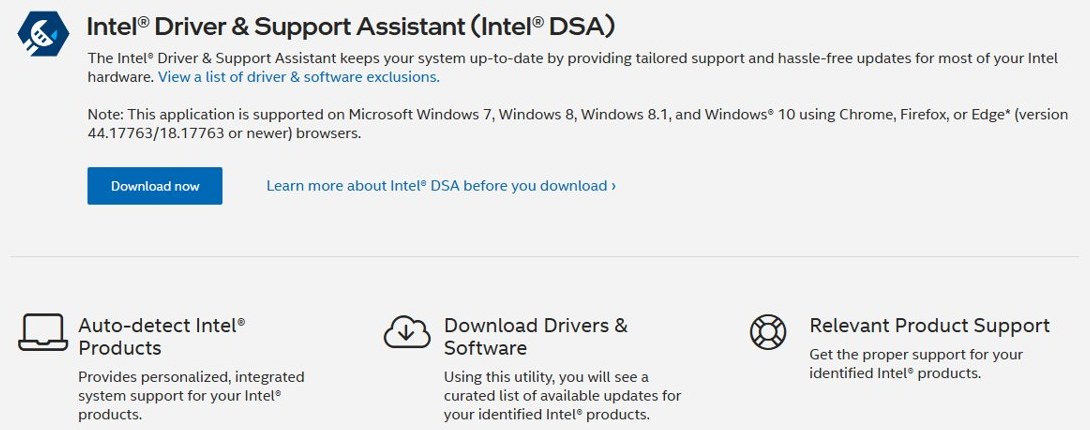
- Intel Driver & Support Assistant — detects your graphics and installs updates automatically
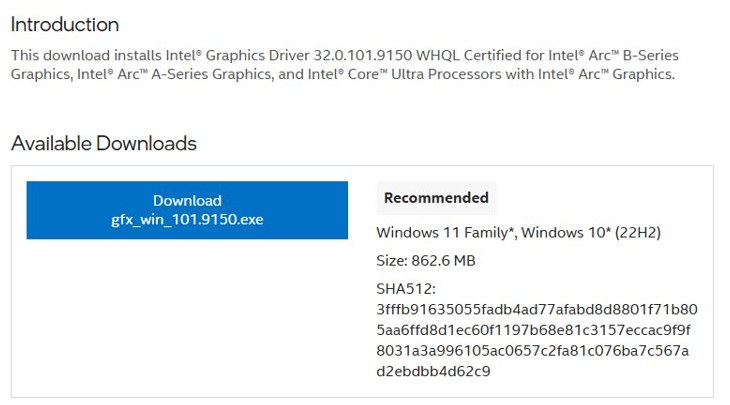
Each package is one full-size EXE, not a small web installer. Copy it to a USB drive to update a PC that has no internet connection.
Installation method 1: Automatic (recommended)
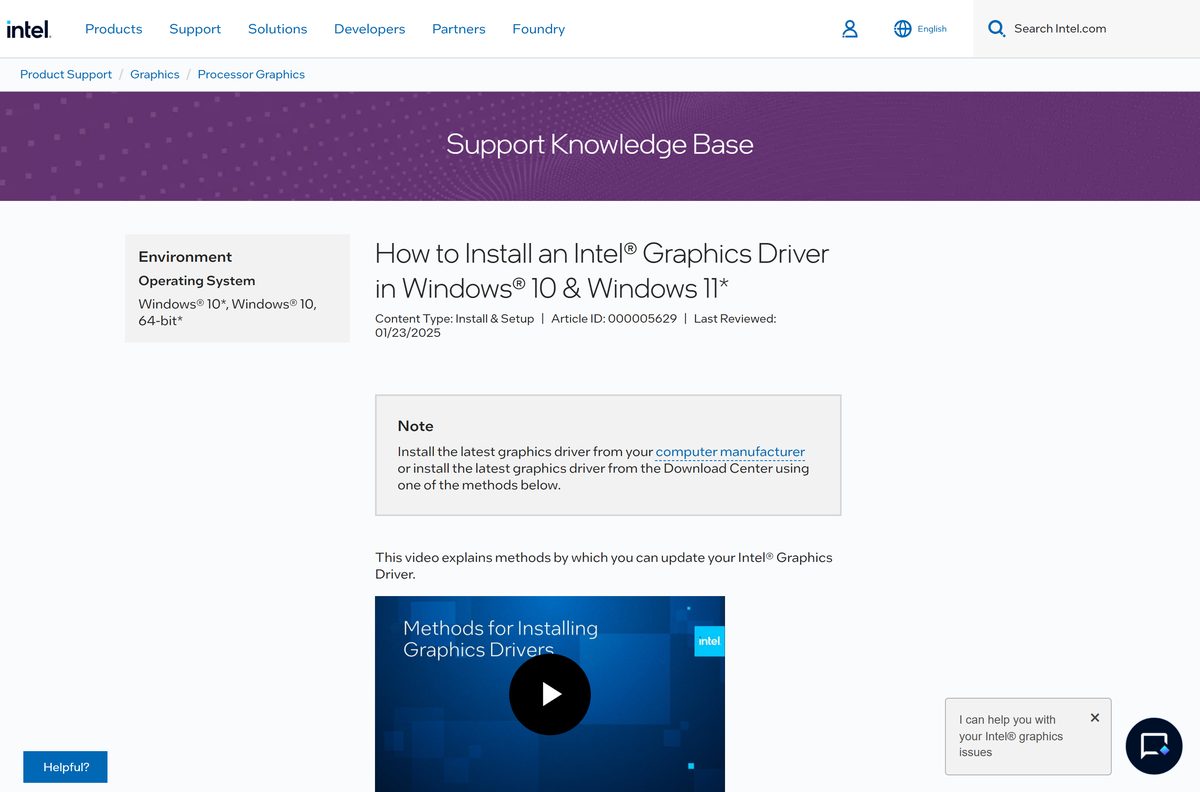
Intel's own install article puts this first: use Intel Driver & Support Assistant (Intel DSA) to detect the graphics in your PC and install the matching driver. Intel also says to check your computer maker's driver first.
- Open the Intel Driver & Support Assistant page and select Download now.
- Install Intel DSA and let it open its support page in your browser.
- Wait while it scans the PC. It lists the Intel graphics it found and any newer driver.
- Select Download, then Install next to the graphics driver.
- Restart the PC when the installer asks.
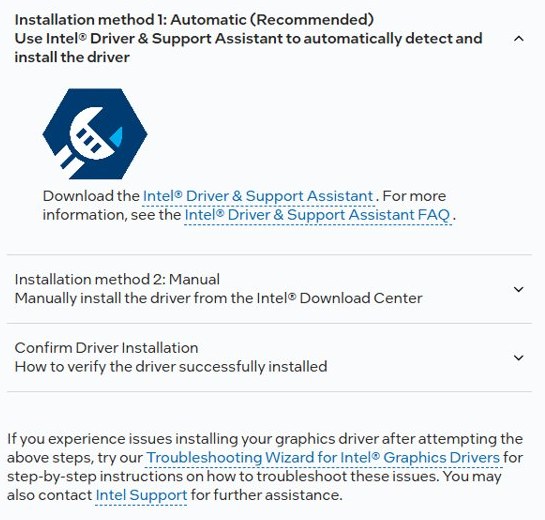
Installation method 2: Manual
Manual installation uses the package from the Intel Download Center. These steps work on Windows 11 and Windows 10; sign in with an administrator account and save open work.
- Press the Windows key, type System Information and open it. Note the Processor name.
- Open the matching Intel download page from the table above and click Download.
- Double-click the saved EXE, such as gfx_win_101.9150.exe, and select Yes at the User Account Control prompt.
- Agree to the Intel Software License Agreement.
- Click Begin Installation and follow the prompts.
- Wait until the installer shows Installation Complete, then restart the PC if asked.
If you want Intel's settings app afterwards, see how to open the Intel graphics control panel in Windows 11. The Intel generic driver replaces the driver your laptop maker installed. Intel’s note on the download page says this can remove OEM customisations, so check your PC maker’s site first on a laptop.
How to verify the Intel graphics driver installer
Intel prints a hash under each download. Compare it before you run a file you copied from another PC or a USB drive.
- Open PowerShell in the folder that holds the installer.
- For the Arc package, run Get-FileHash .\gfx_win_101.9150.exe -Algorithm SHA512 .
- Compare the result with the SHA512 value on the Intel Arc download page. It starts with 3fffb91635055fad.
- For the Iris Xe package, run Get-FileHash .\gfx_win_101.7092.exe -Algorithm SHA512 and compare it with the value on its download page, which starts with 35a863fc2ace37e2.
- Delete the file if the values differ, and download it again from intel.com.
Confirm driver installation
Intel's article ends with a check that the driver installed. The same steps show your current version before an update.
- Press Windows + X and select Device Manager.
- Expand Display adapters.
- Double-click the Intel graphics entry, such as Intel(R) Arc(TM) Graphics or Intel(R) Iris(R) Xe Graphics.
- Open the Driver tab and read Driver Version.
- Compare it with the latest version on the Intel download page for your processor.
- If yours is older, install the current package, or let Intel Driver & Support Assistant do it.
An entry named Microsoft Basic Display Adapter means Windows is running a generic driver. Install the Intel package, or your PC maker’s driver, to get full graphics support.
WHQL vs non-WHQL Intel graphics driver
The current Arc release, 32.0.101.9150, is itself WHQL Certified, so it suits both home PCs and workplaces that require WHQL drivers. Older WHQL builds in the version menu include 32.0.101.9033 and 32.0.101.8991. Intel says both types are tested to the same functional quality and signed by Microsoft. A non-WHQL driver has simply not finished full Windows Hardware Lab Kit testing before release. The version menu on the Intel Arc download page lists both kinds.
Intel graphics driver for Mac
Intel’s graphics packages are Windows installers, and every Intel graphics download page lists Windows 11 and Windows 10 only. On a Mac, graphics support comes with macOS itself.
| Your machine | What to use | Notes |
|---|---|---|
| A Mac running macOS, including Intel-based Macs | Update macOS with Software Update | Software Update installs the Apple updates made for your Mac model |
| A Windows 11 or 10 PC with Intel graphics | Intel Arc Graphics – Windows | Or the 11th – 14th Gen package for Iris Xe |
Intel graphics driver free download from intel.com
Yes. Every Intel graphics driver on the Intel Download Center is free, with no key, trial or subscription. Intel recommends its own free Intel Driver & Support Assistant for automatic updates, not third-party updaters. A site that charges for Intel graphics drivers, or wraps them in a paid driver tool, is not Intel.
Intel graphics driver system requirements
Both current packages need 64-bit Windows. Windows 10 must be on version 22H2.
| Field | Value |
|---|---|
| Software | Intel Graphics Driver for Arc and Core Ultra graphics |
| Developer | Intel Corporation |
| Latest version | 32.0.101.9150 |
| Release date | 2 October 2026 (WHQL Certified) |
| File name | gfx_win_101.9150.exe |
| Download size | 862.6 MB |
| Iris Xe package | 32.0.101.7092, gfx_win_101.7092.exe, 744.7 MB |
| Licence | Free |
| Windows 11 | 64-bit, 21H2 to 25H2; the Arc package also lists 26H2 |
| Windows 10 | 64-bit, 22H2 |
| Architecture | x64 |
| Not supported | macOS, 32-bit Windows |
| Install log | C:\ProgramData\Intel\GFXInstaller\IntelGfx.log |
| Official download source | intel.com |
| Last verified | 2026-10-27 |
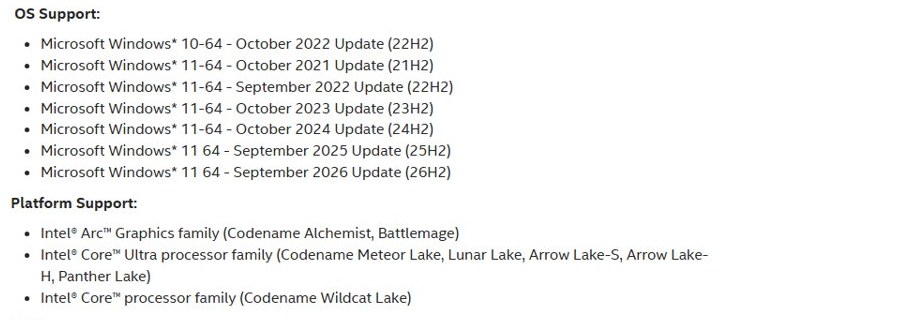
Confirm your edition under Settings > System > About. System type must read 64-bit operating system, x64-based processor.
Which GPUs and processors each Intel driver package supports
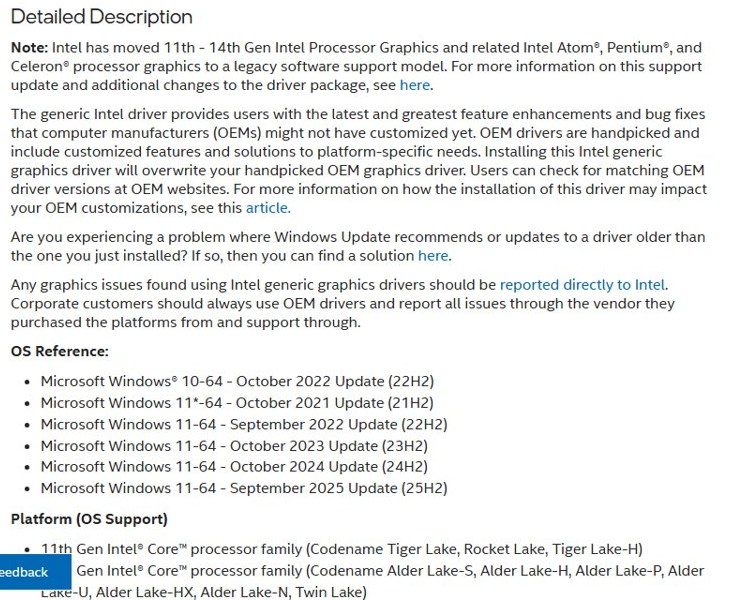
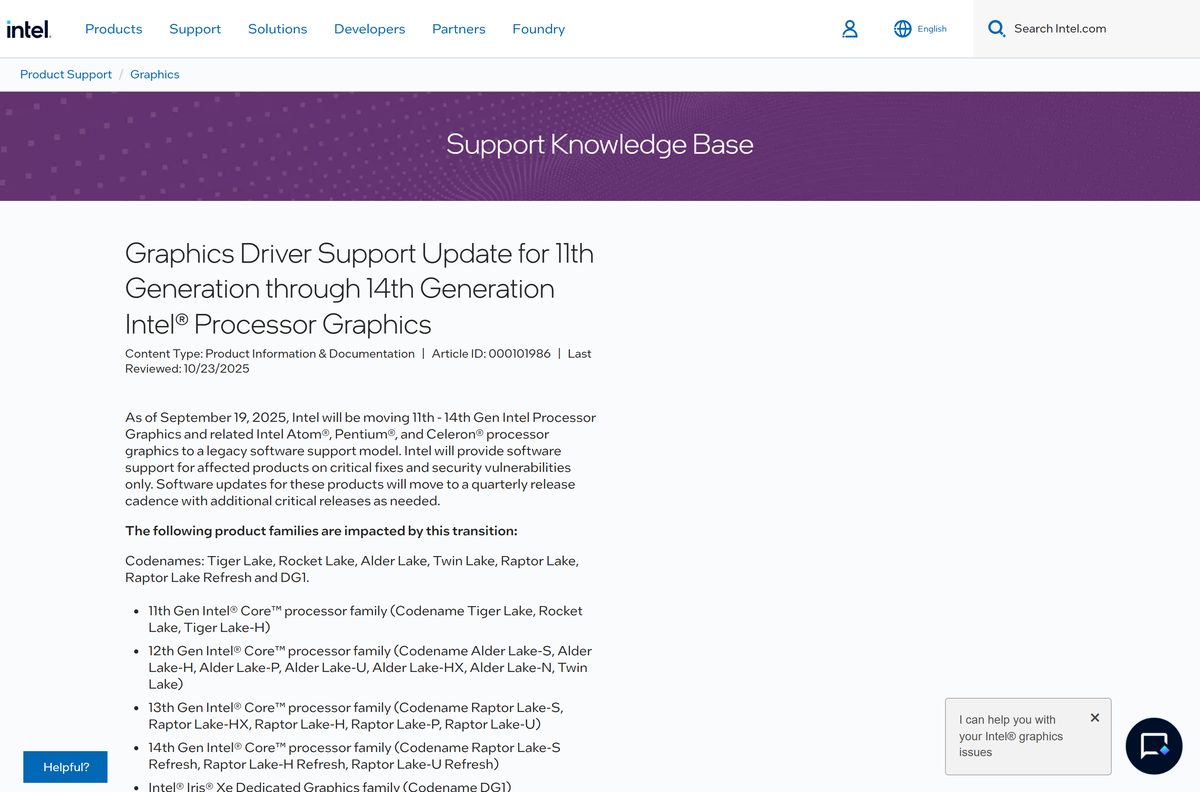
Since 19 September 2025, Intel treats 11th to 14th Gen processor graphics as legacy products. They get quarterly updates with critical and security fixes only, and no Day 0 game support.
| Package | Covers | Update cadence |
|---|---|---|
| Intel Arc Graphics – Windows | Arc A-series (Alchemist) and B-series (Battlemage) cards | Monthly, plus Day 0 game releases |
| Intel Arc Graphics – Windows | Core Ultra Meteor Lake, Lunar Lake, Arrow Lake-S, Arrow Lake-H and Panther Lake; Core Wildcat Lake | Monthly, plus Day 0 game releases |
| Intel 11th – 14th Gen Processor Graphics | Tiger Lake, Rocket Lake, Alder Lake, Twin Lake, Raptor Lake and Raptor Lake Refresh, including Iris Xe | Quarterly, critical fixes only |
| Intel 11th – 14th Gen Processor Graphics | Iris Xe Dedicated Graphics (DG1) | Quarterly, critical fixes only |
| Intel 7th-10th Gen Processor Graphics | 7th to 10th Gen Core, plus related Atom, Pentium and Celeron | Final package 31.0.101.2141 |
Fix Intel graphics driver installation problems on Windows 11 or 10
Match what you see to the symptom below. The full installer log is in C:\ProgramData\Intel\GFXInstaller\IntelGfx.log.
The driver being installed is not validated for this computer
The PC runs an older non-DCH driver from the manufacturer, which blocks the generic Intel driver.
- Download the Intel package that matches your processor generation.
- Disconnect from the internet, so Windows Update does not reinstall the OEM driver.
- Run the installer. At the Install stage, click Customize.
- Leave Execute a clean installation unticked and finish the install.
- Click Optional reboot, reconnect, and run Windows Update to restore OEM add-ons.
Windows Update rolls the driver back to an older version
Windows Update offers the OEM driver it has on file. Intel's fix is to install the latest driver over the version Windows Update installed.
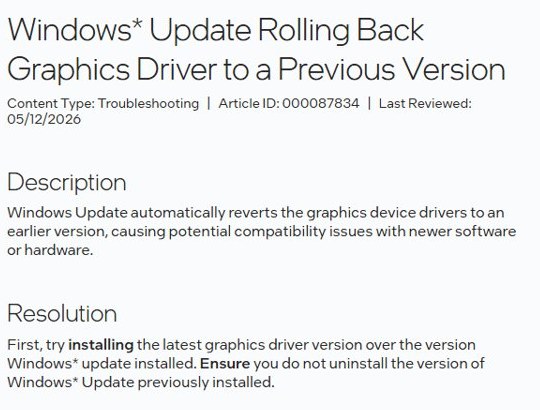
- Install the latest Intel driver over the version Windows Update installed. Do not uninstall that version first.
- Repeat this after every major Windows version upgrade, such as 23H2 to 24H2.
Setup fails with exit code 5, PLATFORM_UNSUPPORTED
The package does not support your GPU or Windows version.
- Check your processor generation and match it to the right package in the table above.
- An Iris Xe laptop needs the 11th – 14th Gen package, not the Arc package.
Setup fails with exit code 11, INSUFFICIENT_DISK_SPACE
The drive has no room for the driver files.
- Free up space on drive C:, then run the installer again.
Setup fails with a general error or a corrupted install
Old driver files conflict with the new package.
- Run the installer and agree to the licence.
- Tick Execute a clean installation, then click Start.
- Restart the PC when prompted. A clean install resets Intel settings and clears the shader cache.
How to uninstall the Intel graphics driver
Remove the driver completely when a clean install inside the installer is not offered or does not help.
- Disconnect from the internet, so Windows does not reinstall a driver automatically.
- Open Device Manager and expand Display adapters.
- Right-click the Intel graphics entry and click Uninstall device.
- Tick Delete the driver software for this device and click OK.
- Restart the PC.
- Open Device Manager again. Repeat the steps until the adapter shows as Microsoft Basic Display Adapter.
Then install the Intel package or your PC maker’s driver, and reconnect to the internet.
Intel driver vs OEM driver vs Windows Update
The Intel download is the generic driver. These routes cover automatic detection, OEM builds and the driver Windows offers.
| Route | Publisher | Best for |
|---|---|---|
| Intel Driver & Support Assistant | Intel | Detecting your graphics and installing the matching driver |
| OEM customisations and the generic driver | Intel | Deciding whether a laptop should keep its maker’s driver |
| Windows Update rolling back graphics drivers | Intel | Keeping the Intel driver when Windows Update replaces it |
For the general Windows routes, including Device Manager and optional updates, see our guide to updating the graphics driver on Windows 11 and 10. Use the Intel package for a desktop Arc card or a laptop with no newer OEM driver. Corporate PCs should stay on the OEM driver, as Intel advises on the download page.
Intel graphics driver FAQ
Where is the official Intel graphics driver download?
It is on the Intel Download Center at intel.com. Arc cards and Core Ultra graphics use Intel Arc Graphics – Windows, download ID 785597. Iris Xe on 11th to 14th Gen uses download ID 864990.
Is the Intel graphics driver free?
Yes. Intel offers every graphics driver on its Download Center at no charge. There is no key or subscription, so any site that asks you to pay for Intel graphics drivers is not Intel.
What is the latest Intel graphics driver version?
Intel lists 32.0.101.9150 WHQL Certified, dated 2 October 2026, for Arc and Core Ultra graphics. The 11th to 14th Gen package is at 32.0.101.7092, dated 25 September 2026.
Which Intel driver do I need for Iris Xe graphics?
Iris Xe on 11th, 12th, 13th and 14th Gen Core processors uses the Intel 11th – 14th Gen Processor Graphics package. The Arc package does not cover these processors.
Why does my Iris Xe laptop not get monthly driver updates?
Intel moved 11th to 14th Gen processor graphics to legacy support in September 2025. They now get quarterly releases with critical and security fixes only, and no Day 0 game support.
Does the Intel graphics driver work on Windows 11?
Yes. The current packages support 64-bit Windows 11 from 21H2 to 25H2 (the Arc package also lists 26H2), plus 64-bit Windows 10 version 22H2. There is no 32-bit build.
Is there an Intel graphics driver for Mac?
No. Intel’s graphics downloads are Windows only. On a Mac, graphics support comes with macOS and updates through System Settings, General, Software Update.
How big is the Intel graphics driver download?
The Arc package gfx_win_101.9150.exe is 862.6 MB. The Iris Xe package gfx_win_101.7092.exe is 744.7 MB. Each is one full-size EXE, not a web installer.
Should I install a WHQL or non-WHQL Intel driver?
Intel says both types are tested to the same functional quality and signed by Microsoft. The current Arc release, 32.0.101.9150, is WHQL Certified anyway.
How do I check my Intel graphics driver version?
Open Device Manager, expand Display adapters and double-click the Intel graphics entry. The Driver tab shows Driver Version. Intel Driver & Support Assistant also reports it.
Why does Windows Update replace my Intel graphics driver?
Windows Update can offer your PC maker’s older driver. Install the latest Intel driver over it without uninstalling first, and repeat after each major Windows upgrade.
Should I use Intel’s driver or my laptop maker’s driver?
Intel advises checking your computer maker first, because OEM drivers carry custom features. The Intel generic driver overwrites them. Use Intel’s driver when the maker has no newer version.