To make a booklet in Word, open Layout > Margins > Custom Margins, set Multiple pages to Book fold, and print on both sides of the paper, flipped on the short edge.
This guide covers booklet templates, the manual Book fold setup on Windows and Mac, page numbers, two-sided printing with and without a duplex printer, and fixes for pages that print upside down or out of order.
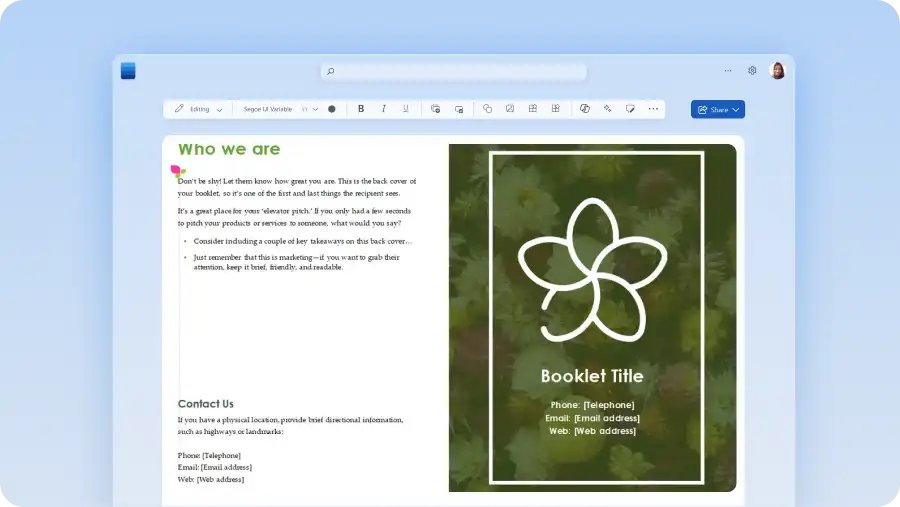
How to make a booklet using a Word template
A booklet template is the quickest route, because the page sequence and orientation are already set to print correctly on both sides flipped along the short edge.
- Open Word and go to File > New.
- Type booklet in the search box and select the search icon.
- Select the template you want and choose Create.
- Change the template's layout, fonts and images before you write the content, so tables and objects do not need fixing later.
- Replace the placeholder text and pictures with your own.
- Go to File > Save a copy to save the booklet.
On a Mac, go to File > New from Template, type booklet in Search All Templates at the top right, then double-click a template or select it and click Create. Save it with File > Save As.

How to make a booklet in Word manually
The Book fold setting turns any document into a booklet: Word switches the page to landscape and treats each half of the sheet as one booklet page. Set it up before you start writing to keep the cleanup small.
- Open a new or existing document in Word for Windows.
- Go to Layout > Margins > Custom Margins.
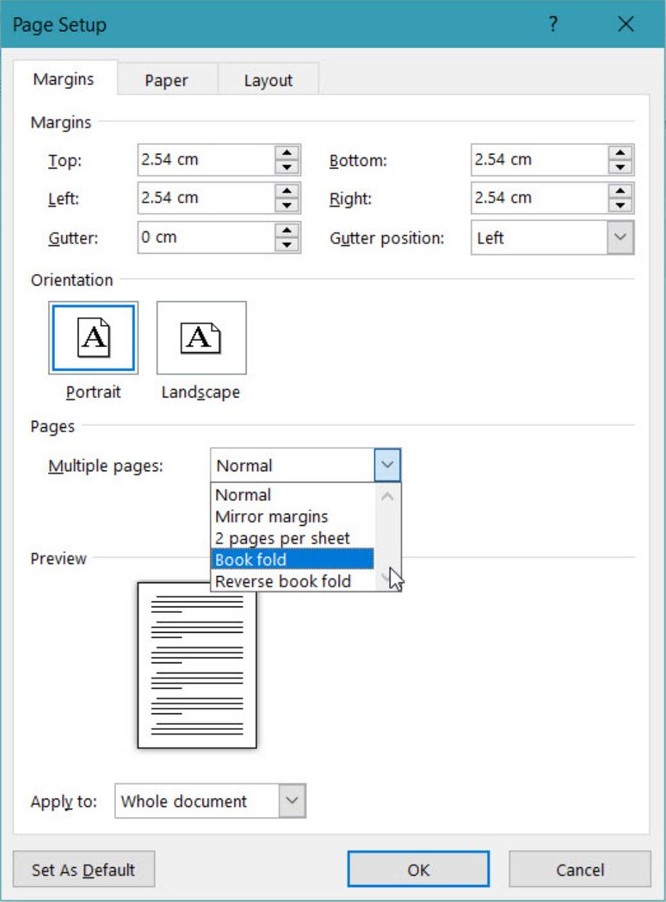
- On the Margins tab, under Pages, set Multiple pages to Book fold. Orientation changes to landscape automatically.
- For a long document, set Sheets per booklet to split it into several smaller booklets you can bind together later.
- Increase the Gutter to leave room on the inside fold for staples or binding.
- Open the Paper tab and choose the paper size. The finished booklet is half the width of that paper.
- Select OK, then move any images and tables that no longer fit the narrower pages.
Page borders are optional and live on the Layout tab of the same Page Setup window. For a two-column booklet page, add columns in Word after Book fold is set.
How to make a booklet in Word on a Mac
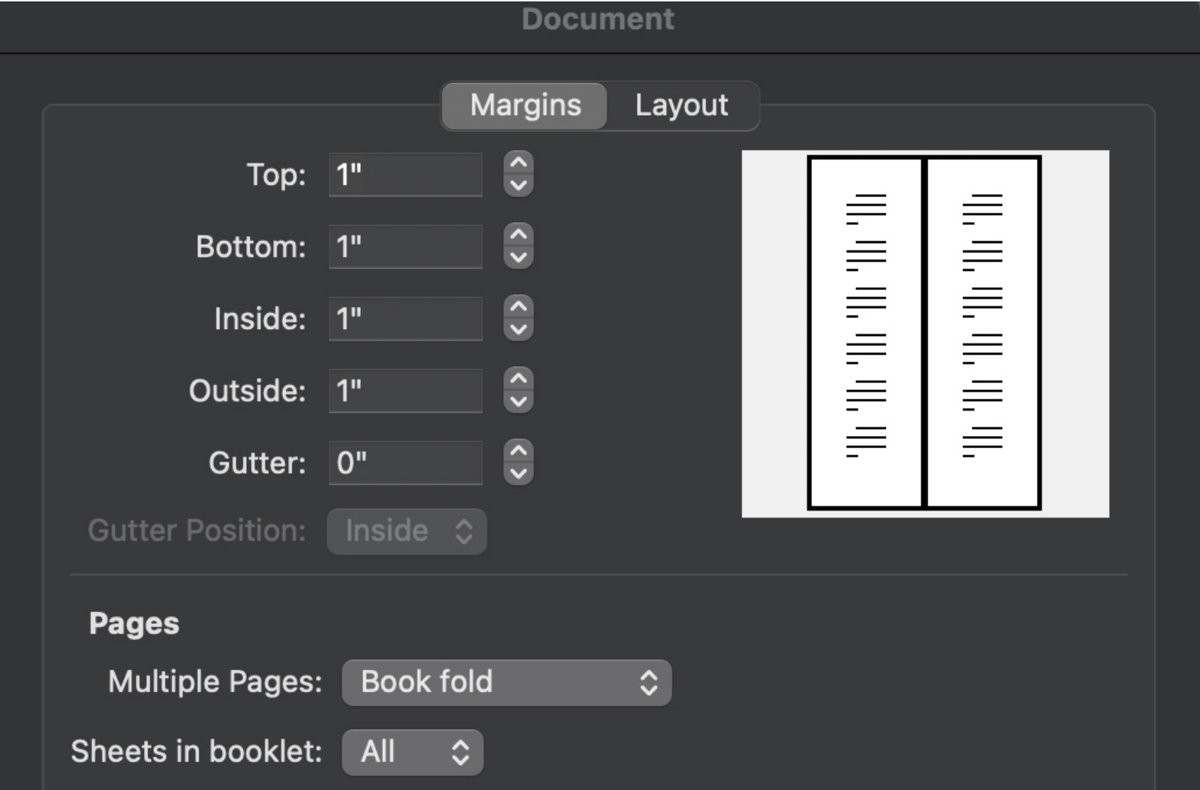
Word for Mac uses the same Book fold setting, with two labels that differ from Windows.
- Go to Layout > Margins > Custom Margins.
- Set Multiple pages to Book fold. The orientation switches to landscape.
- For a long document, set Sheets in booklet to the number of pages per booklet.
- Increase the Gutter width to leave space for binding.
- Click OK and adjust images and tables that moved.
- Go to File > Page Setup and check the paper size, because the booklet is half that size.
How many pages does a Word booklet need?
With Book fold, each sheet of paper carries four booklet pages: two on the front and two on the back. Plan the page count around that.
| Sheets of paper | Booklet pages | Folded size on Letter paper | Folded size on A4 paper |
|---|---|---|---|
| 1 | 4 | 5.5 × 8.5 in | 148 × 210 mm (A5) |
| 2 | 8 | 5.5 × 8.5 in | 148 × 210 mm (A5) |
| 3 | 12 | 5.5 × 8.5 in | 148 × 210 mm (A5) |
| 4 | 16 | 5.5 × 8.5 in | 148 × 210 mm (A5) |
| 5 | 20 | 5.5 × 8.5 in | 148 × 210 mm (A5) |
If the content ends between multiples of four, the remaining booklet pages print blank. Use them for notes, a back cover or contact details rather than leaving gaps in the middle.
How to add page numbers to a booklet in Word
Page numbers go in the footer and follow the booklet's own page order, not the sheet order.
- On the Insert tab, in the Header & Footer group, select Page Number and choose a footer position.
- To centre the number, double-click it on an odd-numbered page and press Ctrl+E.
- Repeat on an even-numbered page, then press Ctrl+E again.
- To add a word such as Page before the number, double-click the number and type it, on an odd page and then an even page.
- For author, file name or date, select Footer > Blank (Three Columns) and use Header & Footer > Insert > Document Info or Date & Time.
- Delete any footer placeholders you do not use.
Odd and even pages are handled separately because booklets often use different headers or footers for left and right pages. To leave the cover unnumbered, start page numbers on a later page.
How to print a booklet in Word
Word prints the booklet pages in folding order. The key setting is flipping on the short edge, which keeps the back of each sheet the right way up.
- Go to File > Print.
- Under Settings, select Print on Both Sides.
- From the same drop-down, choose Flip pages on short edge.
- Select Print.
- Fold all the printed sheets in half together.
- Staple along the fold with a long-reach stapler.
On a Mac, open File > Print and, if the printer supports automatic two-sided printing, select Booklet under Two-sided.
Print four pages as a test first. If the orientation is wrong, only one sheet of paper is wasted.
How to print a booklet in Word without a duplex printer
If Print on Both Sides is missing from the list, the selected printer cannot print both sides automatically. Word can still do it with your help.
- Go to File > Print.
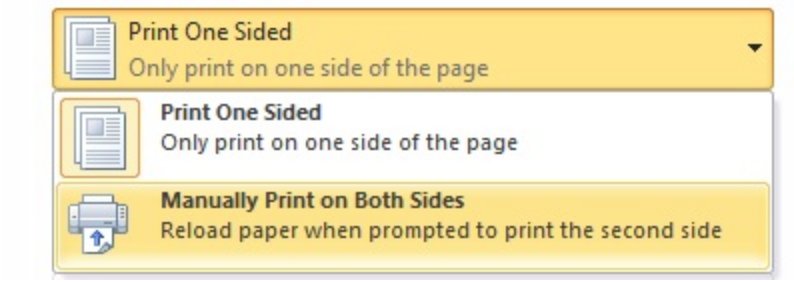
- Under Settings, select Print One Sided, then Manually Print on Both Sides.
- Select Print. Word prints the first side of every sheet.
- When Word prompts you, take the printed stack out of the output tray.
- Note which side and edge printed, turn the stack over along the short edge, and put it back in the input tray.
- Continue printing the second side, then fold and staple.
Another route is to print odd and even pages separately: under Settings, select Print All Pages, choose Only Print Odd Pages, print, flip the stack, then choose Only Print Even Pages and print again.
Word booklet printing upside down or in the wrong order
Every second page prints upside down
The sheets were flipped on the long edge instead of the short edge.
- Go to File > Print and choose Flip pages on short edge under Print on Both Sides.
- For manual duplex, turn the stack over along its short edge before you reload it.
- Print a four-page test before the full run.
Pages come out in the wrong order with odd and even printing
The printer stacks the first pass in a different order from what Word expects.
- Go to File > Options > Advanced.
- Under Print, select Print on front of the sheet for duplex printing or Print on back of the sheet for duplex printing.
- Print the test sheet again.
Print on Both Sides does not appear
The selected printer does not support automatic duplex printing, or a different printer is selected.
- Check the printer name at the top of the Print page and pick the duplex printer if you have one.
- Otherwise, select Manually Print on Both Sides.
Pictures and tables spill over after Book fold
Book fold halves the page width, and Word reflows text but not every object.
- Resize each image or table so it fits inside the narrower margins.
- Set up Book fold before adding content in your next booklet.
Word booklet FAQ
Does Word have a booklet template?
Yes. In Word for Windows go to File > New and search for booklet; on a Mac use File > New from Template and search there. The templates are set up to print in the right order on both sides, flipped on the short edge.
What is Book fold in Word?
Book fold is a Multiple pages option under Layout > Margins > Custom Margins. It switches the document to landscape and treats each half of a sheet as one booklet page, so the printed sheets fold into a booklet.
Why is my Word booklet printing upside down?
The sheets were flipped on the long edge. Choose Flip pages on short edge in the print settings, or for manual duplex, turn the stack over along its short edge before feeding it back in.
How many pages should a Word booklet have?
A multiple of four. Each folded sheet holds four booklet pages, two on each side, so 8, 12 or 16 pages use every side. Any shortfall prints as blank pages at the end.
Can I make a booklet in Word without a duplex printer?
Yes. In File > Print, choose Manually Print on Both Sides. Word prints one side, then prompts you to turn the stack over and reload it. Printing odd pages first and even pages second also works.
What size is a booklet made from Letter paper in Word?
Half the sheet. Book fold on US Letter (8.5 × 11 inches) gives 5.5 × 8.5-inch booklet pages, and A4 gives A5-sized pages. Choose the paper size on the Paper tab of Page Setup.
How do I put page numbers on a booklet in Word?
Use Insert > Page Number in the Header & Footer group. Numbers follow the booklet order. To centre or edit them, double-click the number on an odd page and then on an even page.
What is the gutter in a Word booklet?
The gutter is extra margin on the inside fold. Increase Gutter in Custom Margins when you plan to staple or bind the booklet, so text near the fold does not disappear into the spine.
Make your own booklets in Word from scratch
Use a booklet template for a one-off brochure or programme, and use Book fold from a blank document when you already have your own layout, page size or a long document to split into several booklets. Templates arrive with the page sequence and orientation set for short-edge printing, while Book fold gives you control of paper size, gutter and Sheets per booklet that a template fixes in advance.
Whichever route you choose, keep the source file and make a copy of the Word document before large layout changes.