To create a bootable Windows 11 26H2 USB with Rufus, download the Windows 11 26H2 ISO from Microsoft, open Rufus, pick an empty USB drive of 8 GB or more, select the ISO and start the write.
This guide covers the files you need, the Rufus steps, the Microsoft-only alternatives, how to boot and install from the drive, and what to do when the PC will not start from it.
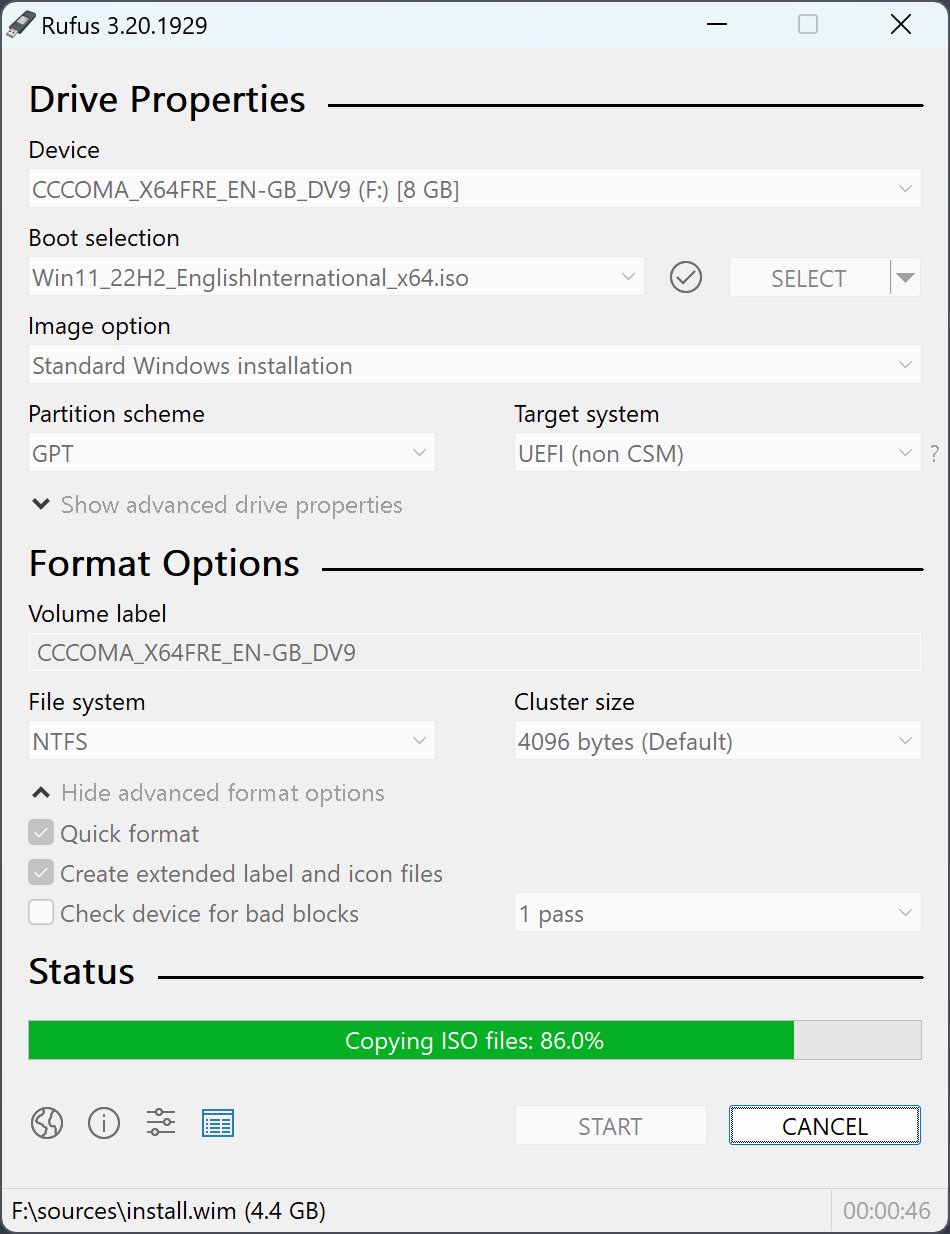
Create Windows 11 26H2 USB with Rufus for supported PCs
Microsoft's Download Windows 11 page lists Windows 11 2026 Update, version 26H2 as the current release, so the ISO it serves today is 26H2. Rufus is a free, open-source tool from a third party that writes that ISO to a USB drive.
- Download the Windows 11 26H2 ISO from Microsoft's Download Windows 11 page (steps in the next section).
- Open
https://rufus.ie/en/and download the Rufus build for your PC: x64 for most Intel and AMD PCs, ARM64 for Arm-based PCs. Rufus needs Windows 8 or later and runs without installation. - Plug in a USB flash drive of at least 8 GB. Everything on it will be erased, so copy off any files first.
- Run Rufus and select your USB drive in its device list. Check the drive size so you do not pick an external hard drive by mistake.
- Select the Windows 11 26H2 ISO you downloaded as the boot image.
- Keep the drive set up for UEFI booting, because Windows 11 requires UEFI firmware with Secure Boot capability.
- If Rufus offers Windows installation customisation options, leave them off; a supported PC needs none of them.
- Start the write, accept the warning that the drive will be erased, and wait until Rufus reports the drive is ready.
Rufus option names can change between versions (the current release on rufus.ie is 4.15, dated June 30, 2026). Only use Rufus downloaded from rufus.ie, and check that the file's digital signature names "Akeo Consulting".
Which USB tool should you use?
Rufus is one of several ways to make 26H2 install media. Microsoft's own tool is simpler if you only need one Windows 11 USB.
| Your situation | Use this | Why |
|---|---|---|
| You want the Microsoft-supported route | Media Creation Tool | Downloads 26H2 and writes the USB in one tool; x64 media only |
| You already have the 26H2 ISO, or want a tool that also runs on Arm64 Windows | Rufus | Writes any Windows ISO to USB; builds for x64, x86 and ARM64 |
| You do not want third-party software | Command Prompt and Disk Management | Microsoft's manual method: format FAT32, copy the ISO contents, split the image |
| You want several ISOs on one stick | Ventoy | A third-party alternative to Rufus; Microsoft does not document it, so follow the vendor's own instructions |
| You are upgrading the PC you are on | No USB: open the ISO and run setup.exe | Keeps files and apps; no bootable drive needed |
The Microsoft route uses the Media Creation Tool, and the no-USB route installs 26H2 straight from the ISO.
Prerequisites to create a bootable USB
| You need | Detail |
|---|---|
| A working Windows PC | Rufus runs on Windows 8 or later |
| USB flash drive | At least 8 GB, blank; all content on it is deleted |
| Windows 11 26H2 ISO | The multi-edition ISO for x64 devices from microsoft.com; Arm64 ISOs are on a separate Microsoft page |
| Internet connection | Download time depends on your connection |
| Target PC that meets Windows 11 requirements | 64-bit 1 GHz dual-core CPU, 4 GB RAM, 64 GB storage, UEFI with Secure Boot capability, TPM 2.0 |
| Product key or digital license | Not needed for a digital license; many PCs carry the key in firmware, which setup applies automatically |
| Backup of the target PC | A clean install removes personal files, apps, manufacturer customisations and settings |
Check an older target against the 26H2 system requirements first. You can reuse your existing license, since 26H2 does not need a new product key.
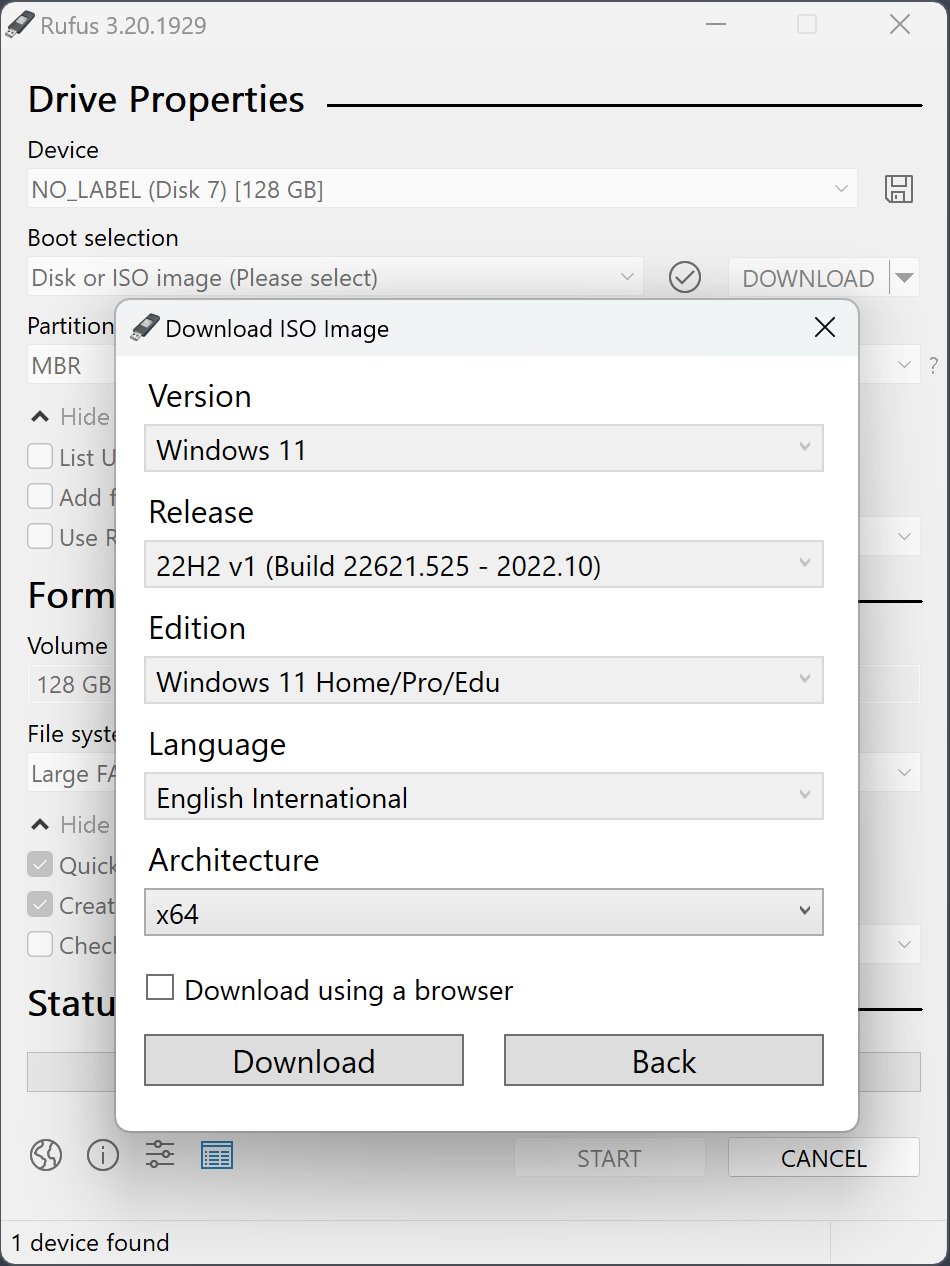
Download Windows 11 26H2 ISO file
- Open
https://www.microsoft.com/en-us/software-download/windows11. - Under Download Windows 11 Disk Image (ISO) for x64 devices, open the Select Download list and choose Windows 11 (multi-edition ISO for x64 devices).
- Select Confirm.
- Choose the product language. Pick the same language you will use when you install Windows.
- Select the download link. Links stay valid for 24 hours from the time they are created.
- Save the ISO on a drive with enough free space, not on the USB stick you are about to erase.
The multi-edition 26H2 ISO uses your product key to unlock the right edition.
Create Windows 11 26H2 bootable USB using Command Prompt
This is Microsoft's manual method, written for PC makers but usable by anyone who wants no third-party tool. It formats the drive as FAT32 so it boots on UEFI and BIOS PCs.
- Connect the USB drive, right-click Start and select Disk Management.
- Right-click the USB drive's partition, select Format and choose the FAT32 file system.
- Right-click the partition again and select Mark Partition as Active. If that option is greyed out, use diskpart to mark the partition active instead.
- Double-click the 26H2 ISO in File Explorer so it gets a drive letter.
- Open Command Prompt and copy everything except the large image file:
robocopy D: E: /s /max:3800000000(D: is the mounted ISO, E: is the USB drive). - Split the Windows image so it fits FAT32's 4 GB file limit:
Dism /Split-Image /ImageFile:D:\sources\install.wim /SWMFile:E:\sources\install.swm /FileSize:3800. - Eject the drive. Windows Setup installs from the split files automatically as long as they are named install.swm.
Replace D: and E: with the letters File Explorer shows on your PC.
How to check the ISO and USB are good
A corrupted ISO produces a USB that fails halfway through setup. Microsoft publishes SHA256 values for each ISO language on the download page, so check the file before you write it.
Get-FileHash C:\Users\<you>\Downloads\<ISO file name>.isoRun it in PowerShell. Get-FileHash calculates the file's SHA256 hash, which you compare with the value Microsoft lists for your language.
You should see: The hash matches the table on the Download Windows 11 page. That confirms the file has not been corrupted, tampered with or altered. After writing, the USB drive shows the Windows setup files in File Explorer and appears in the target PC's boot menu.
Boot from the USB and install Windows 11 26H2
A USB boot runs a clean install, which erases the drive. To keep files and apps, run setup.exe from the USB inside Windows instead and choose Keep personal files and apps.
- Plug the USB drive into the target PC and turn it on.
- Press the boot-menu key as the PC starts. It is usually Esc, F10, F12 or another function key, depending on the maker.
- Select the USB drive. Windows 11 Setup starts.
- In Select language settings and Select keyboard settings, choose your options and select Next.
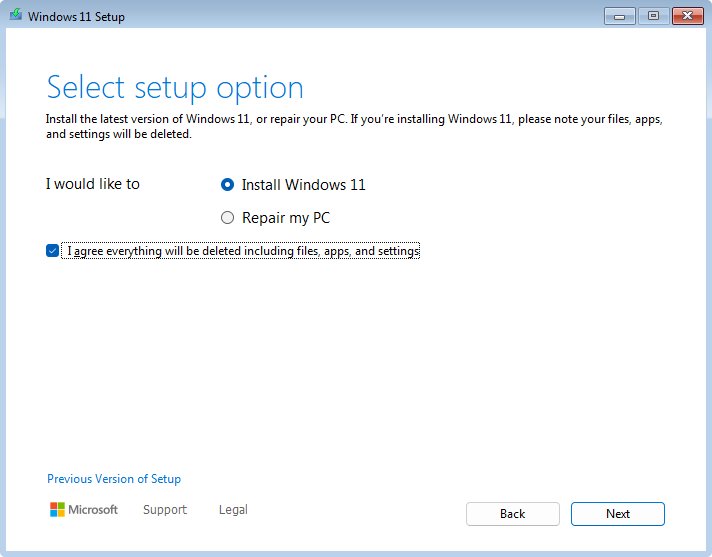
- In Select setup option, select Install Windows 11, tick I agree everything will be deleted including files, apps, and settings, and select Next.
- If the Product key window appears, enter a key or select I don't have a product key, then choose the edition that matches your license.
- Select Accept on the license terms, pick the drive to install to, and follow the prompts until the PC restarts into setup.
Windows activates automatically after going online when the digital license is linked to your Microsoft account. To confirm the result, check that 26H2 is installed under Settings > System > About.
Create Windows 11 26H2 USB with Rufus for unsupported PCs
Do not use Rufus or Ventoy to put Windows 11 26H2 on a PC that fails the minimum requirements; keep that PC on a supported release or replace it. Microsoft says installing Windows 11 on ineligible hardware isn't recommended: the device won't receive support, might malfunction, isn't guaranteed to receive updates including security updates, and damage from incompatibility isn't covered by the maker's warranty. Microsoft adds a desktop watermark on such PCs and recommends going back if problems appear.
The same applies to a Windows 11 26H2 USB for unsupported PCs made with Ventoy. If you are unsure about a machine, read whether 26H2 can run on an older PC before you format anything.
Fix a Rufus USB that will not boot or install
The PC starts Windows instead of the USB setup screen
The PC is not set to boot from a USB drive.
- Restart and press the boot-menu key (often Esc, F10 or F12) as soon as the PC powers on.
- Select the USB drive from the list.
- If it is not listed, check the PC maker's website for how to change the boot order, then try again.
Copying the ISO manually fails with a file too large for the destination
FAT32 cannot hold a file over 4 GB, and install.wim can be larger.
- Copy everything except
sources\install.wimwithrobocopy D: E: /s /max:3800000000. - Split the image with the
Dism /Split-Imagecommand from the Command Prompt method above. - Check that the split files on the USB drive are named install.swm.
Setup asks for a product key
No key is stored in the PC's firmware.
- Select I don't have a product key.
- Choose the edition that matches your license, such as Home if the PC ran Home.
- Sign in with the Microsoft account linked to your digital license after setup so Windows activates.
"This PC doesn't meet the minimum system requirements" message
The target PC fails a Windows 11 requirement such as TPM 2.0, Secure Boot or the processor.
- Cancel setup.
- Run the PC Health Check app on the current Windows install to see which requirement fails.
- If TPM is the problem, turn it on in the PC's UEFI firmware settings, where it may be called Intel PTT, AMD fTPM or Security Device, then run setup again.
When the drive is not detected even after a working install, the 26H2 USB detection fixes go further.
Frequently asked questions
Does Rufus work with the Windows 11 26H2 ISO?
Yes. Rufus creates bootable USB drives from Windows ISOs, and Windows 11 is on its list of supported images. Download the 26H2 ISO from Microsoft first, since Microsoft's Download Windows 11 page now serves version 26H2 as the current release.
How big does the USB drive need to be for Windows 11 26H2?
Use a blank USB flash drive of at least 8 GB. Microsoft sets 8 GB as the minimum for Windows 11 installation media, and every file on the drive is deleted when the bootable media is written.
Is Rufus safe to use?
Rufus is free, open-source software under the GPL. Download it only from rufus.ie and check that the executable's digital signature names Akeo Consulting. It is not a Microsoft product, so Microsoft's Media Creation Tool is the supported alternative.
Can I make a Windows 11 26H2 USB without Rufus?
Yes. Microsoft's Media Creation Tool downloads 26H2 and writes the USB for you, and Microsoft also documents a manual method using Disk Management, File Explorer, robocopy and Dism for anyone who wants no extra software.
Will a Rufus USB delete my files?
Writing the USB erases the flash drive. Booting a PC from it and choosing Install Windows 11 erases that PC's drive too. To keep files and apps, run setup.exe from the USB inside Windows and choose Keep personal files and apps.
Do I need a product key to install Windows 11 26H2 from USB?
Usually not. A digital license linked to your Microsoft account reactivates Windows after setup, and many PCs store the key in firmware, which setup applies automatically. Select I don't have a product key if setup asks.
Can Rufus make a Windows 11 26H2 USB for an Arm PC?
Rufus has an ARM64 build, but Microsoft's Windows 11 ISO download is for x64 devices. Arm64 ISOs are on a separate Microsoft page, and the Media Creation Tool cannot create media for Arm-based PCs.
Bottom line
Use Rufus when you already have the official 26H2 ISO or need its extra flexibility; otherwise the Media Creation Tool is the simpler supported choice. Both produce the same Windows 11 26H2 setup from Microsoft's files. What matters is using the official ISO, an 8 GB drive you can erase, and a target PC that meets the Windows 11 requirements. For an upgrade that keeps your apps, skip the USB and use the 26H2 download and install options instead.



How to upgrade to Windows 11 26H2 - Techdows
[…] you still want it, the step-by-step for Rufus with 26H2 uses Microsoft's own […]