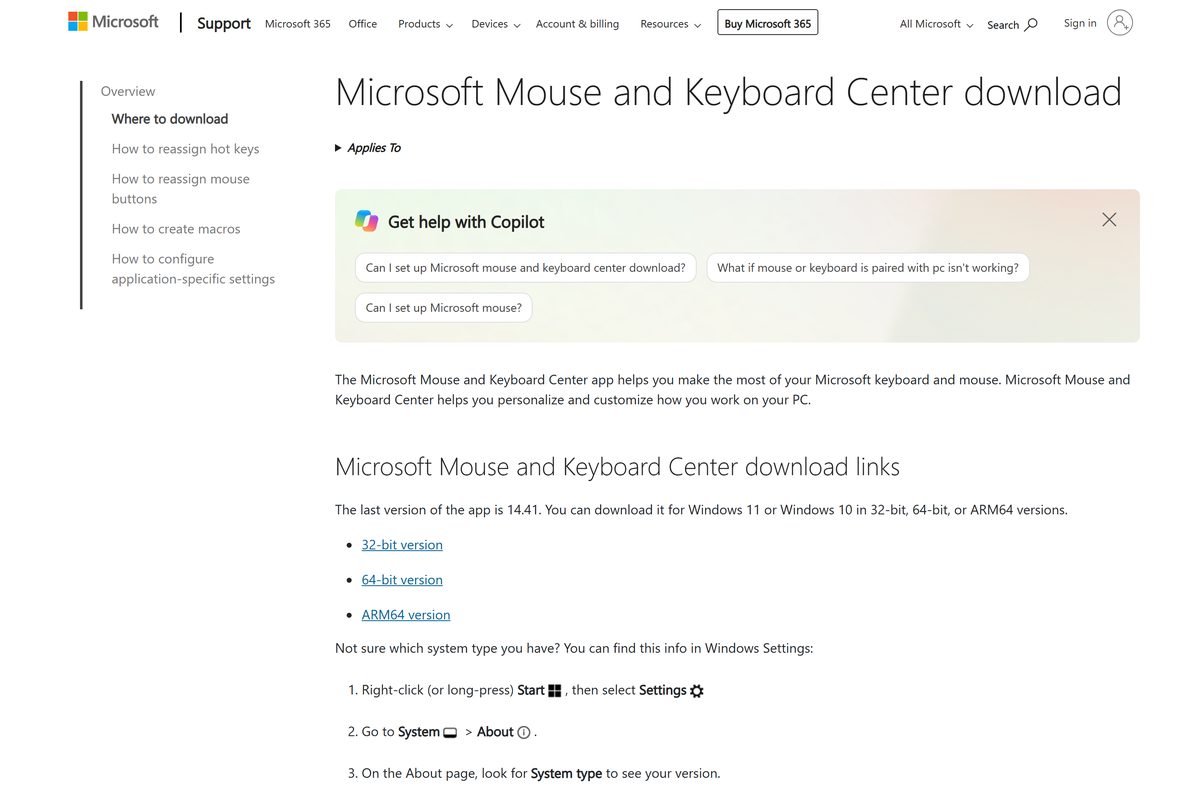
The Microsoft Mouse and Keyboard Center download is free for Windows 11 and Windows 10, straight from Microsoft’s support site. Version 14.41 comes in 64-bit, 32-bit and ARM64 builds, and it lets you reassign buttons, remap hot keys and record macros on Microsoft mice and keyboards.
This guide covers picking the right installer, installing it, setting up buttons and macros, the supported device list, and fixes for the app not detecting your mouse or keyboard.
Which Microsoft Mouse and Keyboard Center download do you need?
Right-click Start, select Settings, then go to System > About and read System type. Match it to a row below.
| System type says | Download | Size |
|---|---|---|
| 64-bit operating system, x64-based processor | 64-bit installer (x64) | 47.3 MB |
| 32-bit operating system | 32-bit installer (x86) | 46.1 MB |
| 64-bit operating system, ARM-based processor | ARM64 installer | 44.7 MB |
All three files install the same release. Most Windows 11 laptops and desktops need the 64-bit file, while Copilot+ PCs with Snapdragon chips need ARM64.
Download Mouse and Keyboard Center from the official Microsoft page
Microsoft hosts the app on its support site. Each link starts the matching installer from download.microsoft.com.
- Microsoft Mouse and Keyboard Center download page — official page with all three builds and the device list
- 64-bit installer (x64) — 47.3 MB
- 32-bit installer (x86) — 46.1 MB
- ARM64 installer — 44.7 MB
How to install Mouse and Keyboard Center on Windows 11 and 10
Plug in or pair your Microsoft mouse or keyboard first, so the app detects it on first launch.
- Download the installer that matches your System type from the table above.
- Open your Downloads folder and double-click the MouseKeyboardCenter file.
- Select Yes at the User Account Control prompt.
- Follow the setup prompts to finish the installation.
- Open Start, type Mouse and Keyboard Center, and open the app.
- Select your device at the top of the window to load its settings.
If the window lists no device, the connected accessory is not on the supported list. The compatibility table below shows which products the app recognizes.
How to reassign mouse buttons and create macros
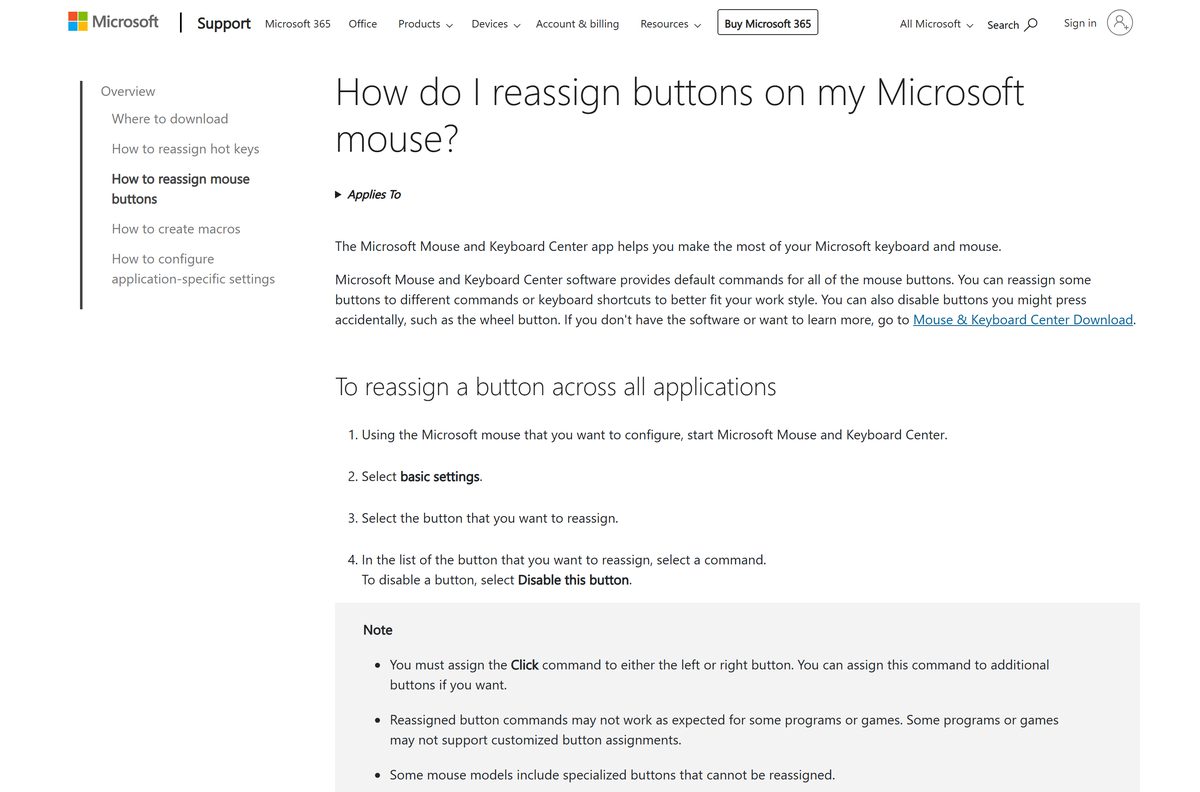
You can change a button for every program at once, only inside one program, or turn it into a macro.
Change a button in every program
Basic settings apply globally.
- Using the Microsoft mouse you want to set up, open Mouse and Keyboard Center.
- Select basic settings.
- Select the button you want to reassign.
- Pick a command from the list, or select Disable this button to turn it off.
Change a button in one program only
App-specific settings override basic settings for that program.
- Open Mouse and Keyboard Center with the mouse you want to set up.
- Select app-specific settings.
- Click Add New and choose the program. If it is missing, click Manually Add a Program and browse to it.
- Choose a command from the button command list.
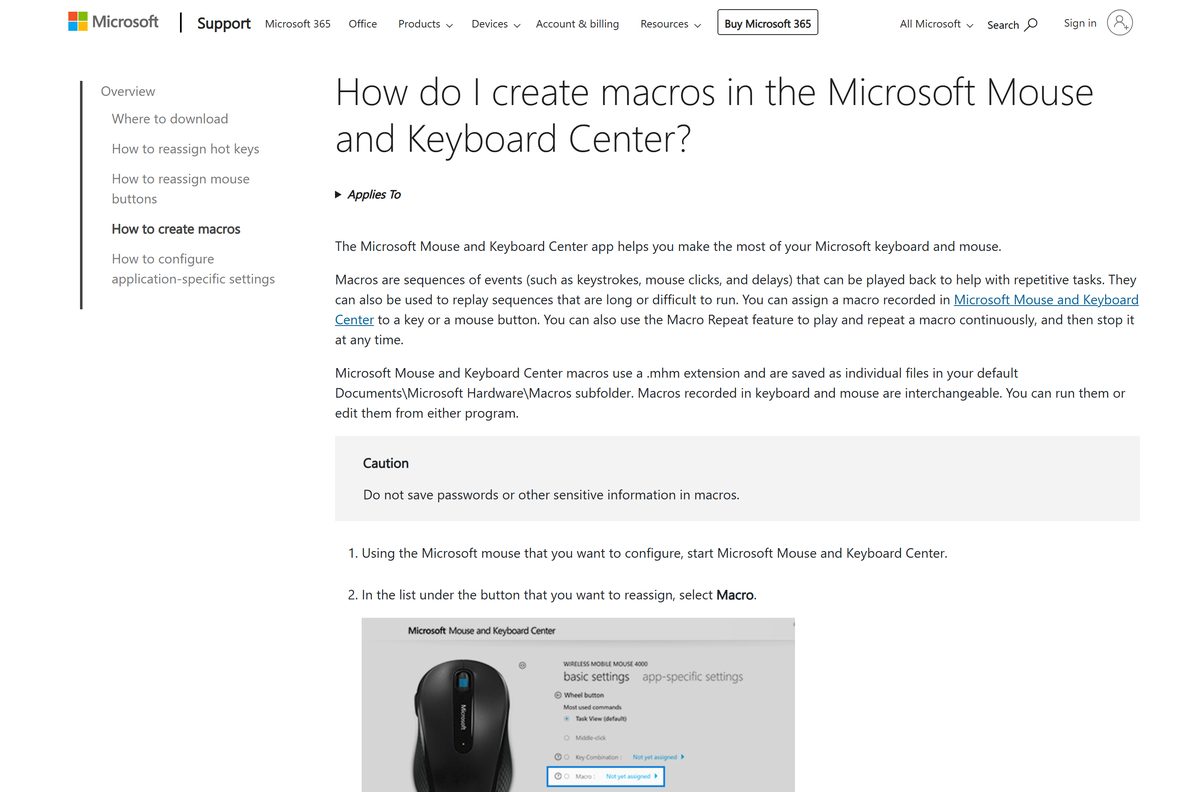
Record a macro on a button
A macro plays back keystrokes, clicks and delays from one button.
- Under the button you want to use, select Macro.
- Click Create a new Macro and type a name in the Name box.
- Click in Editor and enter the keystrokes, clicks and delays you want.
- Make sure the new macro is selected in the Available Macros list.
Keep the Click command on either the left or the right button. Press a macro button again to stop playback, or turn on Repeat in the macro editor to loop it.
Check whether your mouse or keyboard works with the app
The app only configures Microsoft accessories on its supported list. Check your model before you install.
| Device family | Examples Microsoft lists | Supported |
|---|---|---|
| Microsoft mice | Arc Mouse, Bluetooth Ergonomic Mouse, Classic IntelliMouse, Pro IntelliMouse, Sculpt Ergonomic Mouse, SideWinder X8, Surface Mobile Mouse | Yes, more than 40 models |
| Microsoft keyboards | Ergonomic Keyboard, Designer Compact Keyboard, Natural Ergonomic Keyboard 4000, Sculpt Ergonomic Keyboard, SideWinder X6 | Yes, more than 25 models |
| Number pads | Microsoft Number Pad | Yes |
| Designed by Microsoft accessories by Incase | Mice and keyboards carrying the Incase logo or name | Not on the list; support comes from Incase |
| Other brands | Logitech, Razer and other third-party devices | No |
Microsoft no longer makes these accessories itself. Its former PC accessory line is now built and sold by Incase as Designed by Microsoft, and Microsoft supports its own accessories while they remain under warranty.
Which Mouse and Keyboard Center download do you need for your Mac?
Microsoft ships Windows builds only. A Microsoft mouse or keyboard still works on a Mac as a standard USB or Bluetooth device.
| Your setup | What to use | Notes |
|---|---|---|
| Mac with a Microsoft mouse | Apple menu > System Settings > Mouse | Tracking speed, pointer acceleration and secondary click |
| Windows 11 or 10 PC with a Microsoft mouse or keyboard | Mouse and Keyboard Center for Windows | Full button, hot key and macro settings |
Is Microsoft Mouse and Keyboard Center free?
Yes. Download it free from Microsoft’s support site and install it on as many Windows PCs as you use. Microsoft charges nothing for the app and sells no paid tier. A site asking for payment, or bundling the installer inside its own downloader, is not the official source.
How to check your Mouse and Keyboard Center version and update it
- Open Settings > Apps > Installed apps.
- Type Mouse and Keyboard in the search box.
- Read the version number shown under Microsoft Mouse and Keyboard Center.
- If it is lower than 14.41, download the matching installer from the official page.
- Run the installer over your current copy, then restart the app.
Microsoft describes this as the last version of the app, so no newer update is coming.
Check Mouse and Keyboard Center system requirements
| Field | Value |
|---|---|
| Software | Microsoft Mouse and Keyboard Center |
| Developer | Microsoft Corporation |
| Latest version | 14.41 |
| License | Free |
| Supported OS | Windows 11 and Windows 10 |
| Architecture | 64-bit (x64), 32-bit (x86) and ARM64 |
| File size | 47.3 MB (64-bit), 46.1 MB (32-bit), 44.7 MB (ARM64) |
| Offline installer | Yes, a full setup file for each architecture |
| Mac version | None |
| Official download source | support.microsoft.com |
| Last verified | 2026-09-24 |
Fix Mouse and Keyboard Center problems on Windows 11 or 10
The installer will not run or says it is not for this PC
The file does not match your Windows architecture.
- Open Settings > System > About and read System type.
- Download the 64-bit, 32-bit or ARM64 file that matches it.
- Run the new file and select Yes at the User Account Control prompt.
The app opens but shows no device
The accessory is not on Microsoft’s supported list, or it is not connected.
- Check the model name on the underside of the device against the supported device list.
- Reconnect the USB receiver or pair the device again in Settings > Bluetooth & devices.
- Close and reopen Mouse and Keyboard Center.
- For a Designed by Microsoft product with the Incase logo, contact Incase support instead.
Reassigned buttons do nothing in one program
The program runs as administrator, or it ignores reassigned commands.
- Close the program and start it normally, not with Run as administrator.
- Add it under app-specific settings if you want different commands there.
- Test the button in another program to confirm the setting works.
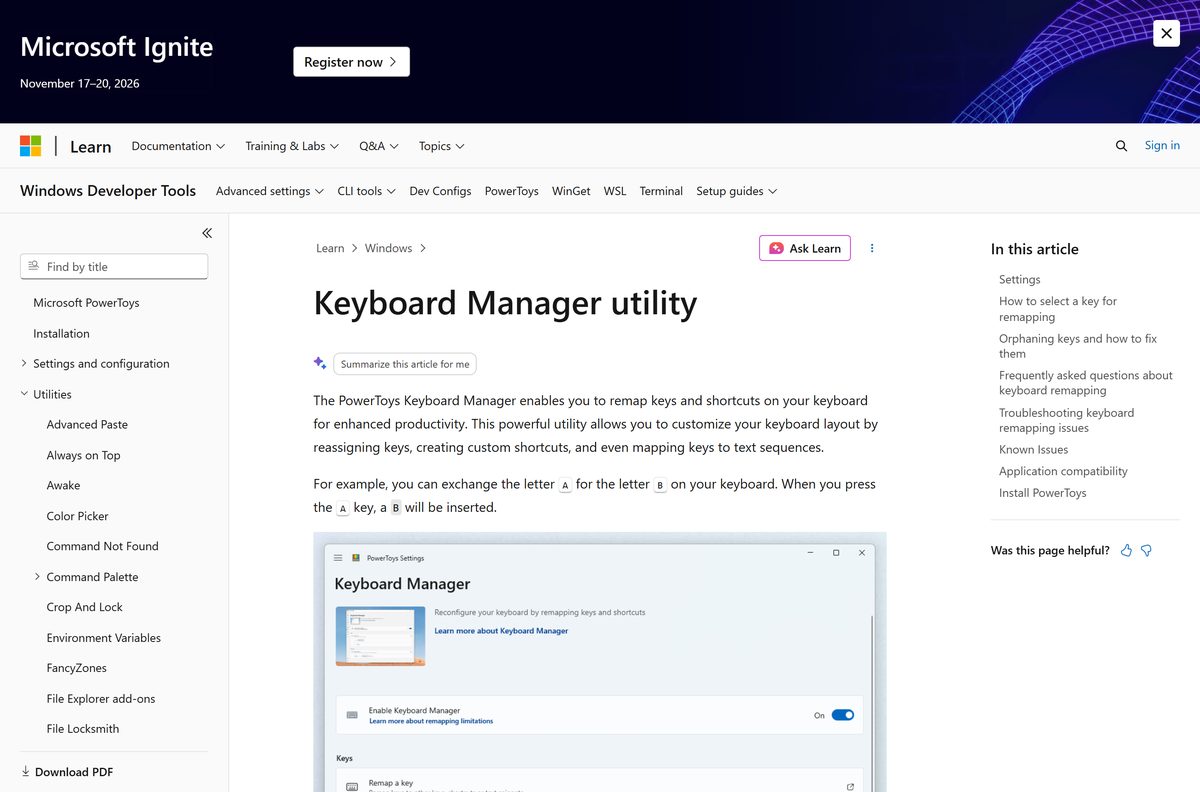
Remapped keys behave oddly with PowerToys running
Microsoft lists Mouse and Keyboard Center as a known conflict for PowerToys Keyboard Manager.
- Open PowerToys Settings and select Keyboard Manager.
- Turn Keyboard Manager off, then test your keys again.
- Keep one tool in charge of each remapped key.
How to uninstall Mouse and Keyboard Center
- Open Settings > Apps > Installed apps.
- Find Microsoft Mouse and Keyboard Center.
- Click the three-dot menu next to it and select Uninstall.
- Confirm, then select Yes at the User Account Control prompt.
- Restart the PC if Windows asks you to.
Saved macros stay in Documents\Microsoft Hardware\Macros. Delete that folder if you do not plan to reinstall.
Choose another way to customize your mouse and keyboard
Pick the row that matches your hardware.
| Option | Best for | Where to get it |
|---|---|---|
| Windows Settings | Pointer speed and primary button on any mouse | Settings > Bluetooth & devices > Mouse |
| PowerToys Keyboard Manager | Remapping keys and shortcuts on any keyboard | Microsoft Learn |
| Incase support | Designed by Microsoft accessories with the Incase logo | Microsoft’s Incase support page |
| Logitech G HUB | Logitech gaming mice and keyboards | Download Logitech G HUB for PC, Windows 11/10 & Mac |
Frequently asked questions
Is Microsoft Mouse and Keyboard Center free?
Yes. Microsoft offers the app as a free download from its support site, with no paid edition or subscription. You only need a supported Microsoft mouse, keyboard or number pad to use its settings.
What is the latest version of Microsoft Mouse and Keyboard Center?
Version 14.41 is the last version Microsoft lists for the app. The same number applies to the 64-bit, 32-bit and ARM64 installers for Windows 11 and Windows 10.
Does Microsoft Mouse and Keyboard Center work on Windows 11?
Yes. Microsoft states that version 14.41 installs on Windows 11 and Windows 10. Pick the 64-bit, 32-bit or ARM64 file that matches the System type shown in Settings > System > About.
Is there a Mac version of Microsoft Mouse and Keyboard Center?
No. Microsoft publishes Windows builds only. On a Mac, a Microsoft mouse or keyboard works as a standard device, and you adjust tracking and click settings in Apple menu > System Settings > Mouse.
How big is the Microsoft Mouse and Keyboard Center download?
The 64-bit installer is 47.3 MB, the 32-bit installer is 46.1 MB, and the ARM64 installer is 44.7 MB. Each is a full setup file, not a small web installer.
Which mice and keyboards does Mouse and Keyboard Center support?
Microsoft lists more than 40 mice, including the Arc, Sculpt, SideWinder and Pro IntelliMouse models, and more than 25 keyboards such as the Ergonomic Keyboard and Designer Compact Keyboard. The Microsoft Number Pad is supported too.
Does Mouse and Keyboard Center work with Logitech or other mice?
No. The app only configures the Microsoft mice, keyboards and number pad on its supported list. Other brands need their own software, such as Logitech G HUB for Logitech gaming gear.
Does Microsoft still make mice and keyboards?
No. Former Microsoft-branded accessories are now made and sold by Incase as Designed by Microsoft products. Microsoft keeps supporting its own accessories under warranty, and Surface accessories are still made by Microsoft.
Where does Mouse and Keyboard Center save macros?
Macros are saved as .mhm files in the Microsoft Hardware\Macros folder inside your Documents folder. Do not record passwords or other sensitive text in a macro, because the file stores every keystroke.
Why do my button reassignments not work in one program?
Application-specific settings do not apply to a program opened with Run as administrator. Some games and programs also ignore reassigned commands, so start the program normally and test the button again.