To install .NET Framework 2.0 on Windows 11, search for Windows Features, select .NET Framework 3.5 (includes .NET 2.0 and 3.0), select OK and restart if asked, because 2.0 ships only inside the 3.5 feature.
This guide covers that route plus PowerShell, DISM and offline media, the standalone installer that Windows 11 26H1 (build 28000) and later need, how to confirm the install, and fixes for the 0x800F error codes.
Method 1: Install .NET Framework 2.0 using Windows Features
This works on Windows 11 25H2 and earlier, where .NET Framework 3.5 is a built-in optional component. It needs an internet connection, because Windows downloads the files from Windows Update.
- Select the Start button on the taskbar.
- Search for Windows Features and open it. The Turn Windows features on or off dialog appears.
- Select the .NET Framework 3.5 (includes .NET 2.0 and 3.0) check box.
- Leave the two Windows Communication Foundation child items cleared unless you are a developer or server administrator who needs them.
- Select OK and wait while Windows downloads the files.
- Restart the PC if prompted.
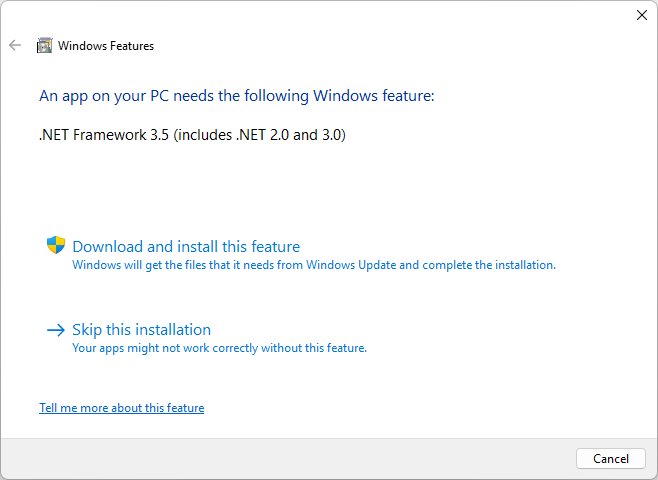
If you launch an old app first, Windows may show a dialog asking for an older .NET Framework. Choose Download and install this feature there; it enables the same component.
What you need to know before installing .NET Framework 2.0
| Fact | What it means for you |
|---|---|
| 2.0 is bundled into 3.5 | .NET Framework 2.0, 3.0 and 3.5 all run on CLR 2.0, so enabling 3.5 gives 2.0 apps the runtime they need. |
| Windows 11 ships with .NET Framework 4.x | Version 4 does not run apps built for .NET Framework 1.1 through 3.5, which is why the 3.5 feature exists. |
| Windows 11 25H2 and earlier | .NET Framework 3.5 is an optional component you turn on through Windows Features, PowerShell or DISM. |
| Windows 11 26H1 (build 28000) and later | 3.5 is no longer a Windows component; install it with Microsoft's standalone installer for that Windows version. |
| Support dates | .NET Framework 2.0 support ended July 12, 2011. .NET Framework 3.5 SP1 is supported until January 9, 2029. |
| Upgrades | On 26H1 and later, .NET Framework 3.5 is not carried over when you upgrade to the next Windows release; reinstall it afterwards. |
Which method should you use?
| Your situation | Use this | Why |
|---|---|---|
| Windows 11 25H2 or earlier, online | Method 1: Windows Features | Two clicks and a restart |
| You already have Settings open | Method 2: Settings app | Leads to the same Windows Features dialog |
| Scripting or several PCs | Method 3: PowerShell or Method 4: DISM | One command, easy to repeat |
| No internet, or Windows Update errors | Method 5: installation media with DISM | Uses the sources\sxs folder instead of Windows Update |
| Managed PC that uses WSUS | Group Policy alternate source, then Method 1 | WSUS may not hold the feature files |
| Windows 11 26H1 (build 28000) or later | Standalone .NET Framework 3.5 installer | The Windows component no longer exists on these builds |
Should you download the old .NET Framework 2.0 installer?
No. Do not run an old .NET Framework 2.0 or 3.5 SP1 setup file on Windows 11; enable the built-in 3.5 feature, or on 26H1 and later use Microsoft's standalone installer made for that Windows version. Microsoft offers the 3.5 SP1 offline installer only for Windows versions before Windows 10. From Windows 10 onward, the only supported offline route is the cab files on matching installation media, and sources from another Windows version can leave the PC in an unsupported, unserviceable state.
If an app asks for a newer 4.x runtime instead, use the direct download links for every .NET Framework version.
Method 2: Install .NET Framework 2.0 from the Settings app
The Optional features page in Settings adds Features on Demand such as language resources, but Microsoft's .NET Framework 3.5 instructions use the Turn Windows features on or off dialog. Start in Settings and finish there.
- Right-click the Start button and select Settings.
- Select System, then Optional features. On some Windows 11 versions this page sits under Apps instead.
- Type Windows features in the search box at the top of Settings and open Turn Windows features on or off.
- Select .NET Framework 3.5 (includes .NET 2.0 and 3.0) and select OK.
- Restart the PC if prompted.
Method 3: Install .NET Framework 2.0 using PowerShell
Open Windows PowerShell as administrator and run the command. The feature name for .NET Framework 3.5 is NetFx3.
Enable-WindowsOptionalFeature -Online -FeatureName NetFx3 -All-Online targets the running Windows installation, -FeatureName NetFx3 is .NET Framework 3.5 (with 2.0 and 3.0), and -All also enables any parent features it depends on.
You should see: PowerShell finishes without an error and reports whether a restart is needed. Restart if it says so.
Without internet, add the media source: Enable-WindowsOptionalFeature -Online -FeatureName NetFx3 -All -Source D:\sources\sxs -LimitAccess, replacing D: with your media's drive letter. -LimitAccess stops Windows from contacting Windows Update.
Method 4: Install .NET Framework 2.0 using DISM
Open Command Prompt as administrator; you must be a member of the local Administrators group to add Windows features. This version downloads the files from Windows Update.
DISM /Online /Enable-Feature /FeatureName:NetFx3 /All/Online services the running Windows, /Enable-Feature turns a feature on, /FeatureName:NetFx3 selects .NET Framework 3.5, and /All enables all parent features.
You should see: DISM finishes without an error code. Restart if it asks you to.
Method 5: Install .NET Framework 2.0 offline from Windows 11 installation media
Use media for exactly the same Windows 11 version that is installed. Microsoft warns that sources from a different version install a mismatched .NET Framework 3.5 or fail outright.
- Create a Windows 11 ISO or USB drive for your installed version with Microsoft's media creation tool, if you do not already have one.
- Mount the ISO or insert the USB drive and note its drive letter, for example D:.
- Open File Explorer and confirm the drive contains a sources\sxs folder.
- Open Command Prompt as administrator.
- Run
DISM /Online /Enable-Feature /FeatureName:NetFx3 /All /LimitAccess /Source:D:\sources\sxs, replacing D: with your drive letter. - Wait for DISM to finish without an error code, then restart if prompted.
/Source points DISM at the feature files and /LimitAccess stops it contacting Windows Update or WSUS. If you do not have media, follow Microsoft's steps to create installation media for Windows first.
Install .NET Framework 3.5 on Windows 11 26H1 (build 28000) and later
Starting with Windows 11 26H1 (build 28000), .NET Framework 3.5 is only available as a standalone installer, so Methods 1 to 5 will not find it. The ASP.NET 3.5, .NET Extensibility 3.5 and WCF activation components were removed as well.
- Press Windows + R, type
winver.exeand press Enter to read your version and build. - If the build is 28000 or higher, open Microsoft Learn's Install .NET Framework 3.5 on Windows 11 page.
- Download the .NET Framework 3.5 installer listed for your Windows version; these installers only work on the version they name.
- Run the installer and follow its prompts. Administrators can deploy it silently with
/qor/quiet. - Install the matching .NET Framework 3.5 Language Pack from the same page if your app needs localized resources.
This installer cannot be applied to an offline Windows image with DISM; install it on the running system.
How to confirm .NET Framework 2.0 is installed
- Open Turn Windows features on or off again and check that .NET Framework 3.5 (includes .NET 2.0 and 3.0) is ticked.
- Or run
Get-WindowsOptionalFeature -Online -FeatureName NetFx3in PowerShell and check that State reads Enabled. - Or run
DISM /Online /Get-FeatureInfo /FeatureName:NetFx3in Command Prompt. Enable Pending means you still need to restart. - For a registry check, open
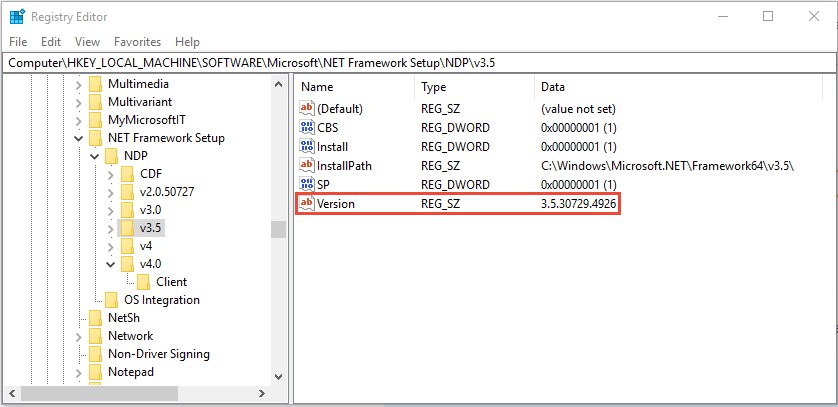
regeditand go toHKLM\Software\Microsoft\NET Framework Setup\NDP\v2.0.50727. An Install REG_DWORD value of 1 confirms 2.0 is present. - The 3.5 layer is at
HKLM\Software\Microsoft\NET Framework Setup\NDP\v3.5, also with Install set to 1.
To see which other runtimes are missing, check the .NET Framework versions not installed on your PC.
Installing .NET Framework 2.0 on Windows 11 without internet
Method 5 is the direct offline route. If you prefer the Windows Features dialog, point Windows at local files through Group Policy so it never needs Windows Update.
- Mount Windows 11 media that matches your installed version.
- Open the Local Group Policy Editor.
- Expand Computer Configuration > Administrative Templates and select System.
- Open Specify settings for optional component installation and component repair and select Enabled.
- In Alternate source file path, enter the full path to the media's sources\sxs folder, then select OK.
- Run
gpupdate /forcein an administrator Command Prompt, then use Method 1.
Can you install only .NET Framework 2.0 without 3.5?
No. On Windows 11 the only option is the single .NET Framework 3.5 feature, which Windows labels as including .NET 2.0 and 3.0. 2.0, 3.0 and 3.5 share CLR 2.0, so 3.5 is a superset that runs 2.0 apps. There is no separate 2.0 checkbox or Windows 11 package, and standalone 2.0 support ended in 2011.
Does .NET Framework 2.0 work with 32-bit and 64-bit apps?
| Question | Answer |
|---|---|
| Do I pick a 32-bit or 64-bit package? | No. Windows Features, PowerShell and DISM all enable the one NetFx3 feature. |
| Where do 64-bit tools see it? | HKLM\Software\Microsoft\NET Framework Setup\NDP\v3.5 |
| Where do 32-bit apps on 64-bit Windows see it? | HKLM\SOFTWARE\Wow6432Node\Microsoft\NET Framework Setup\NDP\v3.5 |
| The app still says .NET is missing | Confirm the feature is Enabled, then check that the app's own installer is not looking for a different version. |
Using compatibility mode for old .NET 2.0 applications
If the app installs but misbehaves, check the publisher's site for an updated version first. Then let Windows test compatibility settings for it.
- Select Start > Settings > System > Troubleshoot > Other troubleshooters.
- Find Program Compatibility Troubleshooter and select Run.
- Pick the old app from the list and follow the on-screen instructions.
- Test the app with the suggested settings and keep them if it runs correctly.
Developers can sometimes avoid 3.5 entirely: a config file can force an app to run on .NET Framework 4, which Microsoft calls retargeting.
Security considerations for old .NET applications
| Risk | What to do |
|---|---|
| The app itself is old and unmaintained | Look for an updated version that uses a newer .NET Framework or .NET before enabling 3.5. |
| Runtime updates | Keep Windows Update on; .NET Framework 3.5 SP1 is supported until January 9, 2029. |
| Developers maintaining the app | Microsoft recommends moving to modern .NET, such as .NET 10, or at least .NET Framework 4.8 or 4.8.1. |
| Extra components | Leave the WCF HTTP and non-HTTP Activation items off unless a server role needs them. |
Common installation errors and fixes
Error 0x800F0906 or "Windows couldn't complete the requested changes"
Windows could not download the source files from Windows Update.
- Check that the PC can reach Windows Update and that no proxy or firewall blocks it.
- Retry Method 1.
- If it still fails, use Method 5 with matching installation media.
Error 0x800F081F
The source path is wrong, unreadable, or holds files for a different Windows version.
- Check the full path ends in sources\sxs and that you can open it from this PC.
- Confirm the media matches your installed Windows 11 version.
- Try a different, freshly created installation source.
Error 0x800F0907
Group Policy is set to never download payloads from Windows Update and no valid alternate source is set.
- Open Specify settings for optional component installation and component repair in Group Policy.
- Set Alternate source file path to your media's sources\sxs folder, or allow Windows Update.
- Run
gpupdate /forceand try again.
Error 0x800F0922
Advanced installers failed; this code is not specific to .NET Framework.
- Right-click the media's SXS folder, select Properties > Security and make sure Read & Execute is allowed.
- Run
dism /online /enable-feature /featurename:netfx3 /all /source:D:\sources\sxs /limitaccesswith your drive letter. - Run
dism /online /Cleanup-Image /RestoreHealthand retry.
.NET Framework 3.5 is not in Windows Features at all
The PC runs Windows 11 26H1 (build 28000) or later, where 3.5 is no longer a Windows component.
- Run
winver.exeto confirm the build. - Use the standalone installer section above.
Fixing Windows Update or component store problems
Install fails on a work PC that gets updates from WSUS
The PC asks WSUS for the feature files instead of Windows Update.
- Ask the administrator to enable Specify settings for optional component installation and component repair.
- Have them tick Contact Windows Update directly to download repair content instead of Windows Server Update Services (WSUS) or set an alternate source path.
- Run
gpupdate /forceand install again.
Every source fails and other features will not install either
The Windows component store may be damaged.
- Open Command Prompt as administrator.
- Run
dism /online /Cleanup-Image /RestoreHealthand wait for it to finish. - Restart, then repeat Method 4 or Method 5.
- Check the DISM log at
C:\Windows\Logs\DISM\dism.logfor the failing step if it still fails.
How to uninstall .NET Framework 2.0 from Windows 11
Removing the 3.5 feature removes 2.0 and 3.0 with it. Any app that depends on them will stop working.
- Search for Windows Features and open Turn Windows features on or off.
- Clear .NET Framework 3.5 (includes .NET 2.0 and 3.0) and select OK.
- Restart when prompted.
- From PowerShell instead, run
Disable-WindowsOptionalFeature -Online -FeatureName NetFx3as administrator. - From Command Prompt, run
DISM /Online /Disable-Feature /FeatureName:NetFx3. Disable Pending means a restart is still needed.
Frequently asked questions
How do I install .NET Framework 2.0 on Windows 11?
Open Windows Features, tick .NET Framework 3.5 (includes .NET 2.0 and 3.0), select OK and restart if asked. On Windows 11 26H1 (build 28000) and later, use Microsoft's standalone .NET Framework 3.5 installer instead, because the Windows component was removed.
How do I download .NET Framework 2.0?
You do not download 2.0 on its own for Windows 11. Windows fetches the files from Windows Update when you enable .NET Framework 3.5, or reads them from matching installation media. Only Windows 11 26H1 and later use a downloadable standalone 3.5 installer.
What is Microsoft .NET Framework 2.0?
.NET Framework 2.0 is a 2006 release of Microsoft's app runtime built on CLR 2.0. Apps written for it need .NET Framework 3.5 on Windows 11, because the built-in .NET Framework 4.x cannot run apps built for versions 1.1 through 3.5.
How do I uninstall .NET Framework 2.0?
Open Turn Windows features on or off, clear .NET Framework 3.5 (includes .NET 2.0 and 3.0), select OK and restart. You can also run DISM /Online /Disable-Feature /FeatureName:NetFx3 as administrator. Apps that rely on 2.0 will stop working afterwards.
How do I get .NET Framework 2.0 without internet?
Mount Windows 11 media for your exact version and run DISM /Online /Enable-Feature /FeatureName:NetFx3 /All /LimitAccess /Source:D:\sources\sxs as administrator, using the media's drive letter. Media from a different Windows version can cause a mismatched or failed install.
How do I install .NET Framework 4.0 on Windows 11?
You do not need to. Windows 11 already includes .NET Framework 4.8 or 4.8.1, which keep the features of earlier 4.x releases. .NET Framework 4.0 itself reached end of support on January 12, 2016.
How do I install .NET Framework 4.6.2 on Windows 11?
Windows 11 already includes a newer 4.x release, 4.8 or 4.8.1, so apps that ask for 4.6.2 normally run without installing anything. Microsoft ends support for .NET Framework 4.6.2 on January 12, 2027.
How do I install .NET Framework 6.0 or 8.0?
.NET 6 and .NET 8 are releases of modern .NET, a separate product from .NET Framework. They are not Windows features; install them from Microsoft's .NET download site. Enabling .NET Framework 3.5 does not add them.
Is .NET Framework 3.5 still supported?
Yes. .NET Framework 3.5 SP1 is supported until January 9, 2029. .NET Framework 2.0 as a separate product lost support on July 12, 2011, but 2.0 apps run on the supported 3.5 SP1 runtime.
Best method for most users
Use Method 1, Windows Features, on Windows 11 25H2 and earlier; switch to DISM with matching media if Windows Update fails, and use the standalone installer on build 28000 or later. Windows Features installs the exact component Microsoft supports in two clicks, while the other routes only matter when the PC is offline, managed, or on a build where the component was removed.