Your Ricoh Universal Print Driver download is free from Ricoh’s global download center at support.ricoh.com. The PCL6 Driver for Universal Print 4.45.0.0 runs one driver for many Ricoh printers and MFPs on 64-bit Windows 11 and Windows 10.
Ricoh ships four universal drivers: PCL6, PostScript, and a V4 edition of each. Most offices want the standard PCL6 build.
Below: which build fits your PC, the download links, install and deployment steps, updates, fixes for common errors, a clean uninstall and the driverless options for ARM PCs and Macs.
Which Ricoh Universal Print Driver download do you need?
Match your computer to a row. The Ricoh page detects your Windows version and lists the drivers for it.
| Your computer | What to install | Where |
|---|---|---|
| Windows 11 or Windows 10, 64-bit Intel or AMD | PCL6 Driver for Universal Print | Ricoh Universal Print Driver page |
| Windows PC printing from PostScript apps | PS Driver for Universal Print | Ricoh Universal Print Driver page |
| Windows PC that needs the V4 driver model | PCL6 V4 Driver for Universal Print | Ricoh Universal Print Driver page |
| Windows 11 PC with an ARM processor | RICOH Print Support Application with the Microsoft IPP Class Driver | RICOH Print Support Application |
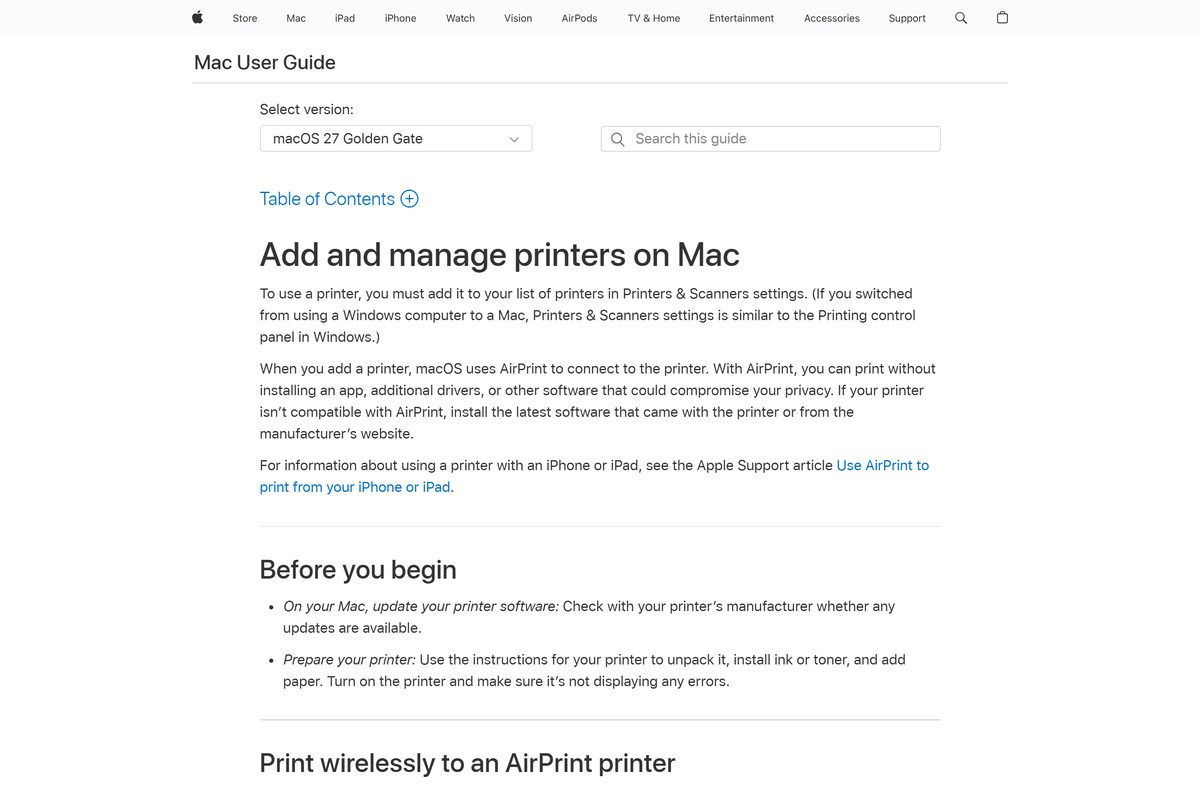
| Mac | AirPrint in Printers & Scanners, or your model’s own driver | Add printers on Mac |
Only need one model? The Ricoh product select page lists each printer’s own drivers.
Download the Ricoh Universal Print Driver from support.ricoh.com
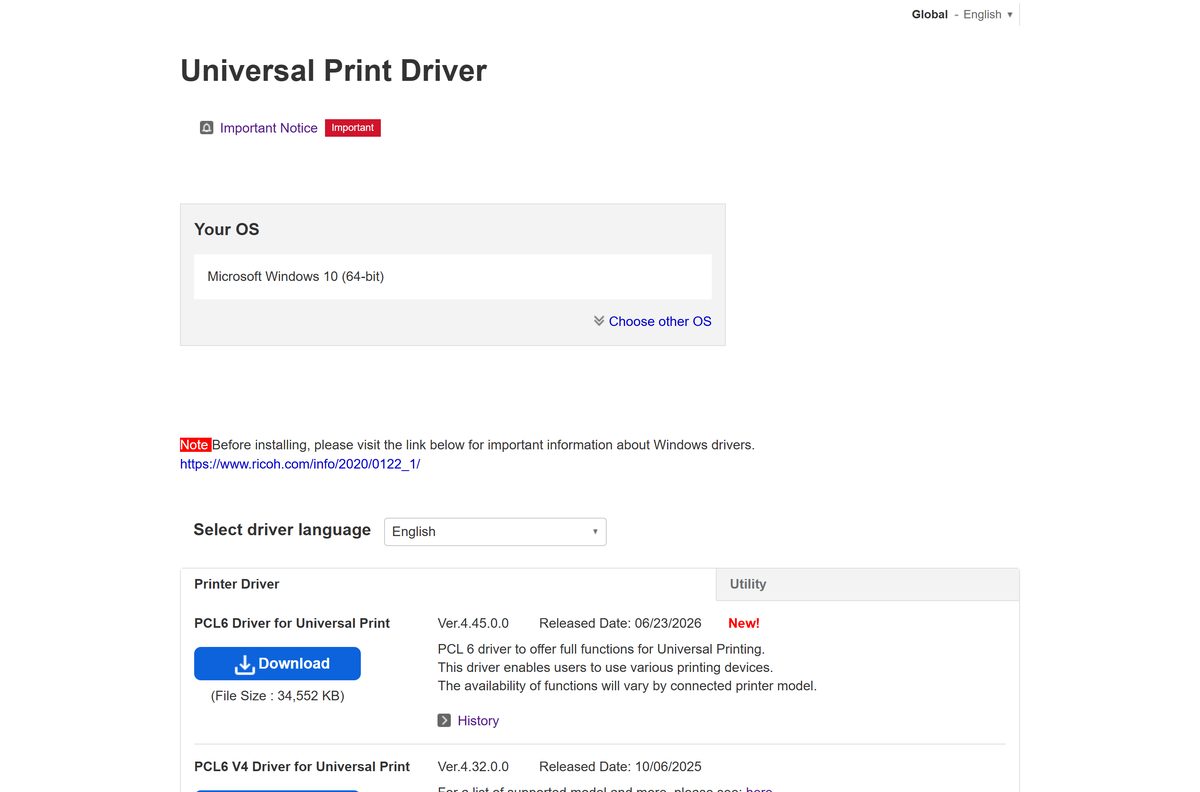
All four universal drivers sit on one Ricoh page. Pick the driver language in Select driver language before you select Download.
- PCL6 Driver for Universal Print 4.45.0.0 — the standard universal driver, released 06/23/2026
- PS Driver for Universal Print 4.45.0.0 — PostScript universal driver, released 06/23/2026
- PCL6 V4 Driver for Universal Print 4.32.0.0 — V4 driver model, released 10/06/2025
- PS V4 Driver for Universal Print 1.14.0.0 — PostScript V4 driver, released 09/25/2024
- Ricoh driver security notice — read before replacing an older Ricoh driver
The same page lists Ricoh admin tools such as Printer Driver Packager NX and Device Manager NX under Software.
How to install the Ricoh Universal Print Driver on Windows 11 and 10
Installing a printer driver needs administrator rights. Keep the printer’s IP address handy for a network printer.
- Open the Ricoh Universal Print Driver page and confirm Your OS shows your Windows version.
- Choose your language under Select driver language.
- Select Download under PCL6 Driver for Universal Print and accept the terms.
- Double-click the downloaded file and unpack the driver files to a folder you can find.
- Open Settings > Bluetooth & devices > Printers & scanners and select Add device.
- Select Add manually, choose Add a printer using an IP address or hostname and enter the printer’s address.
- At Install the printer driver, select Have Disk and browse to the .inf file in the unpacked folder.
- Select the Ricoh PCL6 universal driver in the list and select Next.
- Name the printer, choose whether to share it, and select Print a test page.
Windows can pick its own IPP class driver for a network printer. If the new printer shows a Microsoft driver, change it on the Advanced tab of Printer properties.
How to deploy the Ricoh universal driver to many PCs
Ricoh offers no MSI for the universal driver. Stage the unpacked driver package with the built-in Windows driver tool, or build a preconfigured package with Printer Driver Packager NX from the same Ricoh page.
pnputil /add-driver “C:\Drivers\Ricoh\*.inf” /install Run it in an elevated Command Prompt on each PC. It adds the Ricoh driver package to the Windows driver store, so users or scripts can then add the printer without browsing for the .inf file. Test on one PC before a wide rollout. Get the package from the Ricoh Universal Print Driver page.
Choose between the PCL6 and PostScript Ricoh universal drivers
Install the PCL6 Driver for Universal Print. Choose the PS driver only for PostScript-based design or publishing apps, and a V4 driver only when your IT policy requires the V4 model. Ricoh describes the PCL6 build as offering full functions for universal printing, and it carries the newest release. The V4 drivers follow the newer Microsoft driver architecture and pair with a Microsoft Store companion utility, but they update less often. Available functions vary by printer model with every edition.
Which Ricoh printing option do you need on a Mac?
The universal drivers on Ricoh’s page are Windows packages. macOS connects to most network printers with AirPrint instead.
| Your Mac situation | What to do | Where |
|---|---|---|
| Ricoh printer supports AirPrint | Add it in System Settings > Printers & Scanners; no driver needed | Add printers on Mac |
| Printer does not support AirPrint | Look up your printer model and install its own macOS driver | Ricoh product select page |
Is the Ricoh Universal Print Driver free?
Yes. Ricoh publishes every universal print driver free on support.ricoh.com, with no license key or subscription. The driver is only useful with a Ricoh-made printer, so Ricoh does not charge for it. Any site asking for payment or a registration fee is not Ricoh. The RICOH Print Support Application in the Microsoft Store is free as well.
How to check your Ricoh driver version and update it
- Open Settings > Bluetooth & devices > Printers & scanners and select your Ricoh printer.
- Select Printer properties and open the Advanced tab to see the driver name.
- Go back and select Print server properties, then open the Drivers tab.
- Select the Ricoh universal driver and choose Properties to read its version.
- Compare it with the version on the Ricoh Universal Print Driver page.
- If Ricoh lists a newer release, download it and repeat the Have Disk install over the old driver.
Check the Ricoh Universal Print Driver system requirements
| Field | Value |
|---|---|
| Software | Ricoh Universal Print Driver (PCL6 Driver for Universal Print) |
| Developer | Ricoh Company, Ltd. |
| Latest version | PCL6 and PS 4.45.0.0 (06/23/2026); PCL6 V4 4.32.0.0; PS V4 1.14.0.0 |
| License | Free |
| Windows | 64-bit Windows 11 and Windows 10; Windows Server 2016 and later via Windows Update |
| Architecture | x64; ARM PCs use the RICOH Print Support Application |
| macOS | Not available; use AirPrint or a model driver |
| Offline installer | Yes, a complete driver package |
| Rights needed | Administrator account to add a driver |
| Official source | support.ricoh.com |
| Last verified | 2026-09-25 |
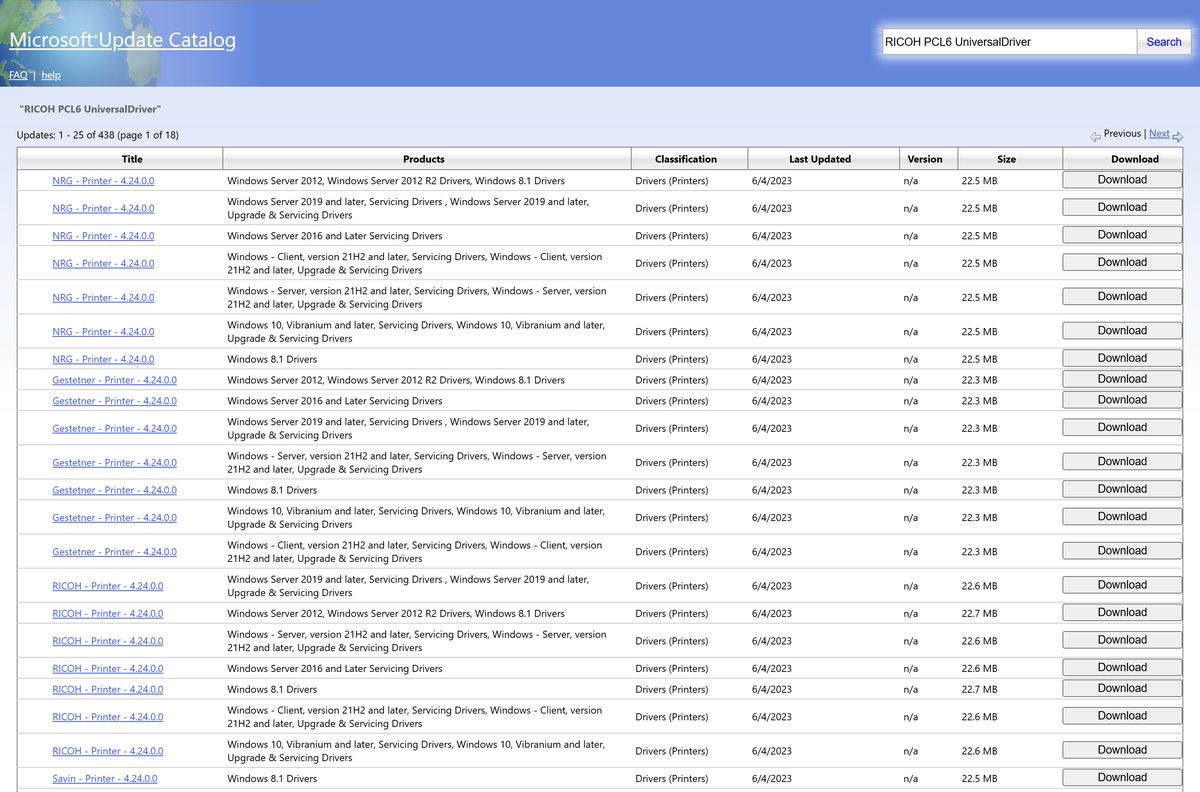
The Microsoft Update Catalog also carries the Ricoh PCL6 universal driver for Windows 11, Windows 10 and Windows Server.
Fix the Ricoh Universal Print Driver not installing or not working
Windows 11 uses a Microsoft driver instead of Ricoh’s
Since July 1, 2026, Windows prefers its inbox IPP class driver when you add a printer.
- Open Printer properties and select the Advanced tab.
- Pick the Ricoh PCL6 universal driver in the Driver list.
- If it is missing, select New Driver, then Have Disk, and browse to the unpacked .inf file.
The driver will not install on an ARM PC
The universal drivers target x64 Windows, and Ricoh supports ARM PCs through its Print Support Application.
- Add the printer in Printers & scanners so Windows uses the IPP class driver.
- Install the free RICOH Print Support Application from the Microsoft Store.
- Open the printer’s printing preferences to reach the Ricoh settings.
A security tool flags an old Ricoh driver
Older Ricoh printer drivers were affected by vulnerability CVE-2019-19363.
- Read Ricoh’s security notice and its list of affected drivers.
- Remove the old driver from Print server properties > Drivers.
- Install the current universal driver from support.ricoh.com.
Finishing, stapling or color options are missing
Ricoh states that available functions vary by the connected printer model.
- Open Printer properties and look for a device options or configuration tab.
- Update the installed options from the printer if the driver offers it.
- Install your model’s own driver from the Ricoh product select page if features still do not appear.
How to uninstall the Ricoh Universal Print Driver
- Open Settings > Bluetooth & devices > Printers & scanners.
- Select each printer that uses the Ricoh universal driver and choose Remove.
- Select Print server properties and open the Drivers tab.
- Select Change Driver Settings if Windows shows it.
- Select the Ricoh universal driver and choose Remove.
- Pick Remove driver and driver package and select OK.
- Restart the PC if Windows reports the driver is still in use.
Choose a Ricoh Universal Print Driver alternative
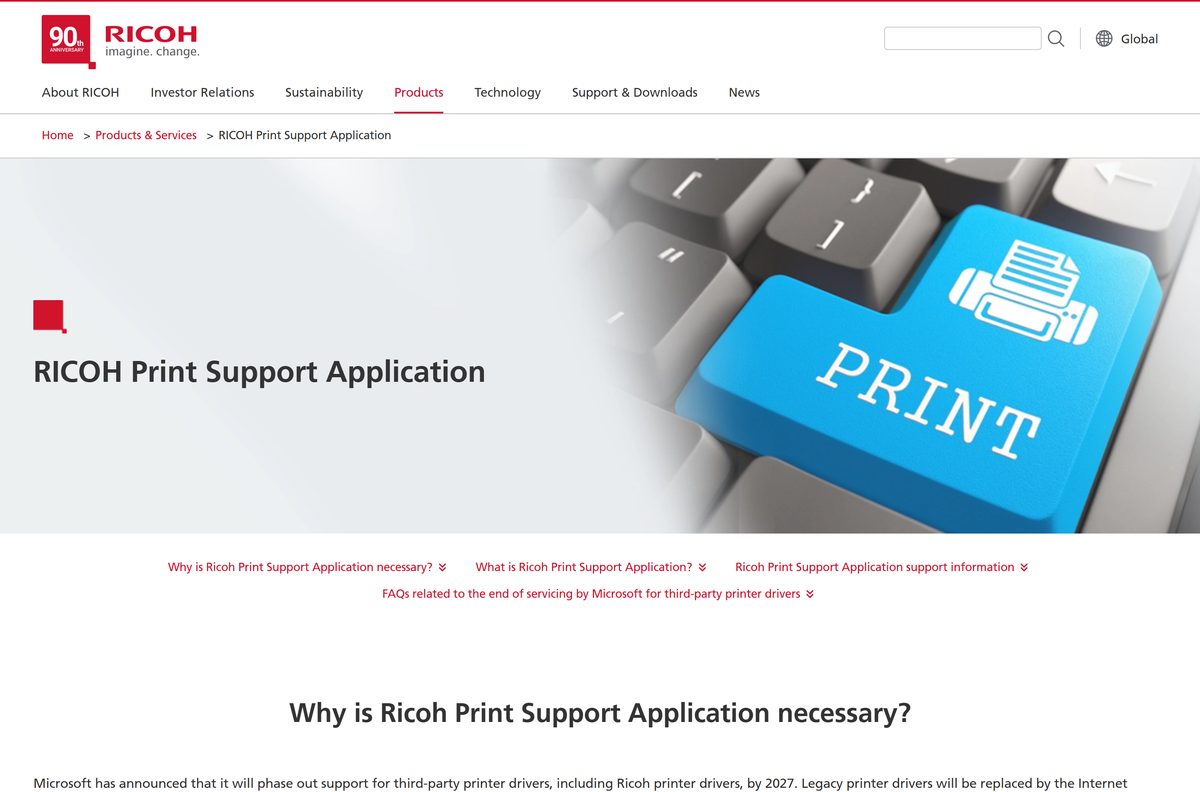
Microsoft is phasing out third-party printer drivers. Ricoh says it will keep servicing its existing drivers after that.
| Option | Best for | Link |
|---|---|---|
| RICOH Print Support Application | ARM PCs and driverless Windows 11 printing with Ricoh features | Microsoft Store listing |
| Microsoft IPP Class Driver | Basic printing with no vendor driver at all | Microsoft driver servicing plan |
| Model-specific Ricoh driver | Every feature of one printer model | Ricoh product select page |
| Microsoft Universal Print App | Cloud printing to Ricoh Smart Operation Panel MFPs | Ricoh page |
Keep the universal driver for mixed fleets of x64 PCs. Move to the Print Support Application for ARM PCs and Windows Protected Print Mode.
Frequently asked questions
Is the Ricoh Universal Print Driver free?
Yes. Ricoh offers all four universal print drivers free on its global download center at support.ricoh.com. There is no license key, trial or subscription, so any site that charges for the driver is not Ricoh.
Where is the official Ricoh Universal Print Driver download?
The official download is the Universal Print Driver page on support.ricoh.com. It lists the PCL6, PS, PCL6 V4 and PS V4 drivers for your Windows version, each with a Download button and release history.
Does the Ricoh Universal Print Driver work on Windows 11?
Yes. The driver runs on 64-bit Windows 11 and Windows 10, and the Microsoft Update Catalog lists the Ricoh PCL6 universal driver for Windows 11. On ARM PCs, use the RICOH Print Support Application.
How big is the Ricoh Universal Print Driver download?
Ricoh prints the file size next to each Download button on its Universal Print Driver page. The size differs between the PCL6, PS and V4 editions, so check the row for the edition you pick.
Is the Ricoh Universal Print Driver an offline installer?
Yes. Each download is a complete driver package. Copy it to a PC with no internet access, unpack it and install it with Have Disk, or stage it with pnputil.
Is there a Ricoh Universal Print Driver for Mac?
No. The Ricoh universal drivers are Windows packages. On a Mac, add the printer in Printers & Scanners so macOS uses AirPrint, or install your printer model’s own macOS driver from Ricoh.
Does the Ricoh universal driver support ARM64 Windows?
No. The universal drivers are for x64 Windows. Ricoh supports Windows on ARM through the free RICOH Print Support Application, which works with the Microsoft IPP Class Driver.
Is the Ricoh Universal Print Driver safe?
Yes, when you download it from support.ricoh.com. Ricoh advises removing older drivers affected by CVE-2019-19363 and installing the latest version, which the current universal driver is.
What is the latest Ricoh Universal Print Driver version?
The latest PCL6 Driver for Universal Print is version 4.45.0.0, released on June 23, 2026. The PS driver is also 4.45.0.0, the PCL6 V4 driver is 4.32.0.0 and the PS V4 driver is 1.14.0.0.
Why won’t the Ricoh Universal Print Driver install?
The usual causes are an ARM PC, a missing administrator account, or Windows choosing its own IPP class driver. Install on x64 Windows as an administrator and select the Ricoh .inf file with Have Disk.