The Azure CLI download is free from Microsoft: version 2.90.0 installs on Windows 11 and Windows 10 from a 64-bit MSI, and on a Mac through Homebrew. It gives you the az command for managing Azure resources from a terminal or a script.
This guide covers the right package for your machine, the MSI and winget installs, the no-admin ZIP, the Mac routes, updates with az upgrade , fixes for common setup errors and a clean uninstall.
Which Azure CLI download do you need?
Microsoft ships a separate package per operating system and install scope. Find your setup in the left column and take the file or command on that row.
| Your computer | Get this | Notes |
|---|---|---|
| Windows 11 or 10, 64-bit, with admin rights | 64-bit MSI | Microsoft recommends the 64-bit build for better performance |
| Windows on an older 32-bit system | 32-bit MSI | Installing the 64-bit MSI removes this build automatically |
| Windows, no admin rights | ZIP package (preview) | Unzip anywhere and add \bin to your PATH; 64-bit only |
| Windows, you prefer a package manager | winget install | Run winget install --exact --id Microsoft.AzureCLI |
| Mac on macOS 13 or later | Homebrew formula | Run brew update && brew install azure-cli |
| Ubuntu, Debian, RHEL, CentOS Stream or Azure Linux | Linux package repository | apt, dnf, zypper and tdnf all pull from packages.microsoft.com |
| You want nothing installed at all | Azure Cloud Shell | Runs in a browser and stays up to date on its own |
Most Windows readers want the 64-bit MSI. Take the ZIP package on a locked-down work laptop where no administrator prompt will ever be approved.
Download the Azure CLI from the official Microsoft links
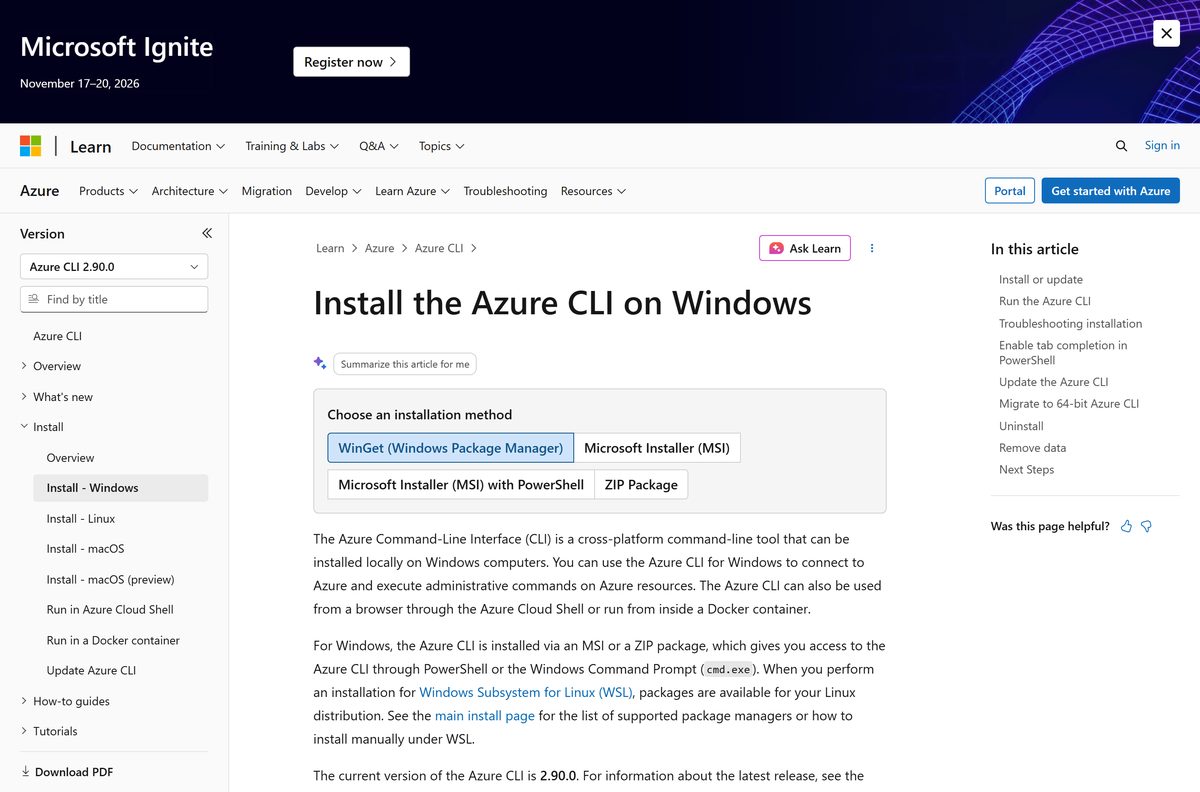
Microsoft publishes every installer through its own documentation on Microsoft Learn. The GitHub repository holds the source code, the issue tracker and the macOS tarballs.
- Install the Azure CLI on Windows — MSI, ZIP, winget and PowerShell methods
- 64-bit MSI installer — Microsoft short link to the current x64 package
- 32-bit MSI installer — for older 32-bit Windows systems
- Install on macOS — Homebrew formula, macOS 13 or higher
- Install on Linux or WSL — apt, dnf, zypper and tdnf instructions
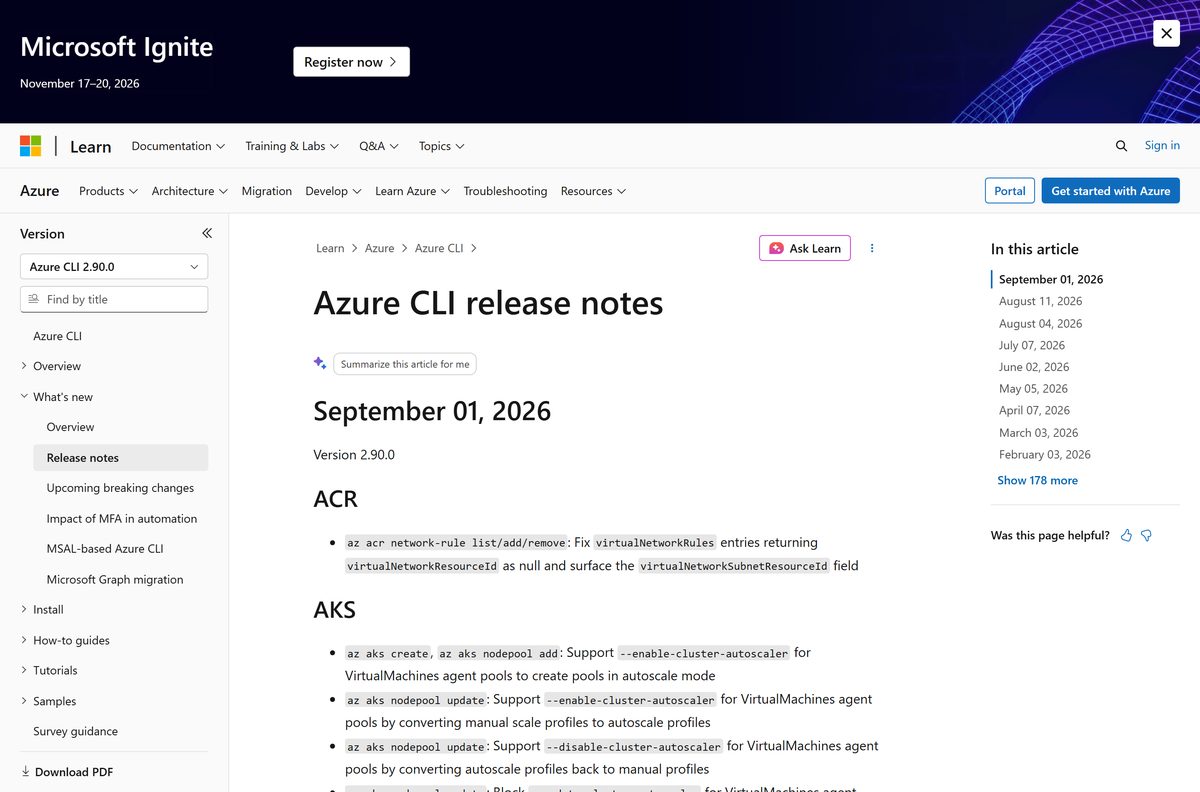
- Release notes and version history — every release, newest at the top
- Azure/azure-cli source repository — Microsoft’s official repository, MIT licensed
How to install the Azure CLI on Windows 11 and 10
The MSI is a standard Windows installer that adds az to your PATH. Running it over an older build upgrades that build, so there is nothing to uninstall first.
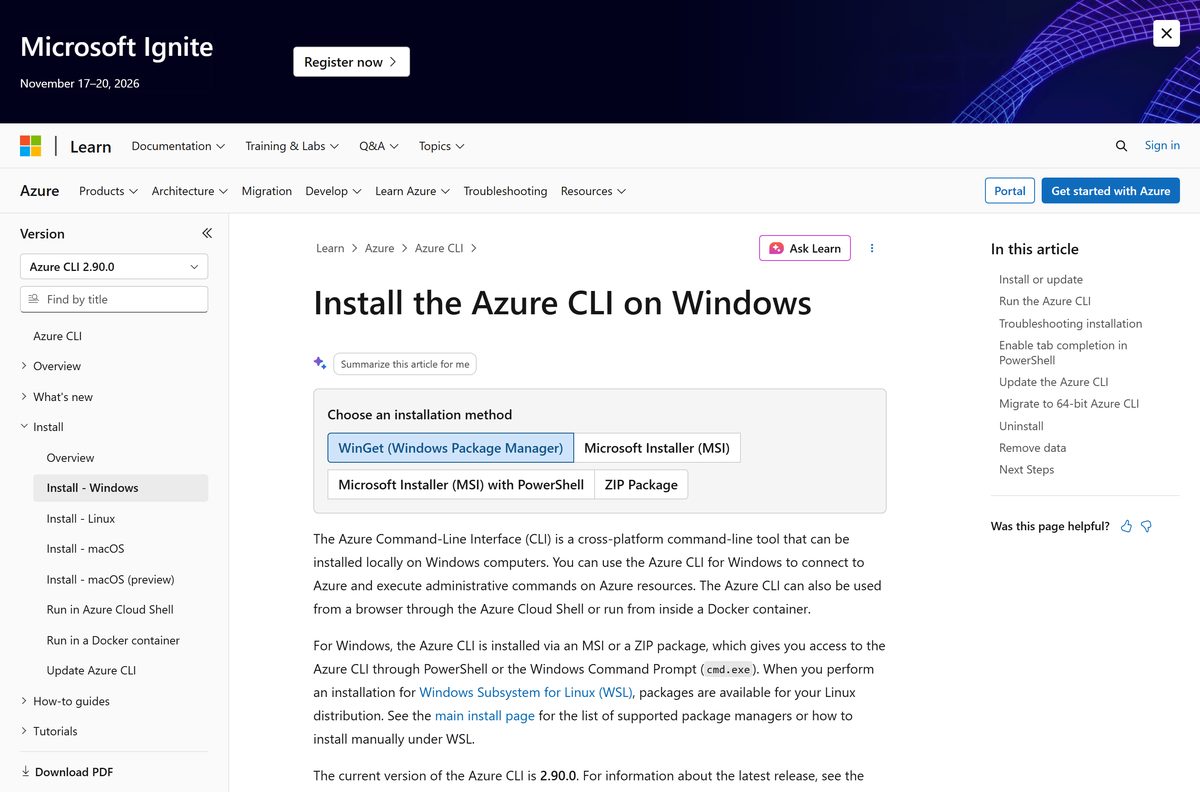
- Open the Windows install page and select the Microsoft Installer (MSI) tab.
- Click the link for the latest 64-bit release to start the download.
- Open your Downloads folder and double-click the .msi file.
- Select Yes when Windows asks whether the installer can make changes to your computer.
- Follow the setup wizard to the end. The 64-bit build lands in C:\Program Files\Microsoft SDKs\Azure\CLI2 .
- Close every open Command Prompt, PowerShell and Windows Terminal window.
- Open a new terminal and run az version to confirm the install.
- Run az login and sign in with your Azure account to start issuing commands.
Skipping the terminal restart is the single most common install complaint. A window opened before setup finished still carries the old PATH.
Install the Azure CLI with winget on Windows
Windows Package Manager is built into Windows 11 and current builds of Windows 10. It picks the 64-bit package on a 64-bit system and handles later upgrades for you.
- Press the Windows key, type powershell and open Windows PowerShell.
- Run winget –version to confirm Windows Package Manager is present.
- Run winget install –exact –id Microsoft.AzureCLI to install the current release.
- To pin a build instead, add the version flag: winget install –exact –id Microsoft.AzureCLI –version 2.67.0 .
- Close the PowerShell window and open a new one.
- Run az version to check the build that landed.
- Run winget upgrade –exact –id Microsoft.AzureCLI whenever you want the newest release.
The –exact flag matters. Without it, winget can match a different package whose name merely contains the same words. Microsoft’s own listing has the ID Microsoft.AzureCLI .
Install the Azure CLI silently with msiexec or PowerShell
These are the commands Microsoft documents for scripted and unattended installs. Run them from an elevated prompt.
| Command | What it does |
|---|---|
Invoke-WebRequest -Uri https://aka.ms/installazurecliwindowsx64 -OutFile .\AzureCLI.msi |
Downloads the current 64-bit package to the working folder |
Start-Process msiexec.exe -Wait -ArgumentList '/I', 'AzureCLI.msi', '/quiet' |
Installs it with no interface and waits for the result |
Remove-Item .\AzureCLI.msi |
Deletes the package once setup finishes |
$ProgressPreference = 'SilentlyContinue' |
Set this first: it makes the download step far faster |
winget install --exact --id Microsoft.AzureCLI --silent |
A one-line alternative on machines that already have winget |
Test the sequence on one machine, then confirm it with az version before you push it to a fleet. Point the -Uri at a versioned package name when a deployment has to stay pinned.
Run the Azure CLI without admin rights or without installing it
Two routes skip the installer entirely. The Windows ZIP package unpacks anywhere, and Azure Cloud Shell runs the same tool in a browser tab.
- Open the ZIP package tab on the Windows install page.
- Download the 64-bit ZIP and extract it to a folder you can write to, such as %LOCALAPPDATA% .
- Run
\bin\az.cmd to use it straight away, with no PATH change. - To type az instead, open the Start menu, search for environment variables and select Edit the system environment variables.
- Click Environment Variables, select Path under your user variables and click Edit.
- Click New, add the \bin folder from the unzipped package, then click OK twice.
- Restart your terminal and run az version .
- Prefer no local install at all? Open Azure Cloud Shell and sign in; the CLI is already there.
The ZIP package is a preview and is 64-bit only. To update it, delete the old folder and extract the new package to the same location.
Which Azure CLI download do you need for your Mac?
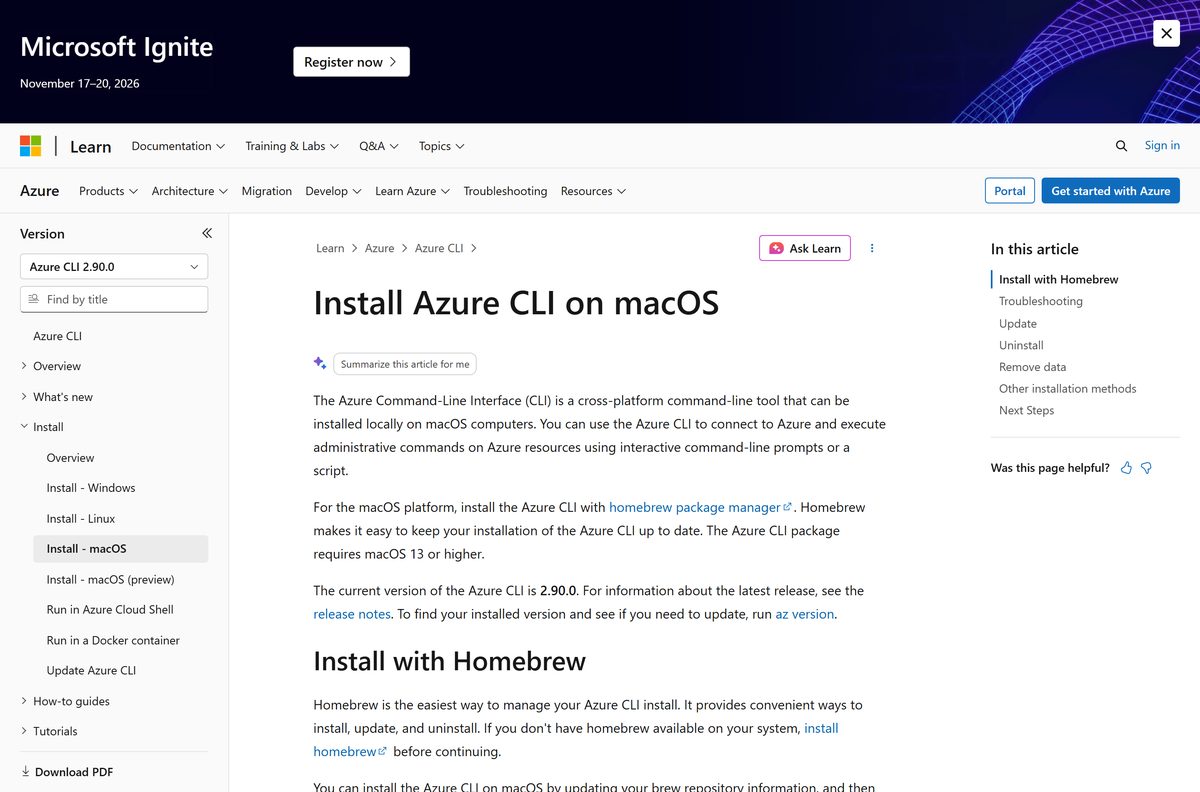
There is no .pkg or .dmg for macOS. Microsoft distributes the Mac build through Homebrew, so install Homebrew first if you do not have it.
| Your Mac | Install with | What happens |
|---|---|---|
| macOS 13 or later, Apple Silicon or Intel | Homebrew formula | Run brew update && brew install azure-cli; Homebrew pulls the right build for your chip |
| You want the new install model early | Homebrew Cask preview | Run brew tap azure/azure-cli then brew install --cask azure-cli-preview |
| Air-gapped or locked-down Mac | Tarball (preview) | Fetch the macos-arm64 or macos-x86_64 tarball from the GitHub releases page and extract it |
| A Mac without Homebrew and without a proxy exception | Azure Cloud Shell | Runs in the browser with nothing to install locally |
After the install, run az version in Terminal. Microsoft is moving the Mac build from the Homebrew formula to a Cask, and the plain brew install azure-cli command keeps working through that change.
Is the Azure CLI free?
Yes. The Azure CLI is a free, open-source download under the MIT License. There is no paid edition, no trial and no licence key. The charges come from the Azure resources you create with it: spinning up a virtual machine costs the same from the terminal as from the portal. You do need an Azure account to sign in with az login . Any site selling a licence or a “pro” build is a scam.
Should you install the 64-bit or the 32-bit Azure CLI?
Install the 64-bit MSI. The 32-bit package is for older 32-bit Windows systems only. Microsoft recommends the 64-bit build for better performance, and it has shipped since version 2.51.0. Installing it removes an existing 32-bit copy automatically. Extensions do not carry over, so note them with az –version first and add them again afterwards with az extension add –name
Back up %userprofile%\.azure\cliextensions before you switch, in case you want the 32-bit package back.
How to check your Azure CLI version and update it
Core ships monthly, so a copy installed last quarter is already behind. The tool updates itself from any install route.
- Open Command Prompt, PowerShell or Terminal.
- Run az version . The azure-cli field in the JSON output is your build.
- Compare it with the top entry in the release notes.
- Run az upgrade to move to the newest release, extensions included.
- Add –all false to the command when you want the core tool updated but the extensions left alone.
- Close the terminal, open a new one and run az version again to confirm the change.
- Run az extension list to see which extensions are installed and where they live.
az upgrade has worked since version 2.11.0. On a ZIP install, replace the folder contents instead.
Check the Azure CLI system requirements before you download
| Field | Value |
|---|---|
| Software | Azure CLI |
| Developer | Microsoft Corporation |
| Latest version | 2.90.0 |
| Licence | Free, open source (MIT License) |
| Windows | Currently supported Windows client and server releases, including Windows 11 and Windows 10 |
| macOS | macOS 13 or higher for the Homebrew package |
| Linux | Ubuntu 22.04 and 24.04, Debian 11 and 12, RHEL 8 to 10, CentOS Stream 9 and 10, Azure Linux 3.0 |
| Architecture | 64-bit and 32-bit MSI on Windows; Apple Silicon and Intel on Mac; x86_64 and ARM64 on Linux |
| Dependency | Python 3.10 or above |
| Admin rights | Needed for the MSI, not for the ZIP package |
| Account | An Azure account, used by az login |
| Offline installer | Yes: the Windows MSI and the Windows ZIP |
| Official source | learn.microsoft.com install pages |
| Last verified | 2026-09-22 |
To read your Windows type, open Settings > System > About and check System type. Anything that says 64-bit takes the x64 package.
Fix the Azure CLI not installing or not running on Windows
‘az’ is not recognized as a command
The terminal that was open during setup still holds the old PATH.
- Close every Command Prompt, PowerShell and Windows Terminal window, then open a new one.
- Run az version again.
- Still failing? Check whether az.cmd sits in C:\Program Files\Microsoft SDKs\Azure\CLI2\wbin .
- Press the Windows key, type environment variables and open Edit the system environment variables.
- Click Environment Variables, select Path, click Edit and add that folder.
- Click OK twice and open a fresh terminal.
The download stalls or the proxy blocks it
The package is fetched from a Microsoft short link that redirects to Azure storage.
- Open Settings > Network & internet > Proxy and confirm your proxy details.
- Ask your administrator to allow HTTPS to https://aka.ms/ and https://azcliprod.blob.core.windows.net/ .
- In PowerShell, set $ProgressPreference = ‘SilentlyContinue’ before a scripted download to avoid a long stall.
- Retry the MSI download.
Commands run slowly after an upgrade
A 32-bit install on a 64-bit machine is slower than the x64 package.
- Run az –version and note the extensions listed at the bottom.
- Rename %userprofile%\.azure\cliextensions so you can restore it later.
- Install the 64-bit MSI, which removes the 32-bit copy automatically.
- Add each extension again with az extension add –name
.
Installing under WSL fails no matter the method
WSL translates system calls, and the tool depends on features that behave differently there.
- Update WSL to its current release and try the Linux package steps again.
- Run the same commands on a plain Linux machine to confirm where the fault sits.
- Install the Windows build instead and call az from the Windows side.
Report anything the fixes above do not cover on the issue tracker in Microsoft’s repository.
How to uninstall the Azure CLI
The Windows entry is not filed under the product name you expect. It is listed as Microsoft CLI 2.0 for Azure.
- On Windows 11, open Start > Settings > Apps > Installed apps. On Windows 10, open Start > Settings > Apps > Apps & features.
- Type Azure CLI into the search box.
- Select Microsoft CLI 2.0 for Azure and click Uninstall.
- Confirm the prompt and wait for the removal to finish.
- Installed it with winget instead? Run winget uninstall –exact –id Microsoft.AzureCLI .
- Delete C:\Users\
\.azure\msal_token_cache.bin or the matching .json file to clear your cached sign-in. - On a Mac, run brew uninstall azure-cli , then rm -rf ~/.azure to drop the configuration.
The Linux pages carry the matching apt , dnf , zypper and tdnf removal commands, plus the steps for the signing key.
Which Azure CLI alternative should you use instead?
| Option | Cost | Pick it when |
|---|---|---|
| Azure Cloud Shell | Free, storage billed separately | You want a terminal in a browser tab, already signed in and always current |
| Azure PowerShell | Free | Your scripts are PowerShell and you want objects rather than JSON text |
| Docker container | Free | You already run Docker and want a pinned build per project |
| Azure portal | Free | You manage a handful of resources by hand and never script them |
Cloud Shell and the local install run the same commands, so a script written on one works on the other.
Frequently asked questions
Is the Azure CLI free to download?
Yes. It is free and open source under the MIT License, with no trial and no paid edition. You pay only for the Azure resources your commands create, such as virtual machines or storage accounts.
Where is the official Azure CLI download page?
The official pages live on Microsoft Learn at learn.microsoft.com/cli/azure, with one page each for Windows, macOS and Linux. The Windows page links the 64-bit MSI, the 32-bit MSI, the ZIP package and the winget command.
Does the Azure CLI work on Windows 11?
Yes. Microsoft supports it on every Windows client and server release still in mainstream support, which includes Windows 11. Install it from the 64-bit MSI, from the ZIP package, or with winget install –exact –id Microsoft.AzureCLI.
Can I install the Azure CLI on Windows 10?
Yes, while Microsoft still supports your Windows 10 build. The same MSI, ZIP and winget routes apply. Support ends for an operating system once it leaves mainstream support or stops carrying Python 3.10 or above.
How big is the Azure CLI download?
Microsoft publishes no installer size on its install pages. Start the MSI download and read the finished file in your browser’s download list, or check the file properties in your Downloads folder.
Is there an Azure CLI offline installer?
Yes. The Windows MSI and the Windows ZIP package are complete installers. Download one on a connected PC, copy it across and run it offline. Mac users take the tarball for air-gapped machines.
Is there an Azure CLI download for Mac?
Yes, through Homebrew rather than a pkg file. Run brew update && brew install azure-cli on macOS 13 or later. Microsoft is moving the Mac build to a Homebrew Cask, and a tarball covers offline Macs.
Is there a 32-bit or ARM64 version of the Azure CLI?
Windows gets both a 64-bit and a 32-bit MSI, while the Windows ZIP is 64-bit only. Linux has ARM64 packages from version 2.46.0, and the Mac build covers both Apple Silicon and Intel.
Is the Azure CLI safe to download?
Yes, when the file comes from the Microsoft Learn install pages or the aka.ms short links they use. The source is public under the MIT License in Microsoft’s own GitHub organisation. Avoid repackaged copies on download portals.
What is the latest version of the Azure CLI?
Version 2.90.0, released on September 01, 2026 and listed at the top of the release notes. Core ships monthly, with breaking changes limited to two releases a year, so run az upgrade regularly.
Why does ‘az’ say it is not recognized after I install it?
The terminal that was open during setup still carries the old PATH. Close every command prompt and open a new one. If it still fails, add the CLI2 folder under Microsoft SDKs to your PATH variable.
Do I need Python installed to run the Azure CLI?
No. The Windows MSI and the Homebrew package bundle what they need, though the tool depends on Python 3.10 or above underneath. Only the Mac tarball route asks you to supply a Python runtime yourself.
How often is the Azure CLI updated?
Core is updated monthly. Breaking changes land at most twice a year, in the second and fourth quarters, usually alongside Microsoft Build and Microsoft Ignite. Extensions have no fixed schedule and upgrade separately.