When iCloud Passwords stops autofilling in Microsoft Edge, click the iCloud Passwords button in the Edge toolbar and choose the account, which fills the user name and password even when the drop-down under the field does nothing.
This guide covers that route, then the lasting fixes: turning the extension off and on, updating iCloud for Windows and Edge, reinstalling the extension, checking site access and fixing iCloud Passwords sync on Windows.
How to autofill iCloud passwords in Microsoft Edge from the toolbar
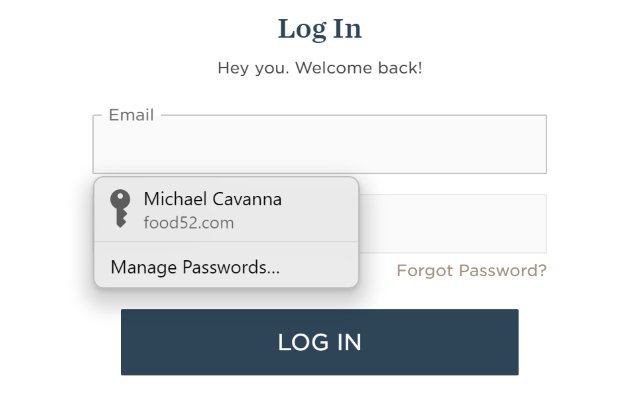
Apple documents two ways to fill a saved password in Edge: from the user name field, or from the extension button in the toolbar. When the field drop-down shows your email but fills nothing, the toolbar route still reads the same iCloud Keychain entry.
- In Microsoft Edge, open the sign-in page of a website you have a saved password for.
- Click the iCloud Passwords button in the Edge toolbar, to the right of the address bar.
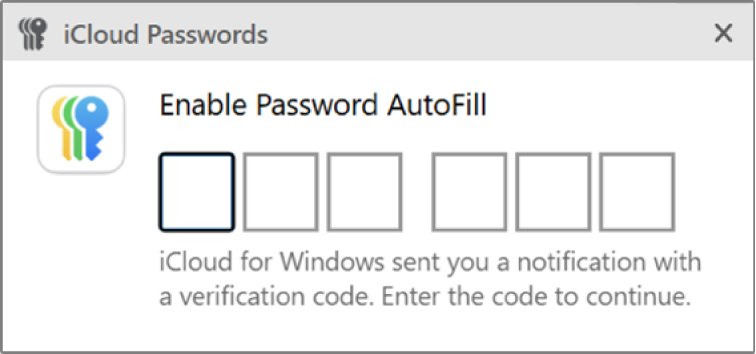
- If the extension asks for a code, enter the six-digit verification code shown in the pop-up window.
- Choose the account you want from the list.
- Check that the user name and password are filled in, then sign in.
If the website has a verification code saved in iCloud Passwords, that code is filled in automatically as well. If the button is missing from the toolbar, open Extensions (the puzzle piece icon) and look for iCloud Passwords there.
Why are iCloud Passwords not working on Edge?
The iCloud Passwords extension depends on three pieces working together: the extension in Edge, the iCloud for Windows app with Passwords & Keychain turned on, and your Apple Account. A fault in any one of them stops autofill.
| What you see | Most likely cause | Fix |
|---|---|---|
| Email appears under the field, but clicking it fills nothing | The in-field suggestion has stopped responding, or the list you clicked is Edge's own Autofill | Use the toolbar button, then turn the extension off and on |
| Toolbar button asks for a six-digit code every time | The extension lost its pairing with iCloud for Windows | Enter the new code, then update iCloud for Windows |
| No iCloud Passwords button in the toolbar | The extension is turned off or was removed | Turn it on in Manage extensions or reinstall it from iCloud for Windows |
| Autofill works on some sites only | Site access is limited to specific sites or set to work on click | Change site access in the extension's Details page |
| Passwords saved on iPhone do not appear on the PC | Different Apple Account, or iCloud Keychain is off on the Apple device | Sign in with the same Apple Account and turn on iCloud Keychain |
| Extension marked as managed by your organization | A policy controls extensions in this Edge profile | Check edge://policy and ask your IT department |
Microsoft Edge Autofill can suggest email addresses you saved in the browser itself. A suggestion from Edge Autofill fills only the data Edge holds, not the iCloud password, so the toolbar button is the reliable test of whether the extension still works.
How to turn the iCloud Passwords extension off and on in Edge
Microsoft's first advice for an extension that stops working is to disable and re-enable it. This forces the extension to reconnect to iCloud for Windows and request a fresh verification code.
- In Microsoft Edge, select Extensions (the puzzle piece icon) to the right of the address bar.
- Select Manage extensions.
- Find iCloud Passwords and select its toggle to turn it off.
- Select the toggle again to turn it back on.
- Close and reopen Microsoft Edge.
- Click the iCloud Passwords button in the toolbar and enter the six-digit verification code from the pop-up.
If you do not see Extensions next to the address bar, open Settings and more (the three dots) > Extensions instead.
How to update iCloud for Windows from the Microsoft Store
iCloud for Windows comes from the Microsoft Store, and the extension talks to the installed app. An out-of-date app is a common reason the extension stops filling fields after a browser update.
- Open the Microsoft Store app on the PC.
- Open Downloads or your Library in the Store.
- Check for updates and install any update listed for iCloud.
- Restart the PC so iCloud for Windows and the extension load the new version together.
- Open Edge and try the iCloud Passwords toolbar button on a saved website.
The Store updates apps automatically, but automatic updates can be paused for up to five weeks. You can still install updates by hand while they are paused. If iCloud for Windows is missing altogether, download iCloud for Windows from the Microsoft Store first.
Update Microsoft Edge from edge://settings/help
Microsoft also lists an out-of-date browser as a cause of broken extensions. Edge normally updates when you restart it, but updates on metered connections can be held back.
- In Microsoft Edge, select Settings and more > Help and feedback > About Microsoft Edge, or type
edge://settings/helpin the address bar. - If an update is available, select Download and install.
- Select Restart to apply the update.
- Open a saved website and test iCloud Passwords from the user name field.
To stop updates waiting on a metered network, turn on Download and install updates automatically on the same page. If the toggles are dimmed, your organization manages Edge updates.
How to reinstall the iCloud Passwords extension in Edge
A clean reinstall replaces damaged extension files. Install it again from iCloud for Windows so it pairs with the app on the same PC.
- In Microsoft Edge, select Extensions, then select More actions next to iCloud Passwords.
- Select Remove from Microsoft Edge > Remove.
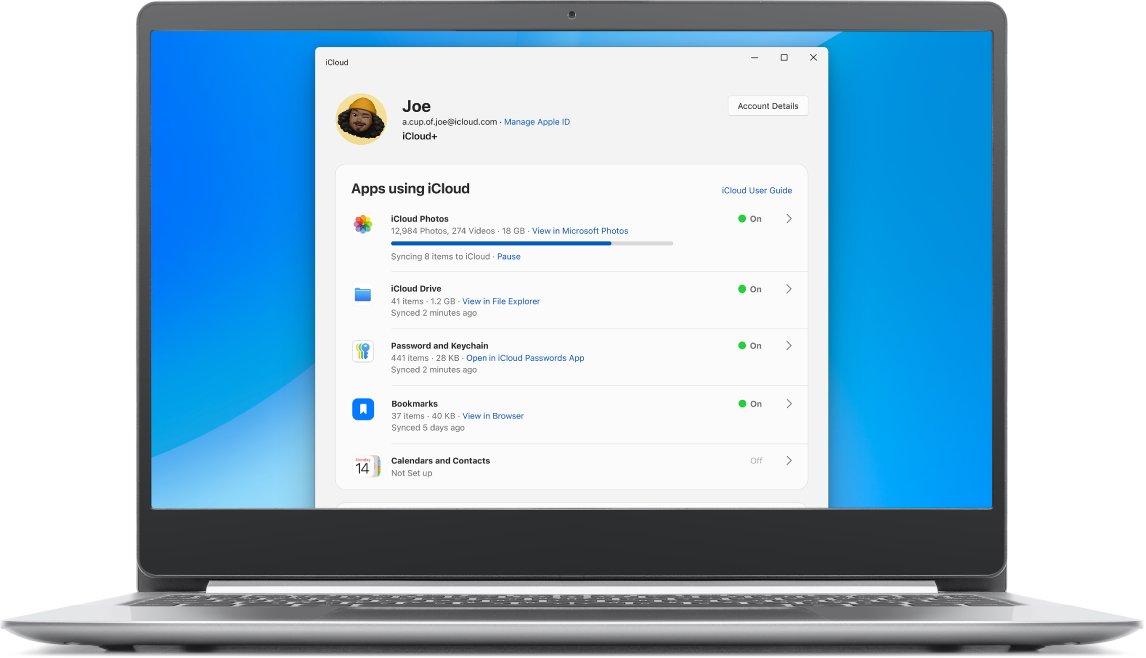
- Open iCloud for Windows on the PC.
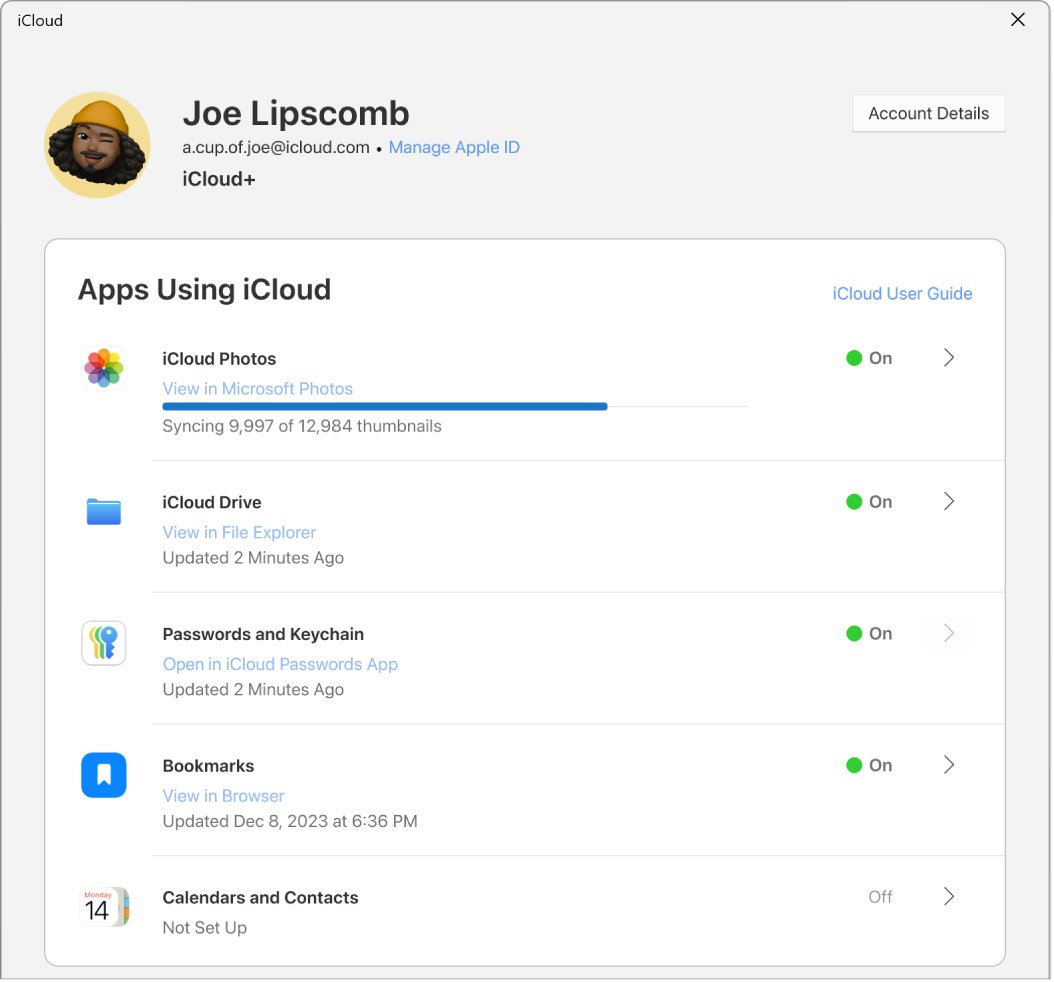
- Click the arrow to the right of Passwords and Keychain.
- Click Install Extension next to Microsoft Edge and follow the onscreen instructions.
- Click Done, then click the iCloud Passwords button in Edge and enter the six-digit code.
Removing the extension does not delete any passwords. They stay in iCloud Keychain and in the iCloud Passwords app.
How to use iCloud Passwords on Windows with Passwords and Keychain
The extension has nothing to fill if Passwords & Keychain is off in iCloud for Windows. Apple requires two-factor authentication on the Apple Account, an approving device on iOS 14, iPadOS 14, macOS 11 or later, and either Advanced Data Protection turned on or an Apple device within Bluetooth range of the PC.
- Open iCloud for Windows on the PC.
- Click the arrow to the right of Passwords and Keychain.
- Turn on Passwords & Keychain.
- If Approve appears below Passwords and Keychain, click it and enter the code sent to your trusted device or phone number, or use a security key.
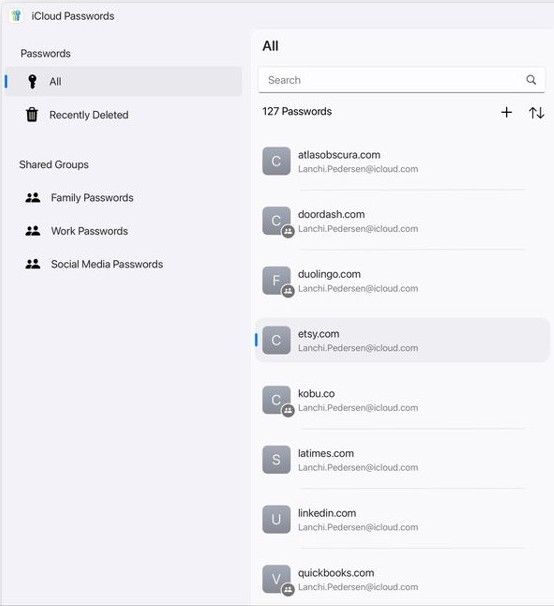
- Open the iCloud Passwords app and sign in to check your accounts are listed.
Turning on the extension switches off Edge's built-in password saving, so new passwords go to iCloud instead of Microsoft Password Manager. If you also forgot the Windows Hello code the app asks for, reset the PIN for iCloud Passwords in Windows Settings.
Change iCloud Passwords extension site access in Edge
Edge lets you limit an extension to specific sites or make it run only when clicked. With either limit in place, iCloud Passwords cannot offer accounts inside the field on other sites, which looks exactly like autofill breaking.
- In Microsoft Edge, select Extensions > Manage extensions.
- Under Installed extensions, find iCloud Passwords and select Details.
- Find Site access and open its drop-down.
- If it is set to On specific sites or On click, switch it to the option that lets the extension run on all sites.
- Reload the sign-in page and click in the user name field.
The same Details page shows the extension's permissions. Microsoft recommends checking that an extension has the permissions it needs when it stops working.
How to tell if the iCloud Passwords extension is enabled in Edge
- Look for the iCloud Passwords button in the Edge toolbar; Apple shows it there only when the extension is enabled.
- Type
edge://extensionsin the address bar and check that the toggle next to iCloud Passwords is on. - Open a site you have a saved password for and click in the user name field.
- Choose your account from the iCloud Passwords suggestion.
- Check that both the user name and password fields fill in.
If step 5 fails but the toolbar button fills the fields, the extension is enabled and only the in-field suggestion is affected. Keep the toolbar route until an iCloud for Windows or Edge update fixes it.
iCloud Passwords on Windows not working or not syncing
iCloud Passwords not working on Edge after an update
The extension, Edge or iCloud for Windows is out of step with the others.
- Update iCloud for Windows from the Microsoft Store.
- Update Edge from
edge://settings/helpand restart it. - Turn the iCloud Passwords extension off and on in Manage extensions.
- Enter the new six-digit verification code when the toolbar button asks for it.
iCloud Passwords on Windows not syncing or not updating
The PC is signed in to a different Apple Account, or iCloud Keychain is off on the Apple device.
- In iCloud for Windows, check the Apple Account shown under Account Details.
- Make sure it is the same Apple Account you use on your iPhone, iPad or Mac.
- On the Apple device, turn on iCloud Keychain so its passwords reach iCloud.
- Open the iCloud Passwords app on the PC and check whether the missing account now appears.
iCloud for Windows passwords greyed out or Approve fails
One of Apple's requirements for iCloud Passwords on Windows is not met.
- Turn on two-factor authentication for your Apple Account.
- Update the iPhone, iPad or Mac that receives the code to iOS 14, iPadOS 14, macOS 11 or later.
- Keep that Apple device within Bluetooth range of the PC, unless Advanced Data Protection is on.
- If you use a VPN, turn it off temporarily while iCloud for Windows signs in.
iCloud Passwords button missing from the Edge toolbar
Edge turned the extension off, or it is hidden in the Extensions menu.
- Select Extensions > Manage extensions and turn iCloud Passwords on.
- Restart Microsoft Edge.
- If it still does not show, remove it and install it again from iCloud for Windows.
iCloud Passwords extension managed by your organization
A group policy installs or controls Edge extensions on this PC.
- Type
edge://extensionsin the address bar and look for the briefcase icon next to the toggle. - Type
edge://policyand look for extension policies such as ExtensionSettings or ExtensionInstallForcelist. - On a work PC, ask your IT department before changing anything.
iCloud for Windows won't accept password at sign-in
The account type or security setup needs a newer iCloud for Windows.
- Update iCloud for Windows; Advanced Data Protection needs version 14.1 or later.
- If you added security keys to your Apple Account, use iCloud for Windows 15 or later.
- A Managed Apple Account cannot use iCloud for Windows at all, so sign in with a personal Apple Account.
Nothing fixes the in-field autofill
The iCloud for Windows sign-in on the PC is damaged.
- Open iCloud for Windows and click Account Details.
- Click Sign Out and follow the onscreen instructions.
- Sign in again with the same Apple Account and turn on Passwords & Keychain.
- Reinstall the Edge extension from iCloud for Windows and enter the new code.
How to turn off iCloud Passwords on Windows
If you would rather go back to Edge's own password manager, remove the extension and switch the feature off in iCloud for Windows. Your passwords stay in iCloud Keychain on your Apple devices.
- In Microsoft Edge, select Extensions > Manage extensions and turn off or remove iCloud Passwords.
- Open iCloud for Windows.
- Click the arrow to the right of Passwords and Keychain.
- Turn off Passwords & Keychain.
- To keep a copy for another password manager, export the passwords from the iCloud Passwords app before you switch it off.
With the extension gone, you can enable autofill in Microsoft Edge again for addresses and saved passwords.
iCloud Passwords in Microsoft Edge FAQ
How to use iCloud Passwords on Windows?
Install iCloud for Windows from the Microsoft Store, sign in with your Apple Account and turn on Passwords & Keychain. Then click Install Extension next to Chrome, Edge or Firefox, and enter the six-digit code the extension shows the first time you click it.
How to access iCloud passwords on Windows?
Open the iCloud Passwords app that comes with iCloud for Windows and sign in. Click an account to see its user name, password, website and any verification code, and right-click an item to copy it.
Where are my iCloud passwords?
They are stored in iCloud Keychain, tied to your Apple Account. On a Windows PC you see them in the iCloud Passwords app, and on a Mac with macOS 15 or later you see them in the Passwords app.
Does iCloud save your passwords?
Yes. When you sign in to a new account in Edge, Chrome or Firefox with the extension on, click Save Password in the dialog. The password is then available on your Apple devices that have iCloud Keychain turned on.
Can I get my passwords from iCloud?
Yes. On Windows, open the iCloud Passwords app to view or copy any saved password. You can also export two or more accounts to a CSV file to move them into another password manager.
How to get passwords off iCloud?
Open the iCloud Passwords app, select two or more accounts or Select All, then click Export Passwords twice and save the CSV file. The file is not encrypted, so delete it after you import it elsewhere.
How to turn off iCloud Passwords?
On a Windows PC, remove or turn off the iCloud Passwords extension in Manage extensions, then turn off Passwords & Keychain in iCloud for Windows. Your passwords remain in iCloud Keychain on your Apple devices.
Is iCloud Passwords safe?
Apple lists passwords in iCloud Keychain among the data categories that are always end-to-end encrypted, even with standard data protection. Apple does not hold the keys for that data, so only your trusted devices can decrypt it.
Are passwords saved in iCloud recoverable if I lose my account?
No. Because iCloud Keychain passwords are end-to-end encrypted, Apple cannot help recover them if you lose access to your Apple Account. Keep a trusted device, recovery contact or recovery key set up.