To download Microsoft Safety Scanner, open the official Microsoft download page, choose the 64-bit or 32-bit version that matches your Windows installation, and run the downloaded msert.exe file. The tool does not require installation and can run alongside your existing antivirus software.
Official Microsoft Safety Scanner download page: Download Microsoft Safety Scanner
Download a fresh copy before each scan. Microsoft Safety Scanner expires 10 days after download because its malware definitions are included inside the executable and are not updated separately.
Direct download links for Microsoft Safety Scanner (July 2026)
What is Microsoft Safety Scanner?
Microsoft Safety Scanner is a free, on-demand malware removal tool for Windows. It scans the computer for viruses, spyware and other malicious software, removes supported threats and attempts to reverse some changes made by detected malware.
The executable is named msert.exe, which is why the tool is also commonly called MSERT. It is portable, so it does not appear in the Start menu, create a desktop shortcut or run automatically in the background.
Microsoft Safety Scanner is useful when:
- You suspect malware remains after a normal antivirus scan.
- Microsoft Defender or another antivirus reports repeated threats.
- You want a second Microsoft scanner without installing another security suite.
- A support technician asks you to run MSERT and provide its log.
- You need to scan one folder, external drive or specific location.
Microsoft Safety Scanner is not real-time antivirus software
The scanner runs only when you open it and start a scan. It does not monitor downloads, websites, email attachments or programs after the scan ends.
Keep Microsoft Defender Antivirus or another trusted security product enabled for continuous protection. Running Safety Scanner does not replace your main antivirus program.
Was Microsoft Safety Scanner previously called Windows Live OneCare Safety Scanner?
Microsoft previously offered an online security service called Windows Live OneCare Safety Scanner. Microsoft Safety Scanner later became the downloadable on-demand scanner used today.
Current downloads use the name Microsoft Safety Scanner and the filename msert.exe. Avoid old download pages or archived OneCare installers because they no longer contain current malware definitions.
How to Use Microsoft Safety Scanner in Windows Operating System?
- Download the correct version from Microsoft.
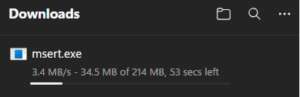
- Open the folder where your browser saved
msert.exe. - Double-click the file.
- Select Yes if User Account Control asks for permission.
- Accept the licence agreement and select Next.
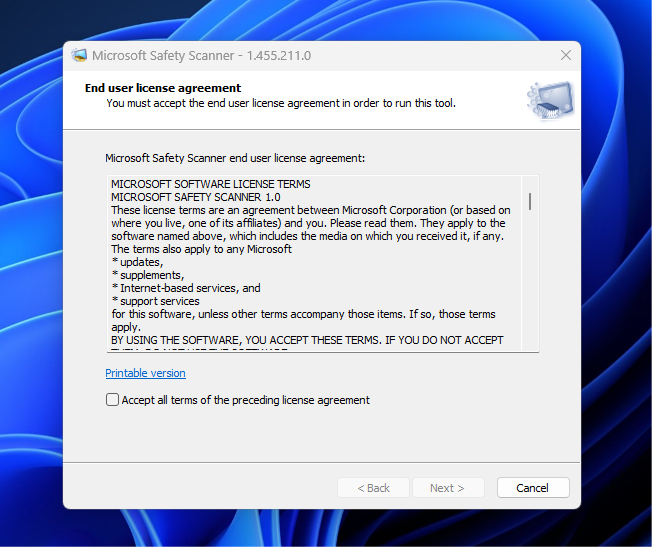
- Choose Quick scan, Full scan or Customized scan.
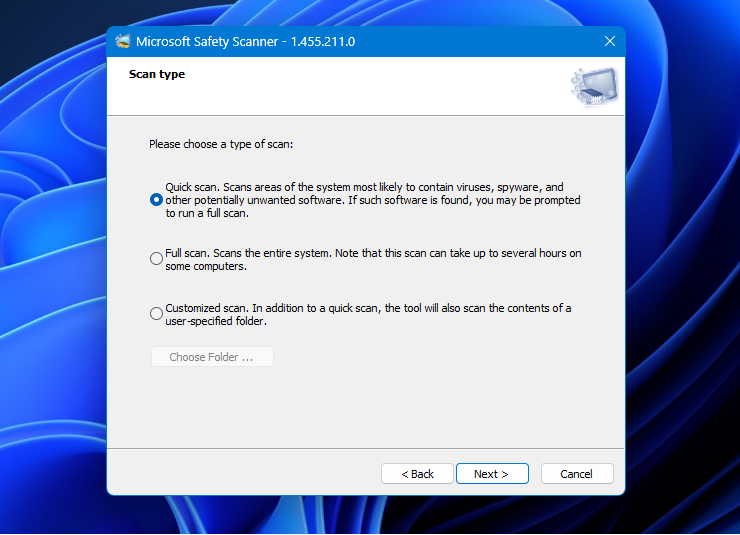
- Select Next to begin.
- Leave the window open until the scan finishes.
- Review the final result and restart Windows if requested.
The tool begins running directly from the downloaded file. There is no installation wizard, Microsoft Store package or background service to configure.
Quick Scan
A Quick scan checks Windows areas where active malware commonly starts or hides. This includes important system locations, running processes and startup-related files.
Use it when you want an initial check and have no specific evidence that the infection has spread across the entire drive. Microsoft Safety Scanner can ask you to run a Full scan if it finds suspicious software during the initial check.
Full Scan
A Full scan checks files across the available system drives. It provides broader coverage but can take several hours on computers with large hard drives, many small files or slower storage.
Use a Full scan when:
- The Quick scan detects malware.
- Threats return after removal.
- The computer shows serious signs of infection.
- A support technician specifically asks for one.
Connect a laptop to power before starting and avoid shutting down the computer while the scan is running.
Customized Scan
A Customized scan performs a Quick scan and also checks a folder selected by you. It is useful for scanning a downloaded archive, external drive, shared folder or another location that you consider suspicious.
- Select Customized scan.
- Click Choose Folder.
- Select the drive or folder you want to inspect.
- Click OK, followed by Next.
Selecting one folder does not limit the tool to that folder alone because the Customized option also includes the normal Quick scan.
How to Check Microsoft Safety Scanner Results
The final window gives you a general scan result. For detection names, actions and error details, review the MSERT log file.
- Press Windows + R.
- Enter
%SYSTEMROOT%\debug.
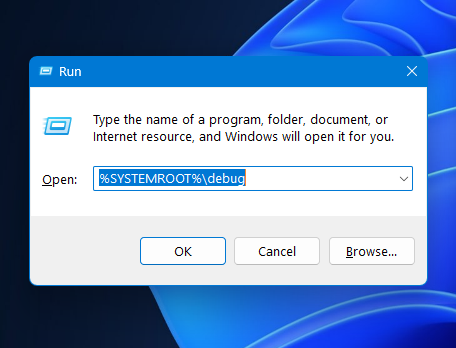
- Press Enter.
- Open
msert.login Notepad.
On a standard Windows installation, the log is stored at:
C:\Windows\debug\msert.logThe log can include scan start and finish times, detected threats, remediation actions and error codes. Search from the bottom upward to find the result from your most recent scan.
Why does MSERT show infected files during a scan but none at the end?
The number displayed while scanning is a preliminary count of files that require further inspection. It does not always represent confirmed active malware.
Microsoft Safety Scanner evaluates those files before displaying its final result. Check msert.log for the completed scan status and any confirmed threat names or actions.
Do not stop the scan solely because the temporary infected-file counter increases. Wait for the final result unless the tool freezes or reports an error.
Microsoft Safety Scanner System Requirements
Microsoft currently lists Microsoft Safety Scanner for the following Windows versions:
- Windows 11
- Windows 10
- Windows 8 and Windows 8.1
- Windows 7
- Windows Server 2019
- Windows Server 2016
- Windows Server 2012 and Windows Server 2012 R2
- Windows Server 2008 R2
The scanner is SHA-2 signed. Older Windows installations must have the required SHA-2 support updates before the executable can run.
Microsoft no longer supports several operating systems in this list, including Windows 7, Windows 8.1 and most Windows 10 editions. The scanner can still be listed as compatible, but it does not restore security updates or make an unsupported operating system safe for regular use.
Check whether Windows is 64-bit or 32-bit
On Windows 11 or Windows 10:
- Press Windows + I.
- Open System > About.
- Find System type under Device specifications.
| System type shown in Windows | Download to choose |
|---|---|
| 64-bit operating system, x64-based processor | 64-bit Microsoft Safety Scanner |
| 32-bit operating system, x86-based processor | 32-bit Microsoft Safety Scanner |
| ARM-based processor | Use the version or security tool supported for that Windows device |
Nearly all Windows 11 computers use a 64-bit operating system. Windows 11 is not available as a normal 32-bit installation.
Download Microsoft Safety Scanner Tool for Windows
Use Microsoft’s official page because it always points to the current builds and security definitions.
| Download | Use it on |
|---|---|
| Download Microsoft Safety Scanner 64-bit | 64-bit Windows 11, Windows 10 and other supported x64 systems |
| Download Microsoft Safety Scanner 32-bit | 32-bit Windows 10 and supported legacy x86 systems |
| Open the official download page | Check current information and choose either version |
The download is a large executable because it includes the scanning engine and current security intelligence. Its exact file size and definition version change as Microsoft updates the package.
Do not publish a fixed version number as the permanent latest release. Microsoft updates security intelligence frequently, and the version shown on an older article can become outdated within hours or days.
How to Verify the Microsoft Safety Scanner Download
Before running the file, check that Microsoft signed it:
- Right-click
msert.exe. - Select Properties.
- Open the Digital Signatures tab.
- Confirm that the signer is Microsoft Corporation.
- Select the signature and click Details.
- Confirm that Windows reports the digital signature as valid.
Delete the file if it came from an unfamiliar download site, has no valid Microsoft signature or uses a filename designed to imitate msert.exe.
How to Remove Microsoft Safety Scanner
Microsoft Safety Scanner does not include an uninstaller because it is a portable executable. Delete the downloaded msert.exe file when you no longer need it.
- Close Microsoft Safety Scanner.
- Open your Downloads folder or the location where you saved it.
- Select
msert.exe. - Press Delete.
- Empty the Recycle Bin when appropriate.
The scan log can remain at %SYSTEMROOT%\debug\msert.log. You can keep it for troubleshooting or delete it after reviewing the results.
Fix Microsoft Safety Scanner Not Running
Download a fresh copy
Delete the existing executable and download it again from Microsoft when the file is more than 10 days old, damaged or unable to load its signatures.
Run the correct architecture
A 64-bit build cannot run on 32-bit Windows. Check Settings > System > About and download the version matching the operating system.
Run it with administrator permission
- Right-click
msert.exe. - Select Run as administrator.
- Approve the User Account Control prompt.
Check the MSERT error log
Open %SYSTEMROOT%\debug\msert.log and look near the end for an error beginning with 0x.
| Error | Meaning | Suggested action |
|---|---|---|
0x80508019 |
The selected scan location does not exist | Select another folder or drive |
0x80508007 |
The system has insufficient memory | Restart Windows and download the scanner again |
0x80508024 |
A Full scan is required | Run the tool again and choose Full scan |
0x80508025 |
Another action or system change is required | Read the surrounding instructions in the log |
0x80508026 |
A detected item is stored inside an archive | Locate the archive and investigate or remove the affected content |
Restart Windows and retry
A pending update, locked file or temporary system problem can prevent the scan from starting. Restart the computer, download a fresh copy and run it again.
Do not disable your antivirus as a standard troubleshooting step. Microsoft Safety Scanner is designed to work with an existing security product.
Microsoft Safety Scanner vs Microsoft Defender Offline
| Feature | Microsoft Safety Scanner | Microsoft Defender Offline |
|---|---|---|
| How it runs | Portable executable inside normal Windows | Restarts and scans outside the normal Windows session |
| Installation required | No | Built into supported Windows versions |
| Best used for | Second-opinion scans and detailed MSERT logs | Persistent malware that hides while Windows is running |
| Definition updates | Download a new copy | Uses Microsoft Defender security intelligence |
| Real-time protection | No | No, although Microsoft Defender provides it during normal use |
Use Microsoft Defender Offline when malware interferes with normal scans or continues returning after removal. Open Windows Security > Virus & threat protection > Scan options and select Microsoft Defender Offline scan.
FAQs
Is Microsoft Safety Scanner free?
Yes. Microsoft provides the scanner without a separate purchase or subscription.
Does Microsoft Safety Scanner need to be installed?
No. Open the downloaded msert.exe file directly. It does not create a permanent installed application.
Why does Microsoft Safety Scanner expire after 10 days?
The executable contains its malware definitions. Microsoft requires you to download a new copy so the next scan uses newer security intelligence.
Can I use Microsoft Safety Scanner with another antivirus?
Yes. Microsoft designed it as an on-demand scanner that can work alongside an existing antivirus product. Keep your real-time protection enabled.
Does Microsoft Safety Scanner remove malware?
It detects and removes supported malicious software and can reverse some changes made by identified threats. Some infected files may need to be deleted, which can result in data loss.
Where is the Microsoft Safety Scanner log?
The log is stored at %SYSTEMROOT%\debug\msert.log, normally C:\Windows\debug\msert.log.
Why does Microsoft Safety Scanner not appear in the Start menu?
It is a portable executable rather than an installed application. Open the msert.exe file from the folder where you saved it.
Should I download the 32-bit or 64-bit version?
Download the 64-bit version for 64-bit Windows and the 32-bit version for 32-bit Windows. Check the system type under Settings > System > About.
Can Microsoft Safety Scanner run without internet access?
Yes, after the file has been downloaded. The definitions are included in the executable, but they do not update while the computer is offline.
Can I run Microsoft Safety Scanner from a USB drive?
Yes. You can copy the downloaded executable to removable storage and run it on a compatible Windows computer. Download a fresh copy before using it so the definitions are current.
How long does a Full scan take?
The duration depends on the number of files, storage speed and computer performance. A Full scan can take several hours.
Does the infected-files counter confirm that malware was found?
No. The counter displayed during scanning is preliminary. Wait for the completed result and inspect msert.log for confirmed detections and actions.
Is Microsoft Safety Scanner the same as the Malicious Software Removal Tool?
No. Microsoft Safety Scanner is a separately downloaded on-demand scanner. The Windows Malicious Software Removal Tool, also called MSRT, is distributed through Windows Update and targets specific prevalent threats.
Can I keep using an old copy of MSERT?
No. Delete it and download the current executable when the file is more than 10 days old or before starting another important scan.

Java JRE latest version: Download & Install [32-bit, 64-bit] - Techdows
[…] you already ran a Java installer from an unofficial site, scan the PC with Microsoft Safety Scanner and then install again from […]