To change the colors of system elements in Windows 11 and 10, use Settings > Personalization > Colors for the accent and mode, or edit a contrast theme to set your own text, hyperlink, button and background colors; change font sizes with the Text size slider.
This guide maps each element to its setting, then covers the contrast theme editor, system text size, scaling, the mouse pointer, the touch keyboard theme and how to go back to the default colors.
How to change Windows system color
Windows splits system colors and sizes across a few Settings pages. Find the element you want to change and open the page in the second column.
| What you want to change | Windows 11 setting | Windows 10 setting |
|---|---|---|
| Start menu, taskbar and action center color | Personalization > Colors > Choose your mode and Accent color | Personalization > Colors |
| Title bars and window borders | Personalization > Colors > Show accent color on title bars and window borders | Same option on the Colors page |
| Text, hyperlink, selected text, button and background colors | Accessibility > Contrast themes > Edit | Ease of Access > High contrast |
| System font size | Accessibility > Text size | Ease of Access > Display > Make text bigger |
| Size of text, apps and other items together | System > Display > Scale | System > Display > Change the size of text, apps, and other items |
| Mouse pointer color and size | Accessibility > Mouse pointer and touch | Ease of Access > Mouse pointer |
| Touch keyboard, voice typing and emoji theme | Personalization > Text input | Not covered here |
| Desktop background color | Personalization > Background > Solid color | Personalization > Background > Solid color |
Open Settings with Windows logo key + I, then follow the path in the row. The taskbar alone can also take a custom taskbar color through the accent color.
How to change system theme color in Windows 11
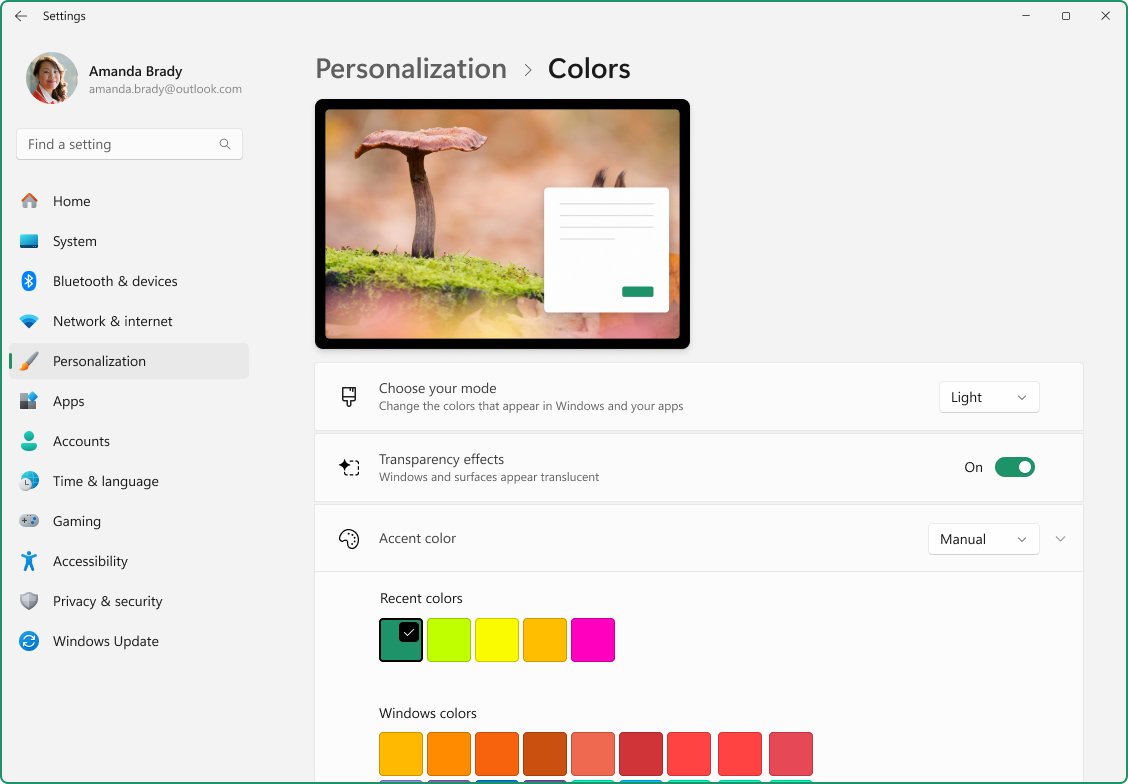
The Colors page controls the color mode and the accent color used by Start, the taskbar, title bars and selected items. The same page exists in Windows 10.
- Open Settings and select Personalization > Colors.
- Under Choose your mode, select Light, Dark or Custom.
- Under Accent color, select Automatic to let Windows pick an accent color, or Manual to choose one yourself.
- With Manual, pick a color under Recent colors or Windows colors, or select View colors for any other shade.
- Turn on Show accent color on Start and taskbar to color those elements. This option needs Dark or Custom mode.
- Turn on Show accent color on title bars and window borders to color the bar at the top of each window.
Some apps set light or dark mode on their own, and not all apps support dark mode.
Classic Color Panel for Windows 11/10
Classic Color Panel is a third-party app, not part of Windows. The built-in way to set your own color for individual system elements is the contrast theme editor, which recolors text, links, buttons and backgrounds across Windows.
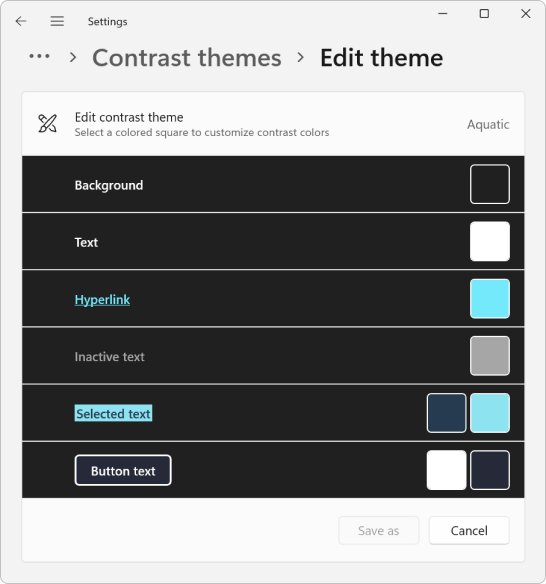
- Select Start > Settings > Accessibility > Contrast themes.
- Pick Aquatic, Desert, Dusk or Night sky from the Contrast themes drop-down.
- Select Edit to open the color editor for that theme.
- Select an element: Background, Text, Hyperlinks, Inactive Text, Selected Text or Button Text.
- Choose a color on the color picker, adjust brightness with the slider and select Done.
- Repeat for each element you want to change.
- Select Save as, enter a name for the theme and select Save and apply.
In Windows 10, go to Settings > Ease of Access > High contrast, turn on Turn on high contrast, choose a theme and select a colored rectangle under Choose a theme to change Text, Hyperlinks, Disabled Text, Selected Text, Button Text or Background, then select Apply. The desktop font color follows the Text color you set here.
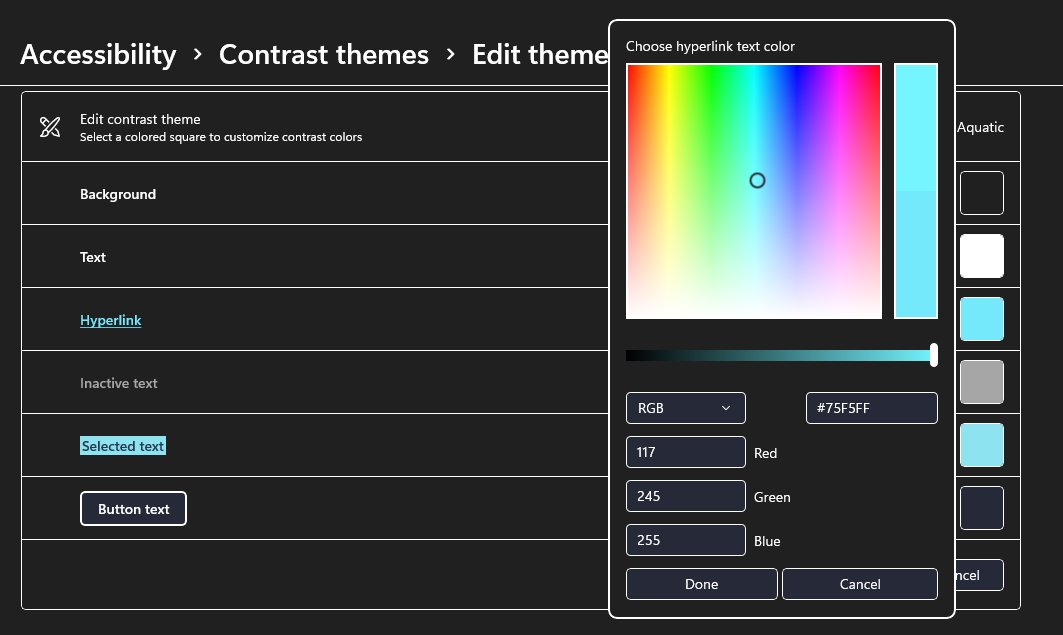
Windows contrast theme colors for text, hyperlinks and buttons
Each color in the contrast theme editor maps to a system color that Windows and apps use for one kind of element. Contrast themes keep contrast ratios typically at or above 7:1.
| Editor color | System color | Where it appears |
|---|---|---|
| Background | SystemColorWindowColor | Background of pages, panes, pop-ups and windows |
| Text | SystemColorWindowTextColor | Headings, body text, lists, placeholder text and window borders |
| Hyperlinks | SystemColorHotlightColor | Links |
| Inactive Text | SystemColorGrayTextColor | Inactive or disabled controls |
| Selected Text | SystemColorHighlightTextColor and SystemColorHighlightColor | Text and background of selected, hovered or pressed items |
| Button Text | SystemColorButtonTextColor and SystemColorButtonFaceColor | Text and background of buttons and other controls you can click |
Press left Alt + left Shift + Print Screen to turn the contrast theme on or off. If no theme was chosen before, Aquatic is applied.
System Font Size Changer for Windows 11/10
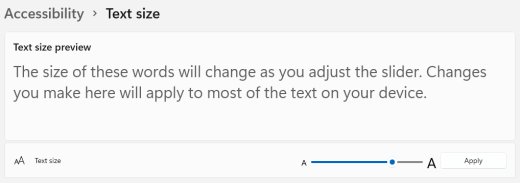
System Font Size Changer is also a third-party utility. Windows has its own Text size slider, which makes system text larger without changing the size of images and apps.
- Select Start > Settings > Accessibility > Text size.
- Drag the Text size slider to the right until the sample text is easy to read.
- Select Apply.
- Check the text in File Explorer, Settings and menus at the new size.
- In Windows 10, go to Start > Settings > Ease of Access > Display, move the Make text bigger slider and select Apply.
The slider sets one size for system text everywhere. Browsers and Office apps also have their own zoom, so you can change text size in Windows and still zoom a single page.
How to make text and apps bigger in Windows
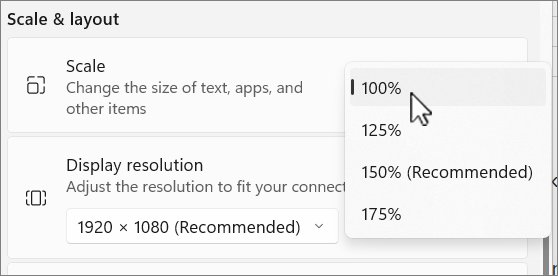
Scaling enlarges text, apps, icons and images together. Use it when the whole screen feels small, and the Text size slider when only the words do.
- Open Settings and select System > Display.
- If more than one display is connected, select the display you want to change first.
- Under Scale & layout, open the Scale list.
- Pick a larger percentage, or the value marked (Recommended) to go back.
- Sign out and back in if some apps still look the old size.
In Windows 10 the same list is labelled Change the size of text, apps, and other items. To change only desktop icons, right-click the desktop, select View and pick Large icons, Medium icons or Small icons, or hold Ctrl and turn the mouse wheel.
How to customize Mouse Buttons, Pointer, Cursor on Windows 11
The mouse pointer and the text cursor are system elements with their own color and size settings, separate from the accent color.
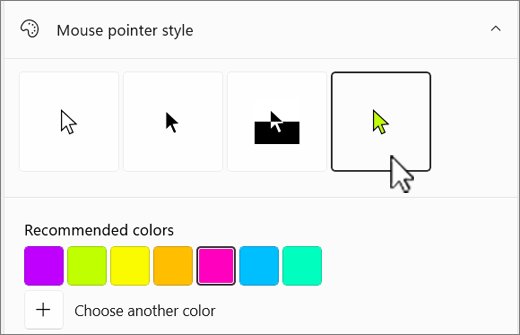
- Press Windows logo key + U, or select Start > Settings > Accessibility > Mouse pointer and touch.
- Under Mouse pointer, drag the Size slider to make the pointer bigger.
- Under Mouse pointer style, pick white, black or inverted, or choose a recommended color or Choose another color.
- Select Accessibility > Text cursor to turn on Text cursor indicator, pick its size and color, and set Text cursor thickness.
- Select Bluetooth & devices > Mouse to set the primary mouse button and pointer speed.
- Select Additional mouse settings on that page and use the Pointers tab to pick a pointer Scheme.
In Windows 10, use Settings > Ease of Access > Mouse pointer, then Pick a custom pointer color for a color wheel. Pointer trails and other cursor size and color options sit in Mouse Properties.
Change Touch Keyboard, Emoji Panel, Voice Typing Theme in Windows 11
One theme setting colors the touch keyboard, voice typing, the emoji panel and input method editors together. It lives on the Text input page.
- Open Settings and select Personalization > Text input.
- Choose a theme from the list. Windows includes light, dark and several color themes.
- Select the custom theme option to set your own colors instead.
- Turn the key background on or off and pick a key text size on the same page.
- Open the touch keyboard or the emoji panel to check the new colors.
You can also open the page with Windows + R by typing ms-settings:personalization-textinput and pressing Enter.
Change system colors Windows 10 vs Windows 11
| Setting | Windows 11 | Windows 10 |
|---|---|---|
| Color mode and accent | Personalization > Colors | Personalization > Colors |
| Per-element colors | Accessibility > Contrast themes | Ease of Access > High contrast |
| Element names in the editor | Background, Text, Hyperlinks, Inactive Text, Selected Text, Button Text | Text, Hyperlinks, Disabled Text, Selected Text, Button Text, Background |
| Save custom colors | Save as > Save and apply | Apply |
| Text size | Accessibility > Text size | Ease of Access > Display > Make text bigger |
| Pointer color | Accessibility > Mouse pointer and touch | Ease of Access > Mouse pointer |
| Colors settings shortcut | ms-settings:personalization-colors |
ms-settings:personalization-colors |
Microsoft ended support for Windows 10 on October 14, 2025, so new color options arrive only in Windows 11.
Set system colors to default in Windows
Undo the changes in the reverse order: contrast theme first, because it overrides every other color while it is on.
- Select Settings > Accessibility > Contrast themes, choose None and select Apply.
- Select Personalization > Colors and set Choose your mode back to Light or Dark.
- Set Accent color to Automatic.
- Turn off Show accent color on Start and taskbar and Show accent color on title bars and window borders if you turned them on.
- Select Accessibility > Text size, move the slider back to the far left and select Apply.
- Select System > Display and set Scale to the value marked (Recommended).
In Windows 10, turn off Turn on high contrast under Ease of Access > High contrast instead of choosing None.
Show accent color on Start and taskbar greyed out in Windows 11
Show accent color on Start and taskbar is greyed out
The option works only in Dark or Custom mode.
- Open Settings > Personalization > Colors.
- Set Choose your mode to Dark or Custom.
- Turn on Show accent color on Start and taskbar.
Accent color and mode changes do nothing
A contrast theme is on, and it replaces the normal colors.
- Open Settings > Accessibility > Contrast themes.
- Choose None and select Apply.
- Return to Personalization > Colors and set the colors again.
Some apps stay light after switching to dark mode
Not all apps support dark mode, and some set their own mode.
- Open the app's own settings and look for a theme or appearance option.
- Set it to follow the system theme if it offers that.
- Restart the app.
Text is still small in some apps after changing the size
Some apps pick up a new text size or scale only after you sign in again.
- Save your work and sign out of Windows.
- Sign back in and open the app.
- Raise Scale under System > Display if the app ignores the Text size slider.
Windows system colors and font size FAQ
How do I change the system color in Windows?
Open Settings > Personalization > Colors and pick an accent color under Accent color. For colors of individual elements such as text, links and buttons, edit a contrast theme under Settings > Accessibility > Contrast themes.
How do I change the system theme color?
Choose Light, Dark or Custom under Choose your mode on the Colors page, then select Manual under Accent color and pick a color. Turn on Show accent color on Start and taskbar to color those as well.
How do I change system colors in Windows 10?
Use Settings > Personalization > Colors for the accent and mode. For per-element colors, open Settings > Ease of Access > High contrast, turn on high contrast and select a colored rectangle to change each element.
How do I change the font color in Windows 11/10?
Edit a contrast theme and change its Text color. In Windows 11 that is Accessibility > Contrast themes > Edit > Text; in Windows 10 it is the Text rectangle under Ease of Access > High contrast.
How do you change the window color scheme and font size for your desktop?
Set the window colors on the Colors page or in a contrast theme, then change the font size with the Text size slider under Accessibility. Desktop icon size changes from right-click > View on the desktop.
How do I set system colors to default?
Set Contrast themes to None, put Choose your mode back to Light or Dark, and set Accent color to Automatic. Then move the Text size slider fully left and set Scale to the recommended value.
How do I change the system background color?
Open Settings > Personalization > Background and choose Solid color, then pick a color. The window background behind text changes only through the Background color of a contrast theme.
Can I change the font size of only title bars or menus?
Windows 11 and Windows 10 Settings offer one Text size slider that resizes system text together. Separate per-element font sizes are not part of Settings.