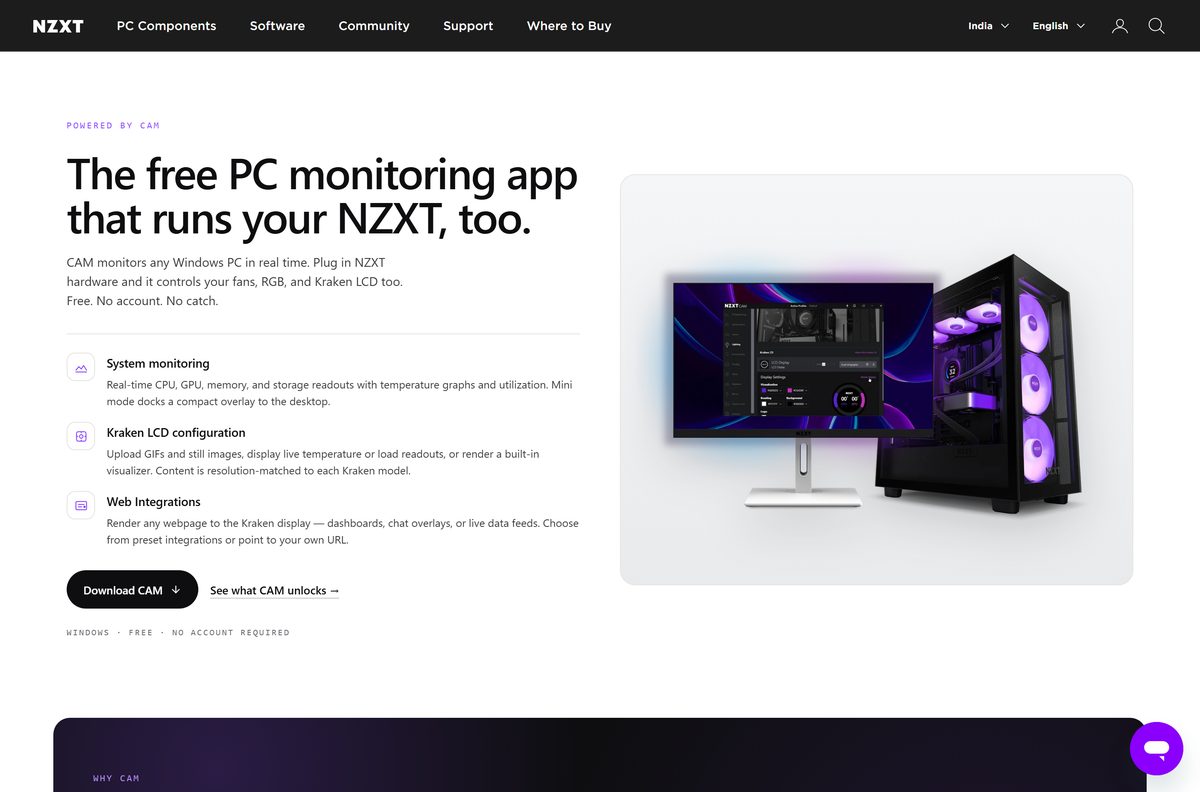
The NZXT CAM download for Windows 11 and Windows 10 is a free 1.43 MB installer from nzxt.com. It sets up NZXT’s PC monitoring app, which shows CPU, GPU, memory and storage temperatures and load in real time.
CAM also controls fans, lighting and Kraken cooler screens on compatible NZXT hardware. It needs no account, and NZXT says more than half of its users run it without any NZXT parts.
This guide covers the official download links, installing CAM, the beta build, requirements, fixes for install errors and a clean uninstall.
Which NZXT CAM download do you need?
NZXT ships two Windows builds. Both are web installers served from NZXT’s own servers.
| You want | Download | Size |
|---|---|---|
| Stable CAM for everyday monitoring and device control | NZXT-CAM-Setup.exe | 1.43 MB |
| Early access to features NZXT is still testing | NZXT-CAM-Beta-Setup.exe | 1.41 MB |
Pick the stable build unless you want to test new features before release.
Download NZXT CAM for Windows 11 and Windows 10
NZXT publishes CAM on nzxt.com and hosts the installer on nzxt-app.nzxt.com. Take it only from these pages.
- NZXT CAM page on nzxt.com — official product page with the Download button
- NZXT CAM installer — NZXT-CAM-Setup.exe, 1.43 MB web installer
- CAM update notes — release notes for every CAM version
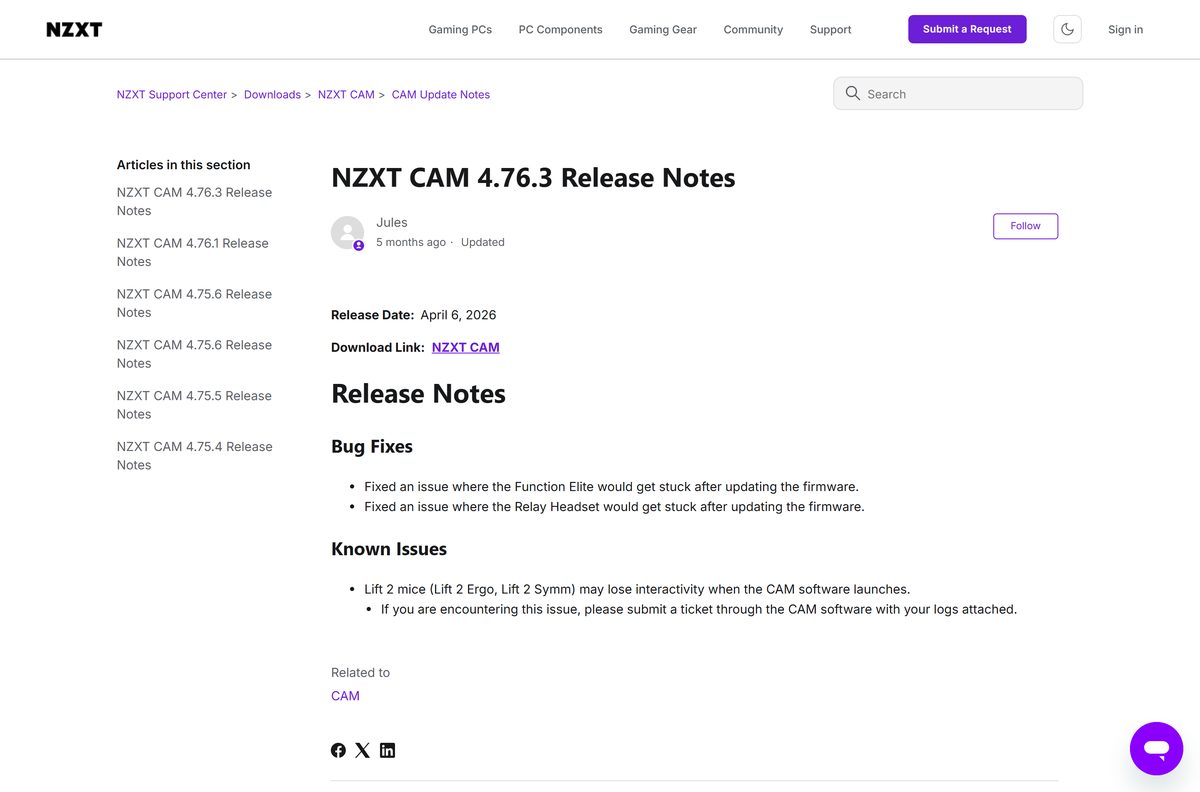
- NZXT CAM 4.76.3 release notes — latest version, released April 6, 2026
There is no Microsoft Store listing or offline installer. The setup file always fetches the newest build during install.
How to install NZXT CAM on Windows 11 and 10
Setup takes a few minutes and needs a working internet connection the whole time.
- Open the NZXT CAM page on nzxt.com.
- Select Download and save NZXT-CAM-Setup.exe (1.43 MB).
- Double-click the file and select Yes at the User Account Control prompt.
- Keep the PC connected while the installer downloads the current CAM build.
- Open NZXT CAM from the Start menu once setup finishes. No account or sign-in is needed.
- Open Settings (gear icon, bottom left) and confirm Start NZXT CAM on Windows startup is on.
CAM installs to C:\Program Files\NZXT CAM\ by default and keeps your settings in %AppData%\NZXT CAM.
Is NZXT CAM free?
NZXT describes CAM as having no account, no sign-in and no upsell.
Yes. NZXT CAM is free, with no paid tier and no account requirement. Monitoring works on any Windows 10 or 11 PC. Fan, lighting and Kraken screen control apply only to compatible NZXT hardware, which you buy separately. Any site charging for CAM is not NZXT.
Choose between NZXT CAM stable and CAM Beta
CAM Beta is NZXT’s public beta branch, where new features launch for testing before a stable update.
Install stable NZXT CAM. Use CAM Beta only if you want to test upcoming features. Beta builds carry features that are still in testing, and CAM controls pump and fan speeds, so a bug has real effects. Version 4.76.0 reset some user profiles to defaults, which 4.76.1 fixed.
Check the NZXT CAM system requirements before you install
CAM runs on current Windows only. NZXT does not publish CPU or RAM minimums.
| Field | Value |
|---|---|
| Software | NZXT CAM |
| Developer | NZXT, Inc. |
| Latest version | 4.76.3 (April 6, 2026) |
| License / price | Free, no account required |
| File size | 1.43 MB web installer (beta: 1.41 MB) |
| Supported OS | Windows 11 and Windows 10; Windows 8.1 and older are unsupported |
| Mac | No macOS version |
| Architecture | Single Windows desktop installer; no separate ARM64 build |
| Internet | Required during install and updates |
| Install folder | C:\Program Files\NZXT CAM\ |
| Official download source | nzxt.com |
| Offline installer | No |
| Last verified | 2026-09-24 |
Fix NZXT CAM not installing or starting on Windows 11 or 10
Installation failed with error code 2 or code 5
The installer cannot reach NZXT’s server to download CAM.
- Check that the PC is online with a stable connection.
- Turn off any VPN and run the installer again.
- Check that your firewall or antivirus is not blocking NZXT CAM.
Setup fails on an older PC
CAM does not support Windows 8.1 or older, or another CAM process is still running.
- Update to Windows 10 or Windows 11 with the latest updates.
- Open Task Manager and end every NZXT CAM.exe and cam_helper.exe process.
- Run NZXT-CAM-Setup.exe again.
CAM opens to a white screen or stays on Loading
A corrupted settings file or profile.
- Right-click the CAM icon in the tray and select Exit NZXT CAM.
- Press Windows+R, type %AppData% and press Enter.
- Open the NZXT CAM folder and delete Settings.json.
- Relaunch CAM. If it still hangs, delete the whole NZXT CAM folder to wipe settings and profiles.
CAM does not start with Windows
The startup option is off in CAM or in Windows.
- In CAM, open Settings > General and turn on Start NZXT CAM on Windows startup.
- Open Task Manager > Startup apps and set NZXT CAM to Enabled.
- Open Settings > Apps > Startup in Windows and set NZXT CAM to On.
NZXT’s install error article, loading fix and startup guide cover the same fixes.
How to uninstall NZXT CAM
The uninstaller leaves your CAM settings in place, which helps a quick reinstall.
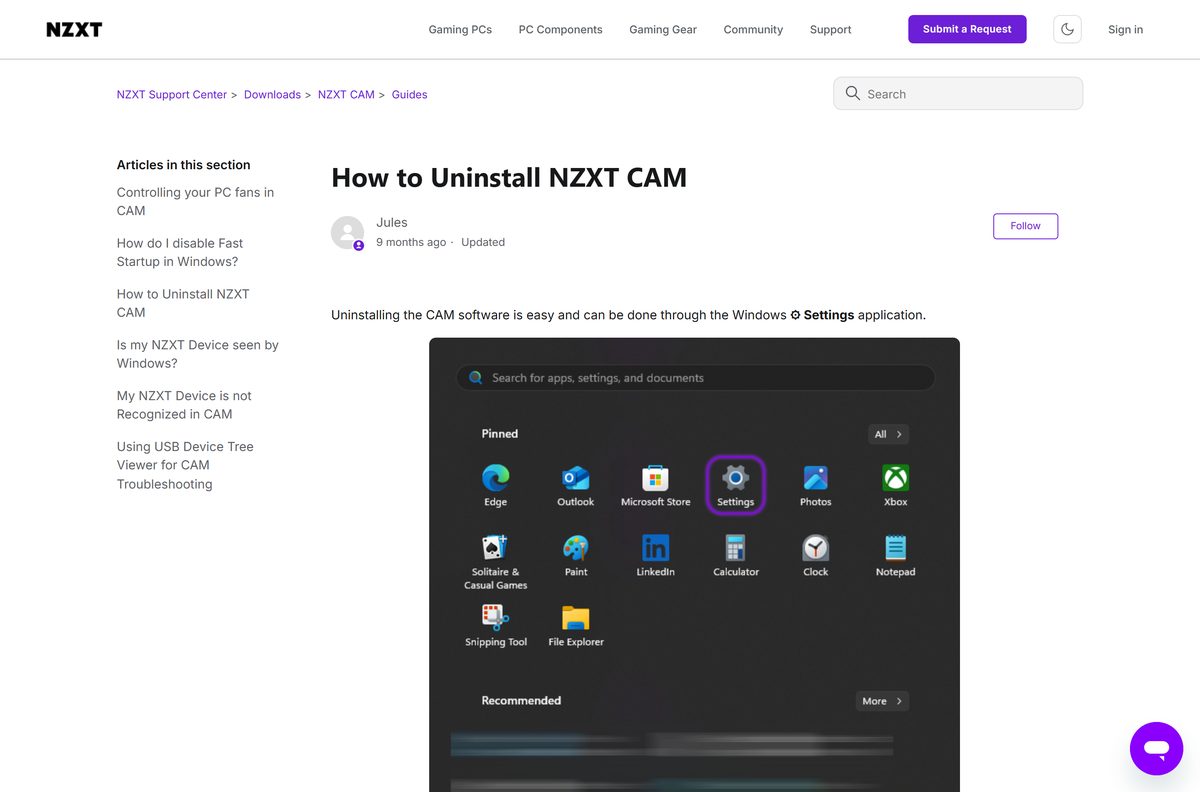
- Open Settings from the Start menu.
- Select Apps, then Installed apps.
- Set Sort by to Name (A to Z) and find NZXT CAM.
- Select … next to it, choose Uninstall and confirm.
- For a clean removal, type %AppData% in File Explorer’s address bar and delete the NZXT CAM folder.
Rename the folder to NZXT CAM BACKUP instead if you might want your profiles back. Details are in NZXT’s uninstall guide.
Pick an NZXT CAM alternative for other brands of hardware
CAM needs exclusive access to NZXT devices, so run one lighting and fan app per device. For other brands’ hardware, use that maker’s app.
| Alternative | Maker | Best for | Link |
|---|---|---|---|
| Corsair iCUE | Corsair | Corsair coolers, fans, RAM and peripherals | iCUE download guide |
| Armoury Crate | ASUS | ASUS motherboards, graphics cards and Aura lighting | Armoury Crate download guide |
Keep CAM if you own a Kraken cooler, NZXT fans or an NZXT RGB controller. Other apps cannot drive those devices.
Frequently asked questions
Is NZXT CAM free?
Yes. NZXT CAM is free to download and use, and it needs no account or sign-in. It runs on any Windows 10 or 11 PC, with or without NZXT hardware.
Where is the official NZXT CAM download?
The official download is on nzxt.com/pages/cam. The Download button serves NZXT-CAM-Setup.exe from nzxt-app.nzxt.com, a server NZXT runs itself.
How big is the NZXT CAM download?
The setup file is 1.43 MB. It is a web installer that downloads the current CAM build during setup, so the PC must be online.
Is there an NZXT CAM offline installer?
No. NZXT offers only the web installer, and both the installer and the updater connect to NZXT’s server to fetch the latest version.
Is NZXT CAM available for Mac?
No. NZXT CAM is a Windows-only app. NZXT publishes no macOS build, so fan, lighting and Kraken screen control need a Windows PC.
Does NZXT CAM work on Windows 7 or 8.1?
No. NZXT lists Windows 8.1 and older as unsupported, and installing on them fails. Use Windows 10 or Windows 11 on the latest updates.
What is the latest NZXT CAM version?
NZXT CAM 4.76.3, released on April 6, 2026, is the latest version in NZXT’s update notes. It fixes firmware update hangs on the Function Elite and Relay Headset.
Do I need NZXT CAM for a Kraken cooler?
For full control, yes. Without CAM a Kraken Plus runs in a default mode with the pump fixed near 80% and the screen showing only liquid temperature.
Does NZXT CAM collect data?
CAM sends anonymized usage and performance data while online. Turn it off in Settings > General by clearing the collect, report and analyze option.