To password protect a ZIP file on Windows, install the free 7-Zip, right-click the files, choose 7-Zip > Add to archive, set the format to ZIP, type a password and pick AES-256 encryption.
File Explorer in Windows 11 and Windows 10 can make ZIP files but cannot add a password, so this guide also covers the 7-Zip command line, the zip command on Mac and Linux, an encrypted disk image on Mac, and fixes for passwords that will not work.
How to password protect a ZIP file on Windows
The Compressed (zipped) folder option in File Explorer has no password setting. Microsoft points users to apps such as 7-Zip for creating encrypted archives, and 7-Zip is free for home and business use.
These steps work for single files and whole folders on Windows 11 and Windows 10.
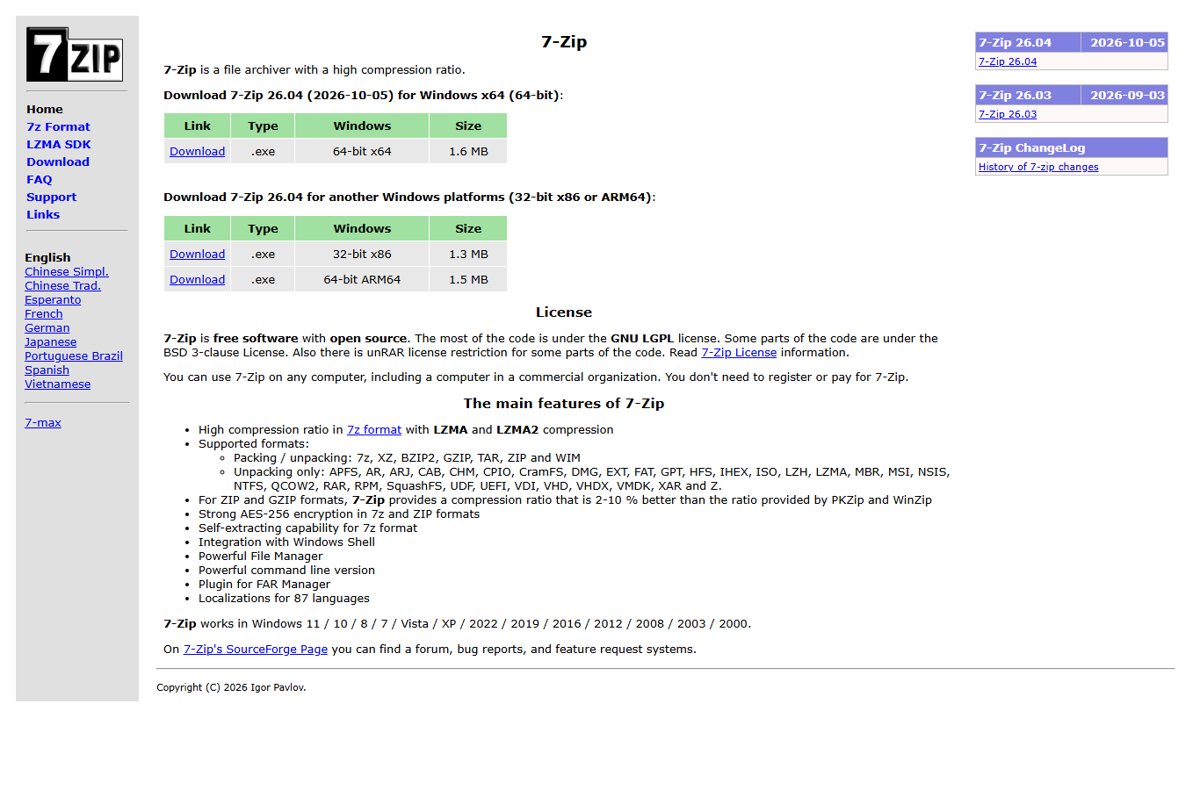
- Install 7-Zip from 7-zip.org. The current release is 7-Zip 26.04, dated October 5, 2026, with 64-bit x64, 32-bit x86 and ARM64 builds.
- In File Explorer, select the files or the folder you want to protect.
- Right-click the selection. On Windows 11, select Show more options if the 7-Zip entry is not visible.
- Point to 7-Zip and select Add to archive.
- Set the archive format to zip so anyone with a ZIP tool can recognise the file.
- In the encryption area of the window, type the password in both password boxes.
- Set the encryption method to AES-256 rather than the older ZipCrypto method.
- Select OK. The new ZIP file appears next to the original files.
Delete the unprotected originals only after you have tested the archive. If you lose the password, nothing can recover the files.
To hide the file names as well as the contents, choose 7z as the format instead of zip. Only the 7z format can encrypt the list of files.
Windows ZIP protection options compared with Mac and Linux
| Your situation | Use this | Why |
|---|---|---|
| Windows 11 or 10, files sent to anyone | 7-Zip, ZIP format, AES-256 | Free, strong encryption, still a .zip file |
| Windows, file names must stay secret too | 7-Zip, 7z format with file name encryption | ZIP shows file names even when the contents are encrypted |
| Windows, scripts or many archives | 7-Zip command line (7z a) |
One command per archive, easy to repeat |
| You already pay for WinZip | WinZip with 128-bit or 256-bit AES | Encryption is built into WinZip |
| Mac, quick protected ZIP | zip -er in Terminal |
Info-ZIP command; uses standard ZIP encryption |
| Mac, sensitive folder kept on your own disk | Encrypted disk image in Disk Utility | Stronger than standard ZIP encryption; opens on any Mac |
| Linux | zip -er, or 7z with a 7z archive for AES-256 |
Install the zip or 7zip package if missing; 7z adds AES |
Why password protect a ZIP file?
A password turns a ZIP file from a convenient bundle into a locked one. It is useful whenever the file leaves your control, but it has clear limits.
| Situation | What a ZIP password does | What it does not do |
|---|---|---|
| Emailing tax, payroll or medical documents | Stops anyone who intercepts the attachment from reading the contents | Hide the file names inside a ZIP |
| Uploading to cloud storage or a shared link | Keeps the files unreadable if the link leaks | Stop people from deleting or copying the encrypted file |
| Archiving old records on a USB drive | Protects the contents if the drive is lost | Protect files after someone extracts them with the password |
| Sending files to a client | Limits access to people you give the password to | Track who opened the file or revoke access later |
Once a recipient extracts the files, the copies on their disk are ordinary unprotected files. Microsoft notes the same for Windows-encrypted files: if you zip them, they are unencrypted when unzipped.
What to know about ZIP encryption: ZipCrypto vs AES-256
ZIP files can be encrypted in two different ways, and the choice decides both how safe the file is and who can open it.
| Encryption | Strength | Hides file names? | Who can open it |
|---|---|---|---|
| ZipCrypto (traditional PKWARE) | Weak; vulnerable to known-plaintext attacks | No | Almost any ZIP tool, including zip and unzip on Mac and Linux |
| AES-256 in ZIP (WinZip AE-x standard) | Strong | No | 7-Zip, WinZip and other tools that support AES ZIPs |
| AES-256 in 7z | Strong; key derived from the password with many SHA-256 rounds | Yes, when file name encryption is on | 7-Zip and apps that read 7z |
The Info-ZIP manual for the zip command calls its standard encryption relatively weak and suggests stronger tools when security truly matters. Use AES-256 for anything sensitive and ZipCrypto only for low-risk files that must open everywhere.
Password protect a ZIP file with the 7-Zip command line
7-Zip for Windows includes the console program 7z.exe, and Linux has the same 7z command. The -p switch sets the password and -t sets the archive type.
7z a -mhe=on -pYourPassword archive.7z "C:\Reports"a adds files to a new archive, -p followed directly by the password encrypts it with AES-256, and -mhe=on also encrypts the archive header so file names stay hidden. -tzip makes a ZIP instead, as in 7z a -tzip -pYourPassword archive.zip "C:\Reports", but the file names stay visible in a ZIP, and the right-click method is the simpler way to pick AES-256 for a ZIP.
You should see: archive.7z appears in the current folder, and opening it in 7-Zip asks for the password before it shows any file names.
A password typed on the command line can end up in your shell history or be visible to other users of the same system. Clear your history afterwards, or use the right-click method for one-off archives.
How to password protect a ZIP file on macOS
The Compress command in Finder makes a plain ZIP with no password option. The Info-ZIP zip command, whose documentation lists macOS among its supported systems, adds standard ZIP encryption in Terminal, and it prompts for the password so nothing is saved in your command history. The same command can create a ZIP file on Mac without a password if you leave out -e.
- Open Terminal from Spotlight, or from the /Applications/Utilities folder in Finder.
- Type
cd(with a space), drag the folder that holds your files into the Terminal window to insert its path, then press Return. - Type
zip -er protected.zip FolderName, replacing FolderName with the folder you want to protect, and press Return. - Type a password when asked and press Return. The characters do not appear as you type.
- Type the same password again to confirm it and press Return.
- Find protected.zip in the same folder in Finder.
-e turns on encryption and -r includes everything inside the folder. For a single file, drop the r: zip -e protected.zip report.pdf. If Terminal answers command not found, use the encrypted disk image method below instead.
Encrypt a folder on Mac with a Disk Utility image
When the files stay on Macs, an encrypted disk image is a stronger alternative to a ZIP password. It opens like a drive after you type the password.
- Open Disk Utility.
- Choose File > New Image > Image from Folder.
- Select the folder and click Open.
- Enter a file name and choose where to save the image.
- Click the Encryption pop-up menu, choose an encryption option, then enter and confirm a password when asked.
- Click the Image Format pop-up menu and choose Read-only Compressed to save space, or Read-only image for faster opening.
- Click Save, then click Done.
If you forget the password, you cannot open the image. A disk image does not open on Windows, so use a ZIP for recipients on other systems.
How to password protect a ZIP file on Linux
Linux uses the same Info-ZIP zip command, with the same -e encryption switch as on Mac. For AES-256, use the 7z command instead.
- Open a terminal and change to the folder that holds your files with
cd. - On Ubuntu, install the tool if it is missing:
sudo apt install zipfor standard ZIP encryption, orsudo apt install 7zipfor AES-256. - For a standard encrypted ZIP, run
zip -er protected.zip FolderName. - Type the password when prompted, then type it again to confirm.
- For AES-256 with hidden file names, run
7z a -mhe=on -pYourPassword protected.7z FolderNameinstead. - List the folder with
lsto confirm the new archive was created.
Avoid zip -P password in scripts. The zip manual warns that other users can see command lines and that scripts store the password in plain text.
How to check a password-protected ZIP file works
- Copy the ZIP to a different folder so you are not testing against the originals.
- On Windows, right-click the ZIP and select 7-Zip > Open Archive, then double-click any file. 7-Zip should ask for the password.
- Run the Test command in 7-Zip and type the password. The test should finish with no errors.
- On Mac or Linux, run
unzip -t protected.zipand type the password when asked. - Extract one file with the password and open it to confirm the contents are intact.
- Only then delete the unprotected original files, if you want to.
Best practices for choosing and sharing ZIP passwords
The encryption is only as strong as the password, and only as private as the way you share it.
| Practice | Do this | Why |
|---|---|---|
| Create a strong ZIP password | Use a phrase of 14 or more characters mixing upper and lower case, numbers and symbols | Microsoft recommends at least 14 characters for strong passwords |
| Keep it unique | Never reuse an account or email password | One stolen password should not open everything |
| Avoid accented characters | Stick to plain letters, numbers and common symbols | Passwords with accented letters may not work in another archiver or on another system |
| Share the ZIP file and password separately | Send the file by email and the password by text message or phone | Someone who intercepts one channel gets nothing usable |
| Store the password | Keep it in a password manager | A lost password means lost files; there is no reset |
| Control access after sharing | Send a new archive with a new password when the recipient list changes | A ZIP password cannot be revoked once someone knows it |
Troubleshooting common ZIP password issues
Why can't I password protect a ZIP file in Windows?
File Explorer's Compressed (zipped) folder option has no encryption setting in Windows 11 or Windows 10.
- Install 7-Zip from 7-zip.org.
- Create the archive with 7-Zip > Add to archive and set a password there.
- Delete the plain ZIP that File Explorer made, if you created one.
The password is not accepted
Passwords are case-sensitive, and accented characters can be encoded differently between programs.
- Check Caps Lock and retype the password slowly.
- Paste the password from your password manager instead of typing it.
- If the password contains accented letters, ask the sender to recreate the archive with plain characters.
The ZIP opens but files will not extract
Windows does not support operations on encrypted archive files, so File Explorer cannot extract them.
- Install 7-Zip and right-click the ZIP.
- Choose a 7-Zip extract command and type the password.
- Extract to a folder you can write to, such as one inside your user folder.
The recipient cannot open the ZIP file
AES-256 ZIPs need an app that supports AES, and 7z files need 7-Zip or a compatible app.
- Ask the recipient to install 7-Zip, which opens both AES ZIP and 7z files.
- If they cannot install software, send a ZipCrypto ZIP for low-risk files only.
- Confirm they received the password through the second channel.
The ZIP file may be damaged
An interrupted download or upload cut off part of the file, so 7-Zip reports a Data Error or CRC error.
- Run the 7-Zip Test command to confirm the damage.
- Ask the sender for a fresh copy, or download it again.
- Compare the file size with the sender's copy before extracting.
Password protect ZIP file: frequently asked questions
Can I password protect a ZIP file in Windows 11 without extra software?
No. File Explorer in Windows 11 creates and opens ZIP files but cannot encrypt them or work with encrypted archives. Microsoft suggests apps such as 7-Zip for encrypted archives. 7-Zip is free and adds AES-256 passwords from the right-click menu.
How do I password protect a ZIP file in Windows 10?
Install 7-Zip, right-click the files, choose 7-Zip > Add to archive, set the format to zip, type the password twice and pick AES-256. Select OK. The steps are the same as on Windows 11, without the Show more options step.
How do I password protect a ZIP file using 7-Zip?
Right-click the files, choose 7-Zip > Add to archive, set the archive format to zip, enter the password in both boxes and choose AES-256 as the encryption method. For hidden file names too, pick the 7z format and turn on file name encryption.
How do I password protect a ZIP file in WinZip?
WinZip has encryption built in: turn on the encryption option in WinZip's file pane, choose the encryption method and enter your password, then save the Zip file. WinZip offers 128-bit and 256-bit AES encryption. WinZip is paid software with a free trial.
How do I password protect a ZIP file on Mac?
Open Terminal, change to the folder that holds your files, and run zip -er protected.zip FolderName. Type the password twice when prompted. Finder's Compress command cannot add a password, and the zip command uses standard ZIP encryption rather than AES.
How do I password protect a ZIP folder?
Protect the folder while you create the ZIP. In 7-Zip, right-click the folder and use Add to archive with a password. On Mac or Linux, run zip -er with the folder name. You cannot add a password to an existing ZIP in File Explorer.
How do I zip files and password protect them in one step?
7-Zip does both at once: the Add to archive window compresses the files and encrypts them with the password you type. On the command line, 7z a -tzip -pYourPassword archive.zip followed by the files does the same thing in a single command.
Can I password protect a ZIP file I already created?
Not in File Explorer. The simplest route is to extract the files and create a new ZIP with a password in 7-Zip, then delete the unprotected ZIP. That also lets you choose AES-256 instead of the weaker ZipCrypto method.
Bottom line: the best way to password protect a ZIP file
On Windows 11 and Windows 10, use 7-Zip with the ZIP format and AES-256 encryption, and switch to the 7z format with file name encryption when the file names themselves are sensitive. Windows cannot add a password to a ZIP on its own, 7-Zip is free, and AES-256 is far stronger than the ZipCrypto encryption that the zip command on Mac and Linux uses by default.
Recipients only need a tool that reads encrypted archives; on Windows that rules out File Explorer, so tell them how to open a ZIP file on Windows with 7-Zip before you send it.