To get ASUS Aura Sync on Windows 11 or Windows 10 today, install Armoury Crate: ASUS states that all Aura Sync Utility features are now part of Armoury Crate, and it ships both through the Armoury Crate & Aura Creator Installer.
This guide covers the official download, what the old standalone Aura Sync Utility still is, which devices work, how to set up synced lighting, how to uninstall cleanly, and the fixes ASUS documents.
The fastest way to get Aura Sync on Windows 11 and Windows 10
ROG and TUF Gaming laptops and desktops ship with Armoury Crate preinstalled, so check the Start menu first. On a custom PC with an ASUS motherboard, use the installer below.
- Open the Armoury Crate support page on asus.com.
- Under Driver & Tools, select your Windows version in Please select OS.
- Download Armoury Crate & Aura Creator Installer from the Utilities list.
- Unzip the downloaded file and double-click ArmouryCrateInstaller.exe.
- Select Armoury Crate, Aura Creator or both, then click Start.
- Open Armoury Crate from the Start menu when setup finishes and select Aura Sync.
That is the complete install. Aura Sync is a tab inside Armoury Crate, not a separate icon in the Start menu.
What ASUS Aura Sync Is (and Why It Works Differently Now)
Aura Sync is ASUS's system for running one lighting effect across every compatible ASUS component and peripheral at once. ASUS says more than 180 devices support it.
The software around it changed. The ASUS Aura download page now says all Aura Sync Utility features are part of Armoury Crate, and that the standalone utility will stop receiving updates.
| Name you will see | What it is today | Where it comes from |
|---|---|---|
| Aura Sync Utility (standalone) | The old separate lighting app. ASUS lists 1.07.84_V2 as the latest and final version. | ASUS Aura download page, marked as ending updates |
| Aura Sync tab in Armoury Crate | The current way to sync lighting across devices. Holds Sync devices and Aura Effects. | Armoury Crate & Aura Creator Installer |
| Device > Lighting in Armoury Crate | Sets lighting for one device on its own when that device is not synced. | Armoury Crate |
| Aura Creator | An editor for advanced effects that you then apply through Aura Sync. | Same installer, as an optional second app |
| Aura Service (Lighting Service) | The background service that drives the lighting. Version 3.10.04 ships with installer 3.3.6.0. | Installed automatically with Armoury Crate |
Before You Install: Prerequisites and Compatibility Checks
ASUS lists these requirements in its Armoury Crate FAQ and its Armoury Crate Compatible Devices page. Check each row before you run the installer.
| Check | Requirement ASUS states | What to do if you fail it |
|---|---|---|
| Windows version | Windows 10 version 1903 (Creators Update) or later, or Windows 11 | Update Windows first through Windows Update |
| ROG and ROG Strix motherboards | Z370 series and later models shipped since October 2018 | Older boards are not on the Armoury Crate list |
| Other ASUS motherboards | X570 series and later models shipped since July 2019 | Older boards are not on the Armoury Crate list |
| ROG and TUF Gaming laptops and desktops | All models shipped since July 2018 | Armoury Crate is usually preinstalled; check the Start menu |
| Peripherals and components | Listed ROG and TUF keyboards, mice, headsets, AIO coolers, graphics cards and monitors | Check your model on the compatible devices page |
| Network | A stable internet connection with no VPN during setup | Disconnect the VPN, then run the installer again |
| Previous installs | Remove any older Armoury Crate with the Armoury Crate Uninstall Tool and restart | See the uninstall section below |
ROG or TUF peripherals still work on a PC that is not on the list. ASUS says you can install Armoury Crate on a non-compatible PC to configure those peripherals.
Which install method should you use?
| Your situation | Use this | Why |
|---|---|---|
| ROG or TUF Gaming laptop or desktop | Armoury Crate that came preinstalled | ASUS ships it on these systems; update it from Settings > Update Center |
| New ROG, ROG Strix, TUF Gaming or Prime motherboard build | The first-boot pop-up, or Method 1 | The board offers to install Armoury Crate on first boot; click OK |
| You dismissed the pop-up or uninstalled earlier | Method 1 or Method 3 | Both give you the same Armoury Crate & Aura Creator Installer |
| You want the package listed for your exact model | Method 3 (Download Center) | Your model's support page shows only packages for that product |
| You want the old standalone app | Method 2, with care | It is still listed but no longer updated; Armoury Crate replaces it |
Method 1 (Recommended): Install Aura Sync via Armoury Crate
This is the route ASUS points every Aura user to. The installer is small because it downloads the current Armoury Crate app and its services during setup.
In September 2026 the support page listed installer version 3.3.6.0 with Armoury Crate v6.4.7 and Aura Creator v4.4.3.
- If Armoury Crate was installed before, run the Armoury Crate Uninstall Tool and restart the PC first.
- Go to the Armoury Crate support page and pick your OS under Please select OS.
- Click DOWNLOAD next to Armoury Crate & Aura Creator Installer.
- Right-click the downloaded zip, select Extract All, and open the extracted folder.
- Double-click ArmouryCrateInstaller.exe to start the installer.
- Tick Armoury Crate (and Aura Creator if you want custom effects), then click Start.
- Stay connected to the internet until the installer reports that setup is complete, then restart if it asks.
Method 2: Install Aura Sync as a Standalone App (When Available)
ASUS's Aura download page still lists the standalone Aura Sync Utility, version 1.07.84_V2. The same page says the standalone version will stop receiving updates and encourages you to install Armoury Crate for full-featured Aura control.
Treat it as a legacy option. Use the table to decide whether it fits your case.
| Your situation | Standalone Aura Sync Utility? | Reason |
|---|---|---|
| New PC or a recent motherboard, laptop or peripheral | No, use Armoury Crate | Newer devices appear in the Armoury Crate compatibility list, and only Armoury Crate is still updated |
| You want Aura Creator effects or AI Aura Lighting | No, use Armoury Crate | Both features live in Armoury Crate; AI Aura Lighting arrived with the Armoury Crate update |
| Windows Dynamic Lighting has taken over your lighting | No, use Armoury Crate | ASUS's fix uses the ASUS WDL HAL component from the Armoury Crate Update Center |
| You already run Armoury Crate | No | Running two lighting controllers for the same devices invites conflicts |
| You still want it | Get it only from the ASUS Aura download page | Open asus.com/campaign/aura, select Aura Sync, and use the listed download; never a mirror site |
Method 3: Use ASUS Download Center Drivers + “Aura” Components
ASUS's FAQ says to download the installer from the ASUS support site for your model. This route suits readers who also want the chipset, BIOS or graphics packages for the same board or laptop.
- Open the ASUS Download Center.
- Type your model name in Model, or pick it through Select a product by Product Type.
- Open the Driver & Utility tab for your model and select your Windows version.
- Find Armoury Crate & Aura Creator Installer in the utility list and click DOWNLOAD.
- Extract the zip and run ArmouryCrateInstaller.exe, then click Start as in Method 1.
- Install any listed chipset or BIOS updates for your board before troubleshooting lighting.
There is no separate "Aura driver" to hunt for. The lighting service installs with Armoury Crate, and firmware for connected devices arrives through its Update Center.
How to set up and use Aura Sync after installing
The layout below matches Armoury Crate 6.0 and later, where Aura Sync sits under Playground. Options vary with your hardware.
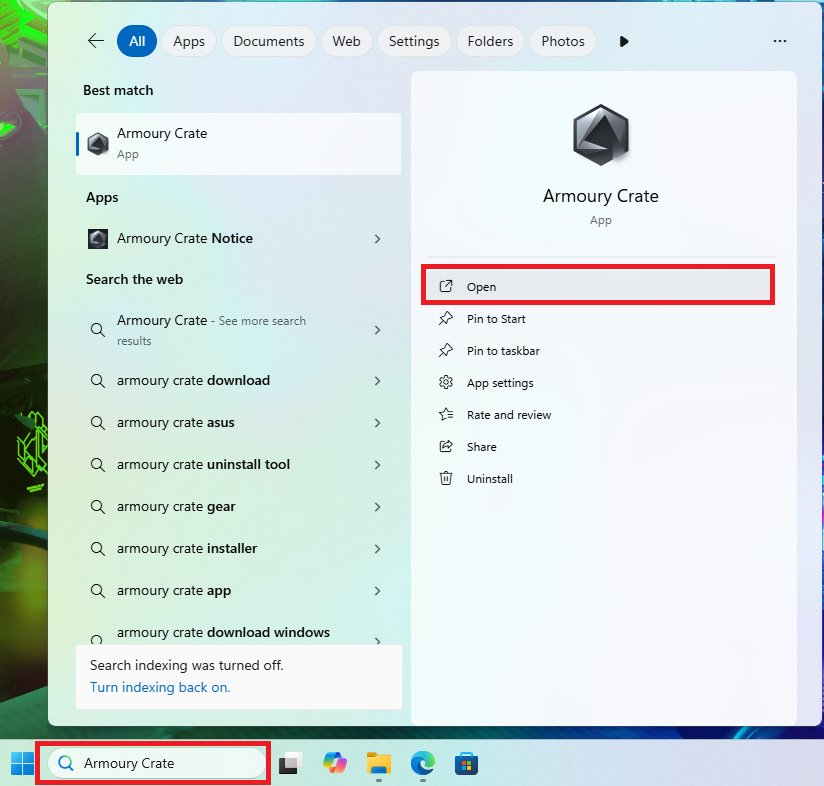
- Type Armoury Crate in the Windows search box and click Open.
- If Aura Sync is missing, open Feature Library and install the Playground component.
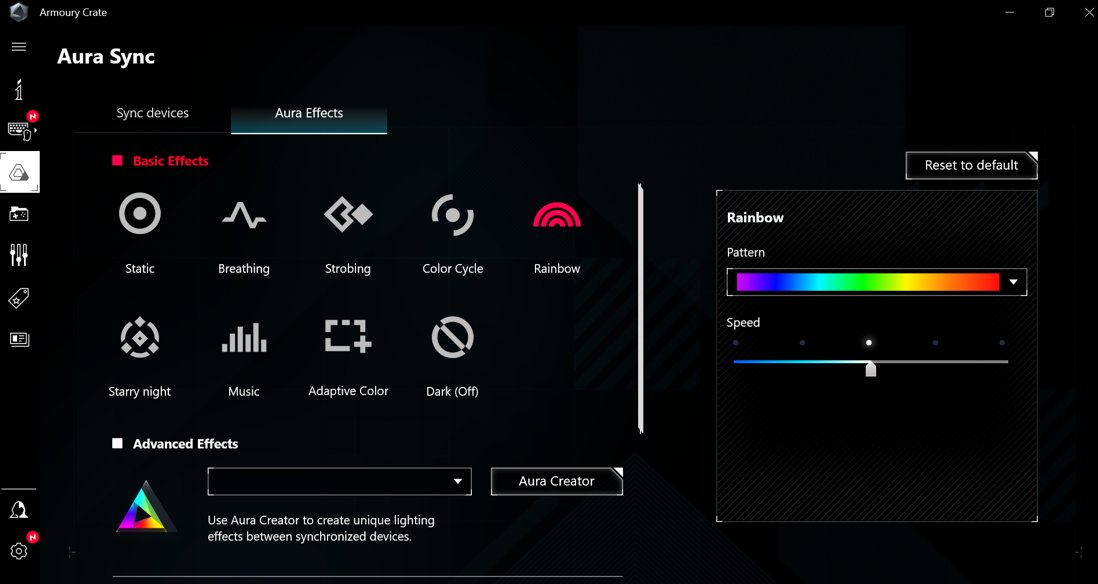
- Select Aura Sync, then Sync devices, and tick every device you want to follow one effect.
- Open Aura Effects and choose an effect under Basic effects.
- For custom layered effects, choose Advanced Effects, which opens Aura Creator.
- To light one device differently from the rest, remove it from Sync devices and set it under Device > Lighting.
Verification Checklist: Confirm Aura Sync Is Actually Installed
- Search Armoury Crate in the Start menu and confirm the app opens without a service error.
- Open Settings > About inside Armoury Crate and note the app and service versions listed.
- Confirm Aura Sync appears in the app, and that Sync devices lists your motherboard, graphics card or peripherals.
- Pick an effect under Aura Effects and watch every synced device change together.
- Restart the PC and check the effect comes back without opening the app.
If a device is missing from Sync devices, it is either not on ASUS's Aura Sync list or it needs the fixes below.
How to uninstall Armoury Crate and Aura Sync completely
ASUS provides a dedicated Armoury Crate Uninstall Tool that removes all Armoury Crate apps and services. Use it before any reinstall, because ASUS lists a leftover install as a cause of failed setups.
- Go to the Armoury Crate support page.
- In Driver & Tools, select Windows 10 64-bit as the OS, as ASUS's FAQ instructs.
- Download Armoury Crate Uninstall Tool.
- Extract Armoury_Crate_Uninstall_Tool.zip and double-click Armoury Crate Uninstall Tool.exe.
- Let the tool finish, then restart the PC to complete the removal.
Removing only the Armoury Crate app from Apps leaves services behind. ASUS says to keep Aura Service and ROG Live Service only if you want Aura Sync or Aura Creator to keep working.
Troubleshooting Guide (Windows 10/11)
These symptoms come from the questions readers search for and from ASUS's own Armoury Crate FAQs. Each fix uses only ASUS or Windows tools.
The Armoury Crate installer fails or stops partway
A VPN, a blocked process, a leftover older install, or a virtual platform such as an Android emulator.
- Disconnect any VPN and confirm the internet connection is stable.
- Check your security software's log and allow the Armoury Crate processes it blocked, rather than turning protection off.
- Run the Armoury Crate Uninstall Tool and restart.
- Run ArmouryCrateInstaller.exe again.
- If it still fails, use ASUS's Armoury Crate Lite Log Tool: tick Enable Log, reproduce the failure, click Package Log, and send the log file to ASUS support.
Armoury Crate or Aura Sync shows a service error or will not launch
A background service failed to start or is damaged.
- Restart the PC.
- If the error returns, run the Armoury Crate Uninstall Tool and restart.
- Download a fresh Armoury Crate & Aura Creator Installer from ASUS and reinstall.
Aura Sync shows no devices (keyboard, fans, RAM or graphics card missing)
The Playground component is missing, or the device is not on ASUS's Aura Sync list.
- Open Feature Library in Armoury Crate and install Playground.
- Go to Aura Sync > Sync devices and check whether the device now appears.
- Open Settings > Update Center, click Check for Updates, and install listed firmware and drivers.
- Compare the device against the Armoury Crate Compatible Devices list. A device not listed there will not appear.
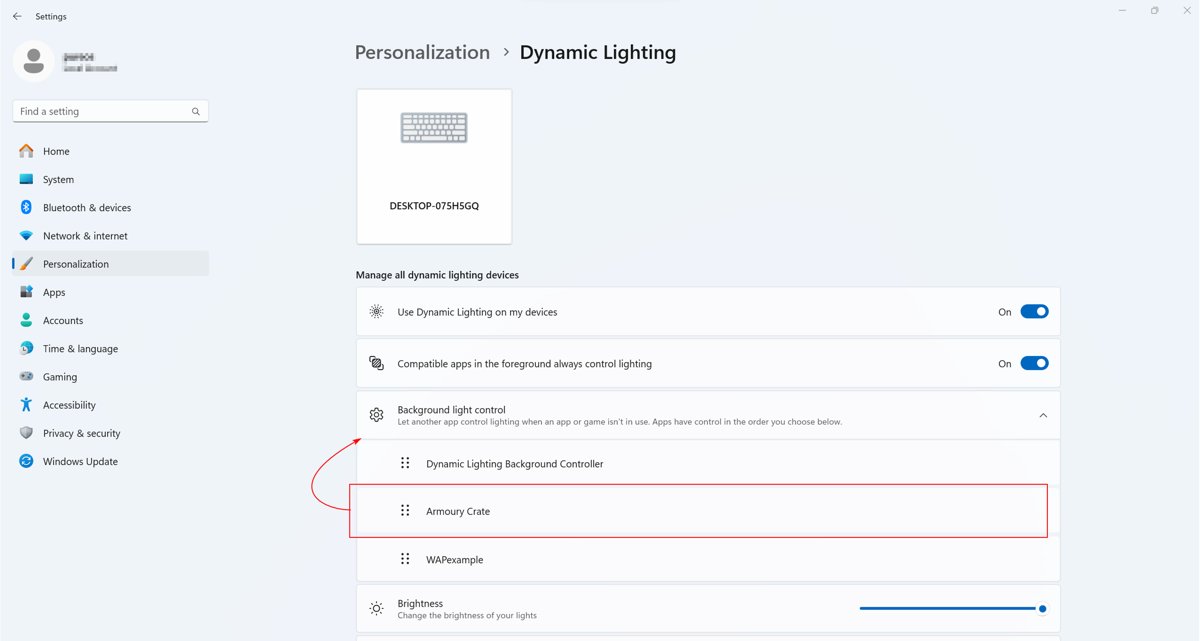
Lighting stopped responding after a Windows 11 update
From Windows 11 build 22621.2361, Windows Dynamic Lighting turns on and takes control of compatible devices.
- Open Armoury Crate and go to Settings > Update Center.
- Click Check for Updates, find ASUS WDL HAL, and install it.
- Open Windows Settings > Personalization > Dynamic Lighting.
- Under Background light control, drag Armoury Crate to the first position.
Uninstalling Armoury Crate fails
Files or services were still in use during the first pass.
- Restart the PC when the tool's dialog asks you to.
- Run the Armoury Crate Uninstall Tool a second time; ASUS says the second run should succeed.
- If it fails again, send the ACUTLog file from the tool's folder to ASUS support.
Common Mistakes That Break Aura Sync
| Mistake | What goes wrong | Do this instead |
|---|---|---|
| Installing over an old Armoury Crate | Setup fails or services conflict | Run the Armoury Crate Uninstall Tool and restart first |
| Removing Aura Service or ROG Live Service by hand | Aura Sync and Aura Creator stop working | Keep both if you want lighting control, or use the Uninstall Tool to remove everything |
| Running the installer through a VPN | Downloads during setup fail | Disconnect the VPN until setup finishes |
| Keeping the standalone Aura Sync Utility alongside Armoury Crate | Two apps try to control the same lights | Use Armoury Crate only |
| Leaving Windows Dynamic Lighting in first place | Armoury Crate effects do not apply | Move Armoury Crate to the top of Background light control |
| Turning off Microsoft Store app updates to freeze Armoury Crate | Every Store app stops updating, not just Armoury Crate | Leave updates on unless you accept that trade-off |
| Downloading installers from mirror sites | You may get an outdated or tampered file | Use asus.com or rog.asus.com only |
Alternatives If Aura Sync Won’t Cooperate
Each option below is documented by ASUS. ASUS does not document third-party RGB apps, so they are not covered here.
| Option | What it controls | Requirement ASUS lists |
|---|---|---|
| Device > Lighting in Armoury Crate | One device at a time, without syncing others | The device must be supported by Armoury Crate |
| Windows Dynamic Lighting | Lighting on compatible ASUS devices from Windows Settings | Windows 11 build 22621.2361 or later and configuration update KB5030509 or later |
| Aura Creator | Custom multi-layer effects applied through Aura Sync | A device on the Aura Creator compatible devices list |
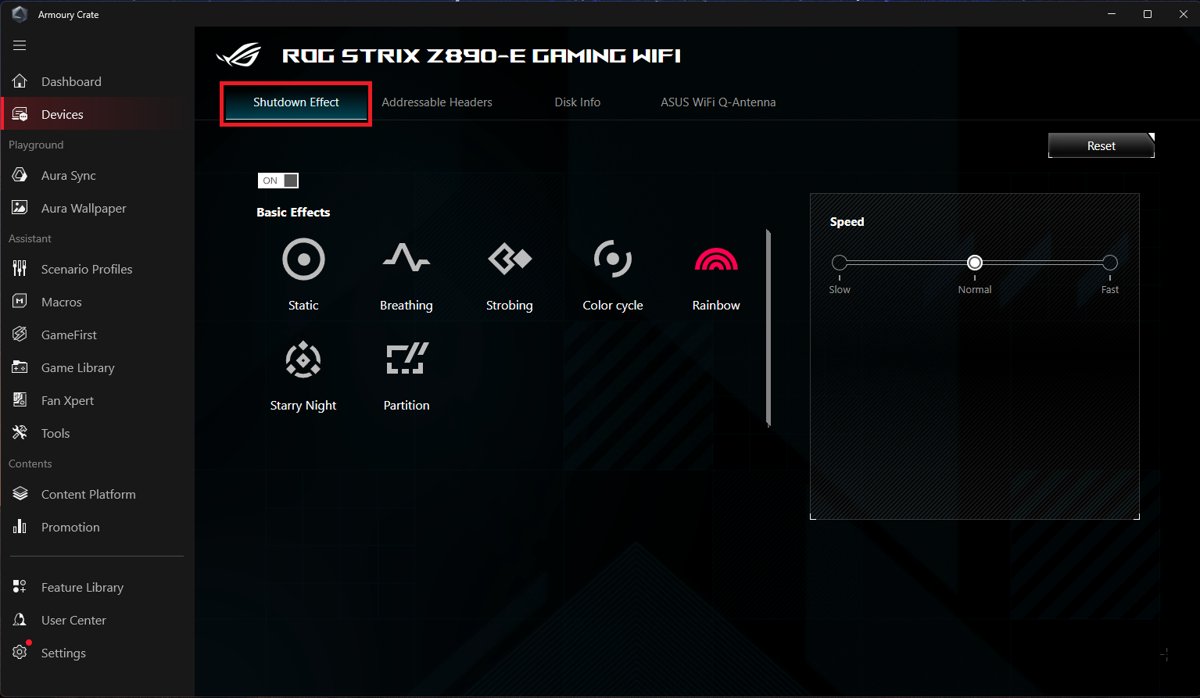
| Motherboard Shutdown Effect and Addressable Headers in Armoury Crate | Board lighting when the PC is off, and ARGB strips on the headers | Armoury Crate 6.0 or later on a supported motherboard |
ASUS lists Dynamic Lighting support for Intel Z690, H670, B660, Z790 and B760 boards, AMD X670, B650, X570 and B550 boards, and 2024-2025 ROG and TUF laptops.
FAQ
How do I get ASUS Aura Sync?
Install Armoury Crate with the Armoury Crate & Aura Creator Installer from asus.com. ASUS states that all Aura Sync Utility features are now part of Armoury Crate, where Aura Sync appears as its own section for syncing lighting across devices.
How do I install ASUS Aura Sync on Windows 11?
Download the Armoury Crate & Aura Creator Installer from the Armoury Crate support page, extract the zip, run ArmouryCrateInstaller.exe, select Armoury Crate, and click Start. Windows 11 and Windows 10 version 1903 or later are supported.
How do I set up ASUS Aura Sync?
Open Armoury Crate, select Aura Sync, then Sync devices, and tick each device you want to link. Pick an effect under Aura Effects. If Aura Sync is missing, install the Playground component from Feature Library first.
How do I use Aura Sync on ASUS?
Use the Aura Sync section of Armoury Crate for one effect across all synced devices, and Device > Lighting for a single device on its own. Advanced Effects opens Aura Creator for custom layered lighting.
Is there still a standalone ASUS Aura Sync download?
Yes, but it is legacy. ASUS's Aura download page still lists Aura Sync Utility 1.07.84_V2 and says the standalone version will stop receiving updates. ASUS recommends Armoury Crate for full Aura lighting control.
Do I need Armoury Crate to use ASUS Aura Sync on Windows 11?
Yes, for any current setup. Aura Sync now lives inside Armoury Crate, and newer features such as Aura Creator effects, AI Aura Lighting and the Windows Dynamic Lighting fix all depend on it.
Why can I install Aura Sync but it shows no devices?
Usually the Playground component is missing or the device is not supported. Install Playground from Feature Library, check Aura Sync > Sync devices, run Update Center, and compare the device against ASUS's compatible devices list.
Will ASUS Aura Sync work on Windows 10 and Windows 11 the same way?
Largely yes. Armoury Crate supports Windows 10 version 1903 or later and Windows 11. Windows 11 adds Dynamic Lighting, which can take over lighting until you install ASUS WDL HAL and give Armoury Crate first priority.
Is there a separate ASUS Aura Sync driver?
No separate driver is listed. The Aura Service, also called the Lighting Service, installs with Armoury Crate, and device firmware updates arrive through Settings > Update Center inside Armoury Crate.
How do I completely uninstall Aura Sync and Armoury Crate?
Download the Armoury Crate Uninstall Tool from the Armoury Crate support page, extract it, run Armoury Crate Uninstall Tool.exe, and restart. If it fails, restart and run it once more, as ASUS advises.
Bottom Line
Install Armoury Crate from asus.com with the Armoury Crate & Aura Creator Installer and use its Aura Sync section; skip the standalone Aura Sync Utility. ASUS has moved every Aura Sync feature into Armoury Crate, says the standalone utility will stop receiving updates, and ships its fixes for missing devices and Windows Dynamic Lighting conflicts only through Armoury Crate.