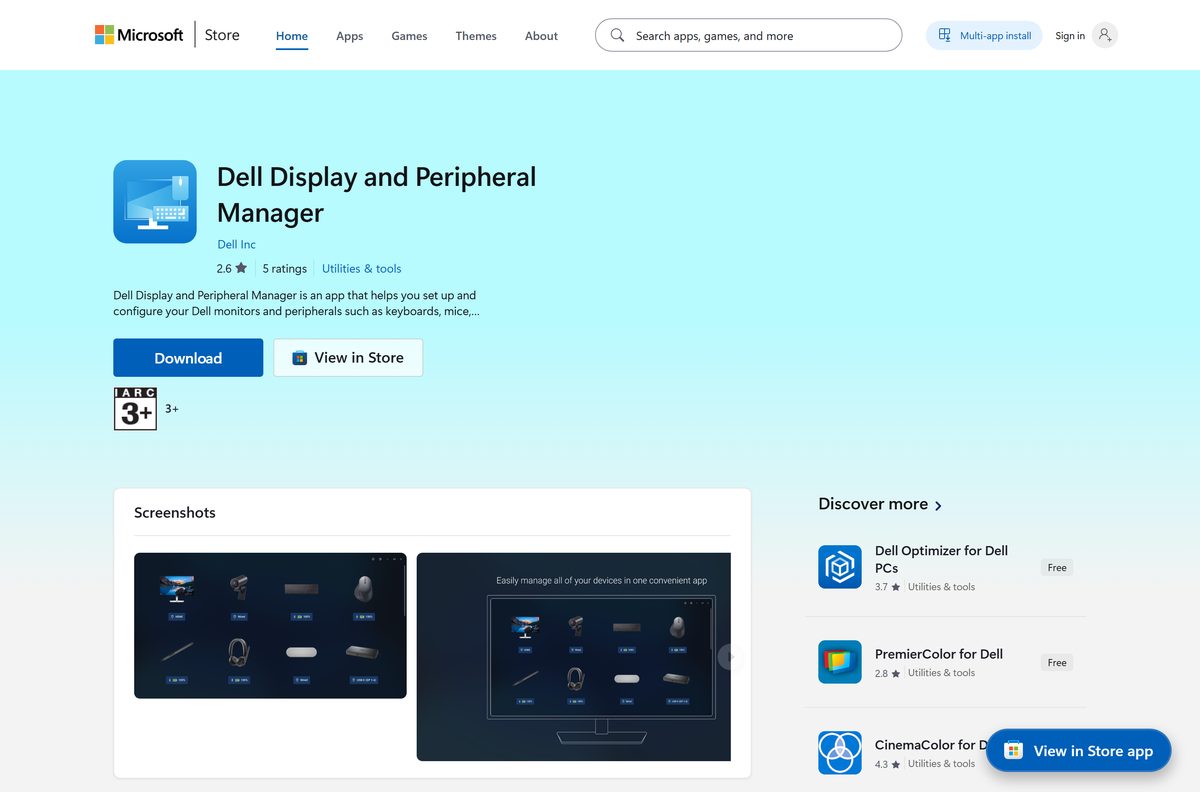
The Dell Display Manager download now arrives as Dell Display and Peripheral Manager, a free Dell app for Windows 11, Windows 10 and macOS. Dell serves it from its own Drivers & Downloads page, and the same application covers monitors, webcams, keyboards, mice, headsets, pens and docks.
One install gives you brightness control from the keyboard, Easy Arrange window layouts, input switching, KVM sharing and firmware updates for connected Dell hardware.
This guide covers the official download, the Windows and Mac install routes, the winget command, requirements, fixes and removal.
Which Dell Display Manager download do you need?
Dell ships one application for displays and peripherals, plus separate tools for drivers and PC health.
| What you want to control | Download | Notes | |
|---|---|---|---|
| A Dell monitor, webcam, dock, keyboard or headset on Windows 11 or 10 | Dell Display and Peripheral Manager | Version 2.3.0.17, released 7 August 2026 | |
| A Dell monitor or webcam attached to a Mac | Dell Display and Peripheral Manager for Mac | Version 2.3.0.1005, Apple silicon recommended | |
| Drivers, BIOS and firmware on a Dell business PC | [Dell Command | Update](https://techdows.com/download-dell-command-update-for-pc-windows-11-10-mac.html) | Separate app for commercial systems |
| Hardware scans and driver updates on a Dell home PC | Dell SupportAssist | Consumer tool, not a display utility |
This one application replaced the older Dell Display Manager and Dell Peripheral Manager.
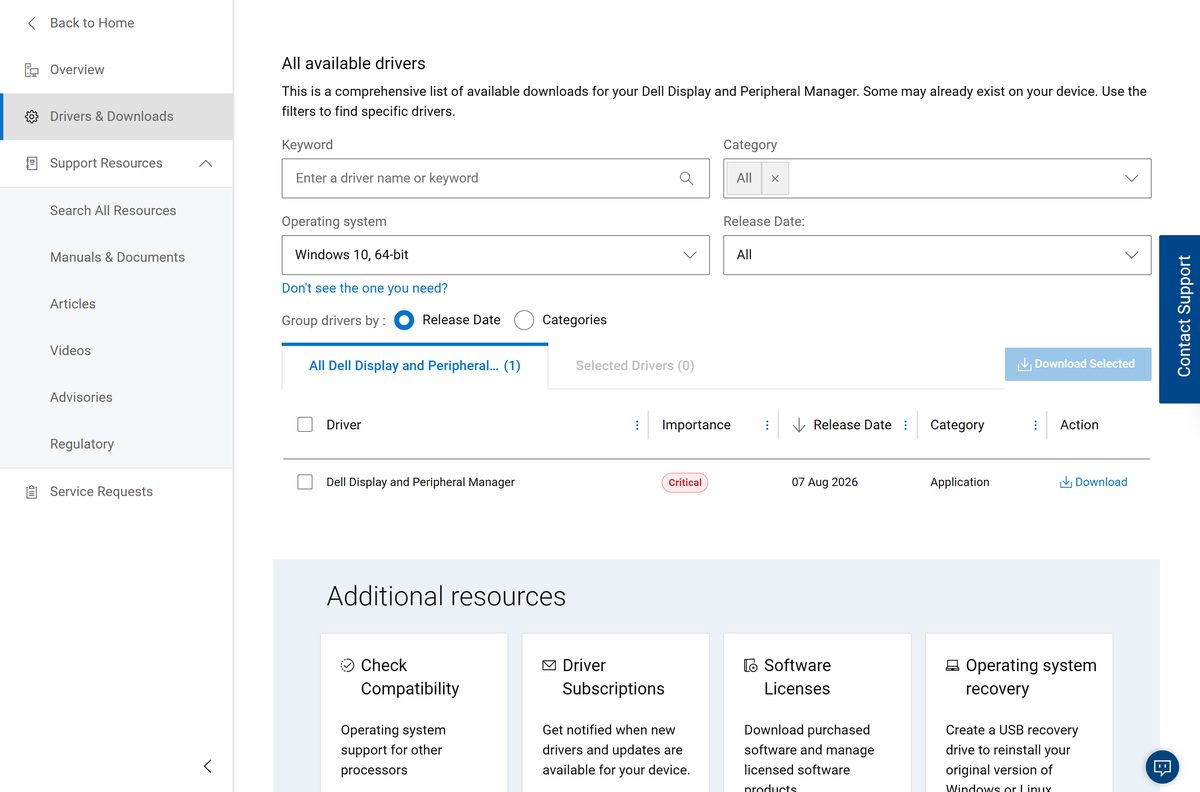
Download Dell Display Manager from the official Dell page
Dell publishes the application on its Drivers & Downloads page for Dell Display and Peripheral Manager and serves the setup file from dl.dell.com. Pick your operating system in the filter.
- Dell Display and Peripheral Manager Drivers & Downloads — the page Dell names in its own security advisory
- Article 000287285, the Windows guide — requirements and supported devices
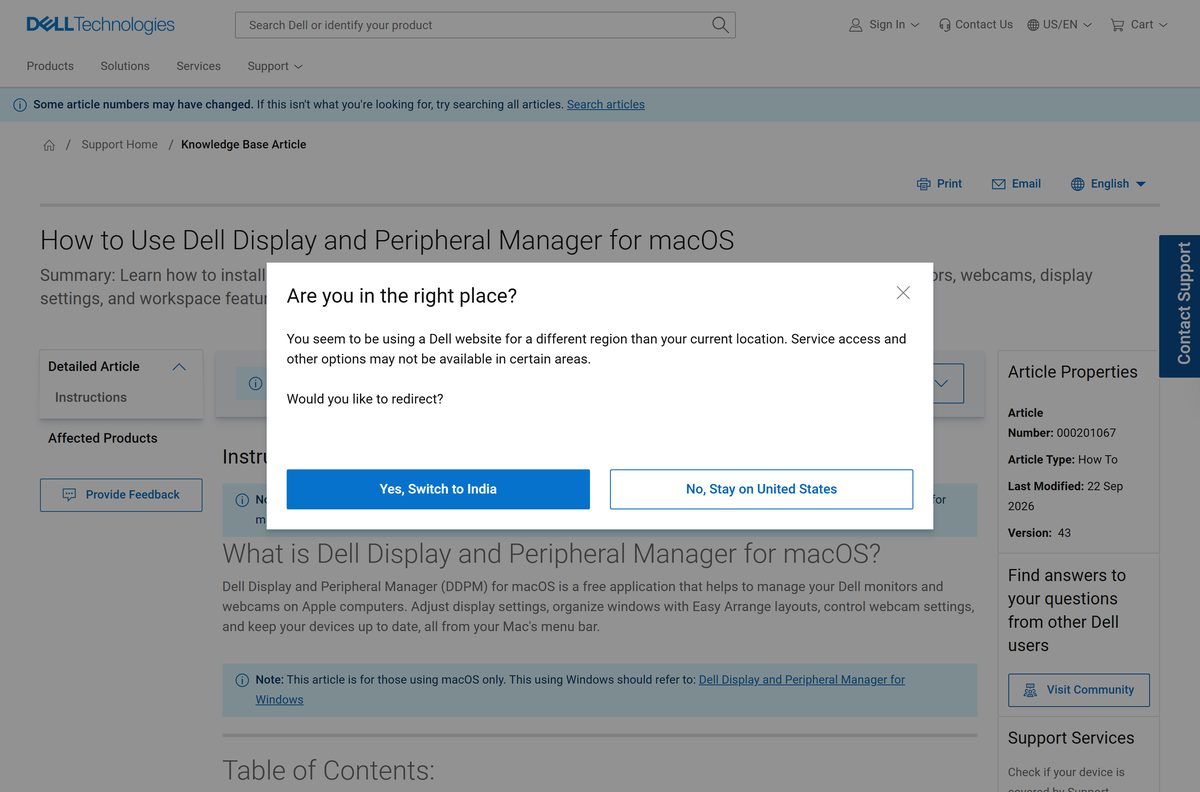
- Article 000201067, the macOS guide — Mac models and permissions
- Microsoft Store listing, published by Dell Inc — free, Utilities & tools category
Anything offered from another host under the old Dell Display Manager name is not the Dell file.
How to install Dell Display Manager on Windows 11 and 10
Turn on DDC/CI in the monitor’s on-screen display first. Press the menu button, open Others, then set DDC/CI to On.
- Connect the monitor with HDMI, DisplayPort or USB-C, then add the USB upstream cable so the peripheral features work.
- Open the Drivers & Downloads page and set the operating system filter to your version of Windows.
- Select Download on the Dell Display and Peripheral Manager row.
- Run the downloaded setup file and select Yes at the User Account Control prompt.
- Follow the on-screen instructions through the installer.
- Choose whether to install the optional Network KVM component.
- Wait for setup to finish, then open Start > All apps and select the application.
- Allow up to five minutes on first launch while it detects your devices.
Connected Dell hardware appears on the main screen. Select any device to open its settings. Some models show as line art, and every feature still works.
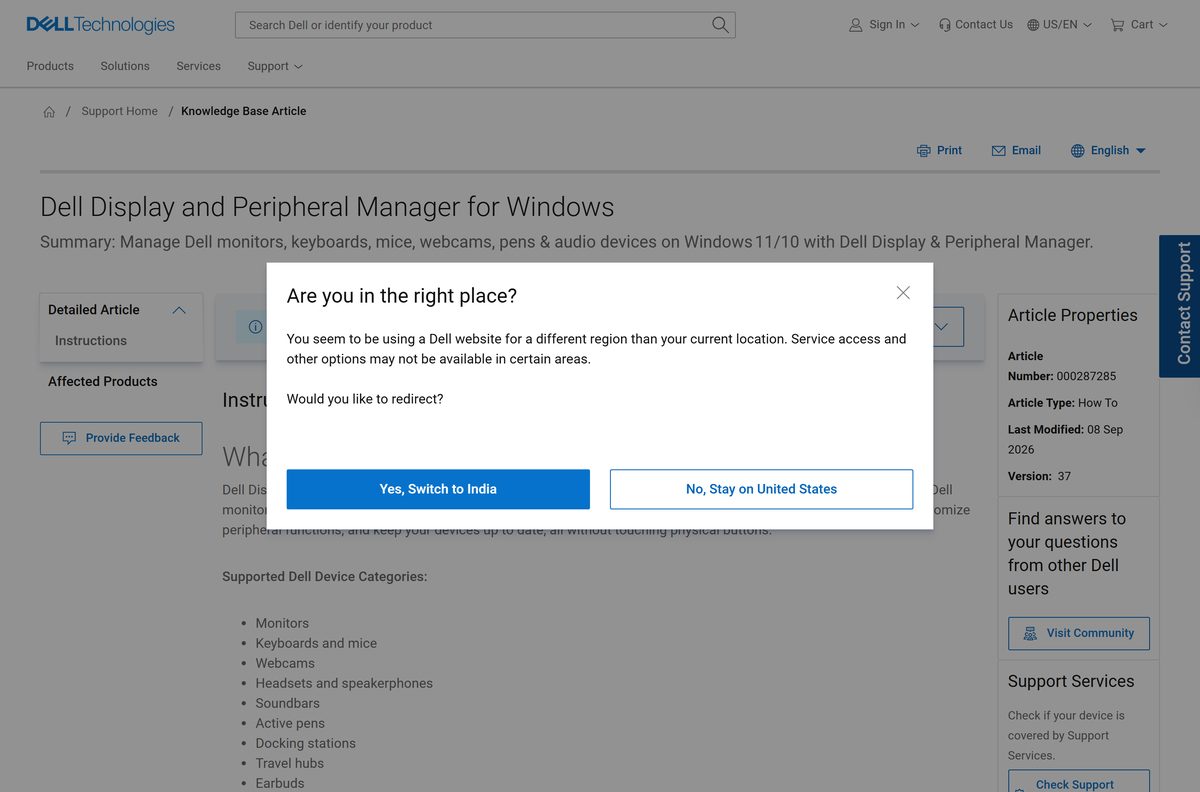
Install Dell Display Manager from the Microsoft Store or with winget
Dell also lists the application in the Microsoft Store, free, under Utilities & tools. The listing hands the install to Windows Package Manager, so the file still comes from Dell.
- Open the Microsoft Store listing and check that the publisher reads Dell Inc.
- Select Get, then Install, and approve the prompt Windows shows.
- To script it instead, open Terminal as an administrator.
- Run winget install –id Dell.DisplayAndPeripheralManager –exact .
- Run winget upgrade –id Dell.DisplayAndPeripheralManager later to move to a newer build.
- Open Start > All apps and launch the application once setup reports success.
The Store route needs Windows 10 build 17763 or later, the same floor as the setup file from Dell.
Which Dell Display Manager download do you need for your Mac?
Dell ships a macOS build, and it replaces the old Dell Display Manager for macOS. Support depends on the chip in your Mac.
| Your Mac | What Dell supports | Download |
|---|---|---|
| MacBook, Mac mini, Mac Pro or Mac Studio with M1 or later, on macOS 14, 15 or 26 | Full support | Mac build 2.3.0.1005 |
| Intel Mac launched after 2018, on macOS 14, 15 or 26 | Limited support, new hardware may not be covered | Mac build 2.3.0.1005 |
| Any iMac, or an Intel Mac on macOS 13 Ventura or older | Not supported | macOS requirements, article 000201067 |
On the Mac, open the .dmg, drag the app to Applications, launch it and grant the permissions macOS asks for. Notifications, Accessibility, Camera and, on macOS 15 and later, Local Network each unlock a different feature. The icon then sits in the menu bar, and Ctrl+Shift+D opens the launcher on whichever screen holds the pointer.
Is Dell Display Manager free?
Yes, it is free, on Windows and on macOS. Dell publishes it on Dell Support at no charge, with no trial period, no licence key and no paid tier. The Microsoft Store listing shows the same price. Any page that asks for payment or a registration form before it hands over the file is not Dell.
Firmware updates for connected Dell docks, webcams and monitors are included, and so is the optional Network KVM component.
Should you install Dell Display Manager or Dell Display and Peripheral Manager?
Both names still circulate, and search results still point at the old one. Dell folded two applications into one.
Install Dell Display and Peripheral Manager. It is the application Dell maintains, and it covers everything the older Dell Display Manager and Dell Peripheral Manager handled between them. Dell states that the macOS build replaces Dell Display Manager for macOS, and its August 2026 security update was issued for this application only.
The transition runs automatically on many machines, or you can install the new application over the old one. Monitors outside the supported list keep working as displays and simply lose the software controls.
How to check your Dell Display Manager version and update it
Dell fixed four local privilege-escalation flaws in 2.3.0.17 for Windows and two in 2.3.0.1005 for Mac.
- Right-click the application icon in the Windows notification area.
- Select Check for new version.
- Open Settings > Update instead to see software and firmware updates together.
- Install anything marked critical, then restart the PC.
- Open Settings > About to confirm the version number after the restart.
- On a Mac, click the menu bar icon, open the main menu and check for updates the same way.
Dell’s advisories DSA-2026-320 and DSA-2026-319 name the remediated builds.
Check the Dell Display Manager system requirements
The Windows floor is build 17763. Press Windows key + R, type winver and press Enter to read your build number.
| Field | Detail |
|---|---|
| Software | Dell Display and Peripheral Manager |
| Developer | Dell Inc. |
| Latest version | 2.3.0.17 for Windows, 2.3.0.1005 for Mac |
| Released | 7 August 2026 (Windows), 3 August 2026 (Mac) |
| License | Free |
| Supported Windows | Windows 10 build 17763 or later, Windows 11, Windows 11 on ARM (Snapdragon X Elite or X Plus) |
| Supported macOS | macOS 14 Sonoma, macOS 15 Sequoia, macOS 26 Tahoe |
| Architecture | x64 and ARM64 on Windows, Apple silicon and Intel on Mac |
| Monitor requirement | DDC/CI enabled in the on-screen display menu |
| Official download source | Dell Support |
| Offline installer | Yes on Windows, one setup file |
| Last verified | 22 September 2026 |
Network KVM needs ports 5566, 5567 and 5568 open, plus *.dell.com, clientperipherals.dell.com and downloads.dell.com reachable through the firewall.
Which Dell devices Dell Display Manager can control
The application manages Dell hardware only. Non-Dell monitors and peripherals are not recognised.
| Device type | Examples Dell lists | What you get |
|---|---|---|
| Monitors | C, E, P, S, SE, UltraSharp and Alienware series | Brightness, colour presets, input switching, PIP and PBP, Easy Arrange, PowerNap |
| Keyboards and mice | KB500, KB700, KB900, MS300, MS700, MS900 | Custom button actions, DPI, backlight, collaboration keys |
| Webcams | WB3023, WB5023, WB7022, WB526, WB726 | AI auto framing, field of view, HDR, presence detection |
| Headsets, speakerphones and soundbars | WH3024, WL7024, SL525, SP3022, SB725 | Noise cancelling, equalizer presets, automated actions |
| Docks and travel hubs | WD19, WD22TB4, WD25TB5, DA225, DA326 | Connection status, port usage, firmware updates |
Article 000287285 carries the full model list, and article 000201067 carries the shorter macOS list. Only one dock can be connected at a time.
Fix Dell Display Manager not installing or not detecting your monitor
The app installs but never opens
The Windows build is below 17763, or the first launch is still initialising.
- Press Windows key + R, type winver and press Enter to read the build number.
- Update Windows if the build is older than 17763.
- Wait five minutes after a fresh install before deciding it has failed.
- Restart the computer, then launch it again from Start.
Your monitor does not appear in the list
DDC/CI is off, the model is outside the supported list, or the USB upstream cable is missing.
- Press the monitor’s menu button and set DDC/CI to On under Others.
- Check the model against the list in article 000287285.
- Connect the USB upstream cable, or use a single USB-C cable for video and data.
- Refresh the device list inside the application.
- Restart the application, then the PC.
It launches by itself two minutes after every restart
A registry entry from an earlier install survives the upgrade to the 2.3.x branch.
- Read article 000474900 for the full description.
- Download version 2.3.0.17 or newer from the Dell support site.
- Install it over the copy already on the PC.
- Restart and sign in again to confirm the launch has stopped.
- Open Settings > Apps > Startup and switch the entry off if you still want it silent.
How to uninstall Dell Display Manager
Removal follows the normal Windows route. Dell ships no separate removal tool.
- Open Settings in Windows 11 or Windows 10.
- Go to Apps > Installed apps.
- Find Dell Display and Peripheral Manager in the list.
- Select the three-dot menu, then Uninstall, and confirm.
- Restart the PC so the monitor returns to its own on-screen controls.
- On a Mac, quit the app from the menu bar and drag it from Applications to the Bin.
Saved Easy Arrange layouts go with the application. Export monitor configurations first if you plan to reinstall.
Choose a Dell Display Manager alternative
Alternatives matter when the monitor is not a Dell, or when the model is outside the supported list.
| Tool | Best for | Cost | |
|---|---|---|---|
| Windows 11 Snap Layouts | Window tiling on any monitor, built in | Included with Windows | |
| [Dell Command | Update](https://techdows.com/download-dell-command-update-for-pc-windows-11-10-mac.html) | Drivers, BIOS and firmware on Dell business PCs | Free |
| Dell SupportAssist | Hardware scans and updates on Dell home PCs | Free |
Neither adjusts a Dell monitor’s brightness, inputs or KVM. For that, the Dell application is the only official route.
Frequently asked questions
Is Dell Display Manager free?
Yes. Dell publishes Dell Display and Peripheral Manager on Dell Support at no charge, and the Microsoft Store listing shows the same price. There is no trial period and no licence key to enter.
What is the official Dell Display Manager download page?
Dell’s Drivers & Downloads page for the product Dell Display and Peripheral Manager, on dell.com. Dell names that page as the remediation link in its own August 2026 security advisory, and the setup file is served from dl.dell.com.
Does Dell Display Manager work on Windows 11?
Yes. Dell supports Windows 11 Home, Pro, Pro for Workstations, Enterprise and Education, and Windows 11 on ARM with Snapdragon X Elite or X Plus chipsets. Windows SE, IoT Enterprise and LTSC are not supported.
How big is the Dell Display Manager download?
Dell does not publish a size on any page a reader can read without opening the download row itself, and the Microsoft Store listing states none. Check the size in the browser’s download panel before you run the file.
Is there an offline installer for Dell Display Manager?
Yes on Windows. Dell ships one setup file that installs the application, so it can be copied to another machine. Firmware updates and the optional Network KVM component still need an internet connection.
Is there a Dell Display Manager for Mac?
Yes. Dell Display and Peripheral Manager for macOS replaces Dell Display Manager for macOS. It runs on macOS 14, 15 and 26, with full support on Apple silicon and limited support on Intel Macs made after 2018.
Does Dell Display Manager support ARM64 and 32-bit Windows?
ARM64 is supported on Windows 11 with Snapdragon X Elite or X Plus. The Intel and AMD build is 64-bit. Dell publishes no 32-bit version of the application.
Is the Dell Display Manager download safe?
It is safe when it comes from dell.com or the Microsoft Store listing published by Dell Inc. Dell fixed four vulnerabilities in the Windows build 2.3.0.17, so install that version or newer and skip third-party mirrors.
What is the latest Dell Display Manager version?
Version 2.3.0.17 for Windows, released 7 August 2026, and version 2.3.0.1005 for Mac, released 3 August 2026. Both numbers come from Dell’s security advisories for the application.
Why does Dell Display Manager not detect my monitor?
DDC/CI is usually off. Press the monitor’s menu button, open Others and set DDC/CI to On. Also connect the USB upstream cable, and check that the model appears on Dell’s supported list.