To reinstall Realtek HD Audio Manager on Windows 11, reinstall the Realtek audio driver first, then install its settings app, Realtek Audio Control (also called Realtek Audio Console), from the Microsoft Store.
This guide covers the Device Manager reinstall, your PC maker's driver page, Windows Update optional drivers, the Store app, how to check it worked, and fixes when sound or the app still fails.
How to Download and Reinstall Realtek HD Audio Manager on Windows 11
This is the quickest full reinstall. It refreshes the driver, then puts the settings app back. Save your work first, because the PC restarts once.
- Select Start, type
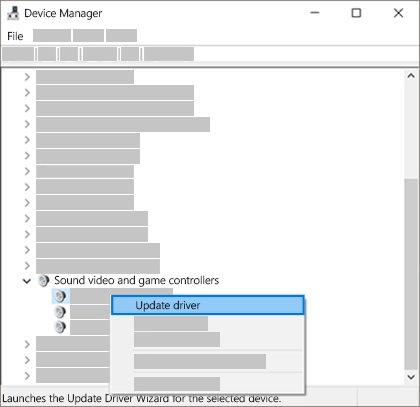
Device Manager, and open it. - Expand Sound, video and game controllers.
- Right-click the Realtek audio entry and select Uninstall device.
- Tick Attempt to remove the driver for this device, then select Uninstall.
- Select Start > Power > Restart. Windows reinstalls the audio driver automatically after the restart.
- Open Microsoft Store, search for
Realtek Audio Control, and select Get or Install. - Open the app from Start and play a sound to confirm it works.
If Windows puts back a generic driver instead of the Realtek one, install the audio driver from your PC maker's support page. The next sections show how.
Which reinstall route fits your PC
Realtek HD Audio Manager is only the settings panel. Sound depends on the driver underneath it, so pick the route that matches what is broken.
| Your situation | Use this | Why |
|---|---|---|
| Sound works, but the Realtek app is missing or crashes | Repair, reset or reinstall Realtek Audio Control from the Microsoft Store | The driver is fine; only the app needs replacing |
| No sound, or the Realtek device shows an error | Uninstall the device in Device Manager and restart | Windows reinstalls the driver on its own after the restart |
| Windows puts back only a generic driver | Download the audio driver from your PC maker's support page | Laptop and desktop makers ship the driver matched to your model |
| Windows Update lists a Realtek driver under optional updates | Install it from Optional updates | Optional drivers are never installed automatically |
| Sound broke right after an update | Roll back the driver in Device Manager | Restores the version that worked before |
| You uninstalled Realtek audio and no device shows at all | Use Scan for hardware changes, then your PC maker's driver | Windows must detect the hardware before any driver can load |
Reinstall the Realtek audio driver from your PC maker's support page
Microsoft points to the PC maker's site when Windows Update does not restore the right audio driver. Laptop and prebuilt desktop makers publish a Realtek driver tested for each model. Never use third-party driver sites or "driver updater" tools.
- Find your exact model name or service tag on the label under a laptop or on the back of a desktop.
- Open your maker's support site: Dell, HP, Lenovo, ASUS or Acer.
- Search for your model and choose Windows 11 as the operating system.
- Open the Audio category and download the newest Realtek audio driver listed for your model.
- Run the installer and follow the maker's prompts.
- Restart your PC when the installer finishes.
On a custom-built desktop, use the motherboard maker's support page for your board model instead; downloading the Realtek console is covered separately.
Uninstall and reinstall the Realtek audio device in Device Manager
Uninstalling the device clears a corrupted or half-installed driver. Windows reinstalls the driver after a restart, so you do not need a download for this step.
- Right-click Start and select Device Manager.
- Select the arrow next to Sound, video and game controllers to expand it.
- Right-click the Realtek entry and select Uninstall device.
- Tick Attempt to remove the driver for this device to remove the damaged driver files too.
- Select Uninstall to confirm.
- Restart the PC from Start > Power > Restart.
- Open Device Manager again and confirm the Realtek entry is back under Sound, video and game controllers.
If the entry does not return, select Action > Scan for hardware changes in Device Manager. You can also try Update driver > Search automatically for drivers on the entry first, before uninstalling anything.
Get the Realtek driver from Windows Update optional updates
Windows 11 installs recommended drivers on its own, but optional driver updates wait for you. A Realtek audio driver sometimes appears there after a reinstall.
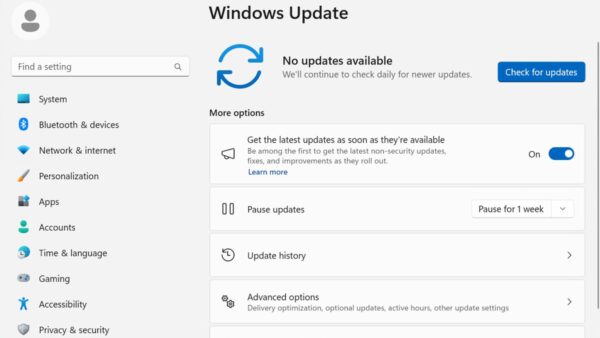
- Select Start > Settings > Windows Update, then select Check for updates and install what is offered.
- Select Advanced options.
- Make sure Receive updates for other Microsoft products is turned On.
- Under Additional options, select Optional updates.
- Expand the driver updates list and tick any Realtek audio driver shown.
- Select Download and install, then restart your PC.
If nothing Realtek is listed, Windows Update has no newer driver for your model. Use your PC maker's support page instead.
Get Realtek Audio Console back from the Microsoft Store
On current Realtek drivers the settings panel is a Store app. Microsoft's DCH driver rules require a driver's user interface to be a Hardware Support App, distributed through the Microsoft Store or preinstalled by the PC maker.
Try a repair before a full reinstall. Repair keeps your settings; Reset clears the app's data.
- Select Start > Settings > Apps > Installed apps.
- Find Realtek Audio Control or Realtek Audio Console, select the More icon, then Advanced options.
- Select Repair. If that fails, select Reset on the same page.
- If the app still fails, select More > Uninstall next to it and restart the PC.
- Open the Realtek Audio Control listing in Microsoft Store and select Get or Install.
- Open the app from Start.
The app only works with a matching Realtek driver installed. If it opens and reports it cannot connect, reinstall the driver from your PC maker first. The Realtek console download guide covers its connection errors in detail.
How to check the Realtek driver and app are back
- Open Device Manager and expand Sound, video and game controllers. The Realtek entry should show no warning icon.
- Right-click the entry and select Properties, then open the Driver tab to compare the driver version with your PC maker's page.
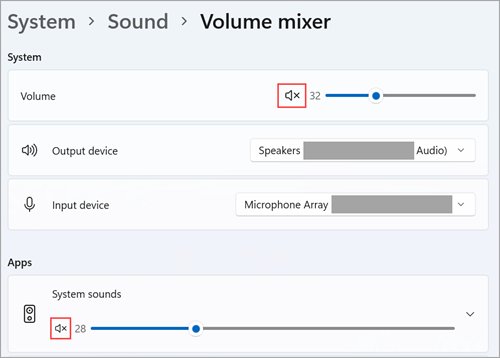
- Select Start > Settings > System > Sound and confirm your speakers or headphones appear under Output.
- Play a video or song and check the volume slider moves.
- Select Start, type
Realtek, and open Realtek Audio Control to confirm the app loads its settings.
Understanding Realtek HD Audio Manager
Realtek HD Audio Manager is the older name for the settings panel bundled with Realtek audio drivers. On Windows 11 PCs the same role is filled by Realtek Audio Console, a Store app that pairs with the driver.
| Piece | What it does | Where it comes from on Windows 11 |
|---|---|---|
| Realtek audio driver | Makes the onboard sound chip play and record audio | Windows Update, or your PC maker's support page |
| Realtek Audio Console (Realtek Audio Control) | Speaker, jack and effect settings for the Realtek driver | Microsoft Store, or preinstalled by the PC maker |
| Realtek HD Audio Manager | The earlier desktop settings panel for Realtek audio | Only bundled with older driver packages |
| High Definition Audio Device | Microsoft's generic audio driver built into Windows | Already on the PC; basic sound without Realtek settings |
Why Reinstall Realtek HD Audio Manager?
| What you notice | Likely cause | What to reinstall |
|---|---|---|
| "No audio output device is installed" | The driver is missing, disabled or failed to load | The Realtek driver |
| Sound stopped after a Windows update | An incompatible or partly installed driver | Roll back first, then reinstall the driver |
| Realtek app is missing from Start | The Store app was never installed or was removed | Realtek Audio Control from the Store |
| Realtek app opens but crashes or shows no settings | Damaged app data or a mismatched driver | Repair or reset the app, then the driver if needed |
| Crackling or distorted sound | An outdated or corrupted driver | The driver from your PC maker |
Roll back the Realtek driver if the reinstall made sound worse
Roll back is only available when Windows kept the previous driver version. If the button is greyed out, reinstall the older driver from your PC maker's page instead.
- Open Device Manager and expand Sound, video and game controllers.
- Right-click the Realtek entry and select Properties.
- Select the Driver tab, then Roll Back Driver.
- Choose a reason and select Yes.
- Restart your PC and test the sound.
Crashes or No Sound After Reinstalling Realtek Audio?
I uninstalled Realtek audio and now there is no audio device
Windows has not detected the hardware again, or no driver loaded after the restart.
- Open Device Manager and select View > Show hidden devices.
- Select Action > Scan for hardware changes.
- If the Realtek entry appears, right-click it and select Enable device if that option shows.
- If only an unknown device appears, install the audio driver from your PC maker's support page.
- Restart the PC and check Settings > System > Sound.
Realtek HD audio is not working after the driver installs
The wrong output device is selected, it is muted, or audio services did not start.
- Select the Speakers icon on the taskbar, then the arrow next to the volume slider, and pick the right output.
- In Settings > System > Sound, open your output device and set Audio enhancements to Off.
- Select Start, type
services.msc, and press Enter. - Right-click Windows Audio and select Restart, then do the same for Windows Audio Endpoint Builder.
- Run the audio troubleshooter from Settings > System > Troubleshoot > Other troubleshooters.
Realtek HD audio driver install failure
The package does not match your model or Windows version, or an old driver is still in place.
- Confirm you downloaded the driver for your exact model and for Windows 11.
- Uninstall the Realtek device with Attempt to remove the driver for this device ticked.
- Restart the PC, then run the maker's installer again.
- If it still fails, install pending updates from Settings > Windows Update and retry.
Sound stopped working after a Windows update
The update replaced the Realtek driver with an incompatible one.
- Roll back the driver from the Driver tab in the device's Properties.
- Restart and test the sound.
- If roll back is greyed out, install the driver from your PC maker's support page.
- As a last resort, restore from a system restore point created before the update.
Realtek Audio Console crashes or will not open
The app's data is damaged, or it is not paired with a compatible Realtek driver.
- Go to Settings > Apps > Installed apps, select More next to the Realtek app, then Advanced options.
- Select Repair, then Reset if the crash continues.
- Reinstall the Realtek driver from your PC maker's support page.
- Uninstall and reinstall Realtek Audio Control from the Microsoft Store.
Only basic sound works and the Realtek settings are gone
Windows is using its generic High Definition Audio Device driver.
- Check the entry name under Sound, video and game controllers in Device Manager.
- If it reads High Definition Audio Device, check Optional updates in Windows Update for a Realtek driver.
- Otherwise, install the Realtek driver from your PC maker's support page and restart.
- Install Realtek Audio Control from the Store once the Realtek driver is back.
Conclusion
Fix the driver first, then the app: uninstall the Realtek device and restart, use your PC maker's driver if Windows only restores a generic one, and install Realtek Audio Control from the Microsoft Store last. Realtek Audio Console is paired with the driver and cannot work without it, while a PC maker's driver is matched to your model and avoids the mismatches that break sound after reinstalls.
Frequently Asked Questions
How do I reinstall the Realtek audio driver?
Open Device Manager, expand Sound, video and game controllers, right-click the Realtek entry and select Uninstall device. Tick Attempt to remove the driver for this device, select Uninstall, and restart. Windows reinstalls the audio driver automatically after the restart.
How do I reinstall Realtek audio if the app is missing?
Reinstall Realtek Audio Control from the Microsoft Store. Search for it in the Store and select Get or Install. The app needs a matching Realtek driver, so reinstall the driver from your PC maker's support page first if the app cannot connect.
How do I reinstall Realtek audio on Windows 10?
The steps match Windows 11. Uninstall the Realtek device in Device Manager, restart, and let Windows reinstall the driver. If Windows only installs a generic driver, download the Windows 10 audio driver for your model from your PC maker's support site.
How do I reinstall a Realtek audio device that disappeared?
Open Device Manager, select View > Show hidden devices, then Action > Scan for hardware changes. If the Realtek entry returns, enable it. If it does not, install the audio driver from your PC maker's support page and restart the PC.
How do I uninstall and reinstall Realtek audio?
Uninstall the Realtek entry in Device Manager with the remove-driver box ticked, and uninstall Realtek Audio Control from Settings > Apps > Installed apps. Restart, let Windows restore the driver, then reinstall the app from the Microsoft Store.
How do I download Realtek audio for Windows 11?
Get the driver through Windows Update, including Optional updates, or from your PC maker's support page for your exact model. Get the settings app, Realtek Audio Control, from the Microsoft Store. Avoid third-party driver download sites.
Should I download the Realtek audio driver?
Only if your PC has Realtek audio hardware and sound or the Realtek app is not working. Windows Update usually installs the driver already. When it does not, download the driver from your PC maker's support page, not a third-party site.
Is Realtek HD Audio Manager the same as Realtek Audio Console?
They fill the same role. Realtek HD Audio Manager was the settings panel bundled with older Realtek driver packages. On Windows 11 PCs the settings come from Realtek Audio Console, a Microsoft Store app paired with the driver.