To find the IP address of your printer, print its network configuration report from the printer's own control panel and read the IP address line on the page.
If that report is out of reach, the router's device list, the printer's port in Windows, or an ARP lookup by MAC address gives you the same answer, and the sections below cover each one plus fixes for 169.254 and WSD results.
Method 1: Print the printer’s network or configuration report
The printer knows its own address better than any other device. Its network report shows the address it holds right now, along with its MAC address and the network name it joined.
- Turn the printer on and wait until it finishes starting up and joins the network.
- On the printer's control panel, open the Network, Wireless, Wi-Fi or Setup menu. The exact name depends on the maker and model.
- Look for an item that shows network details or prints a network, wireless or configuration report. Many touchscreen printers show the IP address on the network details screen without printing anything.
- Print the report if the screen does not show the address directly.
- Find the IP address or IPv4 address line on the page and write the number down.
- Note the MAC address (sometimes called hardware address) and network name on the same page, since Method 4 and the troubleshooting steps use them.
Printers without a screen usually print the report from a button combination. The printer's manual on the maker's website names the buttons for your model.
Which method should you use?
| Your situation | Use this method | Why |
|---|---|---|
| You are standing at the printer | Method 1: network or configuration report | Shows the address the printer holds right now, straight from the source |
| The printer is in another room, but you can sign in to the router | Method 2: router device list | Lists every device the router gave an address to, including the printer |
| A Windows PC already prints to the printer | Method 3: the printer's port in Windows | The TCP/IP port stores the address Windows sends jobs to |
| You know the printer's MAC address but not its IP | Method 4: Windows ARP table | ARP maps each MAC address your PC has talked to onto its IP address |
Windows shows a WSD port or a \\Computer\Printer path |
Method 1 or Method 2 | Neither of those Windows entries holds the printer's own IP address |
Before you start: make sure you are looking for the right address
Several different IP addresses turn up when you go looking for a printer, and only one of them is the printer's. Check which one you need before you change any settings.
| Address you might find | Whose address it is | Is it the printer's IP? |
|---|---|---|
| IP address on the printer's network report | The printer's own network connection | Yes |
Default gateway in ipconfig on your PC |
Your router | No, it is the router's address |
IPv4 address in ipconfig on your PC |
Your computer | No, it is the PC's address |
\\ComputerName\PrinterName in Windows |
A PC or print server sharing the printer | No, it points at the computer that shares it |
| HostAddress of a TCP/IP printer port | The device or print server Windows prints to | Yes for a direct network printer, no when it points at a print server |
Your PC and the printer must be on the same network for most of these methods to work. Compare the printer's address with your PC's IP address on Windows; on a home network the first three numbers usually match.
Method 2: Find the printer in the router’s device list
Your home router normally hands out addresses to every device on the network, the printer included. Its admin page lists those devices with their IP and MAC addresses.
- Press Win + R, type
cmd, and press Enter to open Command Prompt. - Type
ipconfigand press Enter. - Under your active Wi-Fi or Ethernet adapter, note the Default Gateway address. That is usually the router's admin address.
- Open a web browser on the same PC, type the gateway address into the address bar, and press Enter.
- Sign in with the router's admin user name and password. The router's label or manual lists the default sign-in details.
- Open the router's connected devices, client list, or DHCP clients page. The name varies between router makers.
- Find the entry that shows the printer's maker, model or MAC address, and note the IP address beside it.
If several entries look alike, match the MAC address from the printer's report or label. On a Mac, read the router address in Terminal, then sign in to the router the same way.
Method 3: Check the printer’s port in Windows
A PC that already prints to the printer keeps its address in a standard TCP/IP printer port. PowerShell reads that port without administrator rights.
Windows often names these ports after the address, in the form IP_10.2.3.4, so the port name alone can give the answer.
- Select Start, type
PowerShell, and open Windows PowerShell. - Run
Get-CimInstance Win32_Printer | Select-Object Name, PortNameto see which port each installed printer uses. - Find your printer in the Name column and note its PortName value.
- Run
Get-CimInstance Win32_TCPIPPrinterPort | Select-Object Name, HostAddressto list every standard TCP/IP printer port. - Find the row whose Name matches the port from step 3. The HostAddress value is the printer's IP address or host name.
- If the port name starts with
WSDor the printer has no row in step 4, Windows is not using a TCP/IP port for it. Use Method 1, 2 or 4 instead.
Command Prompt has an equivalent. Run cscript %WINdir%\System32\printing_Admin_Scripts\en-US\prnport -l to list standard TCP/IP printer ports with their host addresses; replace en-US with your Windows language folder if it differs.
Microsoft defines HostAddress as the address of the device or print server, so a work printer can show the print server's address here instead of the printer's.
Method 4: Match the printer’s MAC address with Windows ARP
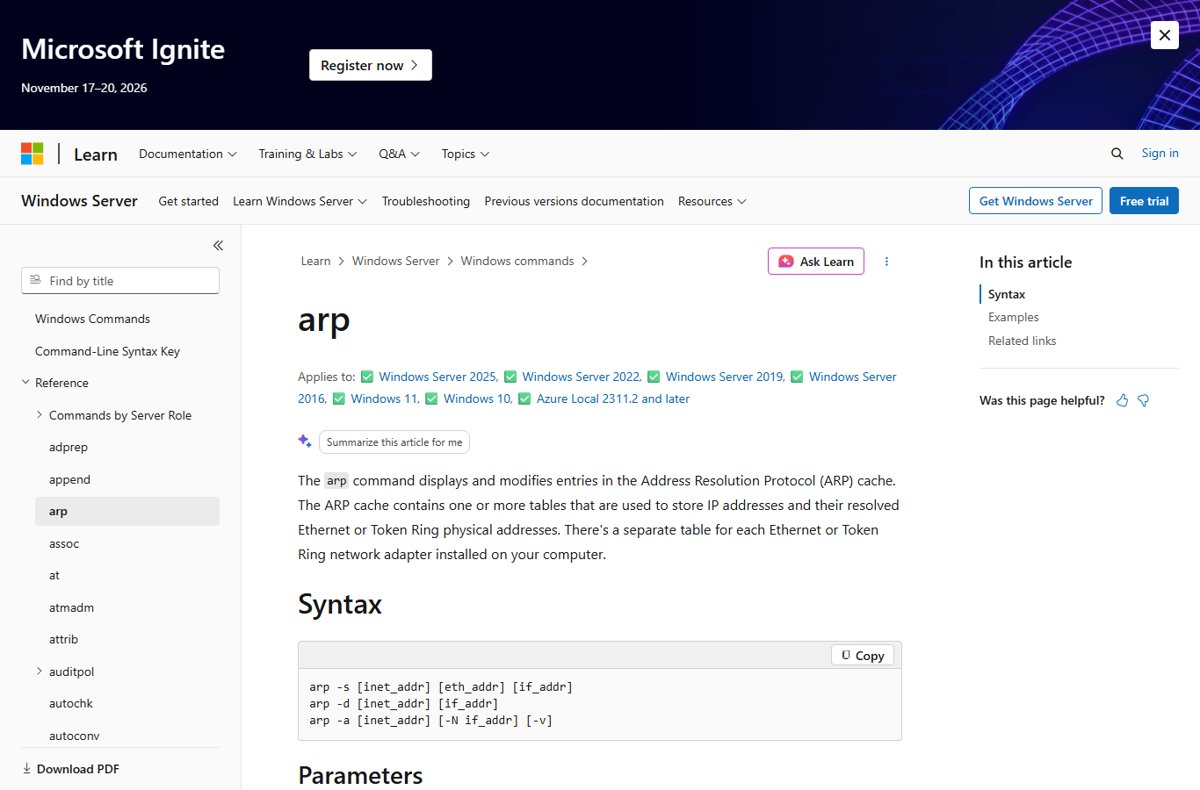
Every network device has a fixed physical (MAC) address. Windows keeps an ARP cache that pairs the IP addresses it has recently reached with those MAC addresses.
- Get the printer's MAC address from its network report, its network details screen, or the label on the printer. A MAC address is six pairs of letters and numbers.
- Send a print job to the printer, or print a test page, so your PC talks to it and the ARP cache holds a fresh entry.
- Press Win + R, type
cmd, and press Enter. - Type
arp -aand press Enter to list the ARP entries for every network interface. - Look through the physical addresses in the list for the printer's MAC address. Windows writes it as six pairs separated by hyphens, such as
00-aa-00-4f-2a-9c, even when the printer's label uses colons. - Read the IP address on the same row. That is the printer's IP address.
- To check one address you suspect, run
arp -a 192.168.1.50, replacing the number with that address. Only the entry for that IP is shown.
The ARP cache only holds devices your PC has contacted recently. If the printer's MAC address is missing, ping the address you suspect or send another print job, then run arp -a again.
How to confirm the printer IP address is correct
Test the address from the PC before you type it into any printer setup screen. A reply proves a device answers there; a test page proves it is the right printer.
- Open Command Prompt, type
ping 192.168.1.50with your printer's address, and press Enter. - Look for lines that start with Reply from followed by the address, with round-trip times. Those mean a device at that address answered.
- If you see Request timed out, nothing answered within the default four seconds. Recheck the address and that the printer is awake.
- Run
ping /a 192.168.1.50to ask for the host name behind the address. Many printers report a name that includes the maker or model. - Run
arp -a 192.168.1.50and confirm the physical address on that row matches the printer's MAC address. - Print a test page to the printer and check that the page comes out of the printer you expect.
What the printer IP address result means
The value you find tells you more than the number itself. Use this table to read what it says about the printer's connection.
| What you see | What it means | What to do next |
|---|---|---|
| An address that starts with the same numbers as your PC's address | The printer has a normal address on your network | Use it to add the printer or open its settings |
| 169.254.x.x | The device gave itself an automatic private address because no DHCP server answered | Reconnect the printer to the network and restart it |
Port name like IP_10.2.3.4 |
A standard TCP/IP port that prints to that address | Confirm with HostAddress in Method 3 |
Port name starting with WSD |
Web Services on Devices found and installed the printer, so no IP is stored in a TCP/IP port | Read the address from the printer or the router |
\\ComputerName\PrinterName |
The printer is shared from another PC or a print server | Find the IP on the sharing computer, or at the printer itself |
| A host name instead of numbers | Windows prints to the printer by name | Ping the name to see the IP address it resolves to |
A 0.0.0.0 address on the printer's report is not a usable address, so restart the printer and print the report again.
What to do after finding the address
An address handed out by the router can change after a power cut or a long time switched off. Lock it in so the PC keeps finding the printer.
- Write the IP address and the MAC address down, or tape them to the printer.
- Sign in to your router and look for a DHCP reservation, address reservation or static lease setting. The name and location vary between router makers.
- Reserve the printer's current IP address for its MAC address and save the setting.
- In Windows, add the printer by its IP address through Add a printer using an IP address or hostname if it is not installed yet.
- If an existing printer stopped working because its address changed, remove it in Settings > Bluetooth & devices > Printers & scanners and add it again with the new address.
- Print a test page to confirm the PC reaches the printer at the saved address.
Some printers can also be given a manual IP address from their own network menu. A router reservation is simpler, because the router then never hands that address to another device.
Fix printer IP address problems on Windows
Why does my printer show 169.254.x.x?
The printer asked for an address, no DHCP server answered, and it assigned itself one from the reserved 169.254.0.0 to 169.254.255.255 range.
- Check that the router is on and that other devices on the network have internet access.
- Confirm the printer is joined to the right Wi-Fi network or that its network cable is plugged in at both ends.
- Turn the printer off, wait 30 seconds, and turn it back on so it asks for an address again.
- Print the network report again and confirm the address now matches your PC's network.
Why does Windows show WSD instead of an IP address?
Windows discovered the printer through Web Services on Devices, and the WSD port monitor installed it without a standard TCP/IP port.
- Read the IP address from the printer's network report (Method 1) or the router (Method 2).
- If you want an IP-based port, remove the printer in Printers & scanners.
- Add it again with Add a printer using an IP address or hostname and type the address you found.
- Run
Get-CimInstance Win32_TCPIPPrinterPort | Select-Object Name, HostAddressto confirm the new port holds the IP.
Printer IP address keeps changing or Windows shows a stale address
The router hands out addresses for a limited time, so the printer can return with a new one while Windows still prints to the old one.
- Read the current address from the printer's network report.
- Compare it with HostAddress from Method 3. If they differ, the Windows port is stale.
- Reserve the current address for the printer's MAC address in the router.
- Remove the printer in Windows and add it again with the reserved address.
Why can't I find the printer's IP address on my computer?
The printer is not installed on this PC, it is shared from another computer, or the PC is on a different network.
- Run
Get-CimInstance Win32_Printer | Select-Object Name, PortNameto check the printer is installed on this PC at all. - If the port is a
\\ComputerName\PrinterNamepath, look up the IP on the sharing computer or at the printer. - Confirm your PC and printer use the same network name, not a guest network or an extender with its own SSID.
- Fall back to Method 1, which works without any PC.
Ping to the printer IP address times out
The printer is asleep, off, on another network, or the address is wrong.
- Wake the printer by pressing a button on its control panel, then ping again.
- Recheck the address on a fresh network report; a reboot may have given it a new one.
- Check that the first numbers of the printer's address match your PC's address from
ipconfig. - Restart the router if no device can reach the printer.
Printer IP address FAQ
How do I find the IP address of a printer?
Print the printer's network or configuration report from its control panel and read the IP address line. If you cannot reach the printer, check the router's connected devices list, the printer's TCP/IP port in Windows, or match its MAC address in the output of arp -a.
How do I find the IP address of an HP printer?
Open the network or wireless menu on the HP printer's control panel to view its network details, or print the network configuration report and read the IP address line. The manual for your HP model on HP's support site names the menu or button combination for the report.
How do I find the IP address of a device on my network?
Sign in to your router and open its connected devices or DHCP clients list, which shows each device's name, IP address and MAC address. From a Windows PC, arp -a also lists the IP and MAC addresses of devices the PC has contacted recently.
How do I find the IP address of my computer with CMD?
Open Command Prompt, type ipconfig, and press Enter. The IPv4 address under your active adapter is your computer's address. That number belongs to the PC, not the printer, so do not use it when adding a printer.
How do I find the IP address of my router?
Run ipconfig in Command Prompt and read the Default Gateway line under your active adapter. On most home networks that address opens the router's admin page, where the connected devices list shows the printer's IP address.
Can I find the printer IP address on a sticker?
Usually not. A printer's IP address is assigned when it joins a network, so it can change and is not printed at the factory. The label often shows the MAC address, which you can match against the router list or arp -a to find the IP.
Does a printer's IP address stay the same?
Not always. An address given out by the router can change after a power cut or a long time switched off. Reserve the address for the printer's MAC address in your router so it stays the same.
Is the IP address in a shared-printer path the printer's address?
No. A path such as \\ComputerName\PrinterName points at the computer or print server that shares the printer. Even when that path uses an IP address, it is the sharing computer's address, not the printer's own.
Why can't I find my printer's IP address?
The printer may be off, asleep, on a different network, or installed through a WSD port or a shared path that stores no IP. Print the printer's network report instead, since it shows the current address without relying on Windows.
The bottom line on finding a printer IP address
Print the printer's network configuration report first, and reserve the address it shows in your router. The report reads the address straight from the printer, so it is never stale, and a router reservation stops the address changing and breaking printing later. Use the router list, the Windows port or ARP only when you cannot reach the printer.