Windows 11 has no separate Wi-Fi Direct switch: turn on Wi-Fi, and Windows uses Wi-Fi Direct by itself when you cast with Windows logo key + K, share with Nearby sharing or add a Wi-Fi Direct printer.
This guide covers what Wi-Fi Direct does, how to check that your PC supports it, each Windows feature that uses it, where to see the connected devices, and fixes when nothing shows up.
Can you turn on Wi-Fi Direct from Windows 11 Settings?
No. Microsoft documents no Wi-Fi Direct toggle in Windows 11 Settings. Wi-Fi Direct is a capability of the Wi-Fi adapter and its driver, and the Windows features built on it start the connection when you use them.
- Select the Network, Sound, or Battery icons on the right side of the taskbar.
- Make sure Wi-Fi is turned on. Airplane mode must be off.
- Open the feature that needs Wi-Fi Direct: press Windows logo key + K to cast to a TV, or open Settings > System > Nearby sharing to send files.
- For a printer, turn on Wi-Fi Direct on the printer itself, then open Settings > Bluetooth & devices > Printers & scanners and select Add device.
- Pick the device from the list and accept any PIN or confirmation prompt.
The Wi-Fi Direct setting you may have seen on a phone or printer lives on that device. On the PC side, Wi-Fi being on is all Windows needs.
What Wi-Fi Direct does on Windows 11
Wi-Fi Direct is the Wi-Fi Alliance's peer-to-peer standard. Microsoft describes it as device-to-device Wi-Fi without a wireless access point and without the older ad hoc mode, which Windows has replaced with Wi-Fi Direct since Windows 8.1.
| Windows feature | How it uses Wi-Fi Direct | Where you start it |
|---|---|---|
| Wireless display (Miracast) | Miracast is built on Wi-Fi Direct and uses it for the peer-to-peer link between the PC and the screen | Windows logo key + K |
| Projecting to this PC | Another PC or phone sends its screen to your PC over the same Miracast link | Settings > System > Projecting to this PC |
| Wi-Fi Direct printing | Windows finds Wi-Fi Direct printers in range, pairs with them and prints without a router | Settings > Bluetooth & devices > Printers & scanners |
| Nearby sharing | Sends files and links to nearby Windows PCs over Bluetooth or Wi-Fi | Settings > System > Nearby sharing |
| Apps | Apps use the Wi-Fi Direct APIs after you pair the device through the Windows pairing screen | The app itself |
Microsoft notes that Windows can also send a Miracast stream over your existing trusted network instead of a direct link, when the receiver supports it. That avoids splitting the adapter between two connections.
Which Wi-Fi Direct feature do you need?
| What you want to do | Use this | What the other device needs |
|---|---|---|
| Show your screen on a TV, projector or monitor | Windows logo key + K | Miracast support, or a Miracast adapter in an HDMI port |
| Show a phone or another PC on this PC | The Wireless Display optional feature | Its own cast or screen mirroring option |
| Print without joining the printer to your router | Add device in Printers & scanners | Wi-Fi Direct turned on at the printer |
| Send a file or link to another Windows PC | Nearby sharing | Windows 11, or Windows 10 version 1803 or later, with Nearby sharing on |
Step 1: Make sure Wi-Fi is turned on
Every Wi-Fi Direct feature needs the Wi-Fi radio on, even when the PC reaches the internet over Ethernet.
- Select the Network, Sound, or Battery icons on the right side of the taskbar and turn on Wi-Fi.
- If the tile is missing, open Settings > Network & internet and turn on Wi-Fi.
- Open Settings > Network & internet > Airplane mode and make sure Airplane mode is off.
- On a laptop with a physical Wi-Fi switch, make sure the switch is on.
- If Wi-Fi still does not appear, right-click Start, select Device Manager and expand Network adapters.
- Right-click your Wi-Fi adapter and select Enable device if it is disabled.
No Wi-Fi adapter under Network adapters means Windows does not detect one. Get the driver from the PC maker's website.
Step 2: Check whether your PC supports Wi-Fi Direct
Windows has no single "Wi-Fi Direct supported" readout in Settings. Test the feature you plan to use instead; each check below comes from Microsoft's own troubleshooting.
- Press Windows logo key + K. If the PC cannot cast, Windows shows a message asking you to connect an external display with a cable.
- Press Windows logo key + R, type
dxdiagand press Enter. - Select Save All Information, save
DxDiag.txtand open it. - Search the file for
Miracast. Available, with HDCP means the PC can cast, including protected video. - Open Settings > System > Projecting to this PC. A PC that cannot receive a wireless display says so on this page.
- For Nearby sharing, open Device Manager, expand Bluetooth, open your Bluetooth radio's Properties and select the Details tab.
- Choose Bluetooth radio supports Low Energy Central Role under Property. The value must be True.
Microsoft's PC maker checklist requires a Wi-Fi adapter with a WDI driver that passes the Wi-Fi Direct discovery, pairing and reconnect tests. A USB Wi-Fi adapter depends on its maker's driver, so check the maker's support page for Windows 11.
How to use Wi-Fi Direct for wireless display and Miracast
Casting is the most common use of Wi-Fi Direct on Windows 11 and needs no extra download on the sending PC.
- Turn on the TV, projector or monitor. Plug in the Miracast adapter first if you use one.
- Press Windows logo key + K.
- Select the display in the list of available devices.
- Follow any prompt on the screen, such as a PIN shown on the TV.
- Press Windows logo key + P to switch between Duplicate, Extend, Second screen only and PC screen only.
You can also type Cast in Windows search and select Connect to a wireless display. The full setup, display modes and fixes are in the Wireless Display guide for Windows 11.
How to make your Windows 11 PC receive Wi-Fi Direct projection
Receiving a screen needs the Wireless Display optional feature. Install it only on the PC that will show the other device's screen.
- Select Start > Settings > System > Projecting to this PC.
- Under Add the "Wireless Display" optional feature to project to this PC, select Optional features.
- Next to Add an optional feature, select View features and type
wireless display. - Select the check box next to Wireless Display, select Next, then Install.
- Select Back and set the Projecting to this PC options so the PC can be discovered.
- Type
wireless displayin the taskbar search box and open the Wireless Display app. The PC is visible only while the app runs.
The app exists on Windows 11, version 22H2 and later. Earlier versions use the Connect app, found by searching for connect.
How to connect a Wi-Fi Direct printer in Windows 11
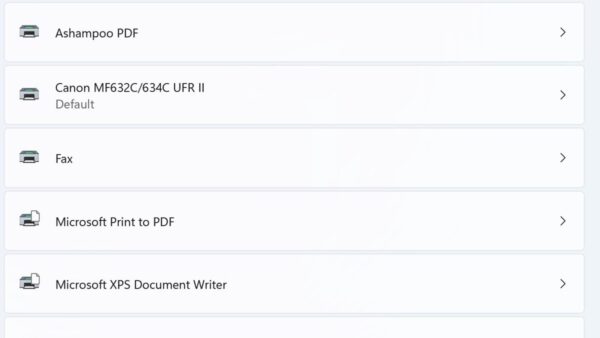
Windows lists Wi-Fi Direct printers that are in range alongside network printers. After the first pairing, the printer shows as online whenever it is in range, and Windows connects when you print.
- Turn on Wi-Fi Direct on the printer using its control panel. The menu name differs by model, so check the printer maker's manual.
- On the PC, select Start > Settings > Bluetooth & devices > Printers & scanners.
- Next to Add a printer & scanner, select Add device and wait for the list to fill.
- Select Add device next to the printer.
- If Windows asks for a PIN, enter the one shown on the printer, or type the same number on both when the printer asks you to choose one.
- If the printer is not found, select Add a new device manually next to The printer that I want isn't listed and follow the Add Printer wizard.
If the driver is missing, Windows removes the half-built printer and offers to download the driver on a non-metered connection. Printers that join your router instead are covered in finding a printer on your network.
How to use Nearby sharing on Windows 11
Nearby sharing sends files, photos and links to nearby Windows PCs over Bluetooth or Wi-Fi. Turn it on on both PCs, the sender and the receiver.
- Turn on Bluetooth and Wi-Fi on both PCs.
- Select Start > Settings > System > Nearby sharing.
- Choose My devices only for PCs signed in to your Microsoft account, or Everyone nearby for anyone's PC.
- On the sending PC, open File Explorer and select the file.
- Select Share on the toolbar, or right-click the file and select Share.
- Select the name of the receiving PC.
- On the receiving PC, select Save & open or Save in the notification.
To share a web page, open it in Microsoft Edge and select Settings and more > More tools > Share. Received files go to the folder under Save files I receive to, which Change lets you move. If Bluetooth is off, turn Bluetooth on in Windows 11 first.
How to see active Wi-Fi Direct connections and adapters
Windows does not keep one list of Wi-Fi Direct links. Each feature shows its devices in its own place.
| What you want to see | Where in Windows 11 | What it shows |
|---|---|---|
| The Wi-Fi adapter and its driver | Device Manager > Network adapters, then the adapter's Properties > Driver tab | Whether the adapter is enabled, plus Driver Version and Driver Date |
| TVs, adapters and docks you have cast to | Settings > Bluetooth & devices > Devices > Wireless displays & docks | Every wireless display Windows remembers |
| Wi-Fi Direct printers | Settings > Bluetooth & devices > Printers & scanners | The installed printer, online when it is in range |
| Nearby sharing status | Settings > System > Nearby sharing | Who can share with you and where received files are saved |
| The Wi-Fi driver from a command line | netsh wlan show drivers in Command Prompt |
Details Windows holds for the wireless driver |
| The live Wi-Fi connection | netsh wlan show interfaces in Command Prompt |
The state of each wireless interface |
Check the Wi-Fi driver from Command Prompt
Microsoft's wireless troubleshooting starts with this command. Use it when the Wi-Fi control is missing or Wi-Fi Direct features fail on every device.
netsh wlan show driversSearch for command prompt on the taskbar, select Run as administrator > Yes, then run the command. It prints what Windows knows about the wireless driver. Run netsh wlan show interfaces next to see each wireless interface.
You should see: The command lists your Wi-Fi driver. If it reports that the WLAN AutoConfig service is not running, the Wi-Fi control is hidden too, and Wi-Fi Direct features cannot start until that service runs.
How to check Wi-Fi Direct is working
- Press Windows logo key + K near a Miracast TV. The TV appears in the list instead of the cable message.
- After casting once, open Settings > Bluetooth & devices > Devices. The TV or adapter is listed under Wireless displays & docks.
- Send a small file with Nearby sharing. The other PC shows a notification with Save & open and Save.
- Print a test page to the Wi-Fi Direct printer while the PC is off your home network. The job still prints.
Troubleshooting Wi-Fi Direct on Windows 11
Pick the symptom that matches. Restart the PC and the other device once before working through the steps.
The TV or another PC does not appear after Windows + K
Wi-Fi is off, the display lacks Miracast, or the target PC is not discoverable.
- Make sure Wi-Fi is on and Airplane mode is off.
- Confirm the TV supports Miracast, or plug a Miracast adapter into its HDMI port.
- On a target PC, open the Wireless Display app and check Settings > System > Projecting to this PC.
- Remove the display under Settings > Bluetooth & devices > Devices > Wireless displays & docks, then connect again.
Nearby sharing is missing, greyed out, or cannot find the other PC
One PC lacks Bluetooth LE support, has Bluetooth off, or has Nearby sharing off.
- Check both PCs for Bluetooth radio supports Low Energy Central Role set to True in Device Manager.
- Turn on Bluetooth under Settings > Bluetooth & devices on both PCs.
- Turn on Nearby sharing under Settings > System > Nearby sharing on both PCs.
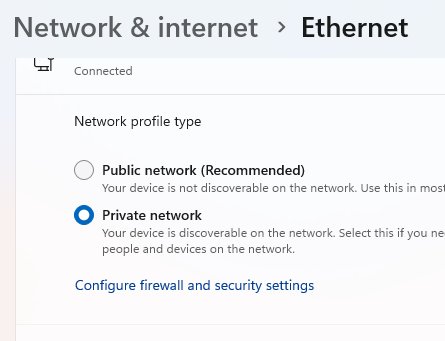
- Set the network to Private network under Settings > Network & internet > Wi-Fi, then select the network.
- With My devices only, sign in to the same Microsoft account on both PCs.
Nearby sharing is slow or uses Bluetooth only
The two PCs are not on the same Wi-Fi network, so Windows falls back to Bluetooth.
- Connect both PCs to the same private Wi-Fi network.
- Update the Wi-Fi driver: right-click the adapter in Device Manager and select Update driver.
- Open Settings > Network & internet > Advanced network settings > Advanced sharing settings and turn on Network discovery.
- Keep the PCs within about 10 metres (30 feet) of each other.
The Wi-Fi Direct printer is not in the Add device list
Wi-Fi Direct is off on the printer, the PC is out of range, or no driver is available.
- Turn on Wi-Fi Direct on the printer again and keep the PC close to it.
- Select Add device again and wait a few minutes for the list to finish.
- Use Add a new device manually if the printer still does not show.
- After it installs, check Settings > Windows Update for an updated printer driver.
Every Wi-Fi Direct feature fails on this PC
An outdated or broken Wi-Fi or graphics driver, or a damaged network configuration.
- Open Settings > Windows Update and select Check for updates.
- In Device Manager, update the Wi-Fi adapter under Network adapters and the graphics driver under Display adapters.
- Turn Wi-Fi off and on again to restart the adapter.
- As a last resort, open Settings > Network & internet > Advanced network settings > Network reset, then select Reset now > Yes.
Network reset reinstalls every network adapter and may set known networks to Public, so set your home network back to Private afterwards for Nearby sharing. On a work PC, Group Policy can block Miracast; ask IT.
What to know before you open Wi-Fi Direct features to everyone
| Setting | What it exposes | Safer choice |
|---|---|---|
| Nearby sharing set to Everyone nearby | Your PC's Bluetooth MAC address and name are visible to devices around you, which Microsoft says could link the PC to you | My devices only when you only share with your own PCs |
| Projecting to this PC left discoverable | Nearby devices can ask to show their screen on your PC | Close the Wireless Display app when done; the PC is discoverable only while it runs |
| Input from a Miracast receiver | A receiver can send touch, mouse or keyboard input back to the PC | Windows allows it only when you explicitly agree; decline on screens you do not trust |
Best way to “turn on” Wi-Fi Direct in Windows 11
Turn on Wi-Fi from the taskbar and then start the feature you actually need: Windows + K for a screen, Nearby sharing for files, or Add device for a printer. Windows 11 has no standalone Wi-Fi Direct switch in Settings. The adapter's Wi-Fi Direct capability is used automatically by these features, so keeping Wi-Fi on and the drivers current is the whole job on the PC side.
Common questions about Wi-Fi Direct on Windows 11
How do I turn on Wi-Fi Direct on a laptop?
Turn on Wi-Fi from the Network, Sound, or Battery icons on the taskbar and make sure Airplane mode is off. Windows 11 has no separate Wi-Fi Direct switch; casting, Nearby sharing and Wi-Fi Direct printing use it automatically when Wi-Fi is on.
How do I turn on Wi-Fi Direct for a PC without Wi-Fi?
You cannot. Wi-Fi Direct runs on the Wi-Fi adapter, so a desktop wired only by Ethernet has nothing to turn on. Add a Wi-Fi adapter whose maker supplies a Windows 11 driver, then turn on Wi-Fi.
How do I turn on Wi-Fi Direct for an HP printer?
Wi-Fi Direct is turned on at the printer, from its control panel or settings; HP's manual for your model lists the exact menu. Then open Settings > Bluetooth & devices > Printers & scanners on the PC, select Add device and pick the printer.
How does Wi-Fi Direct work?
Wi-Fi Direct lets two devices connect straight to each other over Wi-Fi, without a router or access point in between. One device runs the link and the other joins it. Windows uses it for Miracast casting, Wi-Fi Direct printing and app connections.
How do I use Wi-Fi Direct on Windows 11?
Use a feature built on it. Press Windows + K to cast to a Miracast TV, open Settings > System > Nearby sharing to send files to another PC, or add a Wi-Fi Direct printer from Settings > Bluetooth & devices > Printers & scanners.
How do I connect to a Wi-Fi Direct device?
Pair it through the Windows screen for that kind of device. Displays connect from Windows + K, printers from Add device in Printers & scanners. Enter the PIN if one is shown. Windows stores a profile after pairing so later connections start on demand.
How do I set up Wi-Fi Direct on Windows 10?
The same way as Windows 11: turn on Wi-Fi and use the feature. Press Windows + K to cast. Nearby sharing works with a Windows 10 PC running version 1803 or later, and Wi-Fi Direct printers are added from the printers list.
How do I know if my PC supports Wi-Fi Direct?
Press Windows + K. A PC that cannot cast shows a message asking for a cable. For more detail, run dxdiag, save all information and search for Miracast; Available, with HDCP means the Wi-Fi Direct casting path works.

How To Connect a Wireless Printer Easily to Windows 11/10 PC - Techdows
[…] range, and Windows connects to it only when you print. If Wi-Fi Direct is missing on the PC side, turn on Wi-Fi Direct […]