The Killer Network Service is a legitimate Windows service from Intel's Killer software that prioritises network traffic for Intel Killer Wi-Fi and Ethernet adapters, and it is safe to keep or to stop.
This guide explains what the service does, how to confirm it is genuine, why it can cause high CPU usage, and how to stop, clean-install or uninstall it without losing your network connection.
Killer Network Service in Task Manager: the short answer
Leave the Killer Network Service running if your PC is responsive, and stop it from services.msc only if it is pushing your CPU usage up. It belongs to Intel's Killer Control Center and Killer Performance Suite, which ship with Intel Killer network adapters. Your adapter keeps working without it, because the network adapter driver alone runs the hardware; you only lose Killer's app-based traffic prioritisation.
What is the Killer Network Service?
Intel's Killer software looks at which applications use your connection and gives the speed-critical ones first access to bandwidth. Without it, Windows treats every app's traffic equally, and your Wi-Fi or Ethernet connection runs as normal.
| Question | Answer |
|---|---|
| Who makes it | Intel, as part of the Intel Killer Control Center and Intel Killer Performance Suite |
| Service names in Windows | Intel Killer Network Service, or Rivet Bandwidth Control on some installs |
| Which PCs have it | PCs with an Intel Killer Wi-Fi or Intel Killer Ethernet adapter and the Killer software installed |
| What it does | Assigns each data packet a priority so higher-priority packets leave the PC sooner |
| Main benefit | Lower latency for games, video streaming and web browsing when several apps share the connection |
| Settings it uses | The speed limits you set in the Killer app, which decide when low-priority apps are slowed |
| Supported Windows | The current Intel Killer Performance Suite supports 64-bit Windows 11 and Windows 10 only |
In Intel's example, a game, a streaming video and a large download run together. The game gets the bandwidth it needs, the video may buffer a little more at the start, and the download drops to the lowest priority.
Is the Killer Network Service a virus?
No. The genuine service is Intel software, and it appears only on PCs that have Intel Killer networking hardware and the Killer software installed. Check both before you trust it.
- Right-click Start and select Device Manager.
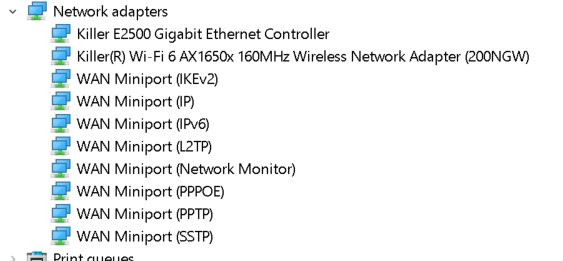
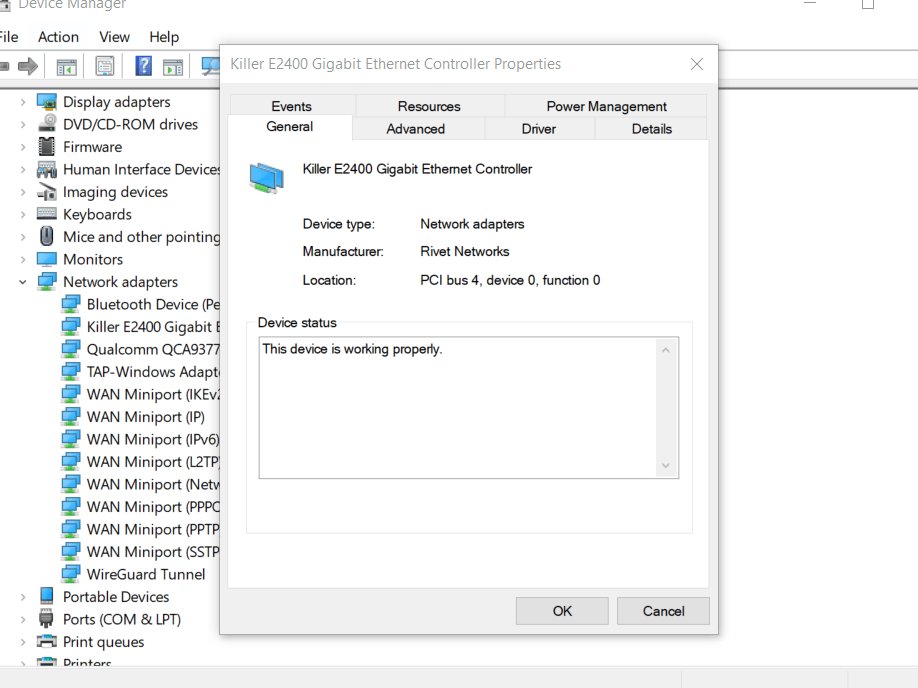
- Expand Network adapters and look for an adapter with Killer in its name.
- Right-click Start, select Apps and Features, and look for an Intel Killer entry such as Intel Killer Performance Suite.
- Press Win + R, type
services.mscand press Enter. - Find Intel Killer Network Service or Rivet Bandwidth Control and double-click it to read its description and status.
- If the service exists but you have no Killer adapter or Killer software, run a full scan in Windows Security.
Why does Killer Network Service cause high CPU usage?
Intel says high CPU usage from the Killer software usually comes from older versions of the software running on the latest version of Windows. Affected users often also find they cannot update or fully uninstall the Killer Control Center.
Intel's fix is to stop the service first, then clean-install the latest Killer software.
- Select Start, type
services.mscand press Enter. - Scroll to Intel Killer Network Service or Rivet Bandwidth Control and double-click it.
- Select Stop and wait a few moments for the service to stop.
- Select OK and close the Services window.
- Clean-install the latest Intel Killer Performance Suite using the steps further down.
Your PC should become more responsive as soon as the service stops. If CPU usage stays high after a clean install, contact Intel Support.
Is it safe to stop the Killer Network Service?
Yes. Intel's own troubleshooting for slow performance starts by stopping this service, and Intel confirms that Killer adapters still work with only the driver installed.
| After you stop the service | Result |
|---|---|
| Wi-Fi and Ethernet connection | Keeps working, because the adapter driver runs the hardware |
| App-based traffic priority | Stops; every app shares bandwidth equally |
| Speed limits and app sliders in the Killer app | No longer applied |
| CPU usage caused by the service | Drops once the service has stopped |
| Router QoS | Still works, but routers can only prioritise by IP address or port, not by application |
How can you uninstall the Killer Network Service?
The service is removed with the Killer software that installed it. Download the latest Killer Performance Suite from Intel first if you plan to reinstall, and keep a driver installed so the adapter still connects.
- Right-click Start and select Apps and Features.
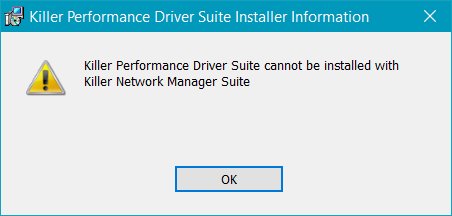
- Find every entry that contains Killer, such as Killer Drivers, Killer Performance Suite or Killer Network Manager.
- Select each entry and choose Uninstall, then follow the prompts.
- Restart the PC from Start > Power > Restart.
- If you keep the adapter, install Intel's latest driver package for it, or ask your PC maker for its driver.
If an old Killer package will not uninstall, run Microsoft's troubleshooter for programs that block installation or removal and choose Uninstalling. Leftover parts of old Killer software can block installs even when they no longer appear in Apps and Features.
To install the Killer driver and Killer Control Center again later, run Intel's current installer package: it contains the drivers for Intel Killer Wi-Fi and Ethernet adapters as well as the Killer software.
Clean install Intel Killer Performance Suite to fix Killer Network Service errors
A clean install replaces a broken or outdated Killer setup instead of installing over it. Intel calls it the best first step for most Killer software problems.
- Download the latest Intel Killer Performance Suite from Intel's Download Center, and copy it to the PC if you downloaded it elsewhere.
- Uninstall every Killer entry in Apps and Features, then restart the PC.
- Select Start, type
%temp%and press Enter, then delete everything in the folder; select Skip All for any file in use. - Run the Killer installer and select Complete when asked for a complete or custom install.
- Follow the prompts; the installer sends you to the Microsoft Store for the Killer app interface, which is required.
- Restart the PC if the installer asks, then check whether the problem is gone.
Intel lists its Killer Performance Suite as supported only on selected platforms, so check with your PC maker before you install it on a laptop or desktop that shipped without it.
How do I update Killer network drivers?
Intel ships the Killer Wi-Fi and Ethernet drivers inside the same package as the Killer software, so installing Killer network drivers for the first time and updating them use the same steps. Intel recommends its Intel Driver & Support Assistant first and a manual package install second.
- Run Intel Driver & Support Assistant and install any Killer driver and software updates it lists.
- For a manual install, open Intel's Download Intel Killer Software and Drivers support page and download the package marked Latest.
- Run the installer and follow the prompts to install the Killer drivers and the Killer software together.
- Restart the PC if the installer asks.
- If the install or update fails, uninstall every Killer entry and clean-install the package using the steps above.
Killer network drivers come in 64-bit packages only, for Windows 11 and Windows 10; Intel does not offer 32-bit Killer drivers. The latest package, 50.26.820.2552, includes Wi-Fi driver 24.70.0.3 for Killer Wi-Fi BE1735x, BE1730x, BE1775, BE1750, AX1690, AX1675, AX1650i/s and 1550, plus drivers for Killer Ethernet E2500v2, E2600, E3000, E3100, E3100G and E5000.
Some drivers in a new package can be the same versions as in the previous one, but Intel says you still need to install the package to update any of them. A generic Intel Wi-Fi adapter without the Killer name takes Intel's PROSet/Wireless driver instead.
How to check the Killer Network Service is stopped or removed
- Press Win + R, type
services.mscand press Enter. - Find Intel Killer Network Service or Rivet Bandwidth Control; a stopped service shows no Running status, and an uninstalled one is no longer listed.
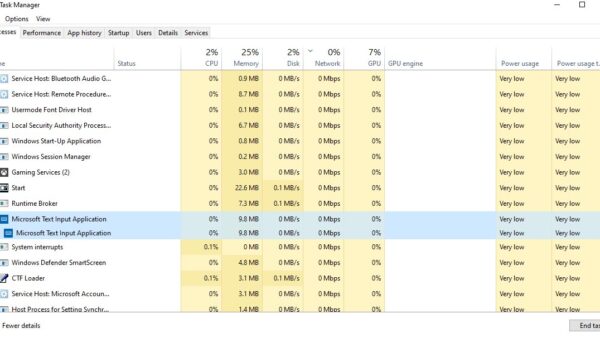
- Press Ctrl + Shift + Esc to open Task Manager and check that CPU usage has dropped.
- Open a website or a game to confirm your network connection still works.
Killer Network Service and Killer Network Manager problems
High CPU usage and a slow PC
An older Killer software version running on a newer Windows version.
- Stop Intel Killer Network Service or Rivet Bandwidth Control in services.msc.
- Clean-install the latest Intel Killer Performance Suite.
- Contact Intel Support if CPU usage stays high.
Killer software will not update automatically
Previous Killer versions block the automatic update.
- Download the latest installer from Intel first.
- Right-click Start, select Apps and Features and uninstall every entry containing Killer.
- Restart the PC and run the new installer.
Killer Network Manager launcher pop-up or error
Leftover or damaged Killer software components.
- Uninstall every Killer entry, including Killer Network Manager, from Apps and Features.
- Restart the PC and clear the
%temp%folder. - If an entry will not uninstall, run Microsoft's install and uninstall troubleshooter and choose Uninstalling.
- Install the latest Intel Killer Performance Suite if you want the Killer software back.
Installer fails with Error 1923 or Error 1939
A permissions problem during setup.
- Follow Intel's support article 000058949 for Error 1923 "Verify That You Have Sufficient Privileges" and Error 1939.
- If the install still fails, run the installer again, open
%TEMP%, sort by Date modified and send the newest MSI log file to Intel Support.
Dropped UDP packets or slow VPN on early Windows 11
A known compatibility issue between some Intel Killer and SmartByte networking software and Windows 11.
- Open Settings > Windows Update and select Check for updates.
- Install all available updates; the fix first shipped in the October 2021 Windows 11 update KB5006674.
- Restart the PC and test the connection again.
Killer Network Service FAQ
What is Killer Network Manager?
Killer Network Manager is one of the Intel Killer software entries that can appear in Apps and Features, alongside Killer Drivers and Killer Performance Suite. Intel's current Killer software is the Intel Killer Performance Suite, and Intel tells users to remove older Killer entries before installing it.
How do I disable Killer Network Manager?
Stop Intel Killer Network Service or Rivet Bandwidth Control in services.msc to switch off the Killer traffic management right away. To remove it for good, uninstall every Killer entry, including Killer Network Manager, from Apps and Features and restart the PC.
What is the Killer Network Manager launcher?
It comes with Killer Network Manager, one of the Intel Killer software entries listed in Apps and Features. If it shows pop-ups or errors, uninstall all Killer entries, restart, clear the %temp% folder and clean-install the latest Intel Killer Performance Suite, or leave it uninstalled.
Will my Wi-Fi stop working if I uninstall Killer software?
No, as long as a driver stays installed. Intel confirms Killer adapters work with only the driver or a driver-only package; you lose the Killer app's traffic prioritisation and speed-limit features.
Does Killer Network Service improve gaming?
It can lower latency when several apps share your connection, because it sends a game's packets out before downloads and video. On a PC where only the game uses the network, there is little traffic for it to reorder.
Can I use Killer software with my router's QoS?
Yes. Intel says the two work together: the Killer software sees which application each connection belongs to, while router QoS can only prioritise by IP address or port number.
Is Killer Performance Suite available for 32-bit Windows?
No. The current Intel Killer Performance Suite supports only 64-bit Windows 11 and Windows 10, and Intel states that 32-bit systems are not supported.
Is Killer Network Service worth keeping?
Keep it if you game or stream while other apps use the network and your PC runs smoothly; stop or uninstall it if it causes high CPU usage or update errors. The service only adds app-based traffic prioritisation on top of the adapter driver. When it misbehaves, the cost in CPU time outweighs that benefit, and your connection works the same without it.

![Network adapter driver for Windows 11 [Download/Update]](https://techdows.com/wp-content/uploads/2026/10/Network-adapter-driver-for-Windows-11-DownloadUpdate-600x338.jpg)