To log in as an Administrator in Windows 11, sign out, select an administrator account on the sign-in screen, and enter its password or PIN.
This guide covers the hidden built-in Administrator account, switching users, runas, Safe mode, local and work accounts, and the commands that manage accounts on Windows 11 Home.

How to log in as an Administrator in Windows 11/10
These steps sign you in to the built-in Administrator account, which Windows Setup disables on a new PC. Your current account needs administrator rights to turn it on, and the same commands work on Windows 10.
- Open Start and search for Command Prompt.
- Right-click the result, select Run as administrator, then select Yes.
- Type
net user administrator /active:yesand press Enter. - Type
net user administrator *and press Enter, then type a new password twice. The characters stay hidden as you type. - Select Start, select your account picture, then select Sign out.
- Select Administrator on the sign-in screen, enter the password and press Enter.
You can also enable the Administrator account with PowerShell or Computer Management if you prefer those tools.
How to log in as an administrator on PC
You rarely need the built-in account. Match your situation to the shortest route.
| Your situation | Use this | Why |
|---|---|---|
| Your own account is already an administrator | Sign in as usual, then use Run as administrator | Your account stays in the Administrators group and asks for approval per task |
| Someone else's administrator account is on the PC | Switch accounts from the Start menu | Your open apps keep running in the background |
| You need one admin tool and know an admin password | runas from Command Prompt |
No sign-out, and only that one program gets the other account |
| You want the hidden account for a repair | net user administrator /active:yes |
Turns on the account with full control of the PC |
| Your account is standard and an administrator can help | Change account type in Settings | Gives your own account administrator rights |
| No administrator account will sign in | Safe mode | Windows enables the built-in account there if no other administrator is enabled |
How to log in as another user in Windows 11
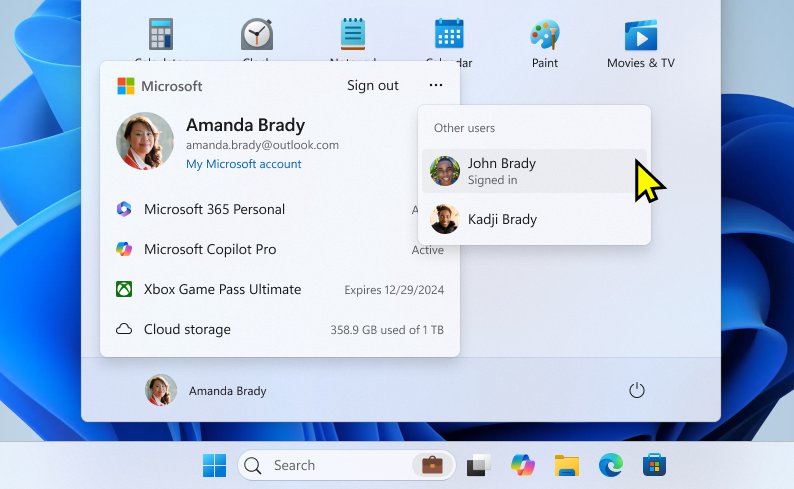
Use this route when another administrator account already exists on the PC. Switching keeps your apps open, while signing out closes them.
- Select Start, then select your account picture in the lower-left corner of the menu.
- Select the administrator account from the list.
- If the account is not listed, select Sign out and choose it on the sign-in screen.
- Enter the password or PIN, or use Windows Hello if it is set up on that account.
- Press Enter or select the sign-in arrow.
You can also press Ctrl + Alt + Del and select Sign out to return to the sign-in screen. Save your work first, because unsaved work in open apps can be lost.
How to log in as an administrator from Command Prompt
The runas command opens one program under another account without signing you out. It suits a standard account when you know an administrator password.
runas /user:<computername>\Administrator cmdReplace <computername> with your PC name. On a home PC, whoami shows it before the backslash. Swap Administrator for another administrator account name if the built-in account is disabled. Enter the password only when prompted.
You should see: A new Command Prompt window opens. Run whoami in it, and the output shows the account you named.
Runas also starts other programs and saved MMC consoles, such as runas /user:<computername>\Administrator "mmc %windir%\system32\compmgmt.msc". If the command fails, the Secondary Logon service may be stopped or the account name may be wrong.
How to make your account an administrator in Windows 11
Someone who is already an administrator must make this change. Microsoft advises keeping the number of administrators small, because each one has complete control of the system.
- Sign in with an administrator account.
- Select Start > Settings > Accounts > Other users.
- Select the account you want to change.
- Next to Account options, select Change account type.
- Select Administrator from the dropdown, then select OK.
- Sign out, then sign in to the changed account so its new rights apply.
How to log in as an administrator in Safe mode
Safe mode is the fallback when every normal sign-in fails. If you encrypted the device, have your BitLocker recovery key ready before you start.
- Select Start > Settings > System > Recovery.
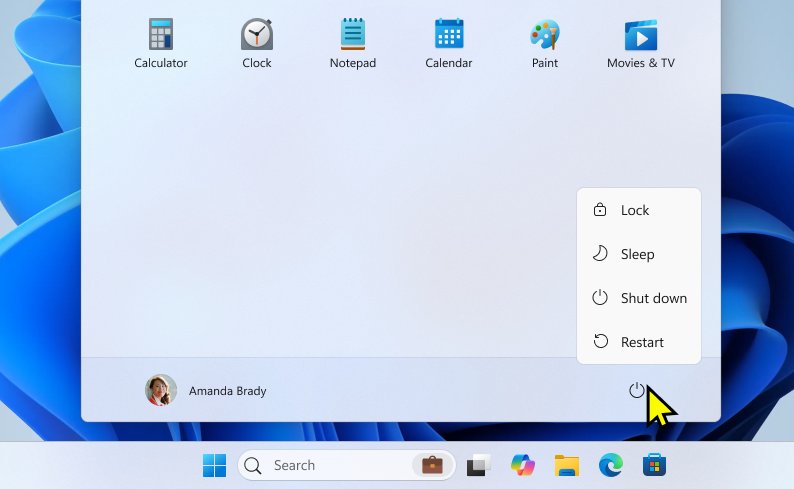
- Next to Advanced startup, select Restart now. If you can't reach Settings, hold Shift while you select Power > Restart.
- Select Troubleshoot > Advanced options > Startup Settings > Restart.
- After the restart, press 4 or F4 to choose Enable Safe Mode.
- Select an enabled administrator account, or Administrator if it is the one Windows offers.
- Finish the repair, then restart normally.
Microsoft sets these rules for Safe mode: you can use another enabled member of the local Administrators group. If no other account is enabled, Safe mode enables the built-in Administrator automatically, and that account goes back to disabled when you restart in normal mode.
How to tell if you are logged in as an administrator
These checks show the account you are using and whether it belongs to the Administrators group. You can also check your admin privileges through Control Panel or PowerShell.
- Select Start > Settings > Accounts > Your info.
- Look under your name for the word Administrator.
- Open Command Prompt, type
whoamiand press Enter to see the account you are using. - Type
net localgroup administratorsand press Enter. - Find your account name in the list of group members.
How to install Windows 11 Pro with a local account
Microsoft's Windows 11 specifications say Windows 11 Home and Windows 11 Pro for personal use need internet access and a Microsoft account during initial device setup. Windows Insider build 26220.6772 also began removing known ways to create a local account during setup.
The route Microsoft documents is to finish setup, then switch to a local account in Settings.
- Finish Windows setup with an internet connection and a Microsoft account.
- Select Start > Settings > Accounts > Your info.
- Select Sign in with a local account instead. The link appears only while you use a Microsoft account.
- Type a username, password and password hint. The username must differ from other accounts on the PC.
- Select Next, then select Sign out and finish.
- Sign back in with the new local account, then open Your info to confirm Administrator appears under your name.
IT teams that build images can create local accounts during installation with the LocalAccounts answer-file setting in the oobeSystem pass, and its Group value can be set to Administrators.
Microsoft warns that a forgotten local account password can't be recovered unless you created a password reset disk, so make one after you switch.
Cannot log out of work or school account in Windows 11
A work or school account connected to Windows stays on the device until you disconnect it. Disconnecting removes its sign-in information and data from the PC, but it does not delete the account.
- Select Start > Settings > Accounts > Access work or school.
- Select the dropdown next to your work or school account.
- Select Disconnect.
- Select Yes to confirm.
- Open Access work or school again and confirm the account is gone from the list.
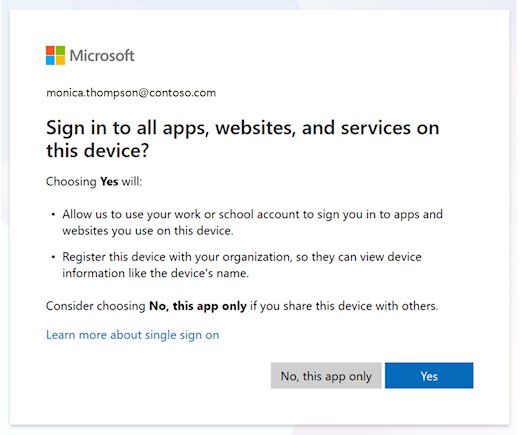
If you chose No, this app only when you first signed in, the account is not listed in Settings, so sign out inside that app instead. On a PC your organization manages through device management, ask its IT department before you disconnect.
If you no longer have the device, go to myaccount.microsoft.com/device-list, expand its details and select Disable lost device.
Manage local user and group management in Windows Home using command line
If Local Users and Groups does not appear in Computer Management on your PC, these commands do the same work. Run them in PowerShell as administrator or in an elevated Command Prompt, and replace <name> with the account name.
| Task | Command Prompt | PowerShell |
|---|---|---|
| List local users | net user |
Get-LocalUser |
| Show one account | net user <name> |
Get-LocalUser -Name "<name>" |
| Create a local user | net user <name> * /add |
New-LocalUser -Name "<name>" |
| List administrators | net localgroup administrators |
Get-LocalGroupMember -Group "Administrators" |
| Add an administrator | net localgroup administrators <name> /add |
Add-LocalGroupMember -Group "Administrators" -Member "<name>" |
| Remove an administrator | net localgroup administrators <name> /delete |
Remove-LocalGroupMember -Group "Administrators" -Member "<name>" |
| Enable an account | net user <name> /active:yes |
Enable-LocalUser -Name "<name>" |
| Disable an account | net user <name> /active:no |
Disable-LocalUser -Name "<name>" |
| Delete an account | net user <name> /delete |
Remove-LocalUser -Name "<name>" |
The PowerShell commands belong to the Microsoft.PowerShell.LocalAccounts module, which is not available in 32-bit PowerShell on 64-bit Windows. New-LocalUser prompts you for the new password when you leave out the password parameters.
Is it safe to log in as the Administrator account in Windows 11?
Log in to the built-in account only for a specific repair, protect it with a strong password, and disable it when you finish. The account name is known to exist on Windows PCs, so it is an obvious target. Microsoft advises signing in with a normal account and running programs as administrator for tasks that need higher rights.
Windows 11 also offers Administrator protection, which keeps administrator accounts deprivileged and asks for Windows Hello approval per task. It is off by default on supported PCs.
How to log out of the Administrator account in Windows 11
- Save your work, because signing out closes open apps.
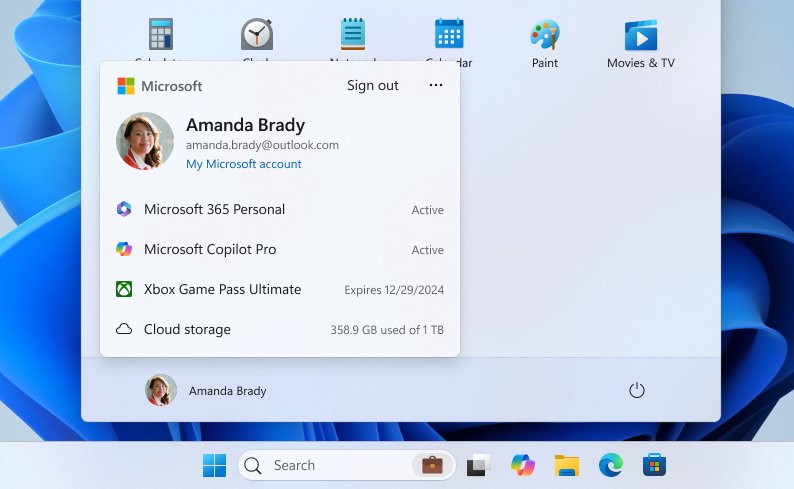
- Select Start, select the account picture, then select Sign out.
- Sign in to your own administrator account.
- Open Command Prompt with Run as administrator.
- Type
net user administrator /active:noand press Enter to disable the built-in account again.
Can't log in as administrator in Windows 11
Administrator is not on the sign-in screen
Windows Setup disables the built-in account, so it stays hidden until you turn it on.
- Sign in with an account that belongs to the Administrators group.
- Run
net user administrator /active:yesin an elevated Command Prompt. - Sign out and look for Administrator on the sign-in screen.
Net user says access is denied
Command Prompt is not elevated, or your account is a standard user.
- Close the window and reopen Command Prompt with Run as administrator.
- If the prompt asks for a password instead of offering Yes, enter an administrator's credentials.
- If you don't have those credentials, ask an administrator to change your account type.
You forgot the administrator password
Windows can't sign you in without the account's current password or PIN.
- Select I forgot my password on the sign-in screen if the link appears.
- If you can sign in to another administrator account, open an elevated Command Prompt.
- Run
net user administrator *and type a new password twice.
No administrator account will sign in
Every administrator account is disabled or its password is lost.
- Start Windows in Safe mode with the steps above.
- Sign in with the administrator account Windows offers.
- Create a new administrator with the commands in the table above, then restart normally.
Runas fails with an error
The Secondary Logon service is not running, or the account name is not valid.
- Open Computer Management and select Services and Applications > Services.
- Find Secondary Logon and check its status.
- Test the account by signing in to it from the sign-in screen, then run the command again.
Log in as an administrator FAQ
How do I log onto my computer as an Administrator?
Sign out, select an administrator account on the sign-in screen and enter its password or PIN. For the built-in account, first run net user administrator /active:yes in an elevated Command Prompt, because Windows Setup disables that account on new PCs.
How do I switch to the Administrator account in Windows 11?
Select Start, select your account picture, then select Administrator from the list. If it is not listed, select Sign out and choose it on the sign-in screen. The built-in account appears only after you enable it.
How do I enable the Administrator account in Windows 11?
Open Command Prompt with Run as administrator and run net user administrator /active:yes. Then run net user administrator * to set a password, because Windows does not allow a blank password for this account.
How do I run Windows as an Administrator?
Sign in with an account that belongs to the Administrators group. Windows then asks for approval when a task needs higher rights. To open one program with those rights, right-click it and select Run as administrator.
How do I log in as an administrator in Windows 10?
Use the same commands as Windows 11. Run net user administrator /active:yes in an elevated Command Prompt, set a password with net user administrator *, sign out, and select Administrator on the sign-in screen.
How do I log in as another user in Windows 11?
Select Start, select your account picture, and select the other account. If you don't see it, select Sign out and choose the account on the sign-in screen. Switching keeps your apps open, while signing out closes them.
How do I log in as SYSTEM in Windows?
You can't sign in to SYSTEM from the sign-in screen. Windows and its services use it internally, it does not show up in User Manager, and it can't be added to groups. Use an administrator account for your own tasks.
What does log in mean in Windows?
Logging in, which Windows calls signing in, is how you verify your identity to reach your device. You can use a password, a PIN, or a fingerprint or face through Windows Hello if you have set it up.
Why do I have to log in every time?
Windows asks you to sign in again based on a setting. On Windows 11, select Start > Settings > Accounts > Sign-in options, then under Additional settings choose an option for If you've been away, when should Windows require you to sign in again?