To fix File Explorer when it is not responding or keeps crashing, press Ctrl + Shift + Esc, right-click Windows Explorer in Task Manager and select Restart.
If the freeze comes back, the fixes below work through history, previews and thumbnails, corrupted system files, shell extensions, drivers and third-party conflicts on Windows 11 and Windows 10.
1. Restart File Explorer from Task Manager
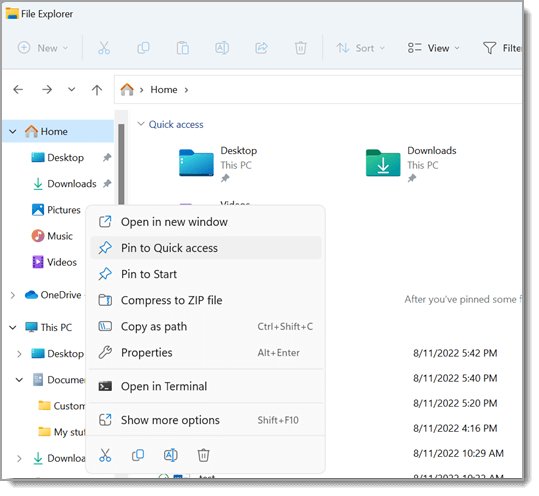
Restarting the Windows Explorer process closes every File Explorer window, the taskbar and the desktop for a second, then reloads them. Open files in other apps are not affected.
- Press Ctrl + Shift + Esc to open Task Manager.
- On the Processes list, find Windows Explorer.
- Right-click Windows Explorer and select Restart.
- If Windows Explorer is not listed, select File > Run new task, type
explorer.exeand press Enter. - Press Windows logo key + E to open File Explorer again and test the folder that froze.
If the taskbar and desktop stay blank after the restart, press Windows + Ctrl + Shift + B to reset the graphics driver, then run explorer.exe again from Run new task.
Step-by-step fixes
Match what you see to a row and start with that fix. The numbered sections that follow keep the same order.
| What happens | Start with | Why |
|---|---|---|
| Explorer freezes once and recovers after a restart | 1. Restart File Explorer | Clears a stuck explorer.exe process |
| The address bar or search box lags when you click it | 2. Clear File Explorer history | Removes a long list of recent paths and searches |
| A photo, video or download folder hangs while loading | 3.1 and 3.2 previews and thumbnails | Stops Explorer from rendering every file |
| Search inside File Explorer never finishes | 4. Reset search | Restarts the Windows Search host process |
| Explorer crashes on any folder, even empty ones | 5. SFC and DISM | Repairs corrupted Windows files |
| Explorer crashes when you right-click a file | 6. Shell extensions | A context menu add-on from another app is failing |
| Crashes started after a driver or Windows update | 7. Updates and drivers | A fixed driver or patch is often already available |
| Nothing above helps | 8. Clean boot | Finds the third-party service or startup app at fault |
Prerequisites
| You need | Used for | Notes |
|---|---|---|
| An administrator account | SFC, DISM and clean boot | Standard accounts are asked for an admin password |
| Internet connection | DISM repair and Windows Update | DISM downloads replacement files from Windows Update |
| Open files saved | Restarting Explorer and Windows | Several fixes need a restart |
| 20 to 40 minutes | SFC and DISM scans | Each scan runs to 100% before you can use the result |
2. Clear File Explorer history
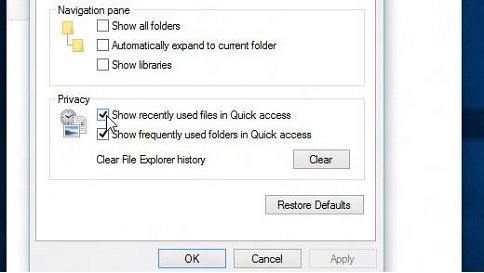
File Explorer keeps recent folders, recent files and typed paths. A very long list, or entries that point at a disconnected network drive, can make the window hang as it opens.
- Press Windows logo key + E to open File Explorer.
- On Windows 11, select See more (the three dots) > Options. On Windows 10, select the View tab > Options.
- On the General tab, find the Privacy section.
- Select the button in that section that clears File Explorer history.
- Select OK and close every File Explorer window.
- Open File Explorer again and check whether it loads without a delay.
To stop the list building up again, clear the recent files history and the recent-files check boxes in the same Privacy section and select Apply.
3. Change folder view options
Several view options make Explorer read every file in a folder before the window responds. Turning them off is the quickest test for folders full of pictures, videos or PDFs.
| Option | Where to change it | What it saves |
|---|---|---|
| Preview pane | Alt + P, or View > Preview pane | Explorer stops opening a file to draw its preview |
| Details pane | Alt + Shift + P | Explorer stops reading file properties on every click |
| Preview handlers | Options > View tab > Show preview handlers in preview pane | Third-party preview add-ons no longer load |
| Thumbnails | Group Policy or the View tab of Folder Options (3.2) | Explorer shows icons instead of rendering images |
| Layout | View > Details or List | Lighter layouts for folders with thousands of files |
3.1 Disable preview pane and details pane
A damaged PDF, video or Office file can hang the preview handler, and Explorer freezes with it. A file downloaded from the internet may also show a preview warning instead of a preview, which is expected.
- Open File Explorer and go to the folder that freezes.
- Press Alt + P to hide the preview pane if it is open.
- Press Alt + Shift + P to hide the details pane if it is open.
- On Windows 11, select See more > Options. On Windows 10, select View > Options.
- Select the View tab and, under Advanced settings, clear Show preview handlers in preview pane.
- Select Apply > OK, then open the folder again.
3.2 Always show icons, never thumbnails
File Explorer draws thumbnail images by default. Turning them off stops Explorer decoding every image and video in a folder, which is the usual cause of a freeze in Pictures, Downloads or a camera card.
- Open Options from File Explorer and select the View tab.
- Under Advanced settings, select the check box that always shows icons and never thumbnails.
- Select Apply > OK.
- On Windows 11 or 10 Pro, Enterprise or Education, you can set the same thing by policy: press Windows logo key + R, type
gpedit.mscand press Enter. - Go to User Configuration > Administrative Templates > Windows Components > File Explorer.
- Open Turn off the display of thumbnails and only display icons., select Enabled and select OK.
Reverse the same setting later if you want thumbnails back once the folder causing the crash has been cleaned up.
4. Reset File Explorer search and folder customizations
When the window freezes only while a search runs, restart the Windows Search host. It starts again by itself the next time you search.
- Press Ctrl + Shift + Esc to open Task Manager.
- Select Details.
- In the Name column, right-click SearchHost.exe on Windows 11 or SearchUI.exe on Windows 10, and select End task.
- Select End process when asked.
- Open File Explorer and run the search again.
4.1 Reset folder views
Windows remembers a view for each folder you customised. Resetting them returns every folder to its default layout, which removes a saved view that keeps triggering the hang.
- In File Explorer, open Options (Windows 11: See more > Options; Windows 10: View > Options).
- Select the View tab.
- Use the button on that tab that resets folder views to their defaults, and confirm the prompt.
- On the General tab, set Open File Explorer to to This PC so Explorer stops loading recent and cloud files from Home at launch.
- Select Apply > OK and restart File Explorer.
4.2 Optimize problematic folders
If one folder always freezes Explorer, make it cheaper to open rather than resetting the whole PC.
- Open the parent folder, not the problem folder itself.
- Select View on the command bar and choose Details or List.
- Open the problem folder and wait for it to finish loading once.
- Move files into dated or numbered subfolders so no single folder holds thousands of items.
- If the folder is on a network share or OneDrive, copy what you need to a local folder and work there.
5. Run System File Checker (SFC) and DISM
Corrupted Windows files make Explorer crash in every folder, not just one. Two built-in tools, System File Checker and DISM, repair them.
| Tool | What it repairs | When to run it |
|---|---|---|
sfc /scannow |
Protected system files, replaced from a cached copy | First, as a quick check |
DISM /Online /Cleanup-Image /RestoreHealth |
The Windows component store that SFC copies from | When SFC cannot fix some files, or before SFC as Microsoft suggests |
DISM /Online /Cleanup-Image /CheckHealth |
Nothing; it reports whether corruption was already found | To see whether a repair is needed |
5.1 Open Command Prompt as administrator
- Select Start and type
command prompt. - In the results, right-click Command Prompt and select Run as administrator.
- Select Yes on the User Account Control prompt, or enter an administrator password.
- Wait for the Command Prompt window to open, then type the commands below.
5.2 Run SFC
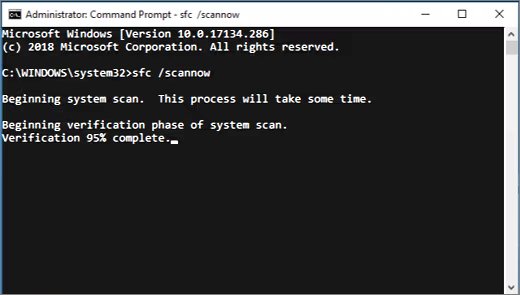
sfc /scannowScans all protected system files and replaces corrupted ones with a cached copy. Leave the window open until verification reaches 100%.
You should see: "Windows Resource Protection did not find any integrity violations" or "Windows Resource Protection found corrupt files and successfully repaired them".
If the result is "Windows Resource Protection could not perform the requested operation", run the scan again in safe mode. If it found files it could not fix, run DISM next and then SFC once more.
5.3 Run DISM (if problems persist)
DISM.exe /Online /Cleanup-image /RestorehealthRepairs the Windows image that SFC uses as its source, downloading replacement files from Windows Update. It can sit at one percentage for several minutes.
You should see: DISM reports that the operation completed. Then run sfc /scannow again and restart.
6. Check for problematic shell extensions (context menu items)
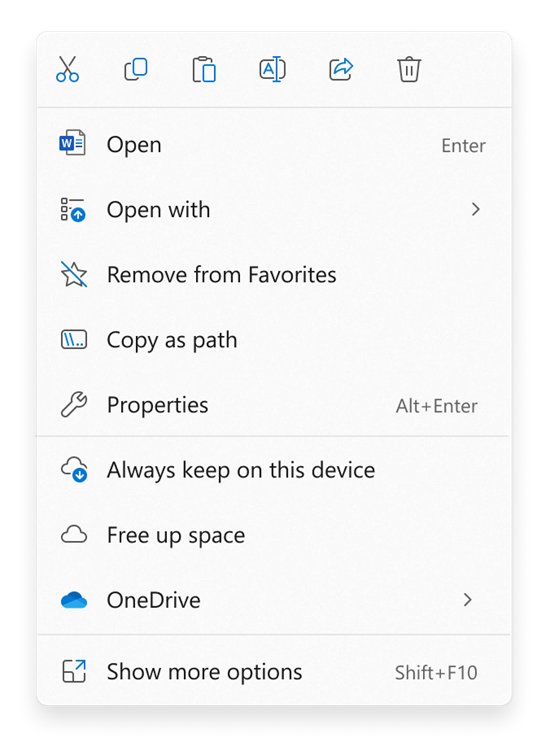
Archivers, cloud sync tools, antivirus and image editors add entries to the right-click menu. When one of them fails, Explorer crashes the moment you right-click or open Show more options, which loads the older Windows 10 style extensions.
- Note when the crash happens: right-clicking any file, one file type, or only Show more options.
- Select Start > Settings > Apps > Installed apps.
- Look for an app installed or updated just before the crashes began that adds context menu entries.
- Select More (the three dots) next to it and choose Uninstall, or update it from the developer's site.
- Restart File Explorer and right-click the same file again.
- If no app stands out, run a clean boot (section 8) to switch every non-Microsoft extension off at once.
7. Check for Windows & driver updates
Explorer crashes that start after an update are often fixed by the next one, or by uninstalling the problem update. An up-to-date graphics driver matters because Explorer draws the desktop, taskbar and thumbnails with them.
| Update | Where | Install it when |
|---|---|---|
| Windows cumulative update | Settings > Windows Update | Always first; it carries Explorer fixes |
| Graphics driver | Device Manager > Display adapters | Thumbnails, the taskbar or the desktop flicker or go black |
| Graphics driver rollback | Device Manager > driver Properties | Crashes began right after a driver update |
| App updates | The app's own updater or Microsoft Store | One app's shell extension is at fault |
7.1 Install Windows updates
- Select Start > Settings > Windows Update. On Windows 10, go to Settings > Update & Security > Windows Update.
- Select Check for Windows updates (Windows 10: Check for updates).
- Select Download & install for anything listed.
- Restart when prompted, then open File Explorer and test.
7.2 Update display (graphics) driver
- Right-click Start and select Device Manager.
- Expand Display adapters.
- Right-click your graphics card and select Update driver.
- Follow the prompts to install a newer driver if Windows finds one.
- If the crashes began right after a driver update, choose Roll back driver instead.
- Restart the PC and test File Explorer.
Graphics card makers also publish drivers on their own sites; get them from there, never from a driver updater app.
8. Perform a clean boot (check for software conflicts)
A clean boot starts Windows with only Microsoft services and no startup apps. Use the result to decide what to do next.
| Result in clean boot | What it means | Next step |
|---|---|---|
| Explorer is stable | A third-party service or startup app causes the crash | Turn half the services back on, restart, and repeat until one item remains |
| Explorer still crashes | The cause is Windows itself, a driver or the user profile | Run SFC and DISM, update drivers, then try the troubleshooting notes below |
| Culprit found | One service or startup app | Update or uninstall that app, or leave it disabled |
8.1 Set up a clean boot
- Sign in with an administrator account.
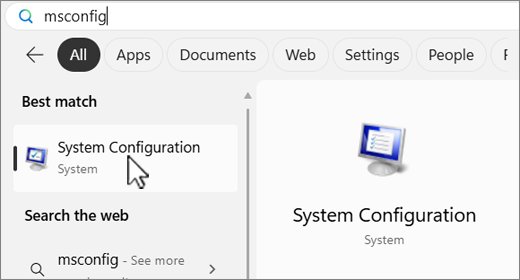
- Select Start, type
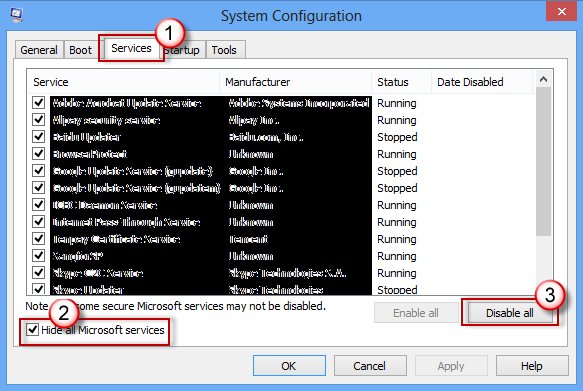
msconfigand select System Configuration. - On the Services tab, select Hide all Microsoft services, then select Disable all and Apply.
- On the Startup tab, select Open Task Manager.
- On the Startup apps tab, select each Enabled item and select Disable. Note which ones you turned off.
- Close Task Manager, select OK in System Configuration and restart.
- Use File Explorer the way that made it crash before.
Return to normal startup after a clean boot
- Open System Configuration with
msconfigagain. - On the General tab, select Normal Startup.
- On the Services tab, clear Hide all Microsoft services, select Enable all and select Apply.
- On the Startup tab, select Open Task Manager and enable the startup apps you disabled.
- Select OK and choose Restart when prompted.
Test File Explorer after the fix in Windows 11 and 10
- Restart the PC so every change is loaded.
- Press Windows logo key + E and confirm File Explorer opens within a second or two.
- Open the folder that froze before and scroll through it.
- Right-click a few files, including Show more options on Windows 11.
- Run a search in the File Explorer search box and let it finish.
- Open Task Manager and check that Windows Explorer is not stuck at high CPU.
Extra tips & troubleshooting notes
Updates have caused Explorer crash loops before, such as the KB3074681 Explorer crashes on Windows 10, so note the date the problem started.
File Explorer will not open at all
Explorer fails at launch, often from pending updates or corrupted files.
- Install updates from Settings > Windows Update and restart.
- Run
sfc /scannowfrom an administrator Command Prompt. - On Windows 10, open Control Panel > System > Advanced system settings, set performance to favour programs and confirm the paging file size is managed automatically, then restart.
- If it still fails, use Advanced startup > Troubleshoot > Advanced options > Startup Repair.
Black screen with only a mouse cursor
explorer.exe has stopped and the desktop has not reloaded.
- Press Ctrl + Shift + Esc.
- Select File > Run new task.
- Type
explorer.exeand press Enter.
Explorer crashes when you right-click
A third-party context menu extension is failing.
- Uninstall or update the most recently installed app that adds right-click entries.
- If the crash stays, run a clean boot and test again.
Explorer freezes in one folder of photos or videos
Thumbnail or preview generation is stuck on a damaged file.
- Turn off thumbnails (section 3.2) and the preview pane with Alt + P.
- Open the folder in Details view and move recently added files out one batch at a time to find the damaged one.
SFC says it could not perform the requested operation
Something is holding system files open in normal mode.
- Restart into safe mode from Advanced startup > Troubleshoot > Advanced options > Startup Settings.
- Run
sfc /scannowagain from an administrator Command Prompt.
File Explorer not responding FAQ
Why does File Explorer keep saying not responding?
File Explorer stops responding when it waits on something it cannot finish: rendering a thumbnail or preview, reading a disconnected network drive, a failing context menu extension, or corrupted system files. Restarting Windows Explorer in Task Manager clears the moment; the fixes above remove the cause.
How do I restart File Explorer without restarting the PC?
Press Ctrl + Shift + Esc, right-click Windows Explorer on the Processes list and select Restart. If it is not listed, select File > Run new task, type explorer.exe and press Enter. The taskbar and desktop reload within a few seconds.
Does SFC fix File Explorer crashing?
SFC fixes File Explorer crashing when the cause is a corrupted or missing Windows file. Run sfc /scannow from an administrator Command Prompt. If it reports files it could not repair, run DISM.exe /Online /Cleanup-image /Restorehealth and then SFC again.
Can thumbnails make File Explorer crash?
Yes. Explorer decodes every image and video to draw thumbnails, and one damaged file can hang that process. Turn on the policy Turn off the display of thumbnails and only display icons., or the matching View tab option, and test the folder again.
Will a clean boot delete my files or apps?
No. A clean boot only stops non-Microsoft services and startup apps from loading. Your files and apps stay installed. Some features may not work until you return to Normal Startup in System Configuration and re-enable the startup apps.
Why does File Explorer crash when I right-click?
A right-click crash nearly always comes from a context menu (shell) extension added by another app, such as an archiver or sync tool. Update or uninstall the app you installed most recently, or use a clean boot to switch all non-Microsoft extensions off and confirm the cause.
Should I reset Windows if File Explorer keeps crashing?
Reset Windows only after updates, SFC, DISM, driver updates and a clean boot have failed. Settings > System > Recovery > Reset PC with Keep my files keeps personal files but removes installed apps and settings.