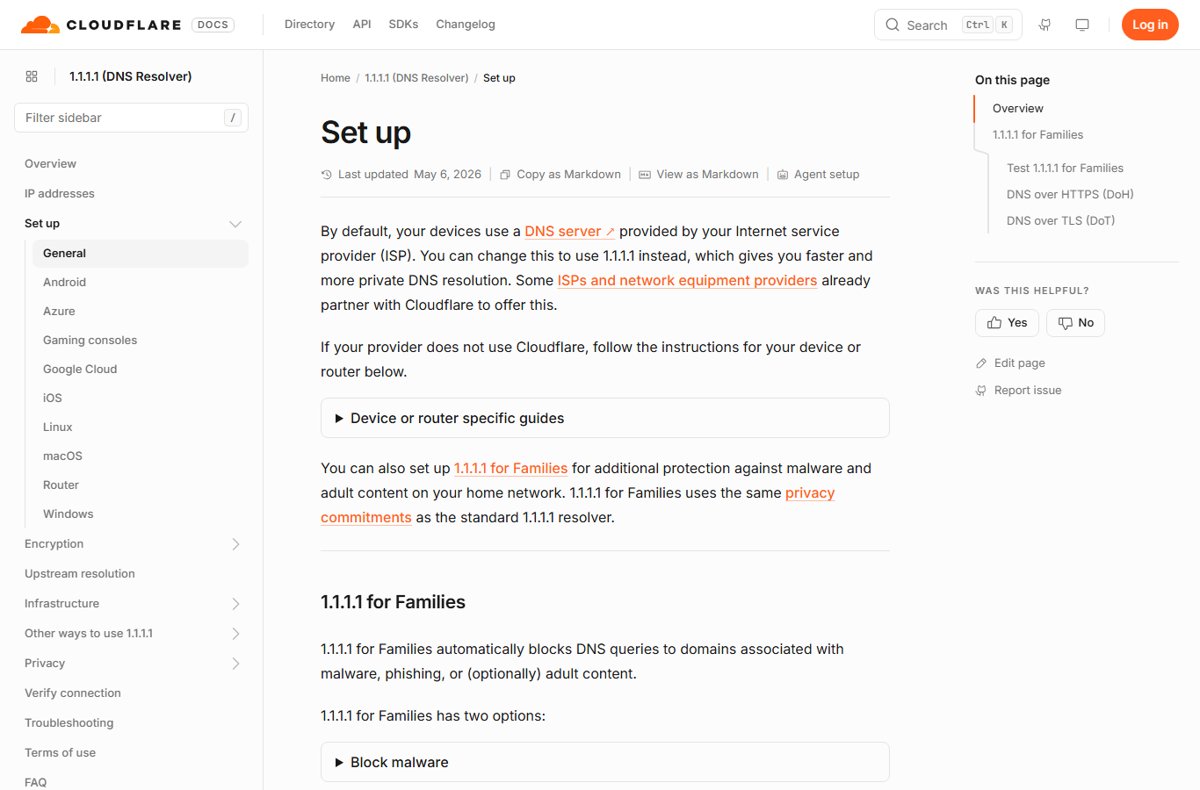
To use Cloudflare's 1.1.1.1, replace your current DNS servers with 1.1.1.1 and 1.0.0.1, turn on DNS over HTTPS or DNS over TLS where your device offers it, and confirm the change at one.one.one.one/help.
This guide covers Windows 11 and 10, macOS, iPhone, iPad, Android, home routers and browsers, the 1.1.1.1 for Families addresses that block malware and adult content, how to test the setup, how to undo it, and what to check when pages stop loading.
The fastest way to switch a device to 1.1.1.1
Every platform follows the same pattern: open the DNS settings, swap in Cloudflare's two addresses, save, and test. Write down your current DNS addresses first, so you can put them back later.
- Open the DNS settings for your connection on the device or on your router.
- Switch DNS from automatic to Manual or Use the following DNS server addresses.
- Enter 1.1.1.1 as the primary DNS server and 1.0.0.1 as the secondary.
- If the connection uses IPv6, enter 2606:4700:4700::1111 and 2606:4700:4700::1001 in the IPv6 fields.
- Turn on encrypted DNS if the screen offers it, such as DNS over HTTPS on Windows 11.
- Select Save.
- Open https://one.one.one.one/help in a browser to confirm your queries now reach 1.1.1.1.
On iPhone, iPad and Android, Cloudflare recommends its free 1.1.1.1: Faster Internet app instead, because it applies 1.1.1.1 on every network, including mobile data.
Which 1.1.1.1 setup should you use?
The right route depends on how many devices you want covered and whether you want the queries encrypted.
| Your situation | Use this | Why |
|---|---|---|
| Every device in the house should use 1.1.1.1 | Router setup | One change applies to every phone, PC and TV on the network |
| A Windows 11 PC that should encrypt its lookups | Windows 11 Settings with DNS over HTTPS on | Windows 11 has 1.1.1.1 on its built-in list of DoH servers |
| An iPhone or iPad used on Wi-Fi and cellular | 1.1.1.1: Faster Internet app | Manual iOS DNS covers one Wi-Fi network and never cellular |
| An Android phone on Android 9 or later | Private DNS with one.one.one.one |
Encrypted and applies on every network, including cellular |
| Only the browser should use Cloudflare | Secure DNS in Firefox, Chrome, Edge or Brave | Encrypts browser lookups without touching system settings |
| Children use the network | 1.1.1.1 for Families (1.1.1.3 and 1.0.0.3) | Blocks malware and adult content at the DNS level |
| Several Windows PCs set from a script | PowerShell Set-DnsClientServerAddress |
Changes DNS without touching the IP address |
What Cloudflare 1.1.1.1 is and why use it
1.1.1.1 is Cloudflare's public DNS resolver. It turns website names into IP addresses in place of the resolver your internet provider or network administrator assigns. Cloudflare runs it in partnership with APNIC, which provided the 1.1.1.1 address.
The standard resolver filters nothing. 1.1.1.1 for Families adds blocking and uses the same privacy commitments. Each service has two addresses per IP version for redundancy.
| Service | IPv4 | IPv6 | DoH URL | DoT / Private DNS hostname |
|---|---|---|---|---|
| 1.1.1.1 (no filtering) | 1.1.1.1, 1.0.0.1 | 2606:4700:4700::1111, 2606:4700:4700::1001 | https://cloudflare-dns.com/dns-query | one.one.one.one |
| 1.1.1.1 for Families: block malware | 1.1.1.2, 1.0.0.2 | 2606:4700:4700::1112, 2606:4700:4700::1002 | https://security.cloudflare-dns.com/dns-query | security.cloudflare-dns.com |
| 1.1.1.1 for Families: block malware and adult content | 1.1.1.3, 1.0.0.3 | 2606:4700:4700::1113, 2606:4700:4700::1003 | https://family.cloudflare-dns.com/dns-query | family.cloudflare-dns.com |
When 1.1.1.1 for Families blocks a domain, Cloudflare answers with 0.0.0.0, an address that points nowhere, so the device never connects. If a site is blocked by mistake, report it through Cloudflare's categorization feedback page on radar.cloudflare.com.
Security and privacy benefits of secure DNS
Ordinary DNS travels in plaintext, so anyone on the path between your device and the resolver can see each site you look up. Some providers also log queries or use them for ads. Cloudflare publishes specific commitments for 1.1.1.1.
| Protection | What 1.1.1.1 does |
|---|---|
| No ad targeting or data sales | Cloudflare will not sell or share resolver users' personal data or use it to target ads |
| Short log retention | Source IPs are truncated (last octet for IPv4, last 80 bits for IPv6) and deleted within 25 hours; resolver logs are also deleted within 25 hours |
| Outside audit | A top-four accounting firm audits these practices and the report is public |
| Encrypted queries | DNS over HTTPS and DNS over TLS stop others on the network from reading or altering your lookups |
| Tamper checks | 1.1.1.1 validates DNSSEC signatures, so forged answers for signed domains are rejected |
| Less data sent to websites | 1.1.1.1 does not send the EDNS Client Subnet header, so your IP details are not passed to site nameservers |
| Optional blocking | 1.1.1.1 for Families blocks known malware, phishing and, optionally, adult content |
The one outside party with log access is APNIC, which can query anonymized data for research but never sees client IP addresses.
How to configure 1.1.1.1 on Windows, macOS, iOS, and Android
Pick your platform below; the same screens change DNS settings in Windows for any other resolver too. For Families filtering, enter the 1.1.1.2 or 1.1.1.3 pair from the table above instead of 1.1.1.1 and 1.0.0.1.
Windows 11
Windows 11 can encrypt DNS itself and needs no extra software.
- Select Start > Settings > Network & internet.
- Select Wi-Fi and then the network you are connected to, or select Ethernet.
- Scroll to DNS server assignment and select Edit.
- Change Automatic (DHCP) to Manual, then turn on the IPv4 toggle.
- Type 1.1.1.1 in Preferred DNS and 1.0.0.1 in Alternate DNS.
- Set DNS over HTTPS to On (automatic template) for each address.
- Turn on the IPv6 toggle and enter 2606:4700:4700::1111 and 2606:4700:4700::1001 the same way.
- Select Save.
Windows 10
Windows 10 has no DNS over HTTPS option, so use a browser's secure DNS setting for encryption.
- Select Start > Settings > Network & Internet.
- Select Change adapter options.
- Right-click your Ethernet or Wi-Fi connection and select Properties.
- Select Internet Protocol Version 4, then Properties.
- Choose Use the following DNS server addresses, enter 1.1.1.1 and 1.0.0.1, and select OK.
- Repeat for Internet Protocol Version 6 with 2606:4700:4700::1111 and 2606:4700:4700::1001, then select OK.
macOS
macOS stores DNS per network service, such as Wi-Fi or Ethernet.
- Open System Settings. Press Command + Space and type
System Settingsif it is not in the Dock. - Select Network, then the network service you use.
- Select Details, then DNS.
- Under DNS Servers, select Add (+) and enter 1.1.1.1. Repeat for 1.0.0.1.
- Add 2606:4700:4700::1111 and 2606:4700:4700::1001 for IPv6.
- Select OK.
iPhone and iPad
The 1.1.1.1: Faster Internet app is Cloudflare's recommended route; manual DNS covers one Wi-Fi network only.
- Install 1.1.1.1: Faster Internet from the App Store and accept the terms of service.
- Install the VPN profile the app asks for.
- Toggle the WARP button to Connected.
- For manual setup instead, go to Settings > Wi-Fi and tap the i icon next to your network.
- Tap Configure DNS, change Automatic to Manual, then tap Add Server and enter 1.1.1.1 and 1.0.0.1.
- Tap Save. Repeat on each Wi-Fi network you join.
Android
Android 9 and later encrypt DNS through Private DNS, which applies on Wi-Fi and cellular.
- Open Settings > Network & internet.
- Select Advanced > Private DNS. On some phones Private DNS sits directly under Network & internet.
- Select Private DNS provider hostname.
- Enter
one.one.one.one, orfamily.cloudflare-dns.comto block malware and adult content. - Select Save.
- Alternatively, install 1.1.1.1: Faster Internet from Google Play, accept the terms, toggle WARP to Connected and install the VPN profile.
Both mobile apps start in WARP mode, which protects all app traffic, not only DNS. To use Families filtering in the app, tap the menu button > Advanced > Connection options > DNS settings > 1.1.1.1 for Families.
On Android versions before 9, long-press your Wi-Fi network, select Modify Network > Show Advanced Options, set IP settings to Static and enter the DNS addresses there.
Set 1.1.1.1 on Windows with PowerShell
Set-DnsClientServerAddress sets DNS servers on one network interface and overrides the DNS your router hands out, while the IP address stays automatic. Run Get-DnsClientServerAddress first to see interface names such as Wi-Fi or Ethernet.
Open PowerShell as an administrator, then run the command with your interface name.
Set-DnsClientServerAddress -InterfaceAlias "Wi-Fi" -ServerAddresses ("1.1.1.1","1.0.0.1")-InterfaceAlias picks the connection by its name. -ServerAddresses lists the DNS servers in order, primary first. Use 1.1.1.3 and 1.0.0.3 instead for Families filtering.
You should see: The command prints nothing when it works. Run Get-DnsClientServerAddress again and the interface lists 1.1.1.1 and 1.0.0.1.
Run ipconfig /flushdns afterwards to clear answers cached from your old DNS server.
How to set up 1.1.1.1 on routers and home networks
A router change applies 1.1.1.1 to every device on your network, so phones, consoles and smart TVs need no individual setup. Menu names vary by brand, so check your router's manual for the exact screen.
- Open the router's admin page in a browser. Linksys and Asus routers typically use
http://192.168.1.1(Asus alsohttp://router.asus.com), Netgear useshttp://192.168.1.1orhttp://routerlogin.net, D-Link useshttp://192.168.0.1, and MikroTik useshttp://192.168.88.1. - Sign in with the router's admin credentials. Consumer routers often print the defaults on a label under or behind the device.
- Find the DNS settings. On Asus they sit under WAN and IPv6, on MikroTik under IP, and on Netgear under Internet.
- Write down the DNS addresses currently set.
- Enter 1.1.1.1 and 1.0.0.1 as the IPv4 DNS servers, or a Families pair.
- Enter 2606:4700:4700::1111 and 2606:4700:4700::1001 in the IPv6 DNS fields if your router has them.
- Save the settings, then reconnect your devices so they pick up the new DNS.
A device with its own DNS typed in, or with Android Private DNS set, ignores the router's DNS. The same router fields also take other resolvers, such as OpenDNS on a router or PC.
Using DNS over HTTPS and DNS over TLS
Both standards encrypt DNS so others on the network cannot read or alter your lookups. DoH runs over port 443 and blends in with normal HTTPS traffic. DoT uses dedicated port 853, so its traffic stays separate from web traffic.
Use whichever one your device or router supports. Windows 11 and browsers speak DoH; Android Private DNS and many routers speak DoT.
| Where | Protocol | What to enter |
|---|---|---|
| Windows 11 with 1.1.1.1 or 1.0.0.1 | DoH | DNS over HTTPS > On (automatic template); Windows already knows Cloudflare's template |
| Windows 11 with a Families address | DoH | On (manual template) with https://security.cloudflare-dns.com/dns-query or https://family.cloudflare-dns.com/dns-query |
| Browsers (Firefox, Chrome, Edge, Brave) | DoH | Choose Cloudflare (1.1.1.1) as the secure DNS provider, or paste a Families URL as a custom provider |
| Android 9 and later | DoT | Private DNS hostname one.one.one.one, security.cloudflare-dns.com or family.cloudflare-dns.com |
| Routers and DoT clients | DoT | 1.1.1.1 or 1.0.0.1 on port 853, with hostname one.one.one.one if the client needs a name |
| OpenWrt routers | DoT | Unbound with DNS over TLS, per Cloudflare's OpenWrt guide on blog.cloudflare.com |
| FRITZ!Box routers | DoT | Supported from FRITZ!OS 7.20 in the router's DNS server settings |
On Windows 11, Fallback to plaintext decides what happens when DoH fails. On, the query goes out unencrypted; off, the query is not sent at all.
Browser setup for DNS over HTTPS
Browser DoH encrypts only that browser's lookups, which is useful on Windows 10 or a PC where you cannot change system settings. Some browsers may already have it on.
Mozilla Firefox
Firefox uses Cloudflare as its default secure DNS provider.
- Open the menu button and select Settings.
- Select Privacy & Security and scroll to Enable secure DNS using:.
- Select Increased Protection or Max Protection.
- Confirm Cloudflare is selected in Choose Provider.
Google Chrome and Brave
Both Chromium browsers keep the option under Security.
- Open the three-dot menu (Brave: the menu button) and select Settings.
- Select Privacy and security > Security.
- Turn on Use secure DNS. In Brave it sits under Advanced.
- Choose Cloudflare (1.1.1.1) from the provider drop-down.
Microsoft Edge
Edge keeps the option with its other privacy and security settings under Privacy, search, and services.
- Open the three-dot menu and select Settings.
- Select Privacy, search, and services and scroll to Security.
- Turn on Use secure DNS and select Choose a service provider.
- Choose Cloudflare (1.1.1.1) from the drop-down.
How to test that 1.1.1.1 is working
Cloudflare runs its own diagnostic page. Test each device you changed, plus one untouched device if you changed the router.
- Open https://one.one.one.one/help in a browser on the configured device.
- Wait for the tests to finish. The results show whether your connection to 1.1.1.1 works and which Cloudflare data center answers your queries.
- If you set up DoH, check that Using DNS over HTTPS (DoH) shows Yes.
- For Families, open
https://malware.testcategory.com/; it should fail to load. With the adult-content filter,https://nudity.testcategory.com/should also fail. - On Windows, run
nslookup -class=chaos -type=txt id.server 1.1.1.1in Command Prompt. A reply confirms 1.1.1.1 is reachable from your network.
Get-DnsClientServerAddress in PowerShell shows which DNS servers each Windows interface is using. On a Mac, the DNS tab of the network service lists them.
How to go back to your old DNS settings
- Windows 11: open the network, select Edit next to DNS server assignment, choose Automatic (DHCP) and select Save.
- Windows 10: reopen the IPv4 and IPv6 properties and switch from Use the following DNS server addresses back to automatic DNS, or re-enter the addresses you wrote down.
- PowerShell: run
Set-DnsClientServerAddress -InterfaceAlias "Wi-Fi" -ResetServerAddressesas administrator. - Mac: in Network > your service > Details > DNS, select each Cloudflare address and select Remove (−).
- iPhone, iPad or Android: switch Configure DNS back to Automatic, set Private DNS to Automatic or Off, or disconnect WARP in the app.
- Router: re-enter the DNS addresses you wrote down, or switch DNS back to automatic, and save.
Cloudflare 1.1.1.1 common issues and troubleshooting tips
Websites do not load after changing DNS
A mistyped address, a network path problem, or a router with a hardcoded route for 1.1.1.1.
- Recheck each address: 1.1.1.1 and 1.0.0.1, or the Families pair you chose.
- Run
nslookup example.com 1.1.1.1, thennslookup example.com 8.8.8.8. If only 1.1.1.1 fails, the problem is on the path to Cloudflare. - Run
tracert 1.1.1.1andtracert 1.0.0.1. A failure at the first hop points to your router, which may have a hardcoded route for 1.1.1.1. - Try the secondary address alone, or undo the change and contact your router maker or provider with the traceroute results.
Captive portals, public Wi-Fi, and hotel networks
Manual DNS can stop the network's sign-in page from appearing.
- Remove the manual DNS addresses, or disconnect the 1.1.1.1 app.
- Connect to the Wi-Fi network and finish the sign-in page.
- Re-add the DNS addresses or reconnect the app once you are online.
DNS over HTTPS or DNS over TLS fails
The network blocks port 853, or the DoH endpoint cannot be reached.
- Open one.one.one.one/help and note which encryption test shows No.
- Test DoH in PowerShell:
(Invoke-WebRequest -Uri 'https://cloudflare-dns.com/dns-query?name=cloudflare.com&type=AAAA').RawContent. An error instead of a response means your network cannot reach the DoH endpoint. - If Android Private DNS fails on one network, that network may block DoT on port 853. Set Private DNS to Automatic there, or use the 1.1.1.1 app.
- On Windows 11, check the DNS over HTTPS template matches the address you entered, such as the Families URL for 1.1.1.3.
Cloudflare 1.1.1.1 for secure DNS: bottom line
Set 1.1.1.1 on your router for the whole house, then turn on encryption per device: DNS over HTTPS on Windows 11, Private DNS on Android and the 1.1.1.1 app on iPhone. The router change covers every device at once, but router DNS is usually unencrypted; the device-level settings add the encryption that makes the DNS private, and one.one.one.one/help proves both are working.
Cloudflare 1.1.1.1 DNS: frequently asked questions
What is Cloudflare 1.1.1.1?
1.1.1.1 is Cloudflare's public DNS resolver. It translates website names into IP addresses in place of your internet provider's resolver, deletes its logs within 25 hours, never sells query data, and supports encrypted DNS over HTTPS and DNS over TLS.
How do you use Cloudflare 1.1.1.1?
Enter 1.1.1.1 and 1.0.0.1 as the DNS servers on your device or router, then save. On phones, Cloudflare recommends the 1.1.1.1: Faster Internet app instead. Visit one.one.one.one/help afterwards to confirm your lookups reach Cloudflare.
What DNS addresses should I enter for Cloudflare 1.1.1.1?
Use 1.1.1.1 as primary and 1.0.0.1 as secondary for IPv4. For IPv6, use 2606:4700:4700::1111 and 2606:4700:4700::1001. For Android Private DNS or other DoT clients, use the hostname one.one.one.one.
What is the difference between 1.1.1.1, 1.1.1.2 and 1.1.1.3?
1.1.1.1 resolves every domain with no filtering. 1.1.1.2 is 1.1.1.1 for Families with malware blocking. 1.1.1.3 blocks malware and adult content. All three share the same privacy commitments, and their secondaries are 1.0.0.1, 1.0.0.2 and 1.0.0.3.
What is 1.1.1.1 for Families?
1.1.1.1 for Families is Cloudflare's filtered resolver. It blocks known malware and phishing domains through 1.1.1.2, or malware plus adult content through 1.1.1.3, by answering blocked lookups with 0.0.0.0.
Is Cloudflare 1.1.1.1 the same as the WARP app?
No. 1.1.1.1 is the DNS resolver itself, and you can use it by changing DNS settings alone. The 1.1.1.1: Faster Internet app uses the resolver but defaults to WARP mode, which also protects all app traffic, not just DNS queries.
How do you set up Cloudflare 1.1.1.1 on Windows 11?
Open Settings > Network & internet, select your Wi-Fi network or Ethernet, and select Edit next to DNS server assignment. Choose Manual, turn on IPv4, enter 1.1.1.1 and 1.0.0.1, set DNS over HTTPS to On (automatic template), and select Save.
Do you need to download Cloudflare 1.1.1.1 for a PC?
No download is needed to use the 1.1.1.1 resolver on a PC. Changing the DNS addresses in Windows or macOS settings is enough, and Windows 11 encrypts the queries itself. Cloudflare's separate WARP client is only needed for WARP mode.
How can I check that my device is actually using Cloudflare DNS?
Open one.one.one.one/help on the device. The page runs tests that show whether your connection to 1.1.1.1 works, whether DNS over HTTPS is in use, and which Cloudflare data center answered your queries.
How does Cloudflare 1.1.1.1 work?
When you open a website, your device asks 1.1.1.1 for the site's IP address. The resolver asks the root servers, then the top-level domain servers, then the site's own nameserver, validates DNSSEC signatures where present, and returns the answer to your device.