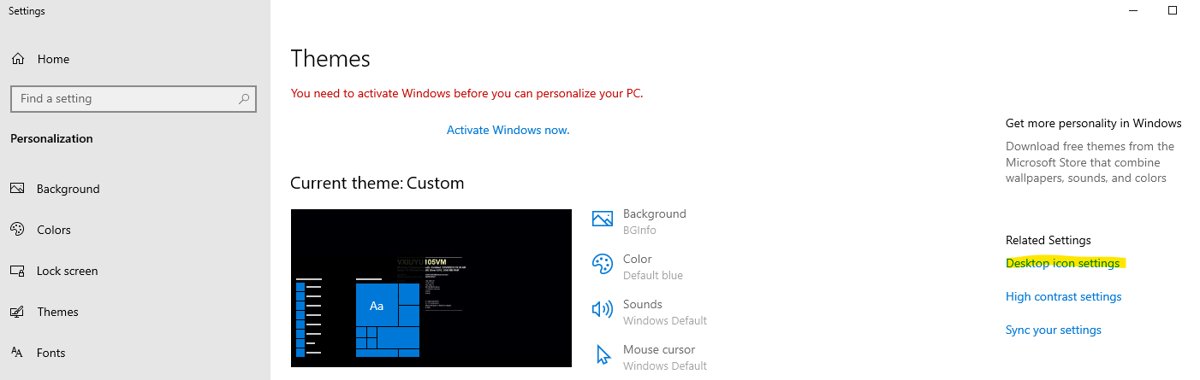
Open Settings > Personalization > Themes > Desktop icon settings, tick Network, and select OK to put the Network icon on your desktop in Windows 11 and Windows 10.
The sections below also restore the separate network icon on the taskbar, explain what each icon means, and fix the cases where a policy or a setting keeps either one hidden.
The fastest way to put the Network icon on your desktop
The same dialog exists in Windows 11 and Windows 10, so these steps work on both.
- Press Win + R, type
ms-settings:themes, and press Enter. This opens Settings > Personalization > Themes directly. - Scroll down and select Desktop icon settings.
- Tick the Network checkbox under Desktop icons.
- Select OK to close the dialog.
- Minimise your open windows. The Network icon now sits on the desktop with your other icons.
Double-click the new icon to open the Network folder, which lists the shared computers and devices your PC can see on the local network.
Which network icon do you actually want
Windows has two different things called the network icon. One is a desktop folder for browsing other devices; the other is the connection indicator on the taskbar. Match your goal to a row.
| What you want to do | Icon you need | Where to turn it on |
|---|---|---|
| Browse shared folders, NAS drives, or printers on your home network | The desktop Network icon | Themes > Desktop icon settings > Network |
| See at a glance whether you are online | The taskbar network icon | Part of Windows 11 quick settings; in Windows 10, Turn system icons on or off > Network |
| Pick a Wi-Fi network or switch airplane mode | The taskbar network icon | Select it on the right side of the taskbar |
| Reach network settings in one step | Neither; use a Run command | Press Win + R and run ms-settings:network-status |
Understanding the Network Icon in Windows
Microsoft describes the desktop Network icon as the one that "allows you to view and connect to network resources". It sits beside This PC, Recycle Bin, and your user files in the same dialog.
| Icon | Where it appears | What it shows or does |
|---|---|---|
| Network (desktop) | Desktop, once ticked in Desktop icon settings | Opens the Network folder with the devices and shared resources on your local network |
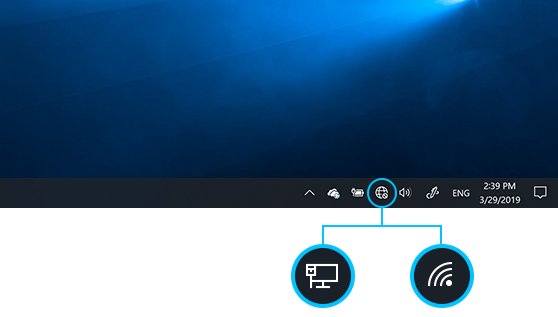
| Wi-Fi (taskbar) | Right side of the taskbar | You are connected to Wi-Fi and the internet. Its signal-strength bars move while Windows is connecting |
| Ethernet (taskbar) | Right side of the taskbar | Replaces the Wi-Fi icon when the PC is on a wired connection |
| VPN (taskbar) | Right side of the taskbar | You are connected to a recognized virtual private network |
| No internet (taskbar) | Right side of the taskbar | The device has no internet connection, even if Wi-Fi is switched on |
In Windows 11 the taskbar network icon is grouped with the sound and battery icons. Selecting any one of the three opens quick settings.
Methods to Show or Restore Network Icon on Windows 10 & 11
If you prefer to click rather than type a command, open the same dialog from the desktop right-click menu. This route works on Windows 11 and Windows 10.
- Right-click an empty area of the desktop and select Personalize.
- Select Themes on the Personalization page.
- Select Desktop icon settings on the Themes page.
- Tick Network under Desktop icons, plus any other system icon you want back.
- Select Apply, then OK.
Need the rest of the system icons back as well? The full walk-through for showing desktop icons on Windows 11 covers every checkbox, and Windows 10 users can follow showing This PC and Control Panel on the desktop.
Show the network icon on the taskbar in Windows 10
Windows 10 lets you switch the taskbar network icon off, so it can go missing after someone tidies the notification area.
- Right-click an empty part of the taskbar and select Taskbar settings.
- Scroll to Notification area.
- Select Turn system icons on or off.
- Set Network to On.
- Go back to Notification area, open Select which icons appear on the taskbar, and turn on the icons you want kept out of the overflow menu.
Where the network icon settings live in Windows 11 and Windows 10
Every page below opens from Win + R with the URI in the last column.
| Setting | Windows 11 path | Windows 10 path | Run command |
|---|---|---|---|
| Desktop Network icon | Settings > Personalization > Themes > Desktop icon settings | Settings > Personalization > Themes > Desktop icon settings | ms-settings:themes |
| Taskbar network icon | Part of quick settings; no Network switch in the list | Settings > Personalization > Taskbar > Turn system icons on or off | ms-settings:taskbar |
| Icons in the overflow menu | Settings > Personalization > Taskbar > Other system tray icons | Settings > Personalization > Taskbar > Select which icons appear on the taskbar | ms-settings:taskbar |
| Network & internet page | Settings > Network & internet | Settings > Network & Internet | ms-settings:network-status |
| Network reset | Settings > Network & internet > Advanced network settings > Network reset | Settings > Network & Internet > Status > Network reset | ms-settings:network-advancedsettings (Windows 11) |
How to check the Network icon is working
- Minimise your open windows and confirm the Network icon is visible on the desktop.
- Double-click it. File Explorer opens the Network folder.
- Check the list for your other PCs or shared devices on the same network.
- If File Explorer reports that network discovery is turned off, the icon works but discovery is off. Use the network discovery fix below.
- Glance at the right side of the taskbar and confirm the Wi-Fi or Ethernet icon is there as well.
Common Reasons for Missing Network Icon
Each cause below leaves a different trace, so match what you see before changing anything.
| What you see | Likely cause | Where to fix it |
|---|---|---|
| Network icon never appears on the desktop | The Network box in Desktop icon settings is unticked | Themes > Desktop icon settings |
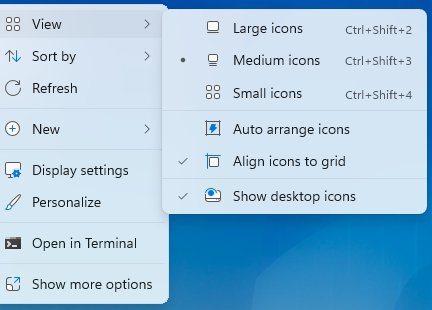
| Every desktop icon has vanished, not only Network | Show desktop icons is unticked in the desktop View menu | Right-click the desktop > View |
| The Network checkbox is ticked but no icon appears | The Hide Network Locations icon on desktop policy is enabled | Group Policy, under User Configuration > Administrative Templates > Desktop |
| The desktop is empty and cannot be changed | The Hide and disable all items on the desktop policy is enabled | Group Policy, same Desktop folder |
| No network icon on the Windows 10 taskbar | The Network system icon is switched off, or it is hidden in the overflow menu | Taskbar settings > Notification area |
| No network icon on the taskbar on a work PC | The Remove the networking icon policy is enabled | Group Policy, under User Configuration > Administrative Templates > Start Menu and Taskbar |
Additional Tips for Windows 11 Users
Windows 11 changed where the network controls sit. These tips cover what moved.
| Task | How to do it in Windows 11 |
|---|---|
| Connect to Wi-Fi from the taskbar | Select the Network, Sound, or Battery icon to open quick settings, then select Manage Wi-Fi connections on the Wi-Fi quick setting |
| Open network settings from the taskbar | Right-click the Wi-Fi or Network icon and select Network and internet settings |
| Show or hide app icons beside the clock | Taskbar settings > Other system tray icons. The System tray icons list only covers Pen menu, Touch keyboard, and Virtual touchpad |
| Make the desktop Network icon larger | Right-click the desktop > View > Large icons, or hold Ctrl and turn the mouse wheel |
| Stop a new theme from swapping the icon's look | Untick Allow themes to change desktop icons in Desktop icon settings |
| See other PCs in the Network folder | Set your home connection to Private network under Network profile type, then turn on Network discovery |
How to remove the Network icon from the desktop again
- Press Win + R, type
ms-settings:themes, and press Enter. - Select Desktop icon settings.
- Untick Network.
- Select OK. The icon leaves the desktop; the Network folder itself is untouched.
Troubleshooting Tips
Find the symptom that matches your screen and run only the steps under it.
Network icon not showing on the desktop after you tick it
Desktop icons are hidden as a whole, or a policy removes the Network icon.
- Right-click the desktop, point to View, and make sure Show desktop icons is ticked.
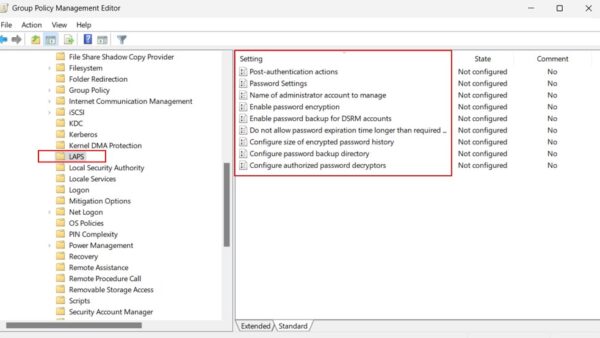
- On Windows 11 or 10 Pro, Enterprise, or Education, press Win + R, type
gpedit.msc, and press Enter. - Open User Configuration > Administrative Templates > Desktop.
- Set Hide Network Locations icon on desktop and Hide and disable all items on the desktop to Not Configured.
- Sign out and back in, then check the desktop again.
- On a work or school PC, ask the administrator instead; the policy is often set on purpose.
Network icon not showing on the taskbar
In Windows 10 the system icon is switched off or hidden; on any version the Remove the networking icon policy can hide it.
- In Windows 10, open Taskbar settings > Turn system icons on or off and set Network to On.
- In Windows 11, open Taskbar settings > Other system tray icons and check the hidden icon menu (overflow area) settings.
- Open
gpedit.mscand go to User Configuration > Administrative Templates > Start Menu and Taskbar. - Set Remove the networking icon to Not Configured.
- Restart the PC so the taskbar reloads.
The Network folder opens but shows no other computers
Network discovery is off, which Windows shows as "Network discovery is turned off" in File Explorer.
- Set the connection to Private network under Network profile type in Settings > Network & internet > Wi-Fi or Ethernet.
- In Windows 11, search Settings for
manage advanced sharing settingsand open the result. - Under Private networks, turn on Network discovery and File and printer sharing.
- In Windows 10, open Settings > Network & Internet > Sharing options and select Turn on network discovery under Private.
- Reopen the Network folder and wait a few seconds for devices to appear.
Network icon shows no internet or looks crossed out
The PC has lost its internet connection, or the adapter settings are damaged.
- In Windows 11, run the Network and Internet troubleshooter in the Get Help app.
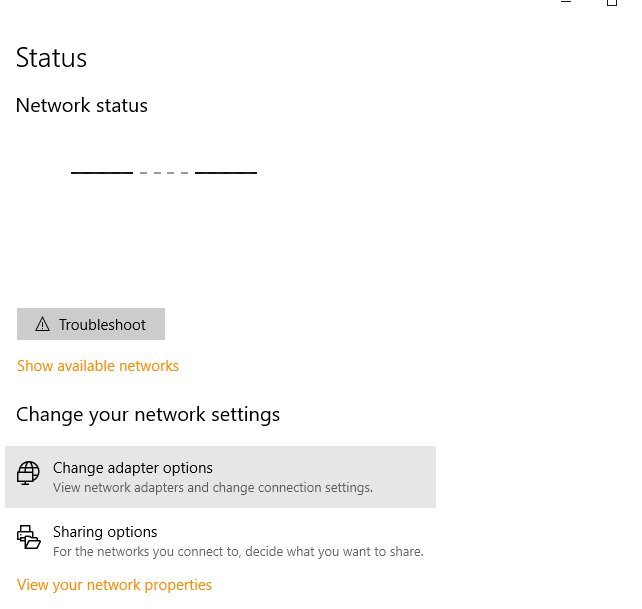
- In Windows 10, open Settings > Network & Internet > Status and select Network troubleshooter.
- If that fails, open Device Manager, expand Network adapters, right-click your adapter, and select Uninstall device with Attempt to remove the driver for this device ticked, then restart. Windows reinstalls the driver.
- As a last step, run Network reset from the path in the table above. It removes and reinstalls every network adapter after a restart and returns their settings to defaults.
Frequently Asked Questions
How do I show the network icon on the desktop?
Open Settings > Personalization > Themes > Desktop icon settings, tick Network, and select OK. The steps are identical on Windows 11 and Windows 10, and the icon appears on the desktop immediately.
How do I get the network icon on my desktop quickly?
Press Win + R, run ms-settings:themes, then select Desktop icon settings and tick Network. The command skips the Personalization page and saves two clicks on both Windows 11 and Windows 10.
How do I show the network icon on the taskbar?
In Windows 10, right-click the taskbar, select Taskbar settings, then Turn system icons on or off, and set Network to On. Windows 11 shows it with the sound and battery icons unless the Remove the networking icon policy hides it.
Where is my network icon?
The connection icon is on the right side of the taskbar, near the clock. The desktop Network icon only appears after you tick it in Desktop icon settings under Settings > Personalization > Themes.
What does the Windows network icon look like?
It changes with your connection. Windows shows a Wi-Fi icon with signal-strength bars on wireless, an Ethernet icon on a wired connection, a VPN version on a recognized VPN, and a separate no-internet icon when the connection drops.
What is my network icon for?
The taskbar network icon shows your connection state and opens the Wi-Fi list and airplane mode. The desktop Network icon opens the Network folder, which Microsoft describes as the way to view and connect to network resources such as shared PCs and printers.
Why is the network icon not showing?
On the desktop, the Network box is unticked by default, or Show desktop icons is off. On the Windows 10 taskbar, the Network system icon may be switched off. On managed PCs, the Hide Network Locations icon on desktop or Remove the networking icon policy hides it.
How do I show the network icon in the system tray?
In Windows 10, open Taskbar settings and set Network to On under Turn system icons on or off. In Windows 11, the network icon sits in quick settings with the sound and battery icons, and the System tray icons list has no Network switch.
Can I put a network icon on the desktop in Windows 11 Home?
Yes. The Desktop icon settings steps under Personalization > Themes apply to Home as well. Only the Group Policy fixes are limited, because Microsoft lists those policies for Pro, Enterprise, and Education editions.