When only part of your music lands on a new iPhone 17, turn on Sync Library, sign in with the same Apple Account, and bring back the rest from where it came from: Apple Music, the iTunes Store or your computer.
This guide matches each kind of missing song to its fix, covers transfers from a PC, a Mac and another streaming service, and explains grayed-out songs.
Music did not transfer to new iPhone 17
Music on an iPhone comes from up to four sources, and each one returns to a new phone by its own route. Find where the missing songs came from, then use that row.
| Missing songs came from | What brings them back | Where to do it |
|---|---|---|
| Apple Music subscription (added from the catalog) | Turn on Sync Library with the subscription's Apple Account, then download again | Settings > Apps > Music > Sync Library |
| Songs or albums bought in the iTunes Store | Redownload them from your purchase history | iTunes Store app > Purchased > Music > Not on This iPhone |
| CDs or files synced from a Mac | Sync again from the Mac that holds the library | Finder > your iPhone > Music |
| CDs or files synced from a Windows PC | Sync again from the PC with the Apple Devices app | Apple Devices > your iPhone > Music |
| Spotify or another streaming service | Transfer the library to Apple Music and review unmatched songs | Music app > your profile > Transfer Music from Other Services |
Start with the account check. If the iPhone 17 is signed in to a different Apple Account than the old phone, Sync Library, purchases and your subscription all stay out of reach until you switch.
Apple Music transfer to iPhone 17 with Sync Library
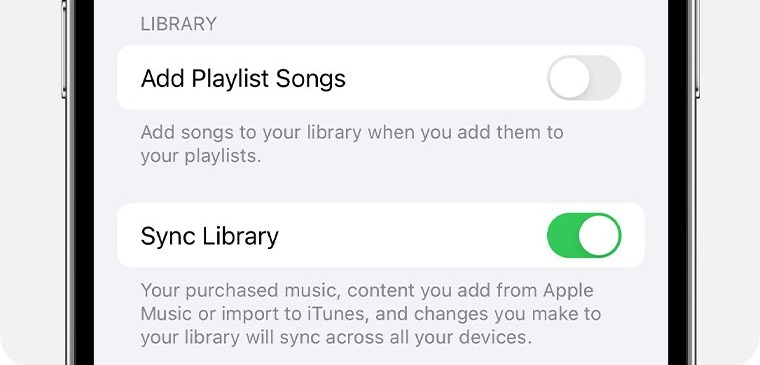
Sync Library makes your whole Apple Music library stream on every device signed in to the same Apple Account. It needs an Apple Music or iTunes Match subscription.
- Open the Music app, tap your profile or the My Account button at the top, then tap Account Settings.
- Check that the Apple Account shown is the one that pays for Apple Music on your old iPhone.
- Open the Settings app and tap Apps, then Music.
- Turn on Sync Library.
- Keep the iPhone on Wi-Fi and wait; large libraries take longer to appear.
- On the Mac or PC where the library started, update the cloud library: on Mac choose File > Library > Update Cloud Library; in Apple Music for Windows click Sidebar Actions > Library > Update Cloud Library.
No Sync Library switch means there is no Apple Music or iTunes Match subscription on the account, or the Music app is signed in with a different Apple Account. Apple Music is not a backup service, so keep a copy of any music library you built from your own files.
Transfer downloaded music to new iPhone
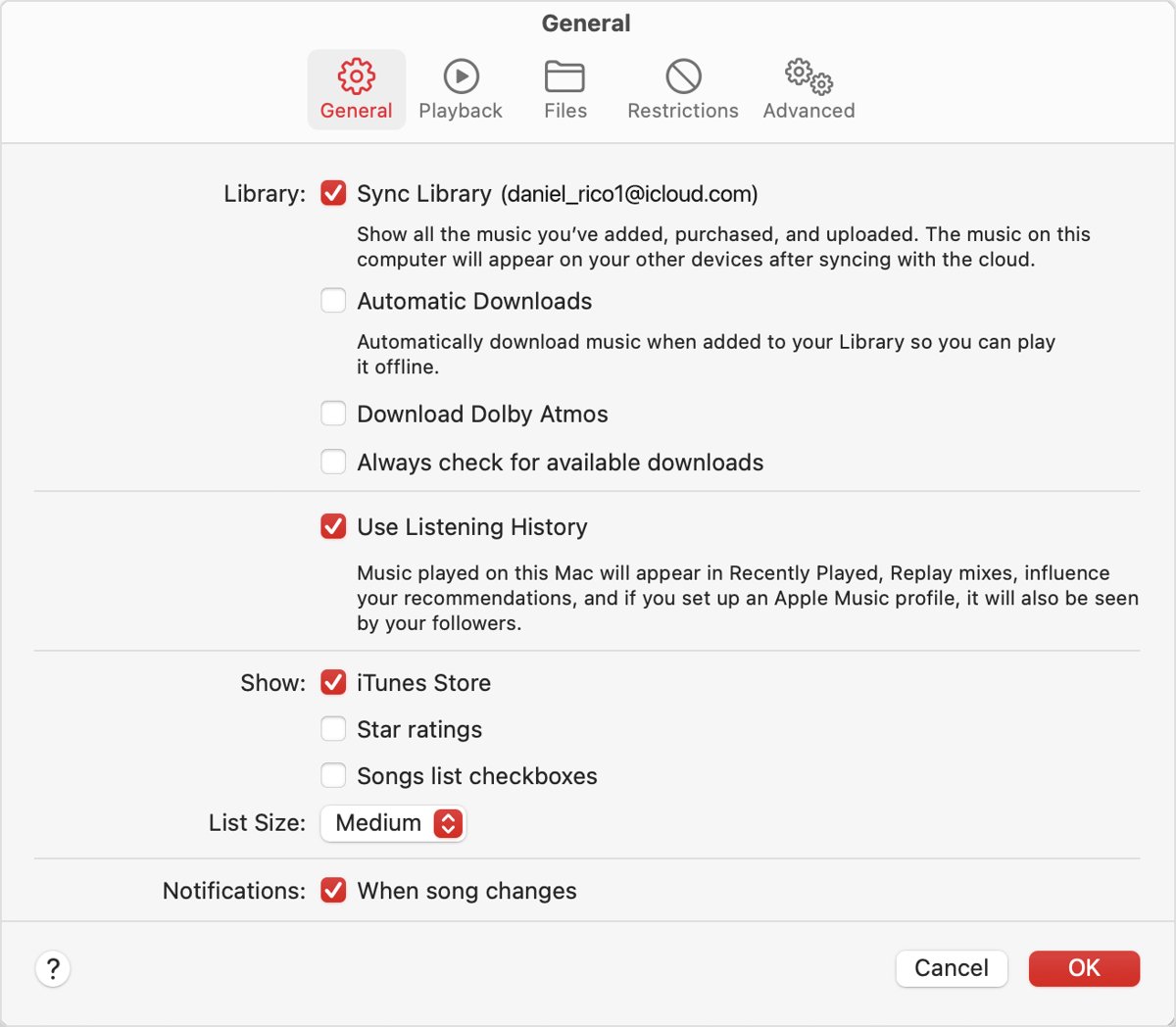
Songs can be in your library on the iPhone 17 but only available to stream. To play them offline again, download them on the new phone.
- Turn on Sync Library first; Apple Music downloads need it.
- Open the Music app and go to the Library tab.
- Touch and hold an album, playlist or song, then tap Download.
- To download everything you add from now on, open Settings > Apps > Music and turn on Automatic Downloads.
- To follow progress, tap Downloaded in the Library tab, then tap Downloading.
If downloads vanish later, check Settings > Apps > Music > Optimize Storage. With it on, the iPhone removes downloaded music you have not played in a while when storage runs low.
Redownload iTunes Store music on iPhone 17
Music bought from the iTunes Store stays tied to the Apple Account that bought it, and you can download purchased music again on the new iPhone at no charge.
- Open Settings, tap [your name], then Media & Purchases, and confirm it shows the Apple Account used for the purchases.
- Open the iTunes Store app.
- Tap Purchased, then Music. With Family Sharing, tap a family member to see their purchased music.
- Select Not on This iPhone, then select an artist.
- Tap the Download button next to each song or album.
Purchases you hid do not show in the list. Go to Settings > [your name] > Media & Purchases > Hidden Purchases, tap Unhide, then download the song.
Transfer music from PC to iPhone 17
Songs you ripped from CDs or copied from files live on your computer, so they come back by syncing from it. On Windows this needs the Apple Devices app and the Apple Music app for Windows.
- Connect the iPhone 17 to the PC with a USB-C cable.
- Open the Apple Devices app and select your iPhone in the sidebar.
- Select Music in the sidebar.
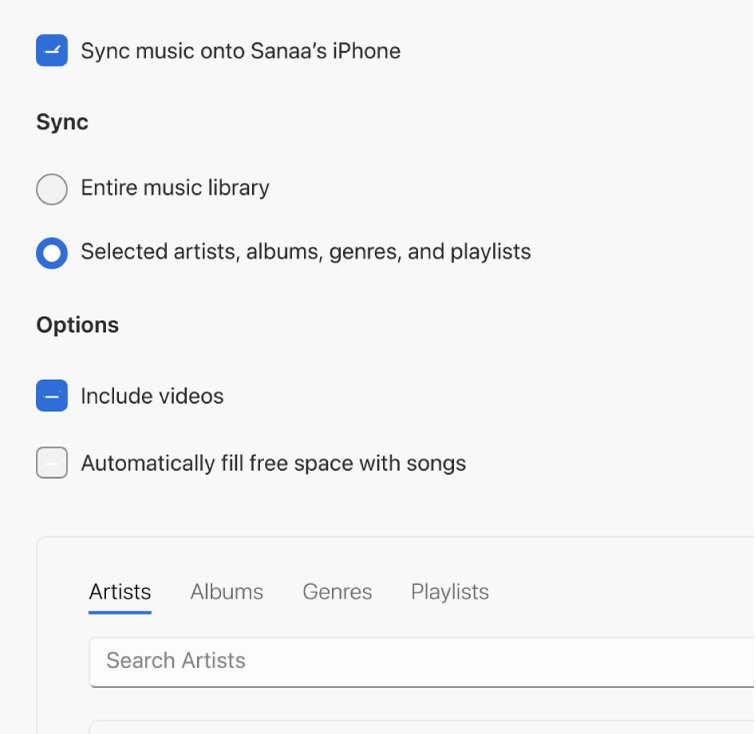
- Select the Sync music onto [device name] checkbox.
- Choose Entire music library, or Selected artists, albums, genres, and playlists and tick the items you want.
- Select Apply and wait for the sync to finish.
- Select the Eject button in the sidebar before you unplug the iPhone.
If you subscribe to Apple Music with Sync Library on, Apple Devices does not sync music, because the library already arrives through iCloud. Turn Sync Library off in the Apple Music app settings to sync music by cable instead.
Transfer music from Mac to iPhone 17
On a Mac, syncing runs through Finder. The first sync needs a cable; after that you can set it up to sync over Wi-Fi.
- Connect the iPhone 17 to the Mac with a USB-C cable.
- Click the Finder icon in the Dock, then select the iPhone in the Finder sidebar.
- Click Music in the row near the top.
- Select Sync music onto [device name].
- Choose your entire library, or click Selected artists, albums, genres, and playlists and tick each item.
- Click Apply.
- Click the eject button next to the iPhone in the Finder sidebar before you disconnect it.
When you use Apple Music, Finder shows no syncing options under Music, because the library syncs through iCloud. In that case use Sync Library instead.
How to transfer to new iPhone 17 with Quick Start
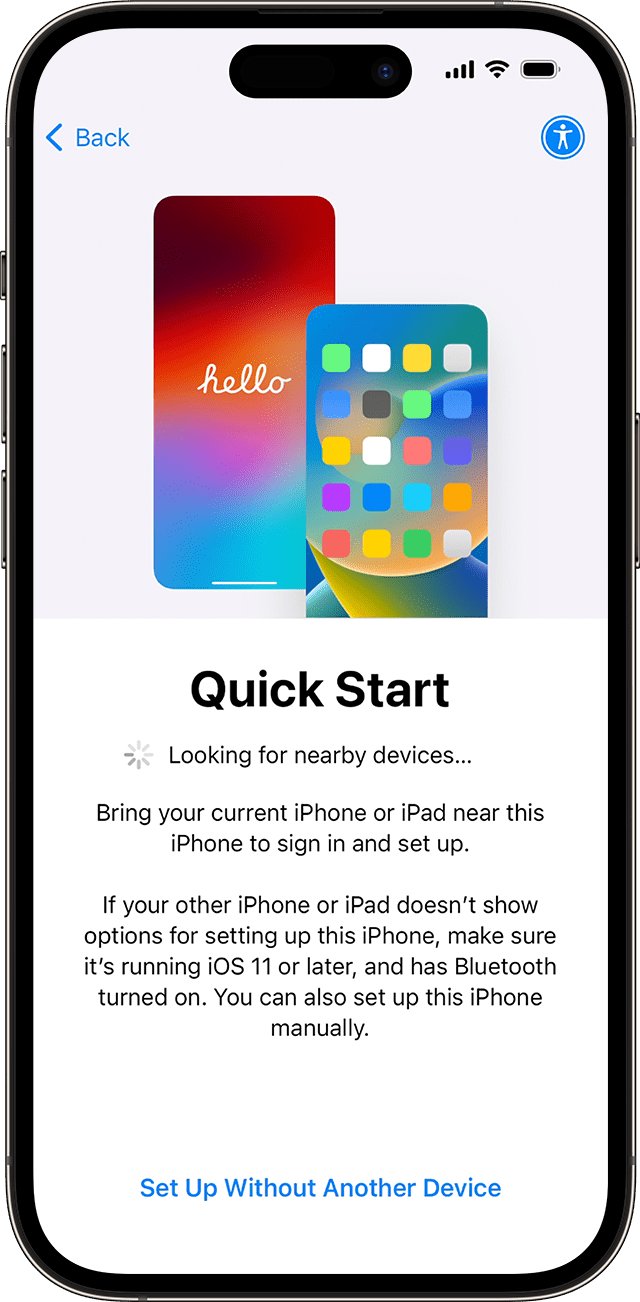
If the move from the old iPhone was interrupted, part of the music library never arrives. Quick Start moves data from an iPhone running iOS 11 or later and occupies both phones for several minutes.
- Update the old iPhone to the latest iOS, connect it to Wi-Fi and turn on Bluetooth.
- Unlock the old iPhone and go to the Home Screen.
- Turn on the iPhone 17 and place it next to the old phone.
- Follow the onscreen instructions, then connect to Wi-Fi or your cellular network.
- Set up Face ID and choose how to transfer your data.
- Keep both phones close together and plugged in to power until the migration finishes.
Choosing to download from iCloud lets you use the iPhone 17 straight away while apps and data finish in the background, so music can still be arriving. Transferring directly from the old phone makes you wait until both phones finish. If setup freezes, fix an iPhone 17 transfer stuck on setup before you start over.
Transfer music from other music services to Apple Music on iPhone 17
Moving a Spotify-style library into Apple Music is where the "not all imported" message is literal. Apple matches each song to its catalog, and songs with no match are held back for review.
- Check the iPhone runs iOS 18.4 or later and that Sync Library is on in Settings > Apps > Music.
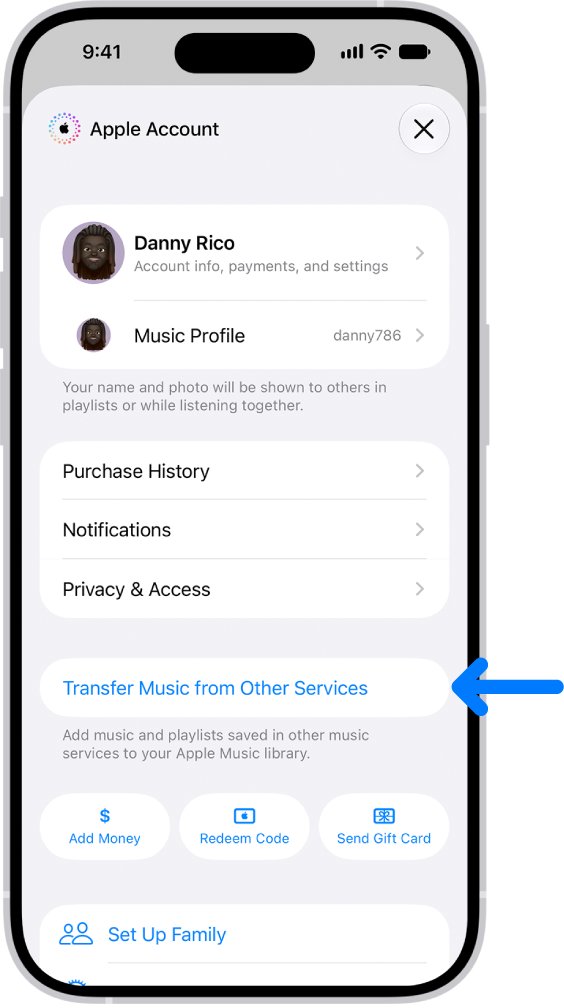
- Open the Music app and tap your profile.
- Tap Transfer Music from Other Services, select the service and sign in to it.
- Choose all items or selected items, then tap Add to Library.
- If Some Music Needs Review appears, tap Review Now at the top of the Library tab.
- For each song, pick an alternate version, or tap Ignore to skip it.
Songs with no alternates are listed under Not Available at the bottom of the Review Alternates screen. You can reopen the review later from Settings > Apps > Music > Review Current Transfer. Nothing is removed from the other service.
How to see which songs are downloaded on iPhone 17
Use these views to tell streamed songs from downloaded ones, and to see what is still missing.
- Open the Music app, go to the Library tab and tap Downloaded to list everything stored on the iPhone.
- Tap Downloading to see songs still in progress.
- Open Settings > Apps > Music > Downloaded Music to see the total by artist.
- Compare the song count with the old iPhone or your computer library.
- Turn on Airplane Mode briefly and play a few songs; only downloaded songs play.
Songs missing or grayed out on new iPhone 17
Songs are grayed out
Your content restrictions are set to Clean, the song is hidden, or it was bought with another Apple Account.
- Set the music content restriction in Screen Time to Explicit if explicit songs are the ones grayed out.
- Unhide the song in Media & Purchases > Hidden Purchases.
- Sign in to the Apple Account that bought the song.
Songs say No Longer Available
The song was removed from the Apple Music catalog.
- Search the Music app for another version of the same song.
- Add the new version to your library.
- Delete the old grayed-out entry from your library.
Songs from your computer never show on the iPhone
The Cloud Status on the original computer shows an exclamation point (file not found) or Waiting (not yet uploaded).
- In the Apple Music app on the computer, select Songs in the sidebar.
- On Mac, choose View > Show View Options; on Windows, right-click the headings bar. Select Cloud Status and Cloud Download.
- For an exclamation point, click it, then click Locate and point to the file.
- For Waiting, keep the computer online and run Update Cloud Library.
- If a song still does not sync, delete it and import it again from the original source.
"This item is not currently available in your country or region"
The catalog version of the song is not offered in your region, or the account or device is out of date.
- Search for the song to see whether it is available.
- If it is, delete the grayed-out copy and add the song again.
- Update the iPhone, confirm the right Apple Account and turn on Sync Library.
Download button missing or grayed out for a purchase
The song is already in the Music app, or the Media & Purchases sign-in is stale.
- Search the Music app for the song before redownloading.
- Open Settings > [your name] > Media & Purchases, tap Sign Out, then tap Media & Purchases and Continue to sign back in.
- Expect downloaded Apple content to be removed by the sign-out; download it again afterwards.
Music is still missing after all of the above
Sync Library needs a fresh pass on every device.
- Confirm every device uses the same Apple Account and is online.
- Turn Sync Library off and on again on each device.
- Download your music again, since turning Sync Library off removes downloaded songs.
If photos are missing from the iPhone 17 as well, bring back photos iCloud did not transfer once the music library is complete.
iPhone 17 music transfer FAQ
How do I transfer music to iPhone 17?
Turn on Sync Library in Settings > Apps > Music if you use Apple Music, redownload iTunes Store purchases from the iTunes Store app, and sync songs from your own files with Finder on a Mac or the Apple Devices app on Windows.
How do I transfer to a new iPhone 17?
Use Quick Start. Put the old iPhone, with Wi-Fi and Bluetooth on, next to the new iPhone 17, follow the onscreen prompts, and choose to transfer from iCloud or directly from the old phone. Keep both phones plugged in until the move finishes.
How do I transfer music to a new iPhone?
Sign in with the same Apple Account, turn on Sync Library for Apple Music, and download the songs again. Purchased songs come back from the iTunes Store's Purchased list, and songs from your own files come back by syncing with the computer that holds them.
How do I put music on iPhone 17?
Add songs from Apple Music and tap Download, buy them in the iTunes Store, or sync your own files from a computer. On Windows, open the Apple Devices app, select Music and choose Sync music onto your iPhone. On a Mac, use Finder.
How do I transfer music to iPhone 16?
The steps are the same as on iPhone 17: Sync Library for Apple Music, the iTunes Store Purchased list for bought songs, and Finder or the Apple Devices app for songs from your own files. Both models use the same Music settings in Settings > Apps > Music.
Can you transfer music from iPhone to iPhone?
Yes. Quick Start moves your data from the old iPhone, and Sync Library brings your Apple Music library to the new one. Songs from CDs or files that only exist on a computer are safest to restore by syncing again from that computer.
Why did my music not transfer to my new iPhone?
The usual reasons are Sync Library being off, a different Apple Account on the new phone, songs that were never uploaded from your computer, or a transfer still running in the background. Check the account first, then turn on Sync Library and update the cloud library.