To fix no internet after Windows 11 26H2, run the Network and Internet troubleshooter, then reset TCP/IP and renew the IP address from an administrator Command Prompt; if that fails, update or roll back the network adapter driver and use Network reset last.
Microsoft lists no Wi-Fi or Ethernet known issue for 26H2 as of September 30, 2026, so this guide covers the fixes Microsoft documents for Windows 11, in the order that solves most cases fastest.
The fastest fix for no internet after 26H2
These five steps clear most connections that dropped after the 26H2 update. Check whether the internet works after each one.
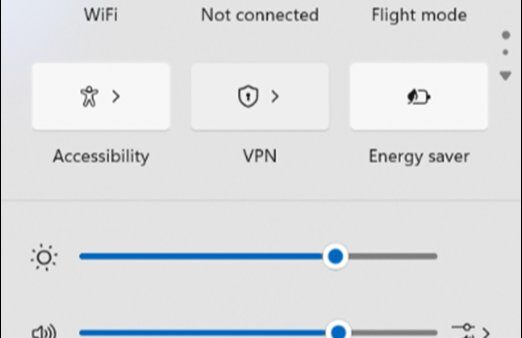
- Select the Network, Sound or Battery icons on the taskbar and make sure Wi-Fi is on and Airplane mode is off.
- Unplug the router and modem, wait at least 30 seconds, plug the modem in, wait for its lights to settle, then plug the router in.
- Type command prompt in the taskbar search box and select Run as administrator > Yes.
- Run
netsh winsock reset,netsh int ip reset,ipconfig /release,ipconfig /renewandipconfig /flushdns, one at a time, in that order. - Restart the PC from Start > Power > Restart.
If the PC still shows No Internet, match your symptom in the table below. On a PC that just upgraded, the 26H2 known issues list shows whether Microsoft has since confirmed a network bug.
What Microsoft has confirmed about 26H2 and networking
26H2 installs on 24H2 and 25H2 PCs as a small enablement package, so it rarely replaces network drivers on its own. Microsoft's release health page is the place a real 26H2 network bug would appear.
| Item | Status on September 30, 2026 |
|---|---|
| Wi-Fi or Ethernet known issue in 26H2 | None listed on the 26H2 release health page |
| Domain-joined PCs losing trust with the domain | Listed and mitigated; affects Credential Guard machine accounts, not home internet |
| Apps say "It doesn't look like you're connected to the Internet" while online | A 24H2 and 25H2 Microsoft account sign-in bug, resolved by the March 21, 2026 update KB5085516 and later updates |
| Windows 11 24H2 Wi-Fi DHCP reports | Not acknowledged on Microsoft's 24H2 resolved issues page |
| 26H2 network-related changes | Bluetooth reliability and USB4 dock display improvements; no Wi-Fi changes listed |
A full upgrade from Windows 10 or Windows 11 23H2 does reinstall Windows, which is when adapter drivers are most likely to change. The 26H2 upgrade paths explain which kind of install a PC received.
Which fix matches your symptom
| What you see | Likely cause | Start with |
|---|---|---|
| Connected, but No Internet under the network name | No IP address from the router, a DNS fault or a proxy | Reset TCP/IP and renew the IP address |
| IP address starts with 169.254 | Windows could not get an address from the router's DHCP server | The DHCP fix section |
| Wi-Fi option is missing | Adapter disabled or its driver failed to load | Update the network adapter driver |
| Worked before the update, fails after | A new driver or changed adapter settings | Roll back the driver |
| Only one saved network fails | A damaged saved profile or a changed password | Forget and reconnect |
| Nothing else worked | Adapter settings beyond repair | Network reset |
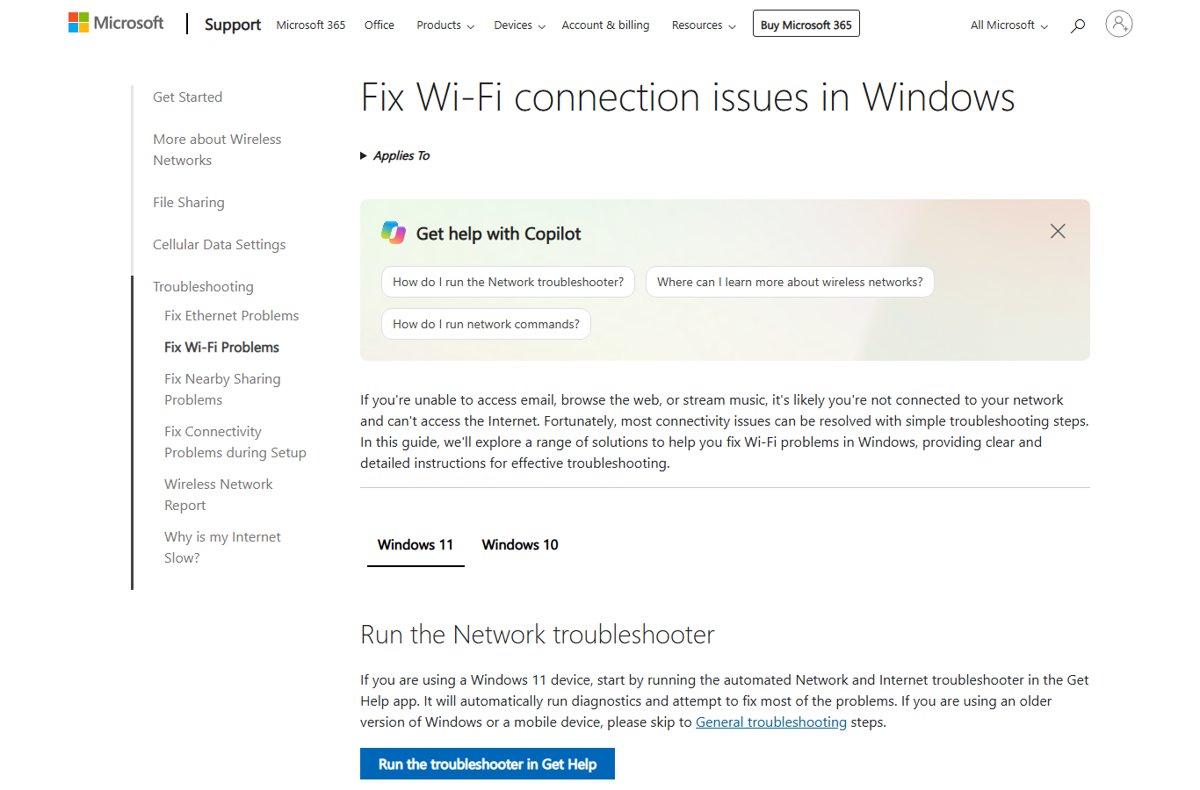
Fix Wi-Fi using Get Help
Microsoft recommends starting with the automated Network and Internet troubleshooter in the Get Help app on Windows 11. It runs diagnostics and attempts to fix most connection problems on its own.
- Type Get Help in the taskbar search box and open the app.
- Search for Network and Internet troubleshooter.
- Start the troubleshooter and answer its questions about the connection.
- Apply each fix it suggests, then test a website.
Get Help needs a working connection for some answers. If it cannot load, move on to the command-line reset below, which works offline.
Fix Wi-Fi using new network connection
Forgetting the network deletes its saved profile, so the next connection starts fresh. Have the Wi-Fi password ready first.
- Open Settings and select Network & internet > Wi-Fi.
- Select Manage known networks.
- Select your Wi-Fi network and select Forget.
- Select the Network, Sound or Battery icons on the taskbar, then Manage Wi-Fi connections on the Wi-Fi quick setting.
- Choose the network, select Connect, type the password and select Next.
If the router broadcasts both a 2.4 GHz and a 5 GHz network, try connecting to the other band. Some adapters support only 2.4 GHz.
Reset TCP/IP and renew the IP address
These commands reset the TCP/IP stack, release and renew the IP address, and flush the DNS client cache. Run them from Command Prompt opened with Run as administrator, one line at a time.
netsh winsock reset
netsh int ip reset
ipconfig /release
ipconfig /renew
ipconfig /flushdns
The netsh commands return Winsock and TCP/IP settings to defaults. ipconfig /release and /renew ask the router for a new IP address, and /flushdns clears cached name lookups that may point to the wrong server.
You should see: ipconfig /renew lists an IPv4 address that does not start with 169.254, and websites load after a restart.
Also open Settings > Network & internet > Proxy and turn off any manual proxy setting you did not add on purpose.
How to fix the Windows 11 24H2 Wi-Fi DHCP issue
Reports that 24H2 PCs failed to get an address over Wi-Fi never appeared as a known issue on Microsoft's release health pages. 26H2 shares the 24H2 core, so the check and fix are the same on both versions.
An address starting with 169.254 means Windows could not get an IP address from the router.
- Open an administrator Command Prompt and type
ipconfig, then press Enter. - Find the Wi-Fi adapter and read its IPv4 address.
- If it starts with 169.254, run
ipconfig /releaseand thenipconfig /renew. - If the address still starts with 169.254, confirm that DHCP is enabled on the router, using the router's own documentation.
- Restart the router and the PC, then run
ipconfigagain to check for a normal address.
If the PC has a valid address but pages still fail, run ipconfig /all | findstr /c:"DNS Servers" and ping the DNS server it lists. No reply means the DNS server setting needs to change.
Fix Wi-Fi updating network adapter driver
Microsoft suggests uninstalling the adapter driver when a connection stopped working after a recent update; Windows reinstalls a driver on restart. Download the latest driver from the PC maker's site first, on another device if needed, and copy it to a USB drive.
- Type device manager in the taskbar search box and open Device Manager.
- Expand Network adapters and right-click your Wi-Fi or Ethernet adapter.
- Select Uninstall device, check Attempt to remove the driver for this device, and select Uninstall.
- Select Start > Power > Restart.
- After the restart, check whether Windows installed the driver; if not, install the backup driver from the USB drive.
Wired adapters have their own quirks, including 26H2 Ethernet driver problems.
Fix Wi-Fi using rollback feature
If the problem started with a new driver, reverting to the previous one often restores the connection. Roll Back Driver is available only when a previous driver version exists.
- Open Device Manager and expand Network adapters.
- Right-click the Wi-Fi or Ethernet adapter and select Properties.
- Select the Driver tab, then select Roll Back Driver.
- Confirm the prompt and restart the PC.
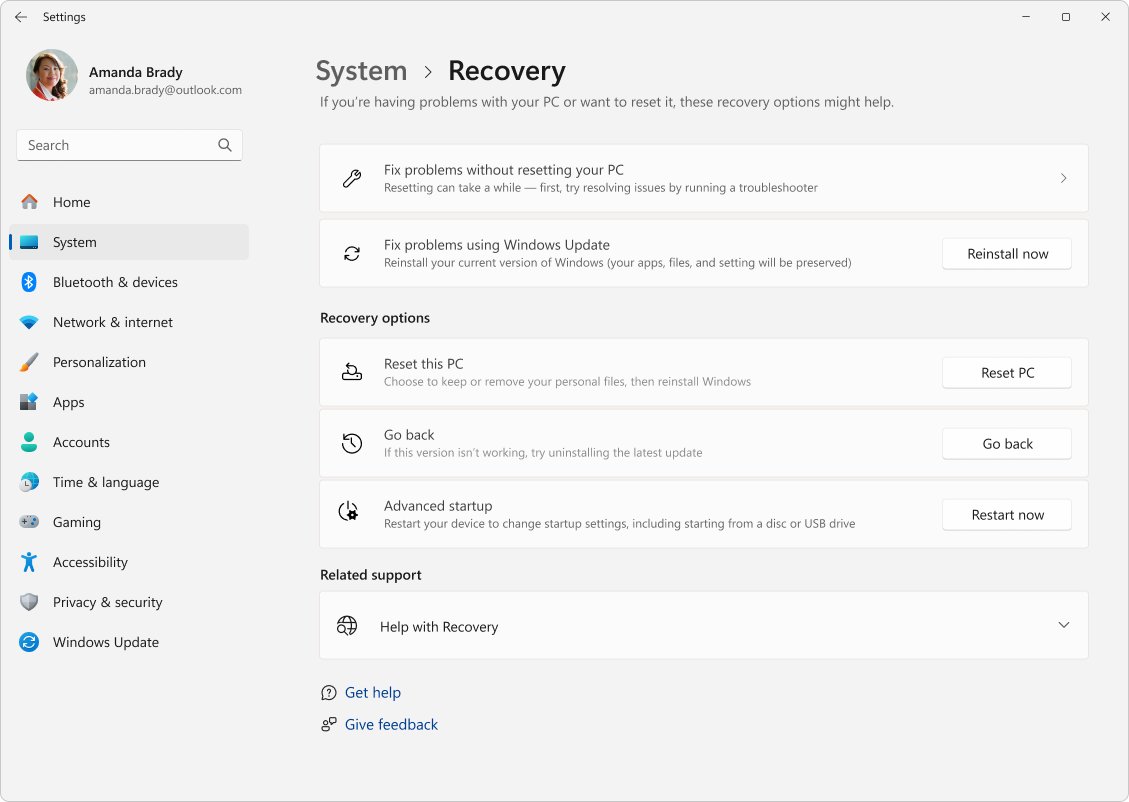
After a full upgrade from Windows 10 or 23H2, Settings > System > Recovery > Go back returns the whole PC to the previous version, usually within 10 days.
Fix Wi-Fi using Network reset
Microsoft calls Network reset the last step to try. It removes every network adapter and its settings, then reinstalls them with defaults after a restart. VPN clients and Hyper-V virtual switches may need to be set up again, and known networks may switch to the public profile.
- Select Start, type settings and open Settings.
- Select Network & internet > Advanced network settings.
- Select Network reset.
- Select Reset now, then Yes to confirm.
- Wait for the PC to restart, then reconnect to Wi-Fi with its password.
Microsoft notes Network reset also helps with connection problems after upgrading from Windows 10 to Windows 11, which is the full-upgrade route to 26H2.
How to check the connection is fixed
- Open Settings > Network & internet and confirm Connected appears under the network name.
- In an administrator Command Prompt, run
ipconfigand note the Default gateway address. - Run
pingfollowed by that address, for exampleping 192.168.1.1. - Replies with 0% loss mean the PC reaches the router; if websites still fail, the problem is the modem or the internet provider.
If the router does not reply, connect the PC straight to the modem with an Ethernet cable. A working wired connection points to the Wi-Fi router.
Fix other 26H2 network symptoms
The Wi-Fi option is missing
The adapter is disabled, switched off by hardware, or its driver did not load.
- Check for a physical Wi-Fi switch on the laptop and turn it on.
- In Device Manager, expand Network adapters, right-click the Wi-Fi adapter and select Enable device.
- Press Win + R, type
services.msc, right-click WLAN AutoConfig and select Restart. - If no wireless adapter is listed, install the driver from the PC maker's website.
Wi-Fi keeps dropping
Power saving turns the adapter off, or the router channel has interference.
- In Device Manager, open the Wi-Fi adapter's Properties > Power Management tab.
- Clear Allow the computer to turn off this device to save power.
- In Control Panel > Hardware and Sound > Power Options, select Change plan settings > Change advanced power settings.
- Expand Wireless Adapter Settings and set Power Saving Mode to Maximum Performance.
No Wi-Fi networks are found
Wi-Fi is off, or the adapter does not allow the band the router uses.
- Open Settings > Network & internet and make sure Wi-Fi is on.
- In Device Manager, open the wireless adapter's Properties and select the Advanced tab.
- Find a Wireless Mode or Band setting and make sure it allows the router's frequency.
Ethernet shows "Action needed" or will not connect
A loose cable, the wrong router port, or a failed driver.
- Check the cable is in a LAN port on the router, not the Internet port, and try another cable.
- Open Settings > Network & internet and select Ethernet to read the error.
- Run the TCP/IP reset commands above, then reinstall the adapter driver if needed.
Teams, OneDrive or Edge say there is no internet while the browser works
A Microsoft account sign-in bug on 24H2 and 25H2, fixed by the March 21, 2026 update KB5085516 and later.
- Open Settings > Windows Update and install every available update.
- Restart the PC while it stays connected to the internet.
If the PC also feels sluggish since the update, see 26H2 running slow after the update. If the problem started with a broken install, repairing 26H2 without losing files reinstalls the current version.
Frequently asked questions
Does Windows 11 26H2 have known network problems?
Not as of September 30, 2026. Microsoft's 26H2 release health page lists three mitigated issues: USB audio devices, domain trust on Credential Guard machine accounts, and a black screen in virtual desktops. None of them affects Wi-Fi or Ethernet internet access.
Why does Windows 11 say No Internet when Wi-Fi is connected?
Windows checks for internet access by sending a small HTTP request to a server online. If no reply comes back, it shows No Internet even though the PC is on the local network. The usual causes are a missing IP address, a DNS problem or a proxy setting.
What does a 169.254 IP address mean?
An address starting with 169.254 means Windows could not get an IP address from the router. Run ipconfig /release and ipconfig /renew from an administrator Command Prompt, and confirm DHCP is enabled on the router if the address does not change.
How do I roll back a network driver after the 26H2 update?
Open Device Manager, expand Network adapters, right-click the adapter and select Properties. On the Driver tab, select Roll Back Driver and restart. The option is available only when a previous driver version exists on the PC.
What does Network reset delete?
Network reset removes every installed network adapter and its settings, then reinstalls the adapters with default settings after a restart. VPN software and Hyper-V virtual switches may need to be set up again, and known networks may be set to the public profile.
Should I uninstall 26H2 to fix no internet?
Try the driver rollback and Network reset first, because 26H2 on a 24H2 or 25H2 PC is a small enablement package that rarely changes network drivers. After a full upgrade from Windows 10 or 23H2, Go back in Settings > System > Recovery is available for about 10 days.
Why do Teams and OneDrive say I'm offline when the internet works?
That matches a Microsoft account sign-in bug on 24H2 and 25H2 that showed "It doesn't look like you're connected to the Internet". Microsoft fixed it in the March 21, 2026 update KB5085516; install the latest updates and restart while connected.



Windows 11 26H2 Ethernet driver problems: how to fix - Techdows
[…] a problem that hits Wi-Fi as well, work through the 26H2 no internet fixes […]