On Windows 10, open Settings > Gaming > Xbox Networking to see whether your PC can reach Xbox multiplayer servers.
This guide covers what the page reports, the matching route on Windows 11, how to check the Xbox network status, and fixes for the Blocked and Teredo is unable to qualify results.
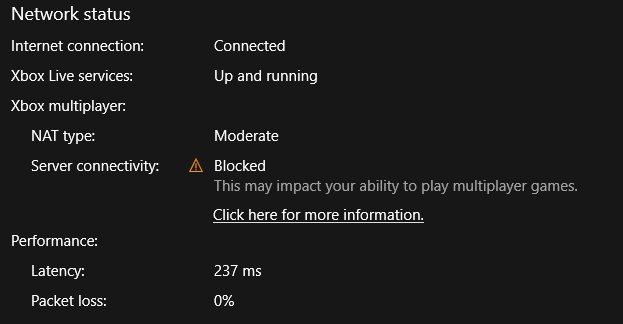
Open Xbox Networking settings in Windows 10
Xbox Networking is a page inside the Windows 10 Settings app, so there is nothing to install.
- Press the Windows logo key and select Settings (the gear icon).
- Select Gaming.
- Select Xbox Networking in the left pane.
- Wait for the checks to finish, then read NAT type and Server connectivity.
- If either result shows a problem, select Fix it at the bottom of the page.
The page runs its checks each time it opens, so reopening it after a change gives you a fresh result.
Where is Xbox Networking in Windows 11 and Windows 10?
Microsoft documents the Xbox Networking page, and its Fix it button, for Windows 10 only. For the same multiplayer connection problem on Windows 11, Microsoft's Xbox support sends you to a network reset instead.
| Your Windows version | Where to go | What you get |
|---|---|---|
| Windows 10 | Settings > Gaming > Xbox Networking | NAT type, server connectivity and a Fix it button |
| Windows 11 | Settings > Network & internet > Advanced network settings > Network reset | Microsoft's documented fix when Xbox multiplayer server connectivity is blocked |
| Either version | The Xbox status page on support.xbox.com | Whether Xbox services such as Multiplayer gaming are down for everyone |
Things you can access under Xbox Networking settings
The results matter most for games that use Teredo, a protocol that lets devices behind a home router reach each other. Microsoft names Forza Horizon 3 and Forza Horizon 4 as examples of games that use Teredo IPsec connections for Xbox multiplayer.
| Item on the page | What it tells you | What a bad result means |
|---|---|---|
| NAT type | Whether your PC obtained a Teredo address for multiplayer | Teredo is unable to qualify means no Teredo IP address, so multiplayer fails in games that need it |
| Server connectivity | Whether your PC can open a Teredo IPsec connection to the Xbox Quality of Service (QoS) server | Blocked means that connection could not be made |
| Fix it button | Runs Windows' automatic repair for the Teredo problems the page found | Use it before any manual fix; it is Microsoft's second recommended step |
Teredo IPsec is only required for multiplayer in select titles. If your game does not use the Xbox network, its own support site is the right place for connection help.
Check your Xbox multiplayer connection on Windows 11
Network reset removes every network adapter and resets its settings to defaults, then reinstalls the adapters after a restart. Save your work first, because the PC restarts.
- Press the Windows logo key and select Settings.
- Select Network & internet.
- Select Advanced network settings.
- Select Network reset.
- Select Reset now, then Yes to confirm.
- Let the PC restart, sign in, and start the multiplayer game again.
After a network reset in Windows 11, reinstall or reconfigure any VPN client, because the reset removes its adapter. Known networks may also switch to the Public profile.
Check whether your PC is connected to the internet
Xbox Networking cannot pass while Windows itself is offline, so confirm the basic Windows internet connection first.
- Select the Network, Sound or Battery icon on the right side of the taskbar.
- Make sure Wi-Fi is on and your network shows Connected below its name.
- Open Settings > Network & internet and read the connection status at the top of the page.
- Open Network & internet > Airplane mode and make sure the toggle is Off.
- Try the same network on a phone or another PC; if that device connects, the problem is on your PC.
The network adapter settings page in Control Panel shows whether your Ethernet or Wi-Fi adapter is enabled when the taskbar shows no network at all.
Check your network profile and metered connection
Windows sets a new network to Public by default, which hides the PC from other devices. A metered connection limits how much data apps and services use, so some apps behave differently on it.
- Open Settings > Network & internet.
- Select Wi-Fi and then the network you are connected to, or select Ethernet for a cable connection.
- Under Network profile type, choose Public network (Recommended) or Private network for a trusted home network.
- On the same screen, turn Metered connection off if you do not pay for data by usage.
- If Metered connection is greyed out, the setting is managed by your organization and you cannot change it.
Restart your network connection if networking isn't working
Work through these in order and recheck Xbox Networking (Windows 10) or rejoin the game (Windows 11) after each fix.
Xbox can't connect to Xbox network on PC: no internet at all
The modem or router has lost its connection to your internet provider.
- Unplug the power cable from the router, and from the modem if it is a separate box.
- Wait at least 30 seconds, then plug the modem back in and wait for its lights to settle.
- Plug the router back in and wait for it to finish starting.
- Reconnect your PC and reopen the game.
Connected to the internet, but Xbox network still fails
A damaged TCP/IP stack, stale IP lease or old DNS cache.
- Select Search on the taskbar and type command prompt.
- Select Run as administrator > Yes.
- Run
netsh winsock reset, thennetsh int ip reset. - Run
ipconfig /release, thenipconfig /renew. - Run
ipconfig /flushdns, then restart the PC.
NAT type shows "Teredo is unable to qualify"
The Teredo adapter has a problem, a device on the network blocks Teredo, or a program has disabled it.
- Confirm the PC has a working internet connection.
- On Windows 10, select Fix it on the Xbox Networking page.
- Press Windows key + R, type
services.mscand press Enter. - Find IP Helper and make sure its status is Running; if not, right-click it and select Start.
- Disconnect any VPN client and try again, since a connected VPN or its network adapter can block Teredo.
Server connectivity shows "Blocked"
The PC could not establish a Teredo IPsec connection to the Xbox QoS server.
- Fix any Teredo is unable to qualify result first, then check Server connectivity again.
- Make sure Windows Defender Firewall is turned on with its default policy active.
- Check that the PC's date and time are correct.
- On Windows 11, run Network reset from Settings > Network & internet > Advanced network settings.
Is Xbox network down or having issues?
An outage on Microsoft's side, which no PC fix can solve.
- Open the Xbox status page at support.xbox.com/en-US/xbox-live-status.
- Check Multiplayer gaming and Devices & networking for Limited or Major outage.
- If a service is listed as limited or down, wait for it to return to Up and running before changing settings.
Xbox Networking on Windows FAQ
Where is Xbox Networking on Windows 11?
Microsoft documents the Xbox Networking page for Windows 10, not Windows 11. For a blocked Xbox multiplayer connection on Windows 11, Microsoft's Xbox support points to Settings > Network & internet > Advanced network settings > Network reset.
Where is Xbox Networking in Windows 10?
Open Settings, select Gaming, then select Xbox Networking in the left pane. The page checks your NAT type and server connectivity and offers a Fix it button when it finds a problem.
How do I connect to the Xbox network on PC?
Sign in to the Xbox app for Windows with your Microsoft account while the PC is online. Many Xbox features in Game Bar, including party chat, need the Xbox app installed and signed in.
What is the Xbox network?
The Xbox network, also known as Xbox Live, is Microsoft's online gaming service. It handles friends, presence, achievements, multiplayer and matchmaking across Xbox consoles and Windows PCs.
Is the Xbox network down today?
Check the Xbox status page on support.xbox.com. It lists each service area, such as Multiplayer gaming and Account & profile, as Up and running, Limited or Major outage, and shows when it was last updated.
Is Xbox network having issues or is it my PC?
If the Xbox status page shows every service up and running, the problem is local. Check your internet connection, then Xbox Networking on Windows 10, or run a network reset on Windows 11.
Why is Xbox not working on my PC?
For games that will not install or launch, Microsoft suggests checking Xbox status, signing in again and restarting, running the Gaming Services Repair Tool, and updating Windows. If the Xbox app itself fails, reinstall it from the Microsoft Store.
Bottom line: when to use Xbox Networking
On Windows 10, open Settings > Gaming > Xbox Networking and press Fix it whenever multiplayer or party chat fails; on Windows 11, check Xbox status and then use Network reset. These are the routes Microsoft documents for each version, and they target the Teredo connection that select Xbox multiplayer games depend on.