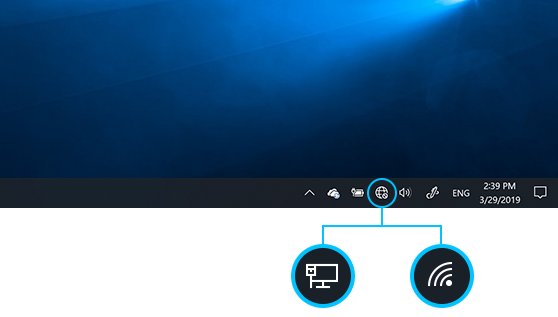
Select the network icon on the taskbar, pick your Wi-Fi network, select Connect, type the password and select Next.
The same job takes three clicks on a Mac, and the sections below cover hidden networks, public hotspots, proof that the connection works, and the fixes for the errors that stop it.
The fastest way to connect a computer to Wi-Fi
These four steps finish the job on Windows 11. A reader who stops here is online.
- Select the Network, Sound or Battery icons on the taskbar to open quick settings.
- On the Wi-Fi quick setting, select Manage Wi-Fi connections.
- Choose the Wi-Fi network you want, then select Connect. Select Refresh network list at the lower right if the network is not listed yet.
- Type the network password, then select Next.
The network name shows Connected underneath it once the handshake finishes.
What You Need Before Connecting to Wi-Fi
Four things have to be true before any computer joins a wireless network.
| What you need | Where it comes from | How to check it |
|---|---|---|
| The network name (SSID) | Set on the router. Manufacturers ship a default SSID printed on the router label. | Look at the label on the router, or read the name from the list of available networks. |
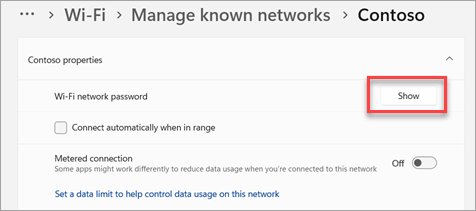
| The network security key | The Wi-Fi password set on the router, also printed on the label until someone changes it. | On a Windows PC already on that network, open Settings > Network & internet > Properties and select Show next to Wi-Fi network password. |
| A wireless network adapter | Built into most laptops and tablets, and into some desktops. Desktops without one need a USB or PCIe adapter. | Select Start, type device manager, open Device Manager, expand Network adapters and look for an entry with *wireless* in its name. |
| A working router and broadband line | Your internet service provider supplies the modem; the router shares that line over radio instead of cable. | Check the router status lights, and confirm a phone or second laptop can reach the internet on the same network. |
Router position matters for signal. Microsoft advises a central spot, off the floor and away from walls and metal objects, because 2.4 GHz equipment shares its frequency with microwaves and many cordless phones.
Which route should you use?
| Your situation | Use this | Why |
|---|---|---|
| Windows 11 or Windows 10, network is visible | The taskbar network icon | Fewest clicks, and it is the same control that shows signal strength |
| A Mac | The Wi-Fi status menu in the menu bar | Lists nearby networks without opening System Settings |
| The network name is not broadcast | Other on a Mac, or the router's name typed in manually | Hidden networks never appear in a scan list |
| A coffee shop or hotel hotspot | Join it, then open a browser for the sign-in page | Public hotspots hold traffic until you accept their terms |
| A QR code on a café wall or another Windows PC | The Camera app in barcode mode | No typing of a long random password |
| Setting up many PCs, or writing a script | netsh wlan connect at an elevated Command Prompt |
Repeatable, and it needs no mouse |
How to Connect a Windows Computer to Wi-Fi
Windows 11 puts Wi-Fi in quick settings. Windows 10 keeps the older flyout list, and it asks one extra question.
- Windows 11 – from the taskbar: select the Network, Sound or Battery icons, select Manage Wi-Fi connections on the Wi-Fi quick setting, choose your network and select Connect.
- Type the password and select Next.
- Windows 10 – from the taskbar: select the Network icon, choose your Wi-Fi network from the list, then select Connect.
- Type the network password and select Next.
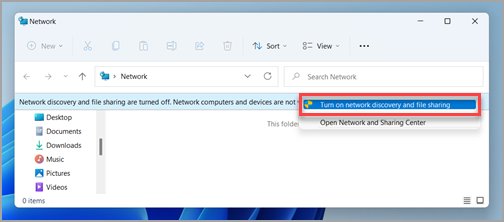
- Answer Yes or No when Windows 10 asks whether the PC should be discoverable by other devices on that network. Answer No on any network you do not control.
- With a QR code instead: open the Camera app, select the barcode mode icon, point the camera at the Wi-Fi QR code, select the link that appears, and confirm the network in Settings.
The Disconnected icon on the taskbar is the sign that nothing is joined yet. A signal bar moving up and down means Windows is still connecting.
How to Connect a Mac to Wi-Fi
Turn Wi-Fi on first, and have the password ready.
- From the menu bar: click the Wi-Fi status menu in the menu bar, then choose the network you want to join.
- Click Other Networks if the network you want is not shown, to display more nearby networks.
- Enter the password if one is requested, then click Join.
- From System Settings: open the System Settings app, then click Wi-Fi in the sidebar. Scroll down if you do not see it.
- Move the pointer over the name of the Wi-Fi network or Personal Hotspot you want, then click Connect.
- Click Details next to a joined network to change its settings afterwards.
Set how a Mac treats unknown networks in the same pane: click the pop-up menu next to Ask to join networks and choose Off, Notify or Ask.
How to Join Hidden or Public Wi-Fi Networks
A hidden network does not broadcast its name, so no scan will ever list it. You need three facts before you start: the exact name, the security type, and the password.
A public hotspot is the opposite problem. It joins without a password, then holds your traffic until you accept its terms on a sign-in page.
- Hidden network on a Mac: click the Wi-Fi status menu in the menu bar, click Other Networks, then click Other at the bottom of the list.
- Type the network name in the Network Name field.
- Click the Security pop-up menu and choose the wireless security type the network uses.
- Fill in any extra fields that appear, such as a user name and password, then click Join.
- Hidden network on Windows: get the exact name and security type from whoever runs the router, then add the network by name rather than picking it from the scan list. Spelling and capitalisation must match exactly.
- Public hotspot: join the network, then open a browser and load any page. The hotspot redirects you to its sign-in or terms page; accept it to get internet access.
- Set the network profile to Public on Windows so the PC stays hidden from other devices on that hotspot.
Treat a guest Wi-Fi network at a hotel or airport as public even when it asks for a password. The password is shared with everyone in the building.
Connect to a Wi-Fi network from Command Prompt
Useful when you are setting up several machines, or when the taskbar flyout will not open. Run Command Prompt as administrator first.
netsh wlan connect name=CorpWiFi interface="Wi-Fi"name= takes the saved profile name for the network, and interface= names the wireless adapter. Run netsh wlan show networks first to list every visible wireless network in range, and netsh wlan show profiles to list the profiles already saved on the PC.
You should see: The command returns a connection request line, and netsh wlan show interfaces then reports the adapter state as connected with your network name beside SSID.
netsh wlan disconnect interface="Wi-Fi" drops the connection again without removing the saved profile.
How to Confirm Your Computer Is Connected
Three checks, weakest proof to strongest. The icon tells you the radio link is up; the ping tells you the router answers; a loaded page proves the internet path works end to end.
- Select the Network, Sound or Battery icons on the right of the taskbar and confirm your network name shows Connected below it.
- Check the icon itself. Full bars mean Wi-Fi and internet are both up; the No Internet icon means the radio link works but the internet path does not.
- Open a browser and load any page you have not visited recently. A cached page can appear to load with no connection at all.
- Open Command Prompt as administrator, type
ipconfigand press Enter. Find the Default gateway address for your Wi-Fi adapter, for example 192.168.1.1. - Type
ping 192.168.1.1using your own gateway address and press Enter. Four replies confirm the PC reaches the router. - On a Mac, click the Wi-Fi status menu and confirm the joined network is listed at the top with a check beside it.
Replies from the gateway plus a failing web page points at the modem or the internet service provider, not at the computer.
Save or forget a Wi-Fi network
Windows saves every network you join, along with its password, and rejoins it automatically when it is in range. Removing one is a two-click job.
- Open Settings > Network & internet > Wi-Fi, then select Manage known networks.
- Select the network you want to remove and select Forget. Windows drops the saved password with it.
- Select any saved network on the same page and select Show next to Wi-Fi network password to read its password back.
- Turn on Random hardware addresses on the Wi-Fi page to use a randomised MAC address for every network, or on a single network to randomise only that one.
- Change a network between Public and Private under Network profile type, then select Save.
- For the older adapter view, run
ncpa.cplto open Network Connections, covered in this ncpa.cpl command guide.
Troubleshooting Common Wi-Fi Connection Problems
Each symptom below has one cause line and the fix Microsoft documents for it. Work down the list inside a symptom and stop when the connection returns.
Why won't my computer connect to Wi-Fi?
Airplane mode, a stale saved profile, or a radio that was switched off at the hardware level.
- Go to Settings > Network & Internet > Airplane mode and make sure it is turned off.
- Check for a physical Wi-Fi switch on the side or front edge of the laptop and turn it on.
- Open Settings > Network & internet > Wi-Fi > Manage known networks, select the network, select Forget, then reconnect and enter the password again.
- Unplug the router, then the modem. Wait at least 30 seconds, plug the modem back in, wait for its lights to stop blinking, then plug the router back in.
- Try to connect to the same network from a phone or a second laptop. Success there points the problem at this computer.
Why won't my computer connect to the internet after joining Wi-Fi?
The radio link is up but the PC has no usable IP address, no DNS server, or a proxy is set.
- Turn Wi-Fi off and on again, then rejoin the network.
- Open Command Prompt as administrator and run
ipconfig /release, thenipconfig /renew, thenipconfig /flushdns. - Run
ipconfigand read the IPv4 address. An address starting 169.254 means Windows never got one from the router, so check that DHCP is switched on in the router settings. - Go to Settings > Network & Internet > Proxy and turn off any manual proxy settings.
- Run
netsh winsock resetand thennetsh int ip reset, and restart the PC.
What should I do if my computer says the Wi-Fi password is incorrect?
A mistyped key, a saved profile holding an old password, or a router that has not applied a recent change.
- Check the key against the label on the router, character by character. Wi-Fi keys are case sensitive.
- Forget the network in Manage known networks and enter the password fresh, so Windows stops retrying the stored one.
- Restart the router, then try again.
- Check the router's firmware documentation and update it if the manufacturer offers a newer build.
How do I connect to Wi-Fi if the network name does not appear?
The adapter is scanning a band the router does not use, the network is hidden, or the PC is out of range.
- Select Refresh network list in the Wi-Fi flyout to force a fresh scan.
- Look for the same network on the other band. Many routers broadcast a 2.4 GHz and a 5 GHz network under separate names, and some adapters only support 2.4 GHz.
- Check the router documentation for the band it broadcasts on, and compare it with what your adapter supports.
- Move closer to the router and rescan, since obstructions and metal furniture cut range sharply.
- If the network is deliberately hidden, add it by its exact name instead of waiting for it in the list.
The Wi-Fi option is missing from Settings
The wireless adapter is disabled in Device Manager, or the WLAN AutoConfig service has stopped.
- Open Device Manager, expand Network adapters, right-click the Wi-Fi adapter and select Enable device.
- Press Win + R, type
services.mscand press Enter. Find WLAN AutoConfig, right-click it and select Restart. - Check the laptop's physical Wi-Fi switch.
- If the adapter is still missing, open Device Manager, right-click it, select Uninstall device, tick Attempt to remove the driver for this device, select Uninstall, and restart. Windows reinstalls the driver on the next boot.
The Wi-Fi connection drops every few minutes
Windows is allowed to power down the adapter, or the router channel is congested.
- Open Device Manager, expand Network adapters, right-click the Wi-Fi adapter and select Properties.
- Open the Power Management tab and clear Allow the computer to turn off this device to save power.
- Go to Control Panel > Hardware and Sound > Power Options, select your plan, select Change plan settings > Change advanced power settings, expand Wireless Adapter Settings and set Power Saving Mode to Maximum Performance.
- Sign in to the router's admin page and change the wireless channel to reduce interference.
Nothing above worked
The network stack itself is damaged, usually after an upgrade.
- Select Start > Settings > Windows Update > Check for updates and install anything offered.
- Open Settings > Network & internet, then Advanced network settings > Network reset on Windows 11, or Status > Network reset on Windows 10.
- Select Reset now > Yes and wait for the PC to restart.
- Set up VPN clients and virtual switches again afterwards, and re-mark trusted networks as Private, because a reset sets known networks back to the public profile.
Wi-Fi Security Tips After Connecting
Joining a network is also a decision about who can see the computer. These five settings matter most, and each one lives in a place you have already visited.
| Setting | What to do | Why it matters |
|---|---|---|
| Network profile type | Set Public for hotspots and any network you do not control. Set Private only at home or work, then select Save. | A public profile keeps the PC hidden from other devices and blocks file and printer sharing. A private profile makes it discoverable. |
| Router security type | Use Wi-Fi Protected Access 3 (WPA3) if the router and adapter support it. | Microsoft recommends WPA3 over WPA2, WPA and WEP because it offers better security. |
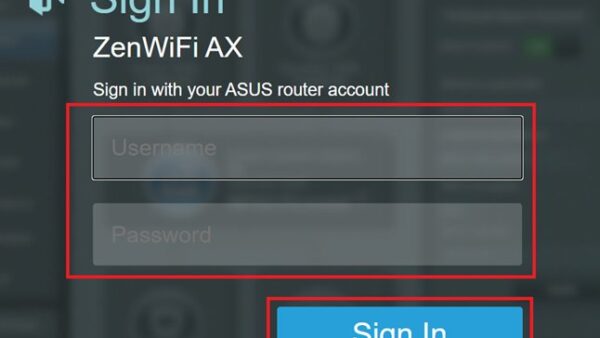
| Router sign-in details | Change the default user name, password and network name on the router. | Default credentials are published per manufacturer, so anyone nearby can reach the admin page without asking. |
| Random hardware addresses | Turn on Random hardware addresses under Settings > Network & internet > Wi-Fi. | Shops and malls can track a device by its fixed MAC address as it scans for networks. A randomised address makes that harder. |
| Firewall | Leave Windows Firewall on, on every PC on the network. | It limits how far malicious software spreads between machines and protects the PC while it is on the internet. |
On a public hotspot, keep sensitive work for later or run it over a VPN, and never accept a certificate warning to get a sign-in page to load.
Frequently Asked Questions
How do I connect a computer to Wi-Fi?
Select the network icon on the taskbar, open Manage Wi-Fi connections, choose your network, select Connect, type the password and select Next. On a Mac, click the Wi-Fi status menu, choose the network, then click Join.
Where do I find the Wi-Fi network name and password?
Both are usually printed on a label on the router until someone changes them. On a Windows PC already connected, open Settings > Network & internet > Properties and select Show next to Wi-Fi network password.
Why won't my computer connect to Wi-Fi?
Airplane mode, a physical Wi-Fi switch, or a saved profile holding an old password are the usual causes. Turn airplane mode off, forget the network in Manage known networks, then rejoin and type the password again.
Why won't my computer connect to the internet even though Wi-Fi shows connected?
The PC reached the router but not the internet. Run ipconfig /release, ipconfig /renew and ipconfig /flushdns from an elevated Command Prompt, check that no manual proxy is set, and restart the modem and router.
How can I tell if my computer is actually connected to the internet?
Check that your network name shows Connected under the taskbar network icon, then ping your default gateway from Command Prompt. Four replies plus a web page that loads fresh content confirms the whole path works.
How do I connect to Wi-Fi if the network name does not appear?
Select Refresh network list to rescan, then look for the same router on its other band, since 2.4 GHz and 5 GHz often appear as separate names. If the network is hidden, add it by typing its exact name and security type.
What should I do if my computer says the Wi-Fi password is incorrect?
Retype the key exactly as printed on the router, because Wi-Fi keys are case sensitive. If it still fails, forget the network so Windows stops reusing the stored password, restart the router, and try once more.
Is it safe to use public Wi-Fi on my laptop?
It is usable with care. Set the network profile to Public so the PC is not discoverable, leave Windows Firewall on, and keep banking and work sign-ins for a network you trust or a VPN connection.
How do I connect a computer to a network without Wi-Fi?
Plug an Ethernet cable between the computer and a free LAN port on the router. Windows configures the wired connection automatically, and it is also the quickest way to test whether a fault sits with the wireless side.
How do I connect a computer to a domain?
Joining a domain is a separate task from joining Wi-Fi, and it needs credentials from the network administrator plus a working connection to the domain controller. Get the computer online first, then ask your administrator for the join details.
Why won't my AirPods connect to my computer over Wi-Fi?
AirPods use Bluetooth, not Wi-Fi, so a working Wi-Fi connection has no bearing on them. Pair them from Settings > Bluetooth & devices, as covered in how to connect AirPods to a Windows PC.
Can a desktop computer connect to Wi-Fi?
Yes, provided it has a wireless network adapter. Many desktops ship without one, so check Network adapters in Device Manager for an entry with *wireless* in the name, and add a USB or PCIe adapter if none is listed.
Bottom Line
Join Wi-Fi from the taskbar network icon on Windows or the menu bar status menu on a Mac, then confirm the link with a ping to the router before assuming anything is broken. Both routes take under a minute and need nothing but the network name and key, and the ping separates a computer problem from a router or provider outage before you start changing settings.

How to Check and Manage Wi-Fi Adapter Settings in Windows 11 - Techdows
[…] connected yet? Follow how to connect a computer to a Wi-Fi network first, then come back to this […]
How to connect to a Wi-Fi using a QR code: latest guide - Techdows
[…] saves the network after the first connection and rejoins it automatically, the same as when you connect a computer to Wi-Fi from the network […]
Set up Windows 11/10 Phone Link to sync texts, calls & photos - Techdows
[…] your phone and PC nearby, turned on, and on the same Wi-Fi network for Android, or with Bluetooth on for […]