Gigabit Ethernet is wired Ethernet that runs at 1,000 Mbps (1 Gbps), ten times faster than 100 Mbps Fast Ethernet, over ordinary twisted-pair copper cable of Category 5 or better.
This guide covers what it is, its features, pros and cons, the cable it needs, and how to check that your PC or Mac actually links at 1 Gbps.
Gigabit Ethernet overview: what you need for a 1 Gbps link
A gigabit link only forms when every part of the path supports it. The slowest piece sets the speed for the whole connection.
| Part of the link | Gigabit requirement | How to tell |
|---|---|---|
| Network adapter (PC, laptop, console) | A 10/100/1000 or faster port | The adapter name often contains Gigabit or GbE in Device Manager or Get-NetAdapter |
| Router or switch port | A port labelled 10/100/1000 or 1G | A port marked 10/100 caps the link at 100 Mbps |
| Cable | Twisted pair, Category 5 or higher, all four pairs intact | The category is printed on the cable jacket |
| Cable length | Up to 100 m (328 ft) per run | Longer runs need a switch in between |
| Settings | Speed & Duplex left on Auto Negotiation | Device Manager adapter Advanced tab |
If all five rows check out, the adapter negotiates 1 Gbps on its own. There is nothing to install or switch on.
Features of Gigabit Ethernet
Gigabit Ethernet is part of the IEEE 802.3 Ethernet family, so it keeps the same frames, connectors and cabling style as older Ethernet. Fiber variants were defined in IEEE 802.3z in 1998; the copper version used in homes is called 1000BASE-T.
| Feature | What it means in practice |
|---|---|
| Increased bandwidth: 1,000 Mbps | Ten times the 100 Mbps of Fast Ethernet, enough for most home internet plans up to 1 Gbps |
| Backward compatibility with 10 and 100 Mbps | A gigabit port still links with older 10/100 devices, at the older device's speed |
| Full-duplex communication | Each end sends and receives at the same time, so there are no collisions on the link |
| Auto-negotiation | Both ends agree on the highest shared speed and duplex automatically |
| Quality of Service (QoS) tagging | The adapter can carry 802.1Q priority and VLAN tags (Packet Priority & VLAN in Windows) so switches can favour time-sensitive traffic |
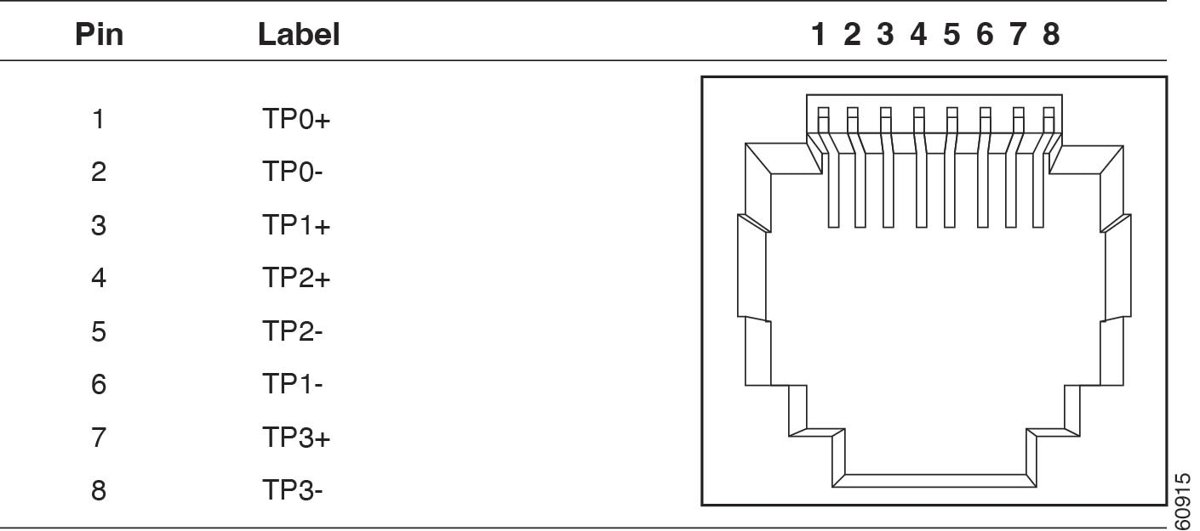
| Four-pair copper cabling | 1000BASE-T uses all four twisted pairs of a Category 5 or better cable |
| Energy-Efficient Ethernet | IEEE 802.3az lets the link save power when idle; Windows drivers expose it as Energy-efficient ethernet |
| Jumbo frames (optional) | Frames larger than the standard 1514 bytes, set by Jumbo Packet, used mainly on storage networks |
| Power over Ethernet (on supporting switches) | The same cable can power cameras, phones and access points |
Gigabit Ethernet speed and cable needed: Cat 5, Cat 5e, Cat 6
Cable category matters more as speeds rise. For 1 Gbps itself, the bar is low: Category 5 or higher, up to 100 m.
| Ethernet speed | Common name | Minimum cable | Maximum run |
|---|---|---|---|
| 100 Mbps | Fast Ethernet (100BASE-TX) | Category 5 | 100 m |
| 1 Gbps | Gigabit Ethernet (1000BASE-T) | Category 5, four pairs | 100 m |
| 2.5 Gbps and 5 Gbps | Multi-gigabit (NBASE-T) | Category 5e | 100 m |
| 10 Gbps | 10 Gigabit Ethernet | Category 6 (short runs) or Category 6a | 55 m on Cat 6, 100 m on Cat 6a |
Buying Cat 5e or Cat 6 for a new run costs little extra and leaves room for multi-gigabit later. Old cable that only wires two pairs will not carry gigabit.
Pros of Gigabit Ethernet
| Advantage | Why it holds | Where it shows |
|---|---|---|
| High data transfer speed | 1 Gbps in each direction at once, thanks to full duplex | Large file copies, NAS backups, game downloads |
| Low chance of network congestion | A switched full-duplex port gives each device its own link with no collisions | Busy homes and offices with many wired devices |
| Lower latency and steadier connection | A cable does not share airtime or suffer radio interference the way Wi-Fi does | Online gaming, video calls, remote desktop |
| More secure than wireless networks | An attacker needs physical access to a port; networks can also require 802.1X sign-in per port | Offices and any network with sensitive data |
| Consumes less power when idle | Energy-Efficient Ethernet (802.3az) idles the link between bursts | Always-on desktops, switches and NAS boxes |
| Compatible with previous versions of Ethernet | Same RJ-45 connector and frames as 10/100 Ethernet | Mixing old and new devices on one switch |
Cons of Gigabit Ethernet
| Drawback | What it costs you | How to reduce it |
|---|---|---|
| Expensive to cable a whole building | Cable runs, wall plates and a gigabit switch add up, especially after construction | Wire only the rooms with fixed devices; use Wi-Fi elsewhere |
| Complex to install | Pulling cable through walls and terminating RJ-45 ends takes tools and time | Use pre-made patch cables for short, visible runs |
| Single point of failure | One damaged cable or switch takes every device behind it offline | Keep a spare patch cable; put critical devices on separate switch ports |
| 100 m distance limit | Copper runs longer than 100 m need a switch or fiber | Add a switch midway or use a fiber link |
| No mobility | Devices stay tethered to a port | Combine wired links for desks and TVs with Wi-Fi for phones |
| Internet speed is not link speed | A 1 Gbps link does not make a 300 Mbps internet plan faster | Upgrade the plan if downloads are the bottleneck |
How to check gigabit Ethernet link speed in Windows with PowerShell
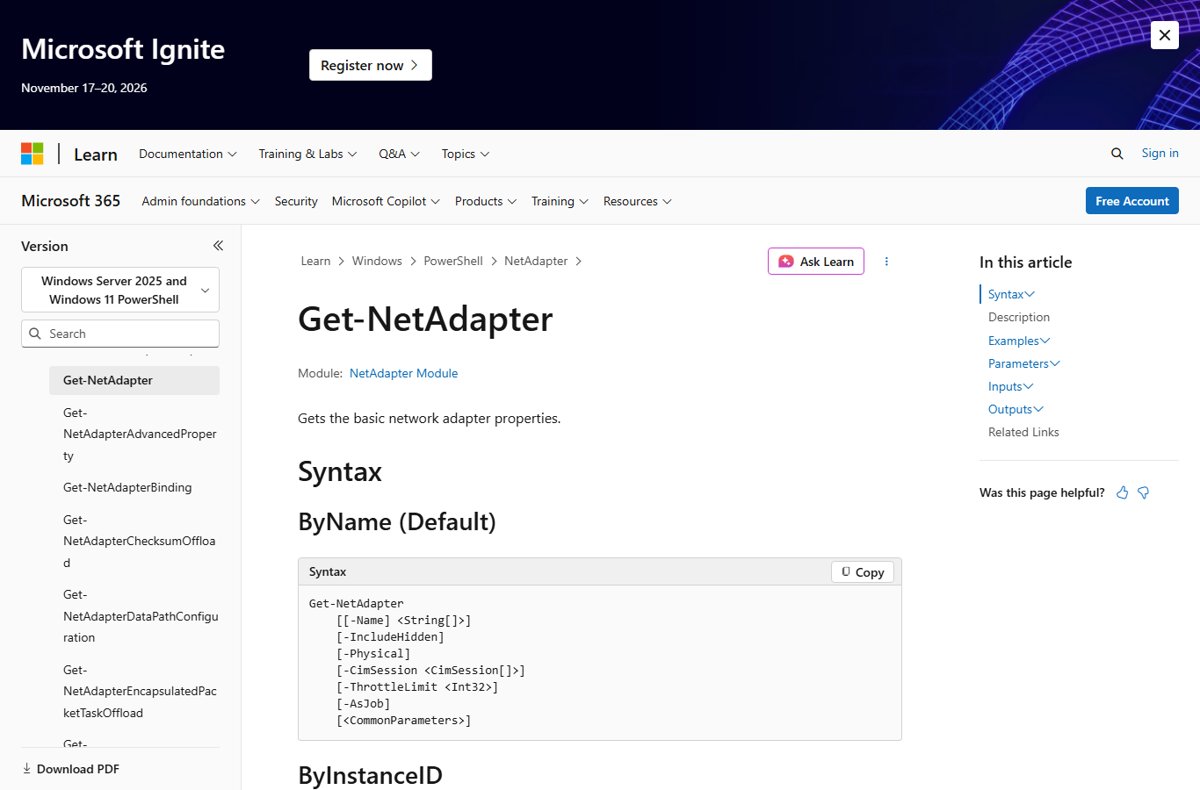
PowerShell shows the negotiated speed and duplex for every physical adapter in one command. It works on Windows 11 and Windows 10, and does not need administrator rights.
Get-NetAdapter -Physical | Format-List -Property Name, InterfaceDescription, ReceiveLinkSpeed, TransmitLinkSpeed, FullDuplex-Physical skips virtual adapters. ReceiveLinkSpeed and TransmitLinkSpeed are the negotiated speeds in bits per second. FullDuplex shows whether the port sends and receives at the same time.
You should see: A gigabit link shows 1000000000 for both link speeds and True for FullDuplex. 100000000 means the link fell back to 100 Mbps.
How to enable gigabit Ethernet in Windows 11 and Windows 10
Gigabit is not a feature you switch on. It is negotiated, and the usual reason it is missing is a Speed & Duplex value someone forced to 100 Mbps.
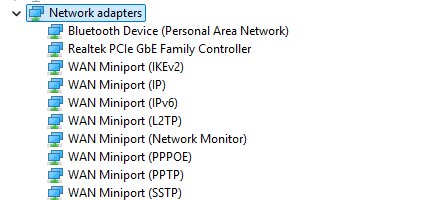
- Right-click Start and select Device Manager.
- Expand Network adapters.
- Right-click your wired adapter (often named Realtek, Intel or Killer with Gigabit, GbE or Ethernet in it) and select Properties.
- Open the Advanced tab.
- Select Speed & Duplex in the Property list.
- Set Value to Auto Negotiation, then select OK.
- Wait a few seconds for the adapter to reconnect, then run the PowerShell check above.
Choose 1.0 Gbps Full Duplex only if Auto Negotiation fails and the other end is also fixed at 1 Gbps. Your driver may word these values slightly differently. You can also open network adapter settings through Control Panel to reach the same Properties dialog.
How to check gigabit Ethernet speed on a Mac
macOS negotiates the speed automatically. Apple recommends leaving it on automatic unless your network administrator gives you specific settings.
- Choose Apple menu > System Settings.
- Click Network in the sidebar.
- Click your Ethernet service, then click Details.
- Click Hardware to see the MAC address and the Configure setting.
- To set the speed yourself, choose Manually from the Configure pop-up menu.
- Choose a speed from the Speed pop-up menu, then click OK.
Set Configure back to Automatically once testing is done. A wrong manual value can slow the network rather than speed it up.
How to check a gigabit Ethernet port is working at 1 Gbps
- Plug the cable into a LAN port on the router or switch, not the Internet port used for the modem.
- Run the PowerShell command above, or open the Mac Hardware pane.
- Confirm both link speeds read
1000000000(1 Gbps) and FullDuplex readsTrue. - Copy a large file to another wired computer or a NAS; a transfer well above 12 MB per second proves the link is past Fast Ethernet speed.
- If the value is 100 Mbps, work through the fixes below before replacing any hardware.
A speed test website measures your internet plan, not the local link. To compare the two, check your internet speed from Google after confirming the 1 Gbps link.
Why is my gigabit Ethernet only 100 Mbps? Fixes
Gigabit Ethernet only shows 100 Mbps
1000BASE-T needs all four pairs; a cable with a damaged or missing pair, or a 10/100 port at the other end, drops the link to 100 Mbps.
- Swap in a known-good Category 5e or Category 6 patch cable.
- Move the cable to a different port on the router or switch.
- Check that the router or switch port is rated 10/100/1000, not 10/100.
- Set Speed & Duplex back to Auto Negotiation on the PC.
- Run the PowerShell check again.
Link speed stuck at 10 Mbps or keeps dropping
A badly seated connector, a damaged cable, or a duplex mismatch where one side is forced and the other negotiates.
- Reseat the cable firmly at both ends.
- Make sure both ends use automatic speed and duplex, or both use the same fixed value.
- Replace any cable with a bent, cracked or loose RJ-45 plug.
- Restart the modem and router, waiting at least 30 seconds before powering them back on.
Ethernet adapter missing or not connecting in Windows 11
A corrupted or wrong driver, or broken network settings after an update.
- Open Device Manager, expand Network adapters, right-click the Ethernet adapter and select Uninstall device.
- Tick Attempt to remove the driver for this device, select Uninstall, then restart the PC so Windows reinstalls it.
- If Windows does not reinstall it, install the driver from your PC or motherboard maker's support site.
- As a last resort, open Settings > Network & internet > Advanced network settings > Network reset and select Reset now.
Link shows 1 Gbps but downloads are slow
The internet plan, the router or the remote server is the bottleneck, not the cable.
- Compare the download speed with the speed your plan advertises.
- Test with another wired device on the same router.
- Restart the router, then test again.
If the adapter vanished right after a feature update, try these 26H2 Ethernet driver fixes first. A full network settings reset in Windows 11 removes and reinstalls every adapter, so you may need to reinstall VPN software afterwards.
Gigabit Ethernet frequently asked questions
What is gigabit Ethernet?
Gigabit Ethernet is wired Ethernet that transfers data at 1,000 Mbps (1 Gbps). It belongs to the IEEE 802.3 family, uses RJ-45 connectors and twisted-pair cable of Category 5 or better, and reaches up to 100 meters per cable run.
What is a gigabit Ethernet port?
A gigabit Ethernet port is an RJ-45 network socket that supports 10, 100 and 1,000 Mbps. It negotiates the highest speed the device at the other end and the cable both support, so it still works with older Fast Ethernet equipment.
What is a gigabit Ethernet connection?
A gigabit Ethernet connection is a wired link where both ends and the cable negotiated 1 Gbps. In Windows, PowerShell reports it as a link speed of 1000000000 bits per second with full duplex set to True.
Is gigabit Ethernet good?
Yes. Gigabit Ethernet is fast enough for internet plans up to 1 Gbps, streaming, gaming and home file sharing. Only users moving very large files between computers or a NAS gain much from 2.5 Gbps or 10 Gbps Ethernet.
Does gigabit Ethernet use all 4 pairs?
Yes. 1000BASE-T uses all four twisted pairs in the cable, while 10 and 100 Mbps Ethernet use two. That is why a cable with one broken pair often still works but drops to 100 Mbps.
What Ethernet cable is needed for gigabit?
Category 5 or higher twisted-pair cable carries gigabit Ethernet up to 100 meters. Cat 5e or Cat 6 is the practical choice for new runs because it also supports 2.5 Gbps and 5 Gbps.
How do I check a gigabit Ethernet port?
In Windows, run Get-NetAdapter -Physical | Format-List -Property Name, ReceiveLinkSpeed, TransmitLinkSpeed in PowerShell. A value of 1000000000 means the port linked at 1 Gbps. On a Mac, open System Settings > Network > Ethernet > Details > Hardware.
How do I enable gigabit Ethernet in Windows 11?
Open Device Manager, open your Ethernet adapter's Properties, go to the Advanced tab and set Speed & Duplex to Auto Negotiation. Gigabit then turns on by itself whenever the cable and the router port support it.
Why is my gigabit Ethernet only 100 Mbps?
A 100 Mbps link usually means a damaged or two-pair cable, a 10/100 port on the router or switch, or Speed & Duplex forced to 100 Mbps. Swap the cable first, then try another port, then reset the setting to Auto Negotiation.
Is gigabit Ethernet worth it? Bottom line
Use gigabit Ethernet for any device that stays in one place, such as a desktop PC, console, smart TV or NAS, and check that it actually links at 1 Gbps. It is fast, reliable and hard to tap without physical access, and nearly every modern adapter and router already supports it. The cable and port, not the adapter, are what usually hold a link back.